How to Fix Different Div Heights in Puppeteer PDFs
Puppeteer PDFs use print CSS by default, so divs can differ from the browser. Compare media, paper size, scale, fonts and page readiness to find the cause.
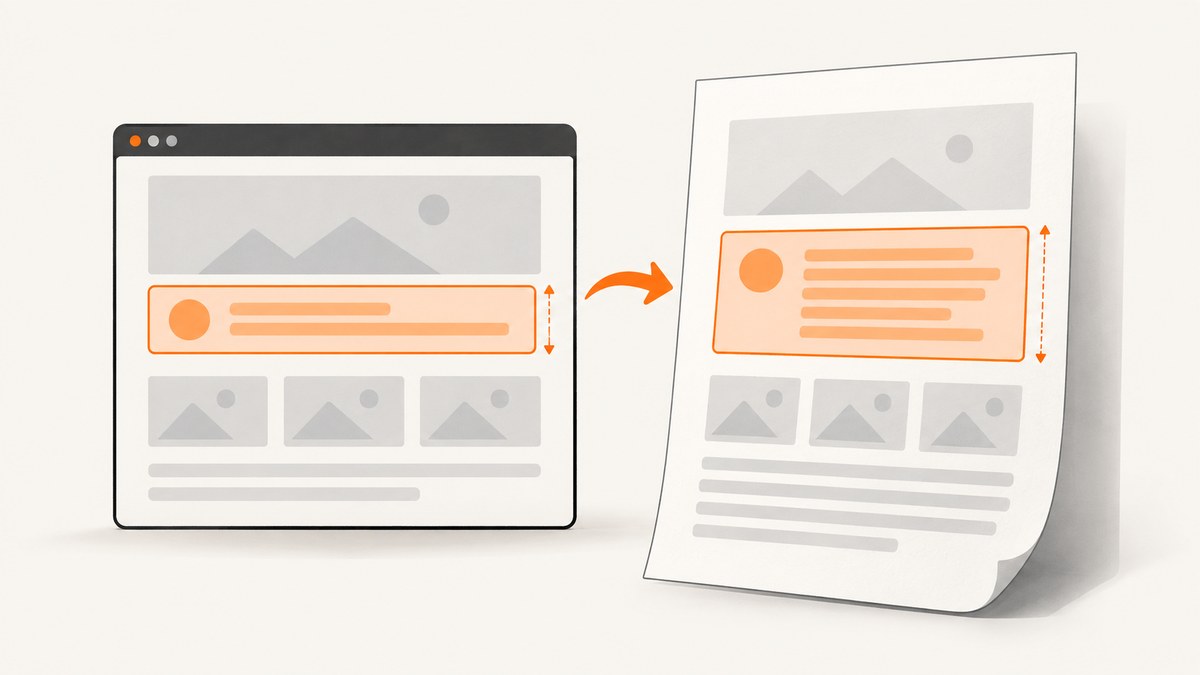
Puppeteer’s page.pdf() uses the print CSS media type by default. That means a div that looks one height in the browser can have another height in the PDF because print styles, paper dimensions, scaling, font metrics, or unfinished page content changed the layout. Start by reproducing the PDF’s media and dimensions, then measure the element after fonts and application content are ready. Don’t add an arbitrary fixed height until you know what changed.
The Puppeteer documentation confirms that Page.pdf() generates PDFs with print media, and that you can select screen media first with page.emulateMediaType('screen'). Page.pdf() · PDFOptions
1. Check whether print CSS is changing the div
Compare the same page under the same application state in print and screen media. A stylesheet can deliberately change layout in @media print; print layout can also use a different content width, which changes line wrapping and therefore element height. Those are hypotheses to verify in the page’s CSS, not universal diagnoses.
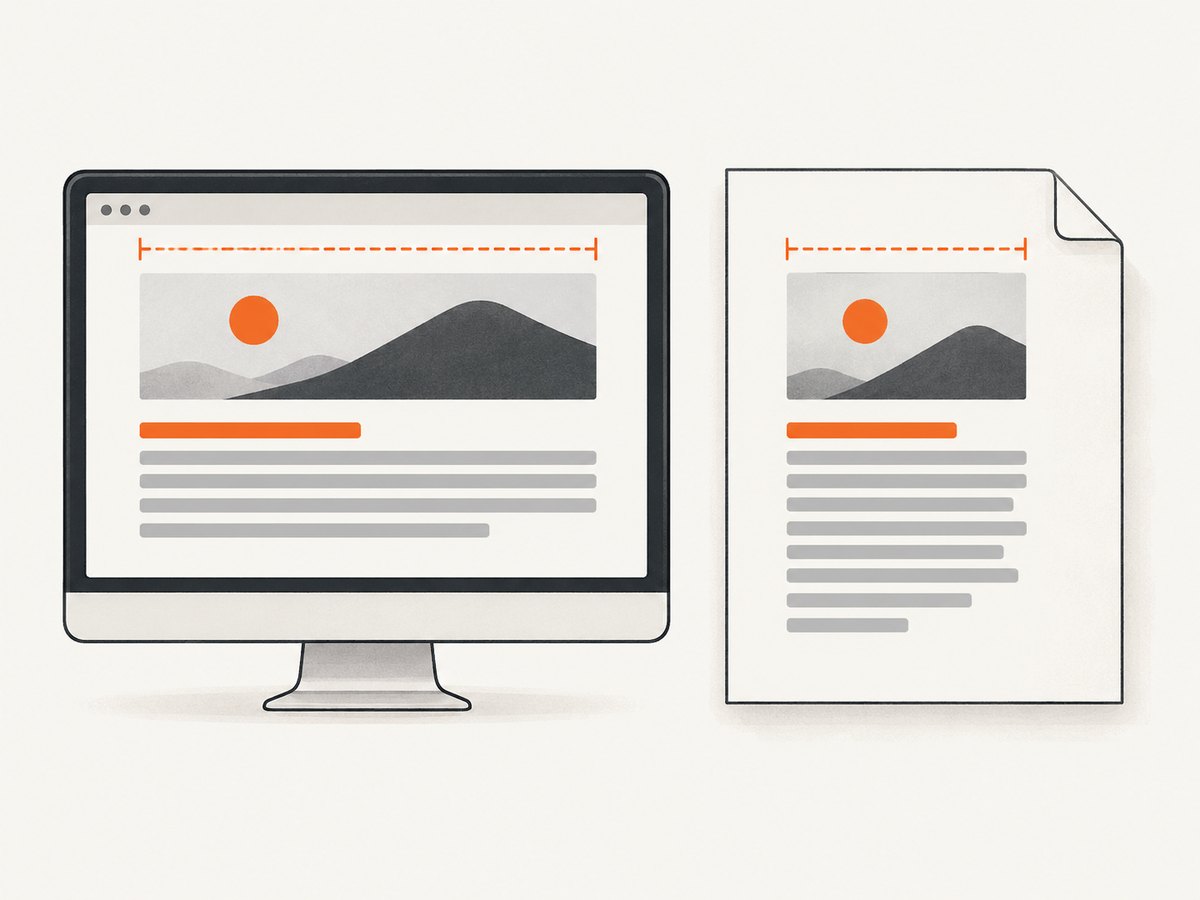
Use a consistent media type while measuring. To produce a PDF using the screen rules, emulate screen before calling page.pdf(). To produce a conventional printable document, leave print media selected and fix the print rules instead.
await page.emulateMediaType('screen');
const pdf = await page.pdf({ path: 'screen-layout.pdf' });
Inspect rules such as @media print, @page, print-only visibility, changed widths, and any fixed or minimum heights. Also check whether a parent’s width changes. A paragraph wrapping to an extra line is enough to increase its containing div’s height even when its padding and font size are unchanged.
2. Make a minimal, repeatable PDF
Use one paper size, explicit margins, and an explicit scale while investigating. Puppeteer documents format as taking precedence over width and height. With preferCSSPageSize: false (the default), content is scaled to fit the requested paper size. Set it to true when the page’s CSS @page size should take priority.
This runnable example saves a print-media PDF with a fixed Letter page, explicit margins, and scale 1. Install Puppeteer in your project with npm install puppeteer, save as pdf.js, and run node pdf.js https://example.com.
const puppeteer = require('puppeteer');

(async () => {
  const url = process.argv[2] || 'https://example.com';
  const browser = await puppeteer.launch();
  try {
    const page = await browser.newPage();
    await page.setViewport({ width: 1280, height: 900, deviceScaleFactor: 1 });
    await page.goto(url, { waitUntil: 'networkidle2', timeout: 60000 });

    // Keep print media explicit during diagnosis.
    await page.emulateMediaType('print');
    await page.evaluate(() => document.fonts.ready);

    const bounds = await page.evaluate(() => {
      const el = document.querySelector('.target');
      if (!el) throw new Error('Could not find .target');
      const r = el.getBoundingClientRect();
      return { x: r.x, y: r.y, width: r.width, height: r.height,
        scrollHeight: el.scrollHeight, clientHeight: el.clientHeight };
    });
    console.log('Target bounds before PDF:', bounds);

    await page.pdf({
      path: 'page.pdf',
      format: 'Letter',
      margin: { top: '0.5in', right: '0.5in', bottom: '0.5in', left: '0.5in' },
      scale: 1,
      preferCSSPageSize: false,
      waitForFonts: true,
      printBackground: true,
    });
  } finally {
    await browser.close();
  }
})().catch(error => {
  console.error(error);
  process.exitCode = 1;
});
Replace .target with the selector for the div in question. The script logs CSS-pixel bounds under print media after fonts are ready, then writes the PDF. For a screen-styled PDF, change the media call to screen. Keep the media choice identical in every comparison.
3. Lock paper size, margins, and scaling
PDF page geometry can change the available content width and scaling. Less width often means more wrapped lines and taller blocks. A mismatch between a CSS @page rule and Puppeteer’s requested paper can also cause a scaled result that differs from what you see in the browser.
| Setting | What it controls | Diagnostic use |
|---|---|---|
format |
Named paper size; takes precedence over width/height. |
Choose one value, such as Letter or A4, across runs. |
width, height |
Explicit paper dimensions, with units such as in or px. |
Use instead of format when a custom page size is required. |
margin |
Space around the printable area. | Specify all four margins so content width is predictable. |
scale |
PDF rendering scale; documented range is 0.1–2, default 1. | Keep at 1 while finding the source of a height mismatch. |
preferCSSPageSize |
Whether CSS @page sizing takes priority. |
Set true to honor CSS page dimensions; false scales content to fit API paper size. |
Letter is 8.5 × 11 inches; A4 is 8.2677 × 11.6929 inches. Pick the one the document is designed for and use it consistently. Don’t change viewport dimensions, paper format, margins, scale, and media type all at once: that obscures which change affected the output.
To honor a page’s own @page declaration, use a consistent setup such as:
await page.pdf({
  path: 'css-sized.pdf',
  preferCSSPageSize: true,
  margin: { top: '0.5in', right: '0.5in', bottom: '0.5in', left: '0.5in' },
  scale: 1,
});
For a fixed Letter output instead, pass format: 'Letter' and set preferCSSPageSize: false. Avoid specifying conflicting format and custom dimensions. A viewport is measured in CSS pixels; record its width, height, and device scale factor when comparing runs, but changing device scale factor is not a general documented fix for div heights.
4. Verify fonts and page readiness before measuring
Text height depends on font metrics and line wrapping. Puppeteer waits for document.fonts.ready during PDF generation by default (waitForFonts: true), but your own measurement may happen earlier unless you wait too. Confirm that the expected font actually loaded; the ready promise resolving does not establish that the intended font was successfully fetched rather than a fallback being used.
await page.evaluate(() => document.fonts.ready);
const fontState = await page.evaluate(() => ({
  status: document.fonts.status,
  headingFont: getComputedStyle(document.querySelector('h1')).fontFamily,
}));
console.log(fontState);
Navigation’s waitUntil: 'networkidle2' is a useful starting point, but it does not guarantee that every application has finished fetching data, decoding images, running delayed code, or applying layout changes. Wait for a page-specific signal, such as a known selector or an application-owned readiness flag:
await page.waitForSelector('[data-report-ready="true"]', { timeout: 30000 });
await page.evaluate(() => document.fonts.ready);
// If a particular image matters to the layout:
await page.waitForFunction(() => {
  const img = document.querySelector('.report-logo');
  return img && img.complete && img.naturalWidth > 0;
});
Use a readiness condition that reflects your application. Waiting for a selector only proves that selector appeared; it may not prove data is complete or a chart has finished resizing. If content is animated, wait for the relevant application signal or disable the animation in a controlled diagnostic run.
5. Compare element geometry under identical conditions
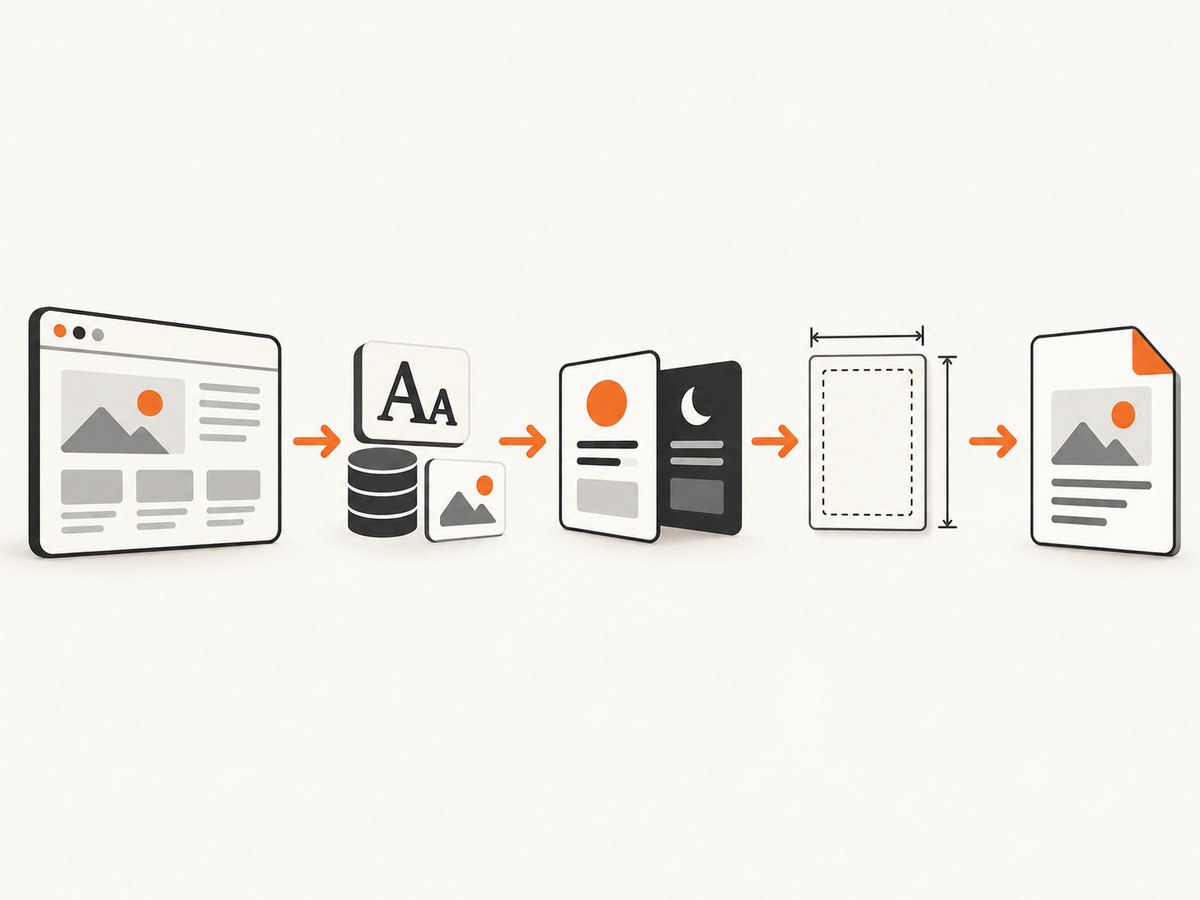
Measure after selecting media, waiting for content and fonts, and applying the same viewport. Capture both the target and its parent: the child’s height can be affected by wrapping, while the parent can impose flex/grid sizing or clipping. Keep Puppeteer and Chromium versions, URL/data, media type, viewport, paper settings, and readiness checks fixed between comparisons.
const measurements = await page.evaluate(selector => {
  const el = document.querySelector(selector);
  if (!el) return null;
  const r = el.getBoundingClientRect();
  const s = getComputedStyle(el);
  return {
    rect: { width: r.width, height: r.height, top: r.top, left: r.left },
    scrollHeight: el.scrollHeight,
    clientHeight: el.clientHeight,
    width: s.width,
    height: s.height,
    minHeight: s.minHeight,
    maxHeight: s.maxHeight,
    boxSizing: s.boxSizing,
    font: s.font,
    lineHeight: s.lineHeight,
    overflow: s.overflow,
  };
}, '.target');
console.log(measurements);
Run once with print media and once with screen media while holding the rest constant. Then change one PDF geometry setting at a time. If the bounding box changes before PDF generation, investigate CSS, width, fonts, and readiness. If the browser-side measurements remain the same but the PDF appearance differs, check the page size, scaling, margins, print color behavior, and how the PDF viewer displays the page.
6. Fix the cause rather than masking it
- Print rule is responsible: adjust the relevant
@media printrule, or deliberately select screen media if the PDF should reproduce the screen layout. - Text wraps differently: align the printable content width and page margins with the design, then check the font and line-height.
- CSS page and API paper disagree: decide which is authoritative and set
preferCSSPageSizeaccordingly. - Content is clipped: inspect fixed
height,max-height,overflow, and parent layout constraints. Prefer content-driven sizing unless a fixed height is a real design requirement. - Height changes between runs: wait for application data, images, fonts, and layout-changing work; use stable test data and a page-specific readiness condition.
- Only colors or backgrounds differ:
printBackgroundand print color adjustment affect appearance, not a general div-height correction. Puppeteer documents-webkit-print-color-adjustfor forcing exact colors.
A fixed height can be appropriate for a design that truly requires a fixed-size card, but it can clip translated text, different data, or a fallback font. First identify whether media, width, font metrics, or readiness explains the discrepancy.
7. Common errors and troubleshooting
| Symptom | Likely cause to check | Fix |
|---|---|---|
| PDF div is taller than the browser div | Print CSS, narrower printable width, font fallback, or content added after measurement. | Compare print/screen bounds after app readiness and fonts; inspect computed width and line-height. |
| Everything looks smaller in the PDF | Content is being scaled to fit paper, or scale differs from 1. | Use a single paper setting, explicit margins, scale 1; verify preferCSSPageSize. |
CSS @page seems ignored |
preferCSSPageSize defaults to false, or an API format is overriding dimensions. |
Set preferCSSPageSize: true when CSS page size should win. |
| Measurement is shorter than the PDF output | Measurement preceded font loading or application layout completion. | Wait for document.fonts.ready and the app’s specific readiness signal before measuring. |
waitForSelector times out |
The selector is absent, wrong for this route, or only appears after a failed request. | Check the selector in the rendered page, use an application-owned readiness marker, and report navigation errors separately. |
| Font wait stalls or uses unexpected font | A font request is slow/blocked, the page is in the background, or the family name differs. | Check font network requests and computed styles; Puppeteer notes waitForFonts may require bringing a background page to front. |
| PDF call times out | Navigation, fonts, or rendering did not finish within the configured timeout. | Find the pending work first; raise the PDF timeout only when a longer render is expected and bounded. |
| Div is cut off at a page boundary | Fixed height/overflow or print pagination interacts with the element. | Inspect the element and ancestors’ height/overflow styles and validate against the intended print layout. |
For a reproducible bug report, record the installed Puppeteer and browser versions, the page URL or stable fixture, the chosen media type, viewport, PDF options, computed target styles, and whether fonts and application data were ready. A mismatch that vanishes when those conditions are fixed is usually a setup difference, not a need for arbitrary pixel compensation.
8. Performance, reliability, and cost considerations
PDF generation has to load the page and render it; waiting for fonts and a meaningful readiness signal makes results more consistent but can add time. Avoid treating a long fixed sleep as proof of readiness: it wastes time on fast runs and may still be too short on slow ones. Prefer a bounded selector or application signal, and set navigation and PDF timeouts to values that match the page’s expected work.
Use a fresh, controlled page state for comparisons. Dynamic timestamps, rotating content, random data, animations, and external resources can alter heights between runs. Save the browser-side measurement and PDF options alongside the output so failures can be reproduced. Keep the browser process in a finally block, as in the example, so an exception does not leave it running.
Self-hosted Puppeteer has no per-shot ScreenshotNeo charge, but it does require you to operate the browser runtime and handle page failures. The practical costs are compute, execution time, dependency maintenance, and debugging. If you capture many pages, bound concurrency to available memory and CPU; parallel browser pages can increase resource use and make timing less predictable. The cited Puppeteer documentation does not establish universal performance figures, so measure with your own pages and environment.
Or skip the browser setup
If your goal is to capture a page rather than debug your own PDF renderer, ScreenshotNeo is a website screenshot API and MCP server. One GET request returns an image or PDF. Its capture flow accepts cookie/consent banners and removes 60+ known consent platforms, newsletter popups, and chat widgets before the shot; each step can be turned off. Bot checks/CAPTCHAs, blank pages, timeouts, failed loads, and cache hits cost nothing, and response headers report the page verdict and billing status. An MCP server exposes screenshot, page-info, and PDF tools to AI agents. The free plan includes 1,000 shots per month with no card; paid plans start at $5 for 3,000 shots. See the ScreenshotNeo API documentation.
curl -G "https://api.screenshotneo.com/v1/shot" -d access_key=YOUR_API_KEY --data-urlencode url=https://stripe.com -o shot.webpimport requests
r = requests.get("https://api.screenshotneo.com/v1/shot", params={"access_key": "YOUR_API_KEY", "url": "https://stripe.com"}, timeout=90)
open("shot.webp", "wb").write(r.content)const q = new URLSearchParams({ access_key: 'YOUR_API_KEY', url: 'https://stripe.com' });
const res = await fetch(`https://api.screenshotneo.com/v1/shot?${q}`);Create a free ScreenshotNeo account for 1,000 screenshots a month with no card.
Frequently asked questions
Why does my PDF look different from the browser?
PDF generation uses print media by default. Print styles and paper geometry can change the layout; explicitly select screen media if that is the intended output.
How do I make Puppeteer use screen CSS when creating a PDF?
Call await page.emulateMediaType('screen') before page.pdf(). Keep the selection consistent when comparing measurements.
How do I stop Puppeteer from scaling my PDF?
Set a deliberate paper size, explicit margins, and scale: 1; decide whether API dimensions or CSS @page should take priority with preferCSSPageSize.
Should I set every div to a fixed height?
No. Do so only when the design requires a fixed height. Otherwise it can clip content and hide a print width, font, or readiness issue.
Does a stable locator mean the whole page is ready?
No. Puppeteer’s locator stability behavior concerns a stable bounding box over two animation frames; it does not document that all application data and layout work has completed.


