How to Fix DinkToPdf Returning an Empty Byte Array
Find why DinkToPdf returns byte[0] and fix HTML input, output settings, native libraries, converter lifetime, and page-loading failures.

Direct answer: DinkToPdf returns an empty byte array most often because the conversion object has null HtmlContent, no valid Page, or a configured GlobalSettings.Out. Validate the final HTML, leave Out empty for in-memory output, deploy the correct libwkhtmltox binary, and use one singleton SynchronizedConverter in server applications.
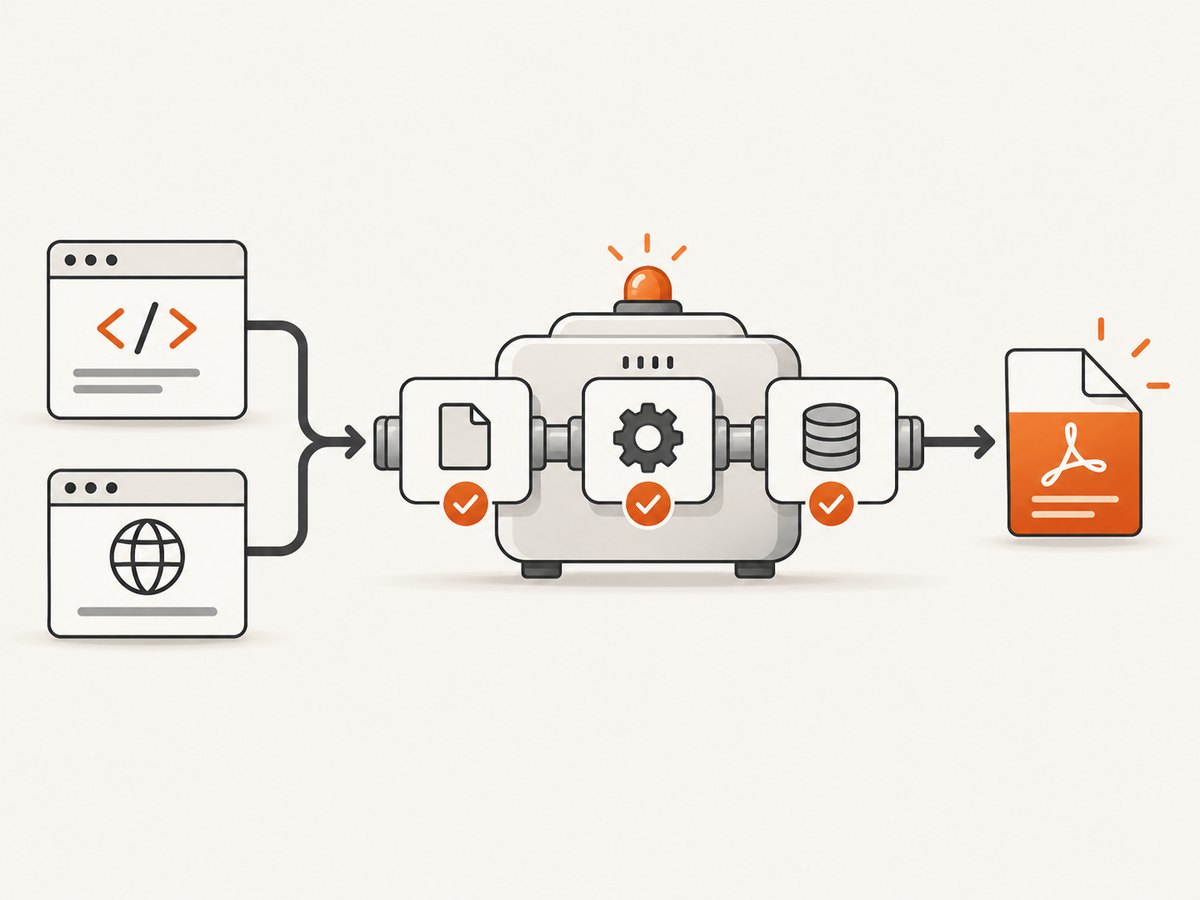
The wrapper explicitly converts null HtmlContent to new byte[0]. That means byte[0] can be caused before wkhtmltopdf renders anything. The following sequence isolates input, output mode, native runtime, converter lifetime, and page-loading problems in that order.
1. Verify the conversion input
DinkToPdf needs either a reachable URL or path in ObjectSettings.Page, or a non-null HTML string in ObjectSettings.HtmlContent. An object with neither is not a meaningful conversion request.
Log the final values
if (string.IsNullOrWhiteSpace(html))
{
    throw new ArgumentException("Generated HTML is null or empty.", nameof(html));
}

Console.WriteLine($"HTML length: {html.Length}");
Console.WriteLine($"HTML prefix: {html[..Math.Min(html.Length, 120)]}");
Console.WriteLine($"HTML suffix: {html[Math.Max(0, html.Length - 120)..]}");

var doc = new HtmlToPdfDocument
{
    GlobalSettings =
    {
        PaperSize = PaperKind.A4,
        // Keep Out empty when Convert should return byte[].
        Out = ""
    },
    Objects =
    {
        new ObjectSettings
        {
            HtmlContent = html,
            WebSettings =
            {
                DefaultEncoding = "utf-8"
            }
        }
    }
};

if (doc.Objects.Count == 0)
{
    throw new InvalidOperationException("The PDF document has no objects.");
}

byte[] pdf = converter.Convert(doc);
if (pdf.Length == 0)
{
    throw new InvalidOperationException("DinkToPdf returned an empty PDF byte array.");
}
Check the generated template result, not only the source model. A failed template lookup, nullable property, or conditional branch can replace valid markup with null immediately before the document is built.
Use a minimal control document
Before adding application CSS, images, JavaScript, or template data, convert a literal document:
var doc = new HtmlToPdfDocument
{
    GlobalSettings = { PaperSize = PaperKind.A4, Out = "" },
    Objects =
    {
        new ObjectSettings
        {
            HtmlContent = "<html><body><h1>Test</h1></body></html>",
            WebSettings = { DefaultEncoding = "utf-8" }
        }
    }
};

byte[] pdf = converter.Convert(doc);
File.WriteAllBytes("control.pdf", pdf);
If this works, add your template, CSS, images, and scripts one dependency at a time. If it also returns an empty result or throws a native exception, continue with output and runtime checks.
2. Keep GlobalSettings.Out empty for byte arrays
DinkToPdf supports two output modes. With an empty Out, converter.Convert(doc) returns the PDF in memory. With a non-empty Out, wkhtmltopdf writes to that path.
var doc = new HtmlToPdfDocument
{
    GlobalSettings =
    {
        PaperSize = PaperKind.A4,
        Out = "" // required for an in-memory byte[] result
    },
    Objects =
    {
        new ObjectSettings { HtmlContent = "<h1>Invoice</h1>" }
    }
};

byte[] pdf = converter.Convert(doc);
return File(pdf, "application/pdf", "invoice.pdf");
The DinkToPdf README states that an empty Out saves the result in a byte array. If you intentionally set Out, inspect the resulting path, filename, and directory permissions instead of expecting the returned array to contain the file.
3. Deploy the native library correctly
DinkToPdf is a P/Invoke wrapper around wkhtmltopdf’s native libwkhtmltox. Copy the native library into the published application’s root directory, as described in the DinkToPdf project documentation.
| Check | What to verify |
|---|---|
| Operating system | Windows uses the DLL build; Linux uses the shared object build. |
| Process architecture | x64 application with x64 native library, or x86 with x86. Do not mix them. |
| Published output | The native file is beside the deployed application, not only in the source repository. |
| Dependencies | Required system libraries are installed and discoverable by the loader. |
| Permissions | The IIS, container, or service account can read and execute the native file. |
Capture the first DllNotFoundException, BadImageFormatException, or native initialization error. Later symptoms such as an empty response can be misleading when the native runtime never loaded.
4. Use one synchronized converter in web applications
For ASP.NET, background workers, and other multithreaded hosts, register one SynchronizedConverter as a singleton. The project documentation recommends this lifetime so native conversion calls are serialized safely.
using DinkToPdf;
using DinkToPdf.Contracts;

services.AddSingleton<IConverter>(
    new SynchronizedConverter(new PdfTools()));
Inject IConverter into your service rather than constructing a converter for every request:
public sealed class PdfService
{
    private readonly IConverter converter;

    public PdfService(IConverter converter)
    {
        this.converter = converter;
    }

    public byte[] Render(string html)
    {
        if (string.IsNullOrWhiteSpace(html))
            throw new ArgumentException("HTML is required.", nameof(html));

        var document = new HtmlToPdfDocument
        {
            GlobalSettings = { PaperSize = PaperKind.A4, Out = "" },
            Objects =
            {
                new ObjectSettings
                {
                    HtmlContent = html,
                    WebSettings = { DefaultEncoding = "utf-8" }
                }
            }
        };

        return converter.Convert(document);
    }
}
5. Configure page loading deliberately
A valid HTML string can still produce an incomplete or failed document when it depends on external resources. The wkhtmltopdf settings exposed by DinkToPdf include JavaScript, images, encoding, local-file access, error handling, and proxy options.
Encoding
WebSettings =
{
    DefaultEncoding = "utf-8"
}
Set the encoding explicitly when the document contains non-ASCII characters. Ensure the HTML declares the same charset and that the font is available to the native runtime.
JavaScript-rendered content
LoadSettings =
{
    JsDelay = 1000,
    LoadErrorHandling = LoadErrorHandlingType.Ignore
}
Use a finite JavaScript delay only when the page needs time to render. A delay cannot fix a script that throws, an unreachable API, or a blocked resource. Capture converter warnings and errors while diagnosing.
Images and local files
WebSettings =
{
    LoadImages = true,
    DefaultEncoding = "utf-8"
},
LoadSettings =
{
    BlockLocalFileAccess = false
}
Enable local-file access only when your document deliberately references local CSS, fonts, or images. For remote assets, verify DNS, TLS, authentication, and the URL visible to the conversion process.
Error handling and proxies
LoadErrorHandling can abort, skip, or ignore failed page objects. Choose the behavior that matches your output requirements and inspect warnings rather than silently ignoring every failure. If the target is reachable only through a proxy, configure the proxy in the load settings and verify that the service account inherits the expected network configuration.
6. A complete ASP.NET example
using DinkToPdf;
using DinkToPdf.Contracts;
using Microsoft.AspNetCore.Mvc;

[ApiController]
[Route("pdf")]
public sealed class PdfController : ControllerBase
{
    private readonly IConverter converter;

    public PdfController(IConverter converter)
    {
        this.converter = converter;
    }

    [HttpPost]
    public IActionResult Create([FromBody] InvoiceModel model)
    {
        string html = $"""
            <!doctype html>
            <html>
            <head>
              <meta charset=\"utf-8\">
              <style>body {{ font-family: sans-serif; }}</style>
            </head>
            <body>
              <h1>Invoice {System.Net.WebUtility.HtmlEncode(model.Number)}</h1>
              <p>Total: {model.Total:C}</p>
            </body>
            </html>
            """;

        if (string.IsNullOrWhiteSpace(html))
            return BadRequest("Generated HTML is empty.");

        var document = new HtmlToPdfDocument
        {
            GlobalSettings =
            {
                PaperSize = PaperKind.A4,
                Margins = new MarginSettings { Top = 10, Bottom = 10 },
                Out = ""
            },
            Objects =
            {
                new ObjectSettings
                {
                    HtmlContent = html,
                    WebSettings =
                    {
                        DefaultEncoding = "utf-8",
                        LoadImages = true,
                        EnableJavascript = false
                    }
                }
            }
        };

        byte[] pdf = converter.Convert(document);
        if (pdf.Length == 0)
            return Problem("The converter returned zero bytes.");

        return File(pdf, "application/pdf", $"{model.Number}.pdf");
    }
}

public sealed record InvoiceModel(string Number, decimal Total);
7. Troubleshooting common failures
| Symptom | Likely cause | Fix |
|---|---|---|
byte[0] with no exception |
HtmlContent is null |
Log the final HTML and reject null or empty content before creating the document. |
| Empty or missing PDF file | Out points to an unexpected path |
Leave Out empty for bytes, or verify the directory and permissions for file output. |
DllNotFoundException |
Native library is absent or a dependency cannot load | Copy the correct libwkhtmltox build to the published directory and install its dependent libraries. |
BadImageFormatException |
Architecture mismatch | Align application, native library, and operating-system architecture. |
| Works locally, fails in IIS or a container | Different working directory, permissions, or system libraries | Inspect the deployed directory and run under the actual service identity. |
| Intermittent failures under load | Multiple converter instances or concurrent native calls | Register one singleton SynchronizedConverter. |
| PDF has no dynamic content | JavaScript has not finished or is disabled | Enable JavaScript if required and add a finite JsDelay; inspect script and network errors. |
| Missing images or styles | Resource URL, TLS, proxy, or local-file access problem | Test each resource from the conversion host and configure access intentionally. |
| Non-English characters are corrupted | Encoding or font mismatch | Set UTF-8 in HTML and DefaultEncoding; install or embed the required fonts. |
| One object fails the whole document | Load-error policy aborts conversion | Choose abort, skip, or ignore deliberately and capture warnings. |
8. A practical diagnostic order
- Log
html?.Length, its first and last characters, and the final object values. - Convert the literal control document.
- Confirm
doc.Objects.Count > 0and that each object has a validPageor non-nullHtmlContent. - Ensure
GlobalSettings.Outis empty when the caller expects bytes. - Verify the native library and dependent libraries in the published deployment.
- Check process and native architectures.
- Confirm a singleton
SynchronizedConverteris used. - Add encoding, JavaScript delay, image, local-file, proxy, and load-error settings only as needed.
- Capture native warnings and errors before examining the returned array.
9. Performance, reliability, and cost considerations
- Reuse the converter: Native initialization is expensive and repeated construction increases failure risk in web workloads.
- Keep documents focused: Large HTML trees, high-resolution images, and long JavaScript delays increase CPU, memory, and request time.
- Control external dependencies: Remote fonts, analytics, APIs, and third-party images add latency and failure points. Inline or host required assets where practical.
- Set request timeouts: Bound the HTTP request around conversion and record duration, HTML size, and native warnings.
- Choose failure policy: Aborting on missing assets protects correctness; skipping or ignoring can keep a batch moving when those assets are optional.
- Test the deployed runtime: A conversion that works on a developer workstation does not prove that the production OS, libraries, permissions, and architecture are compatible.
10. Or skip the browser setup
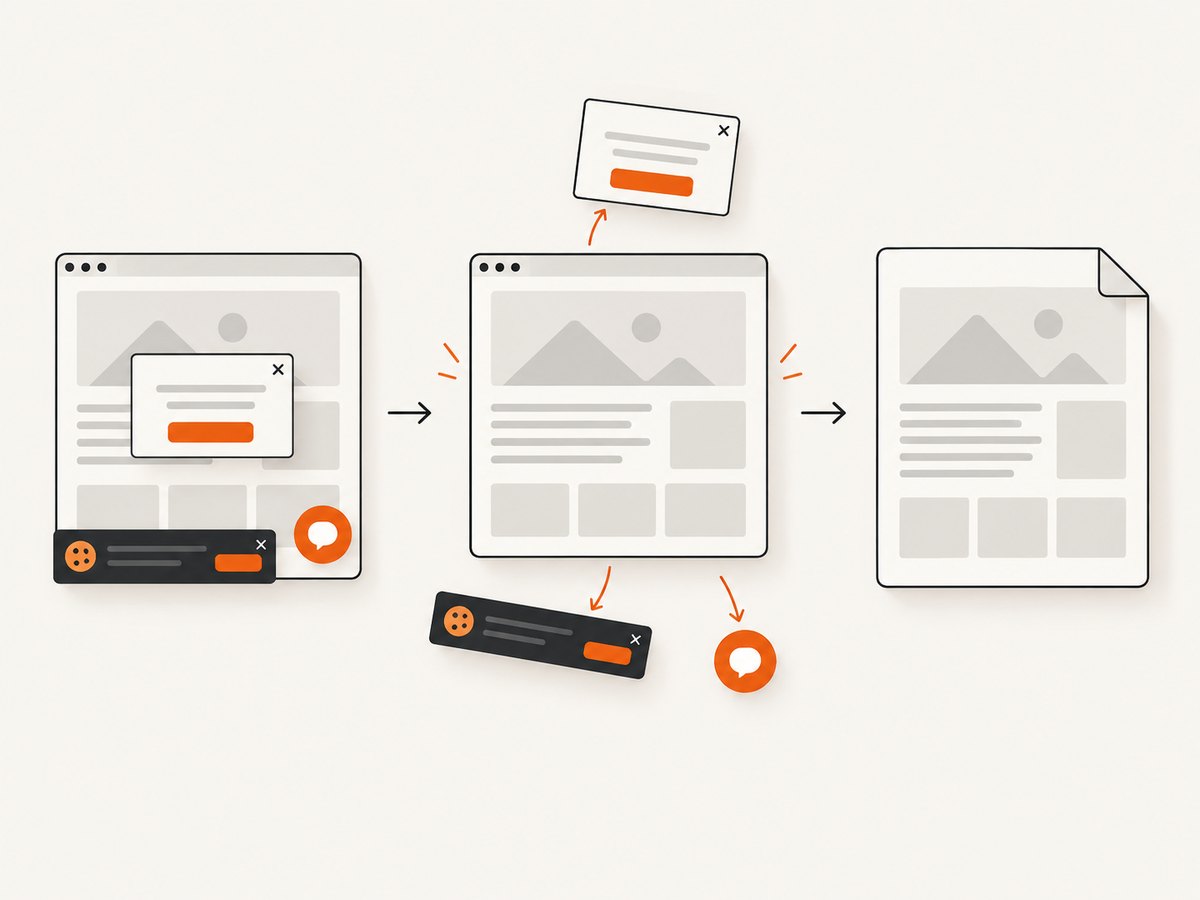
If your goal is a clean capture of a URL rather than maintaining wkhtmltopdf and native dependencies, ScreenshotNeo provides a single request for a PNG, JPEG, WebP, or PDF. Its consent handling accepts cookie banners and removes more than 60 known consent platforms, newsletter popups, and chat widgets before capture; each step can be disabled.
For the full parameter list, see the ScreenshotNeo API documentation.
curl -G "https://api.screenshotneo.com/v1/shot" -d access_key=YOUR_API_KEY --data-urlencode url=https://stripe.com -o shot.webp
import requests

r = requests.get(
    "https://api.screenshotneo.com/v1/shot",
    params={"access_key": "YOUR_API_KEY", "url": "https://stripe.com"},
    timeout=90,
)
r.raise_for_status()
open("shot.webp", "wb").write(r.content)
const q = new URLSearchParams({ access_key: 'YOUR_API_KEY', url: 'https://stripe.com' });
const res = await fetch(`https://api.screenshotneo.com/v1/shot?${q}`);
if (!res.ok) throw new Error(`Screenshot failed: ${res.status}`);
const file = Buffer.from(await res.arrayBuffer());
await import('node:fs/promises').then(fs => fs.writeFile('shot.webp', file));
Bot checks and CAPTCHAs, blank pages, timeouts, failed loads, and cache hits are not billed as clean shots, and the response identifies the result with X-Page-Verdict and X-Billed headers. ScreenshotNeo also offers an MCP server with take_screenshot, get_page_info, and capture_pdf tools for Claude, Cursor, and other MCP clients. One thousand screenshots per month are free with no card; paid plans start at $5 for 3,000 shots.
Create a free ScreenshotNeo account and start with the 1,000 free monthly screenshots.
11. FAQ
Does an empty byte array always mean the native library is broken?
No. Null HtmlContent is explicitly converted to an empty array by the wrapper. Check the final input before investigating native loading.
Can I use both Page and HtmlContent?
Choose the input route that matches the document. A URL or path belongs in Page; generated markup belongs in HtmlContent. Avoid leaving both empty.
Should I create a converter per request?
No. Use one singleton SynchronizedConverter in multithreaded and web applications.
Why does the control HTML work while my template fails?
Your template probably produces null or empty output, references unavailable resources, or depends on JavaScript that has not finished. Add dependencies incrementally and log warnings.
When should I use file output instead of bytes?
Use a non-empty Out only when you intentionally want wkhtmltopdf to write a file. For an HTTP response or object-store upload, leave it empty and use the returned byte array.


