How to Fix Docker Headless Chrome WebGL Passthrough Errors
Diagnose WebGL failures in Docker by checking GPU exposure, NVIDIA graphics capabilities, and Chromium’s renderer—then choose hardware or SwiftShader deliberately.
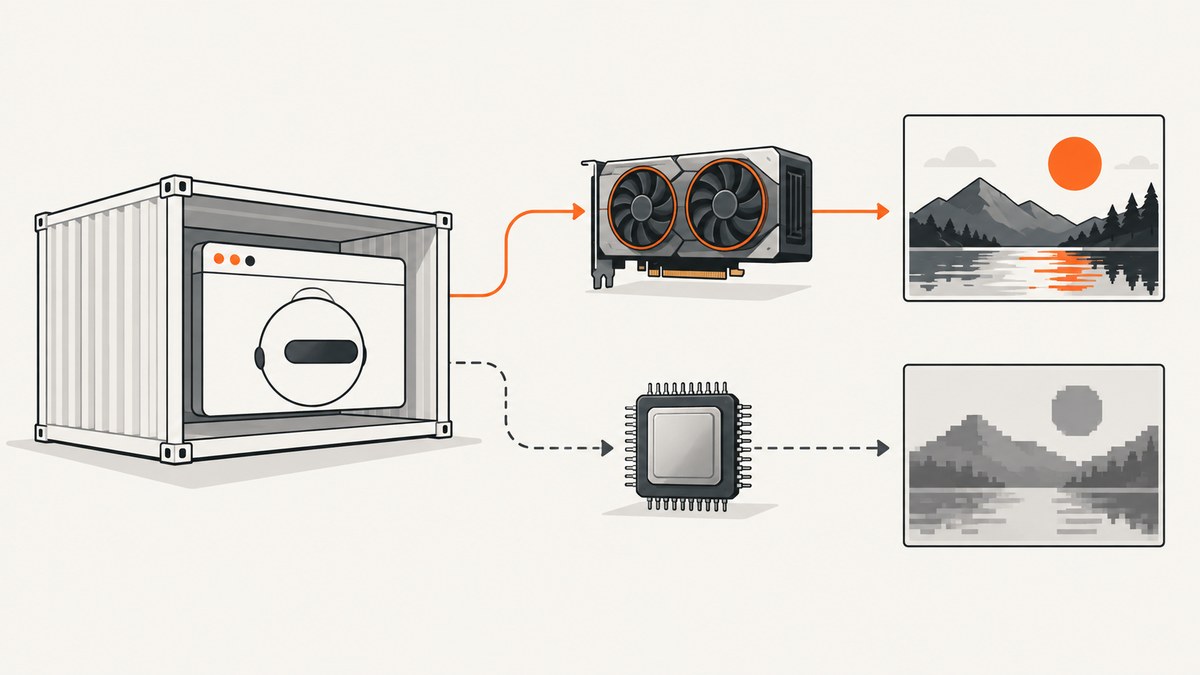
When headless Chrome or Chromium inside Docker cannot create a WebGL context, first find out which rendering path you need. SwiftShader can render WebGL in software on the CPU; it is not GPU passthrough. For hardware acceleration, verify GPU access in the container, expose the driver’s graphics components, and check Chromium’s display and backend selection. --enable-gpu can stop headless Chromium from forcing software rendering, but it cannot expose a GPU or guarantee hardware acceleration. [Chromium’s headless GPU guide](https://chromium.googlesource.com/chromium/src/+/main/docs/gpu/using-gpu-hardware-in-headless-chrome.md) and [headless switch documentation](https://chromium.googlesource.com/chromium/src/+/main/headless/app/headless_switches.cc) explain these limits.
This guide walks through the diagnosis in order: decide whether software rendering is enough, confirm container visibility, configure NVIDIA capabilities where applicable, inspect Chromium’s renderer, and make the application handle WebGL failure. The exact steps depend on your GPU vendor, container runtime, display setup, and Chromium version.
1. Decide whether you need a physical GPU
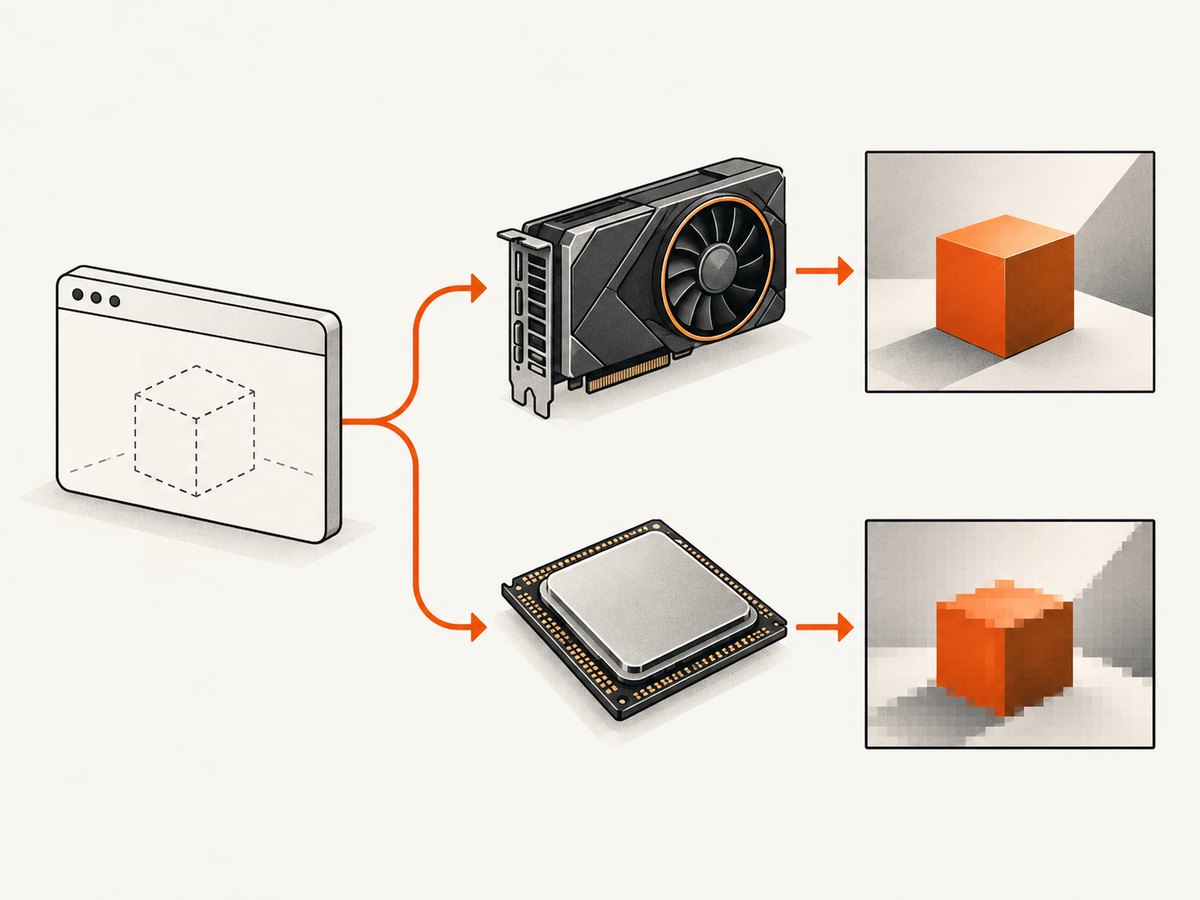
If the goal is to render a page for tests, development, or a screenshot, CPU-based SwiftShader may be sufficient. Chromium describes SwiftShader as a software implementation of Vulkan and OpenGL ES that can render advanced 3D content without a GPU. That is software rendering, not passthrough to the host GPU. It may be slower than hardware rendering, so check whether its performance meets your workload’s needs.
If you require hardware acceleration—for example, because rendering speed or parity with a GPU-backed environment matters—confirm that the host has a supported GPU and that Docker exposes it to the container. Chrome flags cannot create access to hardware the container cannot see.
2. Check that Docker exposes the NVIDIA GPU
For NVIDIA, start with the host driver and Docker GPU support. Docker’s official guide uses --gpus all to expose available GPUs and runs nvidia-smi inside a container as a visibility check. To select a device, Docker also documents --gpus device=0 and selection by GPU UUID. See [Docker’s GPU support guide](https://docs.docker.com/engine/containers/resource_constraints/#gpu).
docker run --rm --gpus all ubuntu nvidia-smiFor a particular device, use the documented device-selection form:
docker run --rm --gpus device=0 ubuntu nvidia-smiA successful nvidia-smi run confirms that the NVIDIA device and utility interface are visible in that test container. It does not confirm that Chromium can initialize OpenGL, EGL, or Vulkan. Diagnose those layers separately. If this command fails, investigate the host driver, Docker’s GPU support, the selected device, and NVIDIA Container Toolkit configuration before changing browser flags. [Docker GPU support](https://docs.docker.com/engine/containers/resource_constraints/#gpu) describes the Docker side.
3. Make graphics driver components available
NVIDIA’s container runtime uses NVIDIA_DRIVER_CAPABILITIES to control which driver components are mounted. NVIDIA documents graphics as necessary for OpenGL, EGL, and Vulkan applications. The setting replaces its defaults, so include all capabilities your application needs; utility provides tools such as nvidia-smi. For example:
docker run --rm --gpus all \
  -e NVIDIA_DRIVER_CAPABILITIES=graphics,utility \
  ubuntu nvidia-smi
If the application needs to display X11 or Wayland output, include display. NVIDIA notes that display implies graphics. See [NVIDIA’s driver capabilities reference](https://docs.nvidia.com/datacenter/cloud-native/container-toolkit/latest/docker-specialized.html#driver-capabilities).
This example checks that the utility still works with the chosen capabilities; it does not test Chrome rendering. Apply the same capability setting to the container that runs Chromium, then inspect the browser’s renderer in that exact environment.
4. Check Chromium’s headless rendering path
Chromium’s headless GPU documentation recommends --enable-gpu to disable headless mode’s forced software-rendering choice. It defers to the normal OpenGL driver detection, which on Linux depends on an X11 server and a suitable DISPLAY environment variable. Therefore, the flag alone does not guarantee hardware acceleration. Chromium says forcing the Vulkan backend with --use-angle=vulkan has worked in some Linux configurations; treat it as a configuration-specific experiment, not a universal fix. Read [Chromium’s headless GPU guide](https://chromium.googlesource.com/chromium/src/+/main/docs/gpu/using-gpu-hardware-in-headless-chrome.md) alongside the [headless switch notes](https://chromium.googlesource.com/chromium/src/+/main/headless/app/headless_switches.cc).
For a Puppeteer launch, add one flag at a time to the arguments you already use. This minimal diagnostic example starts Chromium with GPU selection enabled:
const browser = await puppeteer.launch({
  headless: true,
  args: ['--enable-gpu'],
});
If you are testing Vulkan on Linux, try it separately:
const browser = await puppeteer.launch({
  headless: true,
  args: ['--enable-gpu', '--use-angle=vulkan'],
});
These snippets show browser arguments, not a complete container configuration. Keep the rest of your application’s launch settings and dependencies intact, and verify the actual renderer in the running workload. Changing several variables together makes it harder to tell whether the GPU exposure, graphics libraries, display, or browser backend fixed the problem.
Inspect the browser and the page
Open chrome://gpu in the same container, browser build, runtime, and user environment as the failing workload. Then check whether your application can create a WebGL context. Do not treat the presence of --enable-gpu as proof of hardware rendering; inspect Chromium’s reported graphics status and the page’s actual context result.
If nvidia-smi works but Chrome still reports software rendering, revisit NVIDIA_DRIVER_CAPABILITIES and confirm graphics is set on the Chrome container. If --enable-gpu is present but Linux OpenGL detection fails, check whether an X11 server and valid DISPLAY are available. Vulkan can be tested as a separate, configuration-dependent path.
5. Configure SwiftShader intentionally when software is acceptable
Chromium’s SwiftShader documentation describes it as CPU-only. Chromium also documents a policy change: automatic WebGL fallback to SwiftShader is deprecated, and context creation may fail instead of silently switching from GPU-backed rendering to CPU rendering. This is partly a security decision because SwiftShader uses JIT-compiled code in Chromium’s GPU process. Chromium provides an explicit opt-in, but warns that it lowers security guarantees and is not intended for untrusted content. Check the current documentation for the exact Chromium build in your image; flags and behavior can change.
For the documented software driver mode, Chromium lists:
--use-gl=angle --use-angle=swiftshaderFor the explicitly unsafe WebGL fallback, Chromium lists:
--use-gl=angle --use-angle=swiftshader-webgl --enable-unsafe-swiftshaderUse the second form only when you have considered the security tradeoff and control the content being rendered. These options intentionally select software rendering; they do not enable host GPU passthrough. See [Chromium’s SwiftShader guide](https://chromium.googlesource.com/chromium/src/+/main/docs/gpu/swiftshader.md) for current guidance.
6. Handle WebGL context creation failure in the application
WebGL is not guaranteed to be available. Chromium advises applications to test context creation and use another web API, such as Canvas2D, or show an appropriate message if context creation fails. Treat this as a normal runtime branch rather than assuming every browser environment has a hardware or software WebGL context. See [Chromium’s WebGL availability guidance](https://chromium.googlesource.com/chromium/src/+/main/docs/gpu/swiftshader.md).
const canvas = document.querySelector('#scene');
const gl = canvas?.getContext('webgl2') || canvas?.getContext('webgl');

if (!gl) {
  // Replace this with a Canvas2D renderer or a user-facing explanation.
  showWebGLUnavailableMessage();
} else {
  startWebGLScene(gl);
}
Make the fallback fit the product: a static preview may be enough for a screenshot or test, while an interactive 3D application may need to explain that graphics are unavailable. The key is to avoid an unhandled failure or a blank output when context creation returns null.
7. Troubleshooting by symptom
| Symptom | Likely cause | What to check or change |
|---|---|---|
nvidia-smi fails in a GPU-enabled container |
Host driver, Docker GPU support, selected device, or toolkit configuration is not working. | Run Docker’s documented --gpus all diagnostic; verify host GPU/driver and container runtime before changing Chrome flags. |
nvidia-smi works, but Chrome uses software rendering |
The utility interface is visible, but graphics libraries may not be exposed or initialized. | Set NVIDIA_DRIVER_CAPABILITIES=graphics,utility as needed and inspect chrome://gpu. |
--enable-gpu is set, but Linux OpenGL detection fails |
Chromium’s default Linux OpenGL detection depends on X11 and DISPLAY. |
Check for an X11 server and valid DISPLAY. Try --use-angle=vulkan only as a configuration-specific diagnostic. |
WebGL context creation returns null |
WebGL is unavailable in this browser/runtime, or the selected rendering path failed. | Check chrome://gpu, verify the container and browser configuration, and provide Canvas2D or an appropriate message. |
| WebGL used to fall back to SwiftShader but now fails | Chromium’s automatic SwiftShader WebGL fallback is deprecated and may no longer occur. | Decide whether explicit software rendering is acceptable; review Chromium’s current SwiftShader guidance and its security caveat. |
| SwiftShader works but is too slow | It renders on the CPU and is not equivalent to hardware acceleration. | Reduce rendering work if suitable, or diagnose and configure real GPU access rather than expecting a browser flag to provide it. |
8. Performance, reliability, and cost considerations
Hardware acceleration requires a working chain: host GPU and driver, container device visibility, the appropriate graphics components, and successful browser initialization. A failure at any layer can leave the page on software rendering or without WebGL. Record the browser version, GPU/runtime configuration, relevant flags, and renderer output when diagnosing an intermittent or environment-specific issue.
SwiftShader can make a GPU-less environment render WebGL content, but it consumes CPU and may have different performance characteristics from a GPU. The dossier provides no universal speed ratio, so benchmark your own scene and workload. For reliable automation, handle failed context creation and avoid assuming the same renderer across developer machines and CI containers.
Cost is workload-specific: software rendering uses container CPU resources, while hardware acceleration depends on access to suitable host hardware. Check your existing host and runtime configuration before deciding that new hardware is needed. The cited setup guidance establishes requirements for exposure and graphics capabilities; it does not establish that buying a GPU is necessary.
Or skip the browser setup
If your task is to capture a page rather than exercise WebGL itself, ScreenshotNeo provides a website screenshot API and MCP server. A single GET request returns a PNG, JPEG, WebP, or PDF. It can remove cookie and consent banners from 60+ known platforms, newsletter popups, and chat widgets before capture; each step can be turned off. Bot checks and CAPTCHAs, blank pages, timeouts, failed loads, and cache hits are not billed, and response headers report the page verdict and billing status. Its MCP server provides take_screenshot, get_page_info, and capture_pdf for Claude, Cursor, and other MCP clients.
See the ScreenshotNeo API documentation for request options. This call saves a WebP screenshot of Stripe:
curl -G "https://api.screenshotneo.com/v1/shot" -d access_key=YOUR_API_KEY --data-urlencode url=https://stripe.com -o shot.webpPython:
import requests

r = requests.get(
    "https://api.screenshotneo.com/v1/shot",
    params={"access_key": "YOUR_API_KEY", "url": "https://stripe.com"},
    timeout=90,
)
open("shot.webp", "wb").write(r.content)
Node.js:
const q = new URLSearchParams({ access_key: 'YOUR_API_KEY', url: 'https://stripe.com' });
const res = await fetch(`https://api.screenshotneo.com/v1/shot?${q}`);
if (!res.ok) throw new Error(`Screenshot request failed: ${res.status}`);
await Bun.write('shot.webp', new Uint8Array(await res.arrayBuffer()));
ScreenshotNeo includes full-page capture with lazy images loaded, CSS selector element capture, 12 device presets and custom viewports, retina scale, dark mode, PDF paper size and page ranges, HTML/CSS capture, custom CSS and JavaScript, click-before-capture, selector hiding and waiting, delay and network-idle waits, request and resource blocking, custom headers/cookies/user agent/Authorization, timezone and geolocation, transparent background, image resizing, configurable cache TTL, signed links, async jobs with signed webhooks, bulk capture for up to 100 URLs per call, a usage API, and an OpenAPI spec. Parameters used by other screenshot APIs also work, which can simplify a switch.
Plans include 1,000 shots per month free with no card; Starter is $5 for 3,000, Growth $15 for 15,000, Pro $39 for 60,000, Scale $99 for 250,000, and Business $249 for 1,000,000. Yearly billing gives two months free, and every feature is available on every plan. Sign up for 1,000 free screenshots a month with no card.
FAQ
Does --enable-gpu turn on GPU passthrough?
No. It changes headless Chromium’s forced software-rendering choice. The GPU must already be available to Docker, and Chromium must initialize a supported graphics path.
Does a working nvidia-smi prove WebGL will work?
No. It checks NVIDIA device and utility visibility. Chromium still needs graphics driver components and a working browser graphics configuration.
Can I use SwiftShader without a physical GPU?
Yes, it is a CPU-based software rendering path. Review Chromium’s current instructions and security caveat before opting into unsafe WebGL fallback.
Should every failed WebGL context be treated as a Docker bug?
No. WebGL availability is not guaranteed. Check the browser/runtime configuration and make the application respond gracefully when context creation fails.


