How to Fix Image Conversion Errors with dom-to-image
Diagnose dom-to-image failures by checking the rejection, capture timing, external assets, canvases, and browser behavior in a repeatable order.
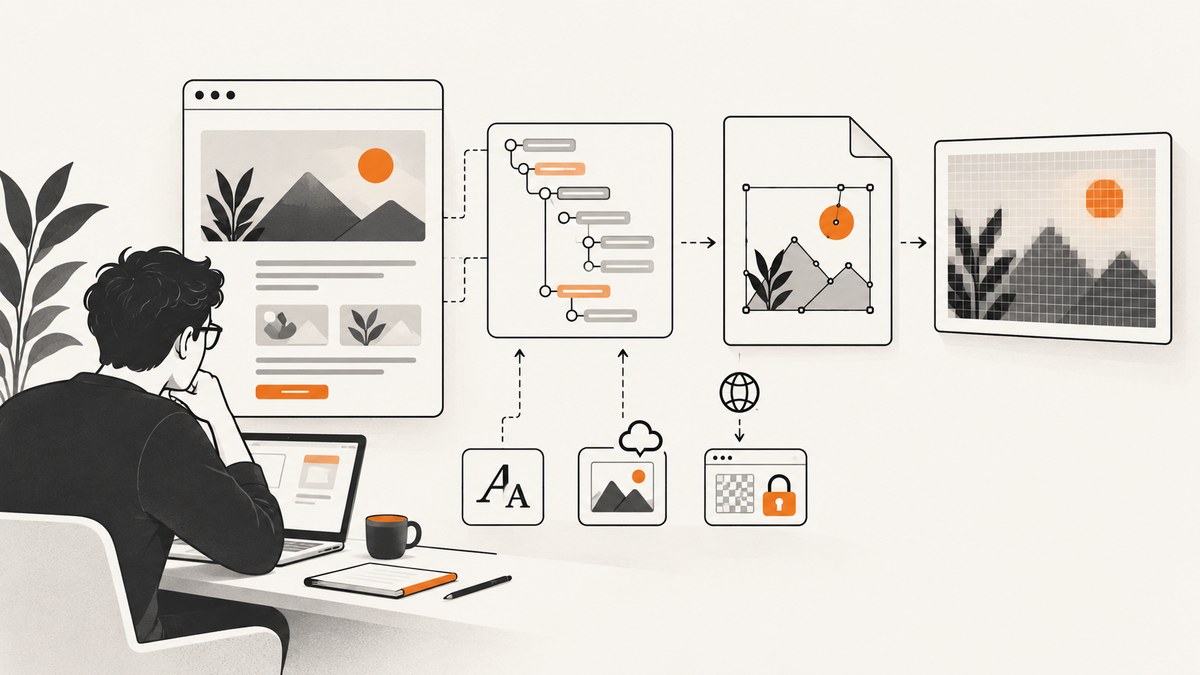
If dom-to-image rejects, returns a blank image, or omits content, first capture the complete error and try a small, stable DOM node. There is no single fix for every conversion error: isolate the failure in this order—page timing, resource loading, canvas security, then browser and runtime behavior.
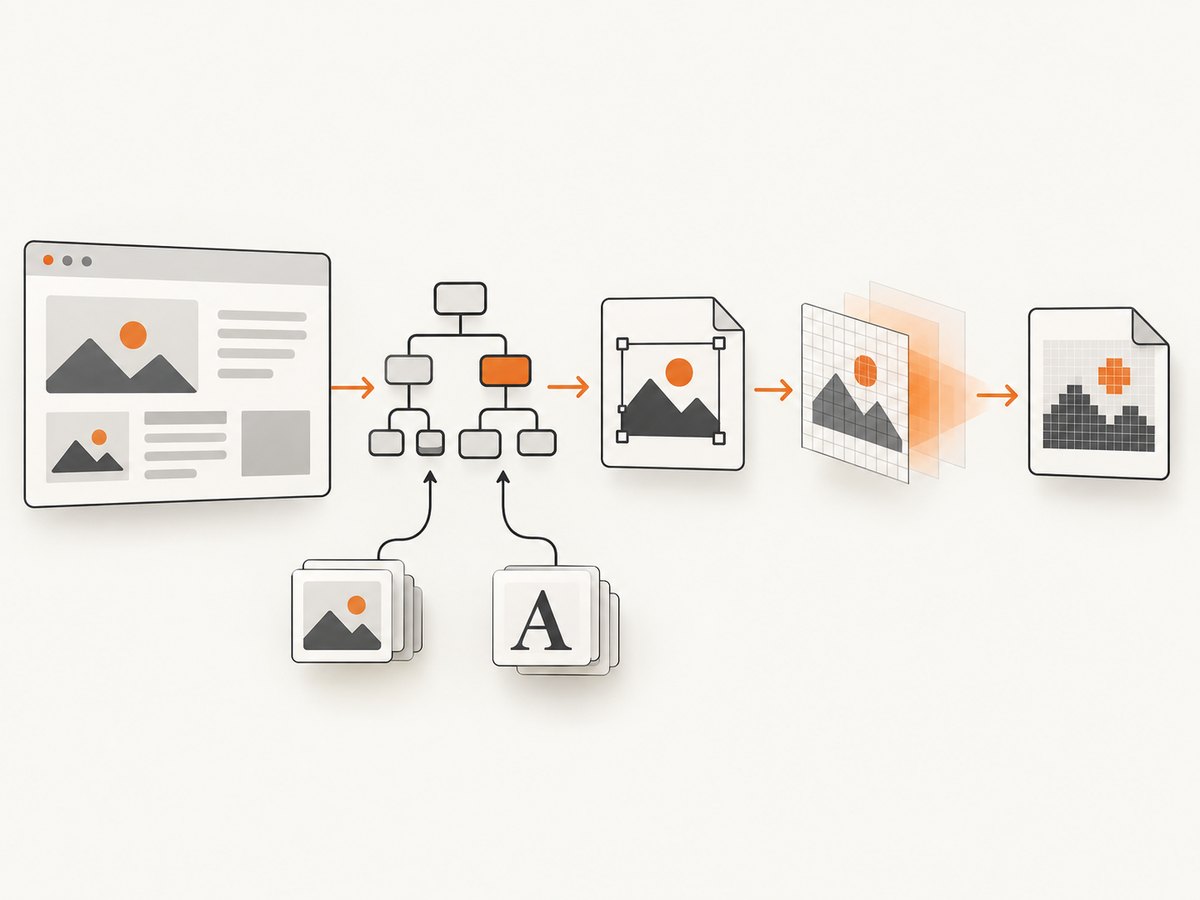
The library’s conversion methods are asynchronous and return promises. Its documented pipeline clones and serializes DOM content into SVG before rasterizing it, so the failure may occur while preparing the SVG and its resources or later while decoding and rasterizing the result. Keep the exact package version and browser in view while debugging. dom-to-image README
1. Capture the full error and establish a baseline
Do not diagnose from a blank file alone. Log the complete rejection, and first capture a node containing only plain text and a solid background. Record the browser and version, package version, method, target node, and relevant asset URLs along with the error. This makes it possible to distinguish a reproducible conversion failure from a page-state or resource problem.
import domtoimage from 'dom-to-image';

async function saveNode(node) {
  try {
    const dataUrl = await domtoimage.toPng(node);
    const link = document.createElement('a');
    link.download = 'capture.png';
    link.href = dataUrl;
    link.click();
  } catch (error) {
    console.error('dom-to-image conversion failed:', error);
    console.error('Browser:', navigator.userAgent);
    // Include your package version, method, target, and asset URLs in a bug report.
  }
}

const node = document.querySelector('#capture');
if (!node) throw new Error('Capture target #capture was not found');
await saveNode(node);
Try a simple node before capturing the full page:
<div id="capture" style="width:320px;height:120px;background:#f2f4f7;color:#111;padding:16px">
  Plain text baseline
</div>
2. Wait for the page, images, and styles to be ready
A node can exist before its content is ready. Wait until the application has rendered the target, required images have loaded, and relevant stylesheets are available. If a stylesheet with @font-face rules was just inserted, capturing in the same event-loop tick can be too early: the browser may not yet expose those rules through the CSS object model. Wait for that stylesheet’s load event and, where available, document.fonts.ready. The latter resolves when fonts known to the document have finished loading.
function waitForStylesheet(link) {
  if (link.sheet) return Promise.resolve();
  return new Promise((resolve, reject) => {
    link.addEventListener('load', resolve, { once: true });
    link.addEventListener('error', () => reject(new Error(`Stylesheet failed: ${link.href}`)), { once: true });
  });
}

async function waitForImages(root) {
  const images = [...root.querySelectorAll('img')];
  await Promise.all(images.map(img => {
    if (img.complete) {
      return img.naturalWidth > 0
        ? Promise.resolve()
        : Promise.reject(new Error(`Image failed: ${img.currentSrc || img.src}`));
    }
    return new Promise((resolve, reject) => {
      img.addEventListener('load', resolve, { once: true });
      img.addEventListener('error', () => reject(new Error(`Image failed: ${img.currentSrc || img.src}`)), { once: true });
    });
  }));
}

const target = document.querySelector('#capture');
await waitForImages(target);
if (document.fonts?.ready) await document.fonts.ready;
const png = await domtoimage.toPng(target);
This image helper covers <img> elements only. CSS background images and assets referenced by SVG need separate inspection in the browser’s Network panel. If your application adds stylesheets dynamically, retain the corresponding link element and wait for its load event before the capture.
3. Check external images, background images, and fonts
Inspect the browser console and Network panel for failed requests, blocked resources, redirects, and cross-origin responses. An asset can display in the live page but still be unavailable to a DOM-to-image conversion path that needs to read or embed its bytes. The original project notes that failed images can cause failure depending on options, and that external stylesheets have browser-specific caveats. Do not assume every remote asset can be embedded.
- Images: check
img.currentSrc, its response status, and whether it has loaded before capture. - CSS backgrounds: inspect computed styles for
background-imageURLs and verify those requests complete. - Fonts: confirm the font request succeeded, wait for
document.fonts.ready, and inspect whether cross-origin stylesheets prevent font-rule discovery. - SVG references: check external image, font, and stylesheet references inside the SVG as well as the outer DOM node.
The related dom-to-image-more project documents options such as onImageError, requestInterceptor, imagePlaceholder, and loadExternalStyleSheet. Those are implementation-specific; do not pass them to the original dom-to-image unless the exact package and version documents them. dom-to-image-more documentation
4. Inspect canvas and WebGL content
If the target contains a canvas, determine how it was drawn. A canvas that incorporates cross-origin image data without the required access can become tainted; reading it for export may then fail. Check the source host’s cross-origin policy and reproduce with the canvas removed or replaced by a solid block.
WebGL adds another timing constraint. The related dom-to-image-more documentation says the drawing buffer can be cleared after compositing unless preserveDrawingBuffer: true was set when the WebGL context was created. A capture library cannot change that context option afterward. If the application owns the context and needs its pixels later, configure it at context creation:
const gl = canvas.getContext('webgl', { preserveDrawingBuffer: true });
if (!gl) throw new Error('WebGL is unavailable');
This setting must be chosen when creating the context; it is not a repair that can be applied to an already-created one. Check the documentation for the WebGL framework and browser in use before changing rendering behavior. dom-to-image-more canvas notes
5. Check browser and runtime behavior
dom-to-image relies on browser DOM and SVG behavior, including SVG foreignObject for rendering HTML content. A browser DOM is required; a server-side process without a browser environment cannot render a live DOM node this way. The related project documents Safari foreignObject and image-decode timing caveats, while the original README mentions an external stylesheet issue in Firefox. Treat these as version- and browser-dependent reports, not guarantees about every current release.
Capture the same minimal reproduction in the target browser and one other supported browser. If only one browser fails, reduce the case to the smallest node that still differs and check current compatibility for the exact browser and package versions.
6. Reduce the reproduction by content type
Add one category at a time to the stable baseline, capturing after each addition. This is a debugging method to isolate the failing input, not a claim that any particular category is universally broken.
- Plain text and a solid background.
- Computed styles and layout complexity.
- Web fonts and external stylesheets.
- Same-origin images, then cross-origin images.
- CSS background images and SVG content.
- Canvas, then WebGL if present.
Keep the failing node small, preserve the exact console error and asset URLs, and note whether the error occurs during resource preparation or after the SVG/data URL is produced. That evidence makes a package issue report much more actionable.
Common errors and fixes
| Symptom | Likely area | What to check or change |
|---|---|---|
| Promise rejects with an error | Preparation or resource loading | Log the full rejection; inspect failed image, stylesheet, and font requests; reduce to a plain node. |
| Blank output | Timing, SVG rendering, or browser behavior | Wait for content and assets; test a minimal node; compare browsers and inspect whether the SVG/data URL is produced. |
| External image missing | Request failure or cross-origin access | Verify the request and response policy; try a same-origin asset to isolate the source. |
| Font differs from the page | Font not loaded or stylesheet rules unavailable | Wait for stylesheet load and document.fonts.ready; inspect font requests and cross-origin stylesheet access. |
| Canvas causes failure | Tainted canvas | Trace the images drawn into it and their cross-origin access; test without the canvas. |
| WebGL output disappears | Drawing buffer cleared | If you control context creation, evaluate preserveDrawingBuffer: true at creation time. |
| Works in one browser only | SVG, decode, or stylesheet implementation difference | Record exact browser and package versions and reduce the cross-browser reproduction. |
| Fails in a server process | No browser DOM | Run the conversion in a browser environment that owns the live DOM, or use a browser-based capture approach. |
Performance, reliability, and cost considerations
Large DOM subtrees and many external resources give the conversion more work and more opportunities for a failed request. Capture only the required node where possible, avoid triggering the conversion before the page is ready, and diagnose with a reduced reproduction before restoring all content. Retries are useful only for transient readiness or network issues; repeating a deterministic cross-origin or browser limitation will not fix it.
The dossier provides no benchmark or pricing data for dom-to-image, so choose based on the content, browser environment, and operational requirements rather than an assumed speed or cost. A browser-side library operates on a DOM already available to that browser; an API-based screenshot service can avoid maintaining capture-browser setup, but its output and billing rules should be checked against the service’s documented behavior.
Or skip the browser setup
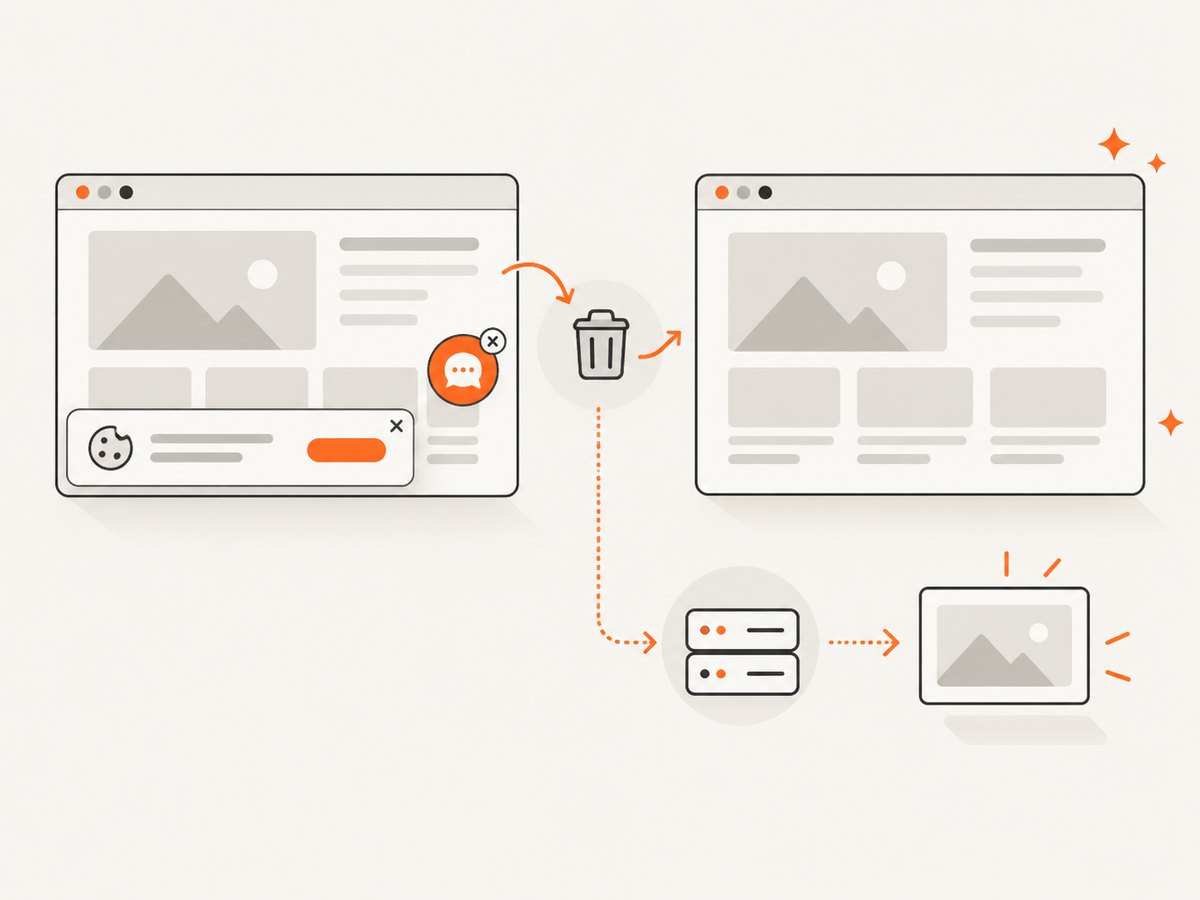
ScreenshotNeo is a website screenshot API and MCP server for developers. Send one GET request with a URL to receive a screenshot; the API also supports capture options and PDF output. Cookie banners, newsletter popups, and chat widgets are removed before the shot. Bot checks, blank pages, timeouts, failed loads, and cache hits are not billed, and response headers identify the page verdict and billing status. Its MCP server gives AI agents tools to take screenshots, get page info, and capture PDFs.
For the API key and available parameters, see the ScreenshotNeo documentation. This example captures a URL as WebP:
curl -G "https://api.screenshotneo.com/v1/shot" -d access_key=YOUR_API_KEY --data-urlencode url=https://stripe.com -o shot.webpimport requests
r = requests.get(
"https://api.screenshotneo.com/v1/shot",
params={"access_key": "YOUR_API_KEY", "url": "https://stripe.com"},
timeout=90,
)
r.raise_for_status()
open("shot.webp", "wb").write(r.content)const q = new URLSearchParams({ access_key: 'YOUR_API_KEY', url: 'https://stripe.com' });
const res = await fetch(`https://api.screenshotneo.com/v1/shot?${q}`);
if (!res.ok) throw new Error(`Screenshot request failed: ${res.status}`);
await Bun.write('shot.webp', new Uint8Array(await res.arrayBuffer()));The Node.js snippet uses Bun’s file-writing helper to save the returned bytes; with Node.js, replace the last line with await import('node:fs/promises').then(fs => fs.writeFile('shot.webp', Buffer.from(await res.arrayBuffer()))).
ScreenshotNeo includes 1,000 screenshots per month free with no card; paid plans start at $5 for 3,000 screenshots. Sign up for the free plan.
FAQ
Does an empty image prove the conversion promise succeeded?
No. Log the rejection and verify whether a data URL was produced before diagnosing the final image.
Can I use dom-to-image in Node.js without a browser?
Not to convert a live DOM node: the conversion requires a browser DOM and rendering behavior.
Should I switch to dom-to-image-more?
First create a minimal reproduction and check API compatibility. Its extra documented options may help with diagnostics, but the available evidence does not establish that switching fixes a particular error.


