How to Fix Element Not Interactable in Headless Selenium Chrome
Diagnose and fix Selenium ElementNotInteractableException in headless Chrome with reliable locators, waits, scrolling, overlays, and runnable code.
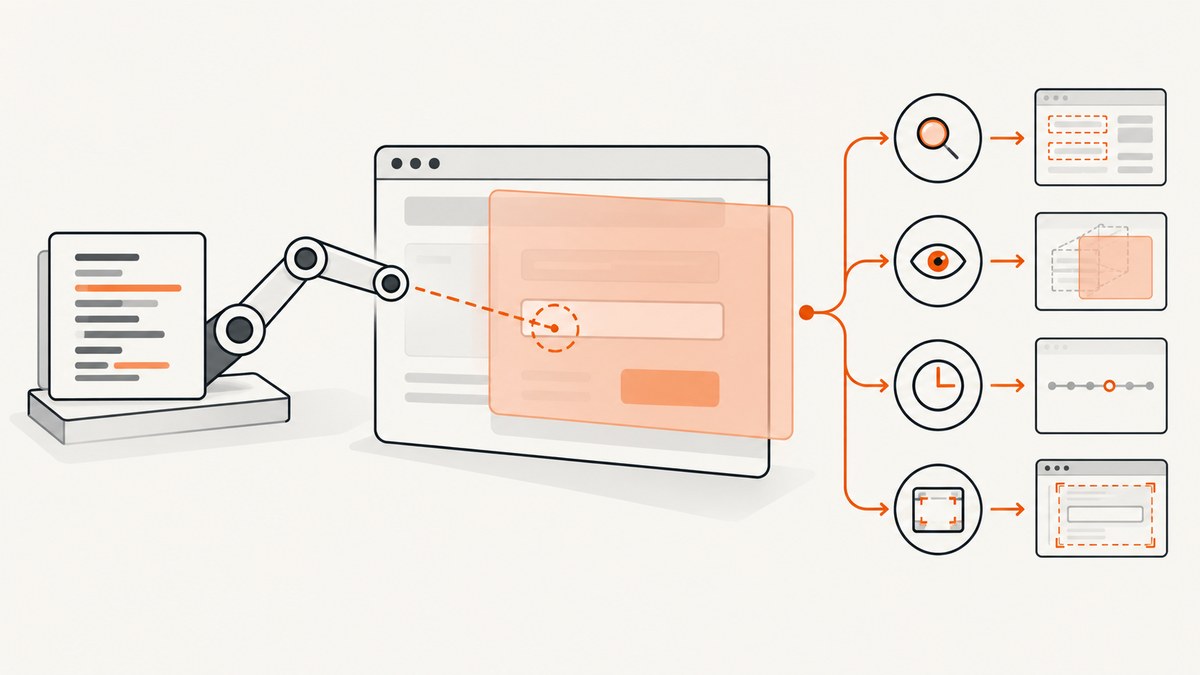
ElementNotInteractableException means Selenium found a DOM element, but that element cannot perform the requested action in its current state. In headless Chrome, check the element and the action before changing browser flags. The usual causes are a hidden or disabled control, a locator that matched the wrong element, an element outside the useful viewport, JavaScript that has not finished rendering it, or an action that does not match the element type.
Use this order: verify the page and locator, inspect the element’s state, wait for the condition your next action needs, handle overlays separately, then verify the headless Chrome and ChromeDriver setup. Selenium’s documentation describes the exception as an interaction with an element that is not interactable in its current state (official error guide).
1. What the exception means
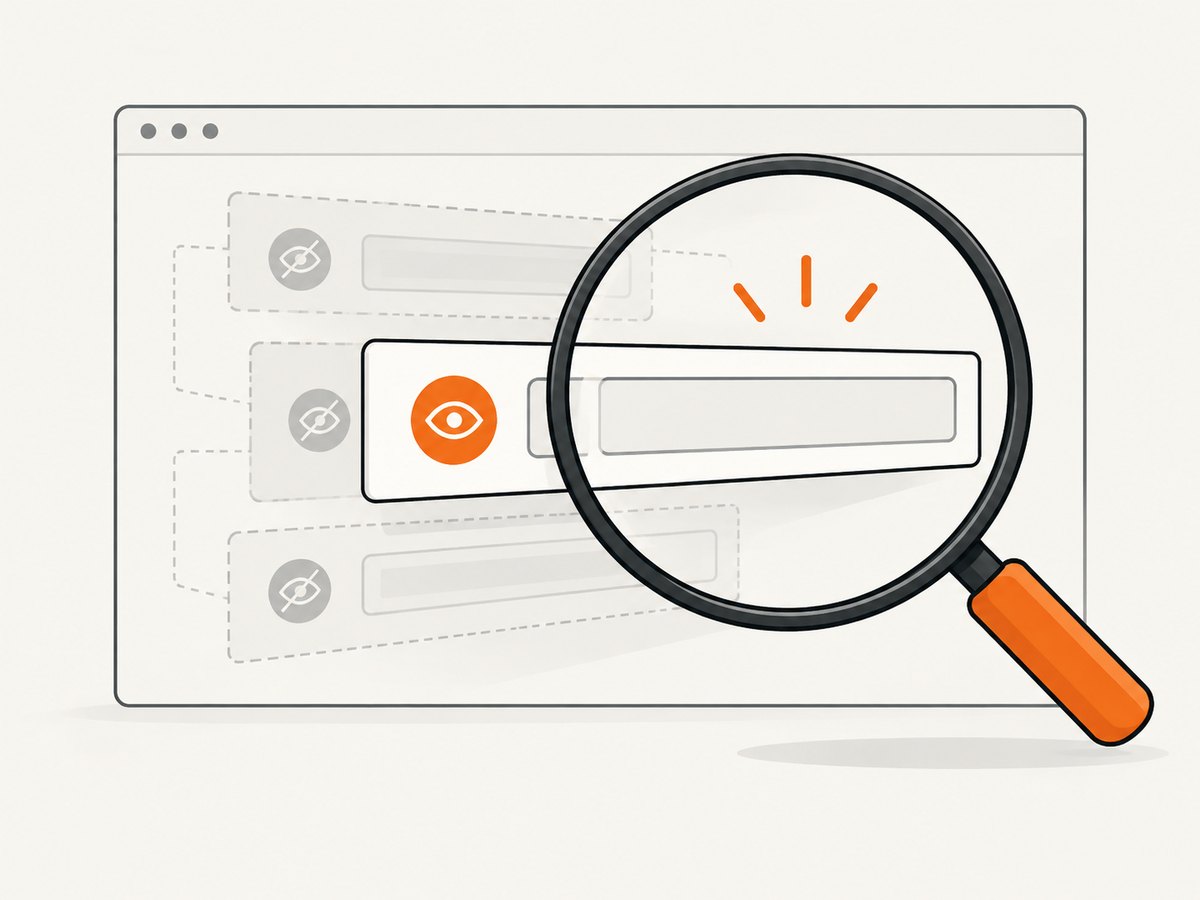
Being present in the DOM is only the first requirement. A WebElement can exist while it is hidden with CSS, outside an active UI state, covered by a modal, disabled, detached and replaced by JavaScript, or simply the wrong match returned by a broad selector.
| What you observe | Likely cause | First check |
|---|---|---|
send_keys fails |
Hidden, disabled, readonly, or non-input element | Tag name, displayed state, enabled state, and editability |
clear fails |
Element is not a resettable text control | Use an input or textarea and confirm it is enabled |
click fails with not interactable |
Hidden target, wrong match, or incomplete UI state | Unique locator and explicit wait |
ElementClickInterceptedException |
Another element covers the click point | Overlay, cookie banner, sticky header, or animation |
| Only headless runs fail | Viewport, timing, responsive layout, or environment mismatch | Compare screenshots, window size, and browser versions |
A click interception is a separate condition. Selenium clicks the center of an element; if another element obscures that point, Selenium reports an intercepted click (element interaction documentation). Do not treat every click failure as the same exception.
2. A repeatable diagnostic sequence
Step 1: Confirm navigation and the intended page
Print the current URL and title immediately before locating the target. Redirects, authentication pages, consent routes, and failed navigation can leave you searching the wrong document.
print(driver.current_url)
print(driver.title)
assert "/checkout" in driver.current_url
Step 2: Make the locator unique
A selector such as input or .button may match hidden templates, mobile and desktop variants, or an earlier copy of a component. Count matches and inspect each candidate.
matches = driver.find_elements(By.CSS_SELECTOR, "input[name='email']")
print("matches:", len(matches))
for index, candidate in enumerate(matches):
    print(index, candidate.get_attribute("outerHTML")[:300],
          "displayed=", candidate.is_displayed(),
          "enabled=", candidate.is_enabled())
Prefer stable attributes supplied for automation, such as an accessible label, name, or data-testid. Avoid positional XPath when the page structure changes frequently.
Step 3: Match the operation to the element
send_keys belongs on a text input, textarea, content-editable element, or another keyboard-interactable control. A label, wrapper div, SVG icon, or custom visual shell may not accept keyboard input. clear expects an editable control. For custom widgets, locate the actual input or use the widget’s documented keyboard behavior.
Step 4: Check displayed, enabled, and editable state
element = driver.find_element(By.CSS_SELECTOR, "input[name='email']")
print({
    "displayed": element.is_displayed(),
    "enabled": element.is_enabled(),
    "readonly": element.get_attribute("readonly"),
    "disabled": element.get_attribute("disabled"),
    "rect": element.rect,
    "tag": element.tag_name,
    "type": element.get_attribute("type")
})
An element can be displayed but still unusable because it is disabled, readonly, zero-sized, or covered. Check computed style when the result is surprising:
state = driver.execute_script("""
const e = arguments[0];
const s = getComputedStyle(e);
return {
  display: s.display,
  visibility: s.visibility,
  opacity: s.opacity,
  pointerEvents: s.pointerEvents,
  width: e.getBoundingClientRect().width,
  height: e.getBoundingClientRect().height
};
""", element)
print(state)
Step 5: Wait for the next action’s condition
Navigation reaching readyState=complete does not mean a framework has rendered the form, removed a skeleton, or enabled the submit button. Wait for the state you need. Selenium recommends explicit conditions and warns against mixing implicit and explicit waits because timing becomes unpredictable (waiting strategies).
from selenium.webdriver.support.ui import WebDriverWait
from selenium.webdriver.support import expected_conditions as EC

wait = WebDriverWait(driver, 20)
email = wait.until(EC.visibility_of_element_located(
    (By.CSS_SELECTOR, "input[name='email']")
))
wait.until(lambda d: email.is_enabled())
email.clear()
email.send_keys("dev@example.com")
Useful conditions include presence_of_element_located when you only need the DOM node, visibility_of_element_located before reading or typing, element_to_be_clickable for a normal click, and a custom lambda for application state such as a disabled attribute disappearing. Use one explicit wait policy; set the implicit wait to zero unless you have a deliberate reason to combine them.
Step 6: Scroll, then re-check
Selenium can scroll an out-of-viewport element into view, but fixed headers, lazy rendering, and nested scroll containers can still make the center unusable. Scroll with JavaScript, allow layout to settle through an explicit condition, and inspect the rectangle.
driver.execute_script(
    "arguments[0].scrollIntoView({block: 'center', inline: 'nearest'});",
    element
)
wait.until(lambda d: d.execute_script("""
const r = arguments[0].getBoundingClientRect();
return r.width > 0 && r.height > 0 &&
       r.top >= 0 && r.bottom <= window.innerHeight;
""", element))
If a sticky header covers the center, scroll farther or use the page’s own scroll container. A screenshot at the failure point often reveals the obstruction faster than more retries.
Step 7: Inspect overlays separately
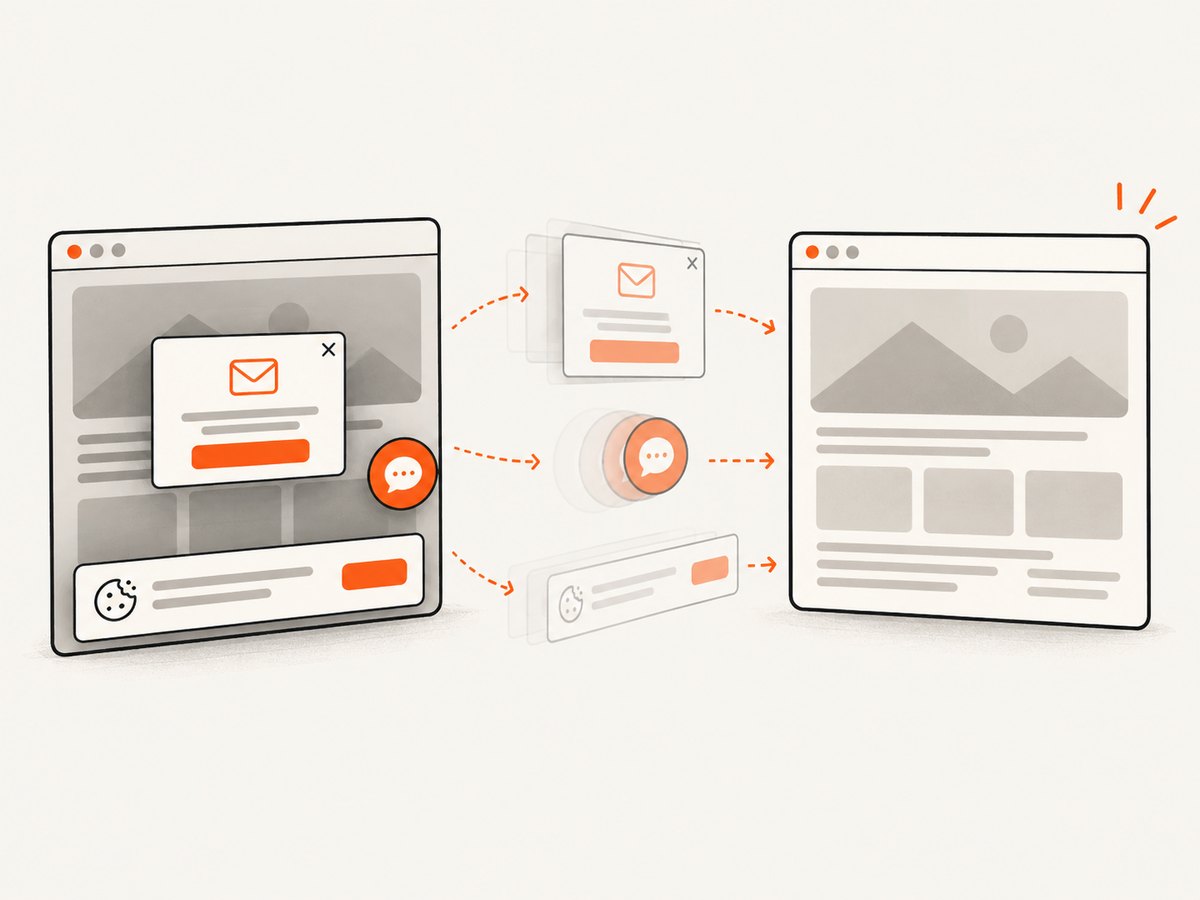
Cookie dialogs, newsletter prompts, chat launchers, loading masks, and animations frequently cover a target. Wait for the overlay to disappear or interact with it intentionally. If it is a consent dialog, click its visible accept control and wait for the dialog’s invisibility.
consent = (By.CSS_SELECTOR, "[role='dialog'] button[data-accept]")
try:
    button = WebDriverWait(driver, 5).until(EC.element_to_be_clickable(consent))
    button.click()
    WebDriverWait(driver, 10).until(EC.invisibility_of_element_located(
        (By.CSS_SELECTOR, "[role='dialog']")
    ))
except TimeoutException:
    pass
Do not make JavaScript DOM clicks your default fix. They bypass the normal user-like interaction path and can hide a real visibility, timing, or overlay defect. Use them only when the application deliberately exposes a nonstandard control and you understand the trade-off.
3. Complete Python example for headless Chrome
The following script uses a stable locator, an explicit wait, a controlled viewport, and diagnostics on failure. Install Selenium with pip install selenium; Selenium Manager can obtain a compatible driver in current Selenium releases.
from pathlib import Path
from selenium import webdriver
from selenium.common.exceptions import (
    ElementClickInterceptedException,
    ElementNotInteractableException,
    TimeoutException,
)
from selenium.webdriver.chrome.options import Options
from selenium.webdriver.common.by import By
from selenium.webdriver.support import expected_conditions as EC
from selenium.webdriver.support.ui import WebDriverWait

URL = "https://example.com/login"
EMAIL = "dev@example.com"

options = Options()
options.add_argument("--headless=new")
options.add_argument("--window-size=1440,1000")
options.add_argument("--disable-dev-shm-usage")
# Add --no-sandbox only when your container security model requires it.

driver = webdriver.Chrome(options=options)
wait = WebDriverWait(driver, 20)
try:
    driver.get(URL)
    print("url:", driver.current_url)
    print("title:", driver.title)

    locator = (By.CSS_SELECTOR, "input[name='email']")
    field = wait.until(EC.visibility_of_element_located(locator))
    wait.until(lambda d: field.is_enabled())
    driver.execute_script(
        "arguments[0].scrollIntoView({block:'center'});", field
    )
    field.clear()
    field.send_keys(EMAIL)

    submit = wait.until(EC.element_to_be_clickable(
        (By.CSS_SELECTOR, "button[type='submit']")
    ))
    submit.click()
except (ElementNotInteractableException,
        ElementClickInterceptedException,
        TimeoutException):
    Path("failure.png").write_bytes(driver.get_screenshot_as_png())
    print("failure URL:", driver.current_url)
    print("failure title:", driver.title)
    raise
finally:
    driver.quit()
Replace the selectors with controls from your page. The example intentionally does not use a fixed sleep: a sleep can be too short on a slow run and unnecessarily long on a fast one.
4. Headless Chrome configuration checks
Once element-level checks are complete, verify the browser setup. Selenium’s Chrome guidance documents --headless=new as a commonly used argument and recommends matching Chrome and ChromeDriver major versions (Chrome browser documentation). These are compatibility checks, not proof that headless mode caused the exception.
Use a deterministic viewport
Headless defaults can produce a narrow responsive layout in which the desktop selector is hidden or replaced. Set --window-size=1440,1000 (or your target dimensions) and capture the viewport dimensions in diagnostics. If your test represents a phone, use a deliberate mobile emulation profile instead of relying on a default.
Compare headed and headless runs as a clue
Run once with headless disabled and compare URL, viewport, selected element count, computed style, and a screenshot. A difference points toward responsive CSS, timing, animation, fonts, or environment resources. It does not establish that headless Chrome is the root cause.
Check browser and driver versions
Log both versions in CI. Upgrade them together and keep the major versions aligned. A driver mismatch usually produces a session or compatibility error, but inconsistent environments can also change page behavior enough to expose a latent locator or timing problem.
5. Common errors and precise fixes
| Error or symptom | Cause | Fix |
|---|---|---|
| ElementNotInteractableException on typing | Hidden template, disabled input, readonly field, or wrong tag | Use a unique locator; wait for visibility and enabled state; verify tag and attributes |
| ElementClickInterceptedException | Overlay or sticky element covers the center | Dismiss or wait for the overlay; scroll to a clear position; inspect a failure screenshot |
| Timeout waiting for visibility | Wrong page, wrong selector, iframe, or JavaScript never reveals it | Print URL/title; count matches; switch to the correct iframe; inspect application state |
| Works headed, fails headless | Different viewport, responsive DOM, animation, or resource timing | Set window size; compare screenshots and DOM; wait for the actual condition |
| StaleElementReferenceException after a wait | Framework replaced the node | Wait on the locator, then retrieve the element again immediately before acting |
| Click does nothing | Custom control requires a child button or keyboard event | Inspect the DOM and accessibility role; target the real interactive node |
| Element is in an iframe | WebDriver is still in the top-level document | Wait for and switch to the frame before locating the control |
| Intermittent failures | Race with network, animation, or lazy rendering | Replace sleeps with condition-based waits; wait for animation or network-idle application state |
6. Iframes, shadow DOM, and dynamic components
Iframes
frame = wait.until(EC.presence_of_element_located(
    (By.CSS_SELECTOR, "iframe.payment")
))
driver.switch_to.frame(frame)
card = wait.until(EC.visibility_of_element_located(
    (By.NAME, "cardnumber")
))
card.send_keys("4242424242424242")
driver.switch_to.default_content()
Always return to the default content before locating an element outside the frame. A correct selector in the wrong browsing context behaves like a missing element.
Shadow DOM
For open shadow roots, retrieve the root and query within it. Closed shadow roots cannot be inspected through ordinary WebDriver selectors; use the component’s supported interface or an end-to-end test hook.
host = driver.find_element(By.CSS_SELECTOR, "checkout-widget")
shadow = host.shadow_root
pay = shadow.find_element(By.CSS_SELECTOR, "button.pay")
wait.until(lambda d: pay.is_enabled())
pay.click()
React, Vue, and other re-rendering UIs
Do not retain a WebElement across an action that can re-render its component. Retain the locator, wait again, and then interact. For a button enabled only after validation, wait for its disabled attribute to disappear rather than waiting an arbitrary number of seconds.
7. Reliability and performance practices
- Use one explicit wait strategy. Conditions tied to the next action reduce both false failures and unnecessary delay.
- Keep selectors stable. Test IDs and accessible names survive layout changes better than generated class names.
- Set a realistic page timeout. A bounded timeout exposes failed loads; an unbounded wait hides them.
- Capture diagnostics once. Save URL, title, viewport, selected HTML, console logs where available, and a screenshot on failure.
- Control animations. In a test environment, disable transitions through test CSS or wait until the animation has finished before clicking.
- Reuse a driver when appropriate. Starting Chrome is expensive, but isolate tests that mutate authentication or browser storage.
- Retry narrowly. Retrying a stale element after reacquiring it can be reasonable; repeating every exception can conceal a deterministic defect.
Headless mode itself does not make an element interactable. It changes rendering conditions. Treat a headed/headless difference as evidence to compare state, not as a universal reason to add flags or JavaScript clicks.
8. Or skip the browser setup
If your goal is a screenshot rather than browser interaction, ScreenshotNeo provides a single HTTP request for PNG, JPEG, WebP, or PDF output. Read the ScreenshotNeo API documentation for the complete option set.
curl -G "https://api.screenshotneo.com/v1/shot" -d access_key=YOUR_API_KEY --data-urlencode url=https://stripe.com -o shot.webpimport requests
r = requests.get("https://api.screenshotneo.com/v1/shot", params={"access_key": "YOUR_API_KEY", "url": "https://stripe.com"}, timeout=90)
open("shot.webp", "wb").write(r.content)const q = new URLSearchParams({ access_key: 'YOUR_API_KEY', url: 'https://stripe.com' }); const res = await fetch(`https://api.screenshotneo.com/v1/shot?${q}`);Cookie and consent banners are accepted and removed before capture, along with more than 60 known consent platforms, newsletter popups, and chat widgets; each step can be turned off. Bot checks, blank pages, timeouts, failed loads, and cache hits are not billed, and response headers identify the page verdict and billing result. ScreenshotNeo also offers an MCP server so Claude, Cursor, and other MCP clients can call take_screenshot, get_page_info, and capture_pdf. The free plan includes 1,000 screenshots per month with no card; paid plans start at $5 for 3,000 shots. Create a free ScreenshotNeo account.
9. Cost and operational notes
For Selenium, your cost is mainly the machine time and infrastructure needed to run Chrome, plus maintenance of drivers, browser versions, test data, and synchronization code. Parallel sessions improve throughput but increase CPU and memory pressure; set a concurrency limit and collect failure artifacts.
For ScreenshotNeo, cache hits and failed captures are not billed, and you can choose a cache TTL. It supports full-page shots with lazy images loaded, element capture by CSS selector, custom CSS and JavaScript, device presets, retina scale, blocking rules, custom headers and cookies, geolocation, timezone, PDFs, asynchronous jobs, signed webhooks, bulk capture of up to 100 URLs per call, and a usage API. Use the smallest feature set that matches your workflow and inspect X-Page-Verdict and X-Billed for accounting.
10. FAQ
Does adding --headless=new fix the exception?
It is a documented Chrome argument, but it is not a universal fix. First verify the locator, element state, wait condition, overlay, and viewport; then check browser and driver versions.
Should I replace the click with JavaScript?
Usually no. A DOM click bypasses user-like hit testing and can hide an overlay or timing bug. Fix the interaction state first.
Why does presence_of_element_located pass while typing fails?
Presence only proves that a node exists in the DOM. Typing also requires a suitable, visible, enabled, editable control.
How do I know whether the selector matched a hidden duplicate?
Use find_elements, print the count and each element’s displayed state, and inspect the outer HTML of every match.
Is an intercepted click the same as not interactable?
No. Interception means another element covers the click point. Investigate overlays, sticky headers, and animations separately.
When should I use a screenshot API instead of Selenium?
Use Selenium when you need browser actions, assertions, or end-to-end workflows. Use ScreenshotNeo when you need reliable rendered images or PDFs without maintaining browser setup.


