How to Fix ElementClickInterceptedException in Selenium
Fix Selenium click interception by finding the covering element, waiting for the right state, correcting scroll position, and handling overlays.
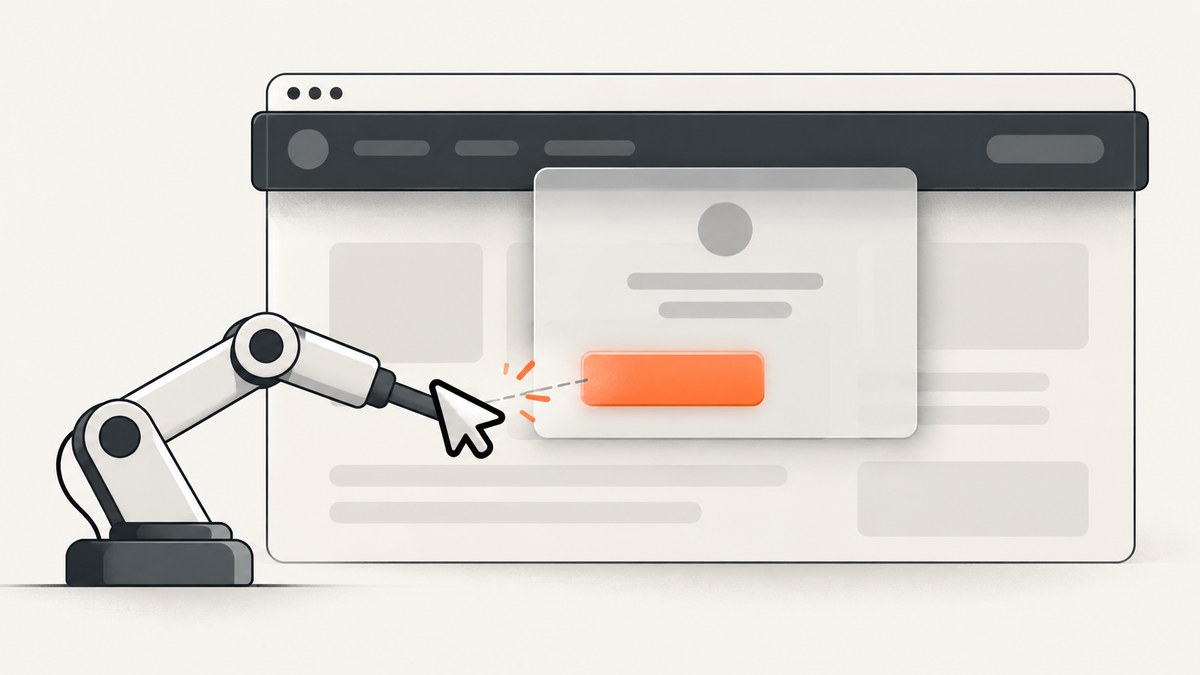
ElementClickInterceptedException means Selenium tried to click your target, but another element was positioned over the click point. Find the element receiving the click, synchronize with the page state, move the target to a safe viewport position, and handle the overlay, modal, banner, or animation that is blocking it.
Selenium defines this error as a click that would be received by a different element. Selenium clicks the center of the target, so an element can be present and visible while its center is covered. See the official error documentation and WebDriver interaction model.
1. The reliable fix, in order
- Save the exception message, URL, browser size, locator, and a screenshot.
- Inspect the reported click point and identify the element painted above the target.
- Confirm that navigation and application JavaScript have finished.
- Use a specific locator for the intended interactive element.
- Wait for known overlays to become invisible or be removed.
- Wait for the target’s required interaction state.
- Scroll the target to the center of the viewport and reacquire it.
- Dismiss the real modal, cookie banner, loading mask, or animation when that is what a user would do.
- Use a JavaScript click only when bypassing real pointer hit-testing is intentional.
2. What causes the exception?
| Cause | What you see | Correct response |
|---|---|---|
| Fixed header or sticky navigation | The target is near the top after scrolling | Scroll it to the viewport center and account for the header |
| Cookie or consent banner | A bottom or top panel covers the control | Accept or dismiss the banner, then reacquire the target |
| Modal dialog | A backdrop or dialog sits above the page | Complete the dialog or close it through its UI |
| Loading overlay or spinner | The page looks ready but a mask still intercepts input | Wait for the overlay to become invisible or detach |
| Animation | The target moves or fades during the click | Wait for the animation’s stable state |
| Ambiguous locator | The locator matches duplicate or hidden controls | Use a stable, unique locator and verify the selected element |
| Viewport or responsive layout | The target is partially clipped or moved at the test size | Set a deterministic window size and scroll deliberately |
3. Capture the actual obstruction
Do not guess from the exception text. Record enough information to reproduce the state:
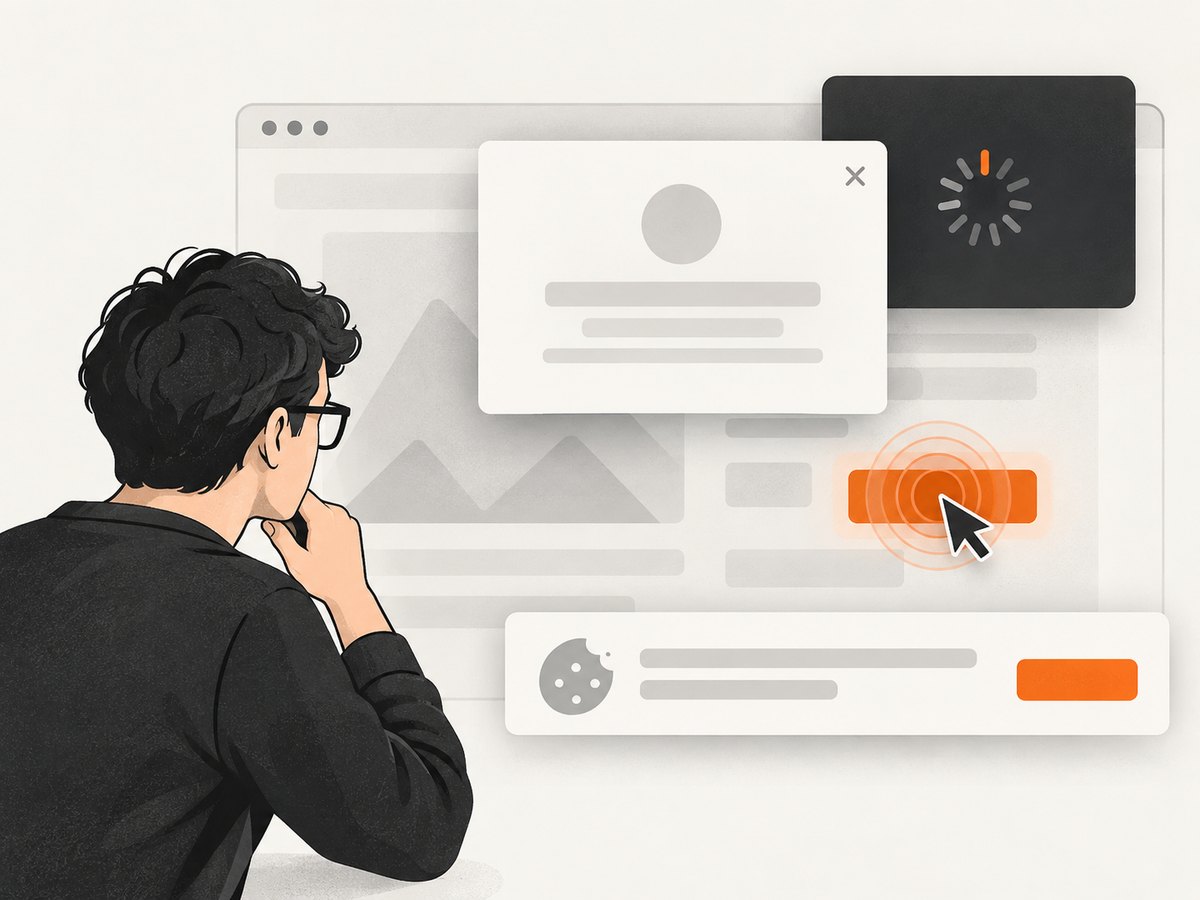
- the complete exception message, including the reported coordinates and receiving element;
- a screenshot taken immediately after the failure;
- the current URL and browser window dimensions;
- the locator and element tag, text, classes, and bounding rectangle;
- the active overlays, dialogs, banners, spinners, and animation classes.
In browser developer tools, inspect the reported point with document.elementFromPoint(x, y). Compare it with the target’s rectangle from getBoundingClientRect(). A broad locator can also select a duplicate element whose center is covered even though another copy is usable.
# Run in DevTools with coordinates from the exception
const x = 520;
const y = 410;
const receiver = document.elementFromPoint(x, y);
console.log(receiver);

const target = document.querySelector('button.submit');
console.log(target?.getBoundingClientRect());
4. Synchronize with the state the click needs
Explicit waits should describe the next operation’s requirement. Selenium’s waits documentation explains why JavaScript-driven pages can still be changing after the browser’s normal page-load wait. A fixed sleep only delays the test; it does not prove that the obstruction is gone.
from selenium.webdriver.common.by import By
from selenium.webdriver.support.ui import WebDriverWait
from selenium.webdriver.support import expected_conditions as EC

wait = WebDriverWait(driver, 15)
wait.until(EC.invisibility_of_element_located((By.CSS_SELECTOR, ".loading-overlay")))
button = wait.until(EC.element_to_be_clickable((By.CSS_SELECTOR, "button.submit")))
button.click()
element_to_be_clickable means Selenium considers the element visible and enabled at that instant. It does not guarantee that an overlay cannot appear a moment later. For persistent failures, wait on the overlay itself, then reacquire the target immediately before clicking.
5. Correct scrolling and sticky-header effects
Selenium performs a pointer click at the element center. Bring the target to a position where that center is not underneath a fixed header or another layer.
driver.execute_script(
    "arguments[0].scrollIntoView({block: 'center', inline: 'nearest'});",
    button,
)
button = wait.until(EC.element_to_be_clickable((By.CSS_SELECTOR, "button.submit")))
button.click()
Reacquire the element after scrolling because responsive layouts and lazy content can replace the DOM node. If the page reflows during scrolling, wait again. The correct offset is application-specific; avoid a magic pixel value unless the header height is stable.
6. Handle the overlay as a user would
Prefer the visible workflow that a real user follows:
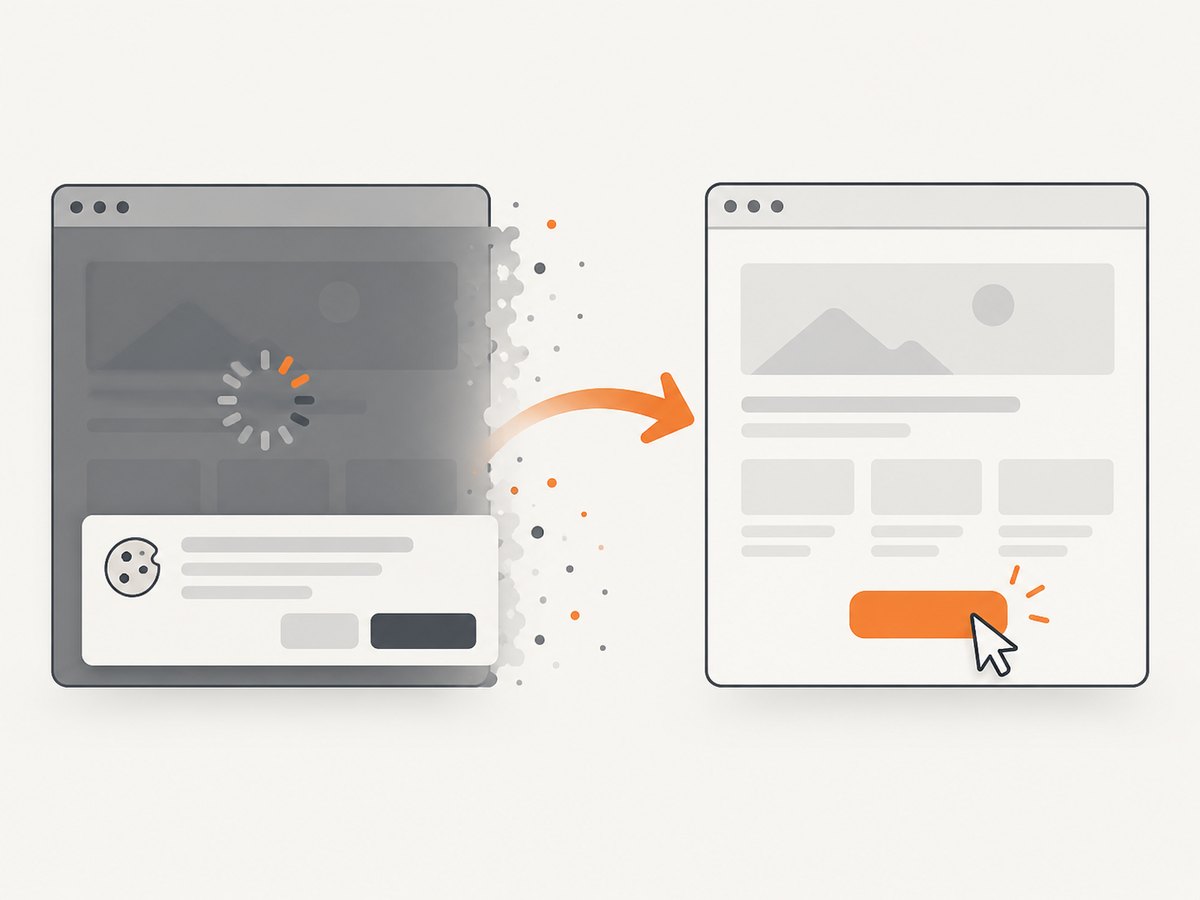
- click the consent banner’s accept or reject control;
- close the modal with its close button or complete its required form;
- wait for the loading mask to disappear;
- wait until an animation completes before interacting;
- switch to the correct iframe if the covering control belongs to a frame.
Removing an overlay with JavaScript can make a test pass while skipping required application behavior. It is suitable only for controlled test setup when the overlay itself is outside the behavior under test.
7. Complete Python example
This example waits for a known overlay, scrolls the button into a safe position, reacquires it, and reports useful diagnostics on failure.
from selenium import webdriver
from selenium.common.exceptions import ElementClickInterceptedException, TimeoutException
from selenium.webdriver.common.by import By
from selenium.webdriver.support.ui import WebDriverWait
from selenium.webdriver.support import expected_conditions as EC

options = webdriver.ChromeOptions()
options.add_argument("--window-size=1440,1000")
driver = webdriver.Chrome(options=options)
wait = WebDriverWait(driver, 15)

try:
    driver.get("https://example.com/checkout")
    overlay = (By.CSS_SELECTOR, ".loading-overlay")
    submit = (By.CSS_SELECTOR, "button[type='submit']")

    wait.until(EC.invisibility_of_element_located(overlay))
    button = wait.until(EC.visibility_of_element_located(submit))
    driver.execute_script(
        "arguments[0].scrollIntoView({block: 'center', inline: 'nearest'});",
        button,
    )
    button = wait.until(EC.element_to_be_clickable(submit))
    button.click()
except (ElementClickInterceptedException, TimeoutException):
    driver.save_screenshot("click-failure.png")
    print("URL:", driver.current_url)
    print("Target:", driver.find_element(*submit).get_attribute("outerHTML"))
    raise
finally:
    driver.quit()
8. JavaScript and Java patterns
Node.js with selenium-webdriver
const {Builder, By, until} = require('selenium-webdriver');

(async function () {
  const driver = await new Builder().forBrowser('chrome').build();
  try {
    await driver.manage().window().setRect({width: 1440, height: 1000});
    await driver.get('https://example.com/checkout');
    const overlay = By.css('.loading-overlay');
    const submit = By.css('button[type="submit"]');
    await driver.wait(until.stalenessOf(await driver.findElement(overlay)), 15000).catch(() => {});
    const button = await driver.findElement(submit);
    await driver.executeScript(
      'arguments[0].scrollIntoView({block: "center", inline: "nearest"});',
      button
    );
    await driver.wait(until.elementIsEnabled(await driver.findElement(submit)), 15000);
    await driver.findElement(submit).click();
  } finally {
    await driver.quit();
  }
})();
Use an application-specific condition for the overlay in Node.js. If the overlay remains in the DOM while hidden, check its computed visibility rather than waiting for staleness.
Java
WebDriverWait wait = new WebDriverWait(driver, Duration.ofSeconds(15));
By overlay = By.cssSelector(".loading-overlay");
By submit = By.cssSelector("button[type='submit']");

wait.until(ExpectedConditions.invisibilityOfElementLocated(overlay));
WebElement button = wait.until(ExpectedConditions.visibilityOfElementLocated(submit));
((JavascriptExecutor) driver).executeScript(
    "arguments[0].scrollIntoView({block: 'center', inline: 'nearest'});", button);
button = wait.until(ExpectedConditions.elementToBeClickable(submit));
button.click();
9. JavaScript click: when it is appropriate
driver.execute_script("arguments[0].click();", button)This bypasses WebDriver’s normal center-point pointer check. Use it only when the application intentionally supports a programmatic click and the test does not need to verify real hit-testing, focus, hover, pointer events, or keyboard behavior. It is not a universal repair for an obstruction.
10. Avoid wait configuration traps
- Do not combine long implicit waits with explicit waits casually; Selenium warns that total durations can become unpredictable.
- Prefer one clear synchronization strategy with a timeout based on the application’s normal worst case.
- Wait on the state that matters: overlay invisibility, modal closure, network-driven content, or enabled target.
- Keep locators stable and specific; avoid selecting by changing generated classes.
- Use a deterministic viewport so responsive breakpoints do not change the click geometry between runs.
11. Or skip the browser setup
If your goal is a clean screenshot rather than exercising a real pointer interaction, ScreenshotNeo captures a page through one request. Before capture it accepts the cookie or consent banner like a visitor and removes more than 60 known consent platforms, newsletter popups, and chat widgets. Bot checks, blank pages, timeouts, failed loads, and cache hits are not billed, and the response identifies the result with X-Page-Verdict and X-Billed headers. Its MCP server also lets Claude, Cursor, and other MCP clients call take_screenshot, get_page_info, and capture_pdf.
See the ScreenshotNeo API documentation for options such as full-page capture, CSS-selector elements, custom CSS and JavaScript, waits, hidden selectors, headers, cookies, user agents, device presets, caching, signed links, asynchronous jobs, and bulk capture.
curl -G "https://api.screenshotneo.com/v1/shot" -d access_key=YOUR_API_KEY --data-urlencode url=https://stripe.com -o shot.webpimport requests
r = requests.get("https://api.screenshotneo.com/v1/shot", params={"access_key": "YOUR_API_KEY", "url": "https://stripe.com"}, timeout=90)
open("shot.webp", "wb").write(r.content)const fs = require('node:fs/promises');
const q = new URLSearchParams({ access_key: 'YOUR_API_KEY', url: 'https://stripe.com' });
const res = await fetch(`https://api.screenshotneo.com/v1/shot?${q}`);
if (!res.ok) throw new Error(`HTTP ${res.status}`);
await fs.writeFile('shot.webp', Buffer.from(await res.arrayBuffer()));There are 1,000 free screenshots each month with no card; paid plans start at $5 for 3,000 shots. Create a free ScreenshotNeo account.
12. Troubleshooting common failures
| Symptom | Likely cause | Fix |
|---|---|---|
| It fails only in CI | Different viewport, timing, fonts, or responsive breakpoint | Set the window size, use explicit state waits, and capture a failure screenshot |
elementToBeClickable passes but click fails |
An overlay appeared between the wait and click | Wait for the overlay, reacquire the target immediately, and click once |
| Scrolling does not help | The obstruction is a modal, banner, or animation | Inspect elementFromPoint and handle that element |
| Element becomes stale | Scrolling or framework rendering replaced the node | Locate it again after the state change |
| Only one of several matching buttons works | Locator is too broad or selects a hidden duplicate | Scope the locator to the correct container and assert uniqueness |
| JavaScript click passes but user flow is broken | Pointer hit-testing and related events were bypassed | Fix the obstruction and restore a normal WebDriver click |
| Timeout while waiting for invisibility | Overlay is intentionally persistent or selector is wrong | Verify the selector and define the actual application-ready condition |
| Click targets an iframe control | Driver is still in the top-level document | Wait for and switch to the iframe before locating the control |
13. Performance, reliability, and cost
- Use the shortest timeout that covers normal slow loads, and fail with diagnostics when it expires.
- Waiting on a specific overlay is faster and more reliable than repeatedly retrying a click.
- Reusing a driver is usually cheaper than starting a browser for every interaction, while isolated tests should still reset page state.
- Stable locators and deterministic viewport dimensions reduce retries and CI variance.
- For screenshot pipelines, cache only when the page can safely be reused. ScreenshotNeo lets you choose a cache TTL; cache hits are not billed.
- ScreenshotNeo bills only clean shots. Bot checks, blank pages, timeouts, failed loads, and cache hits cost nothing, which makes retry and validation workflows easier to budget.
14. FAQ
Does increasing the timeout fix the exception?
Only when the page eventually reaches the required state. A longer timeout cannot fix a permanently covering element or an incorrect locator.
Should I always use elementToBeClickable?
Use it as a useful synchronization condition, then also wait for any known overlay and reacquire the element when the page can re-render.
Is a fixed sleep ever useful?
It can help with a narrowly controlled diagnostic experiment, but it does not model dynamic readiness and should not be the normal repair.
Can I remove the covering element with JavaScript?
Only when that removal is deliberate test setup. For user-flow coverage, dismiss or complete the overlay through its real controls.
Why does Selenium click the center?
WebDriver’s interaction model uses the element’s in-view center point. If that point is covered, Selenium reports an intercepted click even when another part of the element is visible.


