How to Fix ElementNotVisibleException in Headless Chrome
Fix Selenium ElementNotVisibleException in headless Chrome with explicit waits, better locators, iframe handling, viewport diagnostics, and stable CI patterns.
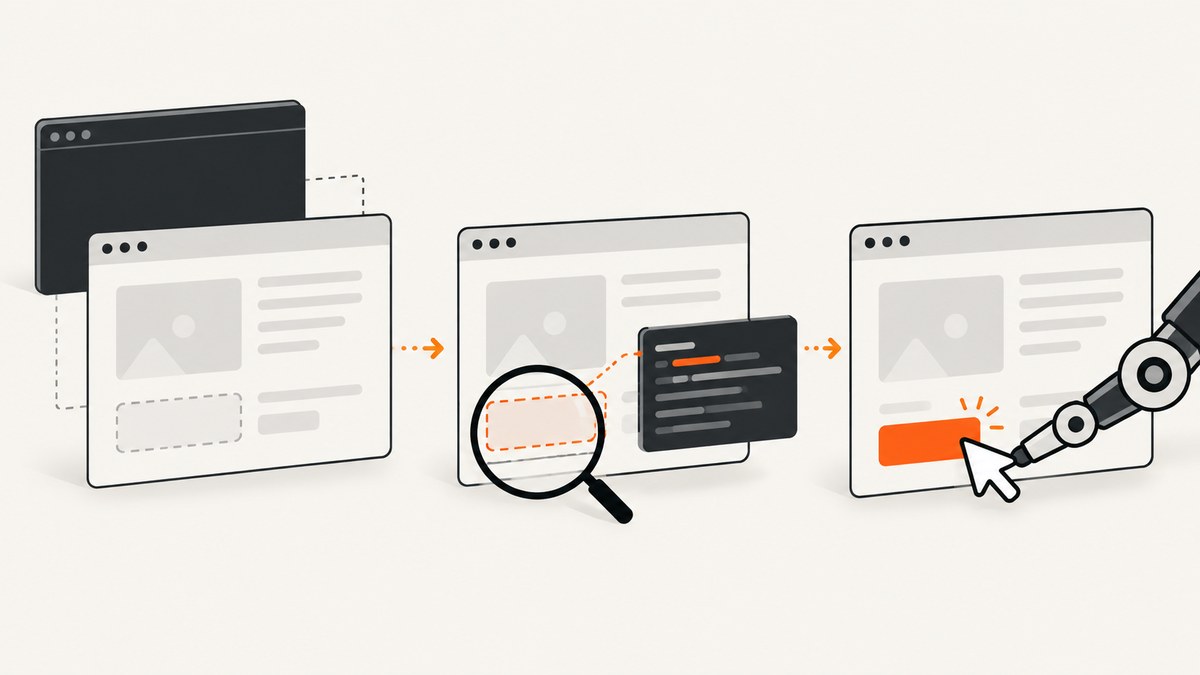
ElementNotVisibleException means Selenium found a node in the DOM, but the node is not currently visible or able to receive interaction. In headless Chrome, fix it by waiting for the required state, confirming that your locator selected the intended element, removing overlays, switching into the correct iframe, and using a deliberate viewport. Do not replace the error with a longer arbitrary sleep.
Selenium’s official reference defines the exception as one “when an element is present on the DOM, but it is not visible, and so is not able to be interacted with.” A successful find_element call proves only that a matching node exists. It does not prove that the node has rendered dimensions, is inside the viewport, is enabled, is unobstructed, or has finished its animation.
Use an explicit wait for the state you need
Choose the expected condition that matches the next operation. Selenium’s visibility condition requires the element to be present and to have width and height greater than zero. Clickability additionally checks that it is enabled. The following complete example waits for a submit button and records useful diagnostics if the wait expires.
from pathlib import Path
from selenium import webdriver
from selenium.common.exceptions import TimeoutException
from selenium.webdriver.common.by import By
from selenium.webdriver.chrome.options import Options
from selenium.webdriver.support.ui import WebDriverWait
from selenium.webdriver.support import expected_conditions as EC

options = Options()
options.add_argument('--headless')
options.add_argument('--window-size=1440,1000')
options.add_argument('--disable-gpu')

driver = webdriver.Chrome(options=options)
wait = WebDriverWait(driver, 15, poll_frequency=0.2)

try:
    driver.get('https://example.com/form')
    submit = wait.until(
        EC.element_to_be_clickable((By.CSS_SELECTOR, 'button.submit'))
    )
    submit.click()
except TimeoutException:
    Path('failure.html').write_text(driver.page_source, encoding='utf-8')
    driver.save_screenshot('failure.png')
    print('URL:', driver.current_url)
    print('Viewport:', driver.execute_script('return [innerWidth, innerHeight]'))
    raise
finally:
    driver.quit()
For a field that only needs to be read or receive keys, use visibility_of_element_located. For a click, use element_to_be_clickable. Selenium’s expected-conditions guide documents both patterns.
Diagnose the actual state before changing the locator
1. Count matches and inspect each candidate
Responsive sites often contain a desktop control, a mobile control, and a hidden template with the same class. Selenium may return the first hidden match. Count candidates and inspect their dimensions and computed style.
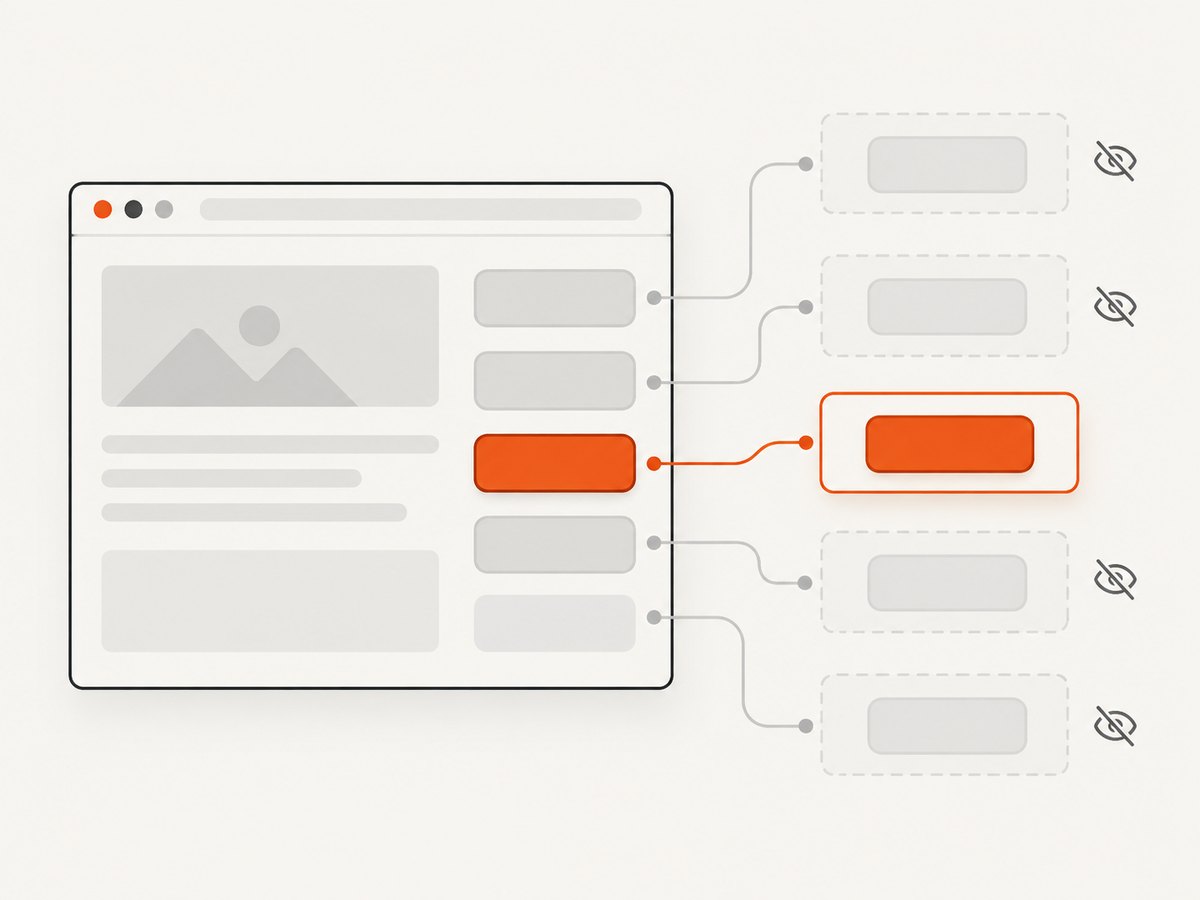
items = driver.find_elements(By.CSS_SELECTOR, 'button.submit')
print('matches:', len(items))
for index, item in enumerate(items):
    print(index, {
        'displayed': item.is_displayed(),
        'enabled': item.is_enabled(),
        'rect': item.rect,
        'class': item.get_attribute('class')
    })

visible = next(item for item in items if item.is_displayed() and item.is_enabled())
visible.click()
Prefer a locator tied to stable semantics: an accessible role, a unique ID, a form relationship, or a data attribute intended for automation. Avoid positional selectors such as :nth-child(3) when the page can reorder content.
2. Check CSS visibility and dimensions
A node is not interactable when an ancestor uses display:none or visibility:hidden, when opacity or a transform leaves it outside the usable layout, or when width and height are zero. A collapsed accordion, closed dialog, and off-canvas navigation are common examples. Wait for the action that opens the component, then wait for its content.
open_button = wait.until(
    EC.element_to_be_clickable((By.ID, 'open-settings'))
)
open_button.click()

panel = wait.until(
    EC.visibility_of_element_located((By.CSS_SELECTOR, '#settings-panel'))
)
name = wait.until(
    EC.visibility_of_element_located((By.NAME, 'display_name'))
)
name.send_keys('Ada')
3. Wait for overlays, backdrops, and animations to finish
A cookie dialog, loading mask, modal backdrop, or animated menu can cover a target even while the target itself is displayed. Wait for the obstruction to become invisible or stale before clicking.
wait.until(
    EC.invisibility_of_element_located((By.CSS_SELECTOR, '.loading-mask'))
)
wait.until(
    EC.invisibility_of_element_located((By.CSS_SELECTOR, '.modal-backdrop'))
)
button = wait.until(
    EC.element_to_be_clickable((By.CSS_SELECTOR, 'button.save'))
)
button.click()
If an animation changes layout, wait on a stable property rather than sleeping for a guessed duration. A custom predicate can check that the element’s rectangle stops changing:
def has_stable_box(locator, samples=3):
    previous = None
    count = 0
    def predicate(driver):
        nonlocal previous, count
        element = driver.find_element(*locator)
        box = element.rect
        if box == previous:
            count += 1
        else:
            count = 0
            previous = box
        return element if count >= samples else False
    return predicate

card = wait.until(has_stable_box((By.CSS_SELECTOR, '.result-card')))
Handle dynamic applications and lazy content
Single-page applications can insert a node only after a network response, replace it after hydration, or render a placeholder before the final control. Wait for the post-action state, not merely for the initial page load.
wait.until(EC.presence_of_element_located((By.ID, 'results-root')))
wait.until(EC.invisibility_of_element_located((By.CSS_SELECTOR, '.skeleton')))
result = wait.until(
    EC.visibility_of_element_located((By.CSS_SELECTOR, '[data-result-id]'))
)
Use a fixed sleep only when a third-party animation has no observable state, and keep it short. Explicit waits poll repeatedly and finish as soon as the condition is true, which is faster and more reliable across CI machines.
Switch into the right iframe
Elements inside an iframe are not part of the top-level document. Locate the frame, switch into it, and then apply your normal visibility wait. Return to the default document before interacting with the parent page.
frame = wait.until(
    EC.frame_to_be_available_and_switch_to_it(
        (By.CSS_SELECTOR, 'iframe.payment-widget')
    )
)
card_number = wait.until(
    EC.visibility_of_element_located((By.NAME, 'cardnumber'))
)
card_number.send_keys('4242424242424242')
driver.switch_to.default_content()
Nested frames require one switch per level. If the frame reloads, a previously stored element reference becomes stale; wait for the frame again and locate the child element again.
Make headless Chrome use the same layout you debugged
Chrome now uses a unified headless and headful implementation. Chrome’s documentation shows Selenium enabled with --headless; since Chrome 132, the old headless mode exists only as a separate chrome-headless-shell binary. Diagnose ordinary layout and timing differences before rewriting locators.
Set the window size explicitly. Without it, a narrow default viewport can activate a mobile breakpoint, hide the desktop control, or move a button below a sticky header.
options.add_argument('--window-size=1440,1000')
# For a device-like test, use a deliberate alternative instead:
# options.add_argument('--window-size=390,844')
When a visible element is outside the viewport, scroll it into view and then wait for clickability. Scrolling does not make a hidden element visible, but it removes one common source of intercepted interactions.
target = wait.until(
    EC.visibility_of_element_located((By.CSS_SELECTOR, '.checkout'))
)
driver.execute_script(
    "arguments[0].scrollIntoView({block: 'center', inline: 'nearest'});",
    target
)
wait.until(EC.element_to_be_clickable((By.CSS_SELECTOR, '.checkout'))).click()
Capture evidence when CI fails
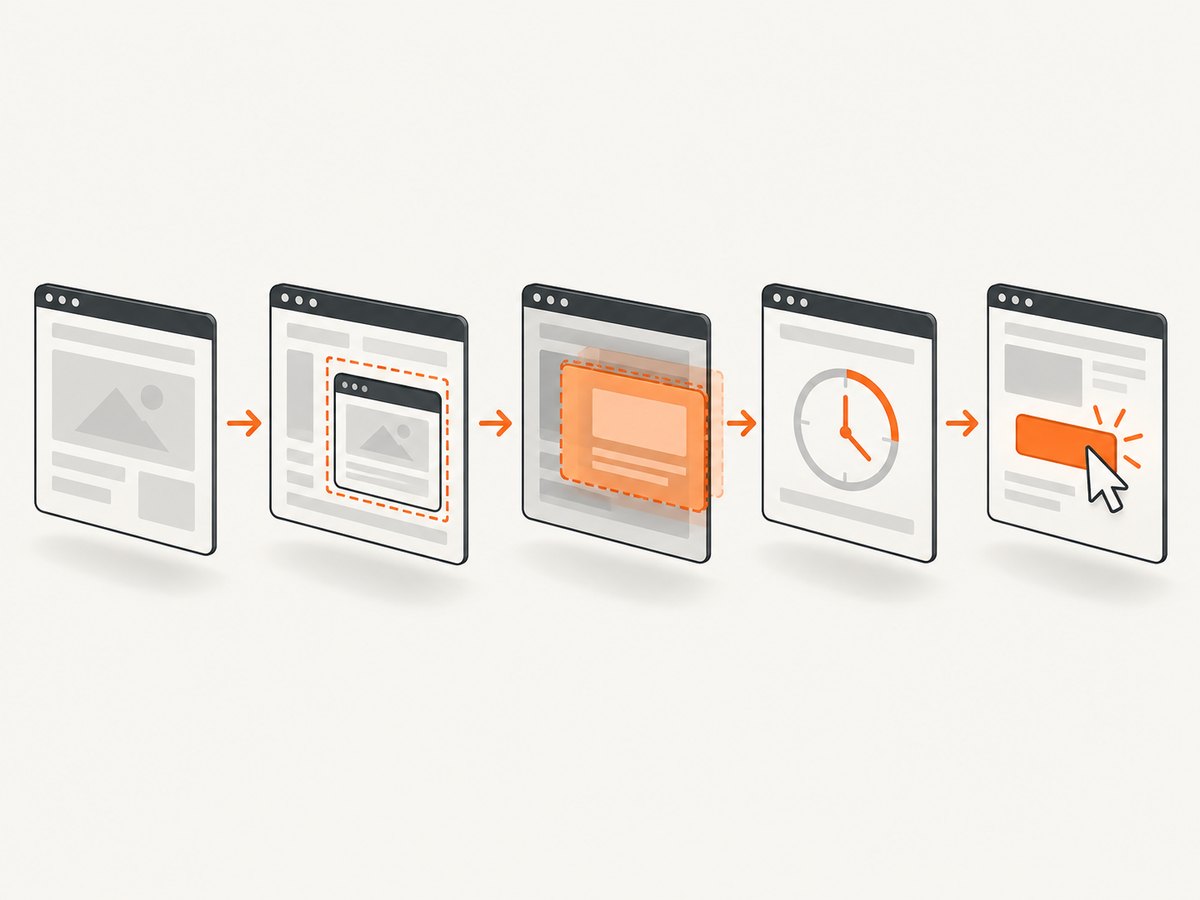
Headless-only failures are much easier to solve when the failed state is preserved. Save a screenshot, page source, current URL, viewport dimensions, user agent, and browser and driver versions.
print('browser:', driver.capabilities.get('browserVersion'))
print('driver:', driver.capabilities.get('chrome', {}).get('chromedriverVersion'))
print('user agent:', driver.execute_script('return navigator.userAgent'))
print('scroll:', driver.execute_script('return [scrollX, scrollY]'))
print('viewport:', driver.execute_script('return [innerWidth, innerHeight]'))

driver.save_screenshot('ci-failure.png')
Path('ci-failure.html').write_text(driver.page_source, encoding='utf-8')

state = driver.execute_script('''
const e = document.querySelector('button.submit');
if (!e) return null;
const r = e.getBoundingClientRect();
const s = getComputedStyle(e);
return {display:s.display, visibility:s.visibility, opacity:s.opacity,
        width:r.width, height:r.height, top:r.top, left:r.left,
        disabled:e.disabled};
''')
print(state)
Compare these artifacts with a headed run. Differences usually reveal a breakpoint, missing font, consent overlay, animation race, or browser/driver mismatch.
Common errors and fixes
| Symptom | Likely cause | Fix |
|---|---|---|
Locator returns an element but is_displayed() is false |
Hidden duplicate, template, or closed component | Count matches; choose the visible instance; open the component first. |
| Element is displayed but click fails | Overlay, disabled control, or animation | Wait for overlay invisibility, enabled state, and a stable box. |
| Works headed, fails headless | Different viewport or timing | Set window size; capture diagnostics; replace sleeps with state waits. |
| Element never appears | Wrong iframe or SPA request still pending | Wait for and switch to the frame; wait for the post-request selector. |
StaleElementReferenceException |
Framework replaced the node | Re-locate the element after the update instead of reusing the old reference. |
| Click intercepted by another element | Backdrop, sticky header, or cookie banner | Dismiss or wait for the covering element to disappear, then scroll and click. |
| Timeout only in CI | CPU, network, fonts, or driver drift | Keep an explicit timeout, collect artifacts, and pin compatible browser/driver versions. |
Reliability and performance practices
- Use one explicit wait object with a sensible timeout instead of many long sleeps.
- Prefer stable selectors and re-locate after DOM updates.
- Wait for the smallest meaningful state: a specific selector, a disabled-to-enabled transition, or an overlay disappearing.
- Keep viewport, timezone, locale, and user agent deliberate so responsive behavior is reproducible.
- Run a small diagnostic retry only for transient infrastructure failures; do not hide deterministic locator bugs with retries.
- Record browser and driver versions in CI artifacts and upgrade them together.
Or skip the browser setup
If you need a clean image rather than a Selenium session, ScreenshotNeo captures a URL through one GET request. It accepts the consent banner like a visitor, then removes 60+ known consent platforms, newsletter popups and chat widgets before the shot. Bot checks, CAPTCHAs, blank pages, timeouts, failed loads and cache hits are reported and never billed.
curl -G "https://api.screenshotneo.com/v1/shot" \
  -d access_key=YOUR_API_KEY \
  --data-urlencode url=https://example.com \
  -o shot.webp
Python:
import requests
r = requests.get(
    "https://api.screenshotneo.com/v1/shot",
    params={"access_key": "YOUR_API_KEY", "url": "https://example.com"},
    timeout=90,
)
r.raise_for_status()
open("shot.webp", "wb").write(r.content)
Node.js:
const q = new URLSearchParams({
  access_key: 'YOUR_API_KEY',
  url: 'https://example.com'
});
const res = await fetch(`https://api.screenshotneo.com/v1/shot?${q}`);
if (!res.ok) throw new Error(`${res.status} ${await res.text()}`);
require('fs').writeFileSync('shot.webp', Buffer.from(await res.arrayBuffer()));
See the ScreenshotNeo API docs for options. You can choose PNG, JPEG, WebP or PDF; set a viewport or device preset, wait for a selector, delay or network idle, run custom JavaScript, hide selectors, capture one CSS-selected element, load lazy images, set cookies or headers, block ads and trackers, and cache with your own TTL. Every response includes X-Page-Verdict and X-Billed so you can tell what happened. ScreenshotNeo also provides an MCP server with take_screenshot, get_page_info and capture_pdf tools for Claude, Cursor and other MCP clients.
The Free plan includes 1,000 screenshots each month with no card; paid plans start at $5 for 3,000 shots. Create a free ScreenshotNeo account.
FAQ
Is ElementNotVisibleException caused by headless mode itself?
Usually no. Headless can expose a different viewport or timing, but the underlying condition is still that the matched element cannot receive interaction. Inspect layout and state before changing browser mode.
Should I use JavaScript to click the element?
Use a normal Selenium click when possible because it preserves user interaction semantics and exposes overlays or disabled states. A JavaScript click can bypass those checks and hide a real defect.
What timeout should I choose?
Choose a bound that covers your slowest supported environment, commonly 10–30 seconds, and wait on a specific condition. If the timeout is regularly reached, diagnose the page rather than increasing it indefinitely.
Does presence_of_element_located guarantee visibility?
No. Presence checks only that a node exists in the DOM. Use visibility or clickability for interaction.


