How to Fix Emoji Rendering in Firebase Cloud Functions With Puppeteer
Separate missing emoji fonts from browser launch and font-loading failures, then diagnose Puppeteer in the Firebase runtime that produces your screenshot or PDF.
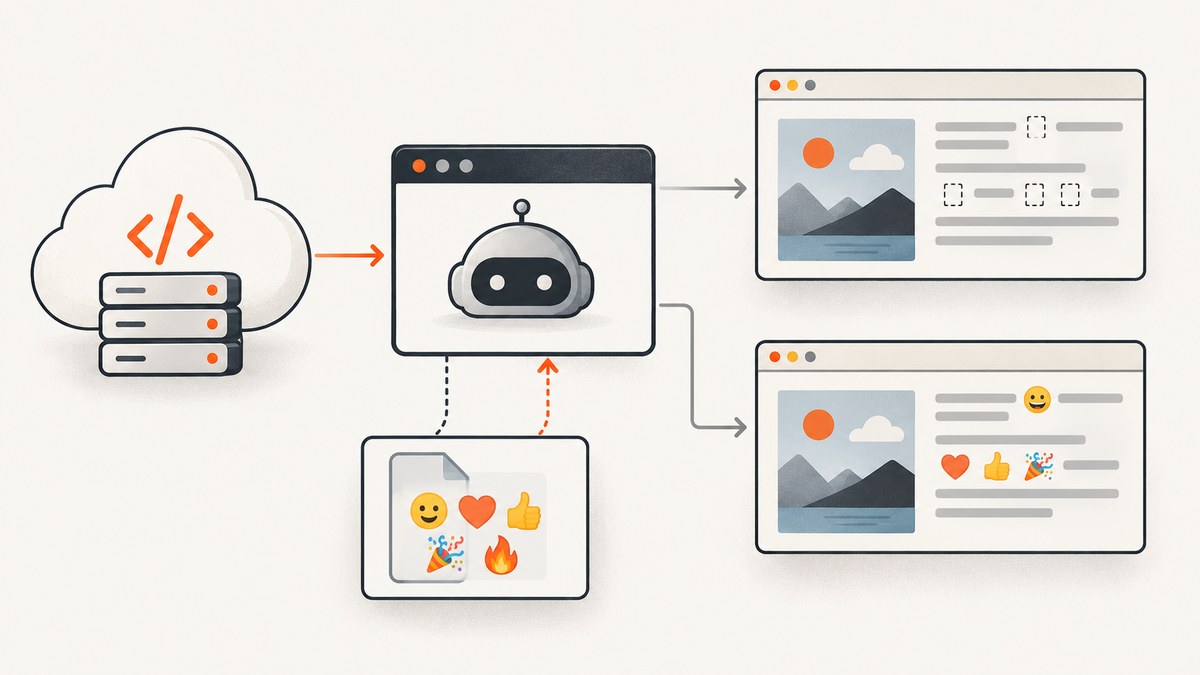
When Puppeteer renders a page in Firebase Cloud Functions and emoji appear as empty boxes, blank spaces, or replacement characters, the likely problem is font coverage: Chromium does not have access to a font containing those emoji glyphs. First confirm Chromium launches and ordinary text renders; a browser installation problem and a missing emoji font need different fixes. If the browser launches but emoji are missing, check font availability and whether the page can load the font in the deployed runtime. Then verify the exact screenshot or PDF path in production.
There is no single change established by the available evidence as a universal fix for every Firebase generation, runtime image, Puppeteer version, and output format. Puppeteer’s Cloud Functions guidance concerns browser installation and caching; it does not prescribe an emoji-specific fix. A report from Azure Functions describes missing emoji fonts in that Linux environment, but that is a lead to investigate, not proof that every Firebase runtime has the same limitation. Puppeteer troubleshooting documentation, Puppeteer issue #8180
1. Identify which failure you have
Before changing deployment configuration, classify the symptom. The distinction saves time because the same visible outcome—an incomplete screenshot or PDF—can have different causes.

| What you observe | Likely branch | First check |
|---|---|---|
| Function errors before a page opens | Browser installation, executable path, or launch configuration | Confirm Puppeteer and its browser executable are present after deployment. |
| Browser opens; regular text renders; emoji are boxes or blank | Emoji font coverage or font fallback | Check whether an emoji-capable font is available to Chromium in the deployed runtime. |
| Emoji render on one page but not another | Page styles, font fallback, or page-specific loading | Inspect computed font styles, CSS, and console/network messages. |
| Font exists in the function but does not appear in output | The page cannot fetch or read the font through its current URL or origin | Check the font request and its resolved URL from the page context. |
| Screenshot looks correct; PDF does not (or the reverse) | Different rendering path, readiness timing, or PDF-specific behavior | Test the actual output API and wait for fonts before capturing. |
Record the function generation, Node.js runtime, Puppeteer version, output format, and a small representative set of emoji. Test the same input locally and in the deployed function if possible. Local success alone does not establish that the deployed runtime has the same fonts or that page-origin restrictions are identical.
2. Rule out a Puppeteer browser-installation problem
If Chrome does not launch, diagnose deployment before investigating glyphs. Puppeteer’s Cloud Functions guidance says the Node.js runtime includes the system packages needed for Headless Chrome. It also says to include Puppeteer as a package dependency and configure its cache directory within node_modules. Its stated reason is that Cloud Functions caches node_modules, which can otherwise prevent the Puppeteer install process from running and leave the browser executable unavailable. This is browser setup guidance, not an emoji-font installation recipe. Follow the current documentation for the Puppeteer version you deploy; do not infer a browser error from missing glyphs. Puppeteer: troubleshooting
For a minimal launch check, log the failure and close the browser in a finally block. Deploy it without changing fonts first. This makes the result useful: if launch itself fails, resolve that branch; if launch succeeds and ordinary text renders, move to font coverage.
const puppeteer = require('puppeteer');

async function checkBrowser() {
  let browser;
  try {
    browser = await puppeteer.launch({ headless: true });
    const page = await browser.newPage();
    await page.setContent('<html><body>Browser check</body></html>');
    return await page.title();
  } finally {
    if (browser) await browser.close();
  }
}
This sample checks that a browser can launch and a page can be created. It does not verify emoji fonts, external font loading, screenshot output, or PDF output. In an actual function, adapt the handler and resource limits to your function generation and project configuration.
3. Check emoji font coverage in the deployed runtime
Unicode assigns code points to emoji, but Chromium still needs a font with glyph coverage to draw them. If ordinary letters appear while emoji are missing, inspect the fonts available to the deployed Linux environment and the font stack used by the page. An Azure Functions Puppeteer issue report says that environment’s image had no bundled emoji font and proposes Noto Color Emoji as an approach. It does not establish that a particular Firebase image is missing the font, or that a specific package-install command is correct for your runtime. Treat it as a diagnostic lead, and verify the current package source, licensing, and deployment compatibility before adopting a font. Puppeteer issue #8180
Ways to investigate include checking the deployed image’s installed fonts, rendering a test string containing the emoji you need, and inspecting the page’s computed styles and browser logs. Test more than one glyph: emoji coverage varies, and a font that covers one symbol may not cover another. Also test variation selectors and joined sequences used by the actual content, since a character sequence may be rendered differently from a single code point.
If you provide a font yourself, choose a deployment method supported by your runtime and make sure Chromium can access the file. The available evidence does not establish one Firebase-approved package, URL, or install command, so use the current Firebase and font distribution documentation for the exact setup. A font file being present on the server does not by itself mean the page can use it.
4. Confirm the page can load the font
A custom font may be installed or bundled but still fail to load from the page being rendered. Inspect the browser console and network requests for failed font loads, blocked resources, incorrect paths, and origin restrictions. Check that the URL resolves from the page’s context—not merely from the function’s filesystem—and that any required response headers permit the request.
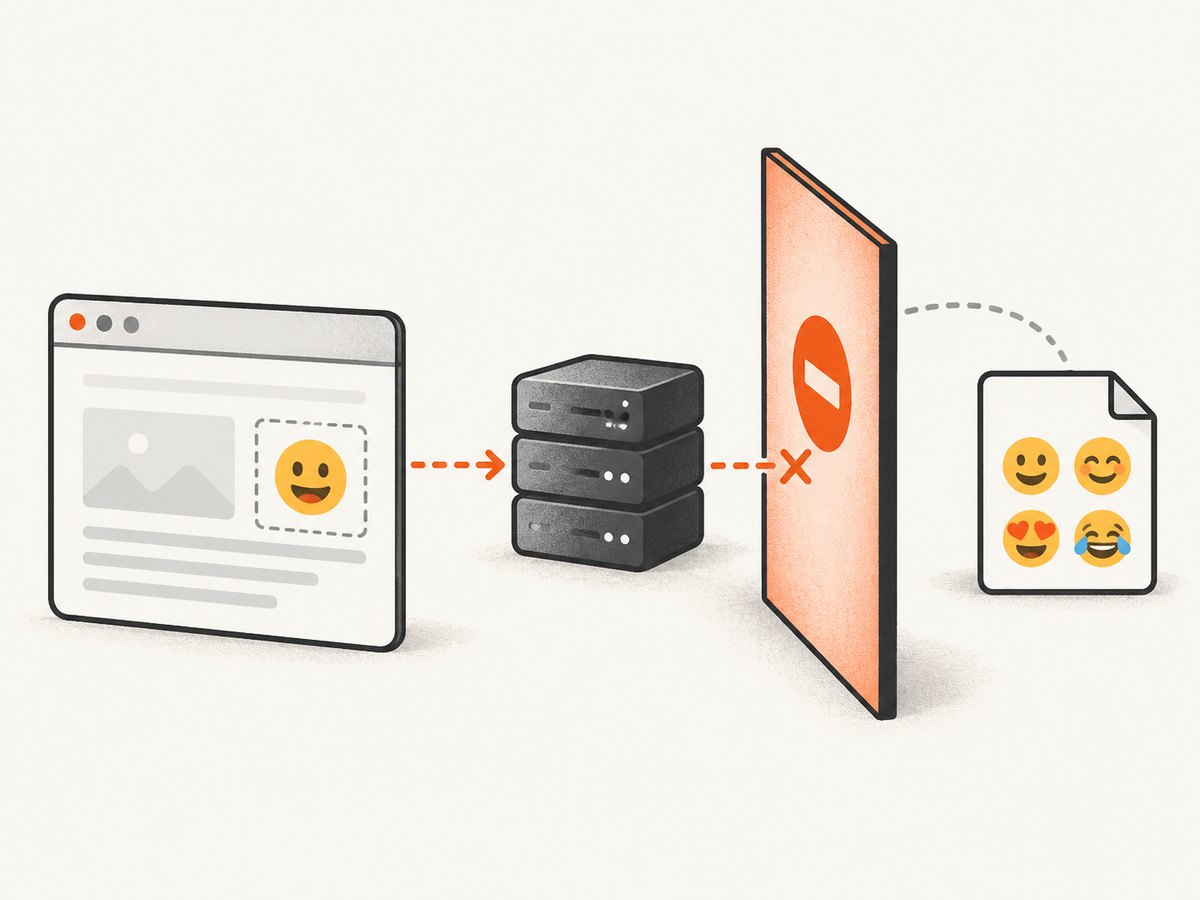
A Puppeteer report about blank emoji in PDF output described a local Noto font file and an @font-face rule. In that discussion, a maintainer said the browser appeared to be blocking the font; the reporter later said navigating to a file:// page worked where page.setContent() had created an about:blank page. That observation belongs to the reported case. It is not a general guarantee that switching to file:// fixes Firebase rendering, nor a reason to weaken security settings. Verify the URL, origin, permissions, and loading behavior in your own deployment. Puppeteer issue #12304
When the page uses the Font Loading API, wait for fonts before capture. This helps with timing; it cannot supply a missing font or make a blocked URL accessible.
await page.goto(targetUrl, { waitUntil: 'networkidle0' });
await page.evaluate(() => document.fonts.ready);
await page.screenshot({ path: '/tmp/page.png', fullPage: true });
If you use page.setContent(), define how relative font URLs should resolve. With no ordinary site URL, relative paths may not point where you expect. Check the resolved request in Chromium and consider serving the content from a controlled URL or supplying a correctly reachable font resource, consistent with your deployment’s security model.
5. Reproduce the actual screenshot or PDF path
Once launch and font loading are understood, test the exact output your function returns. Use an HTML fixture with ordinary text, the target emoji, and any relevant styles. Run the same browser, font setup, page content, wait conditions, and output method locally and in the deployed function.
const puppeteer = require('puppeteer');

async function renderFixture(outputPath, asPdf = false) {
  const browser = await puppeteer.launch({ headless: true });
  try {
    const page = await browser.newPage();
    page.on('console', message => console.log('browser:', message.text()));
    page.on('requestfailed', request => {
      console.error('request failed:', request.url(), request.failure()?.errorText);
    });

    await page.goto('https://example.com/emoji-fixture', {
      waitUntil: 'networkidle0',
    });
    await page.evaluate(() => document.fonts.ready);

    if (asPdf) {
      await page.pdf({ path: outputPath, printBackground: true });
    } else {
      await page.screenshot({ path: outputPath, fullPage: true });
    }
  } finally {
    await browser.close();
  }
}
Replace the fixture URL with a page you control. This example is a diagnostic scaffold, not a complete Firebase callable or HTTP function: adapt request handling, temporary-file use, storage, and response delivery to your application. Do not log secrets or sensitive page data. Capture browser console and failed-request details only as needed, and avoid returning an error page as though it were a valid screenshot.
6. Troubleshooting common errors
| Symptom or message | Cause to investigate | Fix or next step |
|---|---|---|
| Executable missing or browser launch fails | Puppeteer dependency or cached browser install is unavailable in the deployment | Apply Puppeteer’s Cloud Functions dependency and cache-directory guidance; redeploy and verify the executable. |
| Launch succeeds, but emoji are empty boxes | No available font covers those glyphs, or CSS selects a font without coverage | Inspect deployed font coverage and the page’s fallback stack; provide a compatible font using a verified deployment method. |
| Emoji are blank with no obvious page error | Font request may have failed or the font may not cover the sequence | Watch failed requests and console messages; test the exact glyph sequence and font readiness. |
| Local font file exists but browser reports a failed font request | URL resolution, page origin, permissions, or access rules prevent Chromium from reading it | Check the resolved URL from the page and use an origin and resource path that the page is allowed to access. |
| Only PDF output is wrong | PDF path, print styles, or capture timing differs from the screenshot path | Wait for fonts and test page.pdf() directly with the deployed font and styles. |
| Works locally, fails after deployment | Local fonts, OS packages, cache state, environment variables, or browser version differ | Compare the deployed runtime and browser setup; validate fonts inside the function environment. |
| Some emoji render, others do not | Partial glyph coverage or a multi-code-point sequence is unsupported | Test the exact symbols and sequences used; verify the chosen font covers them. |
| Screenshot is captured too early | Font or page resources have not finished loading | Wait for the relevant selector or page condition and document.fonts.ready; use a bounded timeout. |
7. Reliability, performance, and cost considerations
Font troubleshooting adds work to an already resource-constrained browser function. Reuse the browser only when that matches your function’s lifecycle and isolation requirements; close pages and browsers reliably, bound navigation and font waits, and avoid waiting indefinitely for network idle on pages with ongoing requests. Keep the diagnostic fixture small so a failure points to font behavior rather than a large page’s unrelated resources.
For reliability, make the result observable: log whether launch succeeded, whether the page loaded, whether font requests failed, and which output path ran. Keep errors distinct so a browser launch failure is not reported as a successful image with missing emoji. Recheck after changing the runtime, Puppeteer version, font assets, or page origin. The cited reports do not establish Firebase-wide behavior or a performance benchmark, so measure your own function’s cold and warm invocation behavior and account for the deployment’s memory, timeout, and storage constraints.
Cost depends on your Cloud Functions configuration and invocation pattern; no price or savings figure follows from the evidence here. Avoid retry loops that repeatedly capture a page without diagnosing the font request. A bounded retry can make sense for a transient load failure, but it will not correct missing glyph coverage.
8. Or skip the browser setup
If you need a website screenshot and do not need to control a Puppeteer runtime, ScreenshotNeo is a website screenshot API and MCP server. One GET request takes a URL and returns a PNG, JPEG, WebP, or PDF. See the API documentation for request options.
curl -G "https://api.screenshotneo.com/v1/shot" -d access_key=YOUR_API_KEY --data-urlencode url=https://stripe.com -o shot.webpimport requests
r = requests.get(
"https://api.screenshotneo.com/v1/shot",
params={"access_key": "YOUR_API_KEY", "url": "https://stripe.com"},
timeout=90,
)
open("shot.webp", "wb").write(r.content)const q = new URLSearchParams({ access_key: 'YOUR_API_KEY', url: 'https://stripe.com' });
const res = await fetch(`https://api.screenshotneo.com/v1/shot?${q}`);ScreenshotNeo accepts cookie and consent banners before capture and removes more than 60 known consent platforms, newsletter popups, and chat widgets; each step can be turned off. Bot checks, blank pages, timeouts, failed loads, and cache hits cost nothing, and responses include X-Page-Verdict and X-Billed headers. Its MCP server provides take_screenshot, get_page_info, and capture_pdf for AI agents and MCP clients. The free plan includes 1,000 screenshots a month with no card; paid plans start at $5 for 3,000. Every feature is on every plan. These points can remove the need to install and maintain your own browser for ordinary website captures; if your task specifically depends on your own page, font, or runtime configuration, continue testing that path directly.
Create a free ScreenshotNeo account for 1,000 screenshots a month with no card.
9. FAQ
Does Puppeteer’s Cloud Functions setup guide fix emoji rendering?
No. It addresses browser installation and caching. Emoji glyph availability and font loading are separate checks.
Does every Firebase Cloud Function lack an emoji font?
The cited evidence does not establish that. Check the fonts in the specific deployed runtime and verify with your target symbols.
Will waiting for document.fonts.ready add missing emoji?
No. It waits for font loading to settle. It cannot provide a font that is absent or make a blocked resource accessible.
Should I change the page to file://?
That was a reported workaround in one Puppeteer font-loading case, not a general Firebase recommendation. Diagnose the page’s font URL and access rules first.
Does this apply to both screenshots and PDFs?
The font-coverage checks apply to both, but test each output path because timing, page styles, and rendering can differ.
Sources and evidence limits
The diagnosis here follows Puppeteer’s Cloud Functions browser-installation guidance and two issue reports: one about emoji font availability in Azure Functions and one about a local font that a page did not load in a particular PDF case. Those reports do not prove the cause or the fix for an unspecified Firebase deployment. Confirm the runtime, versions, logs, and target output before choosing a deployment-specific font solution.


