How to Fix Emoji Rendering in Puppeteer on Ubuntu
Fix missing emoji in Puppeteer by installing Noto Color Emoji in the runtime, checking font access, and waiting for fonts before capture.
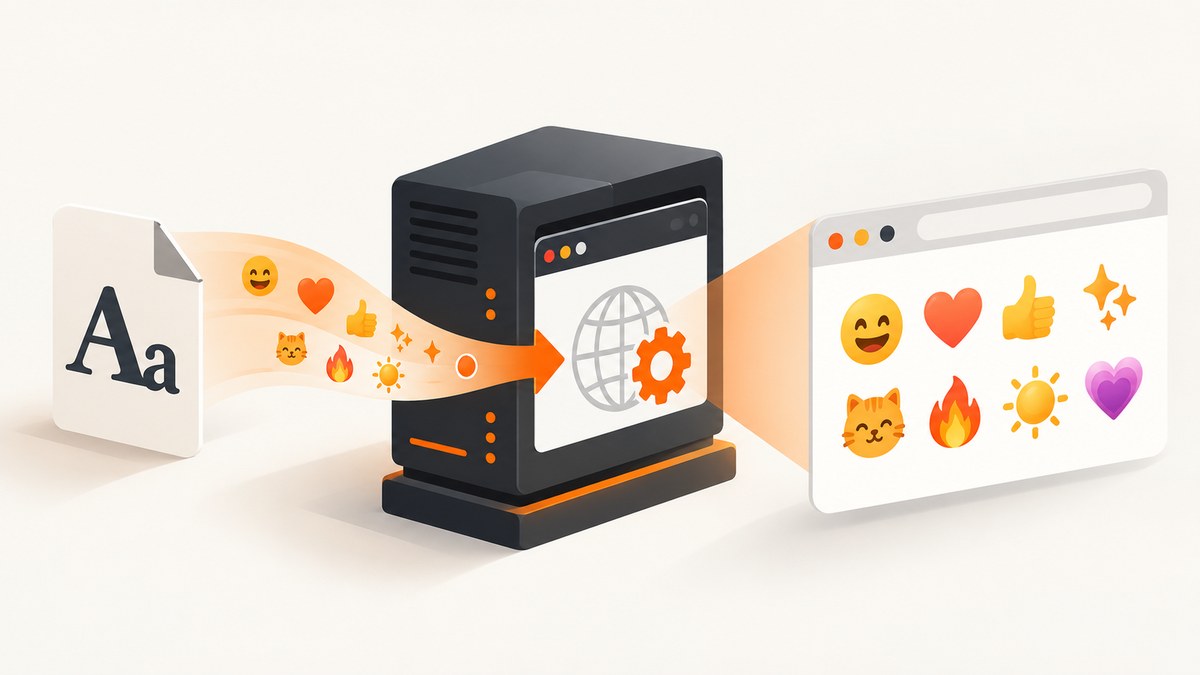
When emoji appear as blank boxes in Puppeteer on Ubuntu, install an emoji font in the same Ubuntu environment where Chromium runs. The usual fix is fonts-noto-color-emoji. Then confirm fontconfig sees it, make sure any custom font URL is accessible to the page, and wait for document.fonts.ready before capturing. A font file existing somewhere on disk does not guarantee Chromium can use it.
This guide covers screenshots and PDFs, Docker and CI images, custom @font-face fonts, partial emoji failures, and a minimal page you can use to isolate the cause.
1. Install Noto Color Emoji in the browser runtime
Puppeteer delegates rendering to Chromium. The font must be installed in the OS environment of the browser process, which may be a container or CI image rather than your development machine. Ubuntu provides the fonts-noto-color-emoji package, which installs NotoColorEmoji.ttf at /usr/share/fonts/truetype/noto/NotoColorEmoji.ttf. [Ubuntu package metadata, Ubuntu package file list]

On a Debian or Ubuntu host, install the font and fontconfig, refresh the font cache, and check that the font is listed:
sudo apt-get update
sudo apt-get install -y fonts-noto-color-emoji fontconfig
sudo fc-cache -f -v
fc-list | grep -i 'Noto Color Emoji'
ls -l /usr/share/fonts/truetype/noto/NotoColorEmoji.ttf
The fc-list command should show a Noto Color Emoji entry. Run it inside the same container and as the same runtime user used for Puppeteer. Checking your host is not enough if Chromium runs elsewhere.
Put the font in the Docker image
Install the package in the image that launches Puppeteer, then rebuild and deploy that image. For example, add this to a Debian or Ubuntu based Dockerfile:
RUN apt-get update \
    && apt-get install -y --no-install-recommends \
       fonts-noto-color-emoji fontconfig \
    && fc-cache -f -v \
    && rm -rf /var/lib/apt/lists/*
Keep the install in the runtime image, not only in a build stage that is discarded. After rebuilding, verify the file and font listing in the final image:
docker run --rm YOUR_IMAGE sh -lc \
  "fc-list | grep -i 'Noto Color Emoji' && ls -l /usr/share/fonts/truetype/noto/NotoColorEmoji.ttf"
The package fixes font availability; it does not install Chromium’s other runtime dependencies. If Chromium fails to launch or reports missing shared libraries, use Puppeteer’s official Linux troubleshooting guide to check the dependencies for your Debian or Ubuntu environment.
2. Reproduce the problem with a minimal page
Before changing application CSS or adding a custom font, test whether Chromium can render emoji using the system font. Save this as emoji.html:
<!doctype html>
<html>
<head>
<meta charset="utf-8">
<style>
.emoji {
font-family: "Noto Color Emoji", sans-serif;
font-size: 48px;
}
</style>
</head>
<body>
<p class="emoji">😀 😍 🚀 ❤️ 🏳️🌈</p>
</body>
</html>Capture it after fonts are ready. This Node.js script uses Puppeteer and writes a screenshot:
const puppeteer = require('puppeteer');
const path = require('path');

(async () => {
  const browser = await puppeteer.launch({ headless: true });
  try {
    const page = await browser.newPage();
    const htmlPath = path.resolve('emoji.html');
    await page.goto(`file://${htmlPath}`, { waitUntil: 'load' });
    await page.evaluate(() => document.fonts.ready);
    await page.screenshot({ path: 'emoji.png' });
  } finally {
    await browser.close();
  }
})();
For a quick diagnostic, compare the result with and without the explicit font-family declaration. If the system-font version works but your application does not, investigate application CSS and custom font loading. If both fail, check the installed package, fontconfig output, and Chromium build in the runtime.
3. Make custom fonts fetchable and wait for them
A CSS @font-face rule loads a font through a URL in the page’s origin and security context. A local TTF path on the server is not automatically a URL the page can fetch. Puppeteer issue #12304 documents an about:blank case where a font file existed but the page could not load it; navigating to a file:// document with a file:// font URL and awaiting font readiness resolved that example.
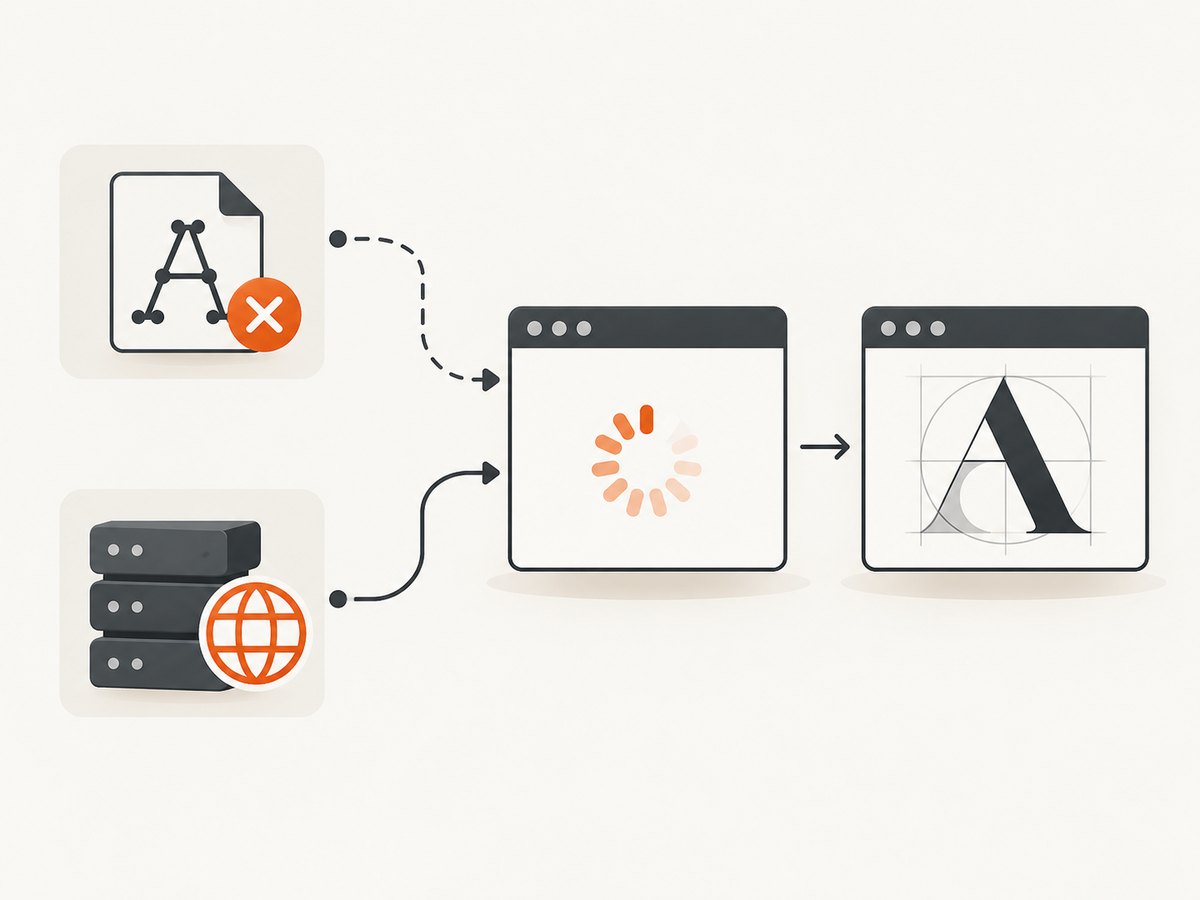
Use a page and font served over HTTP(S), or navigate to a local HTML file and reference the font with a valid file:// URL. Then wait before capture:
await page.goto(`file://${htmlPath}`, { waitUntil: 'load' });
await page.evaluate(() => document.fonts.ready);
await page.screenshot({ path: 'emoji.png' });
// Or:
await page.pdf({ path: 'emoji.pdf', printBackground: true });
If you use page.setContent(), prefer an HTTP(S) font URL that the page can access, or embed the font as a data URL when your policy permits. Do not put a filesystem path such as /app/fonts/emoji.ttf in CSS and assume the browser will fetch it. Check the browser console and failed network requests for blocked URLs, cross-origin restrictions, or missing files.
Check whether the font loaded
After the document is loaded, inspect the browser’s font readiness and computed style while debugging:
const fontStatus = await page.evaluate(async () => {
  await document.fonts.ready;
  const element = document.querySelector('.emoji');
  return {
    status: document.fonts.status,
    family: getComputedStyle(element).fontFamily,
    loaded: document.fonts.check('48px "Noto Color Emoji"'),
  };
});
console.log(fontStatus);
document.fonts.check() is a useful diagnostic, but it does not prove every character sequence has a matching glyph or that the output format will render it as desired. Inspect the actual image or PDF too.
4. Diagnose partial emoji failures
If some emoji render while others remain blank, the font package may be installed correctly. The remaining cause can be glyph coverage, fontconfig selection, variation selectors, a zero-width joiner sequence, or differences in Chromium’s color-font handling. Puppeteer issue #11120 describes partial rendering that persisted after emoji fonts were installed and reinstalled.
Test the exact characters your application uses. Include several classes rather than a single smiley:
- Single code point, such as
😀. - Emoji with a variation selector, such as
❤️. - Skin-tone sequences, such as
👍🏽. - Zero-width-joiner sequences, such as
👩💻. - Regional-indicator flags and tag or family sequences used by your content.
Noto Color Emoji uses the CBDT/CBLC bitmap color-font format. Rendering support can vary with fontconfig adjustments, Ubuntu release, Chromium version, and the format used by a particular font. [Noto Emoji project, Chromium Linux emoji notes]
Use the same browser build and final container image as production when checking a sequence. A successful local screenshot does not establish that a different Chromium version, fontconfig setup, or PDF path will produce the same output.
5. Capture a screenshot or PDF reliably
Once the font is installed and the page can load any custom font, wait for both page activity and font readiness. A practical capture helper can use networkidle0 for pages that settle quickly, while still enforcing a timeout so a long-polling application does not wait forever:
const puppeteer = require('puppeteer');

async function capture(url, outputPath) {
  const browser = await puppeteer.launch({ headless: true });
  try {
    const page = await browser.newPage();
    await page.goto(url, {
      waitUntil: 'networkidle0',
      timeout: 30000,
    });
    await page.evaluate(() => document.fonts.ready);
    await page.screenshot({ path: outputPath, fullPage: true });
  } finally {
    await browser.close();
  }
}

capture('https://example.com', 'page.png').catch((error) => {
  console.error(error);
  process.exitCode = 1;
});
For pages with persistent connections, use a less strict navigation condition such as domcontentloaded, then wait for the specific content and for fonts:
await page.goto(url, { waitUntil: 'domcontentloaded', timeout: 30000 });
await page.waitForSelector('.article-content', { timeout: 10000 });
await page.evaluate(() => document.fonts.ready);
await page.screenshot({ path: 'page.png', fullPage: true });
PDF capture has its own output behavior. Set options such as printBackground when needed, and inspect the PDF itself because a screenshot succeeding does not guarantee the PDF will match. If the page uses print-specific CSS, validate with the production print path and paper settings.
6. Troubleshooting checklist
| Symptom | Likely cause | What to check or change |
|---|---|---|
| All emoji are blank squares | Emoji font missing from the browser runtime, or fontconfig cannot see it. | Install fonts-noto-color-emoji in the final image; run fc-list and verify the TTF path inside that image. |
| Works locally, fails in Docker or CI | The host has the font but the container or CI worker does not. | Install the font in the image/job that launches Puppeteer and rebuild the deployed image. |
| System font works, custom font fails | The page cannot fetch the @font-face URL, or CSS selects another family. |
Use an accessible HTTP(S) or valid file:// URL; inspect computed styles, console errors, and failed requests. |
| First capture fails; retry works | Capture ran before web fonts finished loading. | Await document.fonts.ready immediately before screenshot or PDF. |
| Only flags, joined emoji, or skin tones fail | Sequence coverage, variation-selector handling, shaping, or Chromium color-font behavior. | Build a minimal page with the exact failing sequence and test in the production Chromium build. |
| Screenshot works but PDF has gaps | Output paths can exercise different rendering behavior, including print styles and color-font handling. | Wait for fonts, check print CSS, and verify the actual PDF artifact using the exact production browser. |
| Browser will not launch | Chromium dependencies are missing; the emoji package alone does not provide them. | Follow Puppeteer’s official Linux dependency troubleshooting instructions for the base image. |
- Confirm which container, host, and user actually launch Puppeteer.
- Run
fc-listand check the TTF path in that environment. - Verify Chromium launches with its required system libraries.
- Capture the minimal page using the system font.
- For custom fonts, verify the URL is reachable and wait for font readiness.
- Compare exact failing emoji sequences, then test both screenshot and PDF output if both matter.
7. Performance, reliability, and cost
Installing a system font in the image makes availability predictable across runs of that image. It also avoids fetching a custom emoji font on every page, though the actual capture time still depends on page navigation, assets, JavaScript, and output size. Rebuilding the image after package changes and pinning the production browser environment helps keep behavior reproducible; font or browser updates can change rendering.
Waiting for document.fonts.ready prevents a capture from racing font loading. On a page with delayed or blocked font requests, the wait may take longer or reveal a real fetch failure; inspect request errors rather than masking them with an arbitrary sleep. Set navigation and selector timeouts appropriate to your service so one page cannot hold a worker indefinitely.
For a self-hosted Puppeteer pipeline, costs include the compute and storage you operate plus the work of maintaining Chromium dependencies and fonts in your runtime image. There is no separate font license or service cost asserted here; review package and font terms for your own distribution needs. For a managed screenshot API, compare its documented billing rules and capture options against the volume and cleanup your pipeline requires.
8. Or skip the browser setup
If your goal is to capture a page rather than maintain Chromium, ScreenshotNeo is a website screenshot API and MCP server. Its API can return PNG, JPEG, WebP, or PDF, and its documentation describes the request options. For a page where system-font emoji appearance matters, validate the returned artifact against your exact emoji set and required output format.
For a self-hosted route, the relevant work above is installing Noto Color Emoji in the browser runtime, confirming font access, and waiting for fonts. ScreenshotNeo’s stated differentiators are that it accepts cookie and consent banners before capture and removes more than 60 known consent platforms, newsletter popups, and chat widgets; bot checks, blank pages, failed loads, timeouts, and cache hits are not billed; and an MCP server provides take_screenshot, get_page_info, and capture_pdf tools for AI agents. The free plan includes 1,000 shots per month without a card; paid plans start at $5 for 3,000 shots. Its features are available on every plan.
curl -G "https://api.screenshotneo.com/v1/shot" \
  -d access_key=YOUR_API_KEY \
  --data-urlencode url=https://stripe.com \
  -o shot.webp
See the API documentation for key setup and options, then sign up for 1,000 free screenshots a month, with no card required.
9. FAQ
Do I need to install the font on my host if Puppeteer runs in a container?
No. The relevant environment is the one running Chromium. Install and verify the package in the container or runtime image used for capture.
Can I fix missing emoji only by changing CSS?
CSS can select an available font, but it cannot supply missing glyphs by itself. First make an emoji font available to Chromium, then check the page’s font-family rules.
Does installing Noto guarantee every emoji sequence will render?
No. Test the exact characters and sequences your application uses, especially when failures are selective. Font coverage, sequence shaping, and browser color-font behavior can vary.
Why do screenshots and PDFs differ?
They are separate output paths and may respond differently to print styles and color-font handling. Validate the artifact your application delivers using its production browser configuration.


