How to Fix Empty PDFs from Chrome Headless Print-to-PDF
An empty Chrome PDF usually means the page was captured before it rendered or print CSS hid its content. Diagnose the cause and fix CLI and Puppeteer captures.
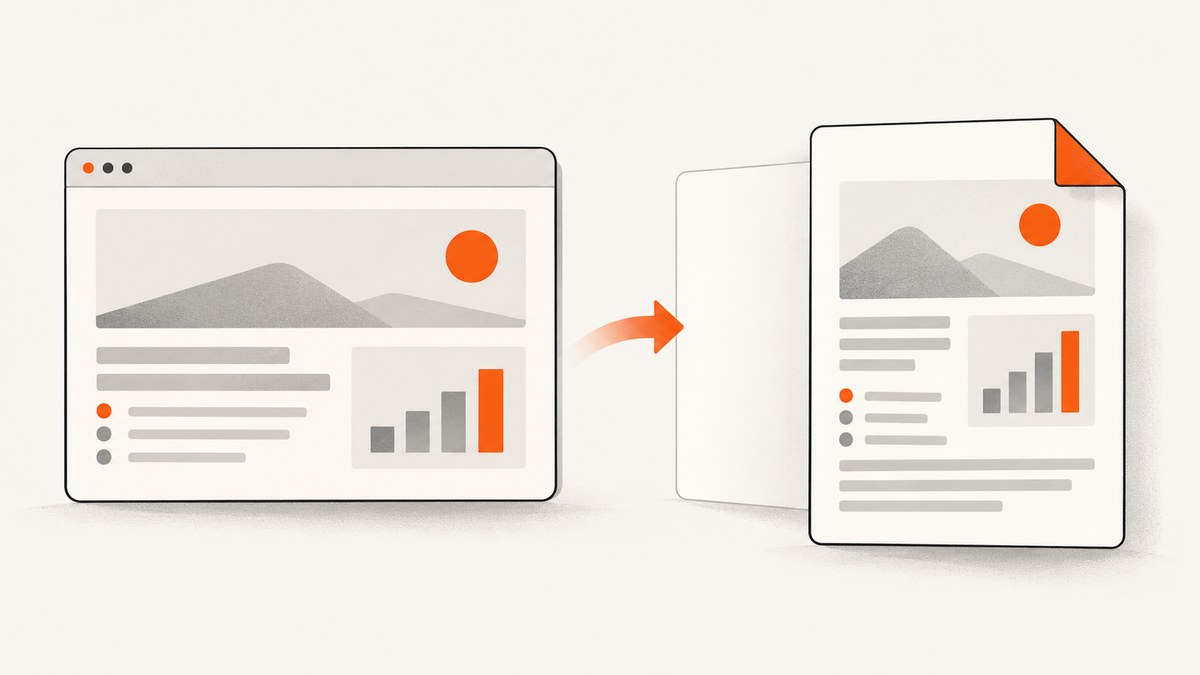
An empty PDF from Chrome Headless usually points to one of two problems: Chrome printed before the page finished rendering, or print-specific CSS hid the content. Start by checking whether the page’s DOM and screenshot contain the report. If they do, inspect print styles and browser version; if they do not, fix navigation, authentication, JavaScript, data loading, or the page’s readiness condition.
Chrome’s --timeout option sets the maximum wait after page load before capture for --print-to-pdf, --screenshot, and --dump-dom. Use it for a quick CLI check. For a reliable Puppeteer workflow, wait for an application-specific ready signal, then wait for network activity and fonts before calling page.pdf(). Chrome Headless command-line reference
1. Diagnose where the content disappears
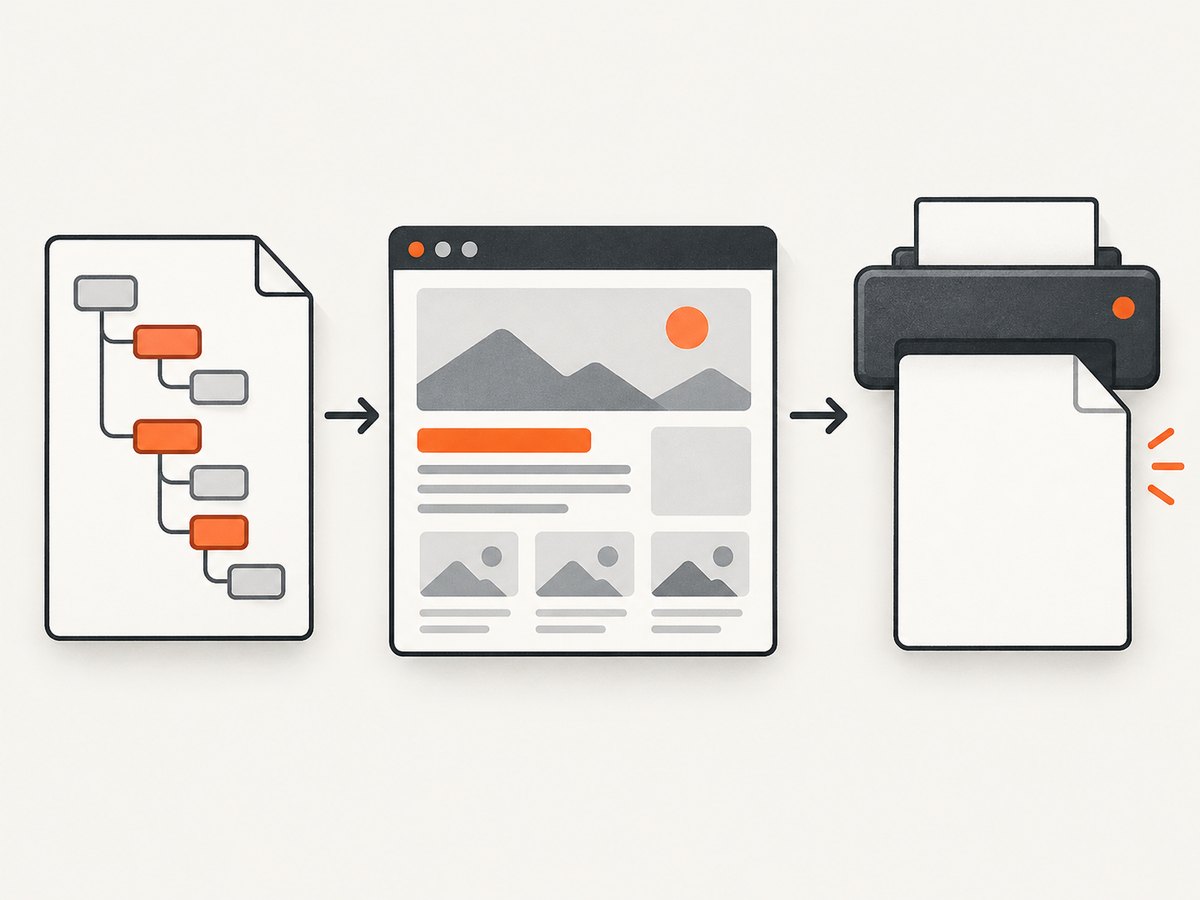
Before changing PDF options, compare three outputs: the serialized DOM, a screenshot, and the PDF. This separates a page-rendering problem from a print-layout problem.
- Check the URL and access. Confirm the exact URL works in the same environment, including any login state, cookies, or required headers. A redirect to a login page or an access-denied response can look like an empty report.
- Dump the DOM. If expected text or report elements are absent, the application may not have loaded data or completed its client-side render.
- Capture a screenshot. If the DOM has content but the screenshot does not, investigate rendering errors, hidden screen elements, or a browser issue.
- Compare the PDF. If the DOM and screenshot show the content but the PDF is blank or incomplete, inspect print CSS, page dimensions, colors, fonts, and Chrome version.
Chrome captures at page-load completion by default. That event does not guarantee that a client-rendered application has finished fetching data, hydrating components, decoding images, or painting the final report. A delay can help diagnose timing, but an application-specific ready condition is a stronger production signal.
2. Fix Chrome CLI print-to-PDF
First verify what Chrome sees, then add a bounded wait. Replace the example URL and output paths with values available to the machine running Chrome.
chrome --headless --dump-dom https://example.test/report
chrome --headless --screenshot=/tmp/report.png --timeout=5000 https://example.test/report
chrome --headless --disable-gpu --print-to-pdf=/tmp/report.pdf --no-pdf-header-footer --timeout=5000 https://example.test/report
The output path must be writable by the process. The timeout value is in milliseconds; increase it only as needed for the page’s rendering and data load. Chrome documents the same --timeout capture delay for DOM dumps, screenshots, and PDF output. Headless command-line flags
Use virtual time for timer-driven pages
Some pages schedule rendering through timers. Chrome’s virtual-time budget fast-forwards timer-driven code such as setTimeout and setInterval. It can be useful for a page whose render depends on a known timer, but it is not a universal substitute for waiting for a data request or an application state.
chrome --headless --disable-gpu --print-to-pdf=/tmp/report.pdf --no-pdf-header-footer --virtual-time-budget=5000 https://example.test/reportTry --timeout when you need to give the page real time to load; try --virtual-time-budget when relevant page behavior depends on timers. Avoid stacking large waits blindly: long capture delays slow every job and still may not mean the data is ready.
Check the no-header-footer flag spelling
Use --no-pdf-header-footer with current Chrome. Older versions used --print-to-pdf-no-header. This flag controls printed headers and footers; it does not make hidden page content visible. If an older packaged browser rejects the current spelling, check that browser’s own command-line help and version.
3. Make Puppeteer wait for the report
Puppeteer gives you more control than a fixed CLI delay. Navigate, wait for a meaningful report element, wait for network activity to settle, and then print. The selector should appear only when the application has rendered the data that belongs in the PDF.
import puppeteer from 'puppeteer';

const url = 'https://example.test/report';
const browser = await puppeteer.launch({ headless: true });

try {
  const page = await browser.newPage();
  page.setDefaultTimeout(15000);

  await page.goto(url, {
    waitUntil: 'networkidle2',
    timeout: 30000,
  });
  await page.waitForSelector('#report-ready', { visible: true });
  await page.waitForNetworkIdle({ idleTime: 500 });

  await page.pdf({
    path: 'report.pdf',
    printBackground: true,
    preferCSSPageSize: true,
    waitForFonts: true,
  });
} finally {
  await browser.close();
}
Install Puppeteer in your project with npm install puppeteer, save the example as an ES module such as print-report.mjs, then run node print-report.mjs. Puppeteer’s official PDF guide uses waitUntil: 'networkidle2' before page.pdf(). Its waitForNetworkIdle() method resolves when network activity is idle and waits at least the configured idle time. A semantic selector adds a check that is specific to your report. Puppeteer PDF generation guide · waitForNetworkIdle API
If your app has no reliable ready element, add one at the point where the final data and layout are rendered. For example, the application could set data-pdf-ready="true" on a report root element, and the capture process could wait for that state. Treat this marker as your app’s explicit contract; do not assume a random visible heading means all charts or tables are ready.
Why network idle alone can still produce an empty PDF
Network idle only describes network activity. A page can be idle while waiting for a scheduled render, a promise chain, a client-side calculation, a delayed component, or a state transition. Conversely, analytics polling or long-lived requests may keep a page from becoming idle. Combine an application-specific selector or state with network idle where it fits the site; use a bounded timeout so a failed page does not hang indefinitely.
4. Check print CSS, page size, and visual options
Puppeteer’s page.pdf() uses the print CSS media type by default. A site that looks correct on screen can therefore print blank if its print rules hide the report, set its height to zero, move it off-page, or render white text on a white page. Review all @media print rules and any print-only containers. Puppeteer Page.pdf API

- Content hidden: check
display: none,visibility: hidden, zero dimensions, clipping, and off-screen positioning on the report and its ancestors. - Wrong print-only structure: confirm the container intended for print is populated and that the screen version is not the only populated element.
- Missing colors or background art: set
printBackground: true. Puppeteer’s PDF option defaults this to false. - Unexpected paper dimensions: set
preferCSSPageSize: trueif an@pagerule defines the paper size you want. Otherwise setformat,width, orheightdeliberately. - Screen layout is required: call
await page.emulateMediaType('screen')beforepage.pdf(). This changes the media rules applied during printing; check that the resulting layout fits the chosen paper. - Fonts are missing or substituted: wait for font readiness and check that font files load successfully. Current Puppeteer PDF options list
waitForFontsas true by default; setting it explicitly documents the intended behavior.
A focused print stylesheet can be easier to maintain than special-case fixes in the capture script:
@media print {
  .report {
    display: block;
    visibility: visible;
    height: auto;
    overflow: visible;
    color: #111;
  }

  .screen-only,
  .cookie-banner,
  .chat-widget {
    display: none !important;
  }
}

@page {
  size: A4;
  margin: 12mm;
}
Use selectors that match your own application. In particular, do not hide a shared parent of the report while trying to remove navigation, banners, or other interface elements.
5. Investigate browser-version regressions
Record the exact Chrome or Chromium version in logs alongside the URL and capture time. A headless print-to-PDF regression was reported in Chromium issue 362301064 on August 27, 2024; the report described a difference involving the default --headless mode and --headless=old, and the issue is marked fixed. This is a version-specific diagnostic, not a general instruction to use the old mode. Reproduce on a current stable build and compare with a known-good build before changing application code. Chromium issue 362301064
6. Troubleshooting common failures
| Symptom | Likely cause | What to check or change |
|---|---|---|
| Dumped DOM is empty or lacks report data | Wrong URL, access redirect, JavaScript error, failed data request, or capture before client rendering | Check the URL and authentication, inspect console and request failures, add a bounded CLI timeout, or wait for a report-ready selector in Puppeteer. |
| DOM and screenshot have content, PDF is blank | Print CSS hides or moves content, or a browser-version issue | Review @media print, dimensions, colors, and the exact browser build. Compare with a known-good Chrome build. |
| PDF has text but no background or colored panels | Background printing is disabled | Set printBackground: true and confirm the stylesheets loaded. |
| Layout differs from the browser window | Print media rules or CSS page size changes the layout | Inspect print CSS; use emulateMediaType('screen') only if screen styling is the desired output, or set an intentional paper size. |
| Selector wait times out | The selector never appears, is not visible, or the app failed before the final render | Check the selector in the live DOM, verify the app’s readiness state, and capture console and request errors. Increase the timeout only if the render legitimately takes longer. |
| Network-idle wait hangs or finishes too early | Persistent requests prevent idle, or network quiet arrives before app rendering | Use a semantic ready signal; investigate polling and long-lived connections. Keep the wait bounded. |
| PDF intermittently misses images or charts | Lazy loading, image decoding, chart rendering, or fonts finish after the chosen readiness point | Make the app’s ready state wait for these assets, then wait for fonts and network idle as appropriate. Compare screenshot and PDF. |
| CLI reports an unknown flag | Chrome version or vendor build differs | Check the installed binary and its supported flags. Use the current --no-pdf-header-footer spelling where supported; older Chrome used a different flag. |
| PDF is not created | Output directory is missing or unwritable, or Chrome cannot start | Use an absolute output path in a writable directory and check the process error output and sandbox/runtime environment. |
7. Improve performance and reliability
PDF capture has two separate costs: waiting for the page to become ready and rendering the print layout. Reduce avoidable waiting without weakening the correctness signal.
- Prefer a readiness condition to a large fixed sleep. A selector or application state can let fast pages proceed promptly while preventing premature capture on slower ones.
- Bound every wait. Set navigation and selector timeouts so a broken URL, blocked request, or missing marker becomes a diagnosable failure rather than a stuck job.
- Keep diagnostic evidence. During troubleshooting, record browser version, final URL, console errors, failed requests, whether the ready condition appeared, and whether a screenshot had content.
- Reuse the browser process for batches where appropriate. Launching a browser for each document adds startup overhead; reuse a browser while creating an isolated page per capture and close it cleanly.
- Choose resource blocking carefully. Blocking trackers may speed loading, but blocking fonts, stylesheets, scripts, or report data can itself create an empty or unstyled PDF.
- Make output stable. If reports contain animations, clocks, or changing data, expose a deterministic state for capture and avoid depending on an arbitrary delay.
There is no universal timeout that makes every site reliable. Tune it against the actual application, and retain the semantic readiness check even when typical page loads are fast.
8. Or skip the browser setup
If your goal is a PDF from a URL and you do not need to manage Chrome or Puppeteer, ScreenshotNeo is a website screenshot API and MCP server. Its PDF endpoint accepts a URL in one request; the API supports paper size, margins, landscape orientation, and page ranges. See the ScreenshotNeo API documentation for request options.
curl -G "https://api.screenshotneo.com/v1/shot" \
  -d access_key=YOUR_API_KEY \
  --data-urlencode url=https://stripe.com \
  -d format=pdf \
  -o report.pdf
ScreenshotNeo removes cookie and consent banners, newsletter popups, and chat widgets before capture; each cleanup step can be turned off. Bot checks, blank pages, failed loads, timeouts, and cache hits are not billed, and the response identifies the page verdict and billing status in headers. Its MCP server gives AI agents tools for screenshots, page information, and PDF capture. The free plan includes 1,000 screenshots per month with no card; paid plans start at $5 for 3,000, and every feature is available on every plan.
Sign up for ScreenshotNeo’s free 1,000 screenshots a month, with no card required.
9. FAQ
Does a successful Chrome exit code prove the PDF contains a page?
No. A command can finish and write a PDF file even if the page was blank or the application had not rendered its content. Inspect the DOM, screenshot, and PDF separately.
Should I always use --virtual-time-budget?
No. It helps when page behavior depends on timers. For asynchronous data fetching or application rendering, a real bounded wait or a semantic Puppeteer readiness condition is usually more relevant.
Why does the page look right in Chrome but print blank?
The PDF uses print media styling by default in Puppeteer. A print rule may hide the screen report or apply different colors and dimensions. Inspect @media print and test the print media output.
Can I fix an empty PDF by increasing the timeout indefinitely?
No. A longer wait cannot fix failed authentication, JavaScript errors, a missing selector, or print CSS that hides content. Diagnose which stage lacks the report, then wait for that stage or correct its failure.
10. Quick checklist
- Verify the URL, authentication, and writable output path.
- Check the DOM and screenshot before debugging PDF options.
- Use a bounded CLI timeout for diagnosis; use an app-specific ready selector in Puppeteer.
- Account for network activity, fonts, lazy images, and chart rendering.
- Review print media CSS, background printing, and page size.
- Record the exact Chrome build and compare versions if the failure appeared after an update.
The reliable fix follows the evidence: if the page is not rendered, repair its load or readiness path; if it is rendered on screen but absent on paper, repair print styling or investigate the browser version.


