How to Fix Empty Page Source in Headless Chrome on Unix
Diagnose empty page source in Headless Chrome on Unix by checking navigation, DOM state, JavaScript timing, Selenium waits, and browser version.
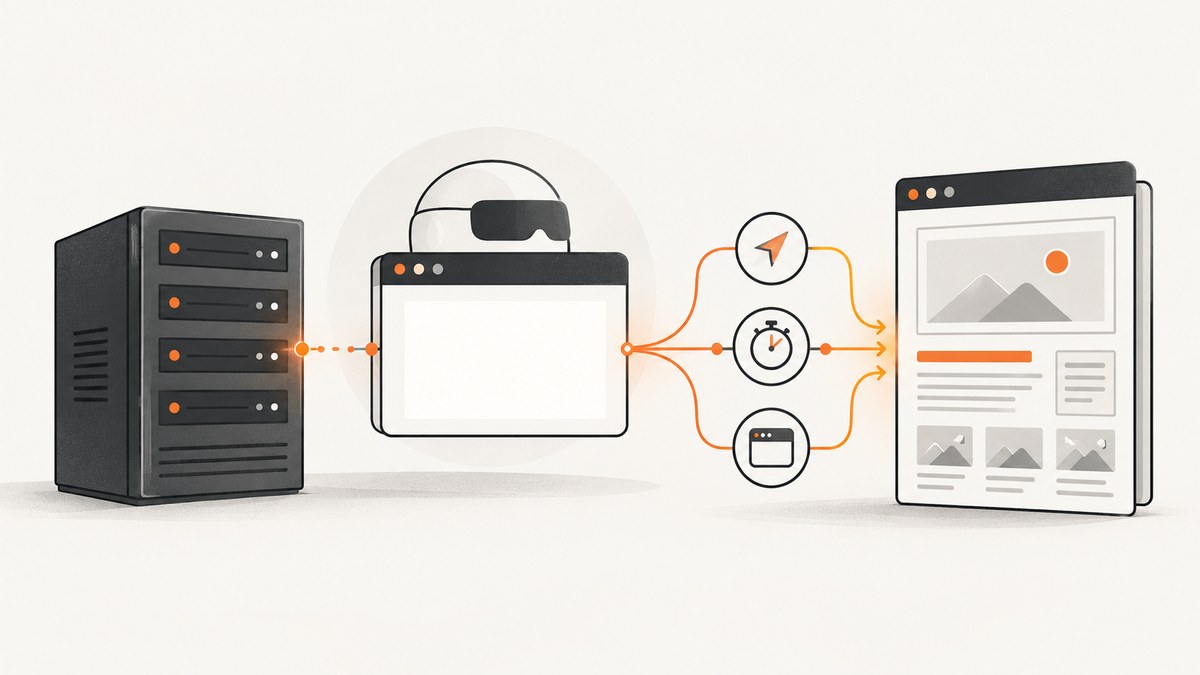
An empty page source in Headless Chrome on Unix does not point to one universal cause. Start by checking where the browser actually navigated, inspect the live DOM, and wait for the specific content your task needs. A document reaching complete does not prove a JavaScript application has finished rendering.
This guide shows a diagnostic workflow with Selenium Python, JavaScript DOM inspection, and Chrome’s --dump-dom command. It covers timing, page-load strategies, version checks, common failures, and when a screenshot API can remove browser setup from the job.
1. Confirm the destination and inspect the live DOM
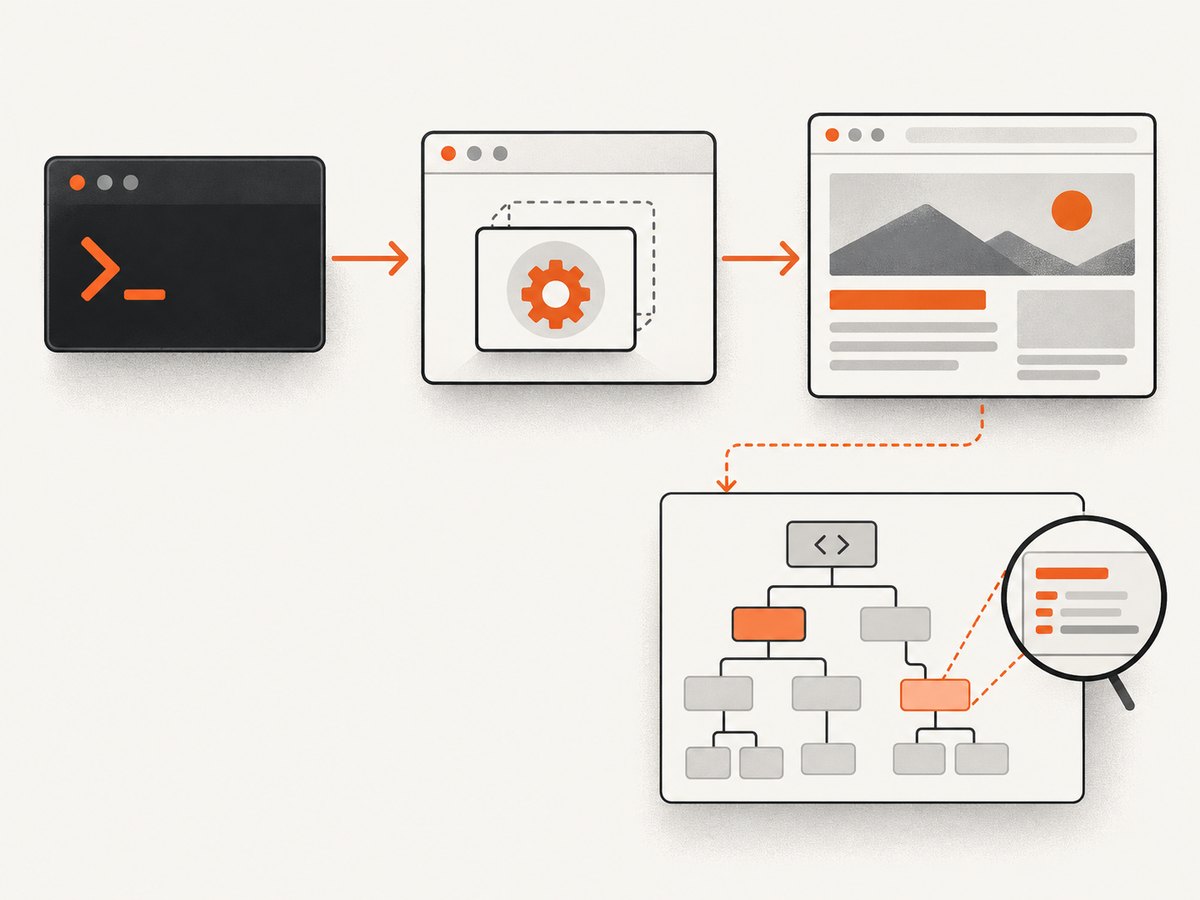
First distinguish an accessor problem from a navigation problem. A browser may have reached a redirect, an error page, or an unexpected URL. Record the current URL and title before concluding that page-source retrieval is broken.
print("URL:", driver.current_url)
print("Title:", driver.title)
print("Ready state:", driver.execute_script("return document.readyState"))
print("HTML length:", len(driver.page_source))
If the page source is empty or unexpectedly short, evaluate the DOM directly. Chromium’s Headless documentation demonstrates inspecting document.body.outerHTML after load. The document element is also useful when the body is absent or not yet populated.
html = driver.execute_script(
    "return document.documentElement ? document.documentElement.outerHTML : null"
)
body = driver.execute_script(
    "return document.body ? document.body.outerHTML : null"
)
print("Document HTML:", html)
print("Body HTML:", body)
These values represent the current browser DOM. They are not guaranteed to match the original HTTP response: scripts can add or alter nodes after the browser receives the HTML. Chrome’s --dump-dom likewise serializes the DOM after page processing; Chrome distinguishes that from printing the original response as curl does. See the Chrome Headless command-line documentation.
2. Use an explicit wait for the content you need
Selenium navigation waits according to its configured page-load strategy. That wait concerns document loading, not every later update made by application JavaScript. Selenium’s waiting guidance warns that scripts may change a site after the document reaches its ready state. Therefore, wait for a meaningful element or condition on the target page.
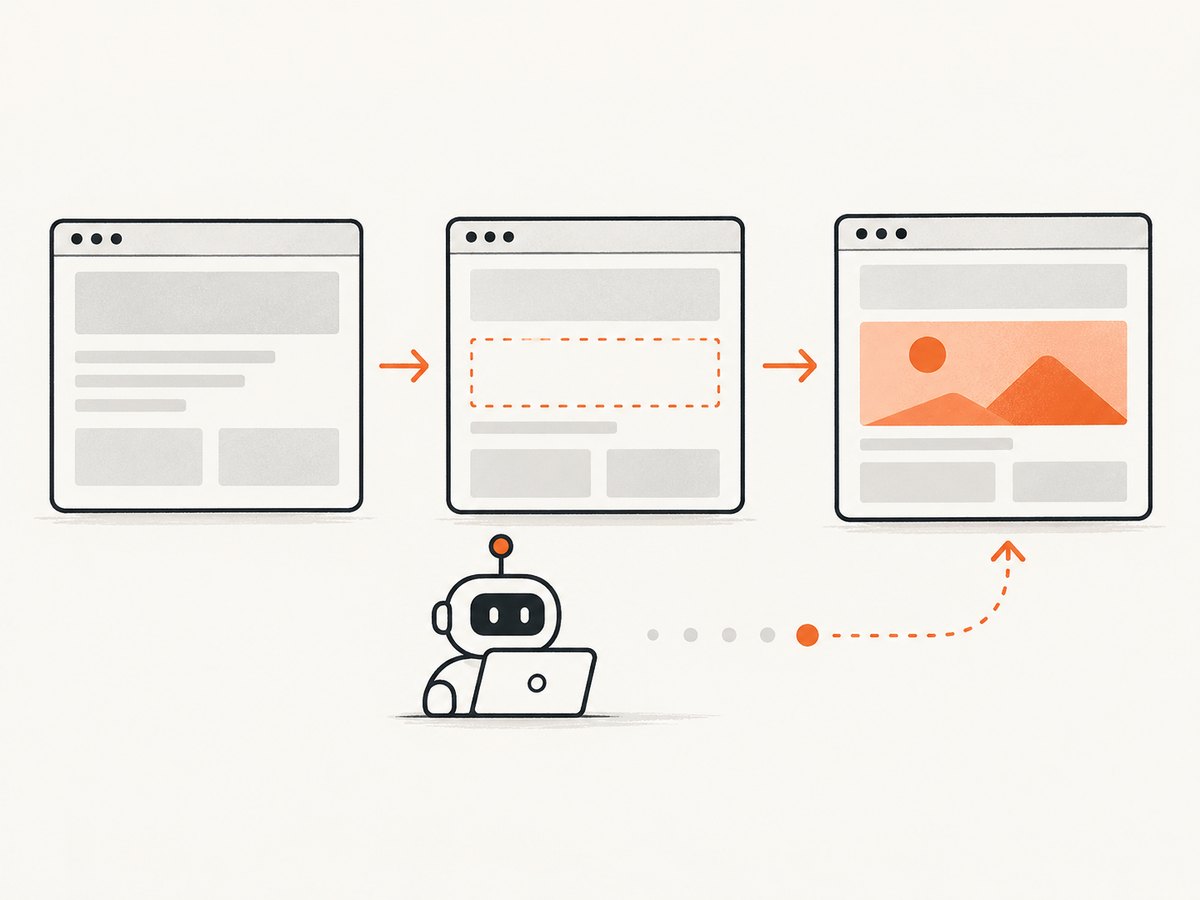
The following is a complete Python example. Install Selenium and a compatible Chrome/ChromeDriver setup for your Unix distribution, then set TARGET_URL and CONTENT_SELECTOR for the page. The selector should identify content whose presence means the page is ready for your task.
import os
from selenium import webdriver
from selenium.webdriver.common.by import By
from selenium.webdriver.support.ui import WebDriverWait
from selenium.webdriver.support import expected_conditions as EC
from selenium.common.exceptions import TimeoutException, WebDriverException

url = os.environ.get("TARGET_URL", "https://example.com")
selector = os.environ.get("CONTENT_SELECTOR", "body")

options = webdriver.ChromeOptions()
options.add_argument("--headless")
options.add_argument("--no-sandbox")  # Use only where the Unix container requires it.
options.add_argument("--disable-dev-shm-usage")  # Useful in constrained containers.

# Selenium Manager can manage drivers in supported setups. If your environment
# manages ChromeDriver separately, ensure it matches the installed browser.
driver = webdriver.Chrome(options=options)
try:
    driver.set_page_load_timeout(60)
    driver.get(url)
    print("Current URL:", driver.current_url)
    print("Title:", driver.title)

    WebDriverWait(driver, 30).until(
        EC.presence_of_element_located((By.CSS_SELECTOR, selector))
    )
    html = driver.execute_script(
        "return document.documentElement.outerHTML"
    )
    print(html)
except TimeoutException:
    print("Timed out waiting for the requested content.")
    print("Current URL:", driver.current_url)
    print("Ready state:", driver.execute_script("return document.readyState"))
    print("Partial HTML:", driver.page_source)
except WebDriverException as exc:
    print("WebDriver error:", exc)
finally:
    driver.quit()
Replace body with a stable selector that only appears when the needed content has arrived. If the selector exists in a loading shell, wait instead for visible text, a changed attribute, or another application-specific condition. Presence alone means a node exists; visibility and meaningful content are separate conditions.
3. Understand Selenium page-load strategies
Selenium exposes three page-load strategies through browser options. They affect when navigation returns; none determines whether a particular app component is ready. Check Selenium’s browser options documentation for the supported configuration for your binding.
| Strategy | Navigation wait | Practical consequence |
|---|---|---|
normal |
Waits for the document’s complete state. | A sensible default, but app scripts may still populate the page afterward. |
eager |
Returns when the document is interactive. | Can reduce navigation waiting; add an explicit wait for required content. |
none |
Does not block for a document ready state. | Use only when the script itself manages all required waits. |
For example, to use eager in Python:
from selenium import webdriver
from selenium.webdriver.common.desired_capabilities import DesiredCapabilities

options = webdriver.ChromeOptions()
options.add_argument("--headless")
options.set_capability("pageLoadStrategy", "eager")
driver = webdriver.Chrome(options=options)
try:
    driver.get("https://example.com")
    # Always wait for the page-specific target before reading its content.
finally:
    driver.quit()
Do not change to none just because source appears empty. First establish that navigation completed to the expected destination, then wait for the content condition. A faster return without an explicit wait can make the empty result more likely.
4. Cross-check with Chrome’s command-line DOM output
When possible, compare your WebDriver result with Chrome’s own serialized DOM output. This can help isolate whether the problem is specific to your source accessor, your script’s timing, or the page behavior in that browser context.
google-chrome --headless --dump-dom 'https://example.com'Executable names vary by Unix distribution. The installed binary may be named chromium, chromium-browser, or google-chrome. Check the local package’s command name and version, then substitute it in the command. Capture standard error as well when diagnosing launch failures:
chromium --version
chromium --headless --dump-dom 'https://example.com' 2>chrome-stderr.log
If --dump-dom shows a populated DOM while your WebDriver source is empty, compare the URL, timing, browser profile/context, and any navigation or wait logic. If both are empty, determine whether the page genuinely has no rendered content at that point, whether it is an error destination, or whether the target requires a later application state.
5. Verify Headless mode and browser version
Older examples may suggest flags that no longer select the intended implementation. The Chromium Headless README says that, as of M132, old Headless functionality is no longer part of the Chrome binary and --headless=old has no effect. The project directs users who need the old functionality to chrome-headless-shell. See the Chromium Headless README.
Record both browser and driver versions in the environment where the problem occurs:
google-chrome --version
chromedriver --version
Use the equivalent executable names on your distribution. Confirm that your script launches the binary you inspected; containers can contain multiple Chrome-family binaries. Treat the M132 change as a version-specific compatibility check, not as an explanation for every empty result.
6. Troubleshoot by symptom
| Symptom | Likely area to inspect | Next action |
|---|---|---|
| Current URL is unexpected | Redirect, navigation, or error destination | Print current_url and title immediately after navigation; investigate the destination before source extraction. |
| Ready state is complete, but content is absent | Application JavaScript has not populated the page | Wait for a target element, text, or state tied to the task. |
Source is empty only with eager or none |
Navigation returns before the required DOM is available | Keep or restore the strategy appropriate to navigation and add an explicit content wait. |
--dump-dom and WebDriver differ |
Timing, URL, browser context, or accessor | Compare the exact URL and browser version; evaluate document.documentElement.outerHTML in WebDriver. |
| Old Headless flag appears ineffective | Chrome version and removed legacy mode | Check version and consult Chromium’s M132 note; use chrome-headless-shell only when that legacy behavior is needed. |
| Browser fails to launch | Executable, driver, or Unix runtime setup | Read WebDriver’s exception and Chrome stderr; verify executable paths and browser/driver compatibility. |
| Wait times out but partial HTML exists | Wrong selector or page state never reached | Inspect partial HTML and choose a selector/state that reflects the content required. |
7. Make the capture reliable and efficient
- Wait for the condition, not an arbitrary duration. A fixed sleep can waste time on fast pages and still be too short on slow ones. Prefer an explicit wait tied to the target content.
- Set bounded timeouts. Use a page-load timeout and an explicit-wait timeout so a stalled navigation does not hang a worker indefinitely. Keep diagnostic output such as URL, title, ready state, and partial HTML for failures.
- Keep each browser session isolated. Reuse a driver only when the session and profile are intentionally shared; otherwise close it in a
finallyblock so a failed page does not leak browser processes. - Use the minimum wait that expresses correctness. Waiting for network idle can be unsuitable for pages with persistent connections. A page-specific element is often a clearer completion signal.
- Separate navigation errors from empty DOM. A browser can successfully expose an error or redirect page. Log the destination before interpreting the markup.
- Budget for browser resources. Headless Chrome still runs a browser process and consumes CPU and memory. Concurrency, page weight, and wait time affect throughput and resource cost; measure these in your own deployment rather than assuming a universal benchmark.
For Unix containers, --no-sandbox and --disable-dev-shm-usage are common environment-specific launch flags, not universal fixes for empty page source. Use them only when the runtime constraints call for them. Neither flag makes client-side content appear sooner.
8. Or skip the browser setup
If the goal is a screenshot rather than DOM extraction, ScreenshotNeo provides a website screenshot API and MCP server. One GET request returns a PNG, JPEG, WebP, or PDF. See the API documentation for request details. This cURL example saves a WebP screenshot:
curl -G "https://api.screenshotneo.com/v1/shot" \
  -d access_key=YOUR_API_KEY \
  --data-urlencode url=https://example.com \
  -o shot.webp
ScreenshotNeo accepts cookie and consent banners and removes more than 60 known consent platforms, newsletter popups, and chat widgets before capture; each step can be turned off. Bot checks and CAPTCHAs, blank pages, timeouts, failed loads, and cache hits cost nothing, and response headers report the page verdict and billing status. Its MCP server gives AI agents tools named take_screenshot, get_page_info, and capture_pdf. The free plan includes 1,000 screenshots per month with no card; paid plans start at $5 for 3,000. These facts apply to screenshot capture; use a browser DOM workflow when your task requires inspecting or extracting page source.
FAQ
Does document.readyState === "complete" mean a single-page app is ready?
No. It reports document loading state. Application code can add or change content afterward. Wait for the element or condition your task depends on.
Is page_source the original HTML response?
It represents the page source exposed by the WebDriver session, while the browser DOM may reflect script-driven changes. For the original response, use an HTTP client; for the rendered DOM, inspect the browser DOM.
Should I switch to chrome-headless-shell?
Only if you specifically need the old Headless functionality described by Chromium. Check the installed Chrome version and the project’s M132 guidance before changing browser implementation.
Can ScreenshotNeo fix an empty DOM?
It returns screenshots or PDFs, not Selenium page-source HTML. It can simplify screenshot work, but it is not a replacement for DOM inspection when source markup is the deliverable.
Try ScreenshotNeo
For screenshot jobs, ScreenshotNeo removes cookie banners, popups, and chat widgets before the shot; bot checks, blank pages, and failed loads are never billed; and an MCP server lets AI agents take screenshots. The free plan gives you 1,000 screenshots a month with no card, and paid plans start at $5 for 3,000. Create a free account.


