How to Fix Empty PhantomJS and CasperJS Website Screenshots
Diagnose blank PhantomJS and CasperJS screenshots by checking page readiness, viewport, errors, network requests and image transparency.

An empty PhantomJS or CasperJS screenshot usually means one of several things: the page has not reached the state you meant to capture, the capture target or viewport is wrong, a request or script failed, or the image is transparent and only looks blank in its viewer. Start by checking the actual content you need, not by adding a large arbitrary delay.
This guide shows a diagnostic sequence, runnable CasperJS and PhantomJS examples, and fixes for common failure modes. PhantomJS and CasperJS are older browser automation tools; the documentation cited here describes their APIs and behavior, but does not guarantee compatibility with every current website.
1. Check whether the page reached the intended state
A successful navigation does not prove that dynamic content has loaded. The document may have opened while an application is still fetching data, rendering a component, or loading an image. CasperJS’s FAQ describes intermittent failures caused by running before a resource or element is available, and recommends waiting for the relevant node, text, or resource. CasperJS FAQ

First make the script report the navigation status. Then check for a piece of content that must be present in the screenshot. Prefer a selector or text condition tied to that content over a fixed sleep. A delay can help isolate a timing issue during diagnosis, but it does not establish readiness and the right duration varies by site.
Runnable CasperJS example: wait for a visible element
var casper = require('casper').create({
    pageSettings: {
        loadImages: true,
        loadPlugins: false
    },
    verbose: true,
    logLevel: 'warning'
});

var targetUrl = 'https://example.com';
var readySelector = 'main h1';

casper.start(targetUrl, function () {
    this.echo('Navigation status: ' + this.currentHTTPStatus);
    this.echo('Page title: ' + this.getTitle());
    this.echo('Ready selector exists: ' + this.exists(readySelector));
});

casper.waitForSelector(readySelector, function () {
    this.echo('Ready text: ' + this.fetchText(readySelector));
    this.capture('page.png');
}, function onTimeout () {
    this.echo('Timed out waiting for ' + readySelector, 'ERROR');
    this.exit(1);
}, 10000);

casper.run();
Change the URL and selector to match the page. The timeout is an example limit, not a universal recommended wait. CasperJS documents waiting for selectors, visible selectors, text, and resources; choose the condition that represents the state you need. CasperJS API reference
If your content is identified by text, use a text wait. If a particular image or script is required, wait for its resource or verify its DOM state. A selector existing in the DOM may still be hidden, covered, or empty, so check visibility and text when those distinctions matter.
2. Set the viewport and verify the capture target
CasperJS documentation gives PhantomJS’s default viewport as 400×300 and says CasperJS does not override it by default. A small viewport can change responsive layout and what is visible in the output. It is a configuration fact to check, not proof that viewport size is the cause of every blank image. CasperJS viewport documentation
Set the viewport explicitly for the layout you expect. When changing it asynchronously, wait for the change callback before capturing. Also confirm that a selector capture points to an existing, visible element. CasperJS supports both whole-page and selector-based capture.
var casper = require('casper').create();
var page = casper.page;

casper.start('https://example.com', function () {
    page.viewportSize = { width: 1365, height: 900 };
    this.waitForSelector('main h1', function () {
        this.capture('viewport.png');
        this.captureSelector('header.png', 'header');
    }, function () {
        this.echo('Required content did not appear', 'ERROR');
        this.exit(1);
    }, 10000);
});

casper.run();
For PhantomJS directly, the page viewport can be set before opening the URL. This example waits for the load callback and then captures; for a dynamic site, add a page-specific readiness condition before the render call.
var page = require('webpage').create();
page.viewportSize = { width: 1365, height: 900 };
page.open('https://example.com', function (status) {
    console.log('Navigation status: ' + status);
    if (status !== 'success') {
        phantom.exit(1);
        return;
    }
    window.setTimeout(function () {
        page.render('page.png');
        phantom.exit();
    }, 1000);
});
The one-second delay above is only a diagnostic placeholder. Replace it with a condition that checks for the content or resource you require if the page is dynamic. A fixed pause can still capture too early on a slow run, and can waste time on a fast run.
3. Log failed requests and JavaScript errors
When expected content never appears, gather browser-side evidence. PhantomJS’s troubleshooting guide documents logging requested resources and attaching a page error handler to expose JavaScript exceptions and stack traces. If HTTP works but HTTPS does not, the guide says to check SSL libraries. These checks help distinguish transport and script problems from capture settings; they do not identify every possible cause. PhantomJS troubleshooting
PhantomJS with resource and page-error logging
var page = require('webpage').create();
page.viewportSize = { width: 1365, height: 900 };

page.onResourceRequested = function (request) {
    console.log('Request: ' + request.url);
};

page.onResourceError = function (error) {
    console.log('Resource error: ' + error.url + ' — ' + error.errorString);
};

page.onError = function (message, trace) {
    console.log('Page error: ' + message);
    trace.forEach(function (frame) {
        console.log('  at ' + frame.file + ':' + frame.line);
    });
};

page.open('https://example.com', function (status) {
    console.log('Navigation status: ' + status);
    if (status !== 'success') {
        phantom.exit(1);
        return;
    }
    window.setTimeout(function () {
        page.render('debug.png');
        phantom.exit();
    }, 1000);
});
Review the output for a failed document request, a stylesheet or script that never loaded, or a JavaScript exception that blocks the expected render path. For HTTPS-only failures, inspect the PhantomJS build and SSL dependencies available on that host. Avoid interpreting one successful request as proof that every page dependency succeeded.
4. Check whether the saved image is transparent
PhantomJS does not impose a page background color for rendering. If the page leaves its background unset, the output can be transparent and appear blank in viewers that render transparency as white or otherwise obscure it. Open the image in a viewer that displays alpha, or inspect the alpha channel with an image tool. PhantomJS’s FAQ documents this background behavior. PhantomJS FAQ
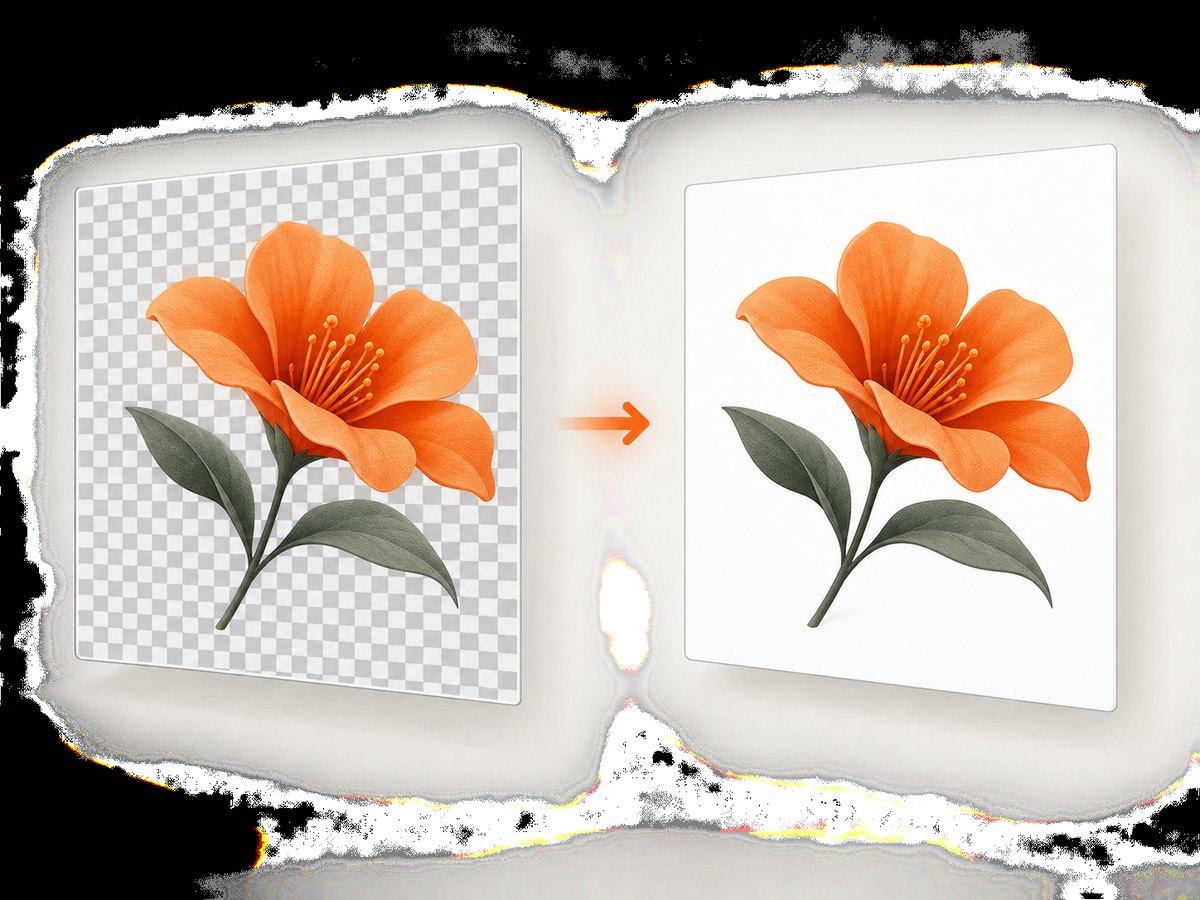
If you need an opaque result, set the background on the page before capturing. A site’s own CSS may override a simple body rule, so apply the background to the root element as needed and confirm the resulting image.
page.evaluate(function () {
    document.documentElement.style.backgroundColor = '#ffffff';
    document.body.style.backgroundColor = '#ffffff';
});
page.render('opaque.png');
For CasperJS, evaluate the same DOM style changes before calling capture. If transparency is desired, do not force an opaque background; instead confirm that the image viewer supports alpha.
5. Use remote debugging and verify the executable
If logs do not explain the result, inspect the page in PhantomJS’s remote debugger. Its troubleshooting guide documents the --remote-debugger-port option. Also record the executable path and reported version: systems with more than one installation can run a different binary from the one you expect. PhantomJS troubleshooting guide
phantomjs --version
which phantomjs
phantomjs --remote-debugger-port=9000 capture.js
On Windows, use the equivalent executable lookup command for your shell. Record the exact command and path used by the scheduled job or service; interactive shells and background jobs can resolve different binaries or environments.
6. Diagnose by failure layer
| Layer | Evidence to collect | Likely next check |
|---|---|---|
| Readiness | Navigation status, required text, selector visibility, resource completion | Wait for the intended page state; expose timeout behavior |
| Geometry | Viewport dimensions, capture API, selector existence and visibility | Set the viewport explicitly; try a whole-page capture for comparison |
| Page execution | JavaScript error message and stack trace | Find the exception or unsupported page behavior preventing rendering |
| Transport | Requested URLs, resource errors, HTTP versus HTTPS result | Check failed dependencies and SSL libraries for HTTPS-specific issues |
| Output appearance | Image dimensions and alpha channel | View transparency correctly or set an opaque page background |
This is a practical grouping inferred from the documented troubleshooting checks, not a formal decision tree supplied by either project. Work through the layers in order and keep the logs from the same run as the image; otherwise it is easy to diagnose a different state from the one that produced the file.
Common errors and fixes
| Symptom | Cause to investigate | Fix |
|---|---|---|
| Intermittently blank output | Capture begins before the needed element, text, or resource exists | Wait for a page-specific selector, text, or resource and make timeout failures explicit |
| Only part of the page appears | Viewport or capture area differs from the assumed layout | Set viewport dimensions and compare whole-page with selector capture |
| Selector capture produces no useful content | Selector is absent, hidden, or not the element containing the content | Check existence, visibility, and text before capturing |
| HTTP works but HTTPS looks empty | SSL library or HTTPS resource issue | Inspect resource errors and the PhantomJS host’s SSL libraries |
| Image looks blank in one viewer | Transparent background is displayed as blank | Inspect alpha or set a page background before rendering |
| Works locally, fails in a job | Different executable, version, environment, or network access | Log executable path and version in the job and compare its request log |
| Screenshot is old or inconsistent | Page state varies, or an earlier artifact is being inspected | Use a unique output name per run and preserve timestamps and diagnostic logs |
Performance and reliability notes
Condition-based waits improve reliability because the capture is tied to the required state. Keep the condition narrow and meaningful: waiting for a selector unrelated to the visible content can still produce a premature image. Set a finite timeout and fail visibly when it expires, rather than silently saving an empty artifact.
Loading every resource may be important for a complete screenshot, especially when images are part of the target, but unnecessary resources can extend capture time. The CasperJS example explicitly enables images and disables plugins; adjust these settings only when they match the page’s requirements. If you skip images, document that choice because the resulting screenshot may not represent the complete page.
For recurring captures, preserve the URL, run time, navigation status, viewport, relevant console/resource errors, and output dimensions. That evidence helps distinguish a site change from a host configuration change. Do not treat a fixed delay as a reliability guarantee: network and rendering times vary, and a long delay increases runtime without verifying content.
Or skip the browser setup
ScreenshotNeo is a website screenshot API and MCP server. Its one-call endpoint returns an image or PDF, so you can avoid maintaining a local PhantomJS or CasperJS capture setup for this task. See the ScreenshotNeo API documentation for request options.
curl -G "https://api.screenshotneo.com/v1/shot" -d access_key=YOUR_API_KEY --data-urlencode url=https://stripe.com -o shot.webpPython:
import requests

r = requests.get(
    "https://api.screenshotneo.com/v1/shot",
    params={"access_key": "YOUR_API_KEY", "url": "https://stripe.com"},
    timeout=90,
)
open("shot.webp", "wb").write(r.content)
Node.js:
const q = new URLSearchParams({ access_key: 'YOUR_API_KEY', url: 'https://stripe.com' });
const res = await fetch(`https://api.screenshotneo.com/v1/shot?${q}`);
ScreenshotNeo removes cookie banners, newsletter popups, and chat widgets before capture. Bot checks, blank pages, and failed loads are never billed. Its MCP server lets AI agents take screenshots, and 1,000 screenshots a month are free with no card; paid plans start at $5 for 3,000. Sign up free for 1,000 screenshots a month, with no card required.
FAQ
Should I add a longer sleep to fix intermittent screenshots?
Use a short delay only to test whether timing is involved. For a durable fix, wait for the content or resource that must be present, and make a timeout a visible failure.
Does a successful page-open status mean the screenshot should contain the app?
No. Navigation status and application readiness are different checks. Inspect the expected DOM content after navigation.
Can a transparent screenshot be completely empty?
It can appear that way in a viewer that does not show alpha clearly. Inspect the image’s transparency and set a background if the deliverable must be opaque.
Is a 400×300 image evidence of a render bug?
No. CasperJS documents that default viewport size for PhantomJS and does not change it by default. Set the intended dimensions and inspect the layout before concluding there is a rendering failure.
Which logs should I attach to a bug report?
Include the command and binary version, URL, navigation status, viewport, readiness condition and timeout, resource errors, page exceptions, and the image’s dimensions and alpha behavior. These details help another developer reproduce the same failure layer.


