How to Fix Puppeteer and Robot Framework Errno 11001 getaddrinfo Errors
Windows error 11001 means a hostname could not be resolved. Trace whether DNS, a proxy, browser setup, or Robot Framework argument parsing is responsible.
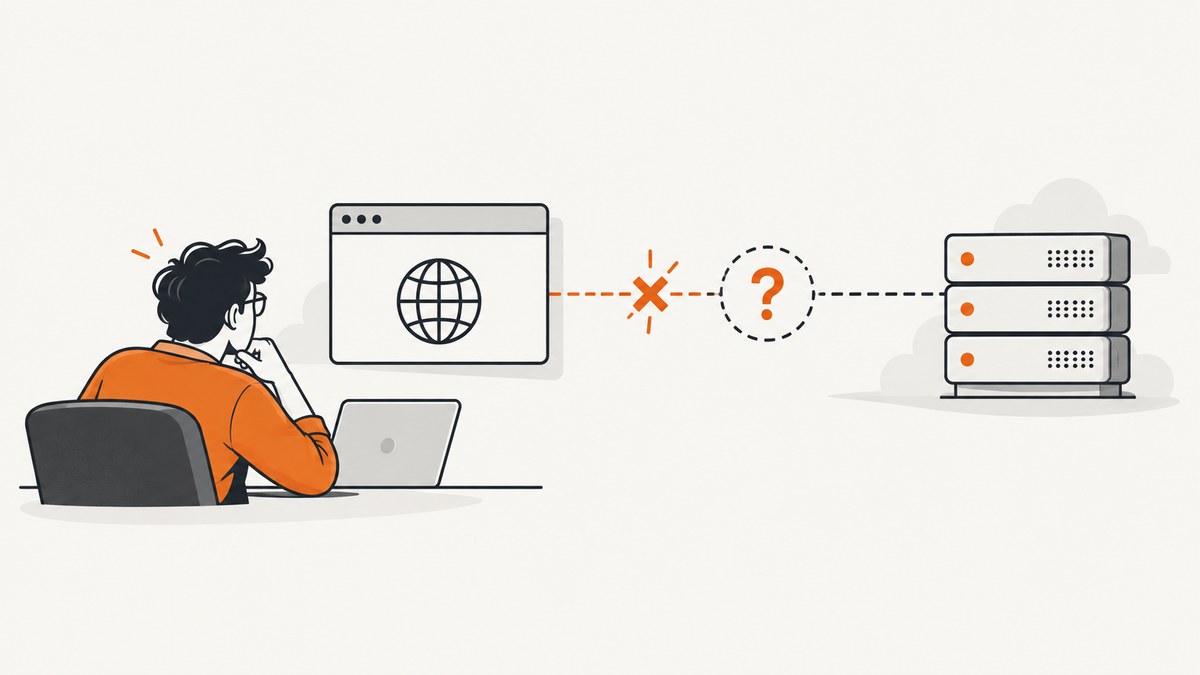
gaierror: [Errno 11001] getaddrinfo failed on Windows means the supplied host name could not be resolved. It is a DNS or hostname-input failure, not a Puppeteer-specific error. The fastest way to narrow it down is to run nslookup for the exact host on the same machine and account as the failing test, then check the failing phase: browser download, page navigation, proxy connection, or Robot Framework Telnet call.
For a short Windows host name, try its fully qualified domain name (FQDN). If the lookup succeeds but the automation still fails, inspect the hostname, port, proxy settings, and the framework’s parsed arguments before changing browser launch options.
1. What Errno 11001 and getaddrinfo mean
Windows error 11001 is WSAHOST_NOT_FOUND: the name-resolution request could not find the supplied host. Applications call a system resolver such as getaddrinfo to turn a hostname into an address before opening a network connection. If resolution fails, the application may never reach the target server.
The error can occur in several different phases. Puppeteer may encounter it while downloading browser assets or navigating to a URL. Robot Framework Browser may encounter it while rfbrowser init fetches dependencies. A Robot Framework Telnet test can surface a similar Python gaierror if its host or port arguments were parsed incorrectly.
Microsoft documents a Windows case involving a short name, a DNS suffix search list, and address-family lookups. Its listed workarounds include using AF_UNSPEC, changing suffix order, disabling negative DNS caching, or supplying the FQDN. For most application users, supplying the FQDN is the simplest test; resolver policy changes should be handled by the network owner. Microsoft’s error 11001 guidance
2. Diagnose the failing hostname first
- Capture the exact host. Read the full error and the test log. Separate the hostname from the scheme, path, port, and any credentials. Determine whether the host is the page under test, a proxy, or a browser download server.
- Run the lookup in the same environment. Open Command Prompt or PowerShell under the same Windows account and shell context that runs the automation. Run
nslookupwith that exact hostname:
nslookup example.com
nslookup intranet-app
nslookup intranet-app.corp.example.com
Use your actual failing host in place of these examples. A failed lookup points to DNS settings, name form, VPN or split-DNS reachability, or a typo. Puppet’s Windows troubleshooting guidance also recommends checking nslookup and the primary DNS suffix when name resolution fails. Puppet Windows troubleshooting
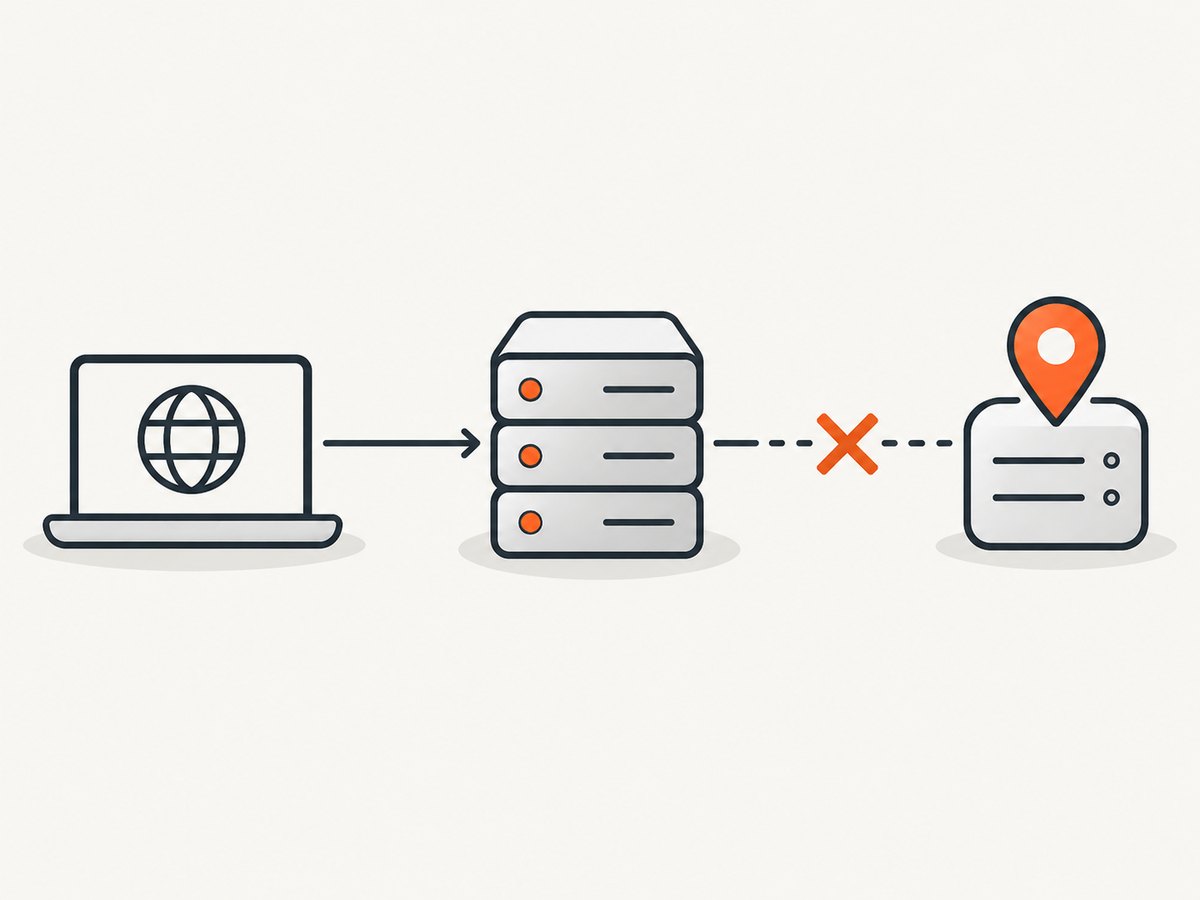
- Compare short name and FQDN. If
nslookup intranet-appfails, try the known full name, such asintranet-app.corp.example.com. If the FQDN works, correct the DNS suffix configuration or use the FQDN in the test. - Check network context. Confirm the expected VPN is connected and that its DNS servers and search suffixes are active. In split-DNS environments, a name may resolve only while connected to a specific network. If the unresolved host is a proxy, resolve that proxy hostname directly too.
- Inspect the logged request. Confirm the URL is valid and the hostname was not accidentally joined to a port, whitespace, or another argument. For Robot Framework, inspect the actual keyword call and the library’s log output.
- Only then investigate application settings. If the hostname resolves in the same environment but the request fails, examine proxy environment variables, HTTPS inspection, authentication, and application URL construction.
3. Fix common Windows DNS and suffix problems
Short names such as build01 depend on a resolver search suffix to become a domain name. A machine may append a configured suffix and find the host, while another machine or address-family lookup follows a different path. Using the FQDN removes that ambiguity when you know the correct domain.
Run the following checks from the same network and account that runs the tests:
ipconfig /all
nslookup build01
nslookup build01.corp.example.com
Review the active adapter’s DNS servers, connection-specific DNS suffix, and suffix search list. If the lookup fails only off VPN, test with the required VPN connected. If corporate DNS is unavailable or the suffix is wrong, ask the network administrator to correct that configuration rather than hard-coding an unrelated public DNS server; internal names usually require the organization’s resolver.
Windows may also retain negative lookup results. Microsoft lists disabling negative DNS caching as a workaround for its specific documented case, but changing resolver caching policy affects the machine and should be coordinated with whoever manages it. Avoid treating cache flushing or cache-policy changes as a substitute for verifying the host and DNS path.
4. Puppeteer: determine whether the failure is install-time or navigation-time
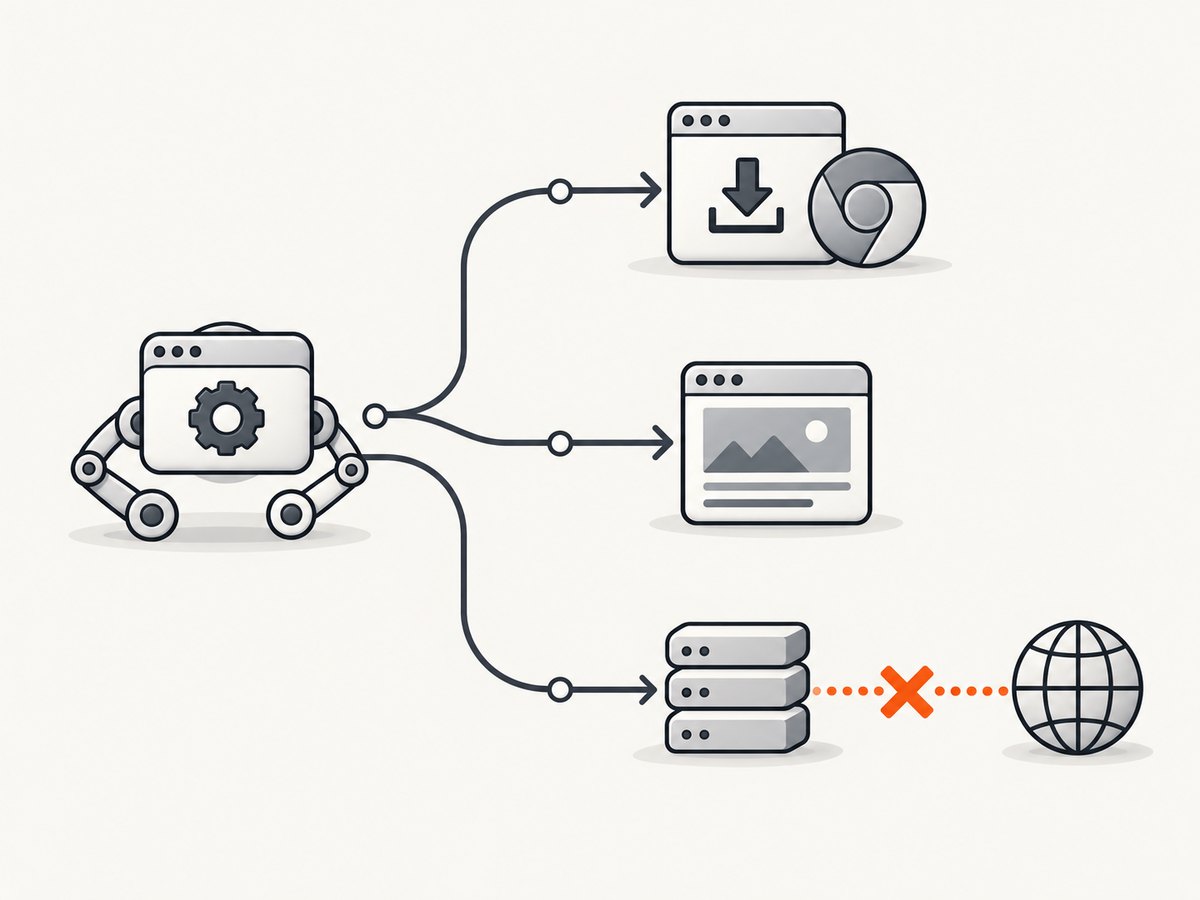
Puppeteer uses Node.js and browser binaries. A name-resolution failure can happen before a page is opened, while retrieving browser assets, or later when Chromium navigates to the target. The phase determines which hostname to test.
Check Node.js and browser setup
Confirm the installed Node.js and Puppeteer versions are compatible with the current Puppeteer requirements, and identify which browser package and executable the project uses. Puppeteer’s system requirements describe Node.js, supported Windows x64 browser requirements, and archive utilities. Puppeteer system requirements
node --version
npm ls puppeteer
nslookup storage.googleapis.com
The last hostname is only an example of a download host; check the host shown by your own failing request or logs. Do not assume every Puppeteer install resolves the same download endpoint. Resolve the actual download hostname, and check whether a proxy is required for that machine.
Minimal Puppeteer navigation example
This example separates browser launch from navigation and reports the requested URL so the failure phase is easier to identify. It assumes the project’s Puppeteer package and browser are already installed.
const puppeteer = require('puppeteer');

(async () => {
  const url = 'https://example.com';
  const browser = await puppeteer.launch({ headless: true });
  try {
    const page = await browser.newPage();
    console.log(`Navigating to ${url}`);
    await page.goto(url, { waitUntil: 'domcontentloaded', timeout: 30000 });
    console.log(`Loaded: ${page.url()}`);
  } catch (error) {
    console.error(`Navigation failed for ${url}:`, error);
    process.exitCode = 1;
  } finally {
    await browser.close();
  }
})();
Replace the example URL with the exact target. If the browser launches and the failure is at page.goto, resolve that URL’s hostname from the same machine. If installation fails before the script runs, resolve the browser download or proxy host from the install output instead.
Keep DNS errors separate from launch errors
Puppeteer’s troubleshooting guide covers Windows launch and Chrome sandbox failures, including policy-related cases. Those failures have different symptoms from a resolver error: a sandbox or executable problem occurs when starting the browser, while getaddrinfo identifies a hostname lookup. Follow the launch guide only if the browser cannot start for a launch-related reason. Puppeteer troubleshooting
5. Robot Framework Browser: troubleshoot rfbrowser init and proxies
The Browser library is powered by Playwright. Its setup uses Python package installation followed by rfbrowser init (or python -m Browser.entry init) to install Node dependencies and browser binaries. A failure during initialization can therefore be a DNS problem reaching a CDN or proxy, before any Robot test navigates to a page. Robot Framework Browser installation and documentation
python -m pip install robotframework-browser
rfbrowser init
If the error names a host such as playwright.azureedge.net, check that exact host from the same shell. A reported ENOTFOUND for that host was diagnosed as the machine being unable to query its IP address; the suggested checks were network connectivity and DNS resolver settings. Robot Framework forum: rfbrowser init ENOTFOUND
If the error names proxy-server, treat it as a proxy hostname-resolution failure. Verify the configured proxy host, port, authentication, and reachability from the shell that runs npm and Playwright. A proxy value must identify a resolvable host and valid port; a placeholder or machine-local name will not work from another environment. Robot Framework forum: proxy-server resolution errors
Check proxy variables without printing secrets into shared logs. If you need to inspect them locally, redact usernames, passwords, and tokens before sharing output:
set HTTP_PROXY
set HTTPS_PROXY
set NO_PROXY
In PowerShell, inspect the process environment through $env:HTTP_PROXY and $env:HTTPS_PROXY. If a corporate proxy is required, use the exact configuration supplied by your network team. If direct DNS works but the package download still fails, investigate proxy reachability and TLS interception next.
6. Robot Framework Telnet: check spacing and parsed arguments
Robot Framework separates keyword arguments using at least two spaces in plain-text test data. A spacing mistake can concatenate a host and port value. The resulting connection attempt may show a surprising port, making a parsing problem look like a DNS failure.
A forum example logged an attempt resembling localhost port=1123:23; the diagnosis was incorrect spacing in the host/port definition or Open Connection call. Correct separation produced the intended port=1123 argument. Robot Framework forum: Telnet getaddrinfo and spacing
*** Settings ***
Library    Telnet

*** Variables ***
${HOST}    localhost
${PORT}    1123

*** Test Cases ***
Connect
    Open Connection    ${HOST}    port=${PORT}
    Close All Connections
Use two or more spaces between Robot Framework cells, as shown. Check the logged connection arguments before changing DNS. Also confirm that the server is expected to listen on that port; name resolution only maps the host, while a refused or timed-out connection after resolution is a separate transport or service issue.
7. cURL and Python checks outside the browser
When a hostname resolves but the application still fails, a simple request can help separate URL reachability from framework setup. These examples do not repair DNS; they make it easier to reproduce a request outside Puppeteer or Robot Framework.
curl -v --connect-timeout 10 https://example.com/python -c "import socket; print(socket.getaddrinfo('example.com', 443))"Replace example.com with the failing hostname. If nslookup fails, fix name resolution first. If nslookup succeeds but a request fails, compare the resolver behavior, proxy path, TLS certificate handling, and URL between the command-line check and the framework process.
8. Troubleshooting by symptom
| Symptom | Likely cause | Next action |
|---|---|---|
nslookup fails for the exact host |
Wrong hostname, unavailable DNS, missing suffix, VPN or split-DNS path | Try the FQDN; check adapter DNS and VPN state with the network owner. |
| Short name fails but FQDN works | Suffix search configuration or Windows name lookup behavior | Use the FQDN or correct the DNS suffix configuration. |
rfbrowser init reports ENOTFOUND |
Download host cannot be resolved | Resolve the host named in the error; verify network and DNS from the same shell. |
| Error names a proxy host | Bad proxy hostname, port, credentials, or unavailable proxy | Confirm proxy settings and reachability with the network administrator. |
| Puppeteer browser starts, then navigation fails | Target hostname, proxy, URL, or TLS path | Run nslookup on the page host; compare a direct request and proxy settings. |
| Puppeteer cannot launch Chrome | Executable, permissions, policy, or sandbox issue | Use Puppeteer’s launch troubleshooting guide; do not treat it as DNS without a hostname error. |
| Telnet log shows an unexpected port | Robot Framework cells were not separated correctly | Use two or more spaces and inspect the parsed host and port in the log. |
EAI_AGAIN appears intermittently |
Temporary resolver or proxy lookup failure | Repeat the exact lookup, check resolver availability, and escalate recurring DNS instability. |
9. Reliability, performance, and cost considerations
DNS troubleshooting is most reliable when you reproduce the lookup under the same account, machine, VPN, and proxy context as the automation. A successful lookup in a developer’s browser does not prove the service account, CI runner, container, or test shell uses the same resolver configuration. Record the hostname and phase of failure in logs, but redact proxy credentials and sensitive URLs.
Retrying can help with a genuinely temporary resolver failure such as intermittent EAI_AGAIN, but retries cannot correct a misspelled hostname, missing suffix, invalid proxy host, or malformed Robot Framework argument. Use bounded retries with a delay for transient network operations; fail clearly and early for persistent name-resolution errors. Avoid retry storms during an outage.
DNS lookup time is only one part of browser startup and navigation time. Browser binary downloads, proxy traversal, TLS inspection, page load behavior, and page scripts all contribute. For installation failures, resolve the download endpoint before rerunning large downloads. For navigation failures, use a wait condition suited to the page rather than an unnecessarily long fixed sleep.
There is no published authoritative benchmark for the prevalence or repair rate of error 11001. In cost terms, the practical waste usually comes from repeated browser setup, downloads, and test retries. Identify the failed host first so a DNS correction is made once instead of repeatedly reinstalling browser packages or changing unrelated launch flags.
10. Or skip the browser setup
If the goal is a website screenshot rather than browser automation, ScreenshotNeo is a website screenshot API and MCP server. A single GET request returns an image or PDF. See the ScreenshotNeo API documentation for the request options.
curl -G "https://api.screenshotneo.com/v1/shot" -d access_key=YOUR_API_KEY --data-urlencode url=https://stripe.com -o shot.webpimport requests
r = requests.get(
"https://api.screenshotneo.com/v1/shot",
params={"access_key": "YOUR_API_KEY", "url": "https://stripe.com"},
timeout=90,
)
open("shot.webp", "wb").write(r.content)const q = new URLSearchParams({ access_key: 'YOUR_API_KEY', url: 'https://stripe.com' });
const res = await fetch(`https://api.screenshotneo.com/v1/shot?${q}`);
if (!res.ok) throw new Error(`Screenshot request failed: ${res.status}`);
const fs = require('node:fs');
fs.writeFileSync('shot.webp', Buffer.from(await res.arrayBuffer()));ScreenshotNeo accepts cookie and consent banners and removes more than 60 known consent platforms, newsletter popups, and chat widgets before capture; each step can be turned off. Bot checks, blank pages, timeouts, failed loads, and cache hits are not billed, and the response identifies the page verdict and billing status in headers. Its MCP server includes screenshot, page-info, and PDF tools for AI agents. The free plan includes 1,000 screenshots per month with no card; paid plans start at $5 for 3,000. Create a free ScreenshotNeo account.
11. FAQ
Is Errno 11001 specific to Puppeteer?
No. On Windows it indicates a host-name resolution failure. Any application using the resolver can report it, including Python-based Robot Framework libraries.
Why does a browser open a site that my test cannot resolve?
The browser and test may run under different accounts, proxies, VPN states, containers, or DNS settings. Run the lookup where the test runs.
Should I disable IPv6 to fix this?
Do not start there. Microsoft’s documented case has several workarounds, including use of AF_UNSPEC and a fully qualified name. Confirm the failing lookup and suffix behavior before changing machine-wide network settings.
Can I fix a bad DNS name by increasing the timeout?
No. A timeout can accommodate a slow operation, but it cannot make a nonexistent or unresolvable hostname valid. Correct the name or resolver path first.
Why does Robot Framework show a strange port in its error?
Check keyword cell spacing and the actual logged call. Incorrect separation can cause the host and port arguments to be parsed into an unexpected value.


