How to Fix Error 1005 When Accessing Websites
Cloudflare Error 1005 means a site blocked your network ASN. Learn what visitors can do, what owners must change, and how to document the block.
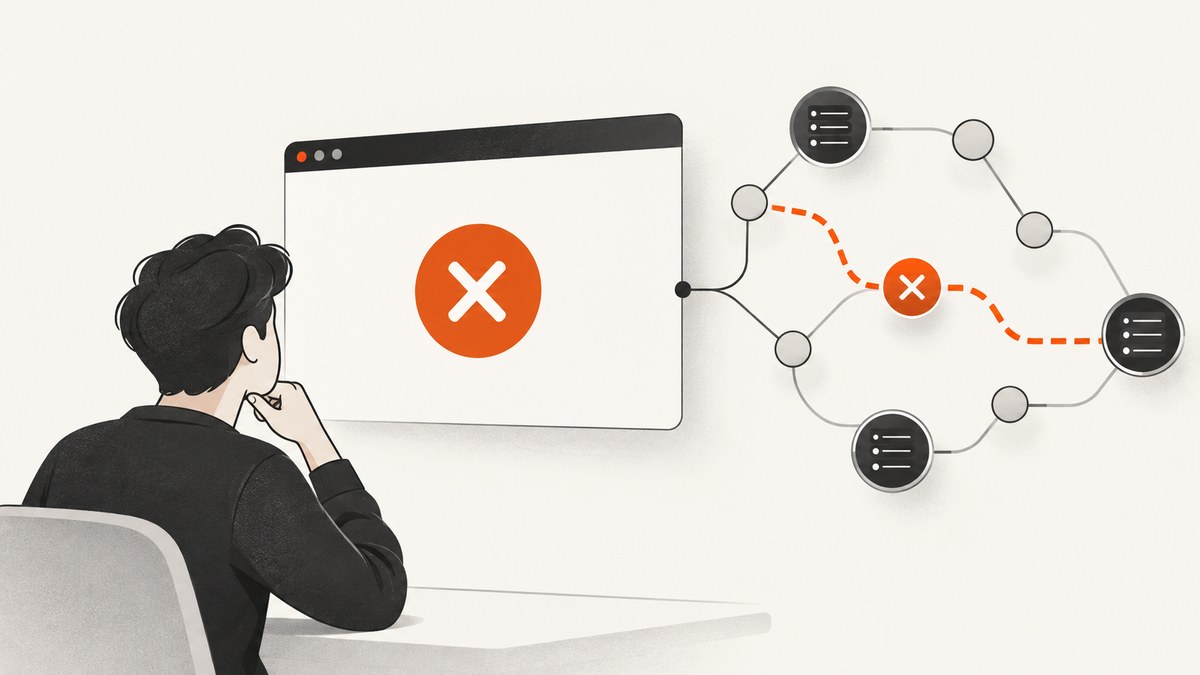
Cloudflare Error 1005 means the website owner blocked the Autonomous System Number (ASN) associated with your network. It is a network-level access rule on that site. Clearing cookies, reinstalling your browser, or changing devices does not remove the server-side restriction. The practical visitor fix is to document the error and ask the website owner to investigate it.
Cloudflare labels the page “Access Denied: Autonomous System Number (ASN) banned.” An ASN identifies a network at the routing level, so the error points to the network used to reach the site rather than a broken browser preference. Cloudflare’s visitor guidance directs you to contact the site owner with a screenshot and the identifying details shown on the page.
What Error 1005 means
An ASN is a routing-level identifier assigned to a network operator, such as an internet service provider, cloud provider, university, or business network. A website owner can configure Cloudflare to deny requests associated with an ASN. When your request reaches that site through a blocked ASN, Cloudflare returns its Error 1005 page.
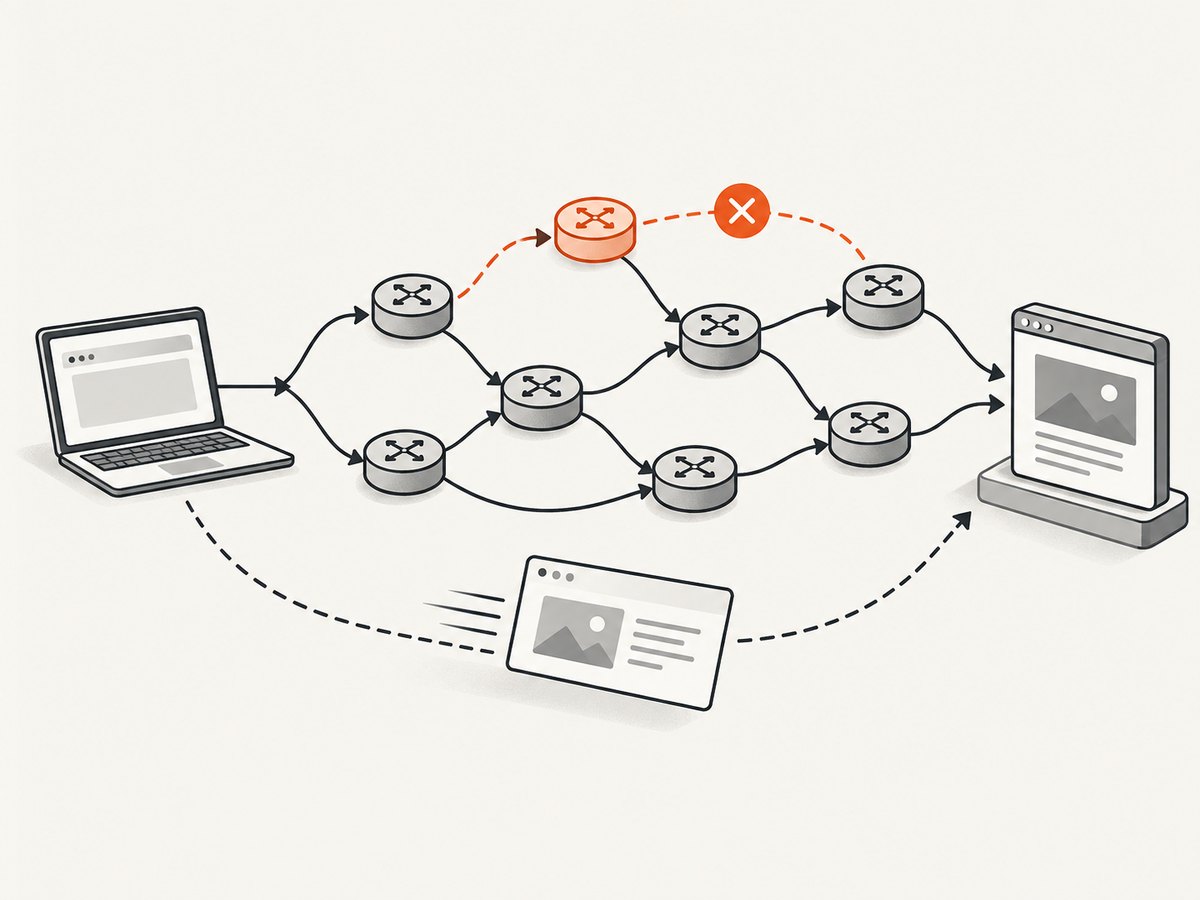
This diagnosis applies when the page actually displays Cloudflare Error 1005. Cloudflare’s 1xxx error index lists separate conditions under different numbers. The error number matters because each code has a different cause and owner-side remedy.
| Error | Documented meaning | Who controls the remedy |
|---|---|---|
| 1005 | The site owner banned an ASN. | The website owner reviews the ASN rule. |
| 1009 | Access is denied from a country or region. | The website owner reviews geographic access rules. |
| 1020 | A Cloudflare firewall rule denied the request. | The website owner reviews the matching firewall rule. |
| 1012 | Access was denied based on activity detected from the visitor’s computer or network. | The visitor follows Cloudflare’s separate 1012 guidance and contacts the owner. |
Cloudflare also notes that 1xxx errors appear in the HTML response body. They are not necessarily the same as an HTTP status code in the response status header. Read the page content and record the displayed error number before applying any troubleshooting steps.
What to do as a visitor
- Confirm the exact code. Make sure the page says Error 1005 and is a Cloudflare error page. Do not assume that every “access denied” message is 1005.
- Record the evidence. Copy the website address, the date and time, your approximate timezone, and any Ray ID, client IP, or timestamp shown on the page.
- Take a complete screenshot. Include the error number, Ray ID, timestamp, and the address bar if possible. The screenshot gives the owner enough context to locate the event.
- Contact the website owner. Use the site’s support address, contact form, or account support channel. State that Cloudflare reports Error 1005 and ask them to check whether your network’s ASN was blocked.
- Wait for the owner’s investigation. The owner controls the Cloudflare security configuration and must decide whether the restriction is intentional.
A useful support message is short and specific:
Subject: Cloudflare Error 1005 when visiting your site

Hello,

I receive Cloudflare Error 1005 (“Access Denied: Autonomous System Number (ASN) banned”) when opening:
https://your-site.example/path

It occurred at 2026-09-30 14:20 UTC. The page showed this Ray ID: [paste Ray ID].
I have attached a screenshot of the complete error page. Could you check the related event and confirm whether my network ASN was blocked?

Thank you.
How to capture the error page for support
You can use your operating system’s screenshot shortcut, the browser’s full-page capture feature, or an automated browser. A full-page capture is useful when the Ray ID or diagnostic text appears below the first viewport.
Browser capture with Playwright (Node.js)
Install Playwright with npm install playwright, then run this script. Replace the URL with the page that displays Error 1005.
const { chromium } = require('playwright');

(async () => {
  const browser = await chromium.launch();
  const page = await browser.newPage({ viewport: { width: 1440, height: 1000 }, deviceScaleFactor: 1 });
  await page.goto('https://your-site.example/path', { waitUntil: 'domcontentloaded', timeout: 60000 });
  await page.screenshot({ path: 'cloudflare-error-1005.png', fullPage: true });
  await browser.close();
})();
Browser capture with Python
Install the package and browser binaries with pip install playwright followed by playwright install chromium.
from playwright.sync_api import sync_playwright

with sync_playwright() as p:
    browser = p.chromium.launch()
    page = browser.new_page(viewport={"width": 1440, "height": 1000}, device_scale_factor=1)
    page.goto("https://your-site.example/path", wait_until="domcontentloaded", timeout=60000)
    page.screenshot(path="cloudflare-error-1005.png", full_page=True)
    browser.close()
Capture with cURL for diagnostics
cURL does not create an image, but it can save the HTML response so you can confirm whether “1005” is in the response body.
curl -L --max-time 60 -D response-headers.txt \
  -o response-body.html \
  "https://your-site.example/path"

rg -n "1005|ASN|Access Denied" response-body.html
Do not share authentication cookies, authorization headers, or unrelated private page content with support. Include the error evidence needed to identify the event.
What the website owner should investigate
- Ask for the screenshot and exact URL. The Ray ID or client IP in the message helps correlate the report.
- Open Cloudflare Security Events. Search for the Ray ID or client IP shown on the error page.
- Account for UTC. Convert the timestamp on the error page to the timezone used by the Security Events search.
- Review the ASN decision. Determine why the ASN was blocked and whether the restriction is still intended.
- Review IP Access Rules. If legitimate access should be allowed, ensure the relevant ASN or network is permitted under the site’s configured security policy.
An allow rule is a security decision. Verify the report, understand why the block exists, and confirm that changing it matches the site’s intended policy. Do not automatically allow every reported ASN.
Why common “fixes” do not solve Error 1005
- Clearing cookies: cookies are stored in the browser; the ASN block is enforced by the site’s Cloudflare configuration.
- Reinstalling the browser: a clean installation still reaches the site through the same network unless the network path changes.
- Changing devices: phones, laptops, and tablets on the same connection can share the same public network identity.
- Disabling extensions: extensions can affect page behavior, but they do not remove an owner-configured ASN restriction.
- Trying a VPN: Cloudflare’s Error 1005 guidance does not present a VPN as the supported resolution. Routing around a site’s access policy can also violate that site’s rules.
Or skip the browser setup
If you need a reliable record of the page for a support ticket, ScreenshotNeo can capture a URL with one request. Its cleanup steps accept cookie or consent banners and remove more than 60 known consent platforms, newsletter popups, and chat widgets before the capture; each step can be turned off. Bot checks, blank pages, timeouts, failed loads, and cache hits are not billed, and the response reports the result in X-Page-Verdict and X-Billed headers.
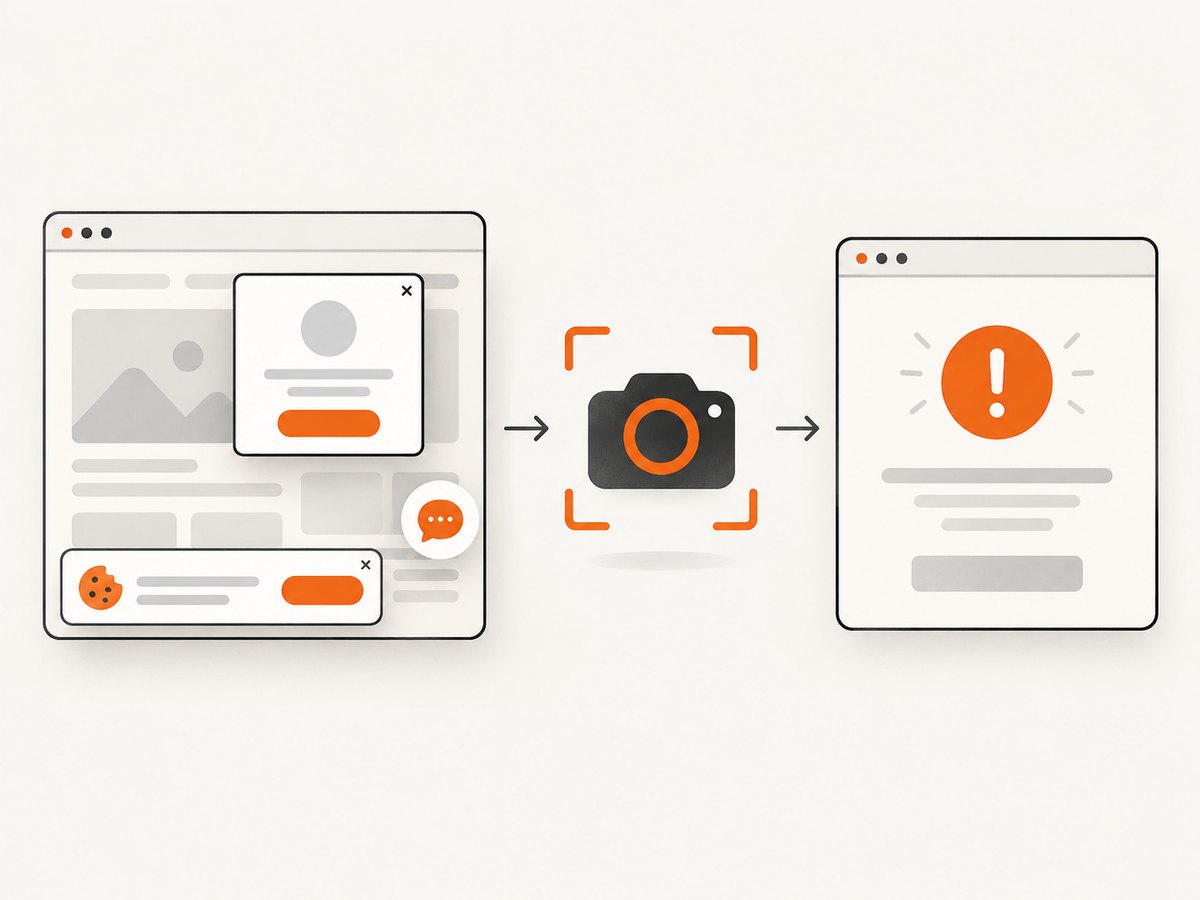
See the ScreenshotNeo API documentation for all options. This example saves the result as a WebP image:
curl -G "https://api.screenshotneo.com/v1/shot" \
  -d access_key=YOUR_API_KEY \
  --data-urlencode url=https://your-site.example/path \
  -o error-1005.webp
import requests
r = requests.get(
"https://api.screenshotneo.com/v1/shot",
params={"access_key": "YOUR_API_KEY", "url": "https://your-site.example/path"},
timeout=90,
)
r.raise_for_status()
open("error-1005.webp", "wb").write(r.content)
print("verdict:", r.headers.get("X-Page-Verdict"))
print("billed:", r.headers.get("X-Billed"))const q = new URLSearchParams({
access_key: 'YOUR_API_KEY',
url: 'https://your-site.example/path'
});
const res = await fetch(`https://api.screenshotneo.com/v1/shot?${q}`);
if (!res.ok) throw new Error(`HTTP ${res.status}`);
const image = Buffer.from(await res.arrayBuffer());
require('fs').writeFileSync('error-1005.webp', image);
console.log('verdict:', res.headers.get('X-Page-Verdict'));
console.log('billed:', res.headers.get('X-Billed'));ScreenshotNeo also provides an MCP server with take_screenshot, get_page_info, and capture_pdf tools for Claude, Cursor, and other MCP clients. You can request full-page captures with lazy images loaded, a CSS-selected element, a chosen viewport or device preset, custom headers and cookies, a wait for a selector, delay, or network idle, and PDF output with paper size, margins, orientation, and page ranges. Other options include dark mode, retina scale, custom CSS and JavaScript, click actions, hidden selectors, request blocking, timezone and geolocation, transparent backgrounds, resizing, caching with a chosen TTL, signed links, asynchronous jobs with signed webhooks, bulk capture of up to 100 URLs, and a usage API.
There is a free allowance of 1,000 screenshots per month with no card. Paid plans start at $5 for 3,000 screenshots; yearly billing provides two months free. Create a free ScreenshotNeo account to capture the error page and attach it to your support request.
Troubleshooting checklist
| Symptom | Likely cause | Action |
|---|---|---|
| The page says 1005. | The site blocked your ASN. | Save the Ray ID and screenshot; contact the owner. |
| The page says 1009. | A country or region restriction. | Follow the owner-contact path for geographic access. |
| The page says 1020. | A firewall rule matched your request. | Ask the owner to inspect the Ray ID and rule. |
| The page says 1012. | Cloudflare detected activity covered by its 1012 guidance. | Use the separate 1012 instructions; do not apply the 1005 diagnosis. |
| No Ray ID is visible. | The page may be incomplete or captured too early. | Take a full-page capture after the document loads and include the timestamp. |
| The screenshot is blank. | The page did not finish loading or a capture timed out. | Use a longer timeout, wait for the document, and verify the URL manually. |
| ScreenshotNeo reports an unbilled failure. | The page was blank, blocked, timed out, failed, or a cache hit. | Read X-Page-Verdict and X-Billed; investigate the target URL or retry policy. |
Performance, reliability, and cost considerations
For a single support ticket, a manual browser screenshot is usually sufficient. Automation is useful when you monitor many URLs, need consistent viewport dimensions, or must preserve evidence for repeated incidents. Save the URL, capture time, response headers, and image together so the owner can correlate the report.
When using Playwright, set an explicit navigation timeout and wait condition. domcontentloaded is enough for a simple Cloudflare error page; a full-page site may require a selector or network-idle wait. Avoid aggressive retries: repeated requests will not change an owner’s ASN rule and can create additional security events.
With ScreenshotNeo, caching can reduce repeated capture work when a chosen TTL is appropriate. For large URL sets, bulk capture supports up to 100 URLs per call. Async jobs and signed webhooks let a worker process captures without holding an HTTP request open. Use custom headers, cookies, or an authorization header only when the target site requires them, and protect those credentials.
FAQ
Can I fix Error 1005 myself?
No server-side fix is available to the visitor. The website owner must investigate the ASN rule and decide whether to change it.
Is Error 1005 the same as a CAPTCHA?
No. Error 1005 identifies an ASN ban. A CAPTCHA or bot challenge is a different response and should not be diagnosed from the number 1005.
What information should I send support?
Send the URL, time of occurrence, screenshot, Ray ID, client IP if displayed, and the exact error number.
Does changing from Wi-Fi to mobile data prove the rule is wrong?
No. Different connections can use different ASNs, but the owner still needs to review the policy and event before changing access.
Can a site owner distinguish Error 1005 from Error 1020?
Yes. They are separate Cloudflare conditions with different documented causes. The owner should verify the displayed number and inspect the corresponding Security Events record.


