How to Fix EXIF Image Orientation in Puppeteer-Generated PDFs
Make camera photos render upright in Puppeteer PDFs by applying EXIF orientation before Chromium prints the page.
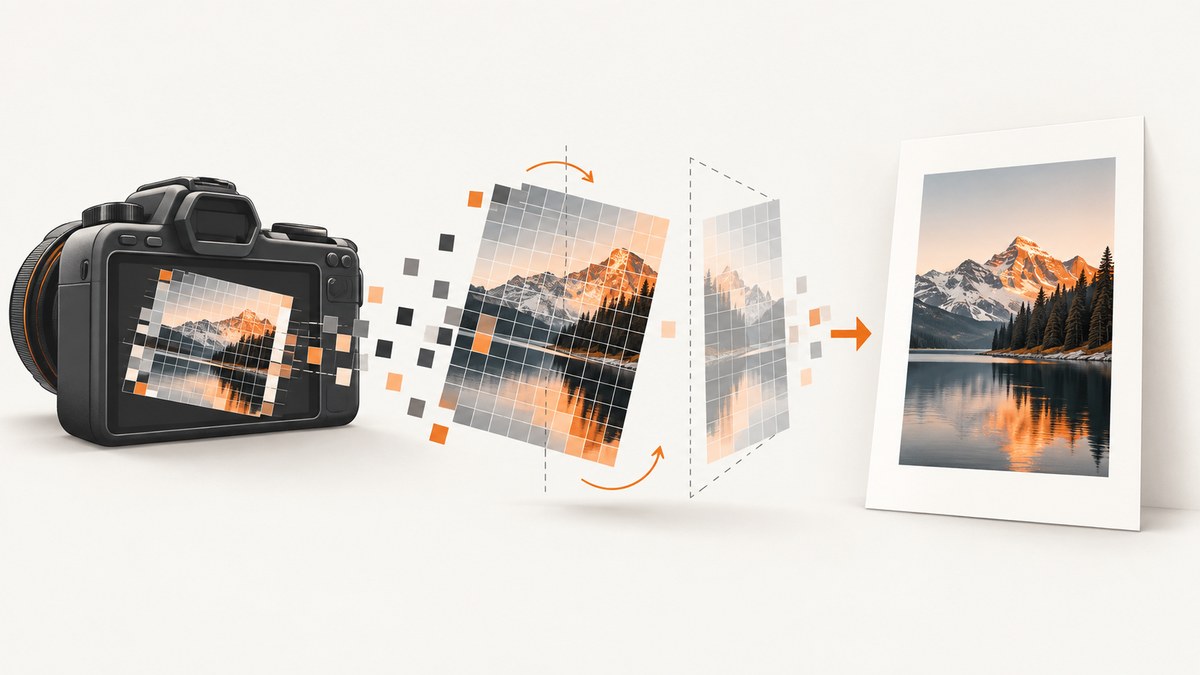
Apply the photo’s EXIF orientation to its pixels before giving it to Puppeteer. In Node.js, Sharp’s .autoOrient() handles rotations and mirrored orientations; re-encoding the result also removes the consumed Orientation tag. Then make the normalized image available to the page, wait for it to load, and call page.pdf(). This is more reliable than expecting the PDF print path to interpret camera metadata.
1. Why photos turn sideways in PDFs
JPEG files from phones and cameras can store image pixels in one direction and describe the intended display orientation in EXIF metadata. The pixel array may be landscape even though the photograph should appear portrait. A viewer that honors EXIF can display it upright without changing those pixels.
A PDF pipeline introduces another decoder and rendering step. If the browser’s print path does not apply the orientation metadata while rasterizing the image, the PDF can contain a sideways image. The reliable fix is to normalize the pixels before HTML rendering, rather than depend on each later consumer to interpret metadata.
EXIF orientation has eight states, including mirrored versions as well as 90°, 180°, and 270° rotations. A solution that only rotates by inspecting width and height can miss mirrored cases. Sharp’s documented autoOrient() applies the EXIF Orientation transform, including flips, and removes that tag afterward. It considers the EXIF Orientation tag; XMP orientation fields or other metadata are outside that operation. Sharp autoOrient API.
2. Normalize the image with Sharp
Install Sharp in the Node.js project that prepares your PDF inputs:
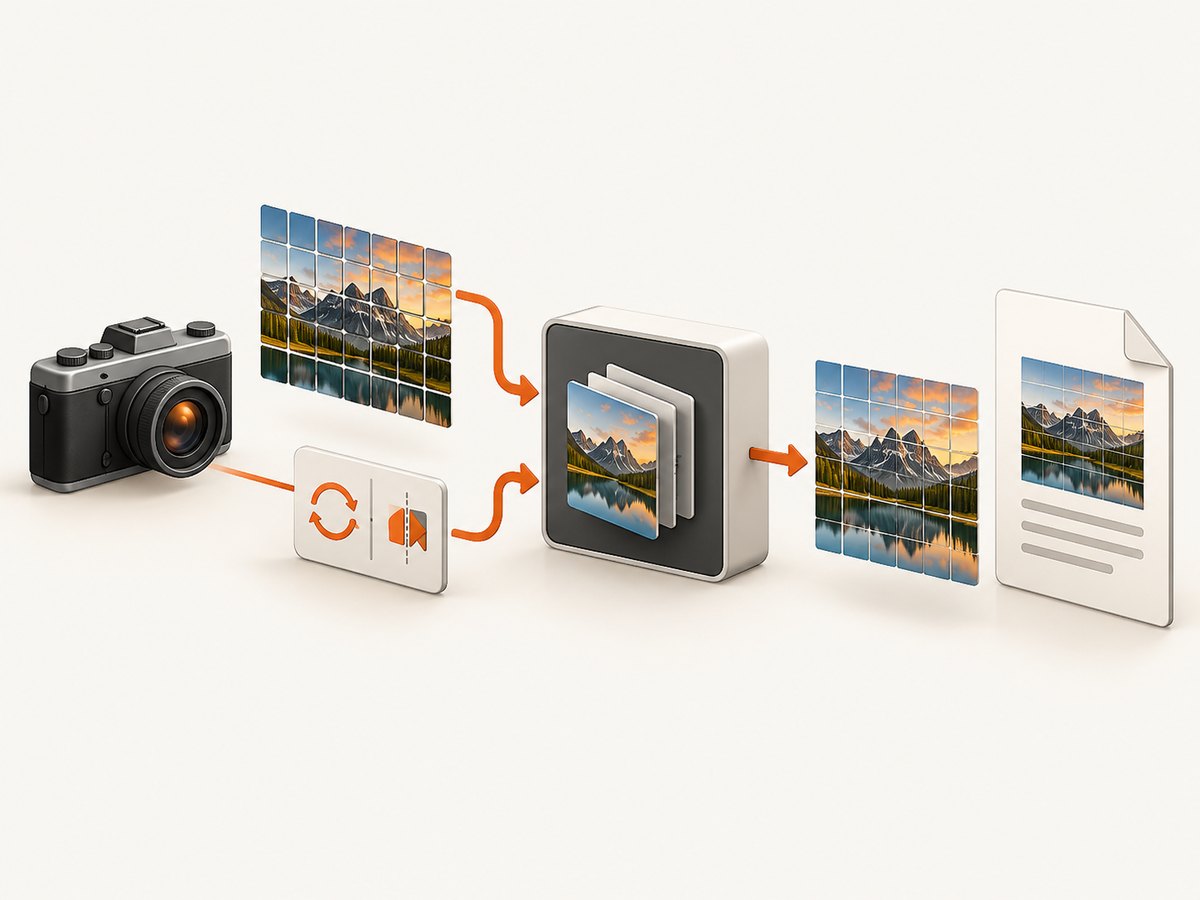
npm install sharp puppeteerHere is a complete example for a local JPEG. It normalizes the source, serves the resulting bytes to Chromium through a data URL, waits for the image to decode, and writes the PDF:
import fs from 'node:fs/promises';
import sharp from 'sharp';
import puppeteer from 'puppeteer';

const inputBuffer = await fs.readFile('./photo.jpg');
const normalizedBuffer = await sharp(inputBuffer)
  .autoOrient()
  .jpeg({ quality: 90 })
  .toBuffer();
const imageDataUrl = `data:image/jpeg;base64,${normalizedBuffer.toString('base64')}`;

const browser = await puppeteer.launch({ headless: true });
try {
  const page = await browser.newPage();
  await page.setContent(`
    <!doctype html>
    <html>
      <head>
        <meta charset="utf-8">
        <style>
          @page { size: A4; margin: 16mm; }
          img { display: block; max-width: 100%; height: auto; }
        </style>
      </head>
      <body>
        <img id="photo" src="${imageDataUrl}" alt="Uploaded photograph">
      </body>
    </html>
  `);
  await page.evaluate(async () => {
    const image = document.querySelector('#photo');
    await image.decode();
  });
  await page.pdf({
    path: './output.pdf',
    format: 'A4',
    printBackground: true,
    waitForFonts: true
  });
} finally {
  await browser.close();
}
The HTML tags are entity-escaped above because this is a JSON article body. In a JavaScript template literal, use ordinary HTML angle brackets (< in the displayed markup means < in the literal source, not an HTML entity you must preserve). The same principle applies to the arrow function: use => as the JavaScript token => in source. In a real file, write the source tokens < and => as the normal characters < and =>.
For a file-based workflow, write a normalized asset and refer to it from the page. Use an absolute path for a file URL:
await sharp('./photo.jpg')
  .autoOrient()
  .jpeg({ quality: 90 })
  .toFile('./photo-normalized.jpg');

const normalizedPath = new URL('./photo-normalized.jpg', import.meta.url).href;
await page.setContent(`
  <img src="${normalizedPath}" style="max-width:100%;height:auto" alt="Photograph">
`);
await page.waitForFunction(() => {
  const image = document.querySelector('img');
  return image && image.complete && image.naturalWidth > 0;
});
await page.pdf({ path: './output.pdf', printBackground: true });
When the input is already in memory, the buffer approach avoids temporary files. If you want PNG output, use .png() instead of .jpeg() and set the data URL media type to image/png. The key operation is .autoOrient(); output encoding should match the format and quality requirements of your document.
3. Make the Puppeteer print step deterministic
- Read the original bytes. Keep the original if you need an untouched archival copy or need to retry processing.
- Auto-orient and re-encode. This makes the pixels canonical and removes the consumed EXIF Orientation tag.
- Expose the normalized asset. Use a data URL for small images, a controlled local file for local jobs, or an authenticated HTTP endpoint for remote storage.
- Wait for image readiness. Use
img.decode()or wait forcompleteand a positivenaturalWidth. Network-idle alone does not prove that every image decoded successfully. - Print only after page setup is complete. Add print CSS and any fonts or styles before
page.pdf().
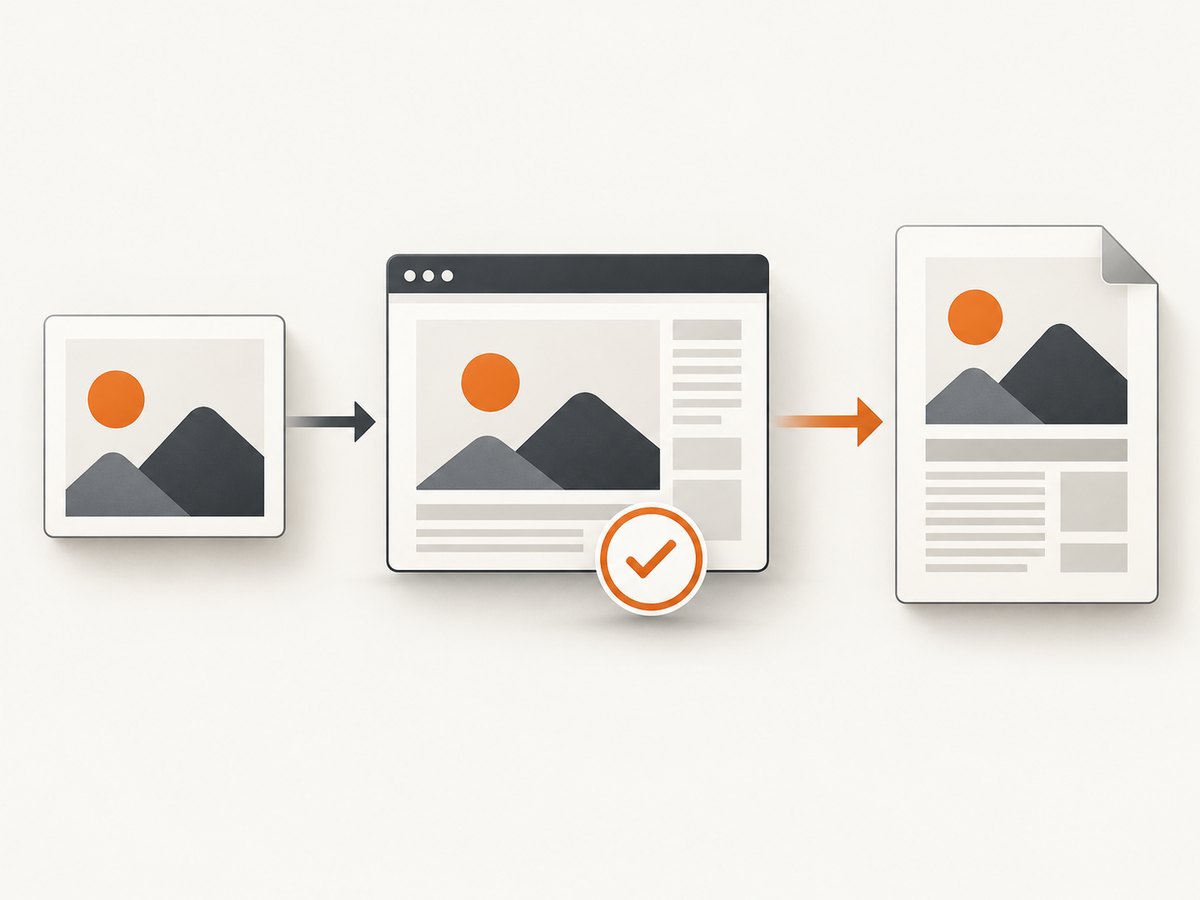
Puppeteer’s page.pdf() generates a PDF using the print CSS media type. If the design depends on screen media rules, call await page.emulateMediaType('screen') before generating the PDF. Otherwise, put the relevant image and layout rules in print styles. Puppeteer page.pdf().
4. PDF options and CSS orientation fallback
PDF options control page layout and output, but they cannot correct a transform that was never applied to image pixels. Puppeteer documents options including format, landscape, preferCSSPageSize, printBackground, scale, and waitForFonts. Puppeteer PDFOptions.
| Setting | Use | Orientation limitation |
|---|---|---|
format / landscape |
Choose paper dimensions and page direction. | Changes the page, not the photo’s EXIF pixels. |
preferCSSPageSize |
Honor a CSS @page size where applicable. |
Does not normalize the source image. |
printBackground |
Include printed backgrounds. | Does not affect image metadata. |
scale |
Scale printed content. | Can change size, not orientation interpretation. |
waitForFonts |
Wait for fonts before PDF generation. | Does not wait for every image decode. |
A CSS diagnostic or fallback is:
img { image-orientation: from-image; }MDN describes from-image as using EXIF information to orient the image. The property is for camera or scanner orientation correction; use transform: rotate(...) for a deliberate design rotation. CSS may be sufficient when you control the Chromium version and have confirmed the exact print behavior. For reproducible PDF output, pixel normalization is safer across decoders and later processing stages. MDN image-orientation.
Do not combine Sharp auto-orientation with a manual CSS rotation for the same camera correction: the two transforms can cancel or double-rotate the image. If CSS is used for a specific source, verify that the print stylesheet includes it and test the Chromium version used in production.
5. Edge cases to account for
- Mirrored orientations: Do not reduce the problem to portrait-versus-landscape dimensions. Let Sharp apply the full EXIF transform.
- Orientation stored in XMP: Sharp’s documented auto-orient operation considers EXIF Orientation. If the image relies on XMP or another metadata field, inspect and handle that format separately.
- Already-normalized image: Applying an additional manual rotation after auto-orientation can corrupt the intended view. Treat normalized output as the canonical version.
- Remote assets: Ensure Chromium can fetch the endpoint, credentials are available if required, and the response is an image rather than an HTML login or error page.
- Large uploads: Re-encoding consumes CPU and memory. Process bounded inputs and consider streaming or a controlled temporary-file strategy for large workloads.
- Transparency and formats: JPEG has no alpha channel. If transparency matters, choose PNG and retain the appropriate page background behavior.
- Repeated jobs: Cache normalized output using a key that includes the source identity and processing settings, so retries do not repeatedly decode and encode an unchanged image.
6. Verify the fix with a fixture
Use a JPEG whose EXIF Orientation value is nontrivial, such as a portrait photo whose stored pixels are landscape. Generate one PDF using the original image and another using the auto-oriented output. Inspect the rendered pages, or rasterize both PDFs with your normal review tool. Confirm that the normalized result remains upright when the EXIF metadata is stripped or ignored. Include a mirrored fixture if your inputs come from devices or workflows that can produce mirrored states.
For ongoing quality checks, retain a small set of representative fixtures: unrotated, 90°/270° rotation, 180° rotation, mirrored orientation, and an image with no Orientation tag. Compare both the visual result and the expected dimensions after normalization. This catches regressions from changing Sharp, Chromium, CSS, or image delivery behavior.
7. Troubleshooting
| Symptom | Likely cause | Fix |
|---|---|---|
| Image is still sideways | The page is using the original URL or buffer. | Pass the Sharp output to the HTML and log or inspect which asset URL was inserted. |
| Image is upside down or mirrored incorrectly | Code handles only rotation, or a second transform is applied. | Use .autoOrient() and remove any duplicate CSS transform. |
| Image is correct in browser but wrong in PDF | Screen and print media differ, or the print decoder does not honor EXIF. | Normalize the pixels before rendering; check print CSS and test the deployed Chromium version. |
| Blank image or broken-image icon | Data URL is malformed, local path is inaccessible, or remote fetch failed. | Check the MIME type, base64 bytes, file URL, response status, and browser page errors. |
| PDF omits the image intermittently | Printing begins before decode or network completion. | Await img.decode(); for remote images also verify fetch completion and successful decode. |
| Image is stretched or clipped | Fixed dimensions or print layout override intrinsic sizing. | Use max-width:100%; height:auto and inspect print-specific width constraints. |
| Sharp reports an unsupported or invalid input | The bytes are truncated, not an image, or in an unsupported encoding. | Validate upload content and size before processing; inspect the actual bytes and supported format. |
| Process runs out of memory | Many high-resolution inputs are decoded concurrently. | Limit concurrency, cap accepted dimensions and bytes, and avoid retaining all source and output buffers at once. |
8. Performance, reliability, and cost
Each normalization requires image decoding and encoding, so it adds CPU work and may add memory pressure for large photos. The workload depends on input dimensions, output format and quality, and concurrency; measure it with your own images and deployment limits rather than assuming a universal time. Reduce avoidable work by normalizing once per source, reusing the output, bounding concurrency, and selecting a format appropriate to the document.
For reliability, treat image preparation as an explicit pipeline stage. Validate that Sharp produced nonempty bytes, ensure the page references those bytes, await decode, and only then print. If a job fails, report whether it failed during image processing, asset loading, or PDF generation; this makes retries targeted. Keep a timeout around remote fetches and browser work in the surrounding job system.
Cost comes from your compute, memory, storage, and any remote image delivery you operate. Sharp itself is a dependency in the Node.js application; Puppeteer also requires a compatible Chromium runtime. Reuse browser instances carefully for batches if your service architecture supports it, while isolating page state and closing pages after each job. Do not trade correctness for aggressive parallelism: image decoding and PDF rendering can both be resource intensive.
9. Or skip the browser setup
If you need a screenshot rather than a custom Puppeteer-generated document, ScreenshotNeo is a website screenshot API and MCP server for developers. One GET request returns a PNG, JPEG, WebP, or PDF. Its page preparation accepts cookie banners and removes more than 60 known consent platforms, newsletter popups, and chat widgets before capture; each step can be turned off. Bot checks, blank pages, failed loads, timeouts, and cache hits are not billed, and response headers say which page verdict applied and whether the request was billed. AI agents can use its MCP server tools: take_screenshot, get_page_info, and capture_pdf.
Use the ScreenshotNeo API documentation for the request options and account setup. This call captures a page to WebP:
curl -G "https://api.screenshotneo.com/v1/shot" \
  -d access_key=YOUR_API_KEY \
  --data-urlencode url=https://stripe.com \
  -o shot.webp
That endpoint captures a website page; it does not replace the Sharp preprocessing step when your task is to embed an uploaded EXIF-oriented photo in a custom Puppeteer PDF. ScreenshotNeo’s free plan includes 1,000 shots per month without a card; paid plans start at $5 for 3,000 shots. Every feature is available on every plan.
Sign up for 1,000 free screenshots a month, with no card required.
10. FAQ
Does changing the PDF to landscape fix a sideways photo?
No. Landscape changes page geometry. Normalize the image or verify a CSS orientation rule in the print renderer.
Can I keep the original image untouched?
Yes. Read it into a buffer and write a separate normalized derivative for the PDF. Keep the original for archival or downstream use.
Should I use a manual 90-degree rotation?
Only when you know the intended transform independently of EXIF. EXIF includes mirrored states, so a fixed rotation is not a general solution.
Does Puppeteer’s PDF scale option affect orientation?
No. Scale changes printed content size. It does not apply the image’s EXIF transform.
Will the PDF viewer correct the image later?
Do not rely on that. The robust pipeline embeds correctly oriented rendered content by normalizing before Chromium prints.


