How to Fix Exit Code 21 When Printing PDFs with Headless Chrome or Edge
Fix headless Chrome or Edge exit code 21 with isolated profiles, current PDF flags, artifact checks, and reliable automation patterns.
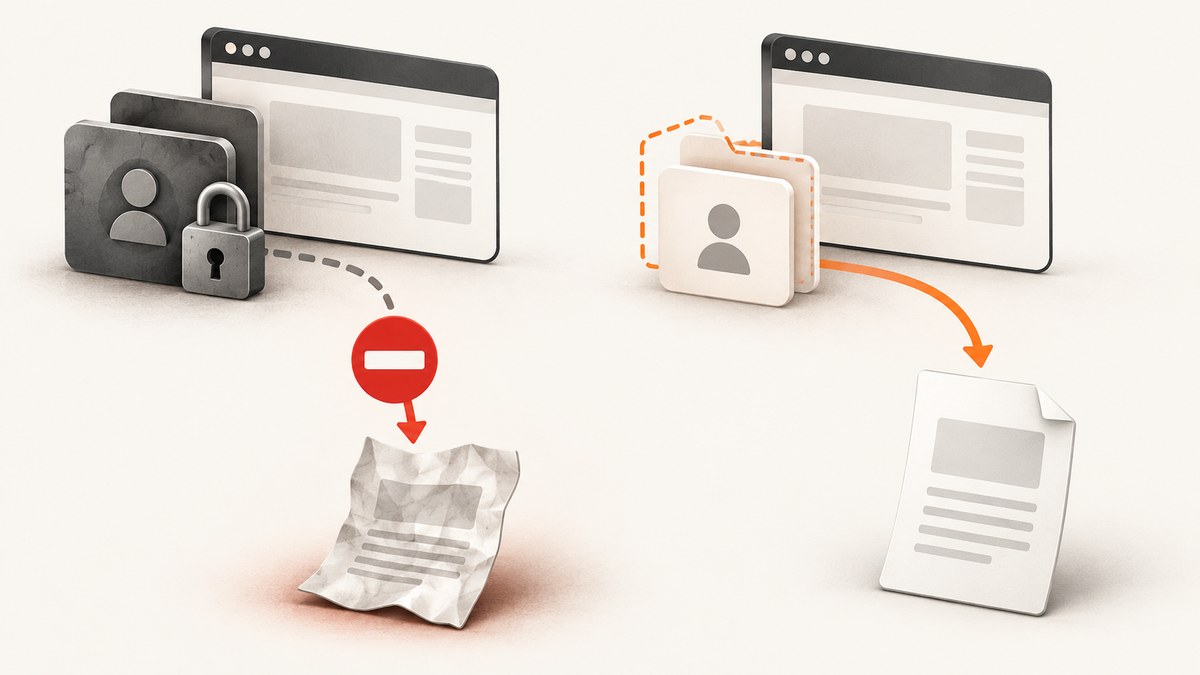
Exit code 21 with no PDF is usually a process/profile collision, not a bad PDF flag. Chromium-family browsers keep a singleton lock in the user-data directory. If a normal Chrome or Edge process already owns that profile, a new headless invocation can hand its arguments to the running process, exit quickly, and never write the file. The practical fix is to close the GUI browser or give every render a fresh temporary --user-data-dir, then verify the output file instead of trusting the exit code.
The behavior was reported after Edge 128.0.2739.42, when headless and non-headless code paths were merged. That report is community evidence, not a formal Chromium definition of error 21. The isolation and validation steps below also cover the related singleton-profile failure mode.
Quick fix checklist
- Close every Chrome or Edge window and background process, or create a unique temporary profile for this render.
- Add
--no-first-runand--no-default-browser-checkfor unattended runs. - Use
--print-to-pdf; use--no-pdf-header-footeron current Chrome. Keep the older--print-to-pdf-no-headerspelling only when you must support an older build. - Set
--timeout=<milliseconds>and, for pages driven by timers,--virtual-time-budget=<milliseconds>. - Check that the expected PDF exists and is non-empty. A successful process exit alone is not proof of a usable artifact.
- If isolation does not help, try another URL and another application to separate page-content, browser, driver, Windows, network, and hardware causes.
Why exit code 21 happens
Chromium uses a locked user-data directory so multiple processes do not mutate one browser profile at once. A second invocation can therefore terminate after sending its command-line arguments to the already-running instance. In the reported Edge case, the process returned 21 and no PDF appeared while a GUI browser was open. The same symptom can occur in CI when two jobs reuse one profile directory.
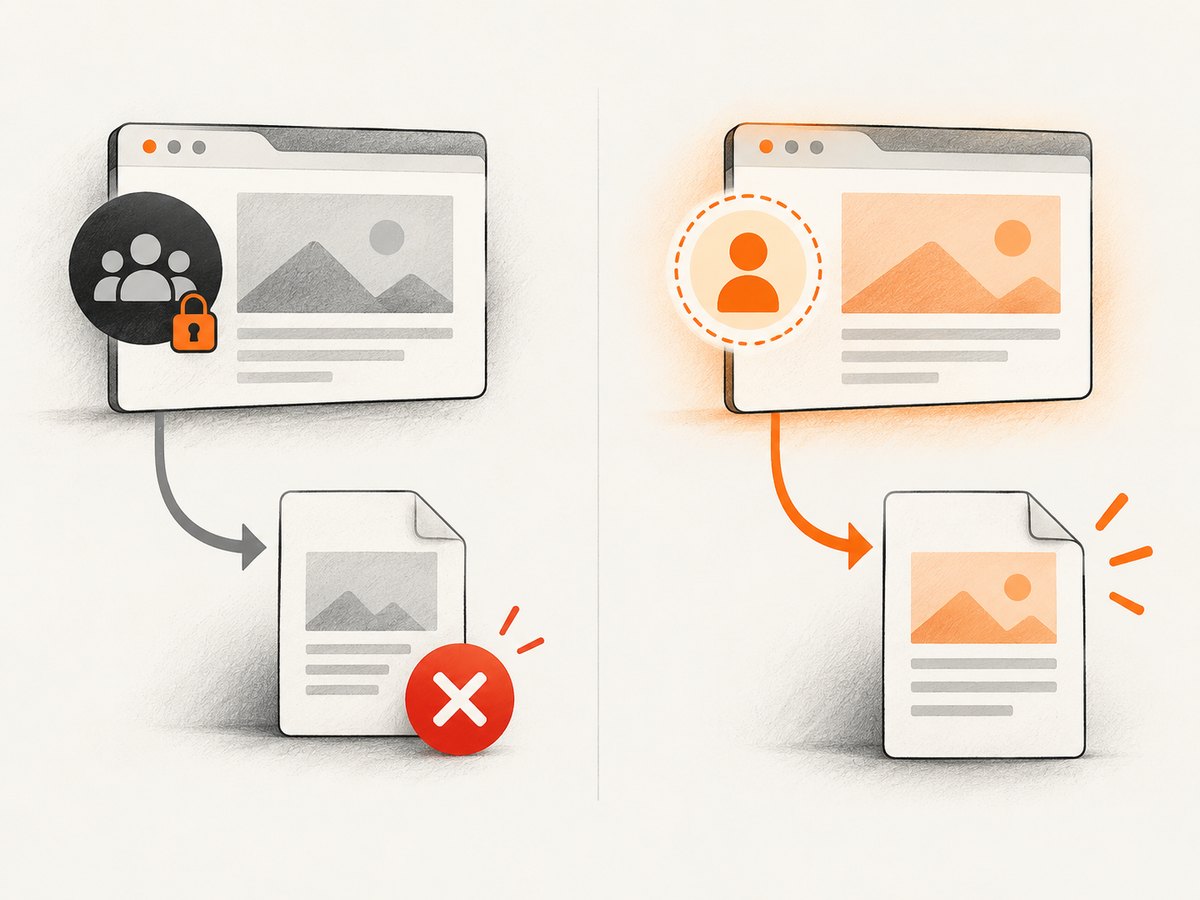
Treat code 21 as a symptom. The reliable success condition is an existing, non-empty PDF that can be opened, plus logs showing the intended browser process handled the command.
Use an isolated profile from the command line
Windows PowerShell (Edge)
$tmp = Join-Path $env:TEMP ("edge-" + [guid]::NewGuid())
$out = "C:\out\card.pdf"
New-Item -ItemType Directory -Force (Split-Path $out) | Out-Null
& "C:\Program Files (x86)\Microsoft\Edge\Application\msedge.exe" `
  --headless --disable-gpu `
  --user-data-dir="$tmp" `
  --no-first-run --no-default-browser-check `
  --timeout=30000 `
  --print-to-pdf="$out" `
  "file:///C:/work/card.html"
if (-not (Test-Path $out) -or (Get-Item $out).Length -lt 1024) {
  Remove-Item -Recurse -Force $tmp -ErrorAction SilentlyContinue
  throw "render produced no usable PDF"
}
Remove-Item -Recurse -Force $tmp
Adapt the executable, input URL, output path, and size threshold to your environment. The fresh profile is the key part; the size check prevents a fast, empty failure from entering a pipeline.
Linux or macOS (Chrome)
set -eu
profile="$(mktemp -d "${TMPDIR:-/tmp}/chrome-pdf-XXXXXX")"
out="$(pwd)/card.pdf"
trap 'rm -rf "$profile"' EXIT
google-chrome --headless --disable-gpu \
  --user-data-dir="$profile" \
  --no-first-run --no-default-browser-check \
  --timeout=30000 \
  --print-to-pdf="$out" \
  "file:///work/card.html"
test -s "$out"
# Optional stronger guard for CI:
test "$(wc -c < "$out")" -ge 1024
Use chromium, chromium-browser, or your installed Edge binary name as appropriate. Never share one profile directory between concurrent renders; allocate one directory per process.
Current flags and page-readiness controls
| Need | Flag | How to use it |
|---|---|---|
| Save PDF | --print-to-pdf=path |
Writes the target page to the requested path. Chrome documents this as saving a page as output.pdf. |
| Remove print chrome | --no-pdf-header-footer |
Use on current Chrome/Chromium. Older builds may require --print-to-pdf-no-header. |
| Bound waiting | --timeout=milliseconds |
Caps how long the browser waits before capture. |
| Advance timers | --virtual-time-budget=milliseconds |
Lets time-dependent JavaScript run for a bounded virtual interval before capture. |
| Prevent first-run prompts | --no-first-run |
Suppresses first-run setup in disposable profiles. |
| Prevent default-browser prompts | --no-default-browser-check |
Keeps unattended jobs from waiting on a GUI prompt. |
Keep the command small while diagnosing. Add application-specific flags only after a minimal isolated invocation works.
Validate the PDF, not just the process
# POSIX
if [ ! -s "$out" ]; then
  echo "Chrome exited but did not produce a PDF" >&2
  exit 1
fi
file "$out"

# PowerShell
if (-not (Test-Path $out) -or (Get-Item $out).Length -eq 0) {
  throw "missing PDF"
}
A zero-byte or missing file points to startup, profile handoff, permissions, or navigation failure. A non-empty file that cannot be opened points to interrupted output or a filesystem problem; copy it to a local writable directory and retry.
When the CLI is still brittle: CDP, Puppeteer, or Playwright
The Chrome DevTools Protocol exposes Page.printToPDF, so a CDP client can print after navigation and an explicit readiness check. Puppeteer and Playwright wrap this protocol and let you create an isolated browser context per job. The same rules still apply: do not reuse a locked profile, wait for the page state your document needs, and assert that the resulting bytes are present.
Playwright example (Node.js)
import { chromium } from 'playwright';

const browser = await chromium.launch({ headless: true });
const page = await browser.newPage();
try {
  await page.goto('file:///work/card.html', { waitUntil: 'networkidle', timeout: 30000 });
  await page.pdf({
    path: 'card.pdf',
    format: 'A4',
    printBackground: true,
    displayHeaderFooter: false
  });
} finally {
  await browser.close();
}
For parallel workers, give each worker its own browser context or launch profile. If the page never reaches network idle because of long polling, wait for a document-specific selector instead and use a bounded timeout.
Diagnose by changing one variable
- Profile: rerun with a new temporary
--user-data-dir. If it works, profile locking was the cause. - Browser process: terminate background Chrome/Edge processes, then rerun the minimal command.
- Input: print a tiny local HTML file. If that works, investigate redirects, authentication, scripts, or blocked resources on the original page.
- Output: write to a known writable local directory and check free space and permissions.
- Browser build: record the exact version and test the current headless mode. The old mode (
--headless=old) can be a short bridge for a GUI collision, but it is temporary and will be removed; migrate to new headless behavior orchrome-headless-shellwhere appropriate. - Environment: test another application or machine to distinguish Edge/Chrome from Windows, drivers, connectivity, or hardware.
Common errors and fixes
| Symptom | Likely cause | Fix |
|---|---|---|
| Exit 21, no file | GUI process owns the profile; singleton handoff | Close it or use a unique temporary --user-data-dir. |
| Process exits immediately in CI | Two jobs share a profile or first-run prompt blocks startup | Per-job profile plus --no-first-run and --no-default-browser-check. |
| File is missing but exit status is 0 | Wrong output path, permissions, or arguments consumed by another process | Use an absolute path, log the full command, and assert test -s / Test-Path. |
| Blank or incomplete PDF | Capture ran before scripts or fonts finished | Increase --timeout, set a virtual-time budget, or wait for a selector with Playwright/CDP. |
| Headers remain | Flag spelling does not match browser version | Use --no-pdf-header-footer; reserve the older spelling for older builds. |
| Only one URL fails | Page content, redirect, auth, or network dependency | Try a simple URL, inspect redirects, supply required cookies/headers, and isolate the failing resource. |
Performance, reliability, and cost considerations
- Startup: launching a browser per document is slower than reusing one browser process with separate contexts, but reuse requires strict profile/context isolation.
- Concurrency: one temporary profile per concurrent CLI render avoids lock contention. Limit workers to the CPU and memory available; excessive parallelism causes timeouts.
- Readiness: a fixed timeout is predictable; a selector or network-idle condition is usually more accurate. Always keep a hard upper bound.
- Retries: retry transient navigation failures with a fresh profile. Do not blindly retry a deterministic bad flag or a locked shared profile.
- Artifacts: write locally, validate size and type, then move the finished file to object storage. This keeps partial files out of downstream systems.
- Maintenance: browser updates can change headless behavior and flag support. Pin and record versions in CI, and recheck the current flag names after upgrades.
Or skip the browser setup
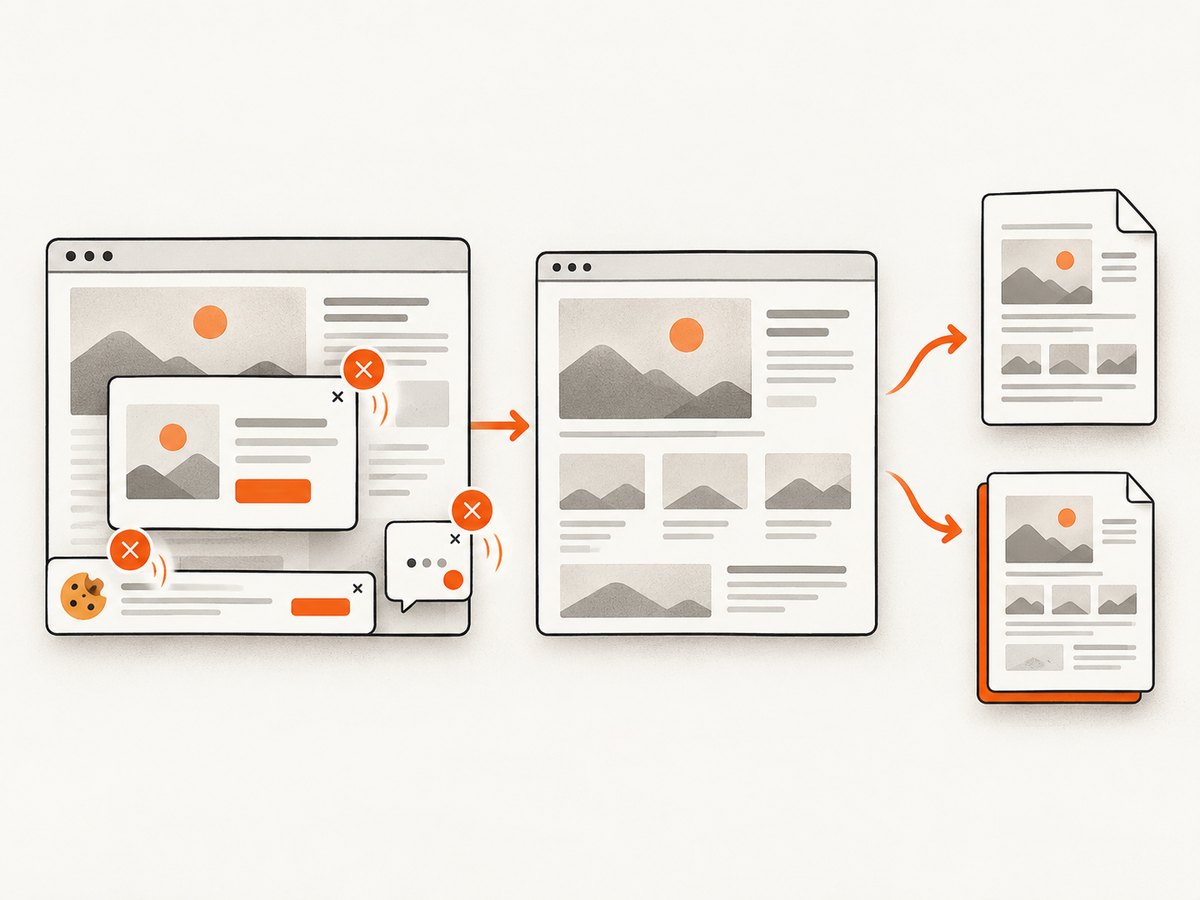
ScreenshotNeo provides a hosted screenshot and PDF API when maintaining Chrome or Edge is not the goal. One GET request returns a PNG, JPEG, WebP, or PDF. Before capture it accepts cookie/consent banners like a visitor and removes 60+ known consent platforms, newsletter popups, and chat widgets; each step can be turned off. Bot checks/CAPTCHAs, blank pages, timeouts, failed loads, and cache hits are not billed, and each response identifies the result with X-Page-Verdict and X-Billed headers. Its MCP server includes take_screenshot, get_page_info, and capture_pdf for Claude, Cursor, and other MCP clients.
See the ScreenshotNeo API docs for the full option set. This is the smallest PDF call:
curl -G "https://api.screenshotneo.com/v1/shot" -d access_key=YOUR_API_KEY --data-urlencode url=https://stripe.com -o shot.webpimport requests
r = requests.get("https://api.screenshotneo.com/v1/shot", params={"access_key": "YOUR_API_KEY", "url": "https://stripe.com"}, timeout=90)
open("shot.webp", "wb").write(r.content)const q = new URLSearchParams({ access_key: 'YOUR_API_KEY', url: 'https://stripe.com' });
const res = await fetch(`https://api.screenshotneo.com/v1/shot?${q}`);It also supports full-page captures with lazy images loaded, CSS-selector element captures, dark mode, device presets or custom viewports, retina scale, PDF paper/margins/landscape/page ranges, custom CSS and JavaScript, clicks, waits, request blocking, headers/cookies/user agents/Authorization, timezone and geolocation, transparent backgrounds, resizing, chosen-TTL caching, signed links, async jobs with signed webhooks, bulk capture of 100 URLs per call, usage data, and an OpenAPI spec. Parameter names used by other screenshot APIs also work.
Free accounts include 1,000 screenshots each month with no card. Paid plans start at $5 for 3,000 shots; every feature is on every plan. Create a free ScreenshotNeo account.
FAQ
Is exit code 21 officially defined by Chromium?
No formal Chromium error-code specification is cited for this case. The association with a merged headless/non-headless executable and an already-open GUI browser comes from the reported Edge incident.
Should I always use --headless=old?
No. It is a temporary bridge for compatibility while you remove profile collisions. Old headless is scheduled for removal; migrate to current headless behavior or a standalone headless shell.
Can a fresh profile fix a page that never loads?
It fixes profile handoff and locking. A page that still times out needs navigation, authentication, resource, or readiness debugging.
What is the success test for automation?
Require a non-empty PDF at the exact expected path, then optionally inspect its type or open it with a PDF validator. Process exit status is only one signal.


