How to Fix ExpertPDF WebKit Navigation Timeout Errors
Fix ExpertPDF WebKit navigation timeouts by tuning NavigationTimeout, RenderOnTimeout and ConversionDelay, then diagnose slow pages and script hangs.

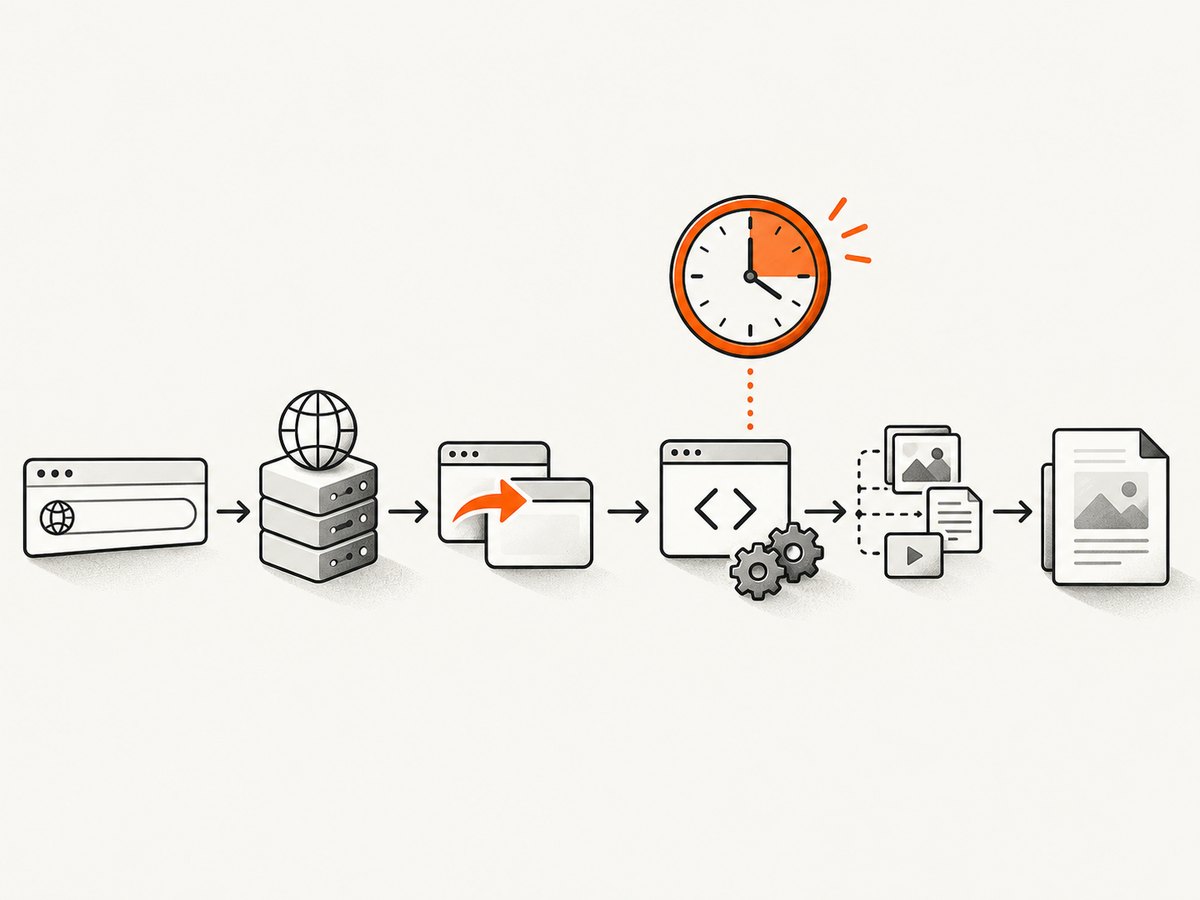
ExpertPDF WebKit navigation timeouts usually have one of four causes: the page genuinely needs more than the default navigation window, a script never reaches its expected ready state, an external request is stalled, or the converter is waiting for asynchronous content that should be handled separately. The documented controls are NavigationTimeout, RenderOnTimeout and ConversionDelay.
ExpertPDF documents NavigationTimeout in seconds, with a default of 60 seconds. RenderOnTimeout determines whether WebKit renders after navigation times out; its documented default is false, and the property is WebKit-only. ConversionDelay adds a separate wait for asynchronous items after navigation. These settings solve different problems, so changing all three at once makes diagnosis harder.
1. Confirm that the failure is a navigation timeout
Start with the complete exception text and the converter configuration that produced it. Record:
- the target URL, including query parameters;
- the ExpertPDF package and assembly version;
- the rendering engine selected for the conversion;
- the configured navigation timeout and conversion delay;
- whether the URL redirects, requires authentication or loads third-party resources;
- whether a simpler page succeeds with the same process.
Do not classify an error as an ExpertPDF navigation timeout from a generic “page load” message alone. A WebDriver page-load timeout, an HTTP client timeout and a converter navigation timeout use different units and defaults. One WebKit WebDriver discussion describes a timeout in milliseconds and a historical 300-second default; that is a different subsystem from ExpertPDF’s 60-second, seconds-based setting.
2. Increase NavigationTimeout when navigation is legitimately slow
Set NavigationTimeout in seconds. If the server responds slowly because of a cold start, a long redirect chain or a large application bundle, increase the value enough to cover the normal response time plus a margin. Avoid setting an extremely large value as a first response: a dead host or never-ending script then occupies a conversion worker for a long time.
// Illustrative C# configuration. Check the API reference matching
// the ExpertPDF version installed in your project.
var area = new HtmlToPdfArea("https://example.com");
area.NavigationTimeout = 120; // seconds

var converter = new HtmlToPdf();
converter.RenderDocument("output.pdf", area);
The exact constructor and conversion call can differ between ExpertPDF editions and releases. The important part is the property name and its unit: NavigationTimeout is measured in seconds. Verify the matching reference for your installed assembly before copying a complete application example.
Choose a value from measurements
- Measure server response time and redirect time outside the converter.
- Measure how long the page takes to reach its own usable state.
- Add a bounded margin for normal variation.
- Use a separate application-level cancellation limit so one URL cannot consume a worker indefinitely.
For example, if the HTML normally becomes usable in 18 seconds but occasionally takes 35 seconds, a 60- or 90-second navigation timeout may be reasonable. If the page never reaches a completion event, increasing the number only delays the same failure.
3. Use RenderOnTimeout when partial output is acceptable
RenderOnTimeout controls whether WebKit attempts to render despite a navigation timeout. The documented default is false. When enabled, the converter can produce output after the timeout instead of stopping immediately.
var area = new HtmlToPdfArea("https://example.com");
area.NavigationTimeout = 90;
area.RenderOnTimeout = true; // WebKit-only; default is false

var converter = new HtmlToPdf();
converter.RenderDocument("possibly-partial.pdf", area);
This setting trades a timeout failure for the possibility of an incomplete page. Content loaded by a request that is still pending, a client-side chart that has not rendered, or an image inserted after the timeout may be absent. Treat the resulting PDF as provisional unless your application can verify that required content is present.
When RenderOnTimeout is appropriate
- Archival workflows where the visible shell is more useful than no document.
- Pages with optional analytics, chat or recommendation widgets that can be missing.
- Batch jobs where a partial artifact should be flagged for review rather than dropping the whole item.
When to leave it disabled
- Invoices, statements or legal documents that require every field.
- Reports whose totals are inserted by JavaScript.
- Any workflow that cannot distinguish a complete document from a timed-out one.
4. Use ConversionDelay for content that arrives after navigation
ConversionDelay is documented as additional time in seconds for asynchronous items. It is separate from NavigationTimeout. If navigation completes but a late image, chart or script-generated section is missing, evaluate this property instead of continually increasing the navigation timeout.
var area = new HtmlToPdfArea("https://example.com/dashboard");
area.NavigationTimeout = 60;
area.ConversionDelay = 5; // additional seconds for asynchronous content

var converter = new HtmlToPdf();
converter.RenderDocument("dashboard.pdf", area);
A delay is useful only when the page is progressing and needs a predictable settling period. It cannot repair a request that is blocked, a promise that never resolves or an exception that prevents the rendering code from running. Prefer a page-side readiness signal when you control the application: render a marker element only after required data has arrived, then configure the converter around that lifecycle.
5. Diagnose the page before changing more settings
Navigation can be held open by redirects, authentication, external resources and JavaScript. Inspect the same URL in a normal browser and collect:
- HTTP status codes, redirects and server response time;
- requests that remain pending;
- certificate, DNS and proxy failures;
- console errors and rejected promises;
- scripts that wait for events which never fire;
- content that appears only after user interaction.
WebKit’s Inspector guidance identifies never-firing events, unresolved promises and silently swallowed exceptions as common causes of asynchronous test timeouts. Those observations are useful diagnostic clues, but they do not prove that every Inspector logging mechanism is available in an ExpertPDF deployment.
Use the browser console log
ExpertPDF documents ConsoleLog, which returns the console log from the browser used for rendering. Enable or retrieve it according to the API for your installed version and inspect errors near the point where loading stops.
// API shape varies by ExpertPDF release; consult the matching reference.
var area = new HtmlToPdfArea("https://example.com");
area.NavigationTimeout = 90;

var converter = new HtmlToPdf();
converter.RenderDocument("debug.pdf", area);

// Read the converter's ConsoleLog using the property or method
// exposed by your installed ExpertPDF build.
Check application readiness logic
A common pattern is an application that waits for an event from a failed request:
fetch('/api/report')
  .then(renderReport)
  .catch(error => {
    console.error(error);
    // A missing completion path can leave the converter waiting.
  });
Make failure explicit. If the page must render a fallback, update the DOM in both success and failure paths. If the converter waits for a custom event, ensure that event fires when the request fails as well as when it succeeds.
6. A repeatable troubleshooting sequence
- Capture the exact error. Save the full exception, inner exception and stack trace.
- Reproduce with a minimal URL. Try a static page on the same host to separate converter problems from application behavior.
- Check the timeout unit. ExpertPDF’s
NavigationTimeoutis seconds and defaults to 60. - Measure navigation. Look for slow DNS, redirects, authentication and server responses.
- Inspect requests and console output. Find pending requests and JavaScript errors.
- Separate late content from navigation. Use
ConversionDelayfor asynchronous items after navigation completes. - Decide whether partial output is valid. If it is, test WebKit’s
RenderOnTimeout; if not, keep it disabled. - Retest with the installed API version. The cited reference for
RenderOnTimeoutis associated with assembly version 21.1.0; property availability and syntax can differ in other releases.
7. Common errors and fixes
| Symptom | Likely cause | Fix |
|---|---|---|
| Failure occurs at almost exactly 60 seconds | The documented default navigation timeout is being reached. | Measure actual load time, then raise NavigationTimeout in seconds if the page is legitimately slow. |
| Increasing the timeout never helps | A script waits for an event or promise that never completes. | Inspect console and network activity; fix the page’s readiness and error paths. |
| PDF is created but a chart or image is missing | Navigation completed before asynchronous content settled. | Use an appropriate ConversionDelay or a page-side readiness marker. |
| Output appears after a timeout but is incomplete | RenderOnTimeout allowed rendering before all requests finished. |
Validate required content, or disable the option for all-or-nothing documents. |
| Console is empty or unavailable | The logging API differs by edition or version, or logging was not enabled. | Check the matching ExpertPDF reference and deployment logging configuration. |
| A WebDriver timeout value seems wrong | WebDriver settings use a different subsystem and may use milliseconds. | Configure ExpertPDF’s seconds-based property independently. |
| Only authenticated pages fail | The converter lacks a session, credentials or required headers. | Reproduce the request with the same authentication context and inspect redirects. |
8. Reliability and performance practices
- Bound every job. Set a conversion timeout at the worker level in addition to the page navigation timeout.
- Use retries selectively. Retry transient DNS, proxy or upstream failures, but do not repeatedly retry deterministic JavaScript hangs.
- Keep pages deterministic. Remove optional widgets and analytics from print routes when possible.
- Prefer a print endpoint. A server-rendered document route usually has fewer asynchronous dependencies than an interactive dashboard.
- Record outcome metadata. Store URL, elapsed time, timeout settings, engine and whether output was rendered after timeout.
- Control concurrency. More simultaneous WebKit conversions can increase CPU, memory and network contention, making normal pages look slow.
- Cache stable assets. Repeated third-party requests add latency and introduce failure points.
Do not treat a larger timeout as a performance improvement. It increases the maximum wait. Fixing a blocked request or a missing completion path usually improves both reliability and throughput.
9. If you only need a clean screenshot or PDF
When the requirement is a reliable image or PDF of a URL rather than control over an ExpertPDF rendering pipeline, ScreenshotNeo is an alternative to try first. It handles consent banners, newsletter popups and chat widgets before capture, and failed loads are reported instead of silently looking successful.

Or skip the browser setup
ScreenshotNeo exposes a GET endpoint that returns PNG, JPEG, WebP or PDF output. See the ScreenshotNeo API documentation for the complete option list.
curl -G "https://api.screenshotneo.com/v1/shot" -d access_key=YOUR_API_KEY --data-urlencode url=https://stripe.com -o shot.webpimport requests
r = requests.get("https://api.screenshotneo.com/v1/shot", params={"access_key": "YOUR_API_KEY", "url": "https://stripe.com"}, timeout=90)
open("shot.webp", "wb").write(r.content)const q = new URLSearchParams({ access_key: 'YOUR_API_KEY', url: 'https://stripe.com' });
const res = await fetch(`https://api.screenshotneo.com/v1/shot?${q}`);Cookie banners, popups and chat widgets are removed before the shot. Bot checks, blank pages and failed loads are never billed; response headers identify the page verdict and whether the request was billed. ScreenshotNeo also provides an MCP server with take_screenshot, get_page_info and capture_pdf tools for Claude, Cursor and other MCP clients. The free plan includes 1,000 screenshots per month with no card, and paid plans start at $5 for 3,000 shots.
Sign up for ScreenshotNeo free and start with 1,000 screenshots per month without a card.
10. FAQ
What is ExpertPDF’s default NavigationTimeout?
The documented default is 60 seconds, and the value is expressed in seconds.
Does RenderOnTimeout make the page complete?
No. It permits WebKit to render after navigation times out. Late or failed content can still be missing.
Should ConversionDelay replace NavigationTimeout?
No. Navigation timeout covers navigation; conversion delay adds time for asynchronous items after navigation.
Is RenderOnTimeout available for every ExpertPDF engine?
The documented property is WebKit-only. Confirm support in the reference for your installed version.
Why does a page work in Chrome but fail in ExpertPDF?
The environments can differ in authentication, browser capabilities, network access, JavaScript timing and external resources. Compare requests and console errors instead of assuming the timeout value is the only difference.
Can I use ScreenshotNeo for PDFs as well as screenshots?
Yes. Its capture endpoint supports PDF output and PDF options such as paper size, margins, landscape mode and page ranges.


