Why Facebook Butchers Images on the Timeline and How to Fix Them
Facebook recompresses and resizes uploads. Learn why photos look soft or shift color, then use a workflow that preserves more detail.

Short answer: Facebook does not always display the exact file you upload. It creates resized, compressed derivatives and previews for different Timeline and News Feed contexts. That processing can soften detail, damage tiny text, change colors when profiles are handled differently, or crop the composition. You cannot turn off every server-side transformation, but you can reduce avoidable loss by exporting a web-ready copy in sRGB, resizing it once, saving JPEG only once at a high practical quality, uploading over a reliable connection and checking the largest posted view.
This guide explains what happens to an image on upload, how to prepare files for Facebook, why common fixes work, and what to check when a post still looks wrong.
What Facebook does to an uploaded image
Facebook’s help guidance says photos are optimized for visual quality when uploaded, including HD quality. “Optimized” means the service can generate versions for delivery; it does not mean the original upload will be shown byte for byte in every context.
A single post may have more than one representation:
- A feed or Timeline thumbnail designed to appear quickly.
- A larger image opened from the post.
- Additional sizes for different screens and layouts.
- Previews that can be shown before the full image bytes are fetched.
Meta’s engineering material describes JPEG quality as a trade-off among retained image data, payload size and loading speed. It also documents preview systems that represented the visual impression of an image in roughly 200 bytes so a client could avoid another request for image bytes. That historical figure is an example of an optimization technique, not a current universal file-size limit.
The result is why a photo can look sharp in an editor, softer in a Timeline card, and better again when opened full size. The visible version depends on which derivative the app or browser selected.
Why photos become blurry
Resizing throws away detail
If your source is much larger than the space where it will be displayed, Facebook has to resample it. Resampling combines pixels and then applies compression. Fine hair, foliage, screenshots, one-pixel lines and small lettering are the first things to lose definition.
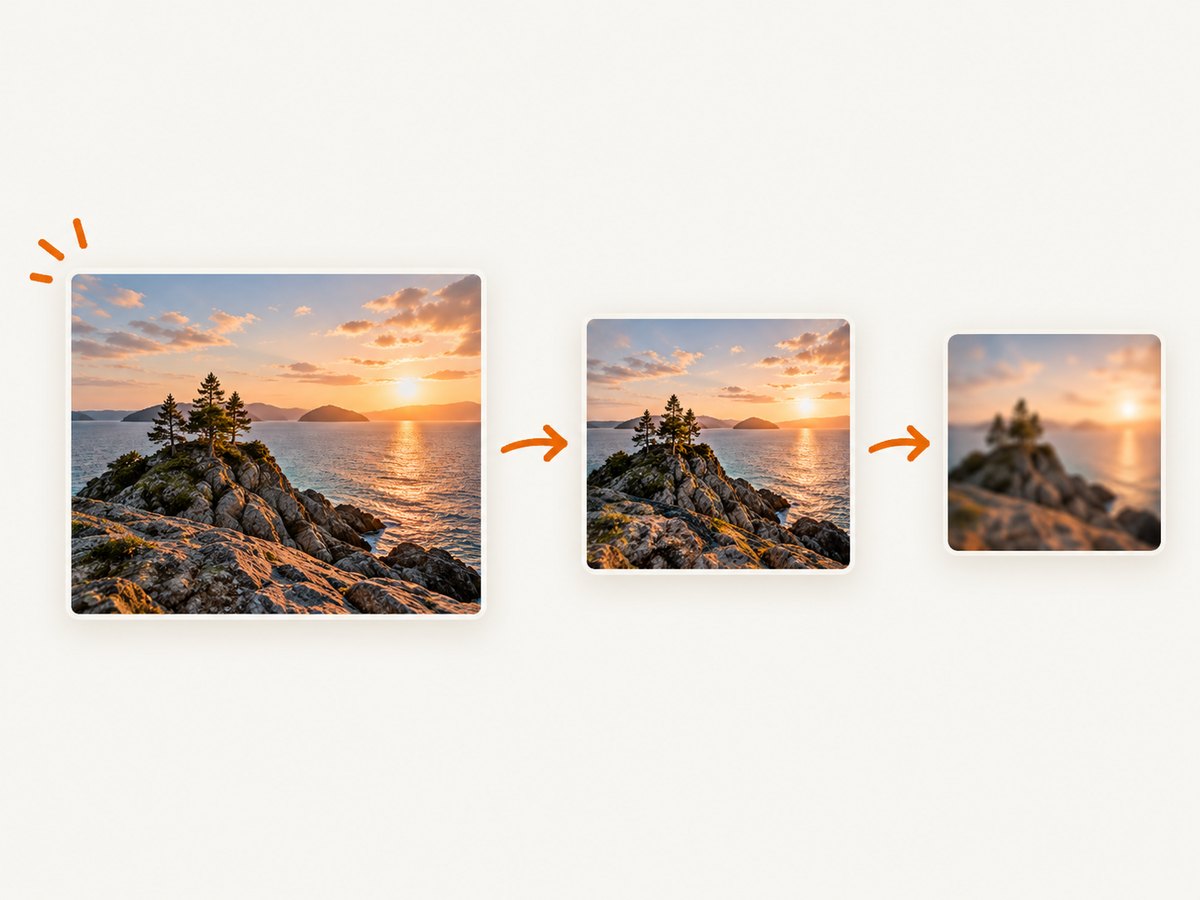
Uploading an enormous original also removes your opportunity to inspect the final sharpening. If you resize a copy yourself, you can judge the exact edge contrast and text clarity before the file reaches Facebook.
JPEG compression creates artifacts
JPEG is lossy. It stores an approximation of the image so the file is smaller and can load faster. At moderate or low quality, smooth gradients can show blocks or banding, while high-contrast edges can develop ringing or halos. Facebook may encode another JPEG derivative after your upload, so artifacts already present in the source can become more visible.
Small text and thin lines are fragile
Compression works on blocks of neighboring pixels. A one-pixel rule, tiny caption or sharp UI screenshot contains high-frequency changes that do not survive repeated resizing and encoding well. A larger source, slightly heavier type and a final sharpening pass after resizing generally hold up better.
Why colors change
Meta’s engineering team says Facebook and most of the web use the sRGB color profile. The standard sRGB definition is about 3 KB, which matters particularly for small thumbnails. If a file uses a wide-gamut profile or has a profile that an application interprets incorrectly, the same pixel values can be displayed with different colors.
Convert the upload copy to sRGB rather than merely assuming that an application will translate it correctly. Keep your original wide-gamut master separately if your editing workflow needs it. Upload the converted, tagged web copy.
Color shifts are often easiest to see in saturated reds, greens and skin tones. Compare the exported file outside Facebook, then compare the largest available posted view. A small feed thumbnail can use a different derivative and is not a reliable color reference.
Why a reliable connection matters
Facebook’s help guidance explicitly says quality depends on device network conditions and recommends Wi-Fi or a strong mobile signal for the best quality. An interrupted or unstable upload can leave an incomplete or unexpectedly processed result.
If one post looks unusually poor while your local export is correct, retry from a stable connection before changing the image. Uploading the same file again over Wi-Fi is a useful isolation step.
A practical export workflow
- Keep a master. Save the original project or camera file separately. Make a duplicate for social publishing.
- Convert the duplicate to sRGB. Use your editor’s convert or export color-space command. Do not rely on a wide-gamut profile being interpreted consistently by every viewer.
- Resize to the intended placement. Choose dimensions based on the actual Timeline composition you plan to use. Facebook’s interface and placements change, so treat old size charts as guidance rather than permanent rules.
- Sharpen after resizing. Apply a restrained output-sharpening pass at the final dimensions. Inspect text, diagonal edges and faces at 100 percent.
- Export once. For photographs, use a high practical JPEG quality. For graphics with flat colors or transparency, choose a format that preserves those requirements. Avoid opening and re-saving the same JPEG in several applications.
- Upload over Wi-Fi or a strong signal. Let the upload finish before switching apps or closing the browser.
- Inspect the post. Open the image itself at the largest available view. Do not judge quality from only the small Timeline card.
How to diagnose a bad-looking post
| What you see | Likely cause | What to do |
|---|---|---|
| Soft at every size | The export was already soft, oversized, or repeatedly saved as JPEG. | Resize once, sharpen at the final size, export from the master, and compare the local file before uploading. |
| Only the Timeline thumbnail is soft | You are viewing a preview derivative. | Open the photo itself at the largest available view before judging it. |
| Colors look different | A profile was missing, wide-gamut, or mishandled. | Convert and tag the upload copy as sRGB, then compare the displayed result. |
| Text has halos or blocks | Tiny type and thin lines were resampled or compressed. | Use a larger source, heavier strokes and more generous spacing; sharpen after resizing. |
| Unexpected crop | The selected placement uses a different aspect ratio. | Prepare the composition for the placement and use Facebook’s crop editor before posting. |
| Upload result is unusually poor | Network conditions interrupted or degraded the upload path. | Retry on Wi-Fi or with a strong mobile signal. |
Use Facebook’s editing controls intentionally
Facebook’s photo editor supports crop, rotate, text and alternative text. Crop and orient the image before publishing so the composition matches the placement you intend. If the service offers a choice related to HD upload in your current app, enable it, but still follow the export workflow above; an HD option does not disable resizing or recompression.
Alternative text helps people using screen readers understand the image, but it does not change pixel quality. Add it separately from your visual-quality checks.
Profile photos need a separate check
Profile photos are handled by a different upload surface and are displayed at several small sizes. Facebook’s help guidance recommends at least 320 × 320 pixels. If a profile image will not upload, update or restart the app, check Wi-Fi or mobile data, refresh and retry. Starting with a clean, square sRGB copy at or above that minimum gives the service usable pixels for its derivatives.
What you cannot prevent
There is no documented universal switch that prevents all Timeline recompression or derivative generation. Facebook’s public help and engineering material explain optimization, previews, color handling and network effects, but do not promise that users can disable every server-side transformation.
The realistic target is to remove losses you control before upload and choose an image that survives Facebook’s processing gracefully. A high-quality source cannot force every viewer to receive the original file.
Or skip the browser setup
If your workflow is collecting screenshots of Facebook pages or checking how a post renders at a known viewport, ScreenshotNeo can return a clean image or PDF from one request. Its browser handles the page, so you do not need to maintain Playwright or Puppeteer just to capture a URL. Read the ScreenshotNeo API documentation for all options.

cURL
curl -G "https://api.screenshotneo.com/v1/shot" -d access_key=YOUR_API_KEY --data-urlencode url=https://stripe.com -o shot.webpPython
import requests

r = requests.get(
    "https://api.screenshotneo.com/v1/shot",
    params={"access_key": "YOUR_API_KEY", "url": "https://stripe.com"},
    timeout=90,
)
r.raise_for_status()
open("shot.webp", "wb").write(r.content)
Node.js
const q = new URLSearchParams({ access_key: 'YOUR_API_KEY', url: 'https://stripe.com' });
const res = await fetch(`https://api.screenshotneo.com/v1/shot?${q}`);
if (!res.ok) throw new Error(`HTTP ${res.status}`);
const bytes = Buffer.from(await res.arrayBuffer());
require('fs').writeFileSync('shot.webp', bytes);
ScreenshotNeo removes cookie and consent banners, newsletter popups and chat widgets before capture. Bot checks, blank pages, timeouts, failed loads and cache hits are not billed; response headers identify the page verdict and whether the shot was billed. It also provides an MCP server with take_screenshot, get_page_info and capture_pdf tools for Claude, Cursor and other MCP clients.
You can request full-page captures with lazy images loaded, a CSS-selected element, dark mode, device presets or a custom viewport, retina scale, PDF paper and margin settings, custom CSS or JavaScript, clicks, waits, blocked resources, headers, cookies, user agents, Authorization, timezone, geolocation, transparent backgrounds, resizing, cache TTLs, signed links, asynchronous webhooks, bulk capture of up to 100 URLs per call, usage data and the OpenAPI specification. Parameter names used by other screenshot APIs also work, which makes migration simpler.
There are 1,000 free shots each month with no card. Paid plans start at $5 for 3,000 shots; yearly billing provides two months free. Create a free ScreenshotNeo account and try the capture before building browser infrastructure.
Performance, reliability and cost notes
- Pre-resize locally: smaller uploads transfer faster and give you control over sharpening, but retain a master so you can create another size later.
- Do not chase a mythical setting: Facebook’s optimization is part of delivery. Spend effort on color space, dimensions and a clean export.
- Retry methodically: compare the local export, the Timeline preview and the opened image. This identifies whether the loss happened before upload or in a derivative.
- For automated screenshots: use caching where the page can be reused, wait for the selector or network state that matters, and inspect verdict and billing headers so failed captures are distinguishable from successful ones.
FAQ
Does uploading the original guarantee maximum quality?
No. Facebook can still create derivatives. A prepared, correctly sized export is easier to inspect and often avoids unnecessary resampling.
Should every Facebook image be PNG?
No. Photographs usually benefit from JPEG’s smaller payload. PNG can make sense for graphics, transparency or limited-color artwork, but Facebook may still generate its own derivatives.
Why does the downloaded Facebook image differ from my upload?
The download may be a generated derivative rather than the original upload. Compare dimensions, profile information and compression artifacts with your source.
Can a paid Facebook setting stop compression?
The documented guidance does not promise a user-controlled switch that disables all Timeline recompression.
What is the fastest first fix?
Export a copy as sRGB, resize it once to the intended composition, save it once at high practical JPEG quality, and upload it over Wi-Fi. Then inspect the opened image rather than only the feed thumbnail.


