How to Fix “Failed to Move to New Namespace” When Running Headless Chrome
Diagnose Chrome’s namespace sandbox error in Docker and CI, choose a secure fix, and understand when to use seccomp, SYS_ADMIN, or no-sandbox.
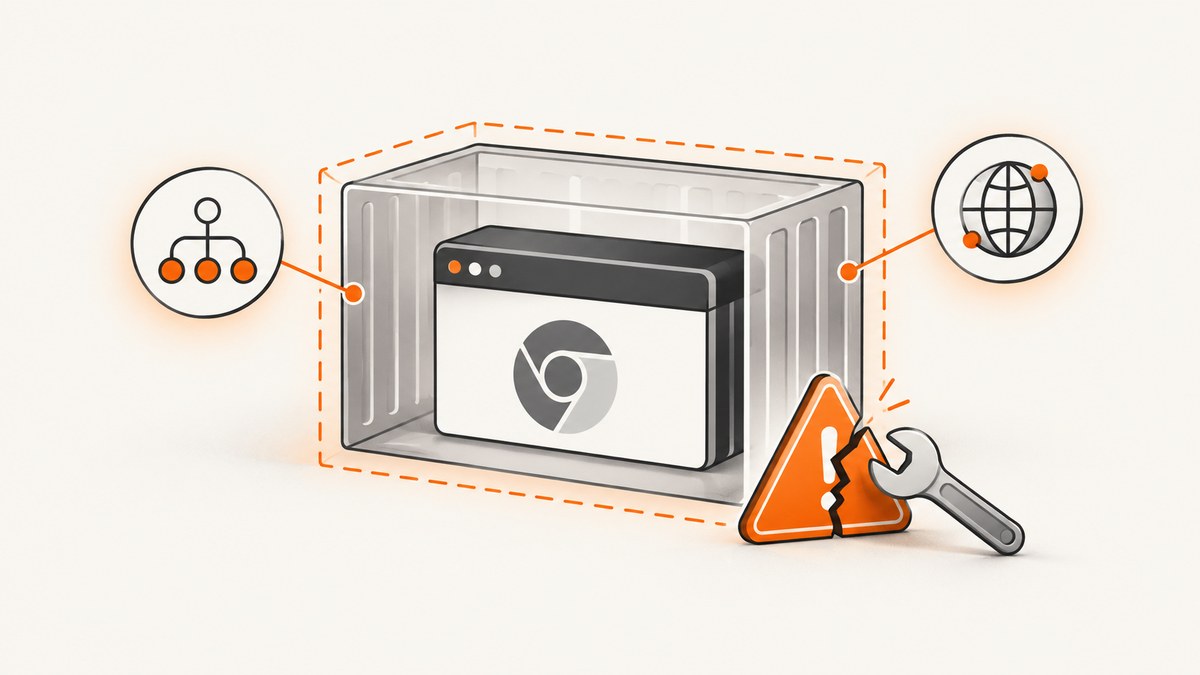
“Failed to move to new namespace” means Chrome could not complete a Linux sandbox namespace operation. In the common Docker form, the error ends with Operation not permitted. The container runtime is usually blocking the namespace calls Chrome needs. A host kernel without the required namespace support can produce a similar failure.
Start by collecting the complete startup log, Chrome version, operating system, container runtime, user identity, and automation library. Then determine whether the failure is caused by container policy, kernel support, or the browser command itself. Prefer enabling the sandbox operation with the narrowest runtime policy that works. Use --no-sandbox only when you have reviewed the security impact and cannot enable the sandbox normally.
What the error means
A typical diagnostic looks like this:
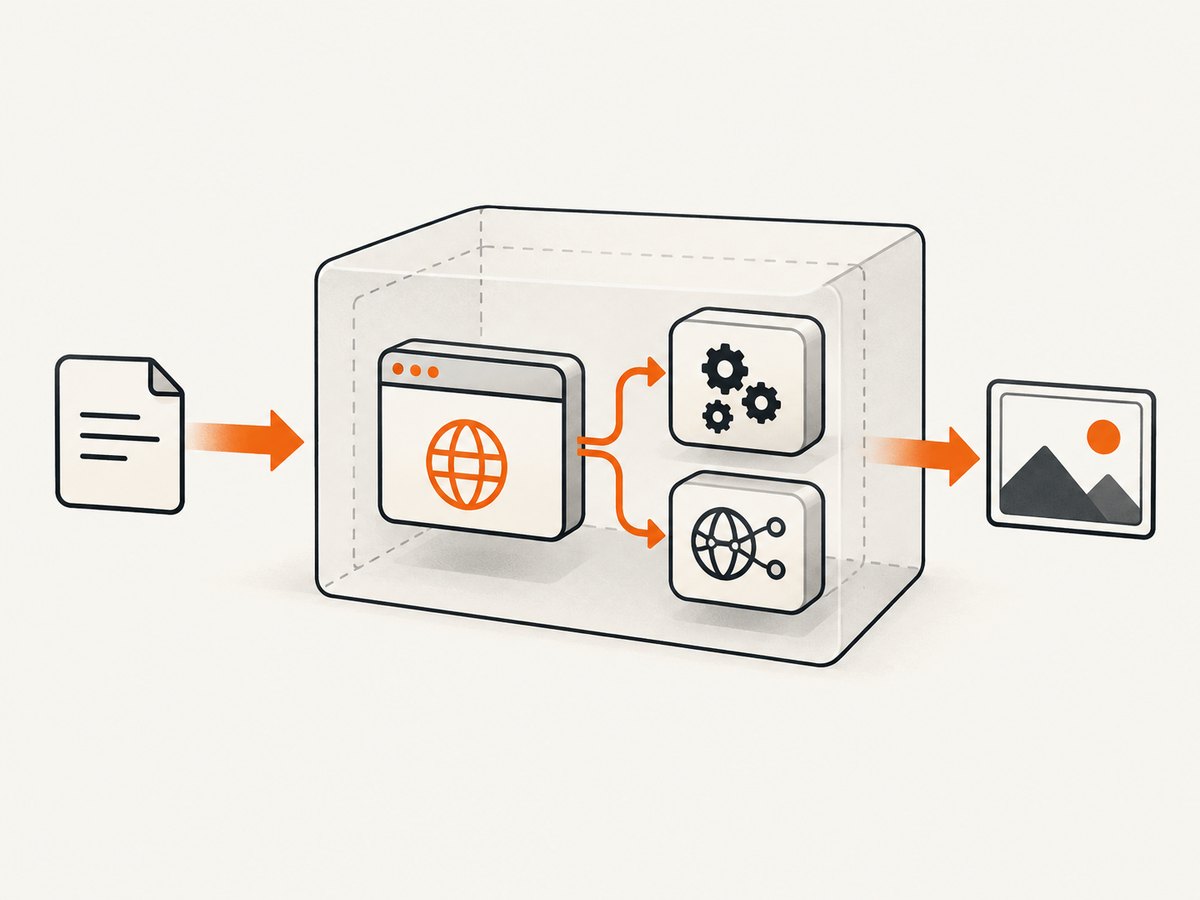
Failed to move to new namespace: PID namespaces supported, Network namespace supported, but failed: errno = Operation not permittedChrome’s Linux sandbox creates isolated namespaces before starting renderer processes. A Chromium sandbox implementation calls clone with PID and network namespace flags, then retries with a PID-only set if the first call returns EINVAL. For other errors, it reports the namespace failure. That source describes one pinned implementation and sandbox path; it does not prove that every current Chrome build follows exactly the same path. Read the source for the deployed browser version when you need to confirm the implementation.
The wording tells you two useful things:
- The kernel reports support for the requested namespace types, so this is not automatically a missing-feature error.
Operation not permittedcommonly means the container security policy denied the operation.
See the Chromium sandbox source for the namespace flow and the Lighthouse CI Docker guidance for the Docker-specific diagnosis.
Fast diagnosis checklist
- Save the full log. Do not diagnose from only the final line. Record the first Chrome error, the exact errno, and whether the browser exits before creating a DevTools endpoint.
- Identify the actual browser. Run
google-chrome --version,chromium --version, or the executable configured by your library. Wrapper packages can launch a different binary than the one you inspected. - Record the execution context. Note Docker, Podman, Kubernetes, a hosted CI runner, or a direct host process. Capture the container user and the image tag.
- Check the policy. For Docker, inspect the active seccomp profile and Linux capabilities. Ask whether the orchestrator permits user, PID, and network namespace operations.
- Check kernel support when running directly. A host kernel or virtualized environment may omit or restrict namespaces even when the Chrome binary is correct.
- Reproduce with the real command. A local launch that works does not validate the CI image, entrypoint, capability set, or provider policy that failed.
Fix Docker permission errors
Option 1: supply a tailored seccomp profile
If you operate Docker, the most specific approach is a seccomp profile that permits the system calls Chrome needs while retaining restrictions for unrelated calls. Start from the profile recommended by your current Chrome or Lighthouse CI documentation, review every permitted call, and check it into the deployment configuration.
A launch pattern is:
docker run --rm \
  --security-opt seccomp=chrome-seccomp.json \
  your-image:tag \
  node run-browser.js
The filename above is an example of a local profile path, not a universal profile. The profile must match your Chrome version, kernel, and workload. A profile copied from an old image can become incomplete after a browser update, so treat it as versioned configuration.
Option 2: add SYS_ADMIN
The Lighthouse CI guidance documents adding the SYS_ADMIN capability as a broader way to allow required operations:
docker run --rm \
  --cap-add=SYS_ADMIN \
  your-image:tag \
  node run-browser.js
This is a broad privilege grant. Review it against your container threat model, isolate the workload, and avoid assuming that it is equivalent to a narrowly tailored seccomp policy. Remove unrelated capabilities and run Chrome as a non-root user where your image and automation library support that arrangement.
Option 3: change the runtime or kernel configuration
If the host does not support the namespace operations, a container flag cannot manufacture that support. Work with the platform owner to verify kernel configuration, virtualization restrictions, and the runtime’s namespace settings. Changing the host or orchestrator is an operational change with a larger blast radius, so validate it in a disposable runner first.
Use --no-sandbox only with a deliberate threat model
--no-sandbox can allow Chrome to start when namespace operations cannot be enabled, but it removes Chrome’s renderer sandbox isolation. The sandbox limits what a compromised renderer process can do. Disabling it changes the boundary between an untrusted page, the browser process, and the container.
Only consider it after checking whether the runtime can be configured correctly. If you use it, reduce other exposure: run an unprivileged container user, keep the container disposable, restrict outbound access where practical, avoid mounting host sockets or sensitive directories, and treat every visited page and downloaded resource as untrusted.
Example Puppeteer launch code:
import puppeteer from 'puppeteer';

const browser = await puppeteer.launch({
  headless: true,
  args: ['--no-sandbox', '--disable-setuid-sandbox']
});
const page = await browser.newPage();
await page.goto('https://example.com', {waitUntil: 'networkidle2'});
console.log(await page.title());
await browser.close();
The two flags are often used together by wrappers, but verify the final process command and library documentation. A report from a chrome-php/chrome issue showed that setting a noSandbox option did not eliminate the quoted error in that particular setup. Treat wrapper options as configuration that must be confirmed in the actual launched command, not as proof that Chrome received the flag.
Headless Chrome in Docker: a complete baseline
This minimal example uses a non-root user and leaves the sandbox enabled. It assumes your runtime policy has been configured with a suitable seccomp profile or capability.
FROM node:22-bookworm

RUN apt-get update \
  && apt-get install -y --no-install-recommends chromium \
  && rm -rf /var/lib/apt/lists/* \
  && useradd --create-home --shell /usr/sbin/nologin runner

WORKDIR /app
COPY package*.json ./
RUN npm ci --omit=dev
COPY run-browser.js ./
RUN chown -R runner:runner /app
USER runner

CMD ["node", "run-browser.js"]
import puppeteer from 'puppeteer-core';
const browser = await puppeteer.launch({
executablePath: process.env.CHROME_BIN || '/usr/bin/chromium',
headless: true,
args: ['--disable-dev-shm-usage']
});
try {
const page = await browser.newPage();
await page.goto('https://example.com', {waitUntil: 'domcontentloaded', timeout: 30000});
console.log(await page.title());
} finally {
await browser.close();
}--disable-dev-shm-usage addresses small shared-memory mounts and is separate from namespace permissions. Do not add --no-sandbox automatically; first make the runtime policy support the sandbox.
CI providers and managed runners
When a CI provider owns the container launch command, you may not be able to edit seccomp or capabilities. Ask the provider how its Linux runner supports Chrome’s required namespace operations. Check its current documentation for the supported browser image, capability controls, and whether privileged containers are allowed.
If the provider cannot grant the required operations, evaluate a managed browser or runner that matches your framework and browser version. Confirm compatibility, isolation, and current terms before adopting a service. A provider-controlled policy is an environmental constraint, not a Puppeteer or Selenium bug.
Common errors and targeted fixes
| Symptom | Likely cause | Action |
|---|---|---|
Operation not permitted after the namespace message |
Runtime seccomp or capability policy denied namespace creation | Inspect the active profile; use a reviewed tailored profile or documented capability. |
EINVAL during namespace setup |
The requested namespace combination is unsupported | Confirm the kernel and browser path; Chromium may try a reduced set, but do not assume that every build does. |
| Flag appears configured but the same error remains | Wrapper did not pass the flag, or another process launches Chrome | Log the final command, executable path, user, and child process arguments. |
| Works locally, fails in CI | Different image, kernel, user, seccomp profile, or orchestrator | Reproduce inside the exact CI image and inspect provider restrictions. |
| Chrome starts, then crashes under load | Shared memory, memory limit, or process limit is too small | Inspect container limits and logs; adjust /dev/shm or use --disable-dev-shm-usage when appropriate. |
| Blank page or timeout after startup | Network, DNS, certificate, proxy, or page timing issue | Separate navigation diagnostics from sandbox diagnostics and capture request/console logs. |
Verification procedure
- Build the exact image used by the failing job.
- Run the browser with the same user, entrypoint, environment variables, and URL.
- Record the Chrome version and complete command line.
- Confirm the DevTools endpoint or equivalent automation connection opens.
- Visit a controlled test page, then a representative page, and inspect browser and container logs.
- Repeat after every Chrome, base-image, kernel, seccomp, or runner update.
Do not call a change fixed because the process stayed alive once. The resulting browser must start reliably under the real policy and complete the workload it was deployed to run.
Performance, reliability, and cost considerations
Namespace setup happens during browser startup, so repeatedly creating a browser for every URL adds process and sandbox overhead. Reuse a browser when your isolation requirements permit it, create separate contexts for independent jobs, and close pages deterministically. Browser reuse does not repair a denied namespace operation; it only reduces startup frequency after the policy is correct.

Keep browser, base image, kernel, and seccomp changes pinned and review them together. A browser upgrade can require a policy update. Limit concurrency to the memory and process budget of the runner, and collect startup logs as structured artifacts so intermittent failures can be compared.
For a screenshot service, cost is usually tied to successful captures, while your own browser runner also consumes CI minutes, memory, and maintenance time. If you need predictable capture without managing Chrome permissions, an API can move the namespace and browser-runtime problem to a service designed for it.
Or skip the browser setup
ScreenshotNeo provides a website screenshot API and MCP server. One GET request returns a PNG, JPEG, WebP, or PDF, so your application does not need to install Chrome or configure Linux namespaces.
Use the ScreenshotNeo documentation for the complete parameter list. A basic request is:
curl -G "https://api.screenshotneo.com/v1/shot" -d access_key=YOUR_API_KEY --data-urlencode url=https://stripe.com -o shot.webpimport requests
r = requests.get("https://api.screenshotneo.com/v1/shot", params={"access_key": "YOUR_API_KEY", "url": "https://stripe.com"}, timeout=90)
open("shot.webp", "wb").write(r.content)const q = new URLSearchParams({ access_key: 'YOUR_API_KEY', url: 'https://stripe.com' });
const res = await fetch(`https://api.screenshotneo.com/v1/shot?${q}`);ScreenshotNeo removes cookie and consent banners, newsletter popups, and chat widgets before capture. Bot checks, blank pages, timeouts, failed loads, and cache hits are not billed; response headers identify the page verdict and billing result with X-Page-Verdict and X-Billed. Its MCP server exposes take_screenshot, get_page_info, and capture_pdf for Claude, Cursor, and other MCP clients.
For more control, it supports full-page captures with lazy images loaded, CSS element capture, dark mode, device presets or custom viewports, retina scale, PDF paper and margin settings, custom CSS and JavaScript, clicks, selector or network-idle waits, request blocking, headers, cookies, user agents, authorization, timezone, geolocation, transparent backgrounds, resizing, chosen cache TTLs, signed image links, asynchronous jobs with signed webhooks, bulk capture for up to 100 URLs, usage reporting, and an OpenAPI specification. Existing parameter names used by other screenshot APIs also work, which can simplify migration.
There are 1,000 free screenshots per month with no card. Paid plans start at $5 for 3,000 screenshots, and every feature is available on every plan. Create a free ScreenshotNeo account.
FAQ
Does this error always mean Docker is misconfigured?
No. Docker policy is a common cause of the Operation not permitted form, but missing or restricted kernel namespace support and wrapper command mistakes can produce similar symptoms.
Is SYS_ADMIN the safest fix?
It is a documented broad option, not automatically the safest one. A reviewed tailored seccomp profile can be more specific. Choose according to the runtime threat model and maintain the policy with the browser image.
Can I run Chrome as root with the sandbox enabled?
Root execution often introduces additional sandbox constraints and is unnecessary for many images. Use a dedicated unprivileged user where supported, then verify the exact launch behavior.
Why did a no-sandbox setting not help?
The setting may not have reached the launched Chrome process, another wrapper may have started a different binary, or a separate startup failure may be masking it. Inspect the final command and complete log.
What should I monitor after the fix?
Track browser startup failures, namespace errno values, Chrome version, image digest, runner identity, memory and process limits, and changes to seccomp or capability policy.


