How to Fix ffmpeg Website Screenshot Capture on SiteGround
FFmpeg is already available on SiteGround. Learn how to isolate rendering, command, permissions, and cron failures in your screenshot pipeline.

Start by checking the pipeline rather than reinstalling FFmpeg. SiteGround says FFmpeg is already installed and available on all hosting plans. FFmpeg’s documented role is recording, converting, and streaming audio and video; it is not documented here as a web browser or page-rendering engine. A website screenshot therefore needs a rendering step before FFmpeg can process the resulting image or video.
The exact fix depends on the missing stage. Check the account over SSH, identify the renderer and FFmpeg command, run the same command interactively, then compare it with the application or cron environment.
1. Confirm what is failing
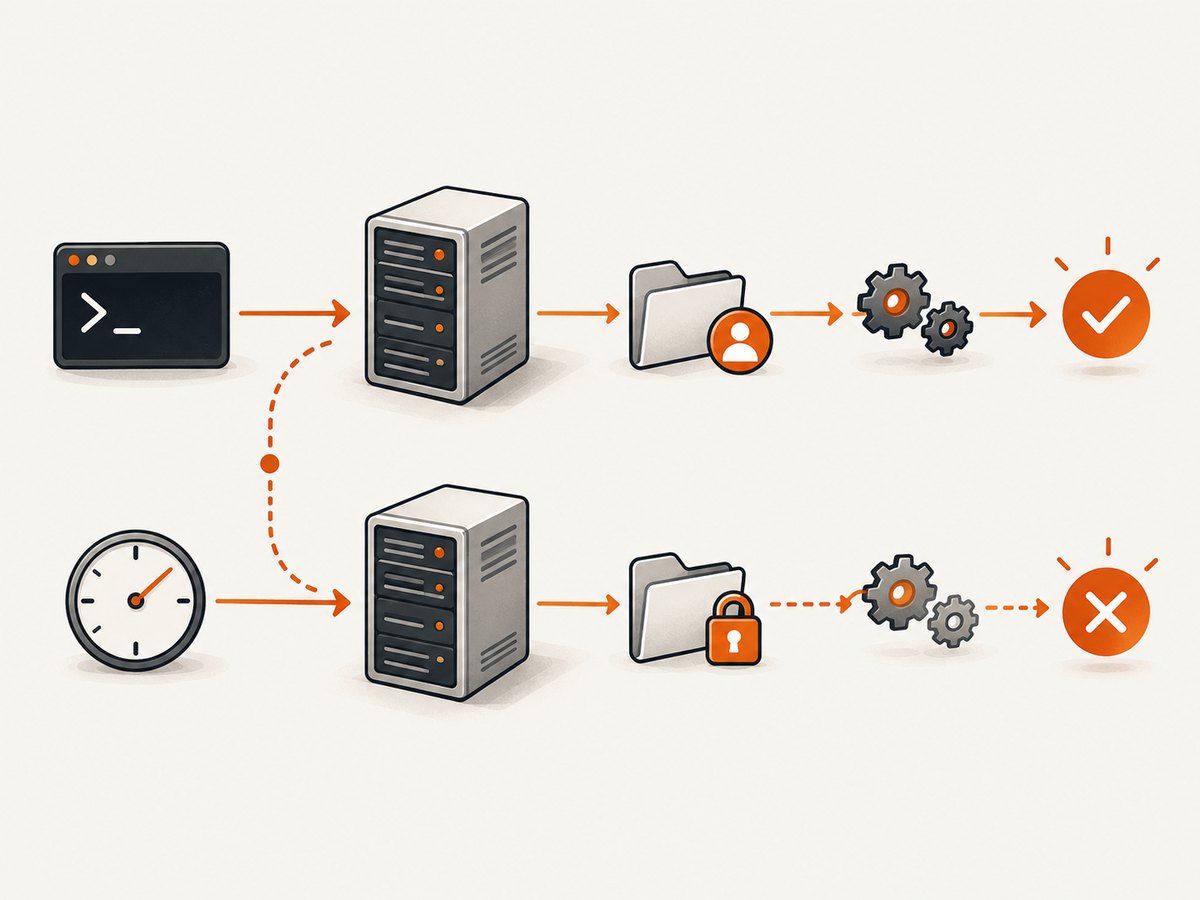
Separate the workflow into these stages:

- Render: a browser or other capture tool loads the URL and produces pixels.
- Encode or process: FFmpeg converts an existing image, frame sequence, or video.
- Store or deliver: the application writes the result to a permitted path or sends it elsewhere.
If the page never becomes an image, changing FFmpeg flags will not solve the problem. If an image already exists but conversion fails, inspect FFmpeg’s input, output path, permissions, and arguments.
2. Verify FFmpeg over SiteGround SSH
SiteGround documents SSH key creation in Site Tools > Devs > SSH Keys Manager, followed by connecting with the account user, hostname, and port. Use that documented process, then run:
command -v ffmpeg
ffmpeg -version
ffmpeg -hide_banner -filters | head -n 30
SiteGround’s support article states that FFmpeg is already installed and available on all hosting plans: Do you support dcraw, ffmpeg, jhead?. The commands above verify that your account and the current shell can invoke it; they do not prove that your application or cron job uses the same environment.
Interpret the result
| Observation | Likely scope | Next action |
|---|---|---|
command -v ffmpeg returns a path |
FFmpeg is callable in this SSH shell | Run a known input conversion and compare the application environment. |
ffmpeg: command not found |
Path or shell environment issue | Use the path returned by SiteGround’s environment, inspect PATH, and compare the cron user. |
| FFmpeg runs but the URL is never captured | Rendering stage is missing or failing | Debug the browser or capture library separately. |
| Manual command works but cron fails | Execution context differs | Check cron syntax, working directory, environment variables, permissions, and output. |
3. Test FFmpeg with a local capture artifact
Before involving a live URL, prove that FFmpeg can read and write files in the account. Put a valid PNG or JPEG at /home/USERNAME/www/example/input.png, then run:
ffmpeg -hide_banner -loglevel error -y \
  -i /home/USERNAME/www/example/input.png \
  -frames:v 1 \
  /home/USERNAME/www/example/output.jpg
Replace USERNAME and the paths with locations your account can access. Check the result and exit status:
echo $?
ls -lh /home/USERNAME/www/example/input.png /home/USERNAME/www/example/output.jpg
If this fails, capture the complete stderr output. Typical causes are a wrong path, an unreadable input, a directory that is not writable, or an output filename whose extension does not match the intended format.
4. Check the webpage rendering stage
FFmpeg does not, according to the cited project description, provide the browser automation that loads HTML, executes JavaScript, waits for fonts and images, or dismisses consent dialogs. Identify the program that performs those tasks in your application. Record:
- the executable or library name and version;
- the exact URL and any authentication requirements;
- the viewport and wait condition;
- the temporary input and final output paths;
- the complete stderr/stdout output and exit code.
Run the renderer manually over SSH with the same account user. If it creates an image, run FFmpeg on that image as a second command. This two-command test tells you which stage fails without assuming a particular browser package is supported by SiteGround.
5. Compare interactive and scheduled execution
For a job that runs from cron, write a small wrapper so that the command, environment, and output are visible:
#!/bin/sh
set -eu

LOG="$HOME/screenshot-job.log"
{
  date -u
  printf 'user='; id -un
  printf 'pwd='; pwd
  printf 'path=%s\n' "$PATH"
  command -v ffmpeg || true
  ffmpeg -version 2>&1 | head -n 1 || true
  /path/to/your-renderer --url 'https://example.com' --output "$HOME/capture.png"
  ffmpeg -hide_banner -loglevel error -y \
    -i "$HOME/capture.png" \
    -frames:v 1 "$HOME/capture.webp"
} >> "$LOG" 2>&1
Use the real renderer command and FFmpeg path. Make the script executable and invoke it manually first:
chmod 700 "$HOME/bin/screenshot-job.sh"
"$HOME/bin/screenshot-job.sh"
tail -n 100 "$HOME/screenshot-job.log"
Then configure the cron entry with absolute paths and a valid output location. SiteGround’s cron troubleshooting guidance recommends checking command syntax and specifying a valid email address for command output. Treat that as general cron guidance; it is not a screenshot-specific recipe.
6. Common errors and fixes
| Error or symptom | Cause to investigate | Fix |
|---|---|---|
command not found |
Cron has a smaller PATH than SSH. |
Use absolute executable paths and log PATH from the job. |
No such file or directory |
Relative path or incorrect home directory. | Use absolute paths and verify them with ls -l. |
Permission denied |
The job cannot read the input or write the destination. | Choose a directory owned by the account and check its permissions. |
| Blank or incomplete image | The renderer finished before JavaScript, fonts, or lazy images loaded. | Increase the renderer’s wait condition or delay; inspect the raw capture before FFmpeg. |
| CAPTCHA or bot-check page | The target returned a challenge instead of the page. | Record the response and status; do not treat the challenge as a successful screenshot. |
| Works manually, fails in cron | Different user, directory, environment, network timing, or timeout. | Log identity, working directory, variables, command output, and exit code. |
| FFmpeg reports an invalid input | The renderer produced HTML, an error page, or an empty file instead of an image. | Inspect the file type and renderer response before invoking FFmpeg. |
| Output is overwritten or missing | Concurrent jobs use the same temporary filename. | Use a unique job directory or filename and clean it after success. |
7. Reliability and performance checklist
- Use a unique temporary directory per capture.
- Set explicit renderer and FFmpeg timeouts.
- Capture stderr and the exit code for every stage.
- Validate that the output exists and has a non-zero size.
- Keep the original renderer artifact until validation succeeds.
- Retry only transient network failures; do not blindly retry bot checks or invalid input.
- Schedule jobs at a frequency that fits the account’s available CPU, memory, and process limits.
- Measure rendering time separately from FFmpeg processing time.
Do not infer a SiteGround account limit or a guaranteed cause from the title alone. A precise diagnosis needs the error message, capture implementation, runtime, and whether the failure occurs interactively or only under cron.
Or skip the browser setup
ScreenshotNeo provides a website screenshot API and MCP server. It loads the page and returns PNG, JPEG, WebP, or PDF from one request. See the API documentation for the available options.
curl -G "https://api.screenshotneo.com/v1/shot" -d access_key=YOUR_API_KEY --data-urlencode url=https://stripe.com -o shot.webpimport requests
r = requests.get("https://api.screenshotneo.com/v1/shot", params={"access_key": "YOUR_API_KEY", "url": "https://stripe.com"}, timeout=90)
open("shot.webp", "wb").write(r.content)const q = new URLSearchParams({ access_key: 'YOUR_API_KEY', url: 'https://stripe.com' });
const res = await fetch(`https://api.screenshotneo.com/v1/shot?${q}`);Cookie and consent banners, newsletter popups, and chat widgets are removed before the shot. Bot checks, blank pages, failed loads, timeouts, and cache hits are not billed, and response headers identify the page verdict and billing result. Its MCP server includes take_screenshot, get_page_info, and capture_pdf for Claude, Cursor, and other MCP clients. The Free plan includes 1,000 screenshots per month with no card; paid plans start at $5 for 3,000 shots. Create a free ScreenshotNeo account.
FAQ
Do I need to install FFmpeg on SiteGround?
SiteGround says FFmpeg is already installed and available on all hosting plans. Verify access from the account that runs your capture.
Can FFmpeg take a screenshot of a live webpage by itself?
The cited FFmpeg description covers audio and video recording, conversion, and streaming. Your workflow needs a page-rendering stage before FFmpeg can process the result.
Why does the same command work in SSH but not in cron?
Cron can use a different environment, user, working directory, and PATH. Log those values and use absolute paths.
What information should I include when asking for help?
Provide the exact error, renderer and FFmpeg commands, runtime versions, input and output paths, exit codes, and whether the failure is manual, scheduled, or both.


