How to Fix Firefox Full-Page Screenshots That Don’t Work
Fix Firefox full-page screenshots that capture only the visible screen or disappear. Use the built-in tools and diagnose page, iframe, and profile issues.
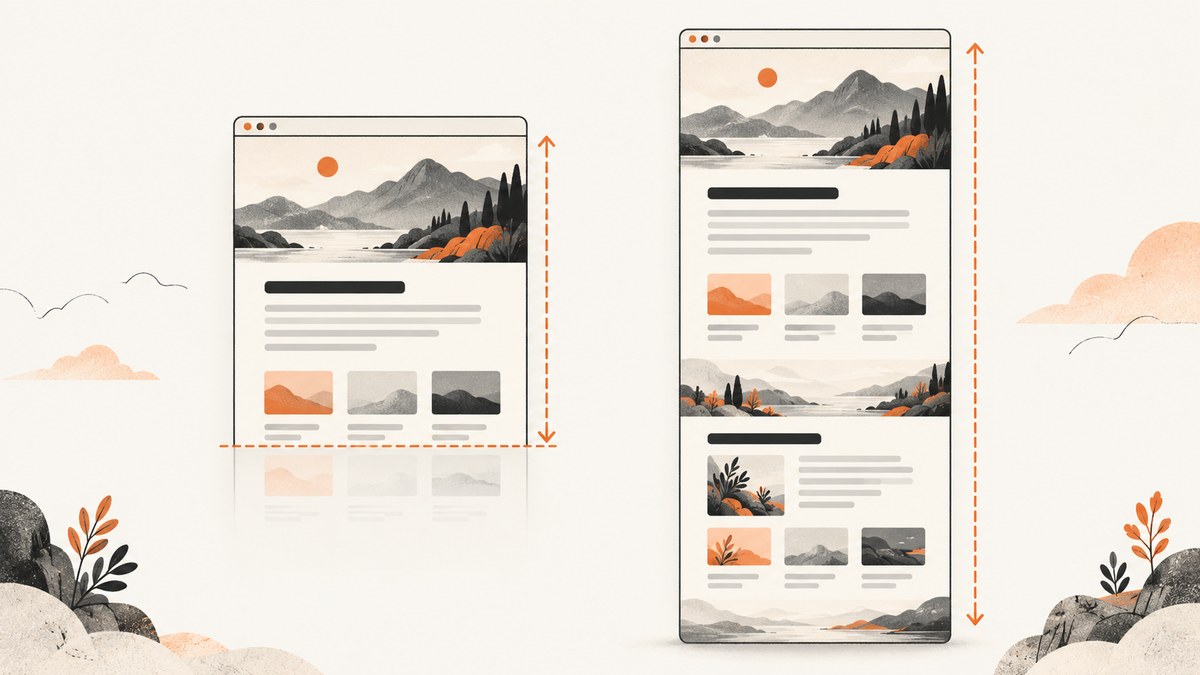
When Firefox saves only the visible screen, first choose Take Screenshot → Save full page in the screenshot panel. Open it by right-clicking an empty area of the page or pressing Ctrl+Shift+S on Windows or Linux, or Command+Shift+S on macOS. If the command is missing, restore the Screenshot button in the toolbar customizer. If the full-page option still misses content, test a normal public webpage, then try Developer Tools or the Web Console. The page’s structure, Firefox permissions, or profile customisation can be the cause.
1. Capture the entire page with Firefox’s screenshot panel
- Open the webpage you want to save in Firefox.
- Right-click an empty area of the page and choose Take Screenshot. Alternatively, use Ctrl+Shift+S on Windows/Linux or Command+Shift+S on macOS.
- In the screenshot panel, choose Save full page. Make sure not to choose an option that captures only the visible area or a selected region.
- Download the image to Firefox’s default download folder, or use the panel’s copy option to put it on the clipboard.
Mozilla’s screenshot feature supports capturing either visible parts or full webpages, then saving or copying the result. The full-page option asks Firefox to capture the document beyond the current viewport. If the page has content that appears only after scrolling, wait until it has loaded before capturing; full-page capture does not guarantee that every site’s dynamic content will be ready or represented exactly as it appears during manual scrolling. See Mozilla’s Firefox Screenshots instructions.
If “Take Screenshot” is missing
- Open the Firefox application menu.
- Select More Tools, then Customize Toolbar.
- Find the Screenshot button and drag it onto the toolbar.
- Finish customising, then try the button and select Save full page.
The keyboard shortcut may still work when you do not see a toolbar button. If neither the menu command nor shortcut opens the panel, continue with the diagnostic methods below.
2. Check whether the webpage is the cause
Before changing Firefox settings, try the same steps on a simple, public HTML page. If that works, the original page may use a document structure or browser permission that prevents a full-page capture.
| Page type or layout | What may happen | What to try |
|---|---|---|
| Firefox internal pages, such as Home or Preferences | Firefox may not allow screenshots of browser UI pages. | Test a normal public webpage. There is no ordinary page-level workaround for a restricted internal page. |
| Special-permission pages, including addons.mozilla.org | Some browser features are restricted on these pages. | Try a public page where Firefox permits capture. Do not treat a failure on a restricted page as proof that screenshots are broken everywhere. |
| HTML frameset pages | The full-page screenshot may not capture the document as expected. | Try another page or capture the relevant content separately if it is available as a normal page. |
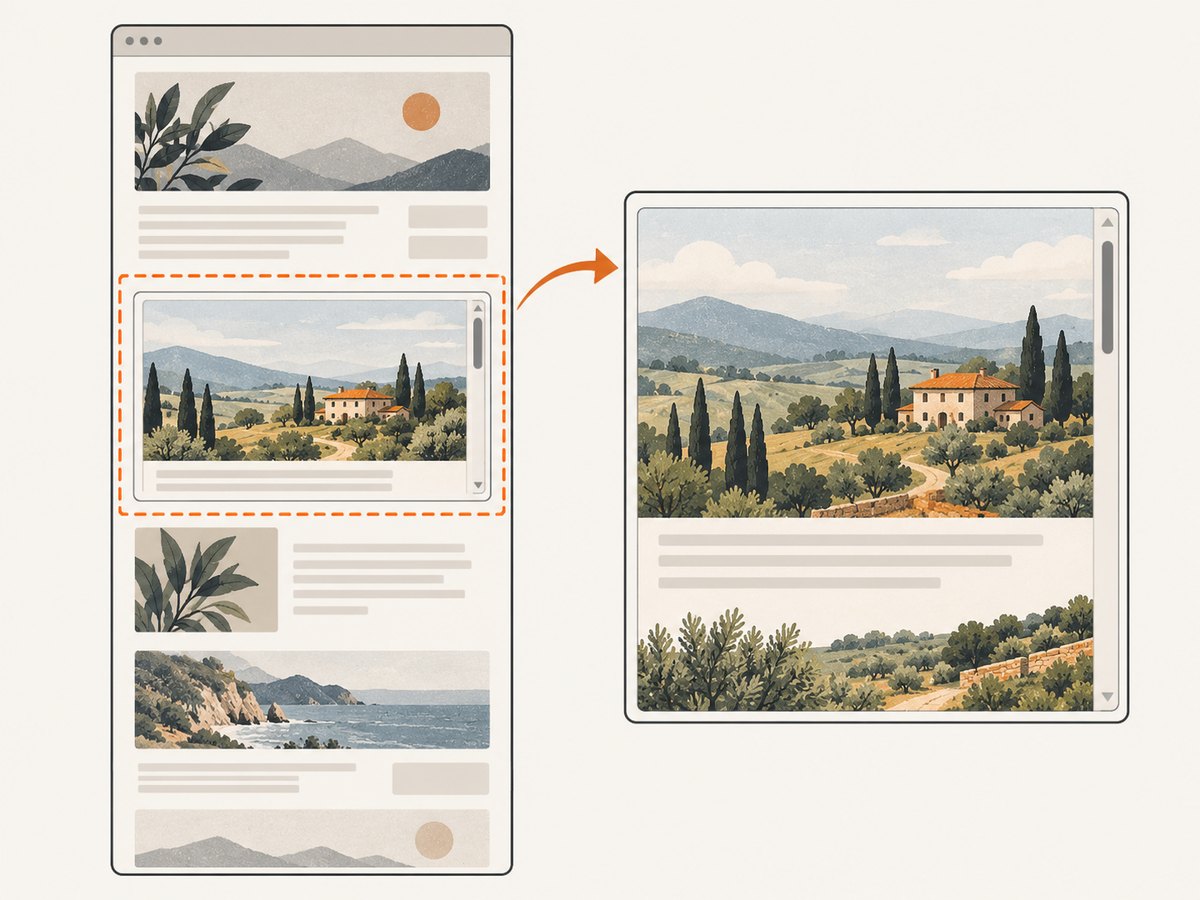
| Independently scrolling iframe | The top-level page and the frame have separate scroll areas. A capture of the outer document may omit content that scrolls inside the frame. | Right-click inside the frame and try capturing it, if Firefox offers the command there. Otherwise open the frame’s own URL in a tab if accessible, then capture that page. |
| Content that loads on scroll | Lazy-loaded images or sections may not exist until the page scrolls or waits. | Scroll through the page first, wait for content to finish loading, then retry. The result depends on how the site implements loading. |
Mozilla’s documentation notes that framesets, internal pages, and pages with special permissions are among the cases that may not be capturable. Mozilla Bugzilla discussions also describe incomplete captures when scrolling occurs inside an iframe rather than the top-level document. Sources: Firefox Screenshots and Mozilla Bugzilla.
3. Use Developer Tools as a built-in fallback
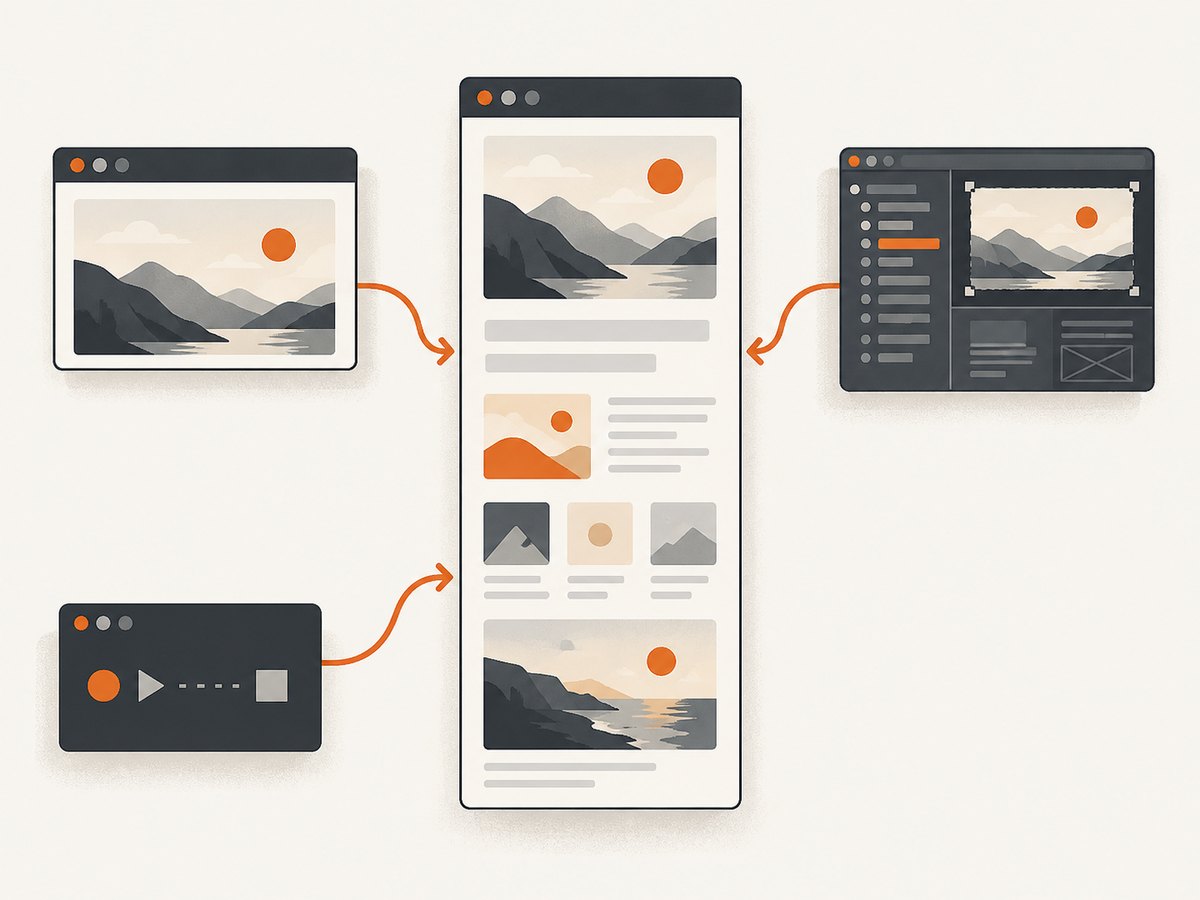
Firefox Developer Tools has a separate command for capturing the entire page. It is useful if the regular screenshot panel is unavailable or behaving differently.
- Open Developer Tools with F12 or Ctrl+Shift+I (Windows/Linux), or Command+Option+I (macOS).
- Open Developer Tools Settings.
- Under Available Toolbox Buttons, enable Take a screenshot of the entire page.
- Close settings and click the screenshot icon in the Developer Tools toolbar.
- Check the Downloads folder for the resulting image.
The exact placement of settings and toolbar controls can vary slightly by Firefox version and Developer Tools layout. Mozilla’s source documentation describes this as a Developer Tools method for taking a screenshot of an entire page or a single element. See Firefox Developer Tools documentation.
4. Capture from the Web Console
For a direct command-line style workflow inside Firefox, use the Web Console’s screenshot command.
- Open the Web Console with Ctrl+Shift+K on Windows/Linux or Command+Option+K on macOS. You can also open it from the Developer Tools menu.
- Enter the command below, replacing the filename if desired.
- Press Enter and look for the saved file in Firefox’s Downloads folder.
screenshot full-page.png --fullpageThe filename comes first; --fullpage requests a full-page capture. Mozilla documents the form as screenshot <filename.png> --fullpage. This is a Firefox console command, not a shell command to run in Terminal or Command Prompt. If Firefox reports an unknown command, check that you entered it in the Web Console and that your Firefox version supports the command. Reference: Firefox Web Console documentation.
5. Diagnose a missing or broken screenshot feature
If the feature vanished after an update or the shortcut does nothing on ordinary public pages, check whether an extension, toolbar change, or profile preference is involved.
Try Troubleshoot Mode
- Open the Firefox menu and choose Help → Troubleshoot Mode (wording may vary by version).
- Restart in Troubleshoot Mode when prompted.
- Test the screenshot panel on a normal public webpage.
- If it works there, an extension or customisation in the regular profile may be interfering. Return to normal mode and disable extensions or revert recent customisations one at a time.
Troubleshoot Mode is a diagnostic comparison, not a reason to remove all extensions permanently. Keep track of any setting you change so you can restore it.
Check the screenshot component preference
Mozilla Bugzilla report 1964252 records a symptom where the screenshot feature disappeared or stopped working and points to checking the screenshots.browser.component.enabled preference as part of diagnosis. Preferences can change across versions, so treat this as a targeted check, not a universal fix:
- Type
about:configin the address bar and proceed to the advanced preferences page. - Search for
screenshots.browser.component.enabled. - If the preference exists and is set to
false, note its current value before changing it. Toggle it totrue, then restart Firefox and test again. - If the preference is absent, do not create it just because it appears in an older report. Update Firefox through its normal update process and retest.
Consult the report for the symptom and diagnostic context: Mozilla Bugzilla 1964252. If a preference change makes things worse, use its reset control to return it to the default.
6. Troubleshooting checklist
| Symptom | Likely cause | Fix or next check |
|---|---|---|
| Screenshot panel does not open | Toolbar button is absent, shortcut differs by OS, extension/profile issue, or component issue. | Use the correct OS shortcut; add Screenshot through Customize Toolbar; try Troubleshoot Mode; inspect the component preference if present. |
| Only the current screen is saved | Visible-area capture was selected. | Reopen the panel and choose Save full page. |
| Full-page option is unavailable on one site | Restricted browser page or unsupported page structure. | Test a normal public HTML page; internal and special-permission pages may not be supported. |
| Bottom of the page is missing | Inner scrolling iframe, frameset, or page-specific structure. | Capture the frame or its URL separately; compare with another public page. |
| Images or sections are blank | Content is lazy-loaded or still loading. | Scroll through once, wait for the content, and capture again. Some sites may load content only in response to interaction. |
| Developer Tools icon is absent | The optional toolbox button is not enabled. | Enable the full-page screenshot button in Developer Tools Settings under Available Toolbox Buttons. |
| Console says command is unknown | The command was run in a shell or an unsupported console/version. | Run screenshot filename.png --fullpage in Firefox’s Web Console; check Firefox’s current documentation. |
| Failure began after an update | Changed profile state, extension conflict, or component regression. | Compare in Troubleshoot Mode, review the preference if available, and check the related Mozilla report. |
7. Choosing a workaround
| Method | Best for | Limitations |
|---|---|---|
| Screenshot panel | Fast manual capture and clipboard or download. | Still depends on page support and the screenshot component. |
| Developer Tools button | Built-in fallback and technical workflows. | Must first enable the toolbox button; output is saved to Downloads. |
| Web Console command | Repeatable capture without navigating the panel. | Requires using the Firefox Web Console and may vary with version. |
| Capture a frame separately | Content inside an independently scrolling iframe. | Only works if the frame can be selected or opened separately. |
| Screenshot service | Automated, repeatable captures from scripts or agents. | Requires an API key and sending the target URL to a service. |
8. Performance, reliability, and cost considerations
Firefox’s built-in methods avoid setting up an external capture service and are convenient for one-off screenshots. Results depend on the page: large pages, dynamic content, restricted URLs, framesets, and nested scroll areas can change what is captured. The reviewed Mozilla documentation does not specify one universal maximum pixel height, so do not rely on a fixed height limit across versions. If a capture fails, compare a simple page and use another built-in method before concluding that the browser is broken.
For recurring captures, automation, or pages that must be rendered in a consistent workflow, a screenshot API can move browser management out of a local desktop process. Account for the target page’s loading behavior, the size and format of the output, request limits, and whether failed or cached requests are billed; check the service’s current documentation and plan details before building a high-volume job. For sensitive or authenticated pages, consider what URL, headers, cookies, or page content you send to a third party.
Or skip the browser setup
ScreenshotNeo is a website screenshot API and MCP server. For a one-off full-page image, call its endpoint with the target URL. See the ScreenshotNeo API documentation for parameters and output options.
curl -G "https://api.screenshotneo.com/v1/shot" -d access_key=YOUR_API_KEY --data-urlencode url=https://stripe.com -o shot.webpimport requests
r = requests.get("https://api.screenshotneo.com/v1/shot", params={"access_key": "YOUR_API_KEY", "url": "https://stripe.com"}, timeout=90)
open("shot.webp", "wb").write(r.content)const q = new URLSearchParams({ access_key: 'YOUR_API_KEY', url: 'https://stripe.com' });
const res = await fetch(`https://api.screenshotneo.com/v1/shot?${q}`);Replace the example URL with the page you can access. ScreenshotNeo can remove cookie banners, newsletter popups, and chat widgets before capture; bot checks, blank pages, and failed loads are never billed. Its MCP server gives AI agents tools to take screenshots, get page information, and capture PDFs. The free plan includes 1,000 screenshots per month with no card; paid plans start at $5 for 3,000 shots. Sign up for 1,000 free screenshots a month, no card required.
FAQ
What is the Firefox shortcut for a full-page screenshot?
Open the screenshot panel with Ctrl+Shift+S on Windows/Linux or Command+Shift+S on macOS, then choose Save full page.
Can Firefox copy a full-page screenshot instead of downloading it?
Yes. The screenshot panel offers a copy action as well as saving the image.
Does Firefox have a universal maximum page height for screenshots?
Mozilla’s public documentation reviewed for this guide does not publish one universal maximum. The practical result may depend on Firefox version, page structure, and available resources.
Why does a screenshot miss an iframe even when the rest of the page is complete?
An iframe can have its own scroll area, separate from the outer document. Try capturing the frame or opening its content separately.
Should I install an extension to fix full-page screenshots?
Usually start with Firefox’s built-in panel, Developer Tools, and Web Console. An extension may add another capture workflow, but it cannot necessarily bypass browser restrictions or a page’s iframe structure.


