How to Fix the Missing Firefox Profile Directory Error with GeckoDriver and Selenium
Fix Firefox profile errors in Selenium by checking paths, permissions, sandboxing, temporary profiles, and remote execution settings.
Short answer: Firefox shows a missing profile error when Firefox and geckodriver cannot find, create, or access the profile directory. The usual cause is a temporary profile placed in a system directory that a Snap, Flatpak, Docker container, CI runner, or service account cannot see or write. Put temporary profiles in a shared writable directory with --profile-root or TMPDIR, confirm that the browser and driver are compatible and discoverable, and enable verbose logs. Pass an existing profile only when you need its settings; use a dedicated automation profile instead of your daily profile.
Mozilla describes the Firefox “Profile Missing” message as meaning that Firefox cannot find or access the profile folder. By default, geckodriver creates a temporary throwaway profile in the system temporary directory. Both processes must be able to read and write that location. See the geckodriver usage documentation and Mozilla’s profile troubleshooting guidance for the underlying behavior.
1. Confirm what is failing
Before changing Selenium code, separate a driver-discovery problem from a profile-access problem. Run these commands as the same operating-system account that starts your test:
# Browser and driver discovery
firefox --version
which firefox
geckodriver --version
which geckodriver

# Confirm the temporary directory is usable
printf 'probe' > "${TMPDIR:-/tmp}/firefox-profile-probe"
rm "${TMPDIR:-/tmp}/firefox-profile-probe"
On Windows, use where firefox and where geckodriver. If you have multiple Firefox installations, select the intended binary explicitly. Selenium 3.11 or newer is required by Mozilla’s geckodriver usage guidance; modern Selenium releases can usually manage driver discovery, but an explicitly installed driver still needs to be on PATH or configured in code.
2. Reproduce with a minimal Selenium script
Start with a clean session. This example uses Python and Selenium 4. It does not reuse your personal Firefox profile.
from selenium import webdriver
from selenium.webdriver.firefox.options import Options

options = Options()
options.add_argument("-headless")

# If Firefox is not on PATH, uncomment and set the real executable:
# options.binary_location = "/usr/bin/firefox"

with webdriver.Firefox(options=options) as driver:
    driver.get("https://example.com")
    print(driver.title)
Install Selenium with python -m pip install -U selenium. If this minimal script fails with a profile error, the problem is outside your page code: investigate filesystem visibility, permissions, packaging, and driver selection.
3. Put temporary profiles in a shared writable directory
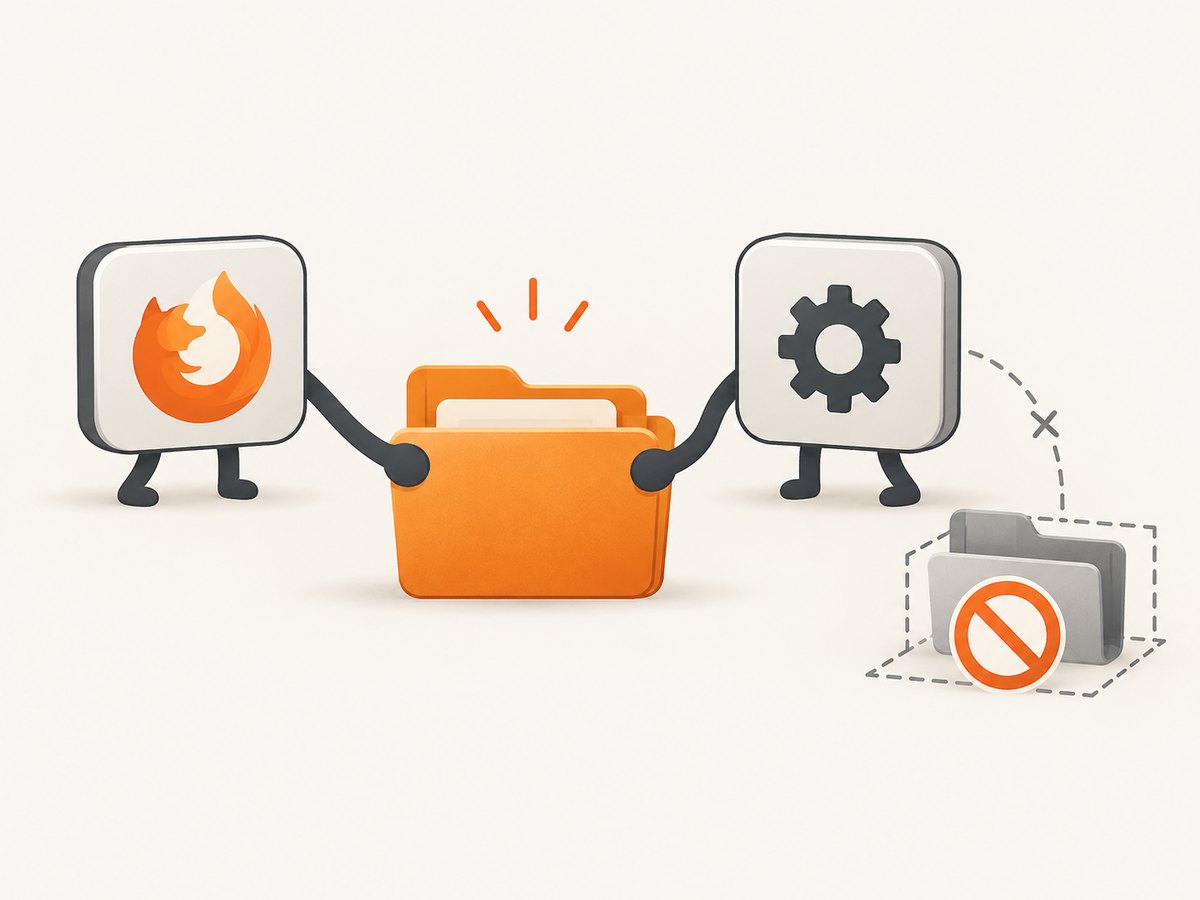
The primary fix is to choose a directory visible to both Firefox and geckodriver. Avoid a directory that exists only inside one sandbox or container layer. A visible directory under the automation user’s home directory is often easier to diagnose than a hidden system temporary location.
Linux and macOS: use --profile-root
mkdir -p "$HOME/firefox-automation-tmp"
chmod 700 "$HOME/firefox-automation-tmp"
geckodriver --profile-root "$HOME/firefox-automation-tmp" --log debug
Point Selenium at that running driver:
from selenium import webdriver
from selenium.webdriver.firefox.options import Options
from selenium.webdriver.firefox.service import Service

options = Options()
options.add_argument("-headless")
service = Service(log_output="geckodriver.log")

# geckodriver started separately with --profile-root
with webdriver.Firefox(options=options, service=service) as driver:
    driver.get("https://example.com")
    print(driver.current_url)
If Selenium starts geckodriver for you, set TMPDIR in the environment inherited by that process:
mkdir -p "$HOME/firefox-automation-tmp"
chmod 700 "$HOME/firefox-automation-tmp"
TMPDIR="$HOME/firefox-automation-tmp" python selenium_test.py
--profile-root is geckodriver’s direct control. TMPDIR is useful when a launcher, test runner, or container sets the temporary directory before geckodriver starts. Do not set the variable to a path that Firefox cannot access because of a sandbox policy.
Docker and CI
Create and own the directory during image setup or at job start. A common failure is creating it as root and running the test as an unprivileged user.
RUN mkdir -p /home/runner/firefox-tmp && chown -R runner:runner /home/runner/firefox-tmp

# In the job step
export TMPDIR=/home/runner/firefox-tmp
python selenium_test.py
Check the effective identity and permissions inside the running job:
id
ls -ld "$TMPDIR"
touch "$TMPDIR/write-test" && rm "$TMPDIR/write-test"
4. Handle Snap and Flatpak confinement
Sandboxed Firefox packages can see a different filesystem from a host-installed geckodriver. Mozilla’s release notes specifically document “Profile not found” when a sandbox restricts Firefox’s access to the system temporary directory. With the default Firefox Snap, use the geckodriver supplied in the same Snap environment:
/snap/bin/geckodriver --log debugAlternatively, select a shared directory exposed to both applications and set --profile-root or TMPDIR to that directory. Do not assume that a path visible from your shell is visible inside the browser sandbox. For Flatpak, inspect the application’s filesystem permissions and use a directory granted to the Firefox Flatpak. If your CI image mixes a Snap or Flatpak browser with a distribution package driver, align the packaging first.
5. Pass an existing profile safely
A custom profile is useful for extensions, certificates, preferences, or a prepared test account. It is not the first fix for a temporary-profile access error. A profile path must exist on the machine where Firefox runs, and Firefox must be able to write it.
from selenium import webdriver
from selenium.webdriver.firefox.options import Options

options = Options()
options.add_argument("-headless")
options.add_argument("--profile")
options.add_argument("/home/runner/firefox-automation-profile")

with webdriver.Firefox(options=options) as driver:
    driver.get("https://example.com")
    print(driver.title)
Create a dedicated profile directory and give it to the test account. Close ordinary Firefox before reusing a profile because a locked, active profile can prevent startup. Never point parallel test workers at one writable profile; each worker should receive its own copy or generated profile.
For RemoteWebDriver, a local path is not automatically copied to the remote host. Mozilla documents a Base64-encoded profile capability for transferring a profile to the remote system. The profile must be packaged in the capability format expected by the Selenium version and remote server. If you instead pass a local path, the remote Firefox will look for that path on the server and fail when it is absent.
There is also a Marionette-port caveat: Mozilla notes that a known --profile issue can prevent the randomized Marionette port from being passed. When that applies to your setup, provide --marionette-port <port> explicitly and ensure the port is available to the browser process.
6. Diagnose with geckodriver logs
Increase logging before changing several variables at once. The supported levels include fatal, error, warn, info, config, debug, and trace.
geckodriver --log debug --log-no-truncate
# or
geckodriver -vv
Look for the temporary profile path, permission-denied messages, sandbox errors, an incorrect Firefox binary, and the point at which Firefox exits. Save the complete log as a CI artifact. Trace logging can include sensitive command-line values, so restrict access to logs from private test jobs.
7. Repair a genuinely missing Firefox profile
If Firefox itself displays “Your Firefox profile cannot be loaded. It may be missing or inaccessible,” locate the profile rather than deleting directories. Common locations are:
- Windows:
%APPDATA%\Mozilla\Firefox\Profiles - Linux:
~/.mozilla/firefox - macOS:
~/Library/Application Support/Firefox/Profiles
A profile may have been moved, renamed, or deleted. Restore it from its original location or create a new profile with Firefox Profile Manager. A new profile does not restore lost bookmarks, cookies, extensions, or other user data. Back up the profile before attempting repairs.
8. Common errors and fixes
| Error or symptom | Likely cause | Fix |
|---|---|---|
Profile not found in a container |
Firefox cannot see geckodriver’s system temporary directory | Use a shared home-directory path with --profile-root or TMPDIR. |
Profile Missing in normal Firefox |
Profile folder moved, renamed, deleted, or inaccessible | Find the profile location, restore it, or create a new profile after backing up. |
| Permission denied | Directory owner or mode does not match the test account | Run id, inspect ownership, and grant the account read/write access. |
| Works locally, fails in CI | Different user, filesystem, TMPDIR, or browser package |
Print identity and paths in CI; create a writable directory in the job. |
| Works with host Firefox, fails with Snap | Driver and browser have different confinement | Use /snap/bin/geckodriver or a mutually exposed profile root. |
| Remote session cannot find profile | Path exists only on the client machine | Transfer an encoded profile or install it on the remote host. |
| Intermittent startup failures | Parallel workers share a profile or stale lock files remain | Use one generated profile per worker and close old Firefox processes. |
| Firefox starts, then exits | Wrong binary, incompatible driver, or Marionette-port handling | Print versions and binary paths, update compatible components, and set the port when required. |
9. Reliability and performance practices
- Use isolation: generate a fresh profile per test or worker. It prevents lock contention and state leakage.
- Keep the profile root local: network filesystems can add latency and locking behavior. A job-local directory is easier to clean up.
- Clean up deliberately: remove generated profiles after the session, but preserve them on failure when debugging is more valuable.
- Set explicit waits: profile startup errors are unrelated to page readiness. Once Firefox launches, use Selenium waits for page conditions rather than arbitrary long sleeps.
- Pin environment inputs: record Firefox, geckodriver, Selenium, package type, user ID, and temporary-directory settings in CI logs.
- Control parallelism: one geckodriver process and profile per worker avoids file locks and port collisions.
There is no universal Firefox/geckodriver version pairing to assume. Check Mozilla’s current compatibility guidance when upgrading, then validate the exact browser and driver binaries in the environment where the failure occurs.
10. Or skip the browser setup
If your task is simply to obtain a page image or PDF rather than run interactive browser automation, ScreenshotNeo provides a website screenshot API and MCP server. One request returns PNG, JPEG, WebP, or PDF. Cookie and consent banners are accepted and removed before capture, along with more than 60 known consent platforms, newsletter popups, and chat widgets; each step can be disabled. Bot checks, blank pages, timeouts, failed loads, and cache hits are not billed, and response headers identify the page verdict and billing status.
See the ScreenshotNeo API documentation for all options. This is a complete one-call example:
curl -G "https://api.screenshotneo.com/v1/shot" -d access_key=YOUR_API_KEY --data-urlencode url=https://stripe.com -o shot.webpimport requests
r = requests.get("https://api.screenshotneo.com/v1/shot", params={"access_key": "YOUR_API_KEY", "url": "https://stripe.com"}, timeout=90)
open("shot.webp", "wb").write(r.content)const q = new URLSearchParams({ access_key: 'YOUR_API_KEY', url: 'https://stripe.com' });
const res = await fetch(`https://api.screenshotneo.com/v1/shot?${q}`);ScreenshotNeo supports full-page captures with lazy images loaded, CSS-selector element captures, dark mode, 12 device presets or custom viewports, retina scale, PDF paper sizes and page ranges, custom CSS and JavaScript, clicks, selector or network-idle waits, blocked ads and resource types, headers, cookies, user agents, authorization, timezone, geolocation, transparent backgrounds, resizing, chosen cache TTLs, signed image links, asynchronous jobs with signed webhooks, bulk capture of up to 100 URLs per call, usage APIs, and an OpenAPI specification. Its MCP server provides take_screenshot, get_page_info, and capture_pdf for Claude, Cursor, and other MCP clients.
There is a free allowance of 1,000 screenshots per month with no card. Paid plans start at $5 for 3,000 shots; every feature is on every plan. Create a free ScreenshotNeo account.
FAQ
Should I delete the Firefox profile directory?
No. First determine whether it was moved, renamed, deleted, or merely inaccessible. Deleting it can remove settings and user data and does not fix a sandbox that cannot access the replacement path.
Can I reuse my normal Firefox profile in Selenium?
You can pass its path, but a dedicated automation profile is safer. Close normal Firefox first and never share one profile between parallel sessions.
Why does changing TMPDIR help?
Geckodriver creates temporary profiles there. Moving that root to a directory visible and writable to both processes resolves filesystem isolation.
Does headless mode cause the profile error?
Usually no. Headless mode changes display requirements; profile errors still point to path visibility, permissions, packaging, locks, or driver setup.
What changes with RemoteWebDriver?
The browser runs remotely. A client-side profile path is not present there, so transfer an encoded profile or provision one on the remote host.


