How to Fix Flaky Puppeteer Visual Tests After Resizing Screenshots
Make Puppeteer screenshot tests deterministic after viewport changes by locking rendering, waiting for stable state, and tuning image diffs safely.
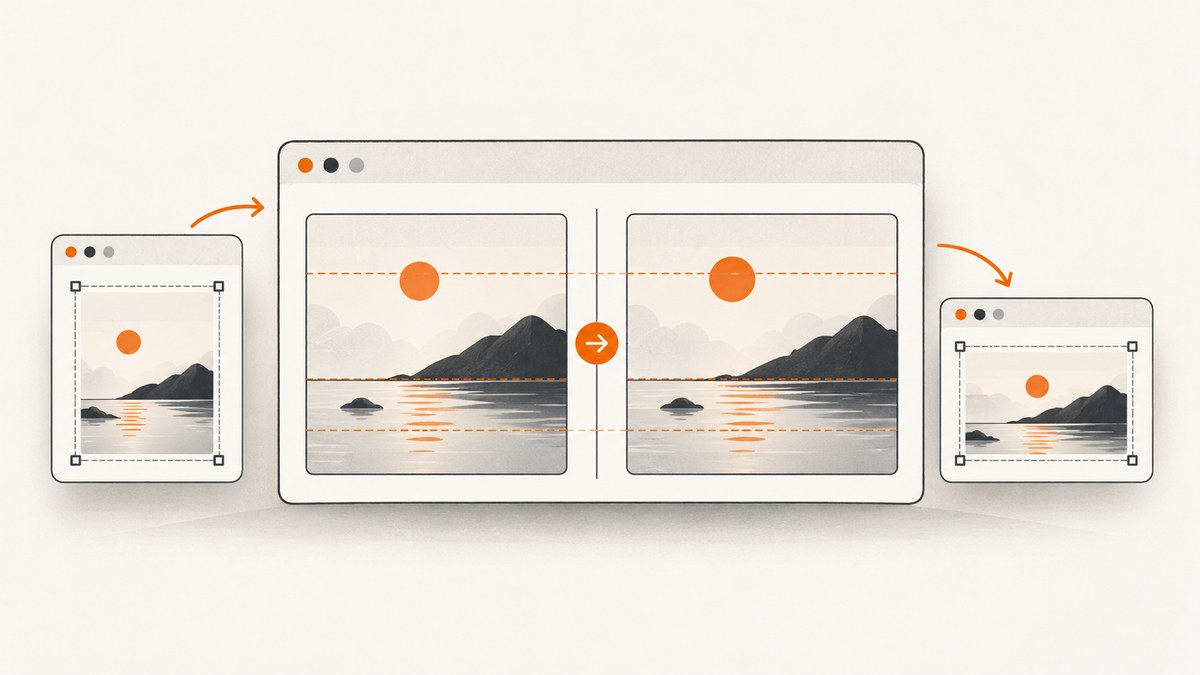
Resizing a Puppeteer screenshot changes the rendering contract. A visual test can become flaky when the viewport, device scale factor, fonts, browser version, animation state, dynamic data, or capture timing differs from the environment that created the baseline.
Fix the test setup first. Keep image-diff tolerance strict until you have proved that the remaining variation is harmless rasterization noise.
Why resizing makes visual tests flaky
A screenshot baseline records pixels, not intent. Changing width or height can alter responsive breakpoints, line wrapping, lazy loading, element positions, and the total dimensions of a full-page capture. Changing deviceScaleFactor changes the number of physical pixels and can introduce antialiasing differences even when CSS dimensions are unchanged.
Other common sources of drift include:
- A different Chromium or Puppeteer version.
- Fonts loading at different times or falling back to another font.
- Animations, transitions, blinking carets, carousels, and video frames.
- Current time, random IDs, rotating ads, feature flags, and live API data.
- Third-party widgets, cookie banners, chat launchers, and consent dialogs.
- Taking the screenshot before the application has finished rendering.
- Comparing a viewport screenshot with an element or full-page screenshot.
Repair sequence
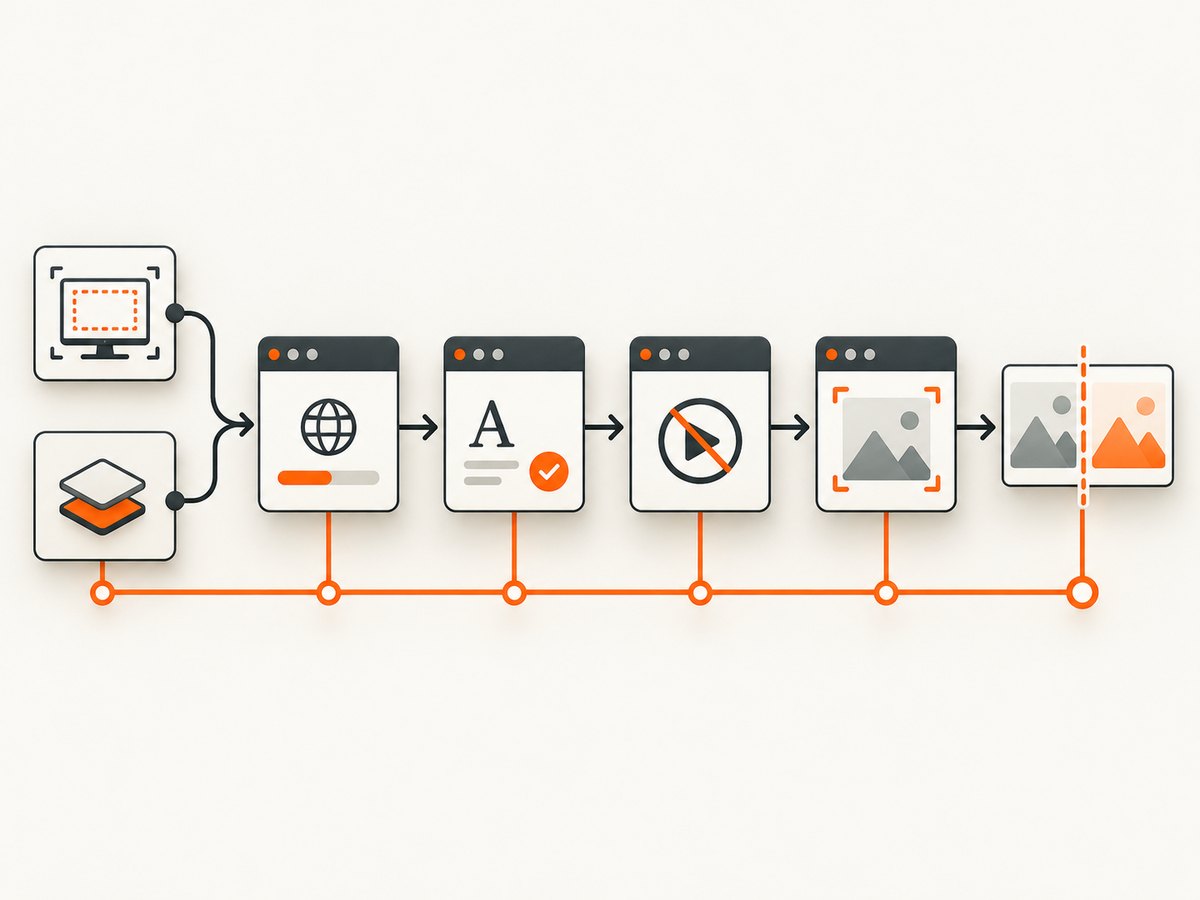
- Save the received image, baseline, and diff.
- Compare PNG dimensions before changing any threshold.
- Lock viewport and scale before navigation.
- Wait for an application-ready signal, fonts, and meaningful network idle.
- Freeze motion and control dynamic data.
- Capture with identical screenshot options.
- Use the smallest comparator tolerance that matches measured noise.
- Review diffs before updating snapshots.
1. Lock the viewport before navigation
Puppeteer documents that page.setViewport resizes the page and recommends setting it before navigating. Use the same CSS viewport and device scale factor that produced the baseline.
import puppeteer from 'puppeteer';

const browser = await puppeteer.launch({headless: true});
const page = await browser.newPage();

await page.setViewport({
  width: 1280,
  height: 720,
  deviceScaleFactor: 1,
});

await page.goto('https://example.com', {waitUntil: 'networkidle2'});
await page.screenshot({path: 'received.png', fullPage: true});
await browser.close();
Do not resize midway through a test unless responsive behavior is the subject under test. A viewport change can reload a page in some cases and can invalidate work that happened before the resize. Keep these values in one configuration object so baseline generation and CI use the same settings.
Viewport checklist
- Width and height are integers and match the baseline.
deviceScaleFactoris explicit, usually1for stable CI output.- Headless mode, browser version, and operating-system image are pinned.
- The screenshot target is the same: viewport, element, or full page.
- Mobile emulation settings are consistent if you use a device preset.
2. Wait for a meaningful stable state
waitUntil: 'networkidle2' is useful, but it is not proof that your application is visually ready. Polling requests can prevent idle forever, while a page can be network-idle before fonts, hydration, or a client-side data render finishes.
await page.goto(url, {waitUntil: 'domcontentloaded'});
await page.waitForSelector('[data-test="page-ready"]');
await page.waitForNetworkIdle({idleTime: 500, timeout: 15000});
await page.evaluate(async () => {
  if (document.fonts?.ready) await document.fonts.ready;
});
Puppeteer’s Page.waitForNetworkIdle() waits for the network to be idle and always waits at least the configured idle time. Use it with an app-specific selector rather than as your only readiness condition. Prefer a selector or application promise that means the content under test is complete.
3. Freeze motion and unstable data
Inject a stylesheet before capture to disable transitions, animations, caret blinking, and smooth scrolling.
await page.addStyleTag({content: `
  *, *::before, *::after {
    animation-delay: 0s !important;
    animation-duration: 0s !important;
    animation-iteration-count: 1 !important;
    transition: none !important;
    caret-color: transparent !important;
    scroll-behavior: auto !important;
  }
`});
Freeze clocks and randomness in the application or test harness where possible. Stub API responses, use deterministic fixtures, and disable rotating ads. Mask timestamps, notification counts, and user-specific regions. If a banner must not be visible, hiding it preserves layout:
await page.addStyleTag({content: `
  .cookie-banner, .live-chat-launcher, [data-dynamic] {
    visibility: hidden !important;
  }
`});
Removing nodes can change geometry and create a different, equally invalid baseline. Use removal only when the test explicitly expects the layout to collapse.
4. Make fonts and layout deterministic
Font fallback changes glyph widths and therefore line wrapping. Wait for document.fonts.ready, ship the required fonts in the CI image, and avoid depending on an unpinned system font.
await page.evaluate(async () => {
  await document.fonts.ready;
  await new Promise(requestAnimationFrame);
  await new Promise(requestAnimationFrame);
});
The extra animation frames allow layout and paint to settle after fonts become available. For pages with lazy images, scroll deliberately or wait for an application signal that image loading is complete.
5. Capture the same target with the same options
Use identical screenshot options when creating and checking a baseline.
const screenshotOptions = {
  path: 'received.png',
  fullPage: true,
  animations: 'disabled',
};
await page.screenshot(screenshotOptions);
Element screenshots scroll the element into view when necessary. That can trigger lazy content, so wait again after scrolling if the element contains images or client-rendered content.
6. Configure the image comparator deliberately
jest-image-snapshot compares the received PNG buffer with a stored baseline. It supports pixelmatch and SSIM, per-pixel sensitivity, whole-image failure thresholds, blur, diff output, and allowSizeMismatch.
import {toMatchImageSnapshot} from 'jest-image-snapshot';
expect.extend({toMatchImageSnapshot});

test('home page is stable', async () => {
  const image = await page.screenshot();
  expect(image).toMatchImageSnapshot({
    customSnapshotIdentifier: 'home-page-1280x720-dsf1',
    comparisonMethod: 'pixelmatch',
    failureThreshold: 0.001,
    failureThresholdType: 'percent',
    blur: 0,
  });
});
Treat a size mismatch as a setup defect. Do not enable allowSizeMismatch unless the test intentionally compares different dimensions. If differences are only edge noise caused by a known scaling step, measure them first and consider a small Gaussian blur, usually radius 1 or 2. If the requirement is structural similarity rather than exact pixels, evaluate SSIM with an explicit failure threshold.
7. Use retries without hiding defects
Jest retries can expose intermittent browser noise. When using jest.retryTimes(), give each attempt a unique customSnapshotIdentifier. A retry that passes once does not prove that the rendering setup is correct. Inspect the received image and diff before updating a snapshot.
jest.retryTimes(2);

expect(image).toMatchImageSnapshot({
  customSnapshotIdentifier: `dashboard-attempt-${expect.getState().currentTestName}`,
});
CI configuration that stays consistent
- Pin the Node.js, Puppeteer, and Chromium versions.
- Run with the same browser flags and headless mode used to create baselines.
- Install identical fonts in local and CI images.
- Set timezone and locale explicitly.
- Use deterministic API fixtures and stable test accounts.
- Store received images and diffs as CI artifacts on failure.
- Run tests with a fixed viewport matrix instead of changing dimensions ad hoc.

Troubleshooting common failures
| Symptom | Likely cause | Fix |
|---|---|---|
| PNG dimensions differ | Viewport, device scale factor, full-page mode, or target changed | Match width, height, scale, and screenshot options before touching thresholds. |
| Everything shifted or text wraps differently | Responsive breakpoint, font fallback, or different browser | Set viewport before navigation, wait for fonts, and pin browser and fonts. |
| Only text edges differ | Rasterization or scaling noise | Keep exact dimensions; test a 1–2 pixel blur or minimal pixel threshold only after review. |
| Flaky banner or widget region | Dynamic third-party content | Mock it or hide it with visibility:hidden while preserving layout. |
| Screenshot is captured too early | Hydration, fonts, or data loading is incomplete | Wait for an app-ready selector, fonts, and a meaningful idle period. |
| Full-page capture changes height | Lazy images or late layout shifts | Wait for image readiness and ensure content has settled before capture. |
| Retries pass intermittently | Uncontrolled state remains | Use retries for diagnosis, then fix clocks, data, motion, or readiness. |
| Diff threshold hides a real regression | Tolerance is too broad | Reduce tolerance and review the diff; never use size mismatch as a blanket fix. |
Performance, reliability, and cost
Most stability improvements also reduce wasted CI time. Reuse a browser process when running many tests, create isolated pages, and avoid arbitrary multi-second sleeps. Waiting on a specific selector is usually faster than sleeping long enough for every possible request. Cache immutable fixtures and block unnecessary third-party requests, but do not block resources that affect the pixels under test.
Keep screenshot baselines versioned with the browser and rendering configuration that created them. Review baseline updates as code changes: inspect the diff, confirm the intended viewport, and record why the pixels changed.
Or skip the browser setup
ScreenshotNeo provides a website screenshot API when you need a stable capture without maintaining Puppeteer in your job. The API accepts a URL and returns PNG, JPEG, WebP, or PDF. Its cleanup step accepts cookie and consent banners and removes more than 60 known consent platforms, newsletter popups, and chat widgets; each step can be disabled.
Only clean shots are billed. Bot checks, CAPTCHAs, blank pages, timeouts, failed loads, and cache hits cost nothing, and the response reports the result with X-Page-Verdict and X-Billed headers. An MCP server provides take_screenshot, get_page_info, and capture_pdf tools for Claude, Cursor, and other MCP clients.
See the ScreenshotNeo API documentation for all options.
cURL
curl -G "https://api.screenshotneo.com/v1/shot" \
  -d access_key=YOUR_API_KEY \
  --data-urlencode url=https://stripe.com \
  -o shot.webp
Python
import requests

r = requests.get(
    "https://api.screenshotneo.com/v1/shot",
    params={"access_key": "YOUR_API_KEY", "url": "https://stripe.com"},
    timeout=90,
)
r.raise_for_status()
open("shot.webp", "wb").write(r.content)
Node.js
const q = new URLSearchParams({
  access_key: 'YOUR_API_KEY',
  url: 'https://stripe.com'
});
const res = await fetch(`https://api.screenshotneo.com/v1/shot?${q}`);
if (!res.ok) throw new Error(`Screenshot failed: ${res.status}`);
const image = Buffer.from(await res.arrayBuffer());
await fs.promises.writeFile('shot.webp', image);
Relevant controls include full-page capture with lazy images loaded, CSS-selector element capture, dark mode, device presets or custom viewports, retina scale, custom CSS and JavaScript, clicks, selector or delay waits, network-idle waits, request and resource blocking, custom headers and cookies, timezone and geolocation, transparent backgrounds, resizing, caching with a chosen TTL, signed links, asynchronous jobs with signed webhooks, bulk capture for up to 100 URLs per call, and a usage API.
Create a free ScreenshotNeo account for 1,000 screenshots a month with no card. Paid plans start at $5 for 3,000 screenshots.
FAQ
Should I increase the pixel-diff threshold after resizing?
Only after dimensions, viewport, scale, fonts, readiness, motion, and data are deterministic. Thresholds should cover measured rendering noise, not setup differences.
Is networkidle2 enough?
No. Combine it with an application-ready selector and a font-ready check. Polling or long-lived connections can make network idle misleading.
When is allowSizeMismatch appropriate?
Only when different dimensions are the deliberate subject of the test. A resized baseline normally means the test configuration drifted.
Pixelmatch or SSIM?
Use pixelmatch for strict pixel contracts. Consider SSIM when structural similarity matters more than exact antialiasing, with an explicit threshold and reviewed diffs.
Should I remove dynamic elements before capture?
Usually hide them so layout remains stable. Remove them only when collapsing the element is part of the intended rendering contract.


