How to Fix Unexpected Full-Page Screenshots with Node.js
Fix cropped, oversized, blurry, or incomplete Node.js full-page screenshots with deterministic Puppeteer and Playwright debugging steps.
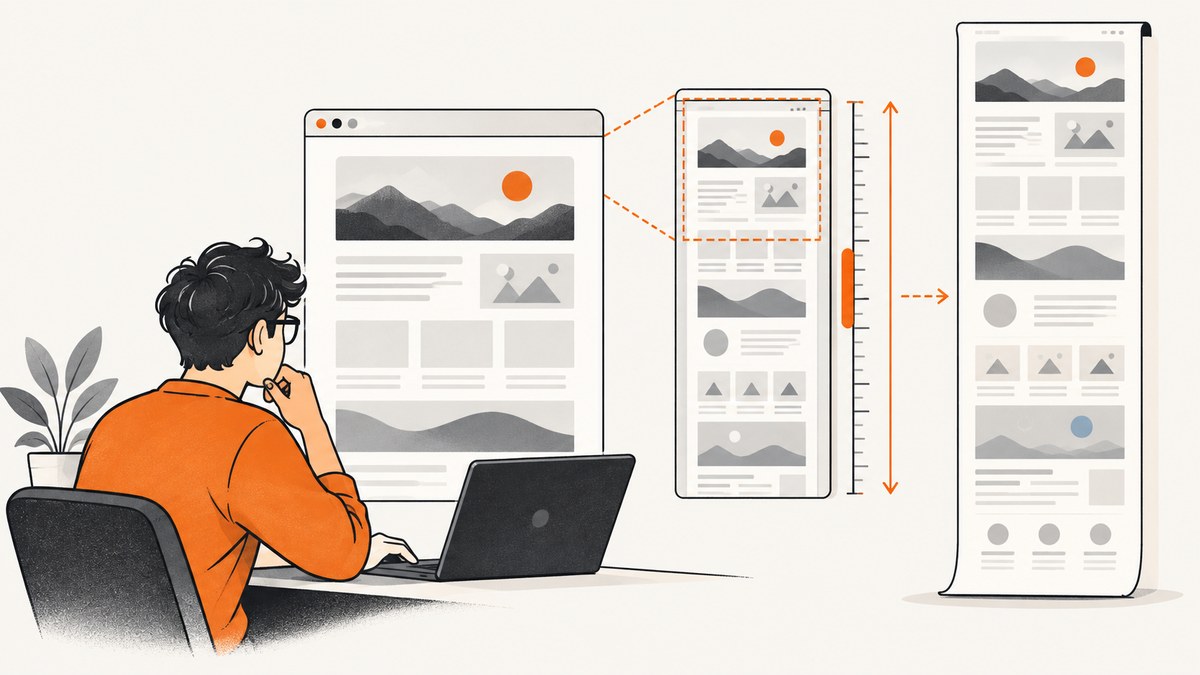
Unexpected full-page screenshots in Node.js usually come from four layers interacting: screenshot API semantics, CSS viewport size versus device-pixel scale, the element that owns scrolling, and a page that has not reached a stable layout. Debug those layers separately, then capture again.
1. Start with a deterministic capture
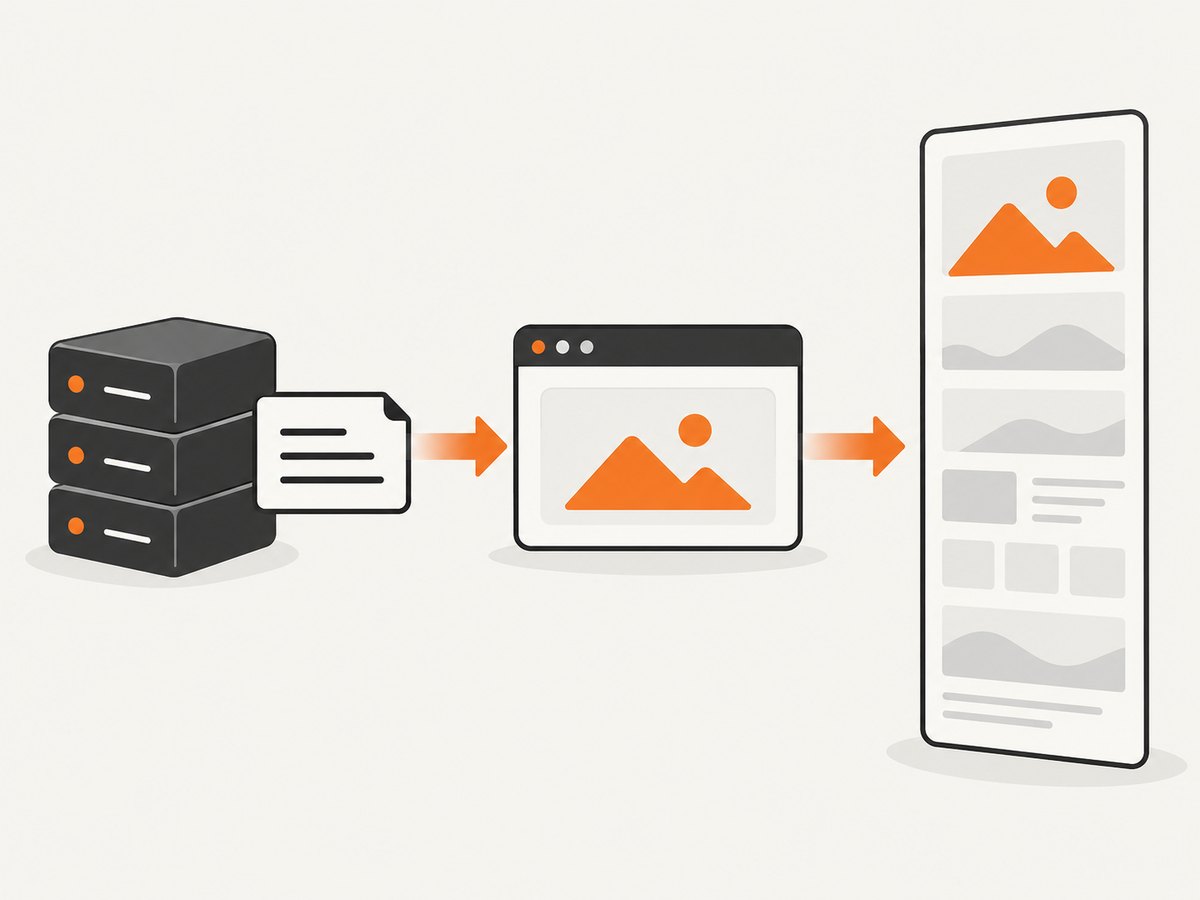
Set the viewport before navigation, use CSS-pixel output while diagnosing, wait for an application-specific readiness signal, and make the full-page behavior explicit. The following Puppeteer baseline is a useful starting point:
import puppeteer from 'puppeteer';

const url = 'https://example.com';
const browser = await puppeteer.launch({ headless: true });
const page = await browser.newPage();

await page.setViewport({
  width: 1280,
  height: 800,
  deviceScaleFactor: 1,
});

await page.goto(url, { waitUntil: 'domcontentloaded' });
await page.waitForSelector('#app');
await page.evaluate(() => document.fonts?.ready);

await page.screenshot({
  path: 'full-page.png',
  fullPage: true,
  captureBeyondViewport: false,
});

await browser.close();
Puppeteer defines fullPage as taking a screenshot of the full page. Its viewport width and height are CSS pixels, and deviceScaleFactor defaults to 1. The captureBeyondViewport setting is a targeted diagnostic for clipping and resize symptoms; behavior can vary with Puppeteer and browser versions. See the Puppeteer ScreenshotOptions reference and Viewport reference.
Replace #app with a selector that proves your own application mounted. For a static page, wait for a meaningful heading or content block instead.
2. Use Playwright when you need explicit output scaling
Playwright’s full-page capture also means the full scrollable page rather than only the visible viewport. Its scale option lets you choose CSS-pixel or device-pixel output, which makes diagnosis easier:
import { chromium } from 'playwright';

const browser = await chromium.launch();
const page = await browser.newPage({
  viewport: { width: 1280, height: 800 },
  deviceScaleFactor: 1,
});

await page.goto('https://example.com', { waitUntil: 'domcontentloaded' });
await page.locator('#app').waitFor();
await page.evaluate(() => document.fonts?.ready);

await page.screenshot({
  path: 'full-page.png',
  fullPage: true,
  scale: 'css',
});

await browser.close();
Playwright documents fullPage and the distinction between scale: 'css' and scale: 'device' in its page screenshot API.
3. Understand the four dimensions of the problem
Screenshot semantics
A full-page screenshot is a document or scrollable-page capture. It is not an operating-system screenshot of the browser window. The library measures page dimensions, changes or simulates the capture viewport, and produces an image. Fixed-position elements, sticky headers, and browser-specific implementation details can therefore appear differently from a manual screen capture.

CSS pixels and device pixels
CSS viewport dimensions control layout. Device scaling controls how many output pixels represent each CSS pixel. A 1280-pixel CSS viewport with deviceScaleFactor: 2 can produce roughly twice as many image pixels in each direction. That may be desirable for retina output, but it makes width, height, memory use, and file size look “wrong” if you expected CSS dimensions.
Begin with deviceScaleFactor: 1 in Puppeteer and scale: 'css' in Playwright. Reintroduce high-density output only after the CSS-pixel capture has the correct layout.
The scrolling element
Document-level full-page capture follows the document’s scrollable extent. Many dashboards, modals, chat panes, and data grids put overflow: auto on an inner element. Content below that element’s visible area may not contribute to document.documentElement.scrollHeight, so fullPage: true can still omit it. Playwright’s issue tracker documents this inner-scroll limitation; enlarging the viewport is not a universal fix: inner scroll container discussion.
Layout readiness
domcontentloaded means the initial document was parsed. It does not mean fonts, images, API data, animations, hydration, or lazy-loaded content have settled. Wait for the application selector, required assets, and a page-specific condition before capturing.
4. Diagnose by the symptom
| Symptom | Likely cause | First fix |
|---|---|---|
| Image is huge or has unexpected dimensions | Device-pixel scaling or an altered viewport | Use device scale 1; Playwright scale: 'css'; log viewport and image dimensions |
| Image is blurry | Output is lower density than expected | After layout is correct, use a deliberate device scale or scale: 'device' |
| Bottom content is cropped | Inner scroll container, late layout, or capture beyond viewport behavior | Measure scroll containers, wait for content, try Puppeteer captureBeyondViewport: false |
| Screenshot appears resized during capture | Viewport transition or framework/browser regression | Set viewport before navigation, wait for stable state, pin or upgrade versions |
| Panel, grid, or modal content is missing | That element owns the scrollbar | Expand its overflow for capture or capture the element separately |
| Sections have the wrong height | vh/vw responds to the effective viewport |
Inspect computed styles and capture at the intended viewport |
| Images or fonts are blank | Assets have not loaded | Wait for specific images, fonts, or application data |
5. Log dimensions before taking the shot
Run this diagnostic in either framework. It reveals whether the document or an inner element owns the extra height:
const metrics = await page.evaluate(() => {
  const root = document.documentElement;
  const body = document.body;
  const candidates = [...document.querySelectorAll('*')]
    .filter((el) => {
      const style = getComputedStyle(el);
      return /(auto|scroll)/.test(style.overflowY) && el.scrollHeight > el.clientHeight;
    })
    .slice(0, 20)
    .map((el) => ({
      tag: el.tagName,
      id: el.id,
      className: el.className,
      clientHeight: el.clientHeight,
      scrollHeight: el.scrollHeight,
      overflowY: getComputedStyle(el).overflowY,
    }));

  return {
    viewport: { width: innerWidth, height: innerHeight },
    document: {
      scrollWidth: root.scrollWidth,
      scrollHeight: root.scrollHeight,
      clientWidth: root.clientWidth,
      clientHeight: root.clientHeight,
    },
    body: { scrollWidth: body.scrollWidth, scrollHeight: body.scrollHeight },
    scrollContainers: candidates,
  };
});
console.log(JSON.stringify(metrics, null, 2));
If the missing content appears in scrollContainers but not in document height, capture that selector as an element or temporarily change its overflow for a dedicated export. Do not permanently remove scrolling from the production layout just to make an automated image.
6. Make page readiness explicit
- Navigate with a bounded timeout.
- Wait for the mounted application selector.
- Wait for
document.fonts.ready. - Wait for required images to have completed.
- Disable or wait through transitions and lazy loading.
await page.goto(url, { waitUntil: 'domcontentloaded', timeout: 60000 });
await page.waitForSelector('#app', { timeout: 30000 });
await page.evaluate(async () => {
  await document.fonts?.ready;
  const images = [...document.images];
  await Promise.all(images.map((img) => {
    if (img.complete) return Promise.resolve();
    return new Promise((resolve) => {
      img.addEventListener('load', resolve, { once: true });
      img.addEventListener('error', resolve, { once: true });
    });
  }));
});
await page.waitForTimeout(250);
Use a specific selector or application signal when possible. A fixed delay alone is a weak readiness test because network and rendering time vary.
7. Handle common layout edge cases
Lazy-loaded images
Full-page capture may not trigger every lazy image if the page is never scrolled. Scroll incrementally, wait for network and image completion, then return to the top before capturing. For a production export, prefer an application mode that renders all required media without user scrolling.
Animations and transitions
Animated height, transforms, carousels, and skeletons can produce a screenshot between two layouts. Inject a temporary style before capture:
await page.addStyleTag({ content: `
  *, *::before, *::after {
    animation: none !important;
    transition: none !important;
    scroll-behavior: auto !important;
  }
` });
Fixed and sticky elements
A fixed cookie bar or sticky header can be repeated or cover content in a stitched image. Hide it only when that matches your export requirements, and verify that the resulting screenshot still communicates the page correctly.
vh and vw
Viewport units are tied to the effective viewport, not the final stitched image. A Chromium issue reports incorrect full-page results for layouts using these units: Playwright viewport-unit issue. Inspect computed styles at the capture viewport and use content-driven sizing for screenshot-sensitive sections where appropriate.
8. Compare viewport and full-page captures
Save both images from the same page state. If the viewport image is already wrong, investigate CSS, data, fonts, and browser state. If the viewport image is correct but the full-page image is wrong, focus on document height, inner scrolling, sticky elements, scaling, and capture implementation.
await page.screenshot({ path: 'viewport.png', fullPage: false });
await page.screenshot({
  path: 'full-page.png',
  fullPage: true,
  captureBeyondViewport: false,
});
9. Version and reliability practices
- Pin Puppeteer or Playwright and the browser revision in repeatable jobs.
- Record the URL, viewport, device scale, framework version, browser version, and readiness condition with each failure.
- Use bounded navigation and selector timeouts so a dead page cannot occupy a worker indefinitely.
- Retry transient navigation failures once or twice with backoff, but do not blindly retry deterministic selector or authentication errors.
- Keep a small set of representative pages covering long documents, inner scroll areas, lazy images, fonts, sticky headers, and
vhlayouts. - Limit concurrency according to available CPU and memory; large full-page images consume more memory than viewport captures.
10. Or skip the browser setup
For a hosted screenshot, ScreenshotNeo accepts one GET request and returns PNG, JPEG, WebP, or PDF. Its full-page option loads lazy images, and it can also capture one element by CSS selector, set a viewport or device preset, use retina scale, wait for a selector, delay, or network idle, and apply custom CSS or JavaScript. See the ScreenshotNeo API documentation.
curl -G "https://api.screenshotneo.com/v1/shot" -d access_key=YOUR_API_KEY --data-urlencode url=https://stripe.com -o shot.webpimport requests
r = requests.get("https://api.screenshotneo.com/v1/shot", params={"access_key": "YOUR_API_KEY", "url": "https://stripe.com"}, timeout=90)
open("shot.webp", "wb").write(r.content)const q = new URLSearchParams({ access_key: 'YOUR_API_KEY', url: 'https://stripe.com' });
const res = await fetch(`https://api.screenshotneo.com/v1/shot?${q}`);Cookie and consent banners, newsletter popups, and chat widgets are removed before the shot. Bot checks, blank pages, timeouts, failed loads, and cache hits are not billed; response headers identify the page verdict and whether it was billed. An MCP server provides take_screenshot, get_page_info, and capture_pdf tools for Claude, Cursor, and other MCP clients. The Free plan includes 1,000 screenshots per month with no card; paid plans start at $5 for 3,000.
Create a free ScreenshotNeo account and try the API with 1,000 screenshots a month at no cost.
11. Performance and cost considerations
Full-page images are larger than viewport images. CSS-pixel output reduces dimensions and memory; device-pixel output increases sharpness and cost in your own infrastructure. Waiting for every image can improve completeness but increases latency, so wait for assets that matter to the output. Reuse a browser process when taking many captures, isolate pages, and close pages after each job. For repeated URLs, caching can avoid redundant work; ScreenshotNeo supports a caller-chosen cache TTL.
When a page is very tall, consider splitting a report into sections, capturing a specific element, or producing a PDF. For bulk work, queue jobs and cap concurrency rather than launching an unbounded number of browsers.
12. Troubleshooting checklist
- Wrong width: verify the viewport was set before navigation and check CSS versus device pixels.
- Wrong height: print document and inner-container scroll heights; inspect late-loading content.
- Crop at the bottom: test
captureBeyondViewport: false, then inspect overflow containers. - Blurry output: confirm the selected scale and output dimensions before increasing density.
- Missing panel rows: capture the scrolling panel or expand it temporarily.
- Fonts shifted: await
document.fonts.readyand ensure the font request succeeds. - Images missing: wait for the required image elements and scroll to trigger lazy loading.
- Intermittent dimensions: freeze animations, log browser versions, and pin or upgrade the framework.
- Timeouts: separate navigation, selector, asset, and screenshot timeouts so the failing stage is visible.
13. FAQ
Does fullPage: true capture an entire dashboard?
Only the document’s scrollable page. A dashboard panel with its own scrollbar may require element capture or a temporary overflow change.
Should I always use deviceScaleFactor: 2?
No. Start at 1 to make CSS dimensions predictable. Increase it only when you need higher-density output and have verified the layout.
Is networkidle enough?
No readiness mode works for every application. Combine it with an application selector and checks for fonts, images, or data that must appear.
Why does the browser screenshot differ from a manual screenshot?
Manual screenshots capture a window at one moment. Full-page APIs measure and capture a scrollable document, so sticky elements, inner scrolling, viewport units, and scaling can change the result.
Can I keep the DIY Node.js workflow and use ScreenshotNeo later?
Yes. ScreenshotNeo accepts common screenshot parameter names, supports custom headers, cookies, user agents, authorization, timezone, geolocation, blocking rules, signed links, asynchronous jobs, webhooks, bulk capture, and a usage API, so you can move only the captures that benefit from a hosted service.


