Why Full-Page Website Captures Fail and How to Fix Them
Full-page screenshots fail when capture mode, timing, lazy loading or layout changes are wrong. Diagnose each cause with reliable fixes.
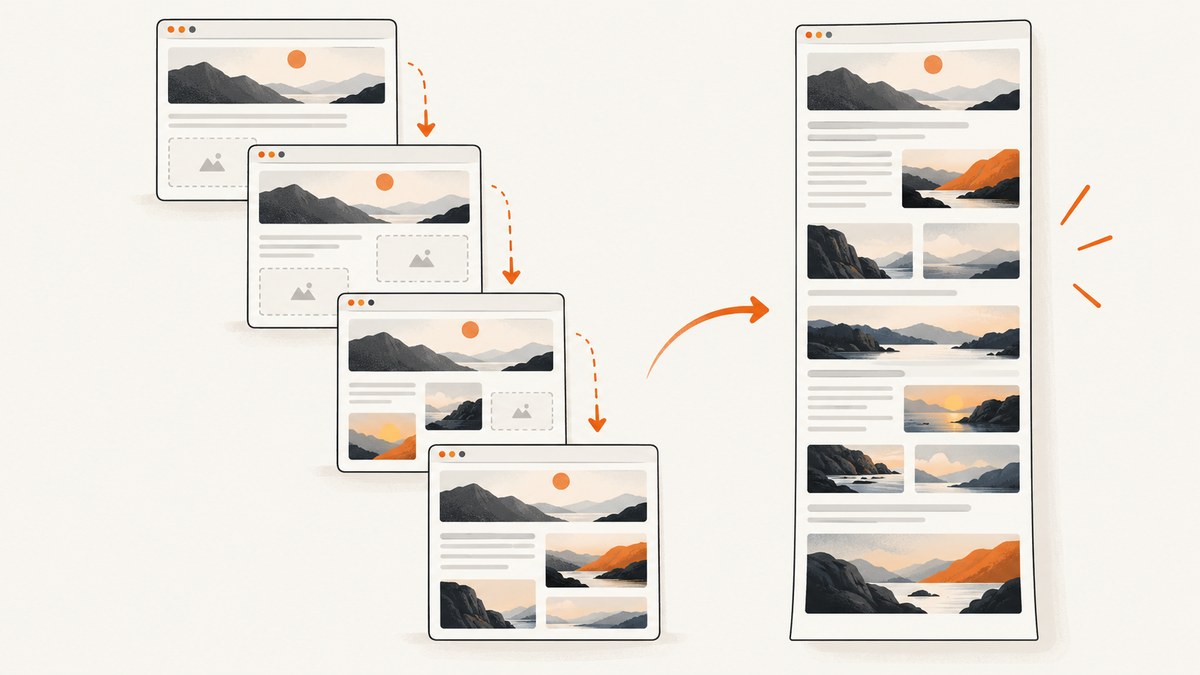
A full-page screenshot can contain only the visible viewport, miss images below the fold, repeat a sticky header, or show blank sections even when the command succeeds. The usual causes are separate: viewport capture instead of document capture, capture before the page is ready, deferred content that loads only after scrolling, and responsive or fixed-position layout changes during the capture.
Use this order to diagnose the problem:
- Enable the tool’s explicit full-page mode.
- Set the viewport, device scale, locale and color scheme before navigation.
- Wait for the content, fonts and images that must appear.
- Scroll through pages that use lazy loading, then capture.
- Check fixed and sticky elements for duplication or occlusion.
- Validate dimensions and expected content in the output.
What “full page” actually captures
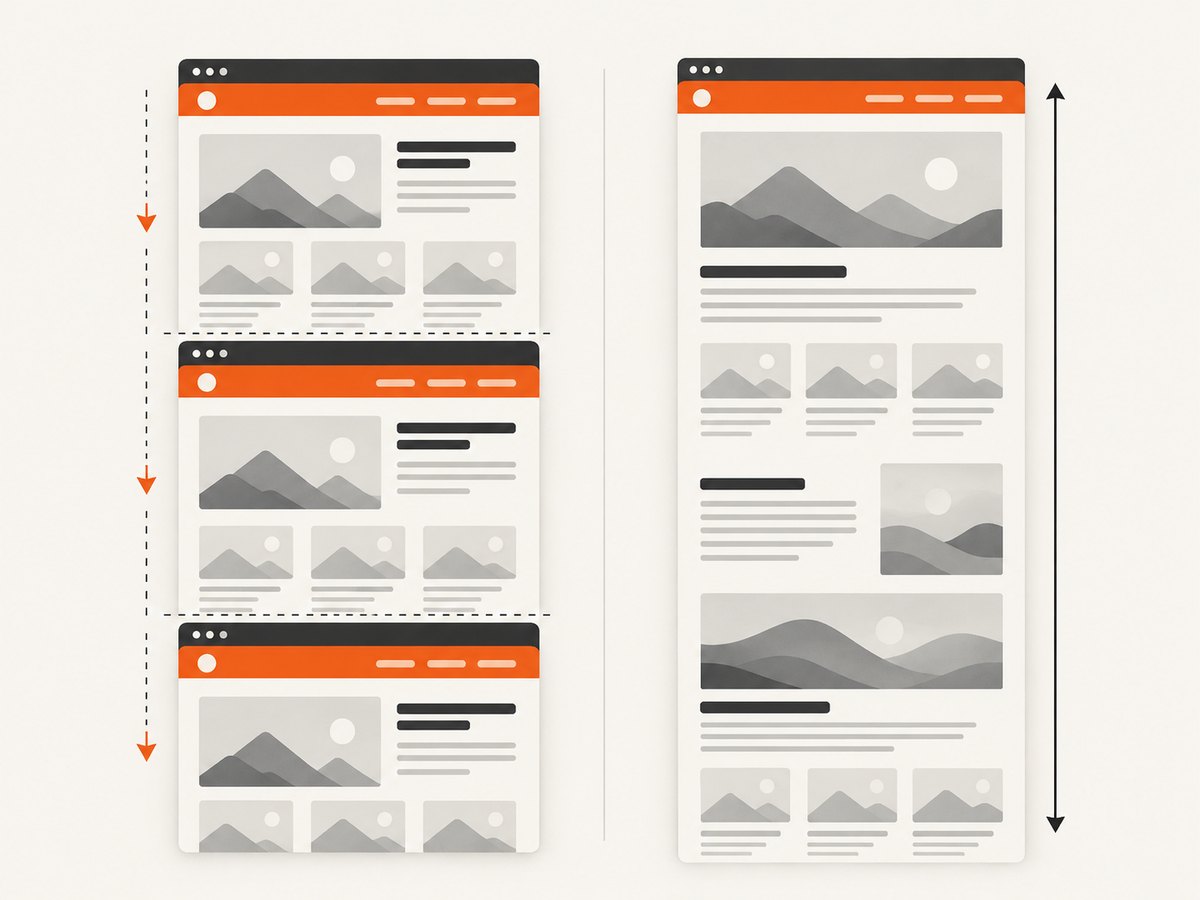
A normal screenshot usually captures the current viewport. A full-page capture measures the document’s scrollable height and renders the page from its top through its end. The exact implementation differs by tool: some browsers render one tall surface, while others temporarily resize or stitch sections. That difference matters for sticky elements, animations and scroll-triggered content.
| Symptom | Likely cause | First check |
|---|---|---|
| Image has viewport height | Viewport mode was used | Enable fullPage or Firefox --fullpage |
| Footer or final section is missing | Document height was measured too early or content is deferred | Wait for the final section and inspect requests after scrolling |
| Images below the fold are blank | Lazy loading or intersection-based rendering | Scroll in increments and wait for image requests |
| Header appears many times | position: fixed or sticky during stitching |
Temporarily disable the header and compare captures |
| Layout differs between runs | Viewport, fonts, animations, locale or responsive breakpoint changed | Set deterministic browser context values before navigation |
Firefox: capture the entire page
Firefox DevTools includes a “Take a screenshot of the entire page” action. The Web Console also supports the :screenshot command with --fullpage. Mozilla documents both workflows in its Firefox Source Docs.
:screenshot page.png --fullpageIf the result is short, confirm that the page has finished rendering and that the browser is not capturing an inner scroll container instead of the document. Check the image dimensions and look for a known footer.
Playwright: reliable full-page screenshots
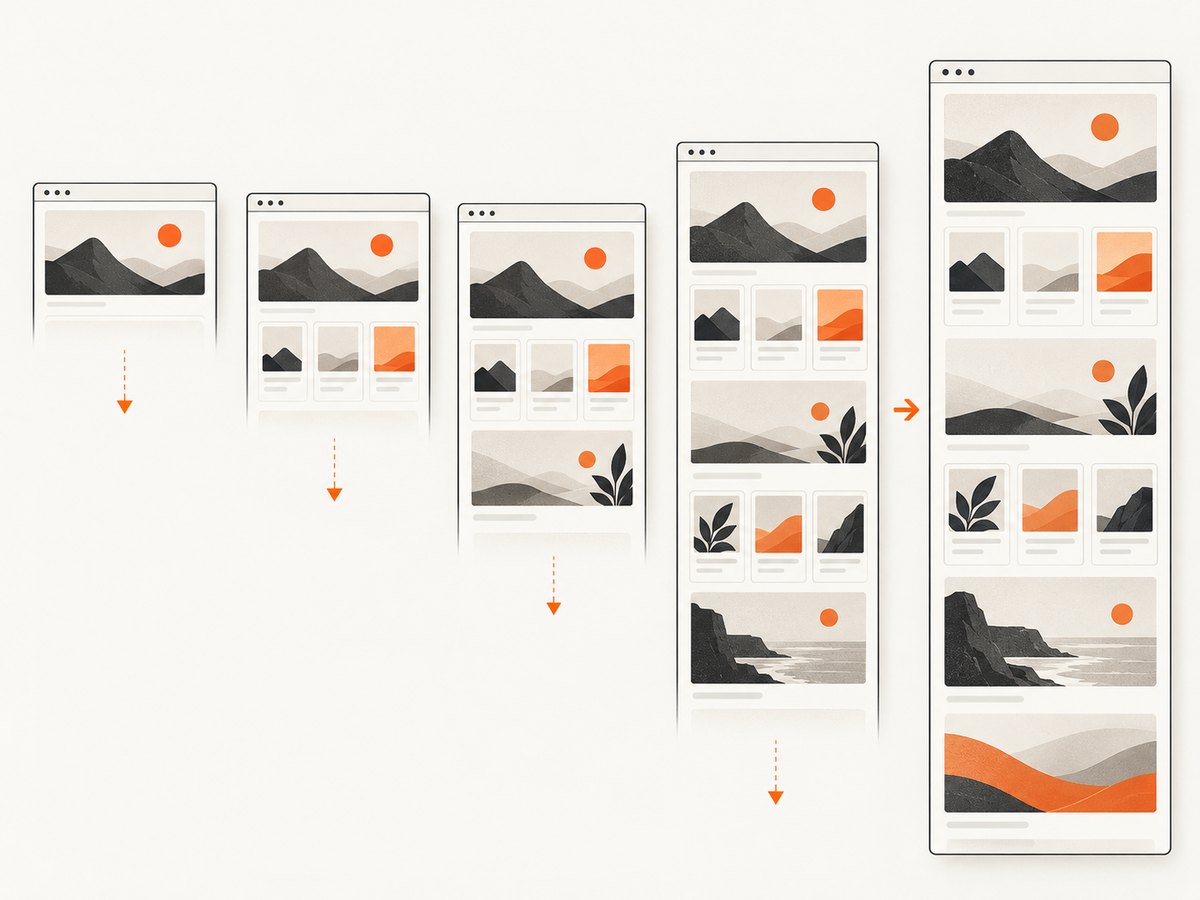
Playwright distinguishes viewport, element and full-page captures. Set the browser context before navigation and pass fullPage: true to page.screenshot(). The official Playwright screenshot documentation also describes CSS-pixel and device-pixel scale choices.
Runnable Node.js example
import { chromium } from 'playwright';

const browser = await chromium.launch();
const context = await browser.newContext({
  viewport: { width: 1440, height: 900 },
  deviceScaleFactor: 1,
  colorScheme: 'light',
  locale: 'en-US'
});
const page = await context.newPage();

await page.goto('https://example.com', { waitUntil: 'domcontentloaded' });
await page.waitForLoadState('networkidle');
await page.screenshot({ path: 'page.png', fullPage: true });

await browser.close();
networkidle is useful when the page settles, but it is not a universal readiness signal. Analytics, ads or long polling can keep a page active. Add page-specific waits for content that must be present.
Wait for a known section and lazy content
await page.goto('https://example.com/article', { waitUntil: 'domcontentloaded' });
await page.locator('article').waitFor();
await page.waitForLoadState('networkidle').catch(() => {});

// Trigger intersection-based lazy loading.
await page.evaluate(async () => {
  const pause = ms => new Promise(resolve => setTimeout(resolve, ms));
  const step = Math.max(300, Math.floor(window.innerHeight * 0.8));
  for (let y = 0; y < document.documentElement.scrollHeight; y += step) {
    window.scrollTo(0, y);
    await pause(250);
  }
  window.scrollTo(0, 0);
  await pause(500);
});

await page.screenshot({ path: 'article.png', fullPage: true });
The scroll pass is an engineering procedure for pages that load content when elements enter the viewport. Verify it on the target page; do not assume every lazy-loading implementation behaves the same way.
Capture one element instead of the document
await page.locator('main article').screenshot({ path: 'article-only.png' });Element capture avoids unrelated navigation, chat widgets or footers, but it is not a replacement when you need the complete document.
Puppeteer: full-page capture
Puppeteer’s official guide uses page.screenshot(); pass fullPage: true for the document. Its API documentation recommends setting the viewport before navigation because changing to a phone-sized viewport after loading can trigger a different responsive layout. See the Puppeteer screenshot guide.
import puppeteer from 'puppeteer';

const browser = await puppeteer.launch({ headless: 'new' });
const page = await browser.newPage();
await page.setViewport({ width: 1440, height: 900, deviceScaleFactor: 1 });
await page.goto('https://example.com', { waitUntil: 'domcontentloaded' });
await page.waitForNetworkIdle({ idleTime: 500, timeout: 30000 }).catch(() => {});
await page.screenshot({ path: 'page.png', fullPage: true });
await browser.close();
Puppeteer lazy-loading preparation
await page.evaluate(async () => {
  const wait = ms => new Promise(resolve => setTimeout(resolve, ms));
  for (let y = 0; y < document.body.scrollHeight; y += 700) {
    window.scrollTo(0, y);
    await wait(250);
  }
  window.scrollTo(0, 0);
  await wait(500);
});
await page.screenshot({ path: 'complete.png', fullPage: true });
Make the page deterministic before navigation
Repeatable screenshots require repeatable inputs. Set these before loading the URL:
- Viewport: width and height determine responsive breakpoints and document height.
- Device scale: choose CSS pixels or device pixels consistently.
- Browser engine and version: keep them fixed when comparing runs.
- Locale and timezone: date, number and language formatting can change layout.
- Color scheme: dark mode can change assets, contrast and spacing.
- Authentication and headers: establish them before navigation so the first render is the intended page.
Freeze or disable animations when visual stability matters. A moving carousel, delayed font swap or expanding advertisement can change the measured height between the start and end of a capture.
await page.addStyleTag({ content: `
  *, *::before, *::after {
    animation-delay: 0s !important;
    animation-duration: 0s !important;
    animation-iteration-count: 1 !important;
    transition: none !important;
    caret-color: transparent !important;
  }
` });
Lazy images and deferred sections
Many sites do not request below-the-fold images until an intersection observer sees them. A full-page flag does not guarantee that those requests happened. Scroll through the document in increments, pause for newly requested resources, then return to the top and capture.
Use browser network logs to confirm that image requests complete. Also inspect whether the page uses a nested scroll container such as .results with overflow: auto; scrolling the window will not trigger content inside that container.
await page.locator('.results').evaluate(async element => {
  const pause = ms => new Promise(resolve => setTimeout(resolve, ms));
  for (let y = 0; y < element.scrollHeight; y += element.clientHeight) {
    element.scrollTop = y;
    await pause(300);
  }
  element.scrollTop = 0;
});
Sticky headers, fixed widgets and stitching seams
A fixed element stays attached to the viewport while the document moves. A sticky element changes between normal flow and fixed-like positioning at a threshold. During a stitched capture, either can appear repeatedly, cover content, or leave seams.
- Capture once with the native full-page API.
- Inspect whether the header, cookie banner or chat widget repeats.
- Temporarily hide the suspected element in a controlled diagnostic run.
- Compare the output. If the duplication disappears, decide whether to hide it in production or use a capture method that handles it.
await page.addStyleTag({ content: `
  header.sticky,
  .cookie-banner,
  .chat-widget {
    display: none !important;
  }
` });
Do not permanently hide page elements without deciding what the screenshot is meant to represent. A marketing audit may need the banner; a clean documentation image may not.
Validate the output instead of trusting a successful call
A successful API response only proves that an image was produced. Add checks for the artifact:
- Image height exceeds the configured viewport height when a long page is expected.
- The top navigation and a known footer or final section are present.
- Expected images and web fonts are visible.
- No fixed element is duplicated at regular vertical intervals.
- No large blank region corresponds to a failed or deferred request.
- The saved metadata includes URL, viewport, browser and version, timestamp, and capture options.
For visual regression, compare stable regions and allow for intentional dynamic content. Store the original URL and options with each artifact so a mismatch can be reproduced.
Common errors and fixes
| Error or symptom | Cause | Fix |
|---|---|---|
| Only the visible screen is saved | Viewport screenshot API was used | Use Firefox --fullpage, Playwright fullPage: true, or Puppeteer fullPage: true. |
| Footer is absent | Capture began before client rendering completed | Wait for a footer or final content selector, then capture. |
| Below-fold images are blank | Lazy loading was never triggered | Scroll the window or nested container, wait for requests, and capture again. |
| Header repeats | Fixed or sticky positioning conflicts with stitching | Test with the element hidden; use a native full-page mode or hide it intentionally. |
| Mobile layout appears unexpectedly | Viewport was set after navigation or changed between runs | Set viewport and device scale before goto. |
| Font causes different line breaks | Web font was still loading | Wait for document.fonts.ready and the relevant content selector. |
| Capture times out | Long polling, slow assets or an unreachable request | Inspect the Network panel, wait for a page-specific condition, and avoid using network idle as the only condition. |
| Blank page or bot check | The target returned a challenge or failed to render | Record the response and browser state; do not treat an image file as proof of page success. |
Performance and reliability
Full-page work costs more time than viewport capture because the browser must layout a taller document and may fetch content discovered during scrolling. Keep runs predictable:
- Reuse a browser process when capturing many URLs, but create an isolated context for each site or credential set.
- Block analytics, ads or third-party resources only when doing so matches the purpose of the screenshot.
- Use a bounded readiness timeout and record which condition completed.
- Retry transient navigation failures with a limit; do not retry a deterministic selector or authentication error indefinitely.
- Capture at a fixed viewport and browser version for comparable artifacts.
- Save diagnostics such as console errors, failed requests and the final document height.
Chrome DevTools’ Network panel shows that a screenshot represents the page at a particular loading time, while the Rendering tools expose frame statistics and scrolling-performance indicators. Investigate dropped frames or expensive scroll handlers before trusting a capture from a visually unstable page.
Or skip the browser setup
ScreenshotNeo provides a website screenshot API and MCP server. It accepts one GET request and returns a PNG, JPEG, WebP or PDF. Its full-page option loads lazy images, and you can control waits, selectors, viewport, device presets, retina scale, custom CSS and JavaScript, headers, cookies, user agent, timezone, geolocation, blocked resources, caching and more. Each step can be turned off.
Before capture, ScreenshotNeo accepts cookie or consent banners like a visitor and removes more than 60 known consent platforms, newsletter popups and chat widgets. Bot checks or CAPTCHAs, blank pages, timeouts, failed loads and cache hits are not billed; response headers identify the page verdict and whether the request was billed.
See the ScreenshotNeo API documentation for all options. This one-call example captures a full page:
cURL
curl -G "https://api.screenshotneo.com/v1/shot" -d access_key=YOUR_API_KEY --data-urlencode url=https://stripe.com -o shot.webpPython
import requests
r = requests.get("https://api.screenshotneo.com/v1/shot", params={"access_key": "YOUR_API_KEY", "url": "https://stripe.com"}, timeout=90)
open("shot.webp", "wb").write(r.content)
Node.js
const q = new URLSearchParams({ access_key: 'YOUR_API_KEY', url: 'https://stripe.com' });
const res = await fetch(`https://api.screenshotneo.com/v1/shot?${q}`);
ScreenshotNeo also includes an MCP server so Claude, Cursor and other MCP clients can use take_screenshot, get_page_info and capture_pdf. The Free plan includes 1,000 screenshots per month with no card; paid plans start at $5 for 3,000. Create a free ScreenshotNeo account.
FAQ
Why is a full-page image taller but still missing content?
Document height and content readiness are different checks. A page can report its final height before lazy images, client-rendered sections or fonts have finished loading. Scroll, wait for required selectors, and validate the final section.
Should I use a larger viewport to capture more?
A larger viewport changes responsive breakpoints and can produce a different page. Set the viewport that represents the device or report you need, then use full-page mode.
Is network idle enough?
No. Long polling and analytics can prevent idle, while a page can look incomplete even after requests quiet down. Combine navigation readiness with page-specific selectors and visual checks.
Why do screenshots differ between Chrome and Firefox?
Browser engines, font rendering, responsive behavior and timing differ. Keep the engine and version fixed for comparisons, and treat cross-browser captures as separate outputs.
When should I capture an element instead of the full page?
Use element capture for a component or article body when navigation, chat and unrelated sections are noise. Use full-page capture when the document’s complete structure matters.


