How to Fix Full-Size Screenshots That Don’t Work
Fix full-page screenshots that capture only the viewport, omit content, or fail to save in Chrome and Firefox, with a reliable API option.
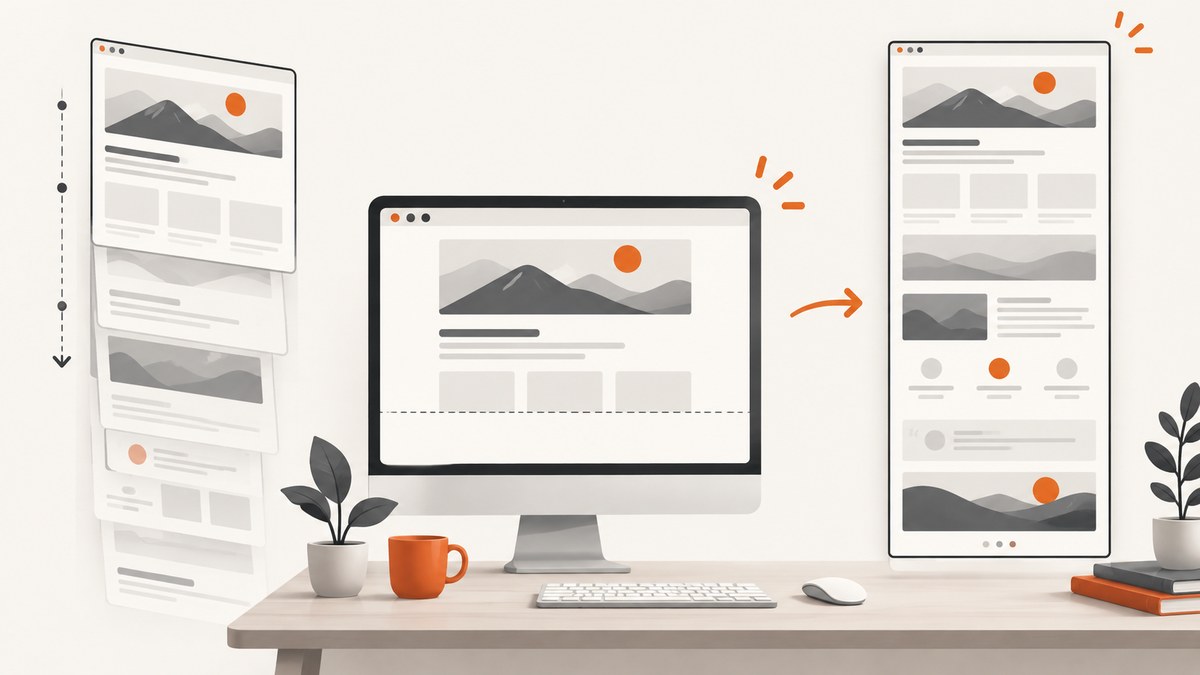
When a full-size screenshot does not work, first identify the output you need: a full webpage, a selected area, or the current viewport. For a full webpage in Chrome, open DevTools, press Ctrl+Shift+P on Windows/Linux (or Command+Shift+P on macOS), search for screenshot, and choose the full-page capture command. Chrome documents several screenshot commands, including full-page, node, and area capture.
1. Confirm what “full-size” means
These terms describe different operations:
| What you need | Use | Typical symptom when the wrong option is used |
|---|---|---|
| Entire webpage, including content below the fold | Full-page screenshot | Only the visible viewport is saved |
| One element such as a card or article | Node or element capture | Extra page content appears around the target |
| A rectangular region | Area capture | Selection cannot be made or capture is disabled |
| A phone’s scrolling screenshot | Device-specific operating-system feature | Browser instructions do not match your controls |
| The original pixel dimensions of an image | Download the source image or capture at the required scale | The screenshot is the right shape but looks soft |
The procedures below address full-page webpage captures. If you mean a phone scrolling screenshot or a full-resolution image from a device, record the device model and operating system before troubleshooting; those workflows are separate.
2. Fix a full-page screenshot in Chrome
- Open the webpage in Chrome and wait for the initial content to render.
- Open DevTools with F12 or the browser menu.
- Open the Command Menu with Ctrl+Shift+P (Windows/Linux) or Command+Shift+P (macOS).
- Type
screenshot. - Choose the command whose name indicates a full-page capture. Do not choose area capture when you need the complete document.
- Wait for the download, then inspect the image from top to bottom.
Chrome’s Command Menu and screenshot documentation are the authoritative references for these commands: Run commands in the Command Menu and Capture screenshots with DevTools.
If area capture is the command that fails
Chrome documents a specific restriction: area capture does not work when DevTools is undocked. Dock DevTools inside the browser window, retry the area command, and keep this diagnosis limited to area capture. Undocking is not evidence of the cause of every full-page failure.
3. Capture the entire page in Firefox
- Open Firefox Developer Tools.
- If the screenshot icon is missing, open Developer Tools settings and enable Take a screenshot of the entire page under Available Toolbox Buttons.
- Click the screenshot button and choose the entire-page capture option.
- Check your Downloads folder. Firefox documents that the image is saved there by default.
See Mozilla’s Taking screenshots documentation for the current toolbox controls.
4. Diagnose the symptom before changing settings
Write down the browser and version, operating system, exact command used, and what the saved file does wrong. This narrows the fault without assuming an undocumented universal cause.
- Only the visible region is present: repeat the Chrome Command Menu workflow and select full-page capture, or use Firefox’s entire-page button.
- A selected rectangle cannot be captured: dock Chrome DevTools, because undocked DevTools prevents area capture.
- Images or text are missing: wait for the page to finish loading, scroll through it once to trigger lazy content, then capture again.
- The bottom of the document is cut off: check whether the page uses an internal scrolling panel. A browser full-page command follows the document; content inside a nested panel may need an element-specific workflow.
- The page is blank or shows a bot check: the site may require an interactive challenge or authenticated session. A screenshot command cannot guarantee access to content the browser did not receive.
- The file does not appear: check the browser’s download location and download permissions, then retry with a simple page.
- The image looks soft: distinguish viewport size from pixel density. Increase the capture scale or use a higher-resolution source when your workflow supports it.
5. Full-page edge cases
Lazy-loaded images
Many pages load images only when they approach the viewport. A screenshot taken immediately after navigation can therefore omit them. Scroll through the page once, wait for image placeholders to resolve, and capture again. For repeatable automation, wait for a selector that identifies the final content instead of relying only on a fixed delay.
Sticky headers and fixed overlays
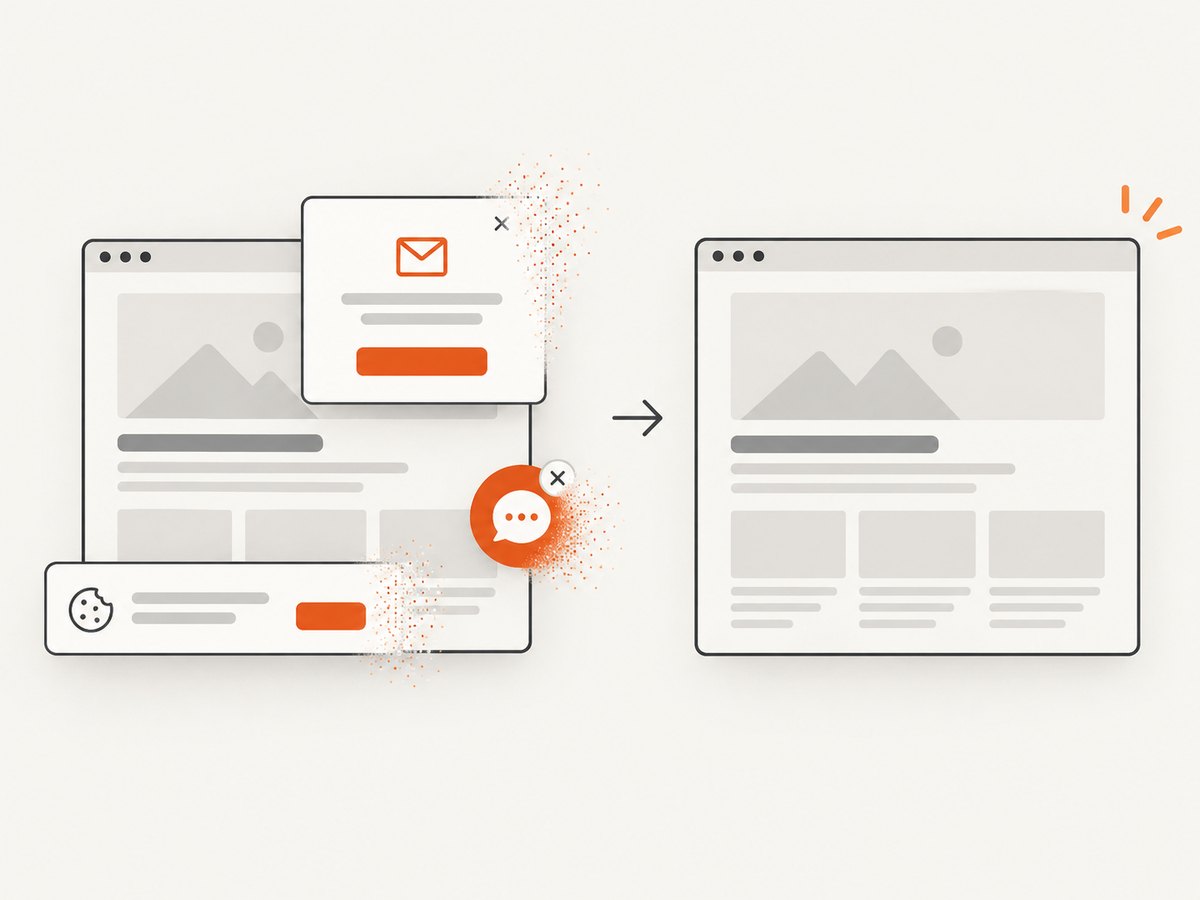
Fixed navigation bars, cookie notices, newsletter popups, and chat widgets can appear in every stitched section. Dismiss them before capture. If the same page must be captured repeatedly, use a workflow that can click consent controls or hide selected elements.
Nested scrolling containers
A page can have a short document with a tall div that scrolls internally. Full-document capture may include only the container’s visible portion. Identify the scrolling element and capture that element, or use a tool that supports element selection and scripted scrolling.
Authenticated and personalized pages
DevTools captures the session currently open in the browser. If a redirect, expired cookie, or permission rule changes the page, the screenshot reflects that state. Confirm the URL, account, cookies, and final rendered content before blaming the capture command.
6. A repeatable browser checklist
- Define full page, element, area, viewport, or phone scrolling output.
- Wait for navigation and important asynchronous content.
- Dismiss consent banners and overlays.
- Use Chrome’s full-page command or Firefox’s entire-page control.
- Dock DevTools when using Chrome area capture.
- Inspect the saved file, including its bottom edge and lazy-loaded regions.
- Record browser, operating system, command, URL state, and symptom if the problem remains.
7. Or skip the browser setup
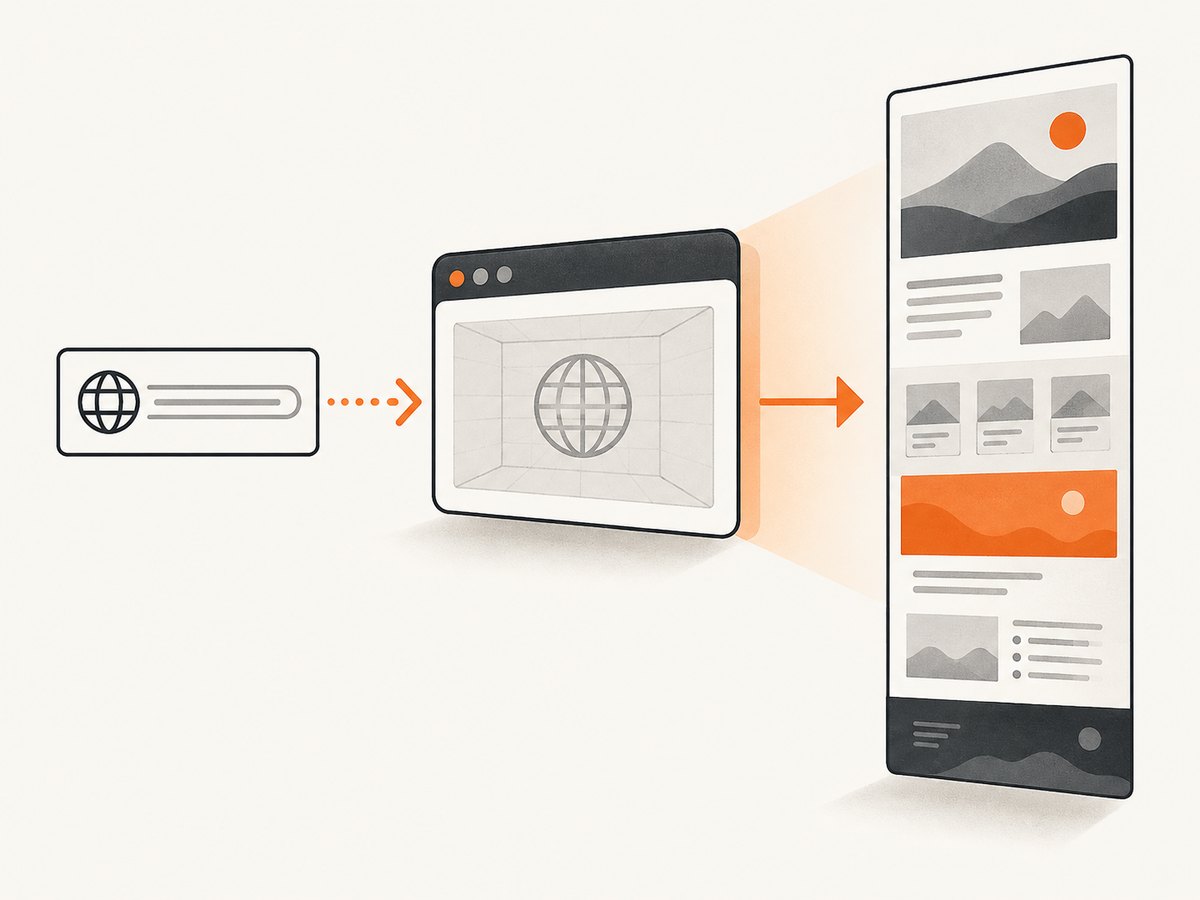
ScreenshotNeo provides a website screenshot API and MCP server. One request returns a PNG, JPEG, WebP, or PDF. Full-page capture loads lazy images, and you can also select an element, wait for a selector or network idle, click before capture, hide selectors, set a viewport or device preset, use dark mode and retina scale, provide cookies or headers, and control blocking, caching, PDFs, and more. See the ScreenshotNeo API documentation for the complete option list.
cURL
curl -G "https://api.screenshotneo.com/v1/shot" -d access_key=YOUR_API_KEY --data-urlencode url=https://stripe.com -o shot.webpPython
import requests
r = requests.get("https://api.screenshotneo.com/v1/shot", params={"access_key": "YOUR_API_KEY", "url": "https://stripe.com"}, timeout=90)
open("shot.webp", "wb").write(r.content)
Node.js
const q = new URLSearchParams({ access_key: 'YOUR_API_KEY', url: 'https://stripe.com' });
const res = await fetch(`https://api.screenshotneo.com/v1/shot?${q}`);
ScreenshotNeo accepts consent banners before capture and removes more than 60 known consent platforms, newsletter popups, and chat widgets. Bot checks, blank pages, timeouts, failed loads, and cache hits cost nothing; response headers identify the page verdict and whether the request was billed with X-Page-Verdict and X-Billed. An MCP server provides take_screenshot, get_page_info, and capture_pdf tools for Claude, Cursor, and other MCP clients. The Free plan includes 1,000 screenshots per month without a card; paid plans start at $5 for 3,000 screenshots. Create a free ScreenshotNeo account.
8. Performance, reliability, and cost
- Browser captures: speed depends on page size, network activity, fonts, scripts, and lazy content. Waiting for completeness improves fidelity but increases elapsed time.
- Repeatability: record viewport, device scale, color scheme, login state, and wait condition so later captures use the same inputs.
- API captures: use selector or network-idle waits for dynamic pages, caching with a chosen TTL for unchanged URLs, and asynchronous jobs with signed webhooks for long-running batches.
- Cost control: cache stable pages, use bulk capture for up to 100 URLs per call, and inspect
X-BilledandX-Page-Verdictwhen diagnosing usage. ScreenshotNeo bills only clean shots; failed loads and cache hits are not billed.
9. Troubleshooting API captures
| Symptom | Likely cause | Fix |
|---|---|---|
| Blank output | The target returned no usable page | Inspect the verdict header, verify the URL, and try a wait condition. |
| Consent or chat overlay remains | The page uses an unsupported or custom overlay | Use a click action or hide selector; report the selector from the rendered page. |
| Images are incomplete | Lazy loading has not finished | Enable full-page loading and wait for a selector or network idle. |
| Private page redirects | Missing cookies, headers, or Authorization | Pass the required authentication inputs and confirm the final URL. |
| Unexpected charge | The response was a clean capture rather than a failed load or cache hit | Read X-Billed alongside X-Page-Verdict and review caching. |
10. FAQ
Why does a full-page command produce a viewport-sized image?
The viewport command was likely selected, or the page has content inside a nested scrolling container. Confirm the command name and inspect the page’s scrolling structure.
Does undocking DevTools break every screenshot?
No. Chrome documents the restriction specifically for area capture. Use a docked window when selecting a rectangle.
Where does Firefox save the screenshot?
Firefox documents the Downloads directory as the default location.
Can I capture a page that needs a login?
Yes, when the browser or API request supplies a valid authenticated session. Verify cookies, headers, and the final rendered URL.
When should I use an API instead of DevTools?
Use an API when captures must run repeatedly, include controlled waits and cleanup, or be generated by scripts and AI agents rather than a person at a browser.


