How to Fix Google Charts’ “Your Browser Does Not Support Charts” Error in Puppeteer
A custom user-agent can trigger Google Charts’ browser error in Puppeteer. Follow this diagnostic sequence for user-agent, loading, console and iframe issues.
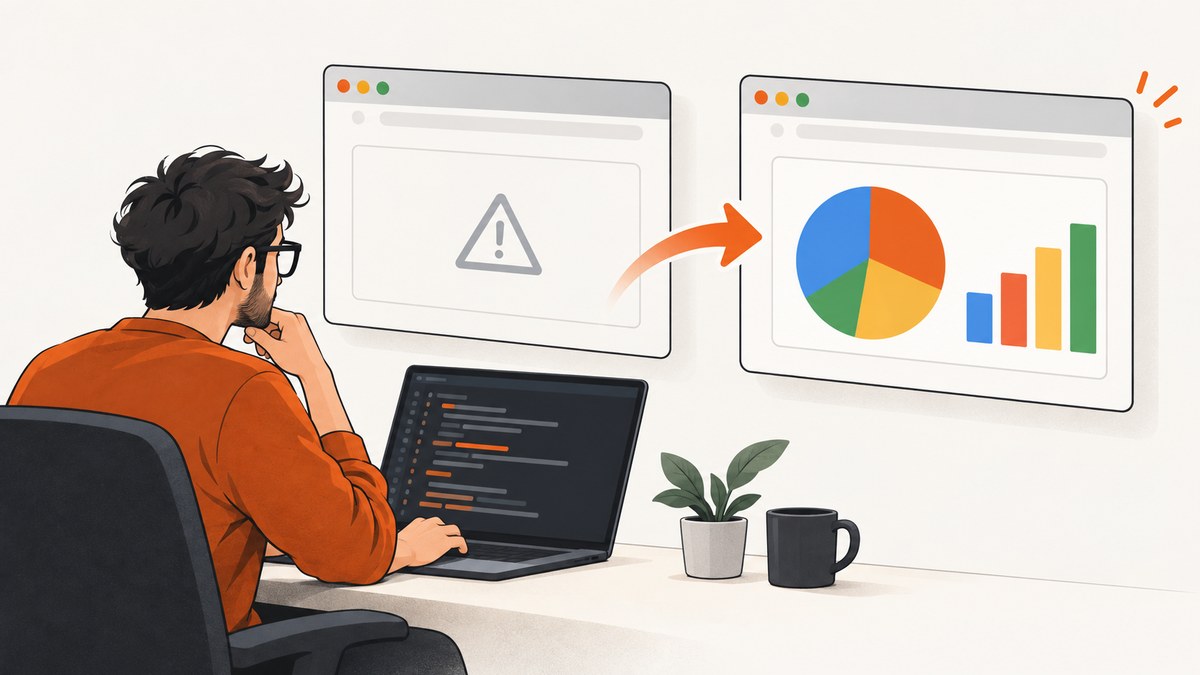
Start with the user-agent. In a Stack Overflow report matching this exact error, removing a custom user-agent fixed the chart. That is a reported cause for one Puppeteer setup, not a universal explanation. If your page still fails, verify that Google Charts has finished loading before drawing, then inspect console errors, failed requests, iframes and domain settings.
This guide gives you a repeatable way to isolate each cause without assuming that Puppeteer, headless mode or a particular browser flag is responsible.
1. Remove or compare the custom user-agent first
Search your Puppeteer code for page.setUserAgent(), browser context configuration, proxy middleware and application code that changes request headers. Run a diagnostic capture with the override removed:
import puppeteer from 'puppeteer';

const browser = await puppeteer.launch({ headless: true });
const page = await browser.newPage();

// Diagnostic run: do not call page.setUserAgent().
await page.goto('https://example.com/chart.html', {
  waitUntil: 'networkidle2',
  timeout: 60_000
});

await page.screenshot({ path: 'chart.png', fullPage: true });
await browser.close();
Do not replace the value with a made-up “correct” browser string. The report identifies removal of the custom value as the fix in that case; it does not establish a universal required user-agent. If you need a user-agent for another part of your application, compare two runs while keeping every other variable unchanged:
const withDefaultAgent = await browser.newPage();
await withDefaultAgent.goto(CHART_URL, { waitUntil: 'networkidle2' });

const withOverride = await browser.newPage();
await withOverride.setUserAgent('your existing value');
await withOverride.goto(CHART_URL, { waitUntil: 'networkidle2' });
Save the HTML, screenshot and console output from both runs. A difference that appears only after setUserAgent() makes the override the strongest suspect.
2. Load Google Charts in the documented order
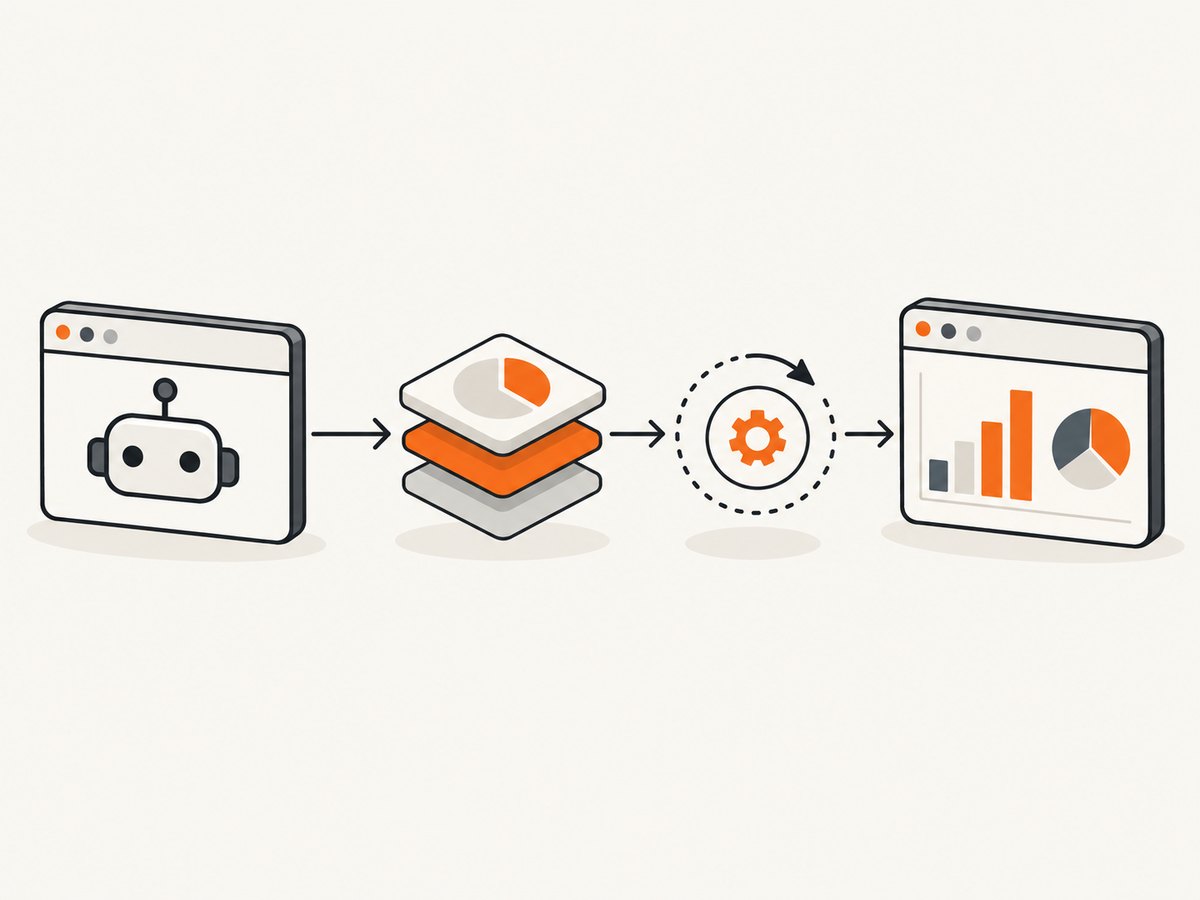
Google Charts loads its packages asynchronously. Include the loader, request the package you use, and draw only after google.charts.setOnLoadCallback() runs or the Promise returned by google.charts.load() resolves. Google documents both approaches in its library-loading guide.
<!doctype html>
<html>
  <head>
    <meta charset="utf-8">
    <script src="https://www.gstatic.com/charts/loader.js"></script>
  </head>
  <body>
    <div id="chart" style="width: 900px; height: 500px"></div>
    <script>
      google.charts.load('current', { packages: ['corechart'] });
      google.charts.setOnLoadCallback(drawChart);

      function drawChart() {
        const data = google.visualization.arrayToDataTable([
          ['Month', 'Revenue'],
          ['Jan', 1000],
          ['Feb', 1170],
          ['Mar', 660],
          ['Apr', 1030]
        ]);

        const chart = new google.visualization.ColumnChart(
          document.getElementById('chart')
        );
        chart.draw(data, { title: 'Revenue' });
        document.body.dataset.chartReady = 'true';
      }
    </script>
  </body>
</html>
Calling drawChart() immediately after google.charts.load() is a race: the loader request may have completed only partially. Waiting for Puppeteer’s general load event also does not prove that the chart package is ready.
Wait for a chart-specific readiness signal
await page.goto(CHART_URL, {
  waitUntil: 'domcontentloaded',
  timeout: 60_000
});

await page.waitForFunction(() => {
  return document.body.dataset.chartReady === 'true';
}, { timeout: 60_000 });

await page.screenshot({ path: 'chart.png' });
A readiness attribute, a known SVG element or a framework-specific completion event is more reliable than an arbitrary delay. If you control the page, add a deterministic marker after chart.draw().
3. Capture browser console and page errors
When removing the user-agent does not help, collect evidence from the page instead of changing several flags at once. The following records console messages, uncaught page exceptions and failed requests:
import puppeteer from 'puppeteer';

const browser = await puppeteer.launch({ headless: true });
const page = await browser.newPage();

page.on('console', message => {
  console.log(`[console:${message.type()}] ${message.text()}`);
});

page.on('pageerror', error => {
  console.error('[pageerror]', error);
});

page.on('requestfailed', request => {
  console.error('[requestfailed]', request.url(), request.failure());
});

page.on('response', response => {
  if (response.status() >= 400) {
    console.error('[http-error]', response.status(), response.url());
  }
});

await page.goto(CHART_URL, {
  waitUntil: 'networkidle2',
  timeout: 60_000
});

await page.screenshot({ path: 'diagnostic.png', fullPage: true });
await browser.close();
Look for a blocked gstatic.com request, a JavaScript exception before the chart callback, a failed data request or a security-policy error. The visible browser message can be a fallback rendered after an earlier exception, so the first console error is often more useful than the message itself.
4. Check iframe and domain assumptions
A separate, historical Google Visualization API discussion describes the same visible message after an “Access denied” exception while accessing an iframe document. That case involved document.domain being set across frames. Treat this as an application-specific or legacy path, not as a general Puppeteer fix.
Inspect your page for:
- Charts rendered inside cross-origin iframes.
- Code that reads or writes
iframe.contentDocumentorcontentWindow.document. document.domainassignments in the parent or child page.- Sandboxed iframes without the permissions required by the chart page.
- Content Security Policy rules that block Google’s loader or chart resources.
Same-origin policy still applies in headless Chromium. If the chart itself is in a third-party iframe, wait for a visible chart inside that frame rather than trying to inspect its private document:
const frame = page.frames().find(f => f.url().includes('charts.example.test'));
if (!frame) throw new Error('Chart iframe was not found');

await frame.waitForSelector('svg, canvas', { timeout: 30_000 });
5. Use a controlled Puppeteer diagnostic page
Reduce the problem to one chart, one package and static data. This separates Google Charts loading from your application’s data, routing and framework code.
import puppeteer from 'puppeteer';

const browser = await puppeteer.launch({ headless: true });
const page = await browser.newPage();

await page.setViewport({ width: 1280, height: 900, deviceScaleFactor: 1 });
await page.goto('file:///absolute/path/chart.html', {
  waitUntil: 'domcontentloaded'
});
await page.waitForFunction(
  () => document.body.dataset.chartReady === 'true',
  { timeout: 30_000 }
);

const dimensions = await page.$eval('#chart', el => ({
  width: el.getBoundingClientRect().width,
  height: el.getBoundingClientRect().height
}));
console.log(dimensions);

await page.screenshot({ path: 'known-good.png' });
await browser.close();
If this works but your production page does not, reintroduce the production user-agent, iframe, data request and other scripts one at a time. This change-one-variable method is a practical diagnostic approach; it is not a published success-rate measurement.
6. Loader versions: current, upcoming and frozen
Google documents current, upcoming and frozen version numbers for the loader. current follows Google’s latest official release. Frozen versions can make a deployment more repeatable, while upcoming is useful for checking a future release. The documentation also directs developers to the gstatic loader rather than the older jsapi loader.
Changing versions is not established by the cited evidence as a fix for this Puppeteer error. Use it only after recording the original failure and only when your application needs version pinning or compatibility testing.
7. Common errors and fixes
| Symptom | Likely cause | Fix |
|---|---|---|
| The exact message appears only with automation | Custom user-agent | Remove page.setUserAgent() for a diagnostic run and compare outputs. |
google.visualization is undefined |
Package has not finished loading | Use setOnLoadCallback or await the loader Promise before constructing the chart. |
| Loader request fails | Network, proxy, CSP or DNS issue | Inspect requestfailed, HTTP status and console output; allow the required Google resource. |
| Chart area is blank | Zero-size container or drawing before layout | Give the container explicit dimensions and wait for the chart-ready marker. |
| “Access denied” precedes the browser message | Iframe or document.domain access |
Keep cross-origin DOM access out of the parent page and wait inside the frame when permitted. |
| Works in Chrome but not in a test | Different page state, timing or headers | Compare URL, user-agent, cookies, viewport, console and network logs one variable at a time. |
8. Performance and reliability considerations
Use waitUntil: 'domcontentloaded' followed by a chart-specific readiness check when the page has long-running analytics or advertising requests. networkidle2 can be useful, but it is not proof that Google Charts has drawn and can be delayed by unrelated activity.
Keep one browser process alive for a batch of captures, but create a fresh page for each URL and close pages in a finally block. Set an explicit navigation timeout and log the URL, status and first error. Avoid arbitrary sleeps as the only synchronization mechanism; a selector or readiness flag makes retries more predictable.
For repeatable output, fix the viewport, device scale factor, timezone and data. Fonts, remote data and third-party scripts can still change a chart between runs. Cache the loader at the browser level where appropriate, but do not hide failed resource requests during diagnosis.
9. Or skip the browser setup
If your goal is a clean image or PDF rather than maintaining Puppeteer, ScreenshotNeo provides a GET-based screenshot API and an MCP server. Its capture pipeline accepts cookie and consent banners before removing more than 60 known consent platforms, newsletter popups and chat widgets. Bot checks, blank pages, timeouts, failed loads and cache hits are not billed, and response headers identify the page verdict and billing result.
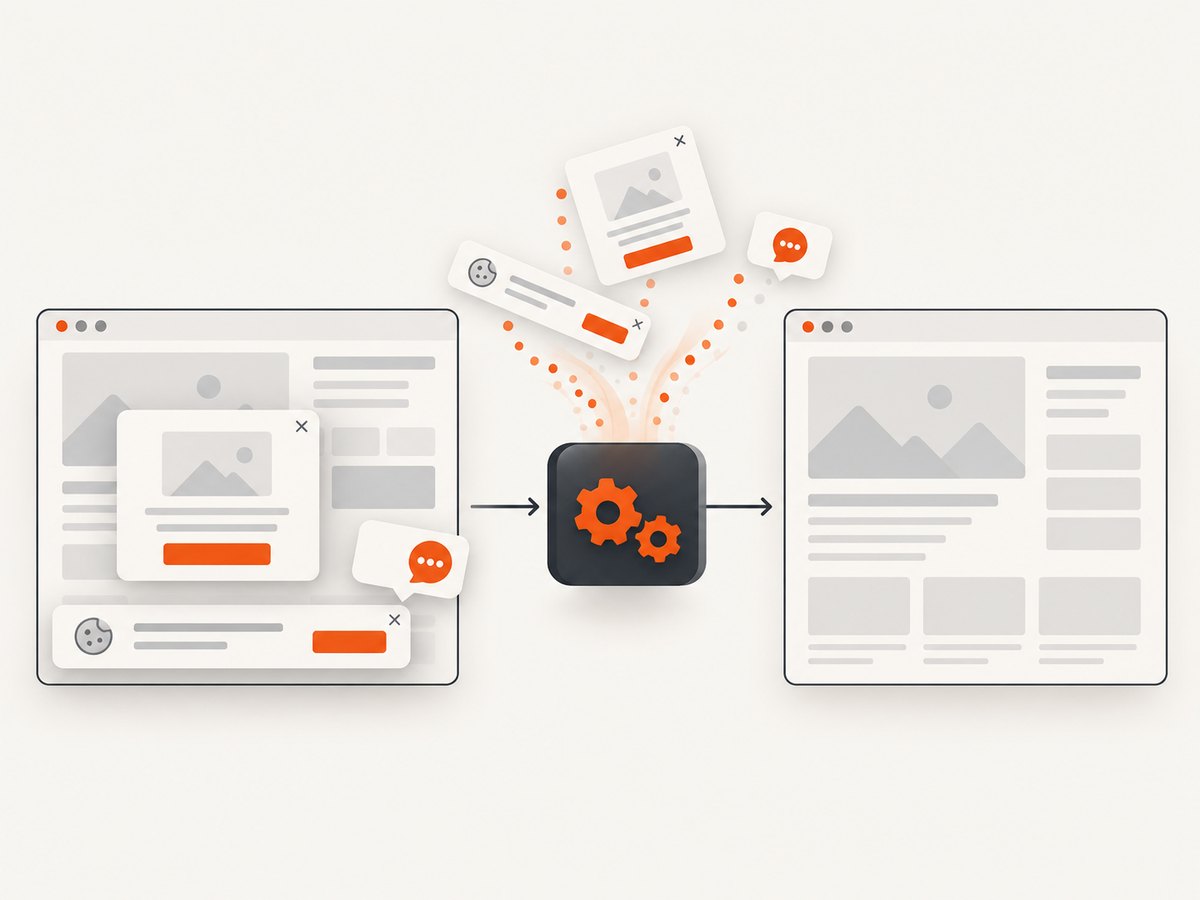
See the ScreenshotNeo API documentation for all options. A minimal request is:
curl -G "https://api.screenshotneo.com/v1/shot" -d access_key=YOUR_API_KEY --data-urlencode url=https://stripe.com -o shot.webpimport requests
r = requests.get("https://api.screenshotneo.com/v1/shot", params={"access_key": "YOUR_API_KEY", "url": "https://stripe.com"}, timeout=90)
open("shot.webp", "wb").write(r.content)const q = new URLSearchParams({ access_key: 'YOUR_API_KEY', url: 'https://stripe.com' });
const res = await fetch(`https://api.screenshotneo.com/v1/shot?${q}`);You can request full-page captures with lazy images loaded, a CSS-selected element, dark mode, device presets or custom viewports, retina scale, PDF output, custom CSS and JavaScript, clicks, selector or network-idle waits, blocked ads and trackers, custom headers and cookies, timezone and geolocation, transparent backgrounds, resizing, caching, signed links, asynchronous jobs, bulk capture and usage data. The MCP server exposes take_screenshot, get_page_info and capture_pdf for Claude, Cursor and other MCP clients.
ScreenshotNeo has 1,000 free screenshots per month with no card. Paid plans start at $5 for 3,000 shots; yearly billing gives two months free. Create a free ScreenshotNeo account to try the API.
10. A short diagnostic checklist
- Remove the custom user-agent and rerun the capture.
- Load
https://www.gstatic.com/charts/loader.js. - Request the package your chart needs.
- Draw only from
setOnLoadCallbackor the loader Promise. - Wait for a chart-specific selector or readiness marker.
- Record console, page, HTTP and failed-request errors.
- Check cross-origin iframe and
document.domaincode. - Compare one variable at a time with a normal Chrome run.
- Use explicit viewport, timeout and cleanup settings.
FAQ
Is Puppeteer unsupported by Google Charts?
The evidence does not establish that. The matching report points to a custom user-agent, while Google’s documentation focuses on asynchronous package loading.
Will headless mode cause this message?
The researched material does not prove that headless mode is the cause. Test headless and headed modes only after checking user-agent and load order.
Should I disable web security?
The matching report says disabling web security did not solve that case. Investigate the actual iframe and domain access error instead.
Does switching from current to a frozen version fix it?
Google documents version choices, but the supplied evidence does not connect a version change to this specific Puppeteer error.
Can I wait five seconds before taking the screenshot?
A fixed delay may mask a race and fail on a slower run. A callback, Promise, selector or explicit readiness marker is a better synchronization point.


