How to Fix Capture Errors with Google Maps Android API v2
Diagnose blank maps and GoogleMap.snapshot() failures with a practical Android checklist, lifecycle-safe Kotlin code, and logcat commands.

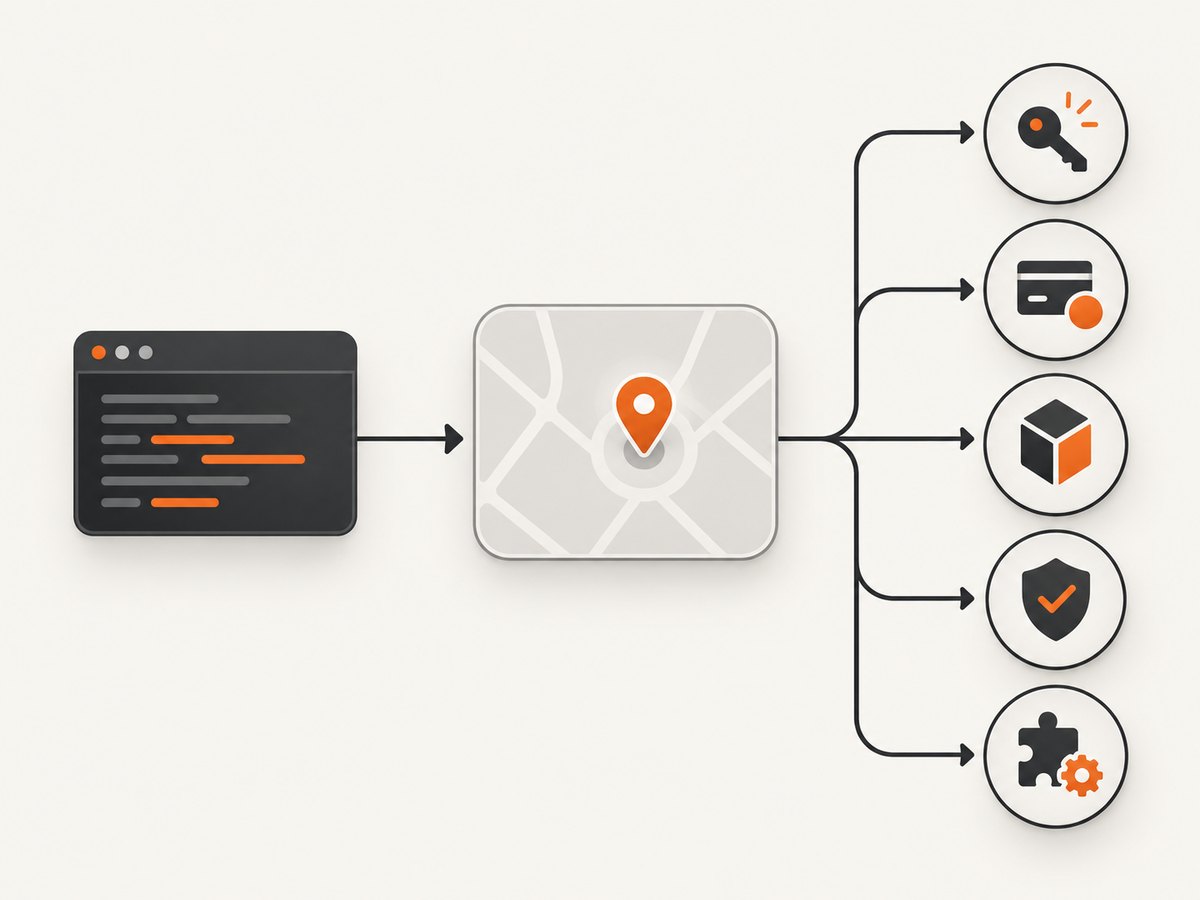
“Capture error” can describe two different failures: the map is blank or gray because it never rendered, or GoogleMap.snapshot() does not return the image you expect. Diagnose those branches separately. First capture the exact Maps log output, Maps SDK dependency version, device or emulator details, and the code path that fails.
1. Identify which capture failure you have
| Symptom | Likely branch | First evidence |
|---|---|---|
| Blank, gray, or missing tiles | Map rendering, credentials, billing, or device configuration | Maps API log lines while reproducing |
snapshot() callback never runs |
Lifecycle, foreground state, thread, or map readiness | Callback code, lifecycle state, and main-thread execution |
| Snapshot is empty or outdated | Capture started before the map finished rendering | Whether OnMapLoadedCallback fired |
| Returned bitmap dimensions differ | Preallocated bitmap was resized before completion | Bitmap dimensions received in the callback |
Google’s current product name is Maps SDK for Android. “Android API v2” is legacy package naming and does not identify your dependency version. Confirm the actual version in Gradle before changing code.
2. Collect the exact diagnostic evidence
Reproduce the issue, then filter device logs with Google’s documented command:
adb logcat -e "Google Maps Android API"Save the complete output around the failure. Also record:
- the effective debug or release signing certificate SHA-1;
- the application ID and manifest metadata;
- the Maps SDK and Google Play services versions;
- Android version, device or emulator image, and whether Google Play services is installed;
- whether the map is in a foreground activity or fragment;
- the exact
snapshot()call and callback implementation.
Do not infer a root cause from the title alone. A key restriction problem and a lifecycle problem produce different evidence.
3. Fix a blank or gray map
3.1 Verify the manifest API key
Ensure the running application references the intended key in AndroidManifest.xml:
<application
    android:name=".App"
    android:hardwareAccelerated="true">

    <meta-data
        android:name="com.google.android.geo.API_KEY"
        android:value="${MAPS_API_KEY}" />
</application>
Check the merged manifest for the build variant you launched. A debug build can use a different manifest or key than release.
3.2 Check the Cloud project
- Enable billing on the Google Cloud project attached to the key.
- Enable Maps SDK for Android for that same project.
- Confirm the key is valid and has not been deleted or restricted to another project.
- Verify the Android application restriction contains the correct package name and signing-certificate SHA-1 fingerprint.
Google requires billing and valid credentials for Maps SDK for Android requests. Review the current Cloud Console usage and billing pages because SKU names and thresholds can change. See the official usage and billing documentation.
3.3 Verify Google Play services and hardware acceleration
Include the Maps SDK dependency and a compatible Google Play services environment. On an emulator, use an image with Google APIs or Google Play; an image without Play services cannot load the normal Maps stack.
dependencies {
    implementation("com.google.android.gms:play-services-maps:<your-version>")
}
Keep hardware acceleration enabled. A disabled hardwareAccelerated flag can prevent map loading:
<application android:hardwareAccelerated="true" ... />These are documented checks, not proof that one item caused your failure. Match each change to the log output and the effective build configuration. Google’s Maps SDK FAQ lists the same diagnostic areas.
4. Capture a rendered map safely with Kotlin
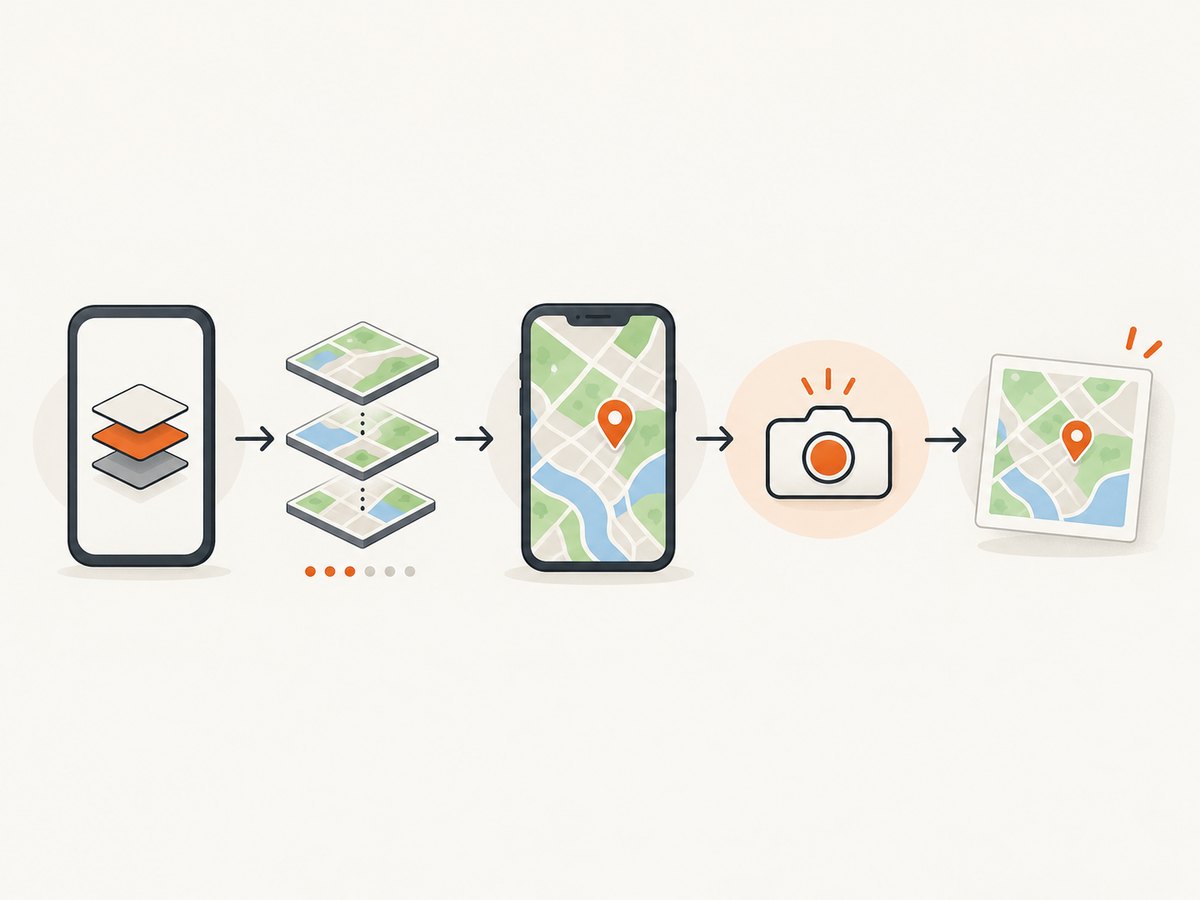
Call GoogleMap.snapshot() on the main thread while the map view or fragment is in the foreground. Wait until the map has finished loading, then consume the bitmap supplied to SnapshotReadyCallback.
class MapActivity : AppCompatActivity(), OnMapReadyCallback {
    private lateinit var map: GoogleMap

    override fun onCreate(savedInstanceState: Bundle?) {
        super.onCreate(savedInstanceState)
        setContentView(R.layout.activity_map)

        val fragment = supportFragmentManager
            .findFragmentById(R.id.map) as SupportMapFragment
        fragment.getMapAsync(this)
    }

    override fun onMapReady(googleMap: GoogleMap) {
        map = googleMap
        map.setOnMapLoadedCallback {
            // This callback is on the main thread and indicates that the map
            // has finished rendering the currently requested view.
            map.snapshot { bitmap ->
                if (bitmap == null) {
                    Log.e("MapCapture", "GoogleMap.snapshot returned null")
                    return@snapshot
                }

                // Use the callback bitmap. Do not assume a preallocated bitmap
                // has the final dimensions.
                val output = File(cacheDir, "map-${System.currentTimeMillis()}.png")
                output.outputStream().use { stream ->
                    bitmap.compress(Bitmap.CompressFormat.PNG, 100, stream)
                }
            }
        }
    }
}
The API reference documents that the operation runs on the main thread and returns its result through SnapshotReadyCallback. If you pass a preallocated bitmap, dimensions can change before capture completes; use the bitmap delivered by the callback.
4.1 Java equivalent
map.setOnMapLoadedCallback(() -> {
    map.snapshot(bitmap -> {
        if (bitmap == null) {
            Log.e("MapCapture", "snapshot returned null");
            return;
        }
        File file = new File(getCacheDir(), "map.png");
        try (FileOutputStream out = new FileOutputStream(file)) {
            bitmap.compress(Bitmap.CompressFormat.PNG, 100, out);
        } catch (IOException e) {
            Log.e("MapCapture", "Unable to write bitmap", e);
        }
    });
});
5. Respect lifecycle and foreground requirements
- Do not call
snapshot()beforegetMapAsync()invokesonMapReady. - Do not capture after the activity or fragment has been stopped or its map view destroyed.
- Start the capture from the main thread. If a worker initiated the request, switch to
runOnUiThreador a main dispatcher. - Keep a strong reference to the map and callback owner until the callback completes.
- Cancel or ignore results when the lifecycle is no longer at least
STARTED.
lifecycleScope.launch {
    repeatOnLifecycle(Lifecycle.State.RESUMED) {
        // Trigger capture only while this block is active.
        withContext(Dispatchers.Main) {
            map.snapshot { bitmap ->
                if (!lifecycle.currentState.isAtLeast(Lifecycle.State.RESUMED)) return@snapshot
                bitmap?.let { saveBitmap(it) }
            }
        }
    }
}
For a one-shot capture, a simpler pattern is to check isFinishing, isDestroyed, and the fragment’s view lifecycle immediately before calling the API, then re-check lifecycle state in the callback.
6. Understand documented snapshot use limits
Google’s API reference says captured map images must not be transmitted to your servers or otherwise used outside the app. If another app or user needs the same map, send data that lets the recipient reconstruct it instead of sending the snapshot. Treat this as an API usage restriction, not merely an implementation detail. Read the GoogleMap.snapshot reference before designing an export or upload workflow.
7. Troubleshooting common errors
| What you see | Cause to investigate | Fix |
|---|---|---|
| Gray grid or no tiles | Wrong key, disabled SDK, billing, SHA-1 restriction, or missing Play services | Run the logcat filter; compare project, key, package, SHA-1, dependency, and emulator image. |
| “Authorization failure” or key error | Key restriction does not match the signing certificate or package | Get the SHA-1 for the exact variant and update the Android restriction. |
| Map works in debug but not release | Release certificate SHA-1 or manifest value differs | Inspect the release merged manifest and register the release fingerprint. |
snapshot() callback is never called |
Map is not ready, view is backgrounded, or call is off the main thread | Call after onMapReady/OnMapLoadedCallback, while foregrounded, on the main thread. |
| Callback bitmap is null | Capture failed or map view became invalid | Log lifecycle transitions, keep the view alive, and retry only after the map is ready. |
| Image is stale or missing markers | Capture started before rendering settled | Wait for OnMapLoadedCallback; add a short, bounded retry only for transient UI timing. |
| Saved image has unexpected size | Preallocated bitmap dimensions changed | Use the bitmap passed to the callback and inspect its width and height. |
| Works on one emulator only | Different Play services, renderer, API level, or network state | Compare images, Play services versions, and logcat output across devices. |
8. Performance, reliability, and cost notes
- Performance: PNG preserves map labels sharply but is larger; JPEG is smaller but loses transparency and introduces compression artifacts. Encode and write the bitmap off the UI thread after the callback returns.
- Reliability: A snapshot is tied to a live foreground map view. Keep capture requests serialized, apply a timeout in your surrounding workflow, and record the map SDK version and device when failures occur.
- Network: A map can be ready only after tiles and overlays load. Test on the same connectivity conditions as production and distinguish tile-loading errors from credential errors in logs.
- Cost: Maps SDK usage is billed by Google Cloud SKU and current project terms. Check the current Cloud Console pricing and usage pages instead of relying on old blog posts.
9. Or skip the browser setup
If your goal is a website screenshot rather than an in-app Google map snapshot, ScreenshotNeo provides a GET endpoint that returns PNG, JPEG, WebP, or PDF. See the ScreenshotNeo documentation for all options.
curl -G "https://api.screenshotneo.com/v1/shot" -d access_key=YOUR_API_KEY --data-urlencode url=https://stripe.com -o shot.webpimport requests
r = requests.get("https://api.screenshotneo.com/v1/shot", params={"access_key": "YOUR_API_KEY", "url": "https://stripe.com"}, timeout=90)
open("shot.webp", "wb").write(r.content)const q = new URLSearchParams({ access_key: 'YOUR_API_KEY', url: 'https://stripe.com' });
const res = await fetch(`https://api.screenshotneo.com/v1/shot?${q}`);ScreenshotNeo removes cookie banners, newsletter popups, and chat widgets before capture. Bot checks, blank pages, failed loads, timeouts, and cache hits are not billed, and response headers identify the page verdict and billing status. Its MCP server lets Claude, Cursor, and other MCP clients call take_screenshot, get_page_info, and capture_pdf. The Free plan includes 1,000 screenshots per month with no card; paid plans start at $5 for 3,000. Create a free ScreenshotNeo account.
10. FAQ
Is “API v2” a separate current SDK?
It is usually legacy naming around the com.google.android.maps.v2 package. Check your Gradle dependency and current Maps SDK documentation.
Can I call snapshot() from a background service?
The map must be attached and foregrounded, and the operation runs on the main thread. A background service without a live map view is not a supported capture context.
Should I upload a snapshot to my server?
No. Google’s API reference documents restrictions against transmitting captured map images or using them outside the app. Send reconstructive map data instead.
Why does changing the API key sometimes do nothing?
The running build may still use another manifest value, project, signing certificate, or application ID. Inspect the merged manifest and reproduce with filtered logcat output.


