How to Fix Google Maps Rendering Issues in wkhtmltopdf
Diagnose blank or partial Google Maps in wkhtmltopdf by separating timing, browser compatibility, and tile-loading failures, then choose a practical fix.
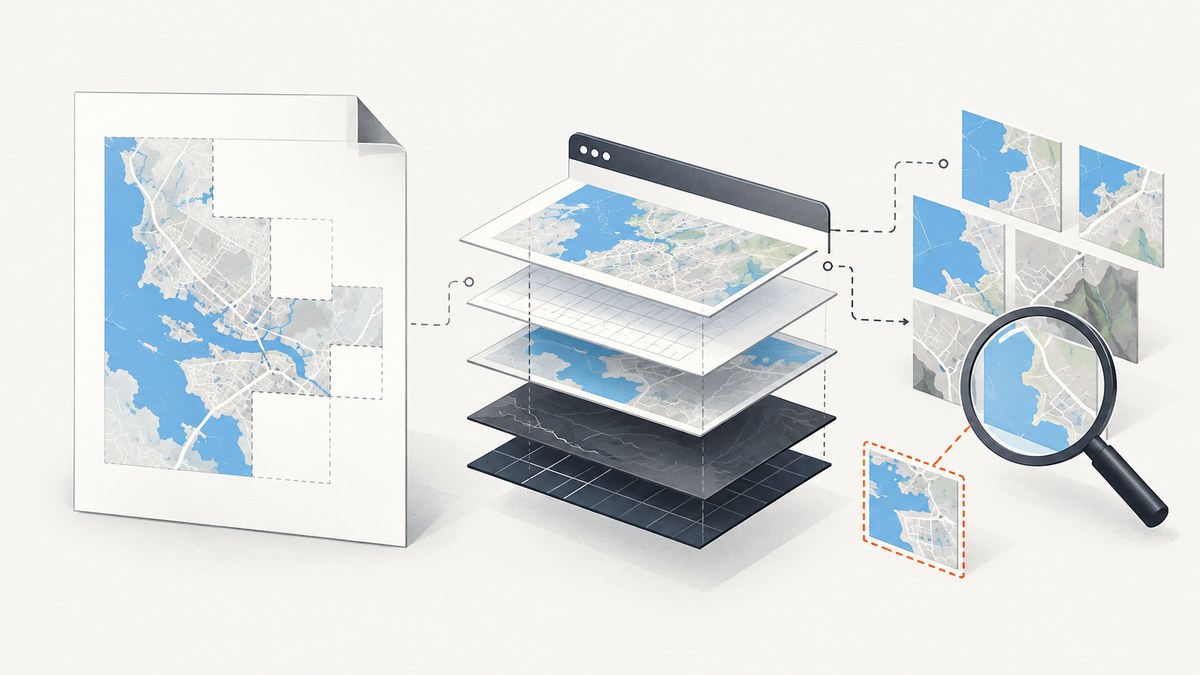
If Google Maps is blank or only partly visible in a wkhtmltopdf PDF, first identify whether the failure is caused by the old embedded browser, unfinished asynchronous rendering, or map tile and image requests. A longer wait can help when the map is still loading, but it cannot make an unsupported browser engine compatible or repair failed network requests.
This guide gives you a diagnostic sequence, runnable commands, and criteria for deciding whether to keep wkhtmltopdf or move the capture to a current browser renderer. The available reports describe particular versions and deployments; none establishes a universal one-command fix.
1. Identify which kind of failure you have
Start by comparing the PDF with the same page in a normal browser, then record the exact wkhtmltopdf version, build and patched-Qt details, operating system, input URL, and relevant logs. Browser success establishes that the page can render in that browser; it does not prove the browser engine embedded in wkhtmltopdf can render it.
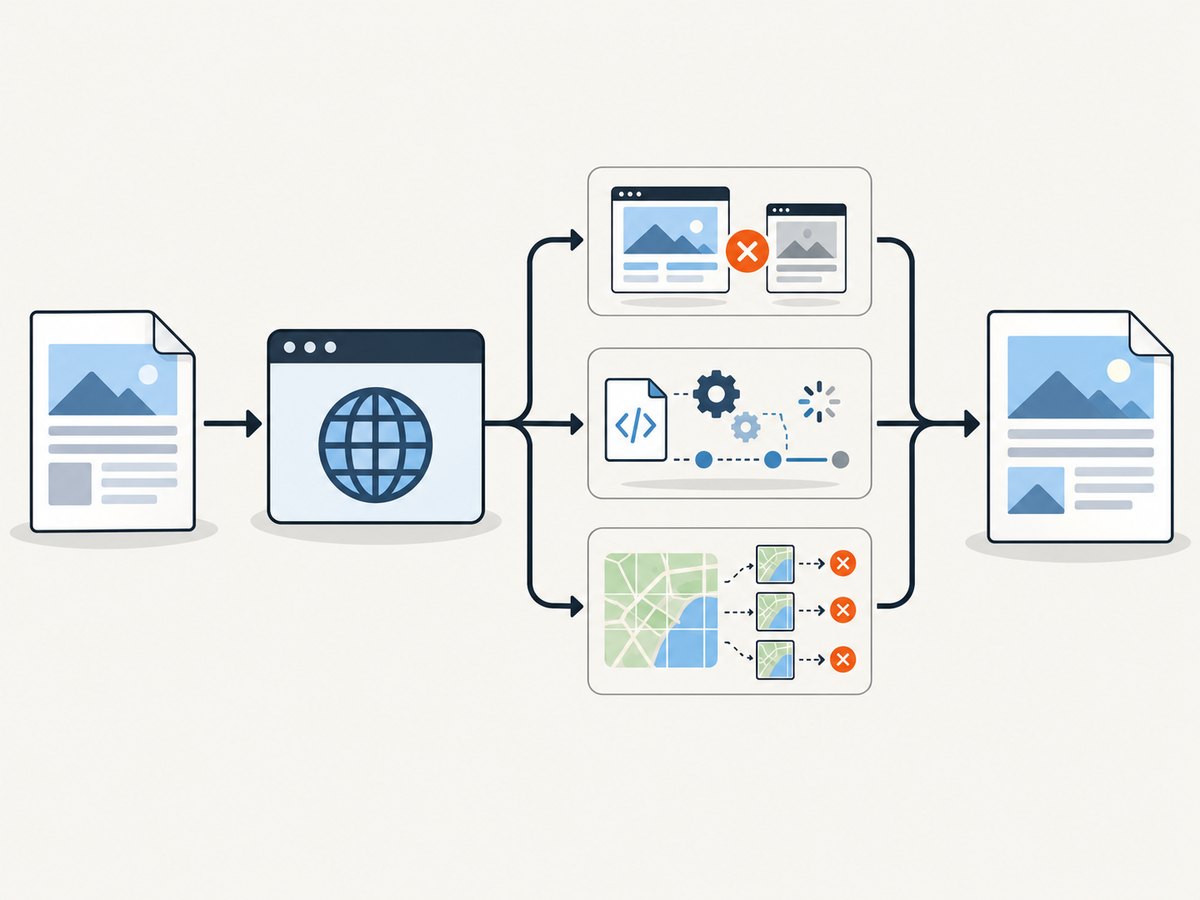
| PDF symptom | Likely area to investigate | Useful next check |
|---|---|---|
| Blank map; console says the Maps JavaScript API does not support this browser | Browser/API compatibility | Enable JavaScript diagnostics and inspect stderr |
| Map appears after a long delay in a browser but is blank or incomplete in PDF | Asynchronous completion or unsupported JavaScript | Check logs, then try a bounded wait as a diagnostic |
| Some tiles or labels appear while other areas are missing | Tile, image, TLS, or network failure | Inspect resource errors and outbound network access |
| Page is blank or mostly empty | Page load, script errors, authentication, or blocked resources | Check the exact URL, JavaScript/image settings, and stderr |
A historical issue reports that a Google browser support/detection change in November 2018 affected Google Maps JavaScript API rendering in wkhtmltopdf 0.12.5 and older. That is evidence of a known compatibility failure, not proof that every missing map has the same cause. See the [reported browser compatibility issue](https://github.com/wkhtmltopdf/wkhtmltopdf/issues/4185).
2. Run wkhtmltopdf with useful diagnostics
Run the conversion from a shell where you can capture stderr. Replace the example URL and output path with your own. The debug option makes JavaScript diagnostics available; review the output for browser rejection messages, script exceptions, and resource failures.
wkhtmltopdf --debug-javascript --javascript-delay 5000 \
  "https://example.com/report" report.pdf 2>wkhtmltopdf.log
The 5-second value is only an example starting point, not a recommended universal setting. Check the installed binary’s options with wkhtmltopdf --extended-help, since builds and packaging can differ. Inspect wkhtmltopdf.log after each run and change one variable at a time.
Confirm JavaScript and image loading are enabled. The official settings reference documents JavaScript and image toggles, JavaScript debug output, the delay setting, and window status behavior: wkhtmltopdf command line settings.
3. Test whether this is a timing problem
--javascript-delay is a wait control. According to the settings documentation, wkhtmltopdf waits after page load until the requested time has elapsed or JavaScript calls window.print(). It gives asynchronous work more time; it does not add browser features or make Google accept an unsupported engine.
Try a bounded delay only when logs and observation suggest the map is still completing work. For a page you control, you can instead signal a known ready state and ask wkhtmltopdf to wait for it:
// In page code, after the map and the content you need are ready:
window.status = 'map-ready';
# Wait for the status value set by your page:
wkhtmltopdf --window-status map-ready \
"https://example.com/report" report.pdfUse a status that your page sets only after the required map content is ready. Do not assume a generic load event means map tiles have finished. A 2019 issue report says that increasing the delay did not resolve one patched-Qt map failure; treat that as a reminder that waiting is not a compatibility fix, not as a claim about every build. See the [case report](https://github.com/wkhtmltopdf/wkhtmltopdf/issues/4462).
4. Check map and tile compatibility
Google documents two map rendering paths: raster maps use server-generated raster image tiles, while vector maps use client-side WebGL. JavaScript maps attached to a div default to raster; the <gmp-map> element defaults to vector. Which path matters depends on how the page creates its map. A vector/WebGL requirement is a reason to validate with a modern browser renderer; changing a map setting is not a general repair for wkhtmltopdf.
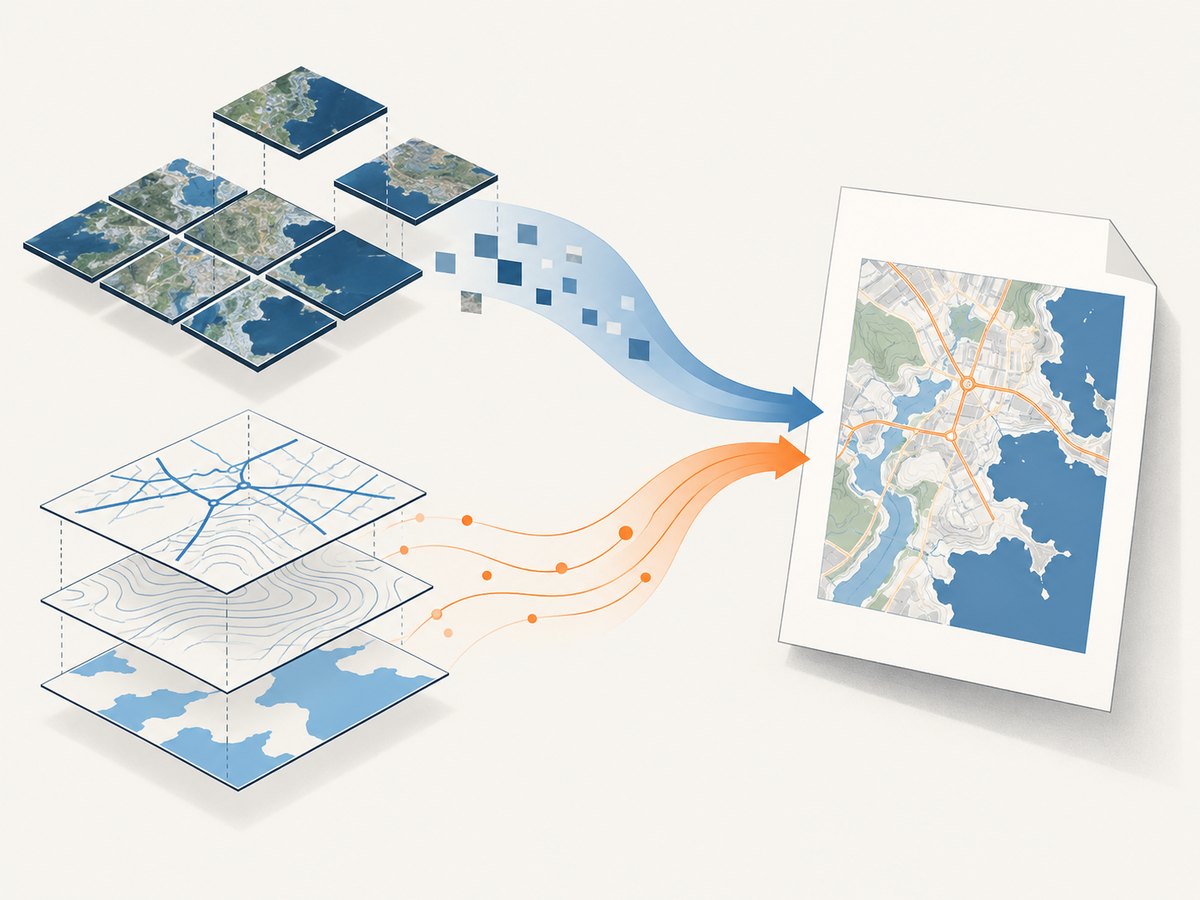
See Google’s [map rendering type documentation](https://developers.google.com/maps/documentation/javascript/map-rendering-type) for the rendering modes and defaults. A 2018 wkhtmltopdf issue also describes partial tiles and HTTPS image-load errors in one 0.12.5 setup. The reporter said HTTP or a 0.13.0 alpha worked in that tested configuration; this is a case-specific report, not a safe production prescription. See the [partial tile issue](https://github.com/wkhtmltopdf/wkhtmltopdf/issues/3908).
Inspect whether your conversion environment can reach the map API and tile hosts over HTTPS. Check DNS, outbound firewall rules, proxy configuration, TLS certificate validation, and any custom tile endpoints. Do not weaken transport security or switch to HTTP as a generic workaround.
5. Check the deployment, not just the command
Google Maps API keys can be restricted by referrer or application context. A conversion running on a server may not have the same origin or identity as your local browser. Verify that the key and restrictions are valid for the renderer’s environment, and check authentication if the map sits behind a login. Also verify that cookies, custom headers, fonts, and other report assets reach the conversion process as expected.
Keep a small reproduction page and run it in the same container, operating system, network, and wkhtmltopdf build as production. This separates a page-specific issue from an environment-level difference. Record the output and stderr together; a PDF alone often hides the distinction between missing scripts and missing tile images.
6. Decide whether to upgrade or switch renderers
The wkhtmltopdf downloads page lists 0.12.6 as the stable series and gives June 11, 2020 as its release date. The sources here do not establish that upgrading to 0.12.6 fixes Google Maps, so treat an upgrade as a version/build check and validate the actual page in your environment. See the [official downloads page](https://wkhtmltopdf.org/downloads.html).
If logs indicate browser/API rejection, unsupported script behavior, or a map that depends on browser features the embedded engine lacks, test the page with a current browser-based PDF renderer. The wkhtmltopdf project status page itself recommends considering Puppeteer or its wrappers for dynamic-JavaScript sites. For controlled report generation where dynamic Maps are not necessary, it also names WeasyPrint or Prince as alternatives. These are project recommendations, not guarantees for a particular map page. See the [wkhtmltopdf status guidance](https://wkhtmltopdf.org/status.html).
Compare candidates using the same page and deployment constraints:
- Browser acceptance: does Google accept the renderer’s browser engine?
- Feature support: can it run the page’s JavaScript, map mode, and any WebGL features?
- Network: can it fetch map tiles and other assets with valid TLS?
- Completion: can you reliably wait for the content your PDF needs?
- Operational fit: do API key rules, authentication, fonts, layout, runtime, and cost work in the target environment?
Validate page breaks, scaling, headers and footers, fonts, and output size after changing renderers. A map that renders successfully can still make a poor PDF if the map is clipped or split across pages.
7. Troubleshooting checklist
| Symptom or error | Cause to investigate | Action |
|---|---|---|
| “The Google Maps JavaScript API does not support this browser” | Embedded browser compatibility or API detection | Capture the exact version/build and validate with a current browser-based renderer; user-agent impersonation is not a confirmed fix |
| Delay increase changes nothing | Compatibility, script error, or resource failure rather than timing | Read debug output and network errors; stop increasing the delay without evidence of unfinished work |
| Map has holes or partial tiles | Image/tile requests failed, including possible TLS or network issues | Check outbound access, proxy, DNS, certificates, and tile request errors |
| Map works locally but not in server PDF | Different key restrictions, origin, credentials, network, or build | Reproduce in the production container and check key restrictions and authenticated assets |
| PDF omits the map although scripts appear to run | Images disabled, map not ready, or rendering mode unsupported | Confirm image loading, inspect map mode, and use an explicit readiness signal if you control the page |
| Upgrade appears to have no effect | Same underlying limitation, different build, or unrelated network fault | Capture version/build details; test the actual page and compare logs rather than assuming an upgrade is a Maps fix |
8. Performance, reliability, and cost
Longer waits increase conversion time and resource use for every document, including pages whose maps are already ready. Use a bounded delay or a page-owned readiness signal so the process can finish promptly when appropriate. A readiness signal must represent the content you actually need, and failures should have a timeout path so jobs do not wait indefinitely.
Map pages depend on external JavaScript and tile requests, so results can vary with network access, API restrictions, page changes, and third-party availability. For reliable reports, log the renderer version, capture diagnostics, set an overall job timeout, and retain a fallback such as an explanatory placeholder or a previously generated static map when business requirements permit it. Confirm that any static-map approach satisfies your licensing and product requirements.
Cost comparisons should include more than the renderer binary: account for compute time, concurrency, retries, browser/container maintenance, and any applicable Maps API usage. The research sources provide no benchmark or pricing comparison, so measure your own representative workload before choosing an architecture. If the page is dynamic and the old engine is the blocker, spending more time on delay tuning may cost more than moving the capture to a compatible renderer.
Or skip the browser setup
ScreenshotNeo is a website screenshot API and MCP server for developers. A single GET request can return a PNG, JPEG, WebP, or PDF. It is an option when you need a capture without managing a browser process; verify that the output and page behavior meet your report requirements. See ScreenshotNeo and the API documentation.
curl -G "https://api.screenshotneo.com/v1/shot" \
  -d access_key=YOUR_API_KEY \
  --data-urlencode url=https://stripe.com \
  -o shot.webp
import requests
r = requests.get(
"https://api.screenshotneo.com/v1/shot",
params={"access_key": "YOUR_API_KEY", "url": "https://stripe.com"},
timeout=90,
)
open("shot.webp", "wb").write(r.content)const q = new URLSearchParams({
access_key: 'YOUR_API_KEY',
url: 'https://stripe.com'
});
const res = await fetch(`https://api.screenshotneo.com/v1/shot?${q}`);
if (!res.ok) throw new Error(`Screenshot request failed: ${res.status}`);
await Bun.write('shot.webp', res);With ScreenshotNeo, cookie banners, popups, and chat widgets are removed before the shot; bot checks, blank pages, and failed loads are never billed. Its MCP server lets AI agents take screenshots. The Free plan includes 1,000 screenshots a month with no card; paid plans start at $5 for 3,000 screenshots. If the maps page has key restrictions or requires authentication, check the docs and confirm the capture environment can access it.
Sign up free for 1,000 screenshots a month, with no card required.
FAQ
Will changing the user agent make Google Maps work?
A historical issue discussion proposed browser impersonation, but the available report does not verify it as a solution. Diagnose the rejection and validate with a supported renderer.
Should I use raster maps instead of vector maps?
Only if your page requirements and implementation support that choice. Google documents different rendering paths and defaults; changing mode is not a general fix for an old embedded browser.
Is wkhtmltopdf 0.12.6 the fix?
The downloads page identifies 0.12.6 as stable, but the cited sources do not say it resolves Google Maps rendering failures. Test the exact page and build.
Can I use a static map in a PDF?
It may be suitable when an interactive map is unnecessary. Check current Google Maps platform terms, attribution, licensing, and your application’s requirements before adopting a static representation.


