How to Fix Grayscale Borders in Html2canvas Exports
Gray borders in html2canvas usually come from pixel alignment, scaling, or unsupported CSS. Diagnose the bitmap, isolate the style, and fix the export.
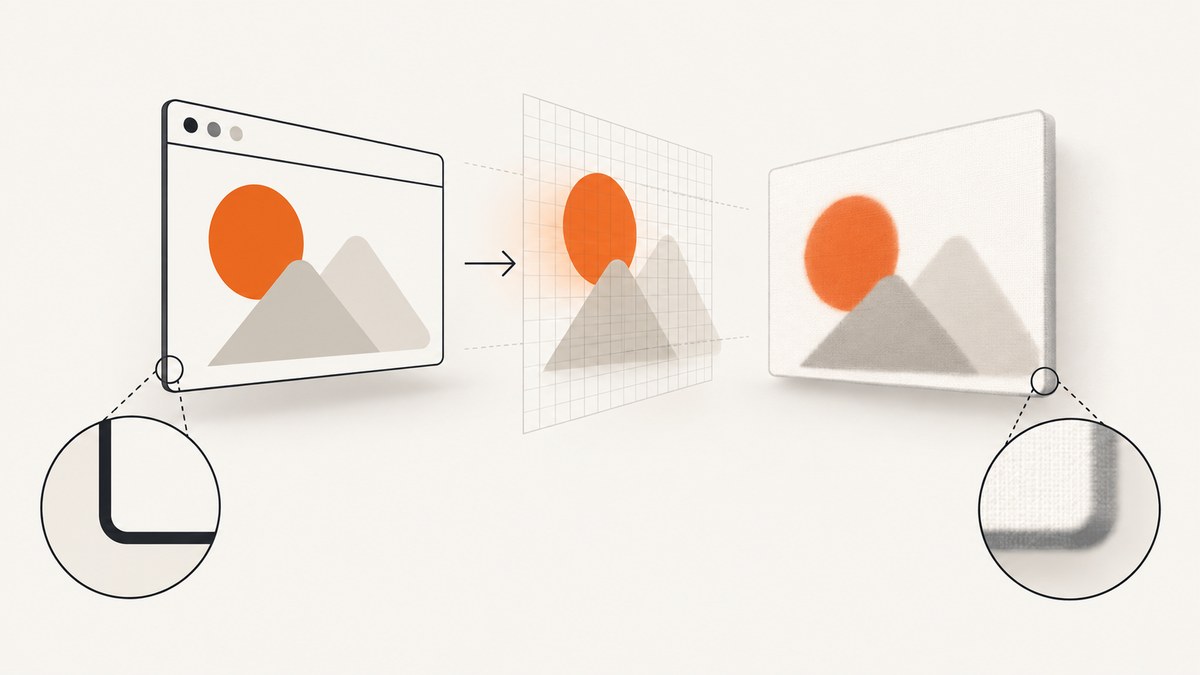
A gray, soft, or dark-looking border in an html2canvas export is usually caused by one of two things: the border lands between output pixels and gets antialiased, or html2canvas is reconstructing a CSS feature or style combination imperfectly. html2canvas does not copy the browser’s already-rendered pixels; it rebuilds an image from the DOM and the CSS it supports. Its CSS support is therefore incomplete.
Start by viewing the exported bitmap at 100% and checking its real pixel dimensions. Then test integer-aligned geometry, the export scale, and the CSS effects applied to the element. If the artifact remains in a minimal reproduction, isolate the triggering property and use onclone for an export-only workaround.
Why html2canvas creates gray borders
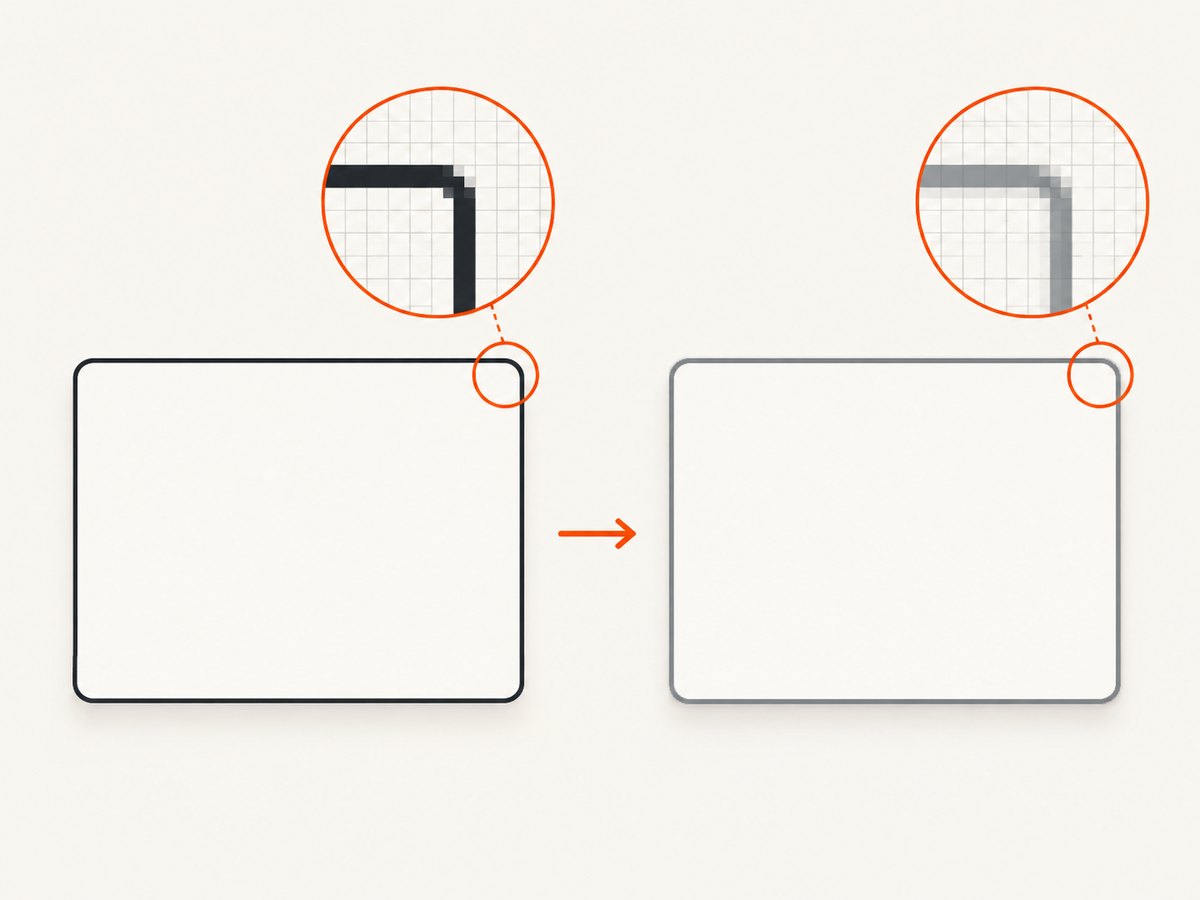
Canvas drawing is performed on a pixel grid. If a border edge, transformed coordinate, or scaled dimension falls between pixels, the renderer blends neighboring pixels. That blend can look gray instead of the expected black or solid border. MDN describes this as a consequence of how coordinates are interpreted as shape boundaries and recommends avoiding floating-point canvas coordinates where possible.
html2canvas adds a second source of differences: it manually implements CSS properties while reconstructing the image. The project FAQ states that every CSS property must be implemented individually, so full CSS support is not possible. A combination such as border-radius and box-shadow can therefore expose a version- or browser-specific artifact.
Useful references are the html2canvas documentation, its FAQ, and MDN’s Canvas drawing tutorial.
Fast diagnosis checklist
- Inspect the bitmap at 100%. Open the downloaded PNG and compare its intrinsic width and height with the CSS size at which you display it. A clean bitmap can look soft if a later
<img>rule resizes it. - Record the export scale. html2canvas defaults to
window.devicePixelRatio. Log the browser’s device-pixel ratio and thescaleoption used for the export. - Check geometry. Look for fractional
getBoundingClientRect()values, fractional borders, transforms, percentage dimensions, and odd scaling factors. - Remove effects one at a time. Temporarily remove
box-shadow,border-radius, transforms, filters, pseudo-elements, and gradients. Restore each property individually. - Build a minimal reproduction. Keep one element, one border, and the smallest stylesheet that still produces the artifact. This distinguishes pixel alignment from a CSS support gap.
- Try a clone-only change. Use
oncloneto alter the cloned document for the export without changing the live page.
A reproducible html2canvas test
Save this as an HTML file, open it in a browser, and click the button. The example logs the element geometry and exports both the default scale and an explicit scale.
<!doctype html>
<html lang="en">
<head>
  <meta charset="utf-8">
  <title>html2canvas border test</title>
  <script src="https://cdn.jsdelivr.net/npm/html2canvas@1.4.1/dist/html2canvas.min.js"></script>
  <style>
    .card {
      width: 320px;
      height: 160px;
      box-sizing: border-box;
      border: 2px solid #111;
      border-radius: 12px;
      box-shadow: 0 8px 24px rgba(0, 0, 0, .18);
      background: white;
      padding: 24px;
      transform: translateZ(0);
    }
  </style>
</head>
<body>
  <article id="card" class="card">Export this card</article>
  <button id="save">Export</button>
  <script>
    document.querySelector('#save').addEventListener('click', async () => {
      const element = document.querySelector('#card');
      const rect = element.getBoundingClientRect();
      console.table({
        left: rect.left,
        top: rect.top,
        width: rect.width,
        height: rect.height,
        devicePixelRatio: window.devicePixelRatio
      });

      const canvas = await html2canvas(element, {
        backgroundColor: '#ffffff',
        scale: window.devicePixelRatio,
        imageSmoothingEnabled: true,
        logging: true
      });

      console.log('bitmap:', canvas.width, 'x', canvas.height);
      const link = document.createElement('a');
      link.download = 'border-test.png';
      link.href = canvas.toDataURL('image/png');
      link.click();
    });
  </script>
</body>
</html>
Compare the downloaded file at 100% with a version where the transform, shadow, and radius are removed. If the plain rectangle is clean and the decorated version is not, the styling combination is the likely trigger.
Fix fractional geometry and scaling
Align dimensions and positions to pixels
Use integer-valued widths, heights, offsets, and border widths where the design permits. Check the actual rendered values rather than only the stylesheet:
const node = document.querySelector('#card');
const rect = node.getBoundingClientRect();
console.log({
  left: rect.left,
  top: rect.top,
  right: rect.right,
  bottom: rect.bottom,
  width: rect.width,
  height: rect.height
});
Fractional values commonly appear after percentage layouts, transforms, flex distribution, zoom, or a parent scale. Try removing the transform and giving the element an explicit integer width and height. If the border is one CSS pixel wide, test a two-pixel border to see whether the artifact is tied to a half-device-pixel position.
Control scale explicitly
The default scale is window.devicePixelRatio. A high-DPI or fractional ratio changes the mapping between CSS pixels and bitmap pixels. Test a known value and compare intrinsic output dimensions:
const canvas = await html2canvas(element, {
  scale: 1,
  backgroundColor: '#fff'
});
console.log(canvas.width, canvas.height);
Then test scale: 2 if you need a denser output. A scale change can reveal an alignment issue, but it cannot add support for a CSS property html2canvas does not implement.
Do not confuse export pixels with display resizing
If the canvas is 641 pixels wide but displayed at 640 CSS pixels, the browser resamples it. Inspect canvas.width and canvas.height, and temporarily display the canvas at its intrinsic size:
const canvas = await html2canvas(element, { scale: 1 });
canvas.style.width = `${canvas.width}px`;
canvas.style.height = `${canvas.height}px`;
document.body.append(canvas);
Isolate CSS features and unsupported combinations
html2canvas’s FAQ explains that each CSS property needs its own implementation. When a minimal rectangle works, add the original styles back in this order:
- Border width, style, and color.
border-radius.box-shadow.- Transforms and opacity.
- Filters, gradients, pseudo-elements, and nested positioned children.
Keep the first property that reintroduces the gray or coarse edge. Check that property’s support in the version you use and reduce it for export if necessary. An individual report describes a coarse dark border when border-radius and box-shadow were combined in html2canvas 1.4.1; that report is evidence of a possible interaction, not a universal rule.
Use onclone for export-only CSS
onclone runs after html2canvas clones the document and before rendering. It lets you remove a shadow, flatten a radius, or change dimensions only in the export copy.
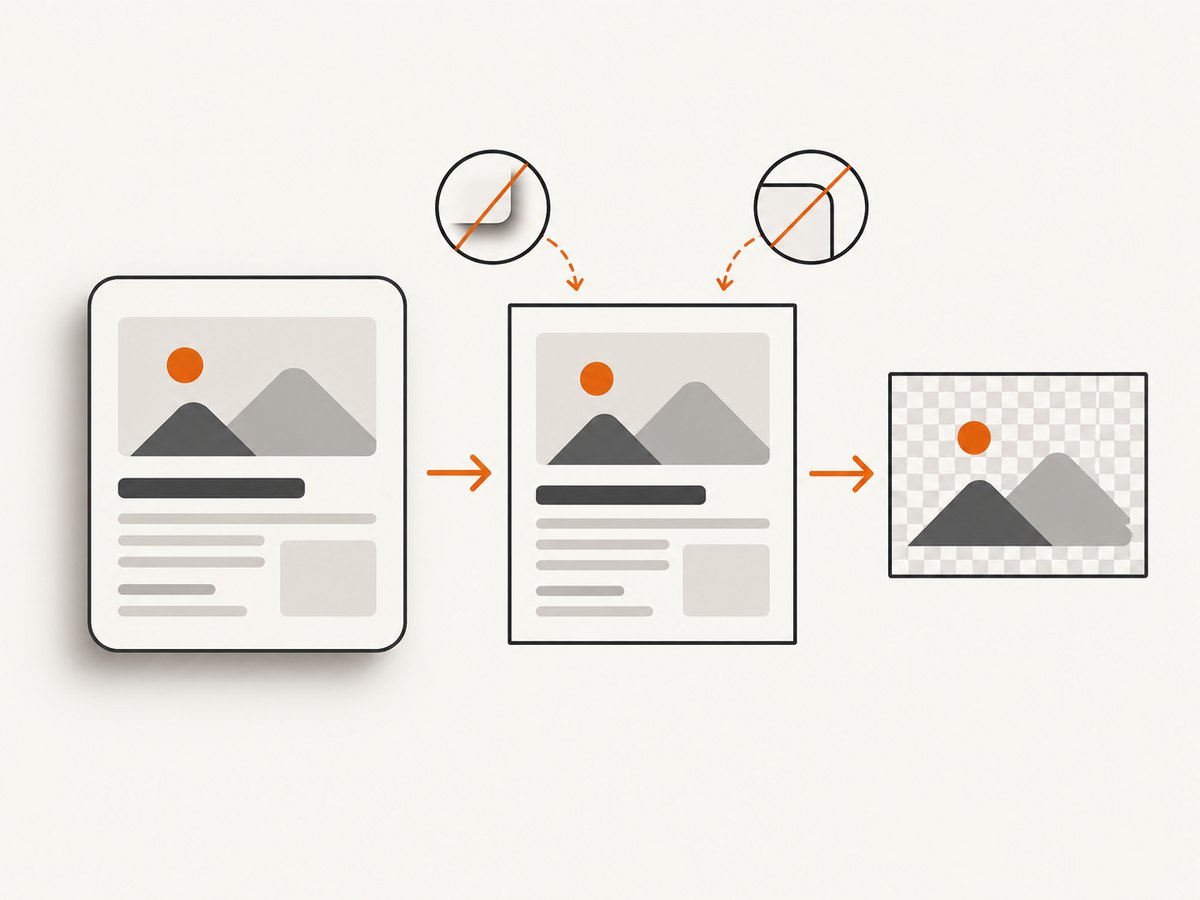
const canvas = await html2canvas(document.querySelector('#card'), {
  onclone(clonedDocument) {
    const clone = clonedDocument.querySelector('#card');
    clone.style.boxShadow = 'none';
    clone.style.borderRadius = '0';
    clone.style.transform = 'none';
    clone.style.width = '320px';
    clone.style.height = '160px';
  }
});
Use this as a diagnostic first. If it fixes the image, decide whether the simplified export is acceptable or whether the effect needs a different implementation, such as a flat border or a pre-rendered asset.
What imageSmoothingEnabled can and cannot fix
Image smoothing controls interpolation when images are scaled. Setting it to false selects nearest-neighbor sampling, which is useful for pixel art or deliberately crisp source images. It is not a universal switch for antialiasing CSS borders.
const canvas = await html2canvas(element, {
  imageSmoothingEnabled: false
});
If the gray edge is on a CSS border, continue investigating geometry, scale, and CSS support instead of relying on this option.
Common errors and fixes
| Symptom | Likely cause | Fix |
|---|---|---|
| Border is gray only on one side | That edge lands on a fractional device pixel | Log getBoundingClientRect(); remove transforms and use integer dimensions or a tested scale. |
| Entire export looks soft | Canvas or image is displayed at a different size than its bitmap | Compare intrinsic and displayed dimensions; avoid fractional CSS resizing. |
| Artifact appears only with radius and shadow | CSS interaction in the reconstruction path | Remove one effect, test separately, and use onclone to simplify the export. |
Changing imageSmoothingEnabled does nothing |
The problem is a CSS edge, not scaled image content | Test alignment and CSS support instead. |
| Styles are missing in the export | html2canvas cannot reproduce a property or external resource | Create a minimal reproduction, verify resource access, and replace unsupported styling for export. |
| Different browsers produce different borders | Different device-pixel ratios, rasterization, or html2canvas support paths | Record browser, version, DPR, scale, bitmap size, and the smallest failing markup. |
| Export fails or is blank | Resource loading, cross-origin restrictions, a timeout, or a page too large for the browser canvas | Check the console and network panel, verify image origins and loading, and reduce the reproduction before changing styles. |
Performance and reliability notes
- Capture only the element needed when a full-page image is unnecessary. Smaller DOM trees and bitmaps finish faster and use less memory.
- Wait until fonts, images, and dynamic content have settled before calling html2canvas. A screenshot taken during layout changes can produce misleading geometry.
- Use an explicit scale that matches the output requirement. Higher scale increases pixel count and memory use.
- Keep a reproducible capture fixture with fixed dimensions, fonts, and content when you need to compare changes.
- For browser extensions, the html2canvas FAQ points to browser-native screenshot APIs as an alternative. Choose that route when you need the browser’s rendered pixels and the extension context provides the required permission.
Or skip the browser setup
If you need a clean website image rather than a DOM reconstruction, ScreenshotNeo returns a PNG, JPEG, WebP, or PDF from one request. Cookie and consent banners are accepted and 60+ known consent platforms, newsletter popups, and chat widgets are removed before capture; each cleanup step can be turned off. Bot checks, blank pages, failed loads, timeouts, and cache hits are not billed, and the response identifies the result with X-Page-Verdict and X-Billed headers. Its MCP server provides take_screenshot, get_page_info, and capture_pdf for Claude, Cursor, and other MCP clients.
See the ScreenshotNeo API documentation for the complete option list.
cURL
curl -G "https://api.screenshotneo.com/v1/shot" \
  -d access_key=YOUR_API_KEY \
  --data-urlencode url=https://stripe.com \
  -o shot.webp
Python
import requests

r = requests.get(
    "https://api.screenshotneo.com/v1/shot",
    params={"access_key": "YOUR_API_KEY", "url": "https://stripe.com"},
    timeout=90,
)
r.raise_for_status()
open("shot.webp", "wb").write(r.content)
Node.js
const q = new URLSearchParams({
  access_key: 'YOUR_API_KEY',
  url: 'https://stripe.com'
});
const res = await fetch(`https://api.screenshotneo.com/v1/shot?${q}`);
if (!res.ok) throw new Error(`HTTP ${res.status}`);
const bytes = Buffer.from(await res.arrayBuffer());
require('node:fs').writeFileSync('shot.webp', bytes);
ScreenshotNeo includes full-page capture with lazy images loaded, element capture by CSS selector, dark mode, device presets or custom viewports, retina scale, custom CSS and JavaScript, waits, request blocking, headers, cookies, user agents, authorization, timezone, geolocation, resizing, caching, signed links, async jobs, bulk capture, usage data, and an OpenAPI specification. Its parameter names also match those used by other screenshot APIs, which makes switching easier.
The Free plan includes 1,000 shots per month with no card. Paid plans start at $5 for 3,000 shots; yearly billing gives two months free, and every feature is available on every plan. Create a free ScreenshotNeo account.
FAQ
Is every gray border caused by device-pixel alignment?
No. Alignment is a common explanation, but unsupported CSS or an interaction such as radius plus shadow can produce a similar artifact.
Should I always set scale: 1?
No. Use the scale required by your output. Setting it to 1 is a diagnostic that makes the pixel mapping easier to inspect.
Can CSS alone guarantee a clean html2canvas export?
No. html2canvas reconstructs supported CSS and cannot reproduce every browser feature. Keep a minimal reproduction for the styles that matter.
Does onclone modify my live page?
No. It modifies the cloned document used for rendering, so export-only styles can be tested without changing the visible page.
When should I use a native screenshot API?
Use one when your context is a browser extension or when you need the browser’s rendered pixels instead of a DOM/CSS reconstruction. Confirm that the API is available and permitted in your target context.


