How to Fix Headful Chrome Screenshot Bugs in Puppeteer and Playwright
Fix screenshot differences between headful Chrome, headless runs, and CI by checking the browser, geometry, page readiness, and capture settings.
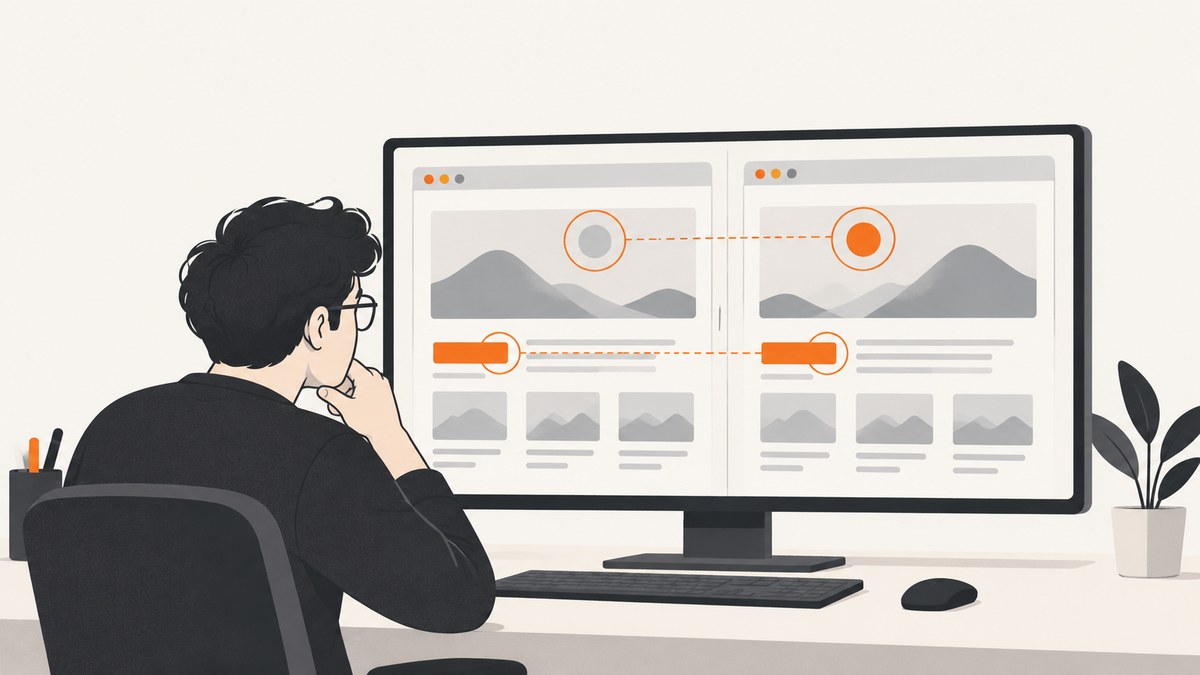
When a Puppeteer or Playwright screenshot differs between headful Chrome and headless mode—or between your machine and CI—make the browser binary, launch mode, viewport, device scale, and capture type explicit first. Then wait for the application state that matters and control dynamic content. Compare runs in the same environment as the baseline before changing visual-diff tolerances.
There is no universal setting that makes every Chrome screenshot pixel-identical across machines. Operating system, browser version, settings, hardware, power source, and headless mode can all affect rendering. The practical fix is to identify which input differs, then reproduce with controlled inputs. Playwright’s visual comparison guide describes these environment differences.
1. Record the inputs before changing code
Save the details for both the good and bad captures. Otherwise, a change to timing, CSS, or diff threshold can mask the actual cause.
- Automation package and version.
- Actual browser version and executable path or channel.
- Operating system or container image.
- Headful, regular headless, or headless-shell mode, plus launch arguments.
- Viewport width and height in CSS pixels, device scale factor, and screenshot output scale.
- Capture type: viewport, clipped region, element, or full page.
- Readiness condition and any screenshot-only styles or animation settings.
- Whether the artifact came from local development or CI.
Start by capturing the same URL and application state in both environments. Preserve the two image files and their logs. If the browser or geometry differs, align those inputs before investigating page CSS.
2. Confirm which Chrome mode and binary actually ran
“Headful” describes how the browser was launched; “Chrome” alone does not identify the executable. Puppeteer defaults to headless. Use headless: false for a visible browser. Puppeteer also offers headless: 'shell', which selects the separate legacy headless-shell binary. Modern Puppeteer headless and headful modes use the same browser code path with Chrome for Testing, but that does not promise identical pixels on different hosts. See the Puppeteer headless modes guide and supported browser table; version mappings change, so check the live table for the installed Puppeteer release.
Playwright installs a regular Chromium build for headed operations and a separate Chromium headless shell for headless operations. Check the Playwright browser guide, your configured channel, and the actual installation in the runner. A local system Chrome and an automation-downloaded Chromium build are not interchangeable assumptions.
3. Pin viewport geometry and image scale
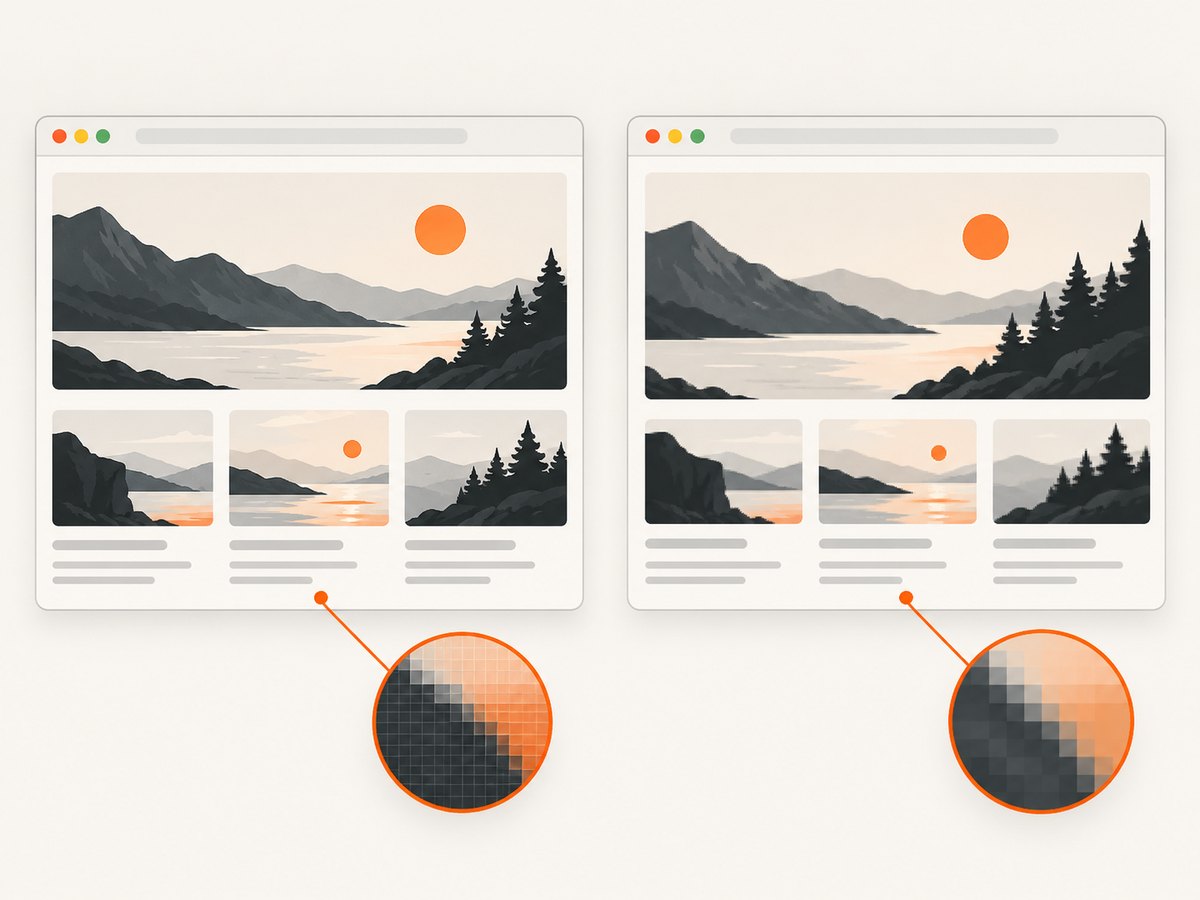
Viewport width and height are CSS pixels. Device pixel ratio determines how many output pixels represent those CSS pixels. If the image dimensions are unexpectedly doubled or otherwise scaled, inspect device scale and screenshot scale before adjusting layout CSS.
Puppeteer’s deviceScaleFactor defaults to 1. Playwright screenshot scale can be 'css' (one output pixel per CSS pixel) or 'device' (one output pixel per device pixel); the documented default is device scale. Match these values to the baseline. References: Puppeteer Viewport and Playwright Page API.
4. Use a meaningful readiness condition
A screenshot can be taken before the page has rendered the state you care about: data may still be loading, a font may not be ready, or a loading indicator may remain. Wait for an observable application condition such as the main content becoming visible, a known loading marker disappearing, or a required font finishing loading.
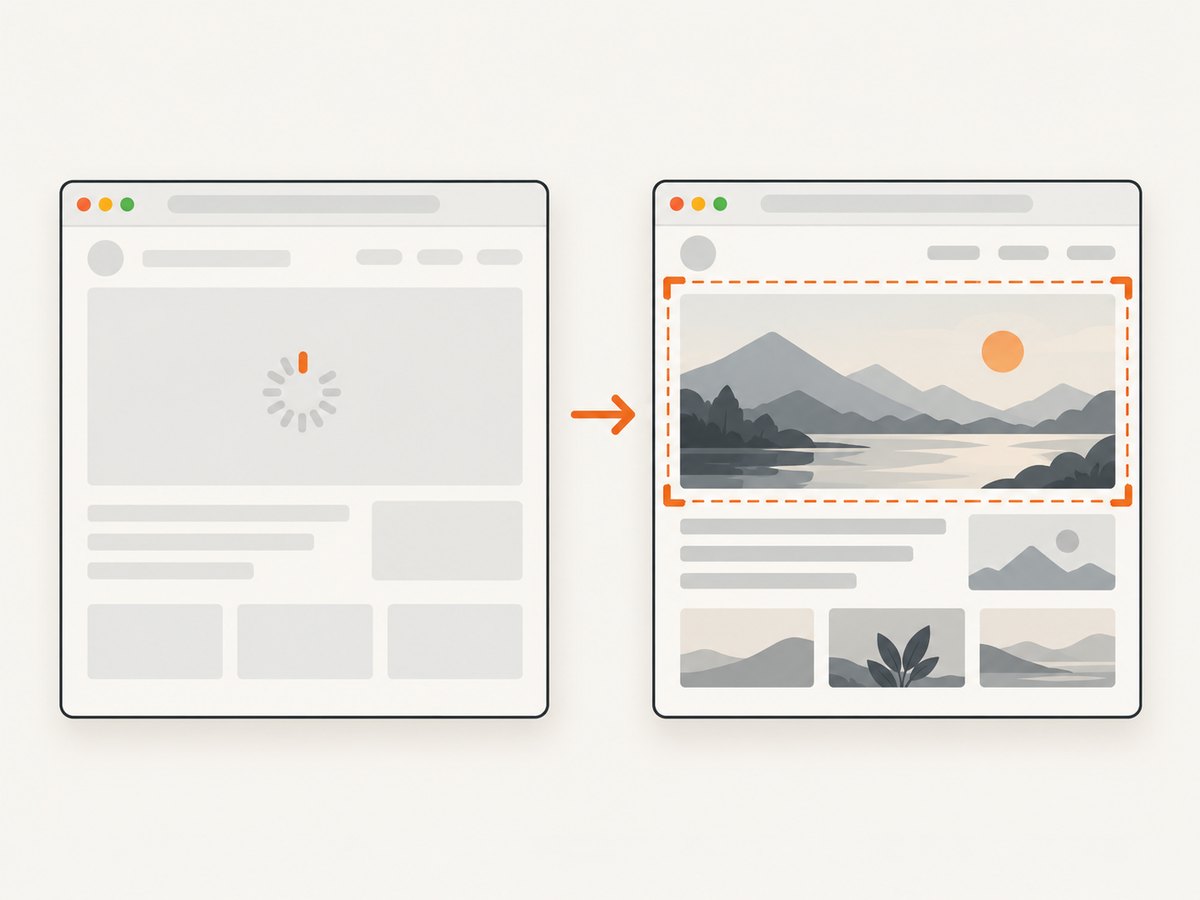
Do not add an arbitrary sleep as the first fix. Network quiet is not a universal signal either: Playwright discourages networkidle for tests and recommends assertions to establish readiness. Puppeteer documents navigation waits such as networkidle2 as one possible step, often followed by waiting for a selector. Choose a condition that reflects your app. See Puppeteer Screenshots and Playwright Page API.
5. Minimal Puppeteer reproduction
This CommonJS example records the browser version, pins the viewport and scale, waits for a page-specific selector, and captures the viewport. Install Puppeteer with npm install puppeteer. Run it with HEADFUL=1 node capture-puppeteer.cjs https://example.com for visible Chrome, or omit HEADFUL for headless. Use HEADLESS_SHELL=1 to explicitly try the shell mode.
const puppeteer = require('puppeteer');

(async () => {
  const url = process.argv[2] || 'https://example.com';
  const headful = process.env.HEADFUL === '1';
  const shell = process.env.HEADLESS_SHELL === '1';
  const headless = headful ? false : (shell ? 'shell' : true);

  const browser = await puppeteer.launch({ headless });
  try {
    console.log('Browser:', await browser.version());
    const page = await browser.newPage();
    await page.setViewport({
      width: 1440,
      height: 900,
      deviceScaleFactor: 1
    });
    await page.goto(url, { waitUntil: 'domcontentloaded' });
    await page.waitForSelector('main', { visible: true, timeout: 15000 });
    await page.evaluate(() => document.fonts.ready);
    await page.screenshot({ path: 'puppeteer.png', fullPage: false });
  } finally {
    await browser.close();
  }
})();
Replace main with a selector that represents completed content on your application. If the page has no such element, wait for a specific app signal exposed in the DOM. The documented Puppeteer screenshot options include fullPage, clip, captureBeyondViewport, and omitBackground; use the same choice for baseline and comparison. See ScreenshotOptions.
6. Minimal Playwright reproduction
Install Playwright and its browsers with npm install playwright and npx playwright install chromium. This script uses a headed browser when HEADFUL=1. Keep the Playwright version and browser installation consistent between local and CI runs.
const { chromium } = require('playwright');

(async () => {
  const url = process.argv[2] || 'https://example.com';
  const browser = await chromium.launch({
    headless: process.env.HEADFUL !== '1'
  });
  try {
    console.log('Browser version:', browser.version());
    const context = await browser.newContext({
      viewport: { width: 1440, height: 900 },
      deviceScaleFactor: 1
    });
    const page = await context.newPage();
    await page.goto(url, { waitUntil: 'domcontentloaded' });
    await page.locator('main').waitFor({ state: 'visible', timeout: 15000 });
    await page.evaluate(() => document.fonts.ready);
    await page.screenshot({
      path: 'playwright.png',
      fullPage: false,
      scale: 'css',
      animations: 'disabled',
      caret: 'hide'
    });
  } finally {
    await browser.close();
  }
})();
For headed mode run HEADFUL=1 node capture-playwright.cjs https://example.com. Playwright also supports screenshot-only CSS through its style option, useful for masking volatile regions such as a timestamp or rotating banner. Its screenshot options are Playwright-specific; do not copy their names into Puppeteer without checking that API.
7. Separate viewport, element, and full-page problems
First reproduce with a viewport screenshot. Then switch to the capture mode that actually fails. Full-page capture changes the captured extent and may interact with content that loads as the page is scrolled or resized. An element capture can scroll the element into view. A clipped screenshot depends on the exact clip rectangle. These are distinct capture paths, so success with a viewport image does not prove full-page behavior is correct.
| Symptom | Check |
|---|---|
| Image has unexpected dimensions | CSS viewport, device scale factor, Playwright scale, and output metadata. |
| Bottom of page is missing | Whether full-page capture is enabled, document height at capture time, and lazy content readiness. |
| Element is cut off | Element bounds, overflow clipping, clip rectangle, and whether the correct element was captured. |
| Transparent areas turn solid | Background and omitBackground behavior, along with page CSS. |
For a full-page issue, wait for the content that expands the document before capturing. For an element issue, log its bounding rectangle with getBoundingClientRect() and compare it between runs.
8. Control animation and changing page content
Animations, blinking carets, timestamps, rotating banners, and live counters can make two valid captures differ. Playwright supports animations, caret, and screenshot-only style options. For visual assertions, expect(page).toHaveScreenshot() waits for two consecutive screenshots to match before comparing the final image with its expected snapshot. See PageAssertions.
Use these controls deliberately. Disabling animations can change the state being tested, so decide whether the purpose is to check stable layout or animation behavior. In Puppeteer, implement equivalent stabilization with application state or CSS injected for the capture; do not assume Playwright option names exist there. For both tools, mask or suppress only content known to vary by design. Preserve meaningful changes so visual checks still catch regressions.
9. Align the baseline and CI environment
Generate and compare baselines in the same operating system or container image, browser build and version, settings, viewport, scale, and capture mode. Playwright’s visual comparison guidance recommends using the same environment as the baseline because rendering varies with host OS, browser version, settings, hardware, power source, and headless mode.
If the discrepancy disappears after aligning environments, record and pin those conditions in the project. If a known harmless rendering variation remains, then adjust the diff policy with a documented reason. Raising the threshold before understanding the mismatch can hide an actual layout regression.
10. Troubleshooting common failures
| Error or symptom | Likely cause | Fix |
|---|---|---|
| Screenshot differs only in headful mode | Different launch mode, browser build, device scale, or host rendering. | Log mode and executable; pin viewport and scale; compare on one host with the same browser build. |
| Works locally but fails in CI | Different OS/container, browser version, settings, or timing. | Install the intended browser version in CI, use the baseline environment, and wait on app readiness. |
| Page is blank or partly rendered | Capture started before app content or fonts were ready, or navigation failed. | Check console and navigation errors; wait for a meaningful locator, app signal, and required fonts. |
| Playwright reports different image size | scale: 'device' output differs from CSS-pixel expectation or device scale is mismatched. |
Set context deviceScaleFactor and screenshot scale explicitly; compare image dimensions. |
| Full-page image is clipped or unexpectedly tall | Wrong capture mode, late document growth, or lazy content not loaded. | Wait for relevant content, inspect document height, and keep full-page configuration the same in both runs. |
| Image diff is noisy on repeated runs | Animations, caret, dynamic content, or unstable readiness. | Wait for app state, disable or freeze animation as appropriate, and mask only intentional variation. |
| Headful launch fails in a CI runner | The environment may not provide a usable display for a visible browser. | Use the runner’s supported display setup or reproduce in headless mode; retain the actual target environment for final comparisons. |
11. Performance, reliability, and cost
Screenshot stability is usually improved by removing uncertainty, not by adding long fixed delays. A selector or application-ready signal can avoid waiting longer than necessary while still preventing early captures. Reuse the same browser build and environment for repeatable output, and close pages and browsers in cleanup blocks so failed captures do not leave processes behind.
Full-page captures and high device scales produce larger images than viewport or CSS-scale captures, so use the smallest capture extent and output scale that meets the task. Capture only required regions where possible. If the workload has many URLs, avoid unbounded parallel browser launches: each browser process consumes resources, and overload can create slow or failed renders. Measure the workload in its actual environment before choosing concurrency. No universal speed or cost figure applies across pages and runners.
Browser automation has infrastructure and maintenance costs: browser installation, environment consistency, process capacity, and artifact storage. Track failures separately from rendering differences, preserve artifacts for diagnosis, and do not treat retries as a substitute for fixing an unstable readiness condition.
Or skip the browser setup
For a one-request screenshot without maintaining a browser runner, ScreenshotNeo is a website screenshot API and MCP server. Its API accepts a URL and returns an image or PDF. See the ScreenshotNeo API docs for parameters and response details.
curl -G "https://api.screenshotneo.com/v1/shot" -d access_key=YOUR_API_KEY --data-urlencode url=https://stripe.com -o shot.webpimport requests
r = requests.get(
"https://api.screenshotneo.com/v1/shot",
params={"access_key": "YOUR_API_KEY", "url": "https://stripe.com"},
timeout=90,
)
open("shot.webp", "wb").write(r.content)const q = new URLSearchParams({
access_key: 'YOUR_API_KEY',
url: 'https://stripe.com'
});
const res = await fetch(`https://api.screenshotneo.com/v1/shot?${q}`);
if (!res.ok) throw new Error(`Screenshot request failed: ${res.status}`);
await require('node:fs/promises').then(fs => fs.writeFile('shot.webp', Buffer.from(await res.arrayBuffer())));ScreenshotNeo removes cookie and consent banners, newsletter popups, and chat widgets before capture; each cleanup step can be turned off. Bot checks and CAPTCHAs, blank pages, timeouts, failed loads, and cache hits are not billed, and response headers identify the page verdict and billing status. Its MCP server provides take_screenshot, get_page_info, and capture_pdf for AI agents. The free plan includes 1,000 screenshots per month with no card; paid plans start at $5 for 3,000 shots. Every feature is available on every plan. Create a free ScreenshotNeo account.
12. FAQ
Does modern headless Chrome guarantee the same pixels as headful Chrome?
No. Shared browser code paths do not make the operating system, hardware, settings, or rendering environment identical.
Should I always wait for networkidle?
No. Use an app-specific readiness condition. Network activity may continue after meaningful content is ready, or stop before the page has finished the work your screenshot needs.
When should I loosen the visual-diff threshold?
After you have aligned environment, browser, geometry, capture path, and page state, and can identify the remaining differences as acceptable variation.
Why does a full-page screenshot differ when a viewport screenshot matches?
Full-page capture covers a different extent and may encounter content that loads on scroll or changes document height. Verify full-page settings and readiness separately.


