How to Fix Headless Chrome Downloads Suspending in Python
Fix a headless Chrome download that stalls in Python by checking the browser’s destination, download permissions, session lifetime, and local or remote setup.
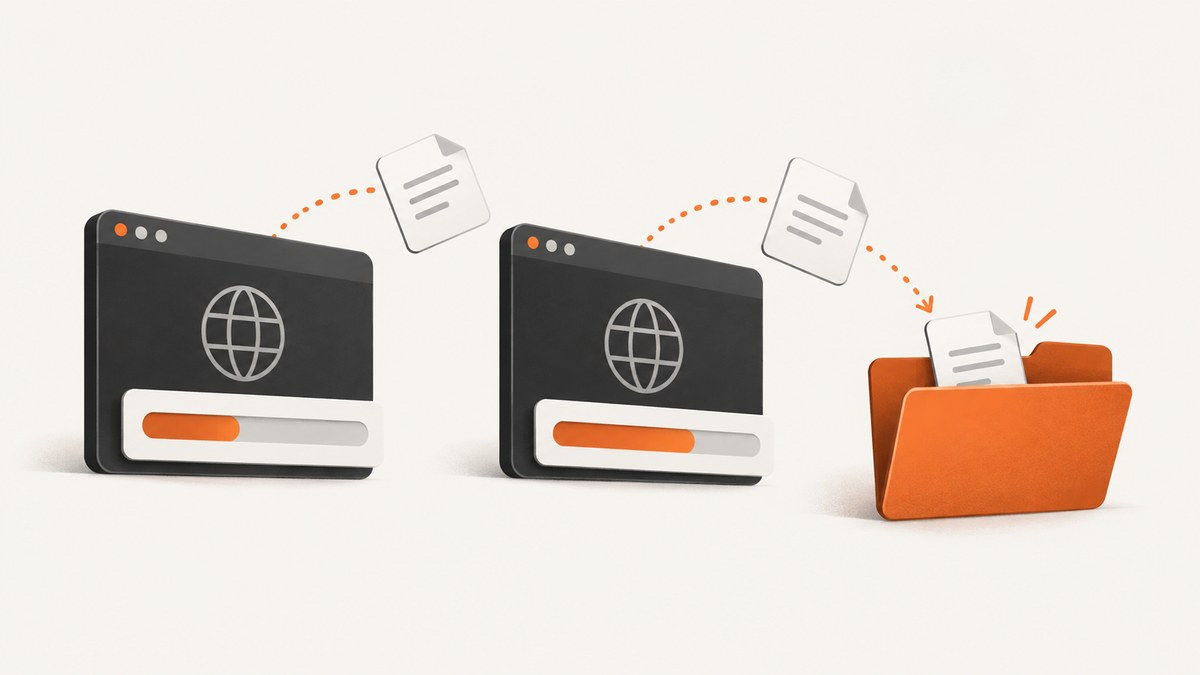
To fix How to Fix Headless Chrome Downloads Suspending in Python, first give Chrome a dedicated, absolute, writable download directory. Then keep the WebDriver session open until the expected file is complete. ChromeDriver explicitly does not wait for downloads before quitting, so an early driver.quit() can end a download in progress. If the file still does not appear, check download permission, whether Chrome runs locally or remotely, and Chrome/ChromeDriver compatibility.
This guide focuses on the symptom “Chrome headless download stuck” and “download stops when driver quits.” A configured folder alone does not prove the site started a download or that the browser can write there. Follow the diagnosis steps in order, then choose the configuration route that fits your Selenium setup.
1. Configure a safe download directory
For a local Selenium session, create the folder before starting Chrome and pass its resolved absolute path using Chrome’s download.default_directory preference. ChromeDriver documents this preference and warns against certain special system directories, including the desktop and, on Linux, the home directory. A unique project or temporary folder is a better destination. On Windows, ChromeDriver recommends backslash path separators.
from pathlib import Path
from selenium import webdriver

out_dir = Path.cwd() / "downloads"
out_dir.mkdir(parents=True, exist_ok=True)

options = webdriver.ChromeOptions()
options.add_argument("--headless=new")
options.add_experimental_option("prefs", {
    "download.default_directory": str(out_dir.resolve()),
    "download.prompt_for_download": False,
    "download.directory_upgrade": True,
})

driver = webdriver.Chrome(options=options)
try:
    driver.get("https://example.com/report")
    # Trigger the site's download here, for example by clicking its export button.
finally:
    driver.quit()
The destination preference is the important part of the folder configuration. The prompt and directory-upgrade preferences are commonly used Chrome settings, but their behavior can vary; confirm them with the Chrome version used by your application. Selenium Manager can manage driver setup in modern Selenium, but the browser still needs a valid destination and permission to write there. See the Selenium Chrome documentation and ChromeDriver capabilities.
The URL and click above are placeholders: replace them with the page and action that actually trigger your download. A page navigation returning successfully does not mean the requested file was downloaded.
2. Wait for the file before quitting Chrome
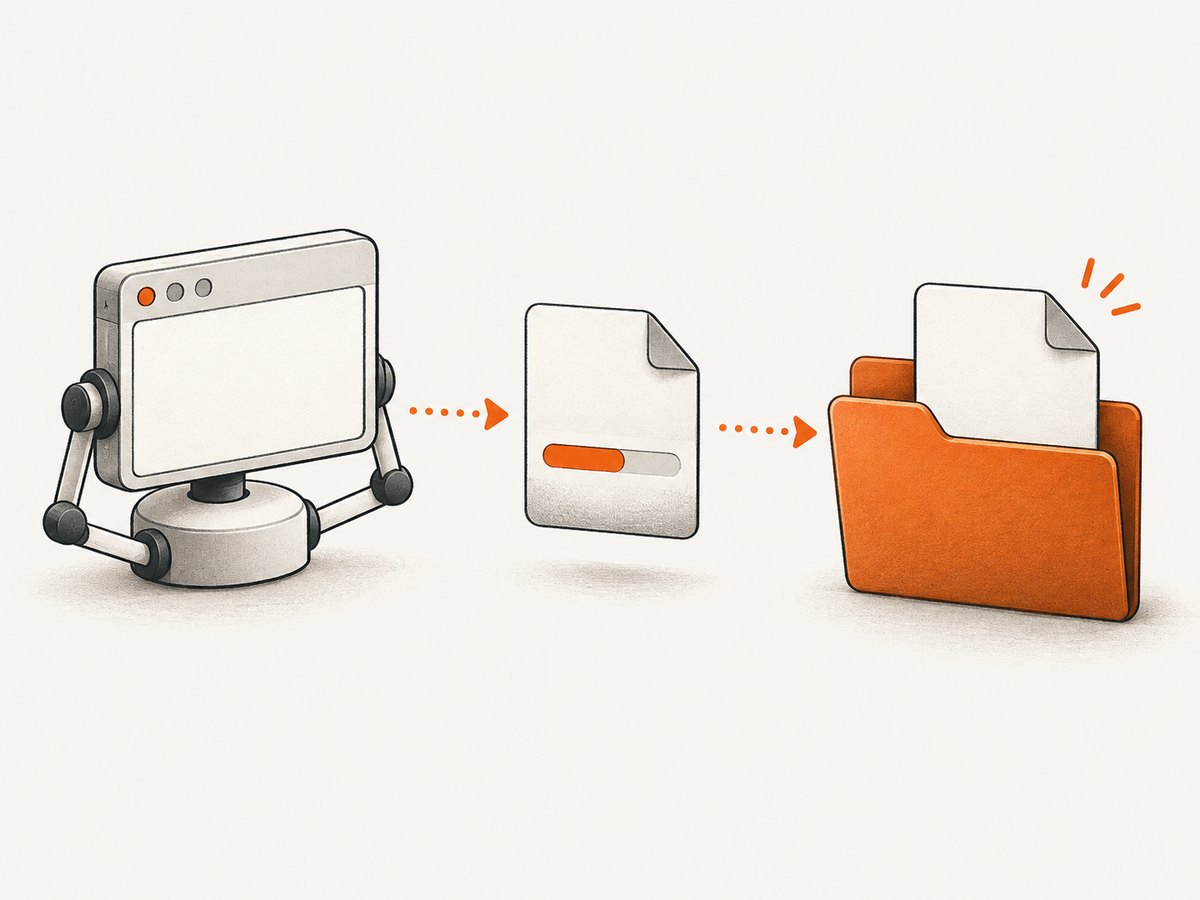
ChromeDriver says it does not wait for a download to finish. Your script must do that. Poll for the expected filename, and check that Chrome’s temporary partial-download file is gone before quitting. The .crdownload suffix is common in Chrome downloads, but sites, browser versions, and download flows can differ; do not rely on it as the only signal.
import time
from pathlib import Path
from selenium import webdriver

out_dir = Path.cwd() / "downloads"
out_dir.mkdir(parents=True, exist_ok=True)
expected = out_dir / "report.csv"

options = webdriver.ChromeOptions()
options.add_argument("--headless=new")
options.add_experimental_option("prefs", {
    "download.default_directory": str(out_dir.resolve()),
    "download.prompt_for_download": False,
    "download.directory_upgrade": True,
})

driver = webdriver.Chrome(options=options)
try:
    driver.get("https://example.com/report")
    # Replace this with the real control that starts the download.

    deadline = time.monotonic() + 60
    while time.monotonic() < deadline:
        partials = list(out_dir.glob("*.crdownload"))
        if expected.is_file() and not partials:
            break
        time.sleep(0.25)
    else:
        raise TimeoutError(
            f"Download did not complete within 60 seconds: {expected}"
        )
finally:
    driver.quit()
This is an illustrative polling pattern, not a claim that every download creates a .crdownload file. For sites that generate random filenames, snapshot the directory before triggering the download and identify a new completed file afterward. If a same-named file might already exist, remove or rename it before the action so the check cannot mistake an old result for a new one.
Choose the timeout based on the size and expected behavior of your download. A timeout should produce a useful error and preserve logs or directory contents for diagnosis; silently proceeding can make a later test fail in a less obvious place.
3. Diagnose the cause in order
- Record the environment. Note Python, Selenium, Chrome, and ChromeDriver versions; the operating system or container; and whether the browser is local or remote. Selenium’s Chrome guide says Chrome and ChromeDriver major versions should match.
- Inspect the destination. Print
out_dir.resolve(), confirm the directory exists, and verify that the operating-system user running Chrome can write to it. Avoid desktop and home locations that ChromeDriver identifies as disallowed in some configurations. - Verify a download actually started. Confirm the click selected the expected control, the page did not open a new tab, and the site did not instead show an authentication, error, or confirmation page. Check the filename the site proposes rather than assuming it is
report.csv. - Keep the session alive. Wait for completion before calling
quit(). The WebDriver call that clicks a link may return while the browser is still downloading. - Check browser-side permission. In Selenium sessions that require it, enable downloads. If you use BiDi, set download behavior and a destination through its browser API.
- For remote runs, find the browser’s filesystem. A path inside a Grid node or container is not automatically a path on the Python client. Check your provider’s documentation for its download retrieval or shared-volume mechanism.
- Compare versions and inspect logs. If the directory and wait logic are correct, verify Chrome and ChromeDriver major versions match. Reduce the problem to one URL and one download, and capture browser or driver logs using the logging setup supported by your Selenium version.
Use modern headless Chrome unless you have a specific reason to select a separate legacy implementation. Chrome’s documentation says Headless was updated in Chrome 112 to use the regular Chrome implementation without displaying its platform windows; since Chrome 132.0.6793.0, the old Headless implementation is a separate chrome-headless-shell binary. Historical workarounds for old Headless may not apply to current Chrome. See Chrome Headless mode.
4. Selenium download permissions and BiDi
Chrome’s directory preference configures the destination, but a Selenium session may also need downloads enabled. The Selenium Python options API documents enable_downloads. Where your installed Selenium version and session support this option, set it before creating the driver:
from pathlib import Path
from selenium import webdriver

out_dir = Path.cwd() / "downloads"
out_dir.mkdir(parents=True, exist_ok=True)

options = webdriver.ChromeOptions()
options.add_argument("--headless=new")
options.enable_downloads = True
options.add_experimental_option("prefs", {
    "download.default_directory": str(out_dir.resolve()),
})

driver = webdriver.Chrome(options=options)
try:
    driver.get("https://example.com/report")
    # Trigger the download and wait for it before leaving this block.
finally:
    driver.quit()
Check the Selenium Python Chrome Options API for the version you have installed. Capability support can depend on the browser and remote driver in use; if the option is not present or accepted, use the configuration documented for that session rather than assuming a local Chrome setting controls a remote node.
Selenium’s Python BiDi browser API also exposes set_download_behavior(allowed=True, destination_folder=...). Its API requires a destination folder when downloads are allowed. Use it when your application has established BiDi support and a BiDi connection; it is not a drop-in call on every ordinary WebDriver instance.
# Illustrative BiDi API call after establishing the supported BiDi connection:
await browser.set_download_behavior(
    allowed=True,
    destination_folder=str(out_dir.resolve()),
)
The call is asynchronous in this illustrative usage. Your connection setup and access to the BiDi browser object depend on your Selenium version and application architecture. Consult the Selenium BiDi browser API for the exact API surface available to you.
5. Local Chrome versus remote WebDriver
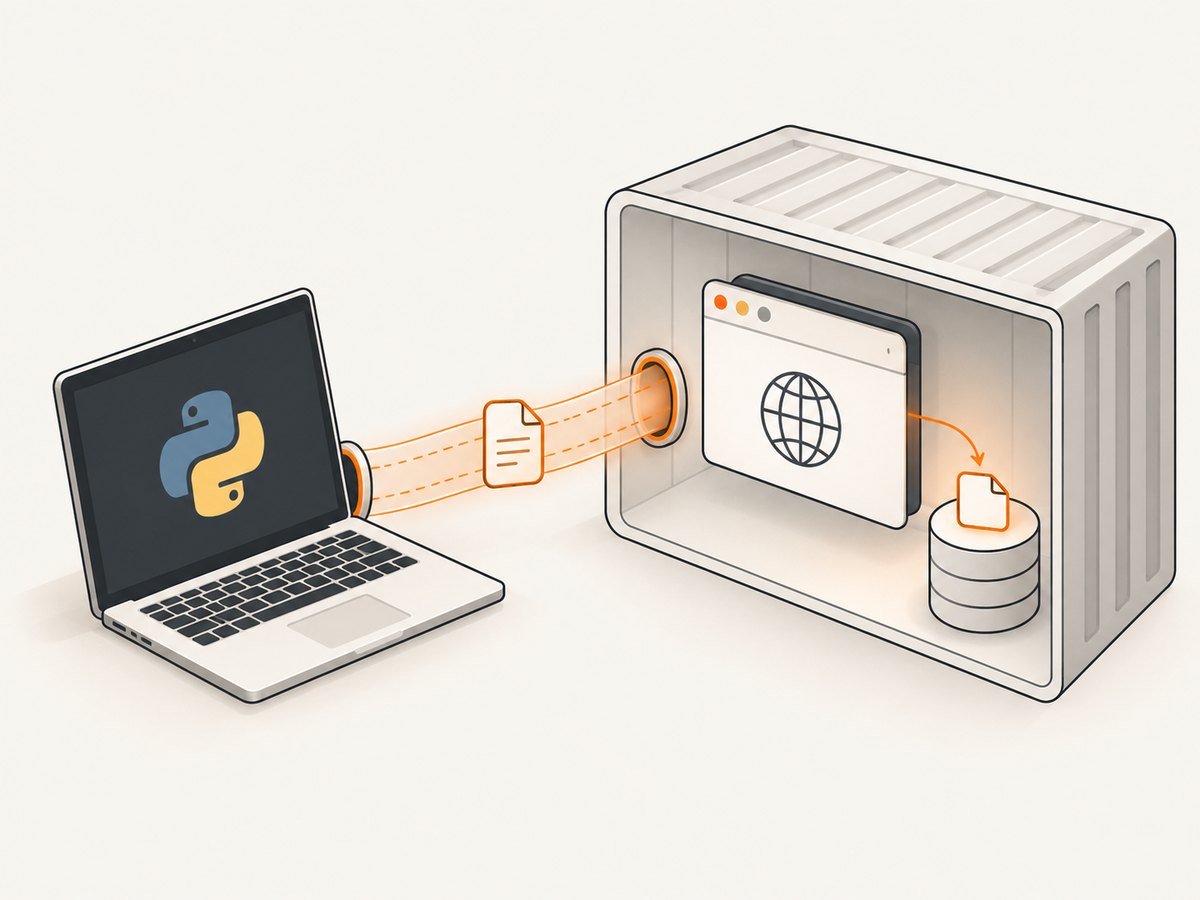
With local Chrome, Python and the browser usually share a filesystem, so a resolved path under the project directory is straightforward to inspect. In a remote setup, Chrome writes on the machine or container where Chrome runs. The Python process may see a different filesystem even when both sides use the same path string.
| Setup | Where the file is written | What to verify |
|---|---|---|
| Local Chrome | The local browser machine | Absolute path, permissions, completion before quit |
| Selenium Grid or container | The remote browser node or container | Node destination and provider-specific file retrieval or shared volume |
| BiDi-enabled session | The destination configured through that session | BiDi support, allowed behavior, destination folder |
There is no universal remote-file retrieval method established across all Grid providers. Do not diagnose an absent local file as a failed download until you check the remote node and its transfer mechanism.
6. Choosing preferences, BiDi, or CDP
| Approach | Good fit | Trade-off |
|---|---|---|
| Chrome preferences | Simple local Chrome download destination | Set before browser startup; still implement your own completion wait |
| Selenium BiDi | A supported session where explicit download behavior is useful | Requires BiDi support and connection setup in the application |
| Chrome DevTools Protocol (CDP) | A version-specific browser capability you need to control | Command details can change with browser versions |
Selenium describes CDP support as temporary while it implements WebDriver BiDi, and cautions that CDP is not designed as a stable testing API. Older snippets using Page.setDownloadBehavior or Browser.setDownloadBehavior may stop working as Chrome and Selenium change. If you depend on CDP, verify the command and parameters against the protocol version of the installed browser. For protocol context, see Selenium’s BiDi documentation.
7. Common errors and fixes
| Symptom | Likely explanation | Fix |
|---|---|---|
| Folder stays empty | Wrong path, unwritable folder, or download never started | Resolve and print the path; create it first; check process permissions and the page action |
| File appears partially, then stops | Session was closed while Chrome was writing | Wait for the expected file and completion condition before quit() |
| File exists on Grid but not locally | Chrome wrote into the remote node’s filesystem | Use the Grid provider’s documented transfer mechanism or a shared volume |
| Download is blocked or prompts unexpectedly | Session permissions or Chrome preferences do not match the environment | Check the installed Selenium options API; enable downloads where required or use supported BiDi behavior |
| Chrome fails to start or behaves inconsistently | Chrome and ChromeDriver may be incompatible | Record both versions and align their major versions |
| Legacy CDP command errors | Command name or parameters changed with protocol version | Check the installed browser’s protocol and consider the supported BiDi API |
| Timeout despite a file being present | Expected filename differs, or a partial-file check is overbroad | Inspect new files and actual names; tailor completion detection to the site’s behavior |
8. Reliability, performance, and cost
Download completion is I/O-bound and depends on the site, network, and file size. There is no single timeout or polling interval that fits every workload. Polling every fraction of a second is usually easier to operate than a fixed sleep: it can finish promptly when the file is ready and still gives you a deadline when it is not. A fixed sleep either wastes time on fast downloads or remains too short for slow ones.
For reliable automation, use an isolated output directory per run, record the resolved destination and browser versions, validate the resulting file, and always close the browser in a finally block. If a run times out, report the target path and inspect directory contents before cleanup. In CI, pin compatible browser and driver versions when reproducibility matters. A screenshot or page-load signal cannot substitute for verifying the downloaded artifact.
Headless mode does not remove the normal costs of running Chrome: browser startup, memory, CPU, network transfer, and disk use still matter. Reusing a browser may reduce repeated startup overhead in a carefully managed workload, but introduces session-isolation and cleanup concerns. No performance percentage or universal cost estimate is supported here. For occasional downloads, direct HTTP retrieval may be simpler if the site exposes an authorized file URL and your workflow does not need browser-only authentication or interaction.
Or skip the browser setup
If your goal is a screenshot of the page around a download flow rather than retrieving the file itself, ScreenshotNeo provides a one-request website screenshot API. It does not download the page’s file; use the Selenium workflow above when the file is what you need. For a screenshot, make a GET request and save the response:
import requests

r = requests.get(
    "https://api.screenshotneo.com/v1/shot",
    params={"access_key": "YOUR_API_KEY", "url": "https://stripe.com"},
    timeout=90,
)
open("shot.webp", "wb").write(r.content)
See the ScreenshotNeo API documentation for request options. Cookie banners, popups, and chat widgets are removed before the shot; bot checks, blank pages, and failed loads are never billed. An MCP server lets AI agents take screenshots. The free plan includes 1,000 screenshots a month with no card, and paid plans start at $5 for 3,000. Sign up free for 1,000 screenshots a month, with no card required.
FAQ
Does headless mode itself prevent downloads?
Headless Chrome can download files when the session, destination, and site flow are configured correctly. Start by checking the destination and session lifetime rather than assuming headless mode is the cause.
Should I add --disable-gpu?
The diagnosis in this guide does not establish that flag as a download fix. Avoid adding unrelated historical flags without evidence that your Chrome environment needs them.
Can I use a fixed sleep after clicking?
You can, but a fixed delay cannot tell you whether the file completed. Poll for the expected artifact with a deadline and make timeout failures explicit.
Why does my screenshot tool not solve the download?
A screenshot API returns an image or PDF of a page; it does not retrieve a file that the page offers for download. Use browser automation or an authorized direct file request for that task.


