How to Fix Headless Chrome Errors in PM2
Fix PM2 headless Chrome failures by checking runtime environment, browser installation, executable paths, sandbox policy, and process lifecycle.
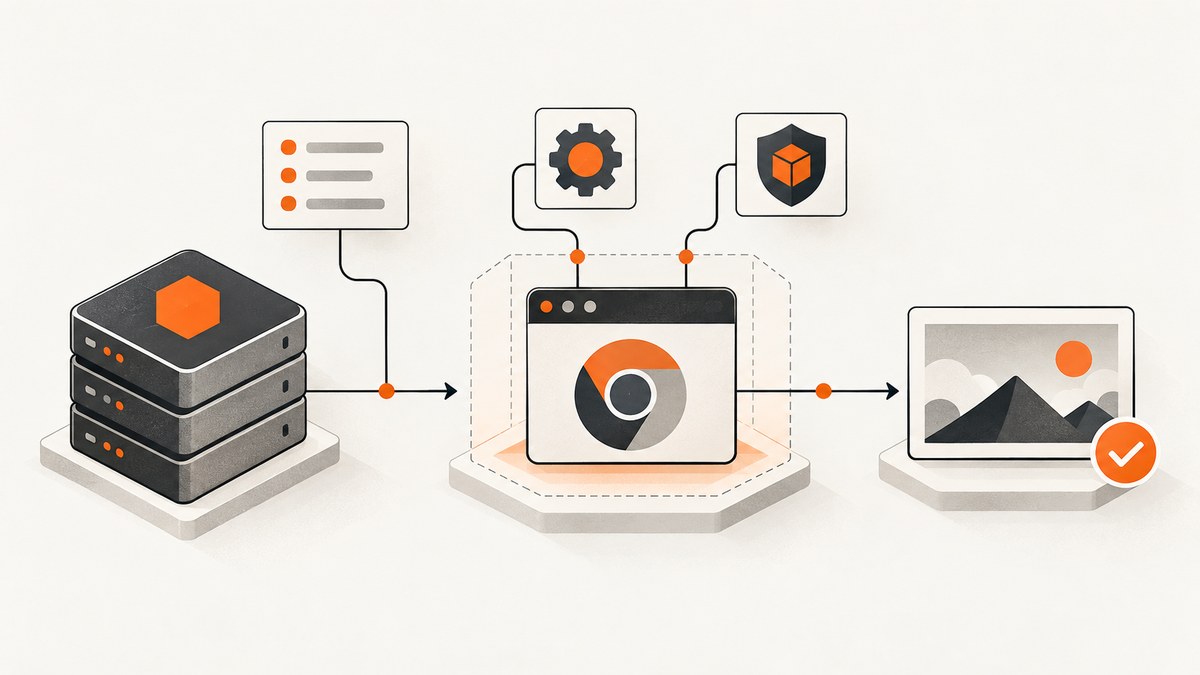
Headless Chrome usually works from an SSH shell but fails under PM2 because PM2 is running with a different user, HOME, PATH, browser cache, working directory, or environment. The fastest fix is to identify the exact error, inspect the environment seen by the PM2 process, verify that Chrome is installed in that environment, set a real absolute executablePath if needed, restart PM2 with updated variables, and then address Linux sandbox policy.
Do not begin by adding --no-sandbox. Browser discovery, environment propagation, sandboxing, and process cleanup are separate failure layers. Fix the layer named by the error.
1. Capture the exact PM2 error
Start with the PM2 logs and preserve the complete stderr line. Similar symptoms have different causes.
pm2 logs renderer --lines 200
pm2 describe renderer
pm2 env <pm2-process-id>
Look for one of these classes:
- Browser discovery:
Could not find Chrome,browser not found, or a configured path with no executable. - Sandbox:
No usable sandbox!, setuid sandbox errors, or user-namespace/AppArmor messages. - Permissions:
EACCESwhile reading the browser, cache, profile, or temporary directory. - Navigation: page timeouts, failed requests, or Chrome exiting after launch.
- Lifecycle: Chrome child processes remaining after reloads or restarts.
The distinction matters. Installing another browser will not repair a sandbox policy, and changing sandbox flags will not create a missing binary.
2. Compare the shell and PM2 runtime
“It works in my shell” only proves that your interactive shell has a usable configuration. PM2 may use another Unix account, a different home directory, a shorter PATH, a different current directory, or stale variables.
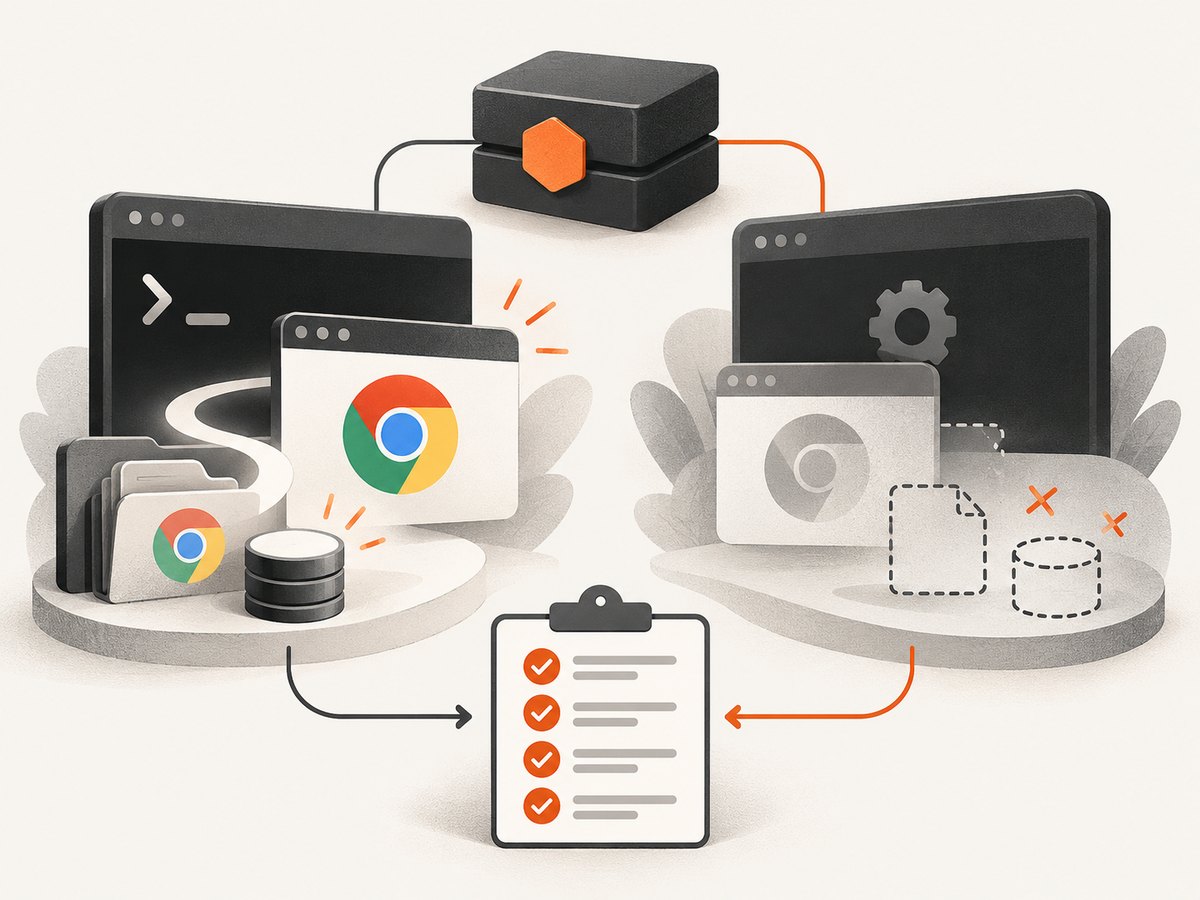
Create a small diagnostic script in the same project:
const fs = require('fs');
const os = require('os');
const { execFileSync } = require('child_process');

console.log({
  uid: process.getuid?.(),
  user: os.userInfo().username,
  cwd: process.cwd(),
  home: process.env.HOME,
  path: process.env.PATH,
  puppeteerCache: process.env.PUPPETEER_CACHE_DIR,
  puppeteerExecutable: process.env.PUPPETEER_EXECUTABLE_PATH
});

for (const command of ['google-chrome', 'google-chrome-stable', 'chromium', 'chromium-browser']) {
  try {
    console.log(command, execFileSync('sh', ['-lc', `command -v ${command}`], { encoding: 'utf8' }).trim());
  } catch {
    console.log(command, 'not found');
  }
}
Run it once in your shell and once through PM2. Differences in HOME, PATH, user, or cache location explain many failures. PM2 environment variables in an ecosystem file are applied when the app is started or restarted. If you changed variables from the command line, use --update-env when restarting:
pm2 restart renderer --update-envPM2 environment guidance is documented in its Environment Variables best-practices guide.
3. Install Puppeteer’s browser in the PM2 environment
Standard Puppeteer downloads a compatible Chrome for Testing and a chrome-headless-shell during installation. Package-manager policies, skipped install scripts, offline builds, or a different cache directory can prevent that download. A browser installed for one user is not automatically available to another user.
From the deployed project, as the same user that PM2 runs:
npx puppeteer browsers installIf your package manager blocked lifecycle scripts, allow the Puppeteer installation script according to your package manager’s policy, then install the browser again. Keep the browser cache on a readable path owned by the PM2 user. The Puppeteer installation guide and configuration guide describe the download and cache behavior.
puppeteer-core is different: it does not download a browser and does not provide Puppeteer’s default configuration. You must manage the browser and pass launch settings in code.
4. Set an absolute executable path when you manage Chrome
An executablePath must identify an executable file on the PM2 host. It cannot be a path from your laptop, a directory containing Chrome, or a stale path left by an earlier deployment.
Find the actual path on the server:
command -v google-chrome
command -v google-chrome-stable
command -v chromium
command -v chromium-browser
ls -l /path/reported/by/command
You can also use the path printed by npx puppeteer browsers install or puppeteer.executablePath(). Use the result in your application, not the illustrative path from a blog post.
const puppeteer = require('puppeteer');

async function render() {
  const browser = await puppeteer.launch({
    headless: true,
    executablePath: process.env.PUPPETEER_EXECUTABLE_PATH || undefined
  });
  try {
    const page = await browser.newPage();
    await page.goto('https://example.com', { waitUntil: 'networkidle2', timeout: 60000 });
    await page.screenshot({ path: 'example.png', fullPage: true });
  } finally {
    await browser.close();
  }
}

render().catch(error => {
  console.error(error);
  process.exitCode = 1;
});
If you are using a system browser, keep its package updates and Puppeteer compatibility under review. A bundled browser reduces path management; a system browser gives you explicit control over the installed binary and operating-system patching.
5. Put stable settings in an ecosystem file
An ecosystem file makes the PM2 runtime explicit and repeatable:
module.exports = {
  apps: [{
    name: 'renderer',
    script: './server.js',
    env_production: {
      NODE_ENV: 'production',
      PUPPETEER_EXECUTABLE_PATH: '/usr/bin/google-chrome-stable',
      PUPPETEER_CACHE_DIR: '/var/lib/renderer/.cache/puppeteer'
    }
  }]
};
The executable path above is an example. Replace it with the path reported by the host. Create the cache directory, assign ownership to the PM2 user, and restart from the ecosystem file:
sudo install -d -o renderer -g renderer /var/lib/renderer/.cache/puppeteer
pm2 start ecosystem.config.js --env production
pm2 save
When using puppeteer-core, pass executablePath directly. Puppeteer’s configuration files and environment variables do not supply defaults for that package.
6. Fix Linux sandbox errors securely
No usable sandbox! is a host-security error. Chrome’s Linux sandbox needs suitable kernel capabilities, permissions, and a supported user context. Run the service as a non-privileged account and configure the host sandbox rather than disabling isolation.
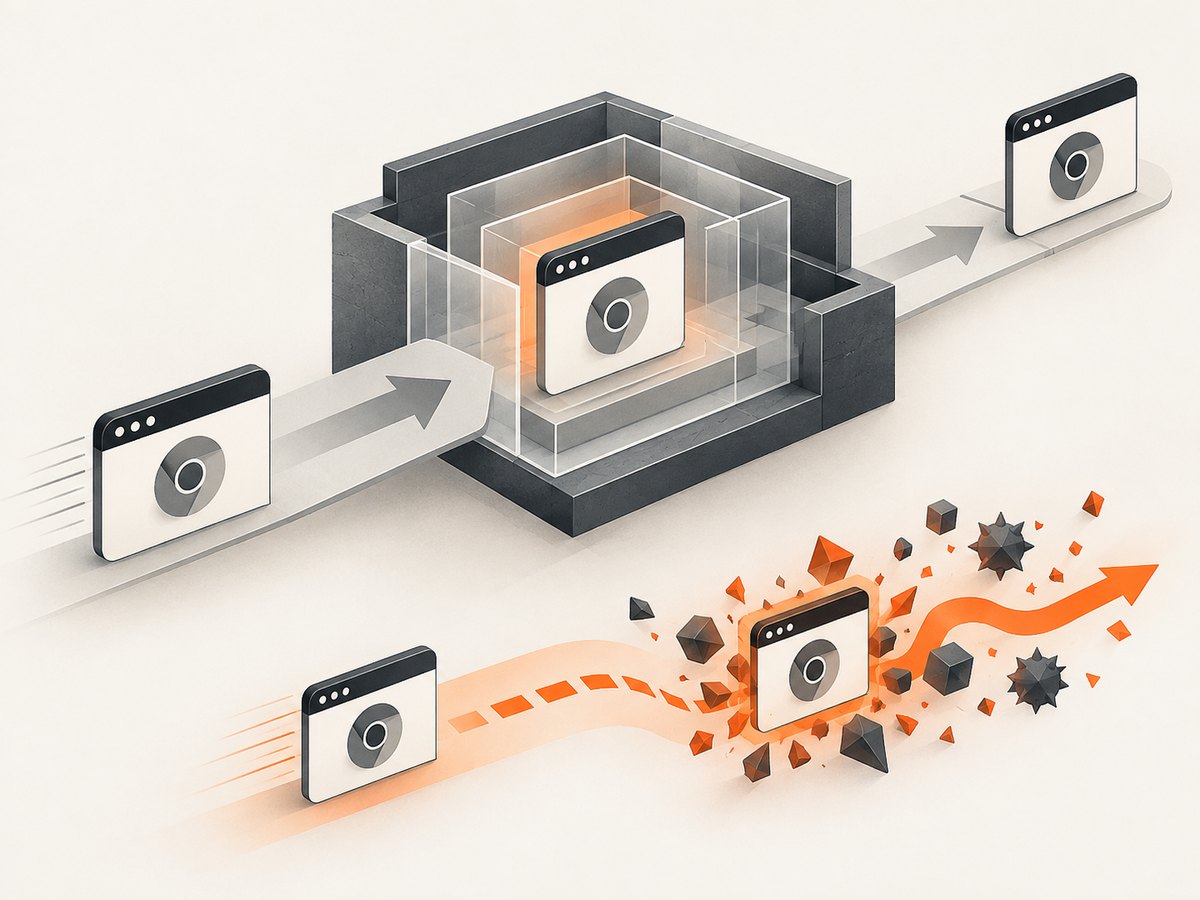
On some Ubuntu releases, AppArmor restrictions on unprivileged user namespaces can prevent Chrome’s sandbox from starting. Check the host’s AppArmor and kernel policy, then follow the current Puppeteer troubleshooting guidance for user-namespace restrictions and setuid-sandbox setup.
Only consider --no-sandbox when the captured content is fully trusted and you understand the isolation loss. Puppeteer explicitly discourages this flag because it weakens Chrome’s security boundary:
const browser = await puppeteer.launch({
  headless: true,
  args: ['--no-sandbox', '--disable-setuid-sandbox']
});
Do not copy this configuration into a general-purpose crawler that visits arbitrary, untrusted pages. Prefer correcting the host policy, running as a dedicated non-root user, and keeping Chrome and the operating system patched.
7. Make PM2 and Chrome shut down cleanly
Every request should close its page and the process should close its browser during shutdown. Otherwise, reloads can leave Chrome children behind, exhaust file descriptors, or cause later launches to fail.
let browser;

async function start() {
  browser = await puppeteer.launch({ headless: true });
  process.on('SIGINT', shutdown);
  process.on('SIGTERM', shutdown);
}

async function shutdown() {
  try {
    if (browser) await browser.close();
  } finally {
    process.exit(0);
  }
}

start().catch(error => {
  console.error(error);
  process.exit(1);
});
In containers or unusual PID 1 setups, use an init or process-reaping strategy appropriate to the host. If Chrome processes remain after PM2 restarts, inspect the parent-child relationship and PM2 shutdown behavior before increasing concurrency.
8. Error-to-fix table
| Message or symptom | Likely cause | Fix |
|---|---|---|
Could not find Chrome (ver. ...) |
Skipped install script, wrong cache, different HOME, or another PM2 user. |
Install with npx puppeteer browsers install in the PM2 project and align user/cache settings. |
Tried to find the browser at the configured path ... |
Missing file, directory path, or stale override. | Remove the override or replace it with an existing absolute executable. |
No usable sandbox! |
Missing sandbox capability, AppArmor restriction, or unsuitable privilege context. | Configure the host sandbox and run as a non-root user; treat --no-sandbox as a last resort. |
| Works in SSH, fails in PM2 | Different user, HOME, PATH, cache, working directory, or stale environment. |
Log the effective PM2 environment and restart with --update-env. |
| Chrome remains after restart | Missing shutdown handling or process reaping. | Close browsers on signals and review the host’s PID 1/init behavior. |
9. Reliability and performance considerations
Reuse a browser, isolate pages
Launching Chrome for every request is expensive and increases the chance of startup failures. A common service pattern is one long-lived browser with a new page or incognito context per job. Always close pages, cap concurrent work, and recycle the browser after repeated crashes or memory growth.
Control navigation waits
Use a deliberate waitUntil value and timeout. networkidle2 can wait indefinitely on applications with long-lived connections; a selector wait plus a bounded timeout may be more predictable. Record whether a timeout occurred during launch, navigation, resource loading, or screenshot capture.
Keep cache and temporary storage local
Put the browser cache and temporary profile on fast local storage with enough space. Verify ownership and free disk space after deployments. A read-only home directory or an unwritable temporary directory can look like a browser crash.
Choose bundled versus system Chrome deliberately
The bundled browser simplifies version compatibility but requires a successful install and stable cache. A system browser makes the executable path explicit but adds operating-system package maintenance. Whichever choice you make, log the browser version and resolved path at startup.
Cost and operational limits
PM2 itself does not remove browser infrastructure costs. Account for CPU, memory, disk, browser downloads, and the number of concurrent pages. Limit concurrency based on observed host capacity, and use queue backpressure instead of allowing unlimited PM2 requests to launch tabs.
10. A repeatable deployment checklist
- Save the complete PM2 stderr message.
- Confirm the PM2 Unix user,
HOME,PATH, working directory, cache, and executable variables. - Install Puppeteer’s browser as that user, or install a system browser.
- Verify the executable is a real file and executable.
- Set an absolute path only when required.
- Restart with
pm2 restart renderer --update-envafter CLI environment changes. - Run as a dedicated non-root user and repair sandbox/AppArmor policy.
- Close pages and browsers on normal completion and process signals.
- Test one navigation, one screenshot, a timeout, a denied page, and a PM2 restart.
- Monitor memory, disk, child-process count, and error class.
Or skip the browser setup
If your goal is a reliable website image rather than operating Chrome, ScreenshotNeo provides a hosted screenshot API and MCP server. One GET request returns PNG, JPEG, WebP, or PDF output.
cURL:
curl -G 'https://api.screenshotneo.com/v1/shot' \
  -d access_key=YOUR_API_KEY \
  --data-urlencode url=https://stripe.com \
  -o shot.webp
Python:
import requests

r = requests.get(
    'https://api.screenshotneo.com/v1/shot',
    params={'access_key': 'YOUR_API_KEY', 'url': 'https://stripe.com'},
    timeout=90,
)
r.raise_for_status()
open('shot.webp', 'wb').write(r.content)
Node.js:
const q = new URLSearchParams({
  access_key: 'YOUR_API_KEY',
  url: 'https://stripe.com'
});
const res = await fetch(`https://api.screenshotneo.com/v1/shot?${q}`);
if (!res.ok) throw new Error(`Screenshot failed: ${res.status}`);
require('fs').writeFileSync('shot.webp', Buffer.from(await res.arrayBuffer()));
See the ScreenshotNeo documentation for options and response headers. Cookie banners, newsletter popups, and chat widgets are removed before the shot. Bot checks, blank pages, failed loads, timeouts, and cache hits are not billed; the response reports the page verdict and billing result in X-Page-Verdict and X-Billed. An MCP server lets Claude, Cursor, and other MCP clients use take_screenshot, get_page_info, and capture_pdf. The free plan includes 1,000 screenshots per month with no card, and paid plans start at $5 for 3,000 screenshots.
Create a free ScreenshotNeo account.
FAQ
Should I use puppeteer or puppeteer-core?
Use puppeteer when you want its browser download and defaults. Use puppeteer-core when you manage Chrome yourself and will provide an executable path and launch configuration.
Why does changing PUPPETEER_EXECUTABLE_PATH do nothing?
PM2 may still hold the old environment. Restart with --update-env, or place the variable in the ecosystem file and restart that file.
Can I point executablePath at a Chrome directory?
No. It must point to the browser executable itself, and that file must exist and be executable for the PM2 user.
Is --no-sandbox a normal production fix?
No. It reduces isolation. Repair the host sandbox and privilege configuration whenever possible.
Why do failures start after a deployment?
Deployments often change the PM2 user, home directory, cache, package install scripts, browser version, or environment variables. Compare the effective runtime values before and after the deployment.


