How to Fix Font Problems in PDFs Generated with Headless Chrome
Missing glyphs, substituted typefaces, and broken PDF layouts usually start in the runtime that printed the page. Diagnose fonts and loading in the same Chrome environment that generates your PDF.
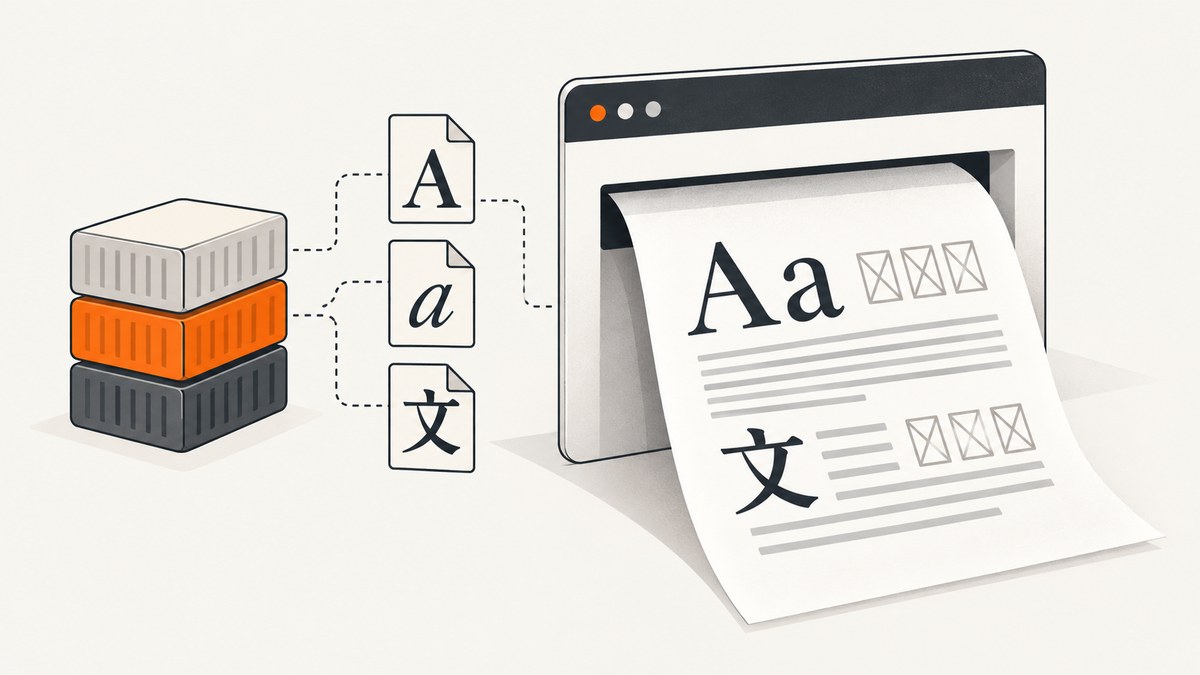
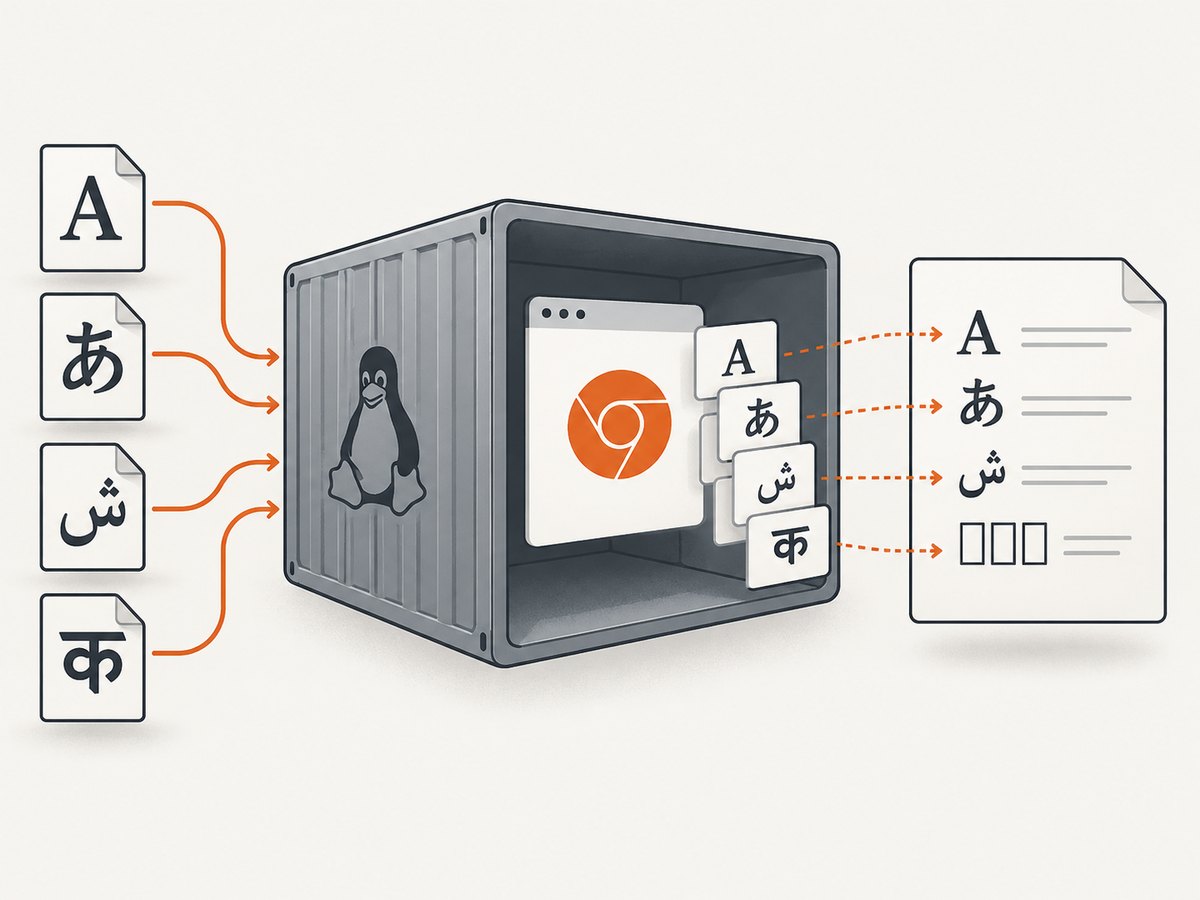
When fonts are missing or wrong in a PDF generated with headless Chrome, start by checking the environment that actually printed it. Chrome uses the fonts and supporting libraries available to its host or container. Fonts on your laptop do not automatically exist in a CI image, serverless runtime, or production Docker container. If the requested family is unavailable, Chromium can substitute an installed font; if the substitute lacks the needed glyphs or has different metrics, the result may show empty boxes, changed characters, or broken line wrapping.
Reproduce the issue with the same HTML, browser build, runtime image, and PDF options as production. Then check system libraries and font coverage, fix the deployment image or web-font loading path, and confirm the output in the target runtime. This guide covers Puppeteer and the Chrome command line, with runnable examples and a troubleshooting path.
1. Identify which font failure you have
Different symptoms point to different causes. A font can be absent from the runtime, present but missing particular glyphs, still loading when printing begins, or rendered differently by a PDF header or footer template.
| PDF symptom | Likely cause to investigate |
|---|---|
| Empty squares or missing characters | The chosen font or its fallback lacks glyph coverage for the text’s script. |
| A visibly different typeface | The requested family is unavailable and Chromium selected a substitute. |
| Text wraps differently or content shifts | A substitute has different font metrics, or the intended web font loaded too late. |
| Body text is correct but header/footer text is wrong | The PDF template path may behave differently; inspect it separately. |
| Works locally, fails in deployment | The deployed runtime has a different browser, font inventory, library set, or network access. |
Do not begin by changing CSS at random. First establish whether the exact font is available and loaded in the environment that creates the PDF.
2. Reproduce the production environment
- Record the operating system or container image, Chrome/Chromium executable and version, Puppeteer version, and PDF options.
- Use the same HTML and CSS that fail, including the real font URL or local font path.
- Include representative characters from the affected language or symbol set. A font may cover Latin text and omit CJK characters or other glyphs.
- Generate the PDF inside that runtime and compare it with a known-good output.
This isolates deployment differences. A font installed on the developer’s desktop is not evidence that the font exists in the container. Puppeteer’s deployment troubleshooting specifically calls out shared-library dependencies and additional language font files as deployment concerns. Its examples are starting points for particular distributions, not a package list that works unchanged everywhere. See the [Puppeteer troubleshooting guide](https://pptr.dev/troubleshooting).
3. Check Linux libraries and installed fonts
For Linux deployments, Puppeteer documents checking the Chrome executable for unresolved shared libraries with ldd chrome | grep not. Run the command against the executable used by your application, in the actual runtime image. A missing shared library can prevent Chrome or parts of its rendering stack from working correctly.
ldd /path/to/chrome | grep notAlso inspect the runtime’s font inventory using the tools provided by its distribution. Confirm both that the intended family is installed and that it includes the glyphs your document needs. Package names differ by distribution, and a generic font package may not cover every script. Puppeteer notes that Chinese, Japanese, or Korean output may require additional font files or a buildpack that supplies them.
Install dependencies and fonts at image build time, then rebuild and regenerate the PDF. A manual change inside a running container will disappear when that container is replaced and will not make builds reproducible.
Example Dockerfile pattern
Use the package manager and font packages for your base image. This intentionally shows the build pattern rather than prescribing package names across distributions:
FROM your-existing-puppeteer-base-image

# Replace these placeholders with packages for this image's distribution.
RUN package-manager update && \\
    package-manager install -y --no-install-recommends \\
      required-chrome-library \\
      required-font-package \\
    && package-manager clean

COPY . /app
WORKDIR /app
CMD ["node", "generate-pdf.js"]
Use Puppeteer’s current deployment instructions for the base image and dependencies, and keep the Puppeteer and browser versions aligned according to its compatibility guidance. Do not copy old issue snippets or historical version pins as current recommendations.
4. Make sure web fonts finish loading before printing
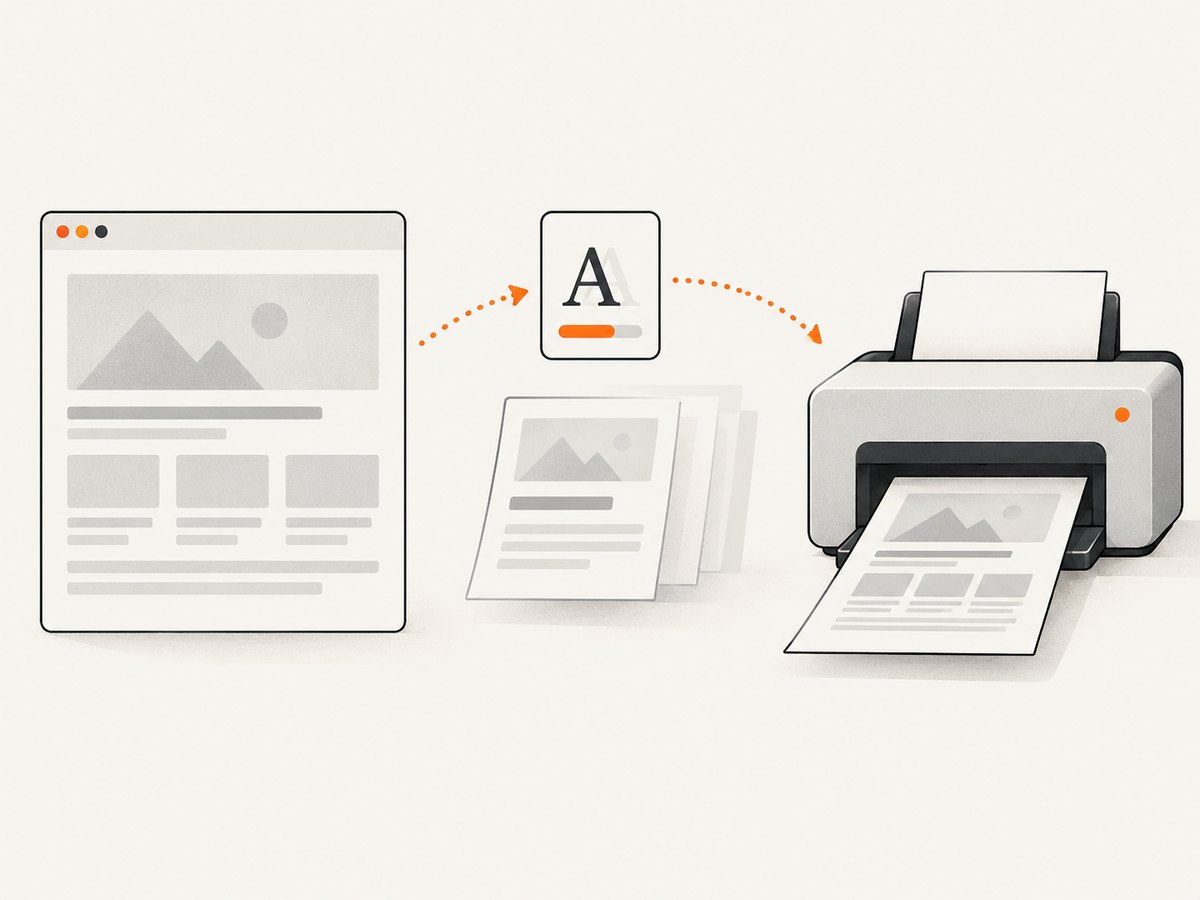
If the document uses @font-face or a hosted font, the font must be reachable from the browser and loaded before page.pdf() runs. A longer delay may mask a race, but it is not a durable fix for a broken URL, blocked network request, invalid CSS, or missing glyph coverage. Wait for fonts explicitly and, when necessary, wait for an application-specific ready signal as well.
Puppeteer example
import puppeteer from 'puppeteer';

const browser = await puppeteer.launch({ headless: true });
try {
  const page = await browser.newPage();
  await page.goto('https://example.com/report', {
    waitUntil: 'networkidle0',
    timeout: 60_000,
  });

  // Ask the page to wait for document fonts; this does not install a font
  // missing from the runtime or guarantee glyph coverage.
  await page.evaluate(async () => {
    await document.fonts.ready;
  });

  await page.pdf({
    path: 'report.pdf',
    format: 'A4',
    printBackground: true,
  });
} finally {
  await browser.close();
}
For a static HTML string, load it with page.setContent(), ensure the font resource is available to that page, and use the same font readiness check before printing. If your application renders content asynchronously, wait for its own completion condition too. A resolved font-loading promise does not establish that the expected family was successfully fetched or that it covers every character; inspect browser-side errors and the PDF.
Chrome command-line capture
Chrome’s headless CLI supports --print-to-pdf, and its --timeout and --virtual-time-budget flags control capture timing. They can help diagnose a timing-sensitive page, but they are not font installation fixes and do not prove a web font loaded. See [Chrome Headless documentation](https://developer.chrome.com/docs/chromium/headless).
chrome --headless --no-sandbox \\
  --timeout=10000 \\
  --print-to-pdf=output.pdf \\
  https://example.com/report
Use command-line flags appropriate to your environment and Chrome build. The example illustrates a capture; it is not a universal production security configuration.
5. Choose a font delivery strategy
| Approach | Good fit when | Trade-offs and checks |
|---|---|---|
| Install system fonts in the runtime image | The application expects installed font families, or needs broad script coverage. | Image size and font licensing or redistribution matter. Verify distribution-specific packages and glyph coverage. |
| Bundle or serve a web font | You need the same typography across machines and can control the document’s assets. | The browser must fetch and load it before printing. Check network access, CSS URLs, font readiness, and glyph coverage. |
| Accept Chromium’s system substitute | Exact typeface and metrics are not important. | The substitute depends on what is installed. Check appearance, layout, and script coverage in the produced PDF. |
Compare these approaches against script coverage, reproducibility, runtime availability, network reliability, licensing, and how sensitive the layout is to exact font metrics. Chromium’s PDFium Linux font helper maps familiar PDF font names such as Helvetica and Times to candidate system fonts and asks fontconfig for substitutions. As a result, a familiar font name in the source does not guarantee that identical font files are used in every environment. See the [Chromium PDFium font helper source](https://chromium.googlesource.com/chromium/src/+/main/components/pdf/pdfium/pdfium_font_linux.cc).
6. Investigate header and footer templates separately
If the page body renders correctly but custom fonts fail only in headerTemplate or footerTemplate, reduce the issue to a minimal PDF with a plain template. Then test template styling independently from body CSS and web-font loading. A Puppeteer issue documents a report about custom fonts in print templates, but it is a specific report, not proof of a general current limitation or a guaranteed workaround. See [Puppeteer issue 10407](https://github.com/puppeteer/puppeteer/issues/10407).
As a practical isolation step, try a common installed font in the template and separately confirm whether the body can render the custom family. Avoid assuming body styles or loaded web fonts automatically behave the same inside print-template markup.
7. Troubleshooting common errors
| Problem | Likely cause | What to do |
|---|---|---|
| It works locally but not in Docker or CI | Different font inventory, missing shared libraries, or different Chrome build. | Reproduce in the deployed image. Run the documented ldd check, add the required libraries and font packages at build time, then rebuild. |
| CJK characters appear as boxes | Installed fonts lack the required Chinese, Japanese, or Korean glyphs. | Add appropriate language font files to the runtime image and verify with representative characters in that image. |
| The font looks substituted | The requested family is unavailable, misspelled, or not loaded. | Check the exact family name, font availability, resource request, and CSS. Decide whether to install the family or accept and verify a substitute. |
| A delay makes the PDF look correct | A web font or asynchronous page content may not be ready at print time. | Wait for document.fonts.ready and the application’s content-ready condition. Check failed font requests and avoid relying on arbitrary sleeps. |
| Newlines or page breaks change after deployment | A substitute font has different metrics or the browser/runtime differs. | Align browser and font packages across builds. Regenerate in the target image and review page layout, not only glyph appearance. |
| Only PDF header/footer text is wrong | The print template path differs from body rendering. | Test a minimal template and common installed font, then diagnose template and body separately. |
| The PDF is blank or Chrome exits early | Navigation, dependencies, or page readiness failed before printing. | Capture browser and page errors, verify navigation succeeded, inspect missing libraries, and wait for the specific content condition. |
8. Performance, reliability, and cost considerations
System fonts add files and potentially dependencies to the deployed image; web fonts add resource requests and make output sensitive to network availability and page readiness. Installing only the families and scripts your documents require can limit image growth, while bundling a controlled web font can make typography more consistent if you reliably wait for it. Reproducibility comes from building the same browser and font environment into each runtime, rather than applying manual fixes after deployment.
Test representative scripts and long documents, not just a short Latin-only sample. Font substitution can alter line wrapping and pagination even when all characters remain visible. For repeatable output, record the browser build, runtime image, font packages, source HTML, and PDF options alongside the generated artifact or job diagnostics. The research sources provide no performance benchmark or fixed cost estimate for these approaches, so measure image size, render time, and failure rate in your own deployment before choosing.
9. Or skip the browser setup
If your goal is a screenshot of a web page rather than a Puppeteer-generated PDF, ScreenshotNeo is a website screenshot API and MCP server. It returns PNG, JPEG, WebP, or PDF from one GET request. Its clean-shot flow accepts cookie or consent banners like a visitor and removes more than 60 known consent platforms, newsletter popups, and chat widgets before capture; each step can be turned off. Bot checks and CAPTCHAs, blank pages, timeouts, failed loads, and cache hits cost nothing, and response headers report the page verdict and billing status. Its MCP server provides screenshot, page-info, and PDF tools for AI agents.
For a PDF, add the output format parameter shown in the [ScreenshotNeo API documentation](https://screenshotneo.com/docs/):
curl -G "https://api.screenshotneo.com/v1/shot" \\
  -d access_key=YOUR_API_KEY \\
  --data-urlencode url=https://example.com/report \\
  -d format=pdf \\
  -o report.pdf
For comparison, the image call is:
curl -G "https://api.screenshotneo.com/v1/shot" \\
  -d access_key=YOUR_API_KEY \\
  --data-urlencode url=https://example.com/report \\
  -o shot.webp
ScreenshotNeo has 1,000 screenshots per month free with no card; paid plans start at $5 for 3,000. Every feature is on every plan. A screenshot API does not repair a font in a PDF your own Puppeteer workflow already generates; use the deployment steps above when you need that workflow’s output fixed. Create a free account for 1,000 screenshots a month, no card required.
FAQ
Why are fonts missing in my Puppeteer PDF?
The most common starting point is that the runtime printing the page lacks the requested font or the glyphs it needs. Check the deployed environment before changing the document styling.
Will waiting longer fix missing fonts?
Only if the font or page content was still loading. Waiting cannot install a missing system font, correct a broken URL, or add glyphs absent from the chosen family.
Why does a PDF use a different font than my CSS names?
When the requested family is unavailable, Chromium can use an installed substitute. Check font availability and inspect the actual output in the target runtime.
Why are fonts broken only in the PDF header or footer?
Print templates are a separate diagnostic path. Test their markup and font assumptions independently from the page body.
Does document.fonts.ready guarantee the right font?
No. It is a useful readiness check, but it does not install fonts or establish glyph coverage. Confirm requests, family availability, and rendered characters in the production environment.


