How to Fix the Headless Chrome “Uncaught [object Object]” Error
Learn what “Uncaught [object Object]” means in headless Chrome, how to capture the real exception, isolate failures, and fix screenshot errors.
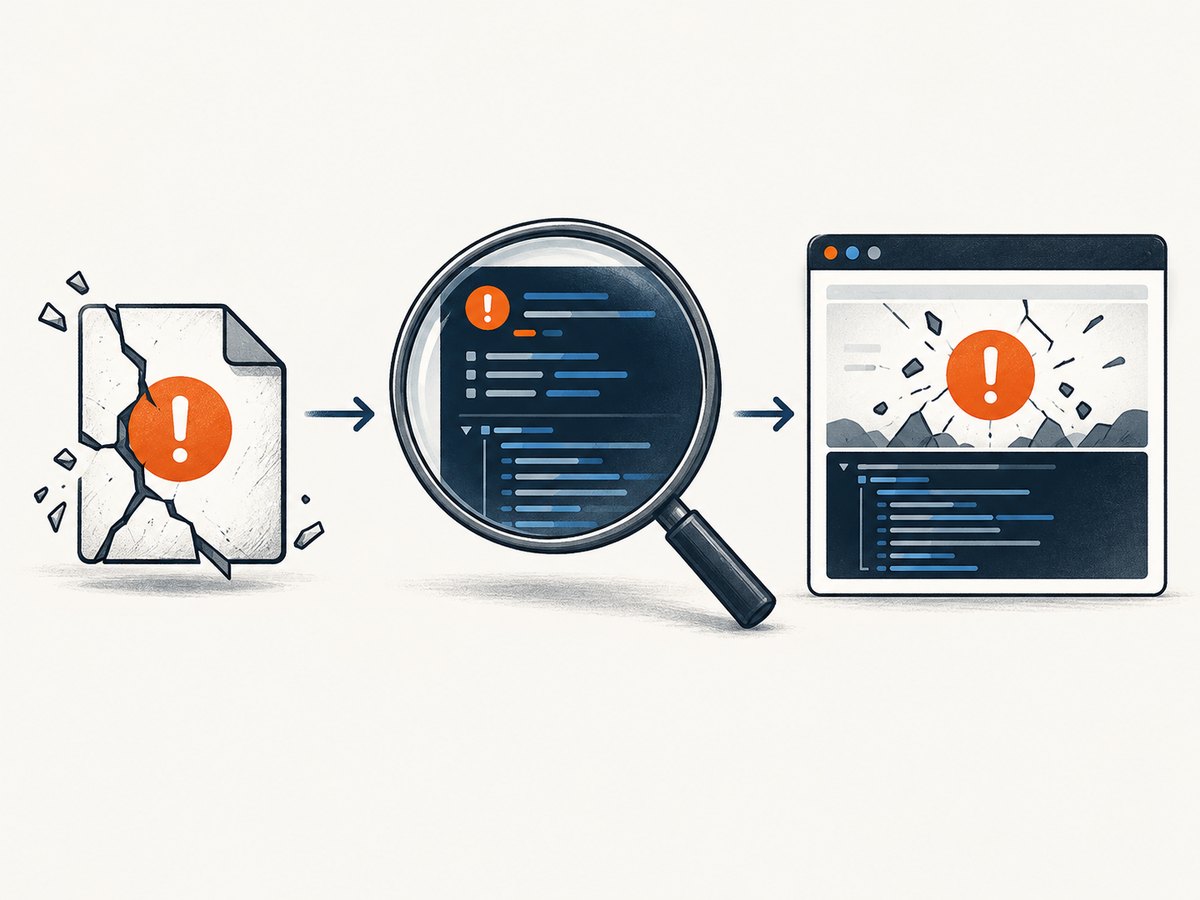
“Uncaught [object Object]” is a symptom, not a diagnosis. JavaScript can throw any value, including a plain object. When an automation framework or browser converts that value to text, the useful fields and stack can disappear and you are left with a misleading message. The reliable fix is to capture the original exception, identify which operation failed, and then repair the application or automation layer that actually threw it.
A historical TestCafe report shows the same message during headless Chrome screenshot capture with TestCafe 2.1.0, Node.js 18.12.1, Chrome 108.0.5359.94 and macOS 10.15.7. That report is a version-specific reproduction, not proof that every current Chrome screenshot failure has one universal fix. Read the TestCafe issue.
What the error means
In JavaScript, throw accepts any value:
throw { code: "AUTH_FAILED", detail: "Token expired" };If an exception formatter coerces that object to a string, the default representation is often [object Object]. A custom toString() can make the situation worse if it throws while the original exception is being formatted. Chromium’s exception tests demonstrate this formatting behavior; it does not establish that formatting is the cause of your particular test failure.
The message therefore does not tell you whether the problem is:
- application code throwing a non-
Errorvalue; - a rejected promise with an object payload;
- a test assertion or hook;
- screenshot capture returning an incomplete image;
- an automation framework and browser compatibility issue; or
- a launch, permissions, network or resource problem.
First response: preserve the real exception
Install an error listener before navigation or the action that fails. In Playwright, the pageerror event is emitted when an uncaught exception happens inside the page. The Page API documentation shows the event and handler.
import { chromium } from 'playwright';

function describeThrown(value) {
  if (value instanceof Error) {
    return {
      kind: 'Error',
      name: value.name,
      message: value.message,
      stack: value.stack
    };
  }

  let properties = {};
  try {
    properties = Object.fromEntries(
      Object.keys(Object(value)).map((key) => {
        try { return [key, Object(value)[key]]; }
        catch { return [key, '<unreadable>']; }
      })
    );
  } catch {
    properties = { inspection: '<failed>' };
  }

  let rendered;
  try { rendered = JSON.stringify(value); }
  catch { rendered = '<not JSON serializable>'; }

  return {
    kind: typeof value,
    rendered,
    properties
  };
}

const browser = await chromium.launch({ headless: true });
const page = await browser.newPage();

page.on('pageerror', (exception) => {
  console.error('PAGE EXCEPTION', describeThrown(exception));
});

page.on('console', (message) => {
  if (message.type() === 'error') {
    console.error('CONSOLE ERROR', message.text(), message.location());
  }
});

try {
  await page.goto('https://example.com', { waitUntil: 'networkidle' });
  await page.screenshot({ path: 'shot.png', fullPage: true });
} catch (error) {
  console.error('AUTOMATION FAILURE', describeThrown(error));
  throw error;
} finally {
  await browser.close();
}
Do not rely on console.error(`${error}`). String interpolation can discard fields or invoke a broken conversion method. Log name, message, stack, safe enumerable properties, the failing URL and the operation name separately.
Locate the failing layer
- Page load: Does the exception occur during
goto, before the document reaches your expected state? - Interaction: Does a click, form submission or script evaluation trigger it?
- Assertion: Is the page healthy but the test expectation throwing an object?
- Capture: Does navigation succeed while
screenshot()fails or produce a truncated file? - Runner hook: Does it happen only in a fixture, reporter, plugin or screenshot helper?
Keep every related line in the log. In the TestCafe report, older versions produced a warning that the screenshot could not be taken and a PNG parser error, Unexpected end of input. An incomplete PNG points toward a capture or transport failure, even when the visible exception text is unhelpful.
Record a complete runtime fingerprint
Before changing versions, save the exact environment. Include:
- automation framework and package version;
- Node.js version;
- Chrome or Chromium version;
- operating system and architecture;
- headless or headed mode;
- launch arguments and environment variables;
- the URL, action and test name;
- viewport, device scale factor and screenshot options; and
- whether the failure is reproducible in a clean profile.
node --version
npx playwright --version
which google-chrome || which chromium || which chromium-browser
# Linux example
uname -a
The historical TestCafe reproduction involved Node 17, 18 or 19, Chrome 108 and macOS. Treat those details as clues for comparison, not as a guaranteed explanation.
Reduce the reproduction
- Create a new temporary browser profile.
- Open a minimal page, such as a static local HTML file.
- Run the same screenshot command without application fixtures or reporters.
- Remove custom launch flags one at a time.
- Try headed mode to see whether the page or only headless capture fails.
- Try the same framework with the bundled browser and then with your system Chrome.
- Change one component version at a time and record the result.
A minimal page helps separate browser operation failures from application exceptions:
import { chromium } from 'playwright';

const browser = await chromium.launch({ headless: true });
const page = await browser.newPage({ viewport: { width: 1280, height: 800 } });
page.on('pageerror', e => console.error('pageerror:', e.name, e.message, e.stack));
await page.setContent('<!doctype html><h1>Capture test</h1>');
await page.screenshot({ path: 'minimal.png' });
await browser.close();
Fix the code that throws
If your application rejects or throws a plain object, throw an Error with a useful message and preserve the original data:
function asError(value) {
  if (value instanceof Error) return value;
  const detail = (() => {
    try { return JSON.stringify(value); }
    catch { return String(value); }
  })();
  return new Error(`Request failed: ${detail}`, { cause: value });
}

try {
  await submitForm();
} catch (value) {
  throw asError(value);
}
For promise chains, always handle rejections:
process.on('unhandledRejection', (reason) => {
  console.error('UNHANDLED REJECTION', reason);
});

await doWork();
Do not “fix” the message by blindly changing Chrome flags. If the page throws, repair the page. If the page is clean and only the screenshot helper fails, investigate the framework’s capture path and browser/runtime compatibility.
Screenshot-specific checks
Validate the output file
file shot.png
ls -l shot.png
# PNG files begin with this eight-byte signature
xxd -l 8 shot.png
A zero-byte or truncated file suggests the capture did not complete. Check disk permissions, temporary-directory space, process termination and whether your code closes the browser before the write finishes.
Check waits and page readiness
Replace arbitrary short sleeps with a condition that represents readiness:
await page.goto(url, { waitUntil: 'domcontentloaded' });
await page.locator('#app').waitFor({ state: 'visible', timeout: 30_000 });
await page.screenshot({ path: 'ready.png', fullPage: true });
Use network-idle waits carefully. Analytics, ads and long polling can keep a page permanently busy. A selector wait is often more deterministic.
Compare headless and headed runs
Run once with headless: false. If headed mode works, compare viewport, GPU flags, display-server configuration and timing. This narrows the search; it does not prove that headless Chrome itself is defective.
Common errors and fixes
| Symptom | Likely layer | Action |
|---|---|---|
Only [object Object] appears |
Exception formatting | Capture the original value and inspect fields before string conversion. |
| “Uncaught object … was thrown” | Page or test code | Find the first throw site; convert non-Error throws to Error. |
| Screenshot warning plus PNG parser EOF | Capture stream | Check framework version, output path, process lifetime and file completeness. |
| Works headed, fails headless | Runtime difference | Compare flags, viewport, display environment and browser binary. |
| Fails only on one machine | Environment | Compare Chrome, Node, OS, fonts, permissions, proxy and profile. |
| Fails after a framework update | Compatibility or regression | Pin the known-good version, create a minimal reproduction and read release notes. |
| Navigation succeeds but capture times out | Readiness or resource load | Wait for a stable selector, inspect blocked requests and remove unnecessary network-idle waits. |

Reliability and performance practices
- Reuse a browser process, but create isolated contexts for independent tests.
- Set explicit navigation and action timeouts; avoid unlimited waits.
- Capture diagnostic logs only on failure in large suites.
- Use deterministic fixtures and local assets for regression tests.
- Limit full-page screenshots on very tall pages; capture the required element when possible.
- Retry only known transient operations, and preserve the first failure’s logs.
- Store browser, framework and OS versions with each artifact so a later comparison is possible.
Or skip the browser setup
If your goal is a dependable screenshot rather than maintaining browser infrastructure, ScreenshotNeo provides a single GET request that returns PNG, JPEG, WebP or PDF. Before capture it accepts cookie and consent banners and removes more than 60 known consent platforms, newsletter popups and chat widgets. Bot checks, blank pages, timeouts, failed loads and cache hits are not billed; response headers identify the page verdict and whether the shot was billed. Its MCP server provides take_screenshot, get_page_info and capture_pdf for Claude, Cursor and other MCP clients.
See the ScreenshotNeo API documentation for all options.
curl -G "https://api.screenshotneo.com/v1/shot" \
  -d access_key=YOUR_API_KEY \
  --data-urlencode url=https://stripe.com \
  -o shot.webp
import requests
r = requests.get(
"https://api.screenshotneo.com/v1/shot",
params={"access_key": "YOUR_API_KEY", "url": "https://stripe.com"},
timeout=90,
)
r.raise_for_status()
open("shot.webp", "wb").write(r.content)const q = new URLSearchParams({ access_key: 'YOUR_API_KEY', url: 'https://stripe.com' });
const res = await fetch(`https://api.screenshotneo.com/v1/shot?${q}`);
if (!res.ok) throw new Error(`HTTP ${res.status}`);
const bytes = new Uint8Array(await res.arrayBuffer());
await Bun.write('shot.webp', bytes);You can configure full-page capture with lazy images, CSS-element capture, dark mode, device presets or custom viewports, retina scale, PDF paper and margins, custom CSS and JavaScript, clicks, selector waits, delays, network-idle waits, request blocking, headers, cookies, user agents, authorization, timezone, geolocation, transparent backgrounds, resizing, caching TTLs, signed links, async webhooks, bulk capture of up to 100 URLs and usage reporting. The parameter names used by other screenshot APIs also work, which simplifies migration.
Free accounts include 1,000 screenshots each month with no card. Paid plans start at $5 for 3,000 shots; yearly billing provides two months free, and every feature is available on every plan. Create a free ScreenshotNeo account.
FAQ
Is this always a Chrome bug?
No. The text can be produced when any JavaScript object is rendered as an exception. Your page, test code, framework or capture path may be responsible.
Should I downgrade Node.js?
Do not change versions without a reproducible comparison. Record the full runtime fingerprint, reduce the test and change one component at a time.
Will JSON.stringify(error) always work?
No. Native Error fields are often non-enumerable, and custom objects can contain cycles or throwing getters. Inspect fields defensively.
What does a PNG “Unexpected end of input” indicate?
Usually that the image stream is incomplete. Check the capture operation, output path, process lifetime and framework/browser combination.
Can I use ScreenshotNeo for PDFs?
Yes. The API supports PDF output with paper size, margins, landscape mode and page ranges.


