How to Fix Headless Chrome Launch Failures in Windows Containers
Diagnose Chrome launch failures in Windows containers by checking compatibility, installation, sandbox permissions, writable paths, headless mode and GPU requirements.
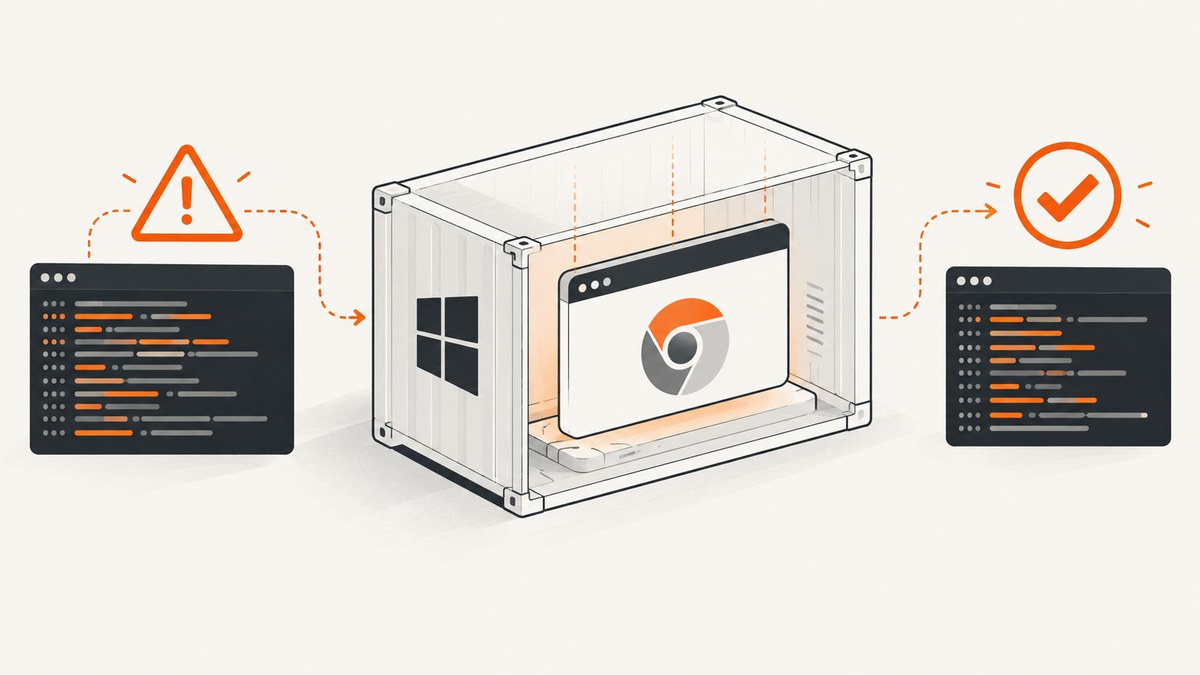
There is no universal flag that fixes “Chrome failed to launch” in a Windows container. The failure usually belongs to one of five branches: an incompatible Windows host and base image, a missing or undiscoverable browser executable, Windows sandbox permissions, read-only startup paths, or an unsupported GPU configuration.
Start by preserving the exact Chrome stderr, container logs, runtime details and launch arguments. Then use the sequence below to identify the branch before changing security settings. A generic Puppeteer exception is not enough to select a fix.
1. Capture the exact failure and environment
Collect these values from the failing deployment:
- The complete Chrome command line and every argument.
- Chrome or Chrome for Testing version and the Puppeteer or automation-library version.
- The resolved executable path.
- Windows host version and build, Windows base-image tag and build, Docker Engine version, and process or Hyper-V isolation mode.
- The Windows identity that starts Chrome and any CPU, memory or filesystem restrictions.
- Full application stdout and stderr, Docker logs, and relevant Docker Engine or Host Compute Service logs.
Microsoft’s Windows-container troubleshooting guidance recommends collecting host diagnostics and inspecting the container and host logs before changing the image or runtime configuration. See Microsoft’s Windows container troubleshooting guide and its version-compatibility requirements.
A minimal diagnostic PowerShell block
docker version
 docker info
 docker inspect <container-name>
 docker logs <container-name> --timestamps

# Run inside the container when it stays alive
Get-ComputerInfo | Select-Object WindowsProductName, WindowsVersion, OsBuildNumber
Get-Process chrome -ErrorAction SilentlyContinue
where.exe chrome
where.exe chrome.exe
$env:USERNAME
Save the first failure and the surrounding lines. Later wrapper messages such as “Failed to launch the browser process” often hide the useful access-denied, missing-file or profile-path error.
2. Prove whether the container or Chrome is failing
If the container does not start, exits before your application runs, or behaves unpredictably, debug Windows-container compatibility first. Microsoft requires matching host and container version tags and build numbers for process-isolated Windows containers. A mismatch can prevent startup or produce undefined behavior; it is not evidence that Chrome itself is defective.
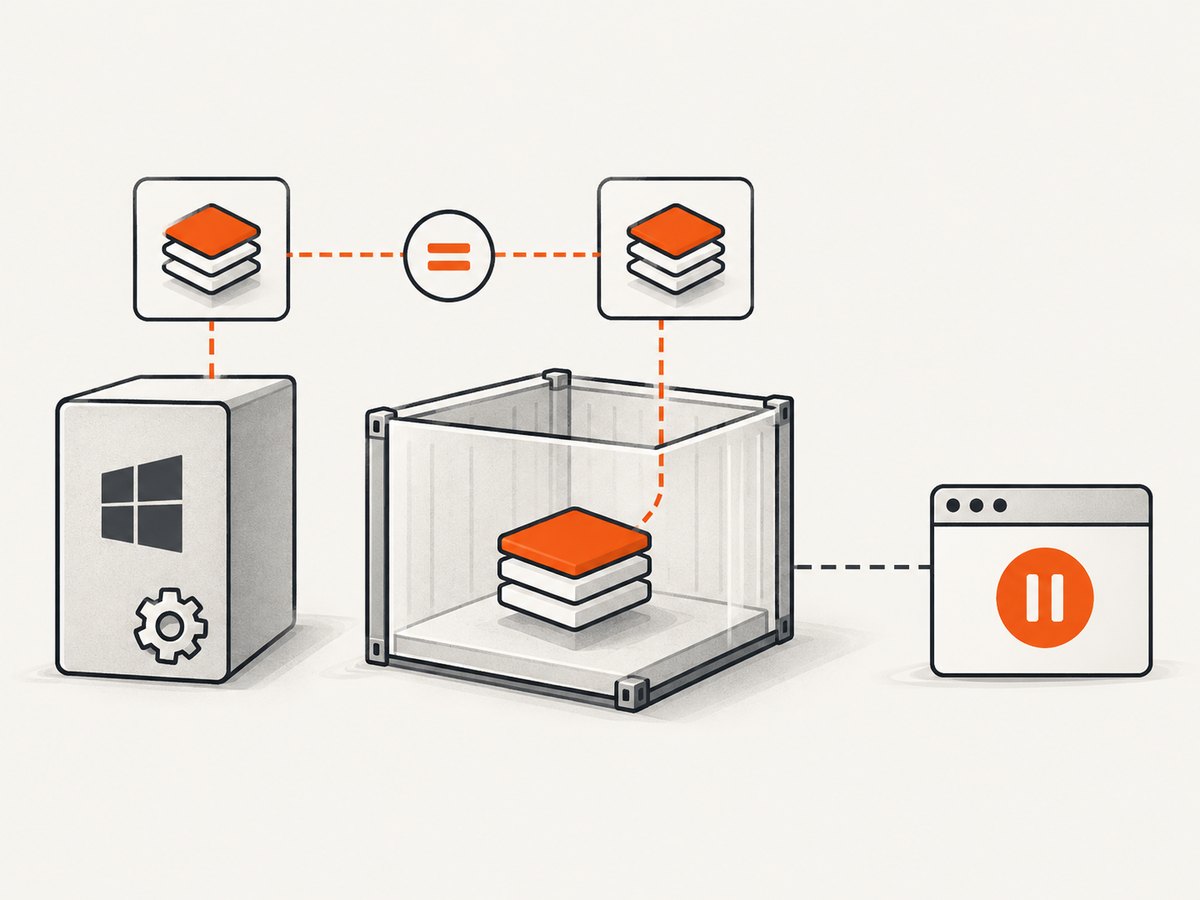
- Record the host build with
winveror PowerShell. - Record the exact base image tag and digest used by the Dockerfile.
- Confirm whether the deployment uses process isolation or Hyper-V isolation.
- Compare those values with the current Microsoft compatibility table.
- Reproduce with a minimal container that only runs a shell, before adding Chrome.
docker run --rm -it mcr.microsoft.com/windows/servercore:ltsc2022 powershell
Do not continue by adding Chrome flags while this minimal container is incompatible. Correct the host, image tag or isolation choice first.
3. Verify Chrome installation and executable discovery
A launch error can simply mean that Chrome is absent, damaged, installed in a different location, or being started through the wrong path. Verify the file exists in the final image, not only in an intermediate build layer.
$candidatePaths = @(
  'C:\Program Files\Google\Chrome\Application\chrome.exe',
  'C:\Program Files (x86)\Google\Chrome\Application\chrome.exe',
  'C:\chrome\chrome.exe'
)
$candidatePaths | ForEach-Object {
  if (Test-Path $_) { Get-Item $_ | Select-Object FullName, Length, LastWriteTime }
}
Configure your automation library with the discovered executable path when automatic discovery is unreliable. Puppeteer’s troubleshooting documentation covers browser installation and executable discovery; the correct installation command depends on your framework, package manager and chosen Chrome channel, so do not copy a Linux installation recipe into a Windows image without checking it.
Use a smoke test before the real workload
const puppeteer = require('puppeteer');

(async () => {
  const browser = await puppeteer.launch({
    headless: true,
    executablePath: process.env.CHROME_PATH
  });
  const page = await browser.newPage();
  await page.goto('https://example.com', {waitUntil: 'domcontentloaded'});
  console.log(await page.title());
  await browser.close();
})().catch(error => {
  console.error(error.stack || error);
  process.exit(1);
});
Run this test with the same user, environment variables, working directory and container limits as production. If it fails, the page URL and application logic are not yet relevant.
4. Fix Windows Chrome sandbox permission errors
When stderr contains “Sandbox cannot access executable. Check filesystem permissions are valid”, inspect permissions on the downloaded Chrome files and the identity running the process. Puppeteer states that Chrome’s Windows sandbox requires additional permissions on downloaded Chrome files. Starting with Puppeteer v22.14.0, installation attempts to configure these permissions through Chrome’s setup.exe; older versions or persistent errors may require the documented icacls remediation. Read the Puppeteer troubleshooting guide and apply the least-permissive access suitable for your service account.
# Inspect the executable and parent directories
icacls 'C:\Program Files\Google\Chrome\Application\chrome.exe'
icacls 'C:\Program Files\Google\Chrome\Application'
whoami
Check the entire downloaded browser tree, because the executable may start helper processes from adjacent directories. If your image build downloads Chrome under one account and runs it under another, reproduce the permission check as the runtime identity.
Do not copy a Linux Docker fix that adds --no-sandbox without checking the operating system and security model. Puppeteer strongly discourages disabling the sandbox in its Linux guidance; that warning does not establish that the argument is the correct Windows-container solution. Preserve sandboxing where feasible and repair the documented Windows permissions instead.
5. Give Chrome writable startup paths
Chrome writes profile, configuration, cache and crash-report data during startup. A read-only container filesystem, a restricted mount, or a service account without write access can make Chrome exit before Puppeteer connects.
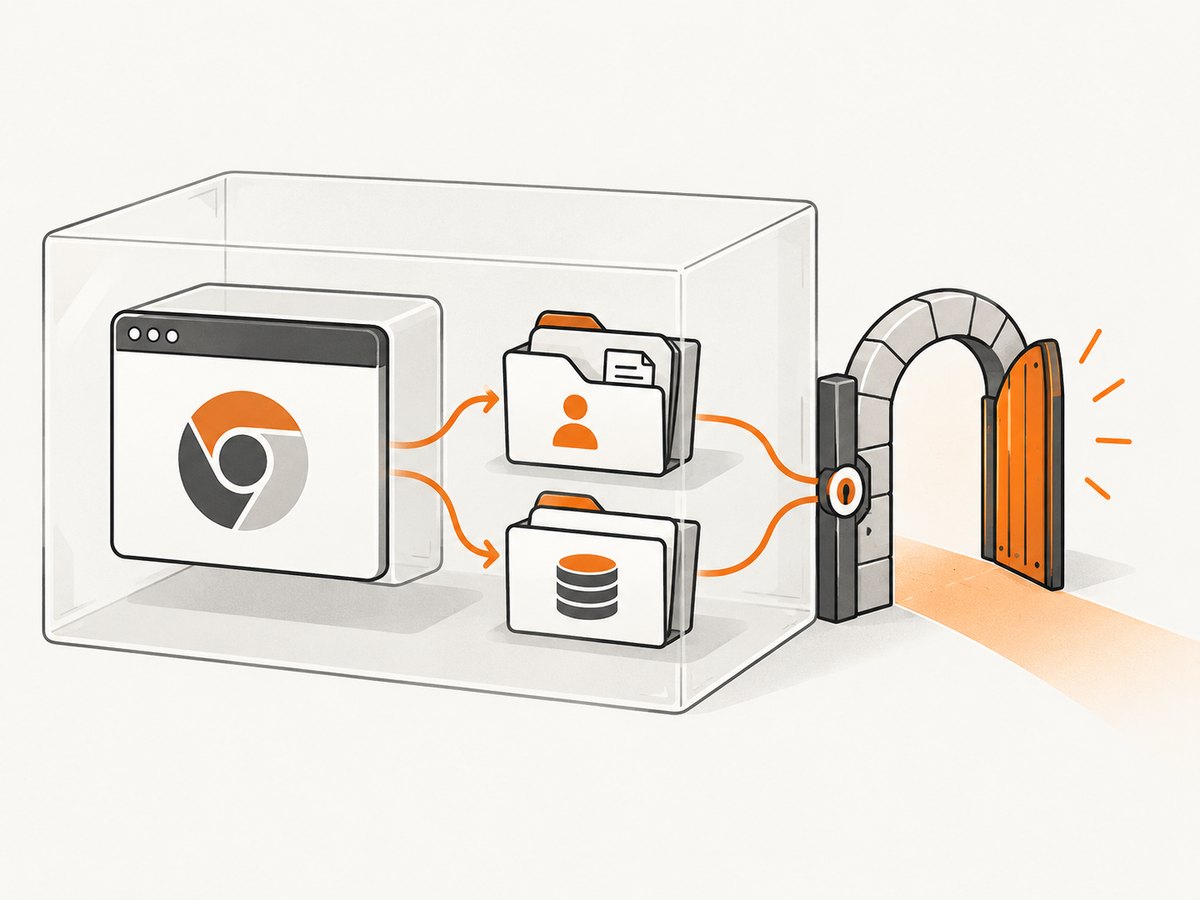
$profile = 'C:\chrome-runtime\profile'
$cache = 'C:\chrome-runtime\cache'
New-Item -ItemType Directory -Force $profile, $cache | Out-Null
icacls 'C:\chrome-runtime' /grant 'ContainerUser:(OI)(CI)M' /T
Use paths that are writable by the actual process identity. If your framework supports explicit arguments, point the user-data directory and cache at those paths:
const browser = await puppeteer.launch({
  headless: true,
  executablePath: process.env.CHROME_PATH,
  userDataDir: 'C:\\chrome-runtime\\profile',
  args: ['--disk-cache-dir=C:\\chrome-runtime\\cache']
});
Keep each job’s profile isolated when parallel workers share a container. Reusing one profile can cause lock contention and corrupt state. If the container is intentionally ephemeral, create the directories at startup and remove them when the process exits.
6. Check the selected headless mode
Modern Chrome headless operation does not inherently require a display server. Chrome’s documentation describes the updated headless mode beginning with Chrome 112 and says a display server such as Xvfb is not needed for headless operation. Confirm the browser version and selected mode before adding legacy display-server setup.
const browser = await puppeteer.launch({
  headless: true,
  executablePath: process.env.CHROME_PATH
});
If an older automation library selects a legacy headless mode, upgrade or explicitly choose the mode supported by your Chrome version. Keep the mode change separate from unrelated permission and image changes so you can identify which change resolved the failure.
7. Investigate GPU only for a GPU-dependent workload
Do not treat GPU access as the default explanation for a generic launch failure. Microsoft’s Windows-container GPU guidance lists prerequisites for the host, image, Docker Engine and GPU driver. The documented acceleration applies to DirectX and frameworks built on DirectX, and GPU acceleration is not supported for Hyper-V-isolated Windows containers in that guidance. If your workload does not require GPU rendering, first validate a CPU and headless path.
For a GPU-dependent workload, record the isolation mode, host GPU model and driver, Windows image, Docker Engine version and the specific API your page needs. A missing prerequisite is a deployment compatibility problem, not a reason to add arbitrary Chrome flags. See Microsoft’s GPU acceleration guidance.
8. Symptom-to-check troubleshooting table
| Symptom | First check | Likely corrective action |
|---|---|---|
| Container never starts | Host and image build, tag and isolation mode | Use a compatible host/image pair or select the documented isolation mode. |
| Executable not found | Final image contents and resolved path | Install the browser in the final layer and configure the absolute executable path. |
| Sandbox access denied | Chrome file ACLs, Puppeteer version and runtime identity | Apply the Windows permission procedure documented by Puppeteer. |
| Crashpad, profile or cache access denied | Writable user-data, profile, config and cache directories | Create writable paths and assign access to the account that runs Chrome. |
Team proposes --no-sandbox |
Operating system and security guidance | Follow Windows-specific permissions; do not transfer Linux advice blindly. |
| Team proposes Xvfb | Chrome version and headless mode | Use modern headless mode when supported; a display server is generally unnecessary. |
| Only GPU pages fail | GPU need, driver, image and isolation prerequisites | Validate Microsoft’s supported GPU configuration or use a CPU path. |
9. Reliability and performance practices
- Build deterministically. Pin the Windows base-image tag and browser channel, then record the resulting image digest.
- Fail early. Run a browser smoke test during deployment and log the version, executable path and identity.
- Limit concurrency. Give parallel workers separate profiles and enough memory; profile locks can look like random launch failures.
- Keep diagnostics. Preserve Chrome stderr and Docker logs for each failed startup, including the first error line.
- Separate retries from repair. A retry can recover from a transient resource problem, but it cannot fix a missing executable, incompatible image or denied ACL.
- Measure startup separately. Record container start time, Chrome launch time and page navigation time so a slow page is not mistaken for a launch failure.
10. Cost and operational trade-offs
Running Chrome yourself means maintaining the Windows image, browser updates, permissions, writable storage, isolation compatibility and any required GPU drivers. It gives you direct control, but every environment change can introduce a new launch branch.
Or skip the browser setup
ScreenshotNeo provides a website screenshot API and MCP server. One request returns a PNG, JPEG, WebP or PDF, so your service does not need to install or launch Chrome in a Windows container.
See the ScreenshotNeo API documentation for the complete option list. The basic request is:
cURL
curl -G 'https://api.screenshotneo.com/v1/shot' -d access_key=YOUR_API_KEY --data-urlencode url=https://stripe.com -o shot.webpPython
import requests

r = requests.get(
    'https://api.screenshotneo.com/v1/shot',
    params={'access_key': 'YOUR_API_KEY', 'url': 'https://stripe.com'},
    timeout=90,
)
r.raise_for_status()
open('shot.webp', 'wb').write(r.content)
Node.js
const q = new URLSearchParams({ access_key: 'YOUR_API_KEY', url: 'https://stripe.com' });
const res = await fetch(`https://api.screenshotneo.com/v1/shot?${q}`);
if (!res.ok) throw new Error(`ScreenshotNeo returned ${res.status}`);
const fs = require('node:fs');
fs.writeFileSync('shot.webp', Buffer.from(await res.arrayBuffer()));
ScreenshotNeo removes cookie and consent banners, newsletter popups and chat widgets before capture. Bot checks, blank pages, timeouts, failed loads and cache hits are not billed; response headers identify the page verdict and whether the shot was billed. Its MCP server gives Claude, Cursor and other MCP clients the tools take_screenshot, get_page_info and capture_pdf.
Options include full-page capture with lazy images loaded, CSS-selector element capture, dark mode, device presets or custom viewports, retina scale, PDF paper and margin controls, custom CSS and JavaScript, clicks, waits, request blocking, headers, cookies, user agents, authorization, timezone, geolocation, transparent backgrounds, resizing, caching with a chosen TTL, signed links, asynchronous jobs with signed webhooks, bulk capture for up to 100 URLs and a usage API. Every feature is on every plan. The Free plan includes 1,000 shots per month with no card; paid plans start at $5 for 3,000 shots.
Create a free ScreenshotNeo account and get 1,000 screenshots a month with no card.
FAQ
Does a Windows container always need --no-sandbox?
No. First inspect Windows Chrome file permissions and the runtime identity. The commonly copied Linux guidance is not a universal Windows fix.
Is Xvfb required for headless Chrome?
Modern Chrome headless mode does not require a display server. Check the browser version and automation-library mode before installing one.
What information should I include in a bug report?
Include the first Chrome stderr lines, full Docker logs, host and image builds, isolation mode, Chrome and Puppeteer versions, executable path, launch arguments and runtime identity.
Can a read-only container run Chrome?
Chrome needs writable locations for profile, configuration and cache data. Provide writable mounts or runtime directories for those paths.


