How to Fix HTML Images Missing From Print Preview
Find out why HTML images disappear in print preview and fix print CSS, backgrounds, broken URLs, lazy loading, and timing issues.
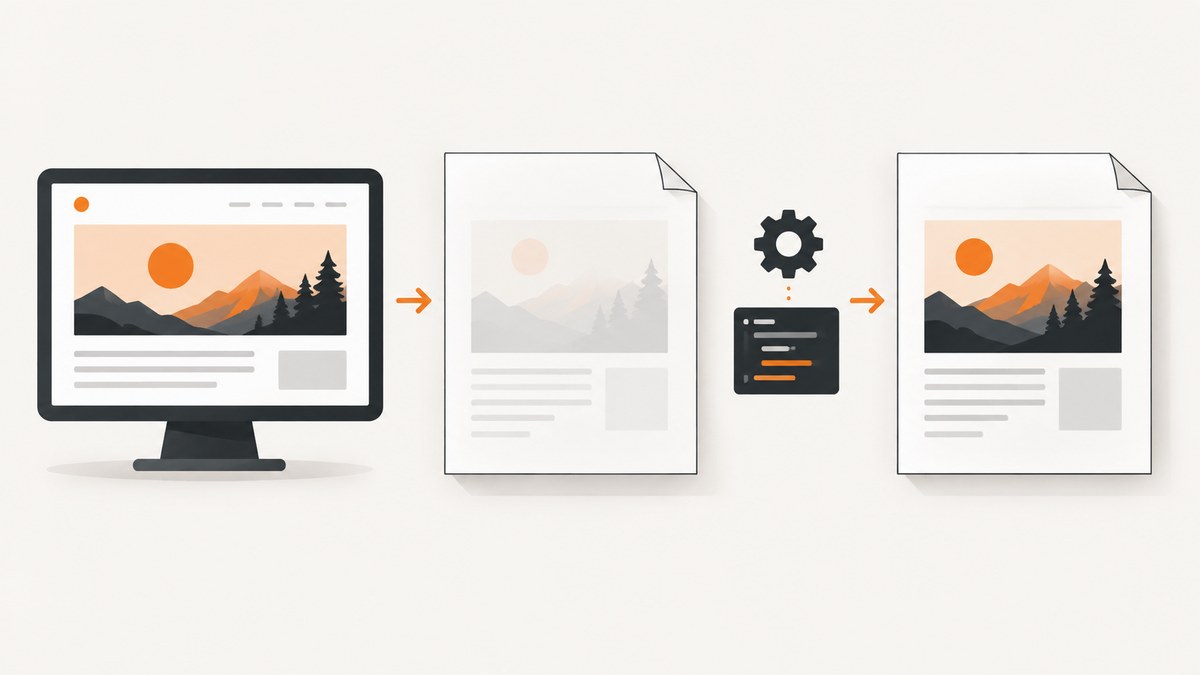
HTML images usually disappear from print preview for one of four reasons: print CSS hides the image or its ancestor, the browser omits CSS backgrounds, the image request fails, or a lazy-loaded image has not loaded before printing. First determine whether the visual is an HTML <img> or a CSS background-image; the fix depends on that distinction.
1. Identify the kind of image
Open developer tools and inspect the missing area.
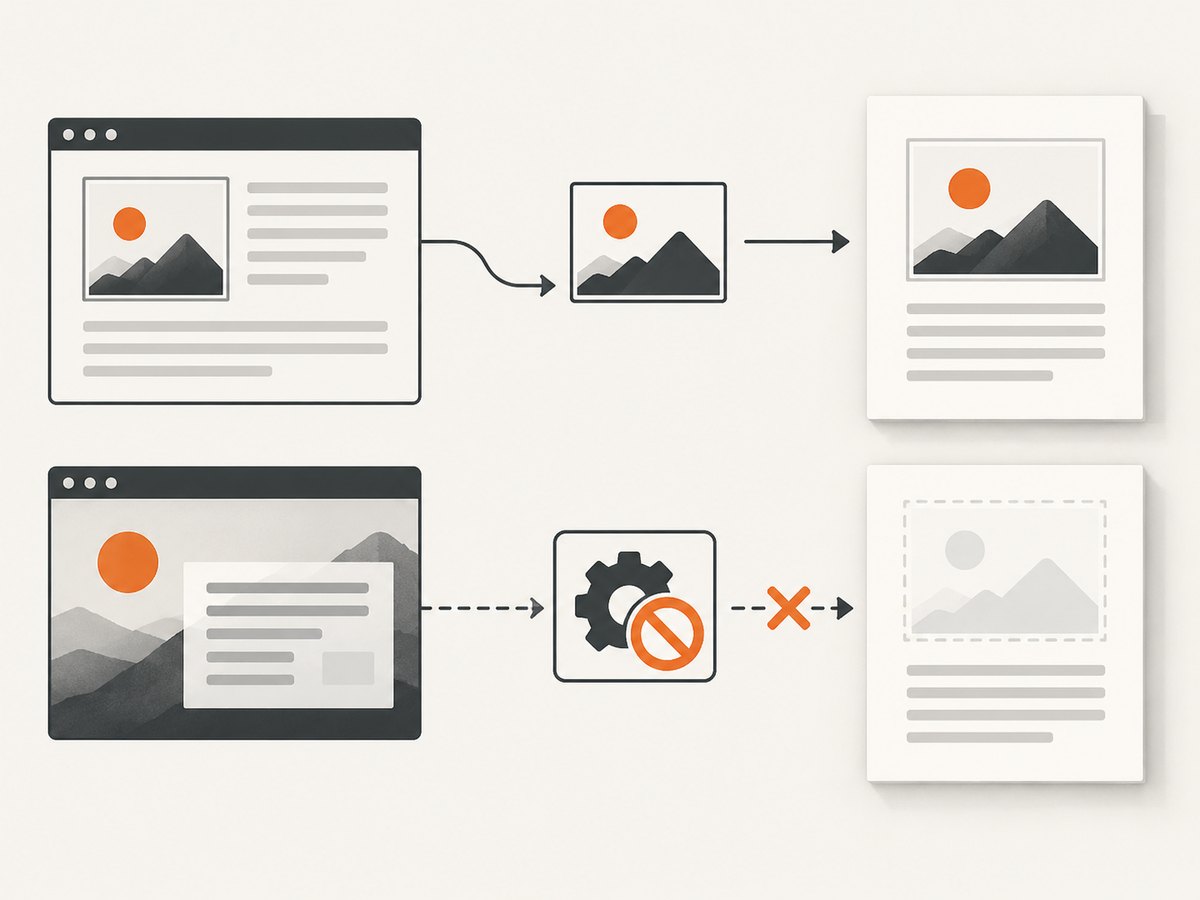
- HTML image: an
<img>, or an image selected through<picture>andsrcset. - CSS background: a visible element whose computed style contains
background-image.
HTML images need a valid resource, suitable print styles, and enough time to load. CSS backgrounds also depend on the browser’s “print backgrounds” preference.
2. Reproduce the print view in developer tools
- Open Chrome DevTools.
- Open the command menu and choose Rendering, or open the Rendering panel from the DevTools drawer.
- Set Emulate CSS media type to
print. - Inspect the image and each parent element in the Elements panel.
Look at computed styles for display: none, visibility: hidden, zero width or height, clipping, opacity, and hidden ancestors. Also search all loaded stylesheets for @media print and for stylesheets linked with media="print". Chrome’s print emulation is useful because it shows print-only rules before you open the system dialog. See the Chrome DevTools CSS media emulation documentation.
3. Fix print CSS that hides the image
A print rule may hide the image itself, a wrapper, or an entire section. Remove the hiding rule or override it in a narrowly scoped print rule.
@media print {
  .article-image,
  .article-image-wrapper {
    display: block;
    visibility: visible;
    opacity: 1;
    width: auto;
    height: auto;
    max-width: 100%;
  }
}
Check for these common causes:
display: noneon the image or an ancestor.visibility: hiddeninherited by the image.- A print layout rule that sets width or height to
0. overflow: hiddencombined with a print-specific size.- Absolute positioning that moves the image outside the printable page.
- A print stylesheet loaded after your normal stylesheet and overriding it.
Prefer fixing the original print rule instead of adding repeated !important declarations. If you must override third-party CSS, scope the rule to the print component.
4. Make CSS background images print
Browsers may omit CSS backgrounds to save ink. In Firefox, open the print dialog, expand More settings, and enable Print backgrounds. Other browsers use different labels, so inspect the current dialog. Firefox documents this setting and its PDF preview workflow in its printing documentation.
You can request preservation of authored colors and backgrounds with:
.print-artwork {
  print-color-adjust: exact;
  -webkit-print-color-adjust: exact;
}
print-color-adjust: exact is a request, not a guarantee. User print preferences take precedence, and browsers retain discretion. Apply it only to artwork that must retain its appearance because it can increase ink use. The MDN reference describes this behavior.
If the graphic carries information, use an actual image with useful alternative text instead of relying only on a background:
<img
  src="/images/diagram.png"
  alt="Data flow from the browser to the print renderer"
  width="1200"
  height="675"
>
5. Check the image URL and format
For an <img>, inspect the final URL in the Elements panel. For responsive images, inspect which srcset candidate the browser selected.
- Open the image request in the Network panel.
- Confirm it returns a successful response and an image content type.
- Check for redirects, authorization failures, mixed-content blocking, CORS-related errors, and expired signed URLs.
- Open the final URL in a new tab to detect a corrupt or unsupported file.
- Check the console for decoding errors.
Empty or null sources, corrupted files, unsupported formats, and failed requests can all produce a missing image. See MDN’s <img> documentation.
<picture>
  <source srcset="/images/hero.avif" type="image/avif">
  <source srcset="/images/hero.webp" type="image/webp">
  <img src="/images/hero.jpg" alt="Product dashboard" width="1600" height="900">
</picture>
Keep a broadly supported fallback in the nested <img>. A print renderer that does not support the selected format can then use the fallback.
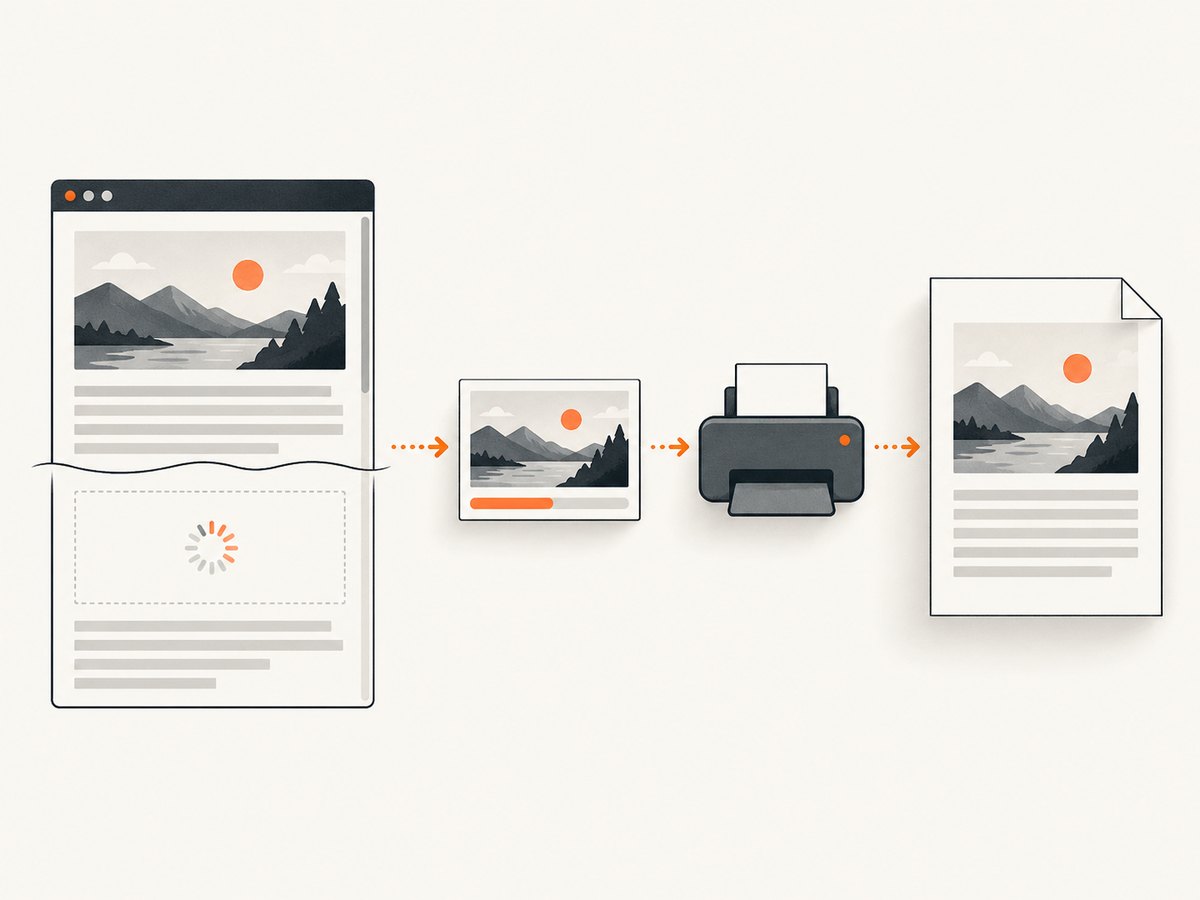
6. Handle lazy-loaded images before printing
loading="lazy" defers off-screen images. The window load event does not prove every lazy image has finished loading. For a print-specific reproduction, temporarily use eager loading:
<img src="/images/report-chart.png"
     alt="Quarterly revenue chart"
     width="1200"
     height="700"
     loading="eager"
     decoding="async">
Then wait for the image to complete before opening print preview:
async function waitForImages(root = document) {
  const images = [...root.images];
  await Promise.all(images.map((img) => {
    if (img.complete && img.naturalWidth > 0) return Promise.resolve();
    return new Promise((resolve) => {
      img.addEventListener('load', resolve, { once: true });
      img.addEventListener('error', resolve, { once: true });
    });
  }));
}

await waitForImages();
window.print();
Set explicit width and height attributes to reserve layout space and reduce reflow while images arrive. For pages with an intersection-observer lazy-loader, scroll the required sections into view or expose a print mode that switches those images to eager loading. MDN covers lazy loading behavior in its lazy-loading guide.
7. Use a print-specific image implementation
A robust document can provide a screen image and a print alternative:
<picture class="report-figure">
  <source media="print" srcset="/images/report-figure-print.png">
  <img src="/images/report-figure-screen.webp"
       alt="System architecture diagram"
       width="1400"
       height="800"
       loading="eager">
</picture>

<style>
@media print {
  .report-figure {
    display: block;
    break-inside: avoid;
  }

  .report-figure img {
    display: block;
    max-width: 100%;
    height: auto;
  }
}
</style>
The print source can use a higher-contrast or lower-resolution asset while retaining the same alternative text.
8. Browser and PDF isolation checklist
- Save or print to PDF where available.
- Compare the PDF with the browser’s preview and with another browser.
- If only backgrounds disappear, enable the print-background preference and review
print-color-adjust. - If HTML images fail in every browser, focus on the URL, format, print CSS, and loading timing.
- If one browser fails, compare its console, network response, and print settings with a working browser.
9. Troubleshooting common errors
| Symptom | Likely cause | Fix |
|---|---|---|
| Photo is visible on screen but absent in print | @media print hides it or an ancestor |
Emulate print media and remove display: none, hidden visibility, zero dimensions, or clipping. |
| Colored panel prints white | CSS backgrounds are disabled in the dialog | Enable “Print backgrounds”; add narrowly scoped print-color-adjust: exact. |
| Broken-image icon appears | Bad URL, failed request, corrupt file, or unsupported format | Inspect the final request, response status, content type, and fallback format. |
| Only images below the fold are missing | Lazy loading has not run before printing | Use eager loading for print, trigger loading, and wait for completion. |
| Image appears on one page and vanishes on the next | Print layout clips or repositions an absolutely positioned element | Use normal flow, max-width: 100%, and avoid clipping ancestors. |
| Image loads after preview opens | Printing started before the resource completed | Await image load events, then call window.print(). |
| Responsive image is blank only in an older browser | Selected srcset or format is unsupported |
Provide a valid nested <img> fallback and test the chosen candidate. |
10. Performance and reliability considerations
- Use explicit dimensions to reduce layout shifts and make page breaks predictable.
- Keep print assets reasonably sized; very large bitmaps can slow rasterization and increase PDF memory use.
- Prefer stable, cacheable image URLs. Short-lived signed URLs can expire between screen rendering and printing.
- Wait for only the images needed by the print document when a page contains many unrelated lazy assets.
- Test the final PDF, not only the emulated screen. Pagination, clipping, and background handling are print-output concerns.
11. Or skip the browser setup
ScreenshotNeo returns a PNG, JPEG, WebP, or PDF from one GET request. Its capture flow accepts cookie and consent banners like a visitor, then removes more than 60 known consent platforms, newsletter popups, and chat widgets; each cleanup step can be disabled. Bot checks, CAPTCHAs, blank pages, timeouts, failed loads, and cache hits are not billed, and response headers identify the page verdict and billing result. Documentation: ScreenshotNeo API docs.
curl -G "https://api.screenshotneo.com/v1/shot" \
  -d access_key=YOUR_API_KEY \
  --data-urlencode url=https://stripe.com \
  -o shot.webp
import requests

r = requests.get(
    "https://api.screenshotneo.com/v1/shot",
    params={"access_key": "YOUR_API_KEY", "url": "https://stripe.com"},
    timeout=90,
)
r.raise_for_status()
open("shot.webp", "wb").write(r.content)
const q = new URLSearchParams({ access_key: 'YOUR_API_KEY', url: 'https://stripe.com' });
const res = await fetch(`https://api.screenshotneo.com/v1/shot?${q}`);
if (!res.ok) throw new Error(`HTTP ${res.status}`);
const data = Buffer.from(await res.arrayBuffer());
require('fs').writeFileSync('shot.webp', data);
For print output, add the PDF options described in the docs, including paper size, margins, landscape mode, and page ranges. ScreenshotNeo also supports full-page capture with lazy images loaded, element capture by CSS selector, custom CSS and JavaScript, click and wait actions, blocked resource types, custom headers and cookies, device and viewport settings, caching with a chosen TTL, asynchronous jobs with signed webhooks, bulk capture of up to 100 URLs per call, signed links, and an MCP server with take_screenshot, get_page_info, and capture_pdf tools for AI clients.
The Free plan includes 1,000 shots per month with no card. Paid plans start at $5 for 3,000 shots; Growth is $15 for 15,000, Pro is $39 for 60,000, Scale is $99 for 250,000, and Business is $249 for 1,000,000. Yearly billing gives two months free, and every feature is available on every plan. Start with 1,000 free screenshots a month—no card required.
12. FAQ
Why does an HTML image print but a background image does not?
Browsers commonly treat backgrounds as optional ink-saving content. Enable print backgrounds and use print-color-adjust: exact as a request for preservation.
Does window.print() wait for lazy images?
No. The print call can happen before lazy images finish loading. Switch required images to eager loading or explicitly await their load events.
Can CSS force a user’s print dialog to include backgrounds?
No. CSS can request authored-color preservation, but the user’s print preference and browser policy can override it.
Should important diagrams be backgrounds?
No. Use an HTML image with alternative text when the graphic carries information, then verify its print CSS and resource loading.
Why is the image missing only in a generated PDF?
PDF generation may use print media rules, a different resource-loading schedule, or a different supported image format. Inspect the PDF renderer’s network and console output and provide a fallback image.


