How to Fix html-pdf PDF Generation on Heroku
Diagnose PhantomJS, Heroku runtime, and buildpack failures in html-pdf, then choose a safe temporary repair or migrate to Puppeteer.
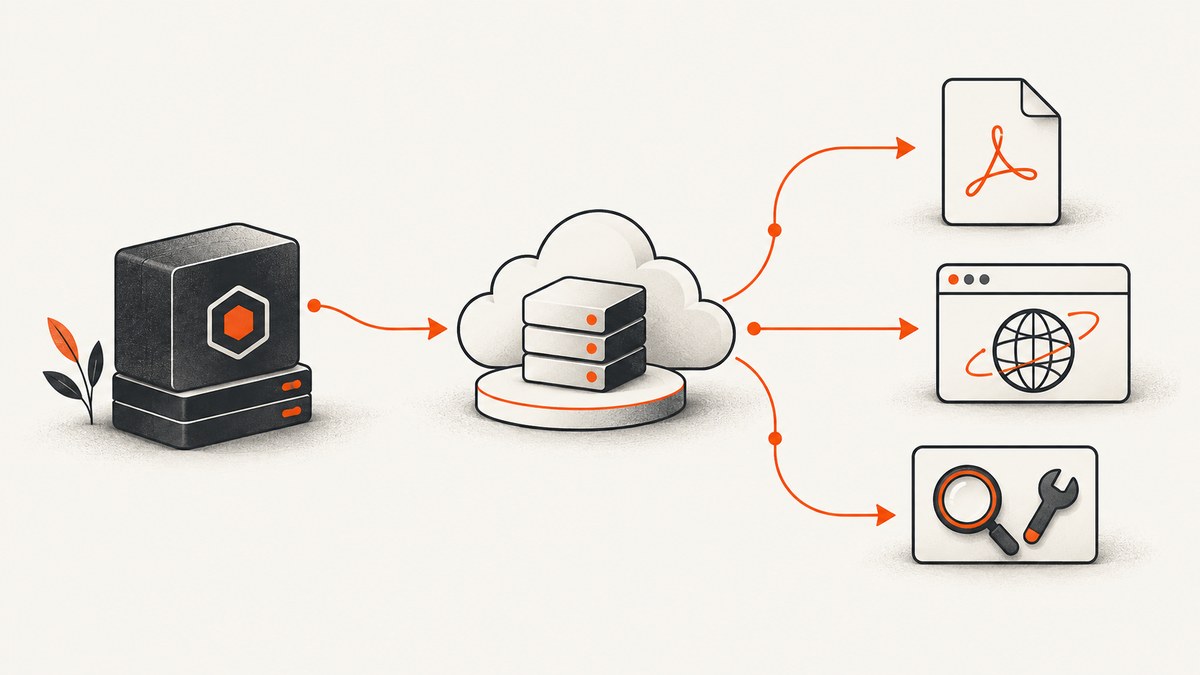
Short answer: html-pdf fails on Heroku most often because its PhantomJS executable is missing, cannot execute, or is incompatible with the dyno runtime. Verify the deployed binary and its permissions before changing phantomPath. A path setting only points to an executable; it does not install PhantomJS or repair an incompatible binary. Because the node-html-pdf project is no longer maintained and its repository is archived, the durable fix is to migrate to headless Chrome with Puppeteer.
This guide gives you a diagnostic sequence for existing applications, runnable examples, Heroku configuration checks, temporary repair criteria, migration planning, and deployment troubleshooting. The exact solution depends on your error text, Node.js version, Heroku generation, buildpack order, and PDF requirements.
What html-pdf requires on Heroku
The node-html-pdf package delegates rendering to PhantomJS. Your local computer may already have a compatible executable or a filesystem layout that hides deployment problems. A Heroku dyno is a separate Linux environment built from your slug and configured buildpacks. A successful local call therefore does not prove that the dyno contains a runnable PhantomJS binary.
The project README documents options including phantomPath and timeout, but its maintainers state that the package is no longer maintained and recommend migrating to headless Chrome/Puppeteer. The repository is archived and read-only. Read the project README and archive status before committing to a long-term patch.
1. Capture deployment facts before changing code
- Copy the complete error and stack trace from the Heroku log. Messages such as
Failed to load PhantomJS moduleand exit code127are examples, not proof that every failure has the same cause. - Record the Node.js version used locally and in the deployed slug.
- Identify whether the application uses a classic Cedar buildpack deployment or Fir with Cloud Native Buildpacks (CNB).
- Record the buildpack order and any custom buildpacks.
- List the PDF behaviors you must preserve: page size, orientation, headers, footers, fonts, local images, external resources, JavaScript execution, and concurrency.
Do not start by copying a random PhantomJS path from a forum post. The correct path depends on what was actually installed in your slug.
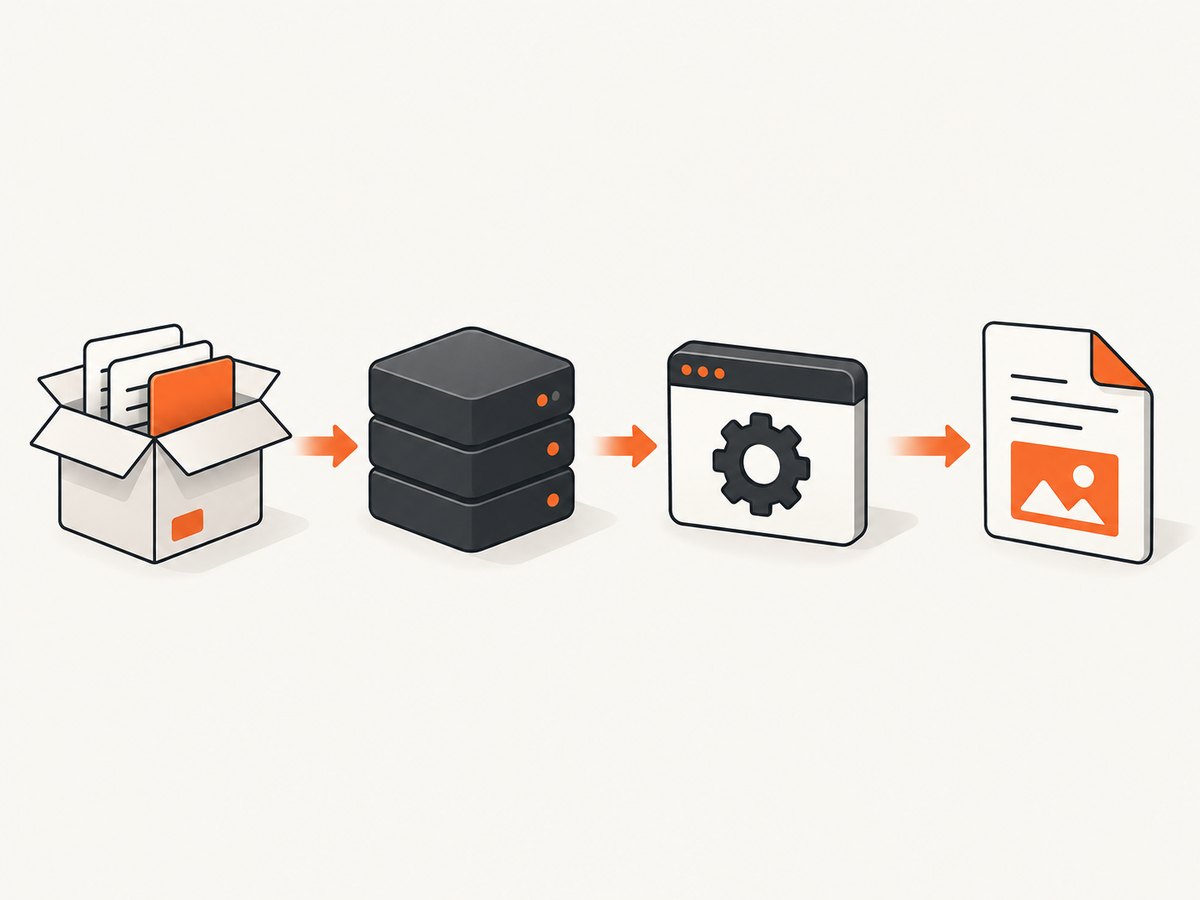
2. Confirm Heroku detects and selects the intended Node.js runtime
Heroku detects a Node.js application when package.json is in the repository root. Declare a major Node.js range in that file so local and production runtimes stay aligned:
{
  "name": "pdf-service",
  "private": true,
  "engines": {
    "node": "24.x"
  },
  "scripts": {
    "start": "node server.js"
  },
  "dependencies": {
    "express": "^4.21.2",
    "html-pdf": "^3.0.1"
  }
}
Heroku’s support reference currently lists Node.js 26.x as Current, 24.x as Active LTS, and 22.x as Maintenance LTS. These platform lines change, so check the current Node.js support reference when publishing or upgrading. For production, use an Active or Maintenance LTS line and match your local development version. Changing Node versions blindly can turn a binary problem into a different compatibility problem.
3. Check that PhantomJS exists inside the deployed slug
A module can be present while its executable is absent, placed elsewhere, or denied execution permission. Add a temporary diagnostic command or one-off endpoint that reports facts without exposing secrets:
const fs = require('fs');
const path = require('path');

const candidates = [
  process.env.PHANTOM_PATH,
  path.join(process.cwd(), 'node_modules', 'phantomjs-prebuilt', 'lib', 'phantom', 'bin', 'phantomjs'),
  path.join(process.cwd(), 'node_modules', 'phantomjs', 'bin', 'phantomjs')
].filter(Boolean);

for (const candidate of candidates) {
  try {
    const stat = fs.statSync(candidate);
    console.log({ candidate, exists: true, mode: stat.mode.toString(8), executable: Boolean(stat.mode & 0o111) });
  } catch (error) {
    console.log({ candidate, exists: false, error: error.code });
  }
}
Run the equivalent check in a Heroku one-off dyno or during a controlled diagnostic release. Confirm the package appears in the production install: do not use a production install setting that omits the dependency. If the file exists but is not executable, fix how it is installed or packaged. If it exists and is executable but cannot start, inspect the first runtime error for missing shared libraries or an incompatible binary.
4. Understand the common errors
| Error pattern | Likely layer | What to check |
|---|---|---|
Failed to load PhantomJS module |
Node module resolution or package installation | Production dependencies, lockfile, package name, and install logs |
Exit code 127 |
Executable not found or a launcher cannot run | Resolved path, file presence, execute bit, and shell errors |
EACCES or permission denied |
Filesystem permission | Executable mode and how the binary entered the slug |
| Shared-library or loader error | Binary/runtime incompatibility | Dyno image, architecture, required libraries, and buildpack output |
| Timeout or blank PDF | Page loading and rendering | External assets, JavaScript completion, network access, and the configured timeout |
Read the first relevant build or runtime error rather than the final wrapper exception. A wrong path, a missing executable, and an unusable executable require different repairs.
5. If you retain html-pdf temporarily, configure it defensibly
Use phantomPath only after you have verified the path in the dyno. Keep the value in an environment variable so a slug change does not require a source edit:
const pdf = require('html-pdf');

const html = `<!doctype html>
<html><head><meta charset="utf-8"></head>
<body><h1>Invoice</h1><p>Generated by the service.</p></body></html>`;

const options = {
  format: 'A4',
  orientation: 'portrait',
  border: '12mm',
  timeout: 30000,
  ...(process.env.PHANTOM_PATH ? { phantomPath: process.env.PHANTOM_PATH } : {})
};

pdf.create(html, options).toFile('/tmp/invoice.pdf', (error, result) => {
  if (error) {
    console.error(error);
    process.exitCode = 1;
    return;
  }
  console.log(result.filename);
});
Do not present this snippet as a universal Heroku fix. It works only when the configured executable is installed, runnable on the dyno, and compatible with the rest of the runtime. Treat it as a diagnostic or short-term bridge while you plan migration.
6. Buildpack configuration: what Heroku does and does not guarantee
Heroku buildpacks can install binaries that are not present in the base image. The configuration process differs between classic Cedar apps and Fir/CNB apps. Identify the generation first and follow the relevant buildpack management documentation. Heroku’s Node.js behavior documentation explains detection and install behavior.
The official documentation does not provide a guaranteed PhantomJS recipe for html-pdf, and this research does not verify any particular third-party PhantomJS buildpack. A buildpack may make a binary available, but it does not prove that the binary supports your dyno image or PDF workload. Verify the resulting path, permissions, shared libraries, and a representative render after every buildpack change.
7. Decide whether to patch or migrate
| Decision factor | Temporary html-pdf repair | Headless Chrome/Puppeteer migration |
|---|---|---|
| Maintenance | Relies on an unmaintained PhantomJS package | Uses the direction recommended by the package maintainers |
| Binary work | Must supply and validate PhantomJS | Must supply and validate Chrome and its dependencies |
| Migration effort | Small if an existing binary is already valid | Requires API and rendering changes |
| Fidelity | May preserve existing output exactly | Requires comparison of CSS, fonts, assets, and pagination |
| Operations | Risk increases as platform images evolve | Still requires resource, concurrency, and browser lifecycle planning |
Migrate when PhantomJS is missing or incompatible, when security or maintenance matters, or when you need modern browser behavior. Before switching, create a fixture set containing long pages, custom fonts, local and remote images, JavaScript-generated content, headers, footers, landscape pages, and concurrent requests. Compare page count, dimensions, text placement, and asset loading. No platform or PDF tests are implied by this guide; run them in your own deployment.
8. Migration checklist for Puppeteer
- Choose a Puppeteer version and a Heroku-supported deployment approach for your app generation.
- Confirm how Chrome is installed and where its executable is located in the dyno.
- Launch one browser per process when practical, reuse pages carefully, and close pages in a
finallyblock. - Set navigation and rendering timeouts explicitly. Wait for the condition your page needs instead of adding an arbitrary delay.
- Set print CSS, page format, margins, and background printing to match the old output.
- Budget memory for browser processes and cap concurrency rather than allowing unlimited PDF jobs.
- Log the URL, render duration, page count, and failure class without logging credentials or private HTML.
9. Troubleshooting checklist
Build succeeds, runtime says the module is missing
Check that html-pdf is under dependencies, not only devDependencies, and that the lockfile matches the deployed install. Confirm the app is building from the repository root containing package.json.

The configured path works locally but not on Heroku
Print the resolved path in the dyno and inspect the file mode. Absolute paths from a laptop do not exist in a slug. Use an environment variable only after discovering the path in production.
The binary exists but exits immediately
Capture the executable’s first stderr message. It may require libraries unavailable in the image or be incompatible with the dyno architecture. A path correction cannot fix that condition.
PDF generation times out
Test the target HTML from the dyno. External fonts, images, analytics calls, blocked domains, and never-ending JavaScript can prevent completion. Inline critical assets where appropriate, wait for a deterministic selector, and set a bounded timeout.
Output differs after migration
Compare CSS print rules, default margins, font availability, image URLs, viewport size, and page-break rules. Browser engines do not guarantee identical pagination.
Concurrent jobs exhaust memory
Measure peak memory under realistic concurrency, queue jobs, limit simultaneous browser pages, and return a clear retryable error when capacity is reached.
Or skip the browser setup
If your application only needs a reliable screenshot or PDF of a URL, ScreenshotNeo provides a website capture API without maintaining PhantomJS or a browser buildpack. One GET request returns PNG, JPEG, WebP, or PDF. Cookie and consent banners are accepted and removed before capture, along with more than 60 known consent platforms, newsletter popups, and chat widgets; each cleanup step can be disabled. Bot checks, blank pages, timeouts, failed loads, and cache hits are not billed, and response headers report the page verdict and billing status.
See the ScreenshotNeo API documentation for all options. A minimal PDF or image request is:
curl -G "https://api.screenshotneo.com/v1/shot" \
  -d access_key=YOUR_API_KEY \
  --data-urlencode url=https://stripe.com \
  -d format=pdf \
  -o page.pdf
import requests
r = requests.get(
"https://api.screenshotneo.com/v1/shot",
params={"access_key": "YOUR_API_KEY", "url": "https://stripe.com", "format": "pdf"},
timeout=90,
)
r.raise_for_status()
open("page.pdf", "wb").write(r.content)const q = new URLSearchParams({
access_key: 'YOUR_API_KEY',
url: 'https://stripe.com',
format: 'pdf'
});
const res = await fetch(`https://api.screenshotneo.com/v1/shot?${q}`);
if (!res.ok) throw new Error(`HTTP ${res.status}`);
const body = Buffer.from(await res.arrayBuffer());
require('fs').writeFileSync('page.pdf', body);Relevant controls include paper size, margins, landscape mode, page ranges, full-page capture with lazy images loaded, CSS-element capture, custom CSS and JavaScript, clicks, selector or network-idle waits, blocked requests and resource types, headers, cookies, user agents, authorization, timezone, geolocation, transparency, resizing, TTL caching, signed image links, asynchronous jobs with signed webhooks, bulk capture of up to 100 URLs, and a usage API. An MCP server exposes take_screenshot, get_page_info, and capture_pdf to Claude, Cursor, and other MCP clients.
There is a free tier of 1,000 screenshots per month with no card. Paid plans start at $5 for 3,000 shots; every feature is available on every plan. Create a free ScreenshotNeo account and try the request with no card.
Performance, reliability, and cost notes
- Performance: Browser startup, page JavaScript, external assets, and PDF encoding dominate latency. Reuse controlled browser processes for self-hosted rendering, or use caching and asynchronous jobs for repeated captures.
- Reliability: Bound every navigation and render timeout, classify failures, and make retries idempotent. Do not retry permanent bot checks indefinitely.
- Cost: Heroku resource use includes dyno memory and CPU consumed by PhantomJS or Chrome. Queue work and cap concurrency. With ScreenshotNeo, cache hits and failed or unusable page verdicts are not billed; inspect
X-Page-VerdictandX-Billed.
FAQ
Can I fix every html-pdf error by setting phantomPath?
No. It only selects an executable that must already exist and run on the dyno.
Is PhantomJS supported by Heroku?
Heroku documents general buildpack support for binaries, not a guaranteed PhantomJS recipe for html-pdf.
Should I change Node.js versions first?
Match local and production versions and use a supported LTS line, but do not change versions without identifying the failing layer.
Does Puppeteer automatically solve deployment?
No. Chrome installation, libraries, memory, concurrency, and rendering differences still require validation.
Can ScreenshotNeo capture authenticated pages?
Yes. Its options include custom headers, cookies, user agents, and Authorization. Review the documentation before sending sensitive credentials.


