How to Fix Image Errors When Converting HTML to PDF in C#
Missing images in a C# PDF usually come down to a wrong resource path, a renderer that cannot fetch the image, or content that loads too late. Diagnose the exact resolved URL before changing CSS.

The fastest way to diagnose a missing image in a C# HTML-to-PDF conversion is to find out exactly what URL or file path the renderer resolves for that image. The answer depends on whether you supplied an HTML string, a local HTML file, or a remote page. Then check whether the conversion process can read or fetch that resource, and whether it has loaded before PDF rendering starts.
Relative paths, JavaScript timing, server network access, deployment permissions, and memory pressure can all produce similar-looking failures. Their fixes differ, and renderer APIs are not interchangeable. This guide uses the documented behavior of SelectPdf, IronPDF, and Puppeteer Sharp where relevant; confirm the matching API for your own library.
1. Identify what kind of HTML you are converting
Start by classifying the input. Do not begin by changing CSS: first establish the base location used to resolve each resource.
| Input | What to inspect | Typical path question |
|---|---|---|
| HTML string or fragment | Does the renderer receive a base URL or base path? | What does images/logo.png resolve against? |
| Local HTML file | Is the asset beside the HTML file, and can the process account read it? | Is the resolved file:// path correct? |
| Remote page | Can the rendering machine reach the page and image URLs? | Does the server resolve, authenticate to, and fetch the image host? |
For every missing image, write down its literal src, the resolved absolute URL or filesystem path, and whether it is an <img> or a CSS background. An image in a stylesheet may have a different relative base from an image in the document, depending on how the stylesheet itself was loaded.
2. Fix relative URLs in an HTML string
An HTML string has no containing directory by itself. A value such as images/logo.png needs a base. SelectPdf documents using the ConvertHtmlString overload with baseUrl: that base is combined with relative resource paths. IronPDF likewise documents a base path argument for local assets in RenderHtmlAsPdf. Check the exact overload and path format supported by your installed package.
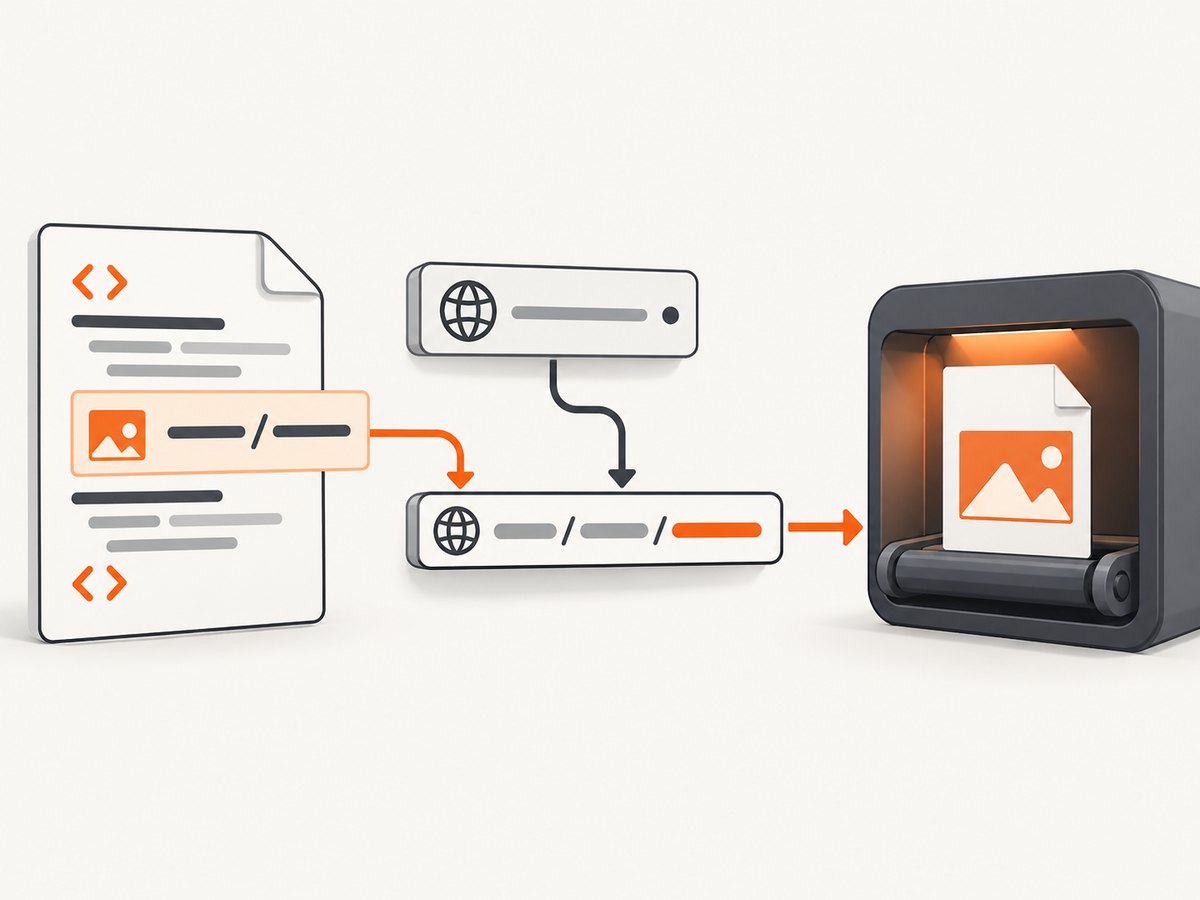
For SelectPdf, the documented shape is:
using SelectPdf;

var converter = new HtmlToPdf();
string html = "<html><body><img src='images/logo.png'></body></html>";

// Use the origin or directory that makes the relative image path valid.
PdfDocument pdf = converter.ConvertHtmlString(
    html,
    "https://example.com/reports/"
);
pdf.Save("report.pdf");
pdf.Close();
With that base, images/logo.png resolves under the supplied reports path. If your assets live on disk rather than an HTTP origin, use the local base location supported by the library and confirm it resolves to the directory you intend. A root-relative path like /assets/logo.png may resolve at the host root, while a relative path resolves under the base directory; verify the final address rather than guessing.
For IronPDF, the documented approach is to pass a base path when rendering HTML text. The following illustrates the method shape; check current package documentation for the precise overload available in your version:
using IronPdf;

var renderer = new ChromePdfRenderer();
string html = "<html><body><img src='images/logo.png'></body></html>";

// Base path points to the directory containing the images folder.
var pdf = renderer.RenderHtmlAsPdf(
    html,
    "file:///srv/app/report-assets/"
);
pdf.SaveAs("report.pdf");
See the vendor references for [SelectPdf troubleshooting](https://selectpdf.com/html-to-pdf/docs/html/Troubleshooting.htm) and [IronPDF HTML-to-PDF guidance](https://ironpdf.com/tutorials/html-to-pdf/). Do not copy a method signature from one renderer into another.
3. Resolve paths for local HTML files
When rendering a file, confirm that the asset exists relative to that HTML file. IronPDF documents that RenderHtmlFileAsPdf resolves relative CSS, image, and script references from the HTML file’s own folder, as if it had been opened with a file:// URL.
using IronPdf;

var renderer = new ChromePdfRenderer();
var pdf = renderer.RenderHtmlFileAsPdf("/srv/app/reports/index.html");
pdf.SaveAs("report.pdf");
If index.html contains <img src="assets/chart.png">, check for /srv/app/reports/assets/chart.png, not a similarly named file in your development project. On Linux, filename case matters: Chart.png and chart.png can be different files. Also check that the service account—not just your interactive user—has permission to read the file and traverse its parent directories.
4. Verify remote images from the rendering machine
A URL that opens in your laptop browser may fail from a server, container, or hosted worker. Test the exact image address from the environment that runs conversion. Check DNS resolution, outbound network rules, proxy settings, TLS, redirects, authentication, cookies, and the final response status. SelectPdf’s troubleshooting guidance specifically covers unresolved URLs and proxy configuration when navigation times out.
Also check whether the response contains image bytes. A server may return an HTML login page, an expired signed-URL message, or an access-denied document with a successful-looking HTTP response. Record the final URL after redirects and the response content type. For private assets, use the renderer’s documented support for headers or cookies, if available; do not assume the renderer shares your browser’s login session.
For a CSS background, inspect the URL inside the stylesheet and how the stylesheet itself is resolved. If the page is generated from a string, relative references in an external CSS file may resolve relative to that CSS file, while inline styles resolve in the document context. Confirm the renderer’s behavior for its engine and version.
5. Wait for JavaScript-created images
Some pages insert or update images after navigation. If PDF creation begins as soon as the initial document loads, the image element may not exist yet or its download may still be in progress. Wait for an application-ready condition or a particular image selector when the renderer supports it.
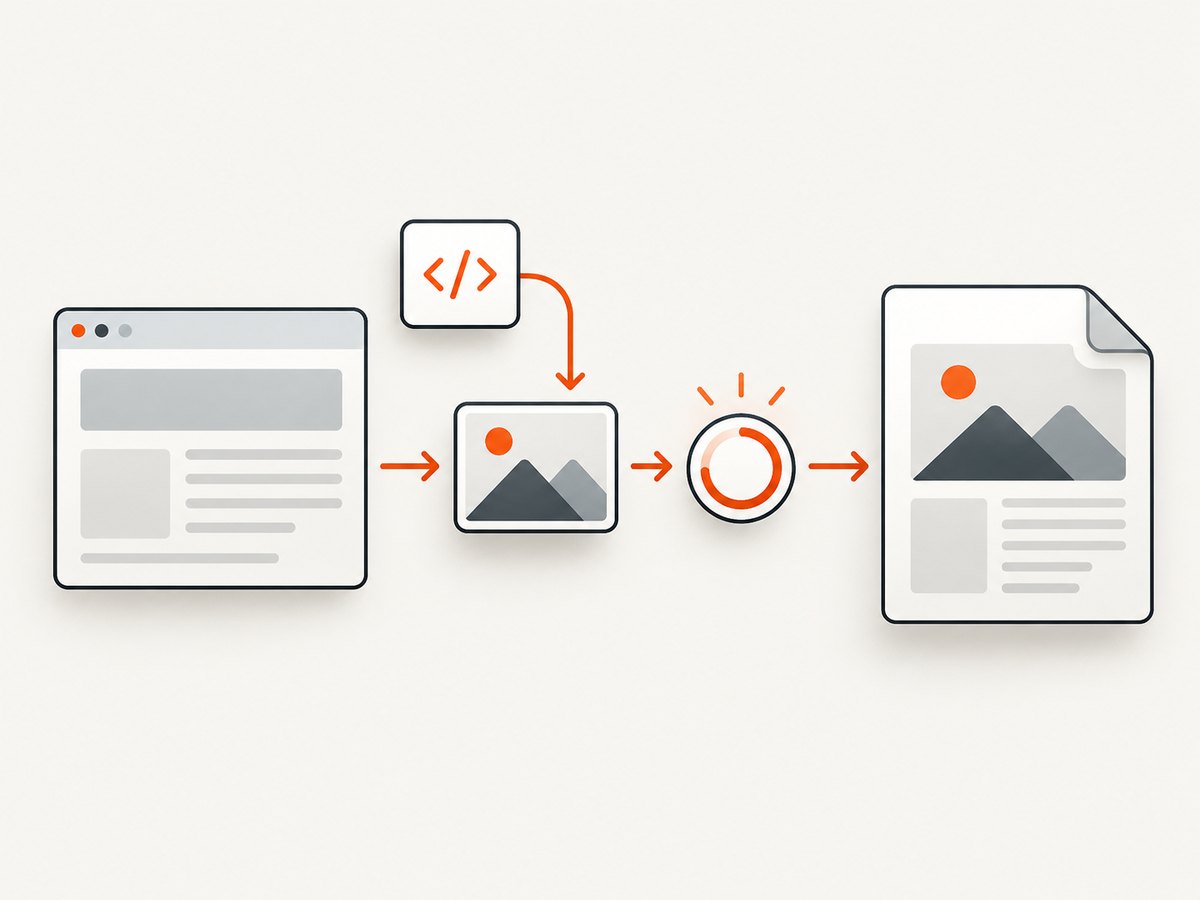
Iron Software support recommends increasing WaitFor.RenderDelay when assets have not loaded before rendering. A vendor example uses a three-second delay; treat that as an illustrative setting, not a universal timing requirement. A fixed delay is useful for diagnosis, but it adds latency and can still be too short on a slow network.
// IronPDF-style example: use the render wait supported by your version.
using IronPdf;

var renderer = new ChromePdfRenderer();
renderer.RenderingOptions.WaitFor.RenderDelay(3000);
var pdf = renderer.RenderUrlAsPdf("https://example.com/report");
pdf.SaveAs("report.pdf");
When using Puppeteer Sharp, its examples show waiting for a selector before generating the PDF. Adapt the selector to an element that means the content is ready, and use the matching API of your installed Puppeteer Sharp version:
using PuppeteerSharp;

await new BrowserFetcher().DownloadAsync();
await using var browser = await Puppeteer.LaunchAsync(new LaunchOptions { Headless = true });
await using var page = await browser.NewPageAsync();
await page.GoToAsync("https://example.com/report");
await page.WaitForSelectorAsync("img.report-chart");
await page.PdfAsync("report.pdf");
A selector being present does not necessarily mean the image has finished decoding. If needed, make the page expose a ready marker only after its images are loaded, or use the renderer’s documented network-idle or image-readiness mechanism. Avoid relying on a long sleep when a meaningful readiness condition is available.
6. Separate missing images from page breaks and memory failures
The image is present but split across pages
If the PDF contains the image but cuts it at a page boundary, resource loading succeeded. Treat this as pagination. SelectPdf documents KeepImagesTogether and the CSS rule page-break-inside: avoid as possible remedies:
converter.Options.KeepImagesTogether = true;<style>
.keep-together {
page-break-inside: avoid;
}
</style>
<div class="keep-together">
<img src="images/chart.png" alt="Chart">
</div>Keeping every image or container together may leave larger blank areas when there is not enough room at the bottom of a page. Apply the rule selectively and review the resulting layout.
Conversion throws an out-of-memory error
Large source images can consume substantial memory even when CSS displays them at a small size. SelectPdf explains that its conversion path first creates bitmaps, so inspect original pixel dimensions and the total image count. Resize or optimize source images to the dimensions the PDF needs. Where appropriate and supported by the deployment, use a 64-bit process; SelectPdf also notes its x64-optimized build as an option. This is a resource problem, not necessarily a bad image URL.
7. Check deployment and renderer-specific failures
Run the same minimal input on the developer machine and deployed host, then compare the renderer version, operating system, .NET runtime, process architecture, container base image, and network context. Different browser-engine versions can render features differently. Iron Software notes CEF version differences as a possible source of mismatch and recommends its updated Chrome package as an initial vendor-specific step; check package and API compatibility before changing production dependencies.
SelectPdf documents deployment issues distinct from broken image paths: its application needs Select.Pdf.dll and Select.Html.dep, and the dependency file may need to be copied manually. Its troubleshooting page also associates access-denied error 5 with execute permissions and error 1260 with group policy blocking the rendering process. Follow the documented fix for your environment rather than treating these as image URL errors.
For a navigation timeout, SelectPdf states its default page-load wait is 60 seconds and gives 120 seconds as an example increased timeout. Those figures describe SelectPdf settings, not a general HTML-to-PDF standard. First check whether the page or an external resource is unreachable or slow; increasing a timeout can mask that problem and lengthen failed jobs.
8. Troubleshooting checklist
- Record the input mode. HTML string, local file, or remote URL.
- Copy the failing source. Note the literal
src, whether it is CSS or an image element, and its resolved absolute URL or path. - Check the base. For a string, supply the correct base URL/path through the renderer’s API. For a file, verify the relative location from that file.
- Check access as the service. Test file permissions and network reachability from the conversion process’s host or container.
- Inspect the response. Check redirects, status, content type, authentication, and whether the response is actual image content.
- Check readiness. Wait for a selector or application-ready signal if JavaScript loads the image after navigation.
- Classify the symptom. Missing resource, late load, page split, memory exhaustion, or renderer deployment failure.
- Compare versions and environment. Record library and engine versions, OS, runtime, architecture, and container image.
- Build a small reproduction. Use one HTML file and one image URL/path, then add complexity only after it works.
When asking a vendor or filing an issue, include the minimal HTML and CSS/JavaScript, the exact failing resource address, renderer and package version, OS and .NET version, deployment architecture, base URL, relevant network or proxy context, and logs. wkhtmltopdf asks for version, operating system/version, and reproducible HTML/CSS/JavaScript; Iron Software similarly requests sample HTML, product version, OS/.NET version, logs, and code. See [wkhtmltopdf reporting guidance](https://wkhtmltopdf.org/support.html) and [Iron Software support](https://help.ironsoftware.com/support/unidentical-pdf-rendered-with-chrome-print-preview).
9. Choosing a renderer for image-heavy documents
Evaluate the renderer against your actual document and deployment. Compare whether it accepts strings, files, and URLs; how it resolves relative assets; how it handles network access, proxies, headers, and cookies; its JavaScript and CSS support; readiness controls; operating-system and runtime support; deployment dependencies; memory behavior; and diagnostic logs. SelectPdf documents its own conversion options, IronPDF documents Chromium rendering and local base-path behavior, and Puppeteer Sharp documents browser-driven PDF generation and selector waits. The available evidence does not establish a universal best library or neutral performance ranking.
Or skip the browser setup
If your goal is a screenshot of the page rather than a custom .NET-rendered PDF, [ScreenshotNeo](https://screenshotneo.com) provides a website screenshot API and MCP server. Its one-call endpoint returns PNG, JPEG, WebP, or PDF. Find the supported parameters in the [ScreenshotNeo API docs](https://screenshotneo.com/docs/).
curl -G "https://api.screenshotneo.com/v1/shot" -d access_key=YOUR_API_KEY --data-urlencode url=https://stripe.com -o shot.webpimport requests
r = requests.get(
"https://api.screenshotneo.com/v1/shot",
params={"access_key": "YOUR_API_KEY", "url": "https://stripe.com"},
timeout=90,
)
open("shot.webp", "wb").write(r.content)const q = new URLSearchParams({ access_key: 'YOUR_API_KEY', url: 'https://stripe.com' });
const res = await fetch(`https://api.screenshotneo.com/v1/shot?${q}`);
if (!res.ok) throw new Error(`Screenshot request failed: ${res.status}`);
await Bun.write('shot.webp', res);ScreenshotNeo removes cookie banners, newsletter popups, and chat widgets before capture. Bot checks, blank pages, and failed loads are never billed; an MCP server lets AI agents take screenshots; and 1,000 screenshots each month are free with no card, with paid plans starting at $5 for 3,000. [Create a free account](https://screenshotneo.com/account/sign-up/).
FAQ
Why do styles and images disappear when an HTML string is converted to PDF?
The string may contain relative references but no base location. Supply the base URL or path through the conversion method supported by your renderer, then verify the resolved resource address.
Why does a screenshot or browser show the image, but the PDF does not?
The browser and PDF process may run on different machines or under different credentials, network rules, proxy settings, or renderer versions. Test the image from the conversion environment and under the process identity.
What if images are loaded asynchronously by JavaScript?
Wait for a meaningful selector or application-ready signal before PDF generation. A renderer-supported delay can help diagnose timing, but a readiness condition is generally more dependable.
Should I increase the timeout?
Only after checking the page and resource network path. A larger timeout may help a genuinely slow page, but it will not correct a wrong base URL, inaccessible file, or blocked host.
Does a small CSS image use little conversion memory?
Not necessarily. The renderer may process the original pixel dimensions before applying display sizing, so optimize oversized source files when memory is a concern.


