How to Fix Different html-pdf Output on Windows and Ubuntu
Find the renderer, align fonts and print settings, and make HTML-to-PDF output match on Windows and Ubuntu.
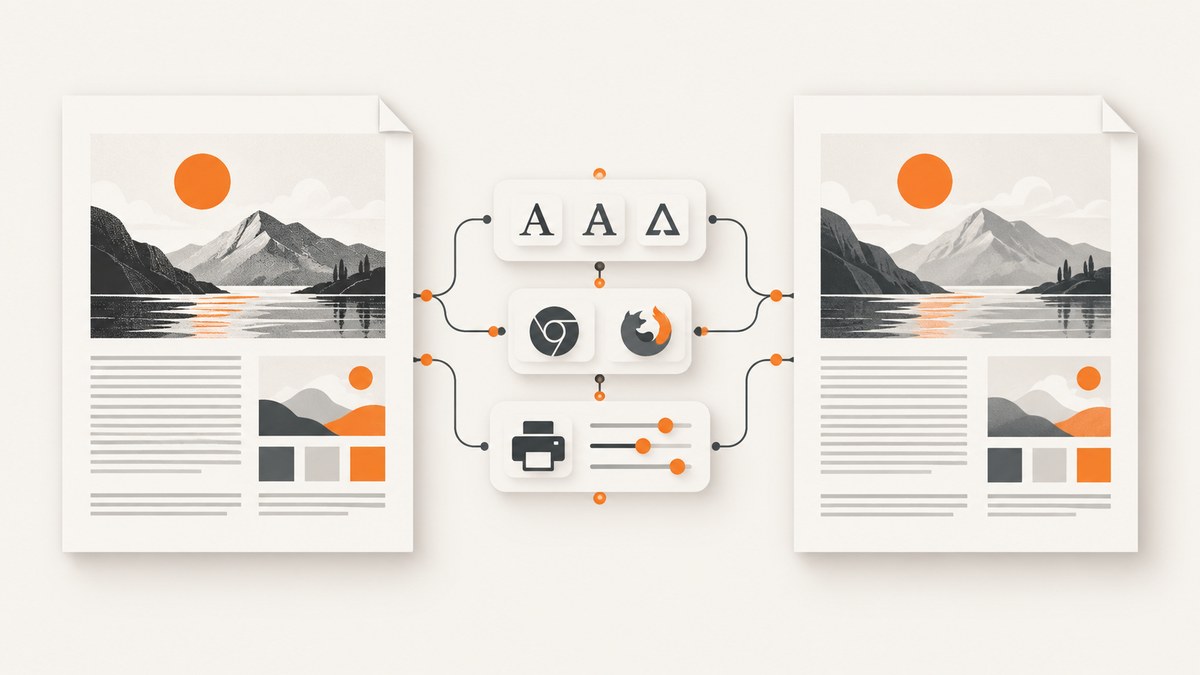
Different HTML-to-PDF output on Windows and Ubuntu usually means the rendering environment is different. Identify the converter and exact versions first, then align fonts, print settings, browser readiness, external assets and operating-system dependencies. Do not start by changing CSS at random.
This guide gives a reproducible diagnostic process for browser automation and wkhtmltopdf, with runnable Puppeteer code, platform checks, troubleshooting and a hosted alternative.
1. Record the renderer before changing the template
Write down these details for both machines:
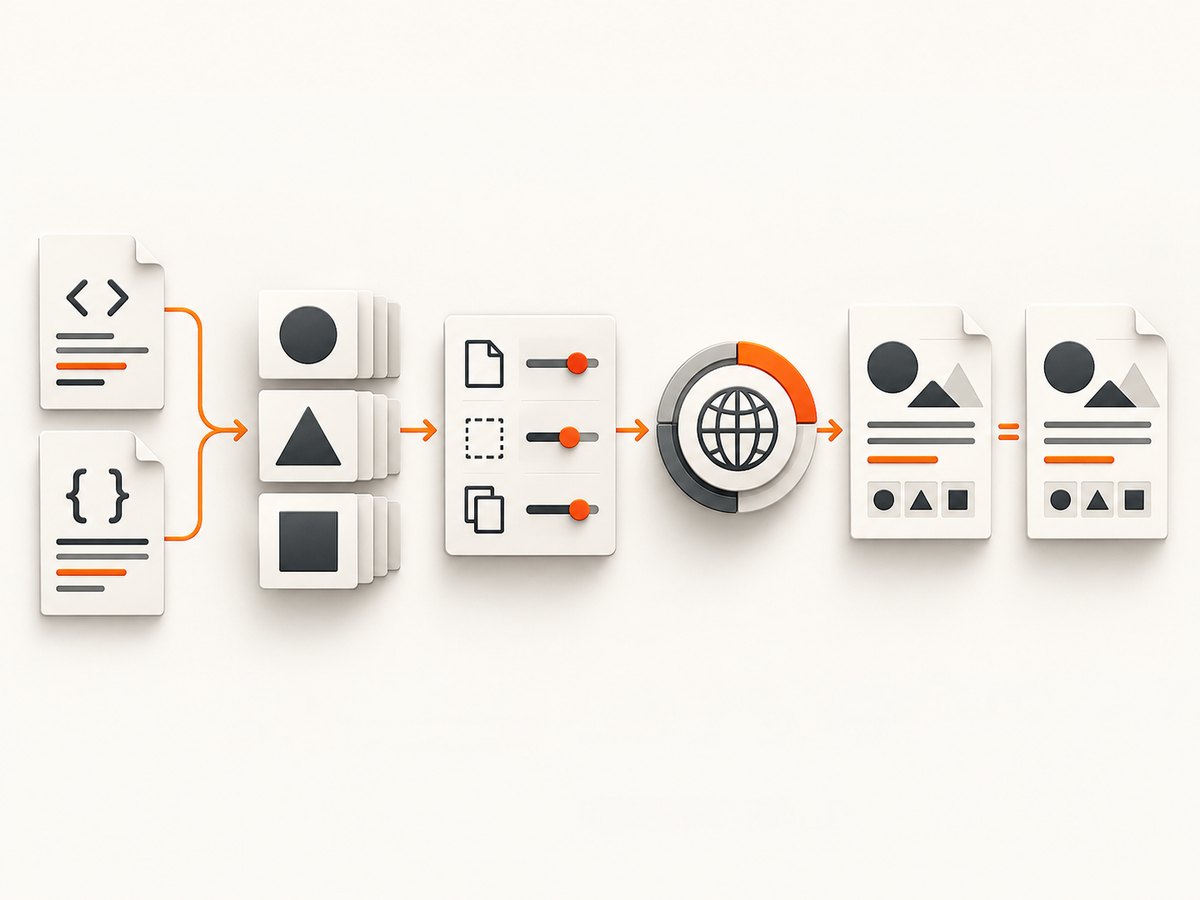
- Converter and rendering engine: Chromium/Puppeteer, Playwright, browser print UI, wkhtmltopdf or another library.
- Library version, browser version, executable path and launch flags.
- Windows version, Ubuntu release, CPU architecture and container image if applicable.
- Input HTML, CSS, data, images, JavaScript bundles and network responses.
- PDF options: paper format, margins, orientation, scale, backgrounds, page ranges and CSS
@pagebehavior.
Puppeteer documents Chrome for Testing support on Windows x64 and Debian/Ubuntu Linux x64 and arm64; its current system-requirements page also lists Node 22.12 or newer. Match browser builds where your software permits it instead of assuming two installations are equivalent.
For wkhtmltopdf, compare the actual executable and build output. The official downloads page lists the 0.12.6 stable series, released June 11, 2020, and explains that distribution libraries and fontconfig/freetype affect runtime behavior.
2. Create a fixed reproduction
Use one local fixture so network changes and application data cannot hide the cause. Save the following as fixture.html and serve the directory over HTTP (for example, with python -m http.server 8000):
<!doctype html>
<html>
<head>
  <meta charset="utf-8">
  <title>PDF fixture</title>
  <style>
    @page { size: A4; margin: 18mm; }
    body { font-family: Arial, sans-serif; color: #222; }
    h1 { break-after: avoid; }
    .box { width: 120mm; padding: 8mm; background: #e8eefc; }
  </style>
</head>
<body>
  <h1>Cross-platform PDF fixture</h1>
  <p>Use identical bytes on both operating systems.</p>
  <div class="box">A box for color, width and font comparisons.</div>
</body>
</html>
Compare PDFs in this order: page count and dimensions, text wrapping and glyphs, then colors, backgrounds and images. This separates page-setting errors from font and resource errors.
3. Use explicit Puppeteer PDF settings
Puppeteer’s Page.pdf() generates with the print CSS media type. If your design is written for the screen, call page.emulateMediaType('screen') before generating the PDF. Make every relevant option explicit.
import puppeteer from 'puppeteer';

const browser = await puppeteer.launch({
  headless: true
});

try {
  const page = await browser.newPage();
  await page.setViewport({ width: 1440, height: 900, deviceScaleFactor: 1 });
  await page.goto('http://127.0.0.1:8000/fixture.html', {
    waitUntil: 'networkidle0'
  });

  // Use this only when the stylesheet is intended for screen media.
  // await page.emulateMediaType('screen');

  await page.evaluate(() => document.fonts.ready);
  await page.pdf({
    path: 'output.pdf',
    format: 'A4',
    printBackground: true,
    landscape: false,
    scale: 1,
    margin: { top: '18mm', right: '18mm', bottom: '18mm', left: '18mm' },
    preferCSSPageSize: true,
    waitForFonts: true
  });
} finally {
  await browser.close();
}
Install and run it with:
npm install puppeteer
node generate-pdf.mjs
The documented controls cover format, margins, orientation, scale, background printing, CSS page-size preference and font readiness. Keep the same values on Windows and Ubuntu. Chromium may adjust printed colors; use -webkit-print-color-adjust: exact where exact color output is required and verify the result in your target viewer.
4. Align fonts and wait for them
Fonts are a frequent source of changed line breaks, page counts and missing glyphs. Install the same families and weights on both systems, and verify that the intended font resolves instead of silently falling back.
- Package or ship the exact font files used by the document.
- Declare every required weight in
@font-face; do not request a weight that is absent. - Wait for
document.fonts.readyand keep Puppeteer’swaitForFontsenabled. - For Chinese, Japanese or Korean text, install coverage fonts appropriate to the document.
- On Ubuntu, inspect fontconfig’s view of installed fonts with
fc-match "Your Font"and refresh caches withfc-cache -fafter installation.
Puppeteer’s Linux guidance includes fontconfig and fonts-liberation dependencies. A font that exists on Windows may be absent or substituted on Ubuntu even when the CSS is identical.
5. Make print media and page geometry identical
Set these values in code rather than relying on a desktop print dialog:
| Setting | What to align |
|---|---|
| Media type | print (Puppeteer default) or explicit screen |
| Paper | A4, Letter or a custom width and height |
| Margins | Top, right, bottom and left units |
| Orientation | Portrait or landscape |
| Scale | The same numeric scale on both runs |
| CSS page size | Whether @page controls paper size |
| Backgrounds | Enable background printing when the design depends on it |
Check for print-only rules such as @media print, break-inside, break-before and @page. A browser print preview can also use different defaults from headless Chromium; compare generated files, not screenshots of the dialogs.
6. Wait for application rendering and remote assets
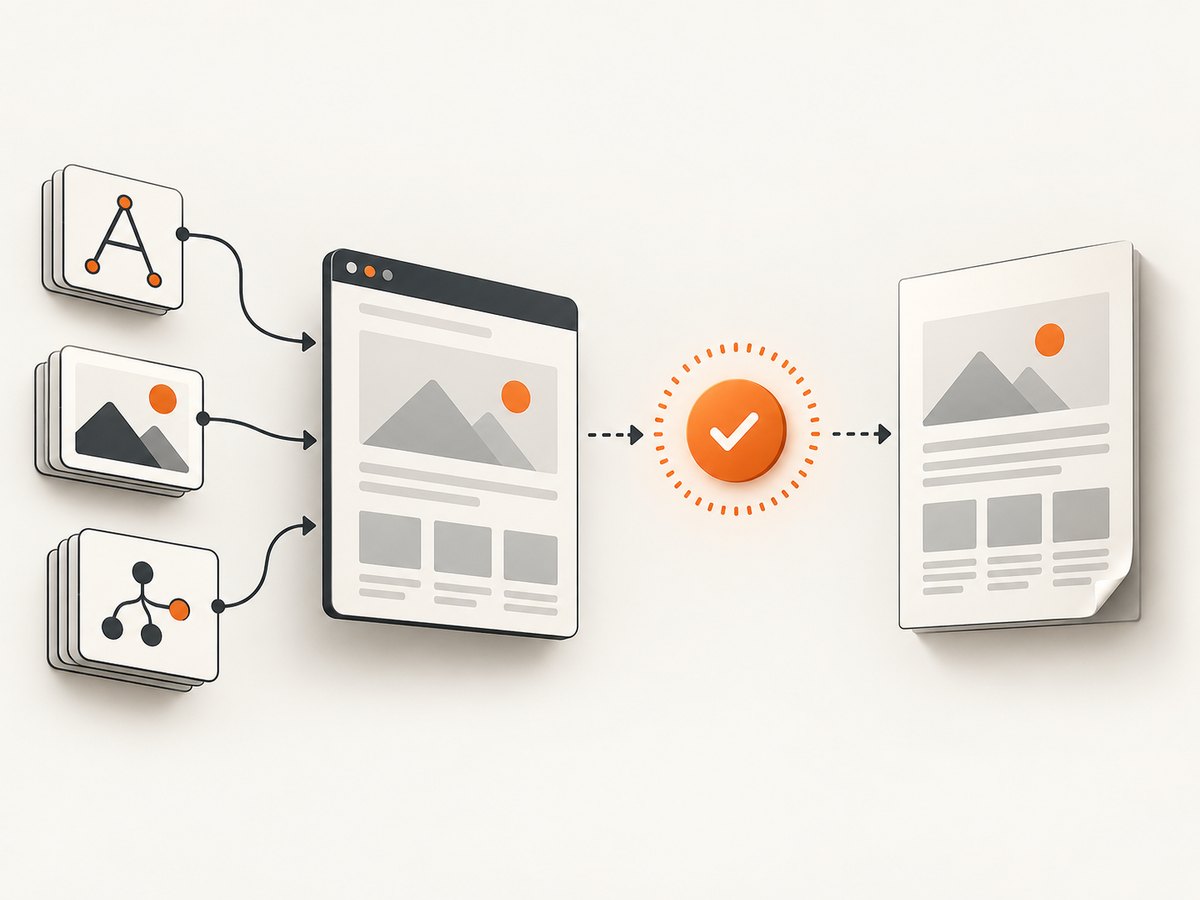
networkidle0 only tells you that network activity became quiet. Charts, delayed images, hydration and client-side data can still be incomplete. Add an application-specific readiness signal:
await page.goto(url, { waitUntil: 'networkidle0' });
await page.waitForSelector('[data-pdf-ready="true"]', { timeout: 30000 });
await page.evaluate(() => document.fonts.ready);
Make external requests deterministic. Pin asset versions, avoid expiring signed URLs, log failed requests, and use the same locale, timezone and authentication state. If the page depends on a service worker or API, capture the same response fixtures on both platforms.
7. Check Ubuntu browser libraries and sandboxing
When Chromium starts on Windows but fails or renders incorrectly on Ubuntu, inspect shared libraries for the exact browser binary:
which google-chrome
ldd "$(which google-chrome)" | grep "not found"
Puppeteer’s troubleshooting guide lists common Debian/Ubuntu requirements covering GTK, NSS, Pango, Cairo, fontconfig and fonts-liberation. Package names vary by Ubuntu release and browser build, so use the guide and verify against the binary you actually run.
Do not treat --no-sandbox as a normal rendering fix. Puppeteer strongly discourages disabling the sandbox; configure a supported sandbox for your deployment instead. If a container requires special privileges, solve that deployment issue separately from PDF layout.
8. If you use wkhtmltopdf
wkhtmltopdf is a separate rendering stack from Chromium. Its version, packaging and available fonts can therefore produce different output even with identical HTML.
wkhtmltopdf --version
wkhtmltopdf --extended-help | head -n 40
wkhtmltopdf --print-media-type --enable-local-file-access input.html output.pdf- Install the same wkhtmltopdf build on both machines.
- Confirm that fontconfig sees the same font families and weights.
- Use explicit flags for paper size, margins, orientation, print media and local-file access.
- Compare the executable path; multiple package managers can install different binaries.
The project warns not to use wkhtmltopdf with untrusted HTML. Sanitize user-supplied HTML and JavaScript before conversion because unsafe input can compromise the server.
9. A repeatable comparison checklist
- Hash the HTML, CSS, scripts, images and data fixture.
- Record converter, browser, Node and OS versions.
- Record installed fonts and resolved font files.
- Set media type, paper, margins, scale, orientation and background behavior explicitly.
- Wait for navigation, application readiness and fonts.
- Check Ubuntu shared libraries and browser launch conditions.
- Generate two PDFs with identical options.
- Compare page count and dimensions, then text wrapping and glyphs, then colors and assets.
10. Troubleshooting common differences
| Symptom | Likely cause | Fix |
|---|---|---|
| Different line breaks or page count | Font substitution, missing weight or different scale | Install identical fonts, verify with fontconfig, wait for fonts and align scale. |
| Missing symbols or CJK characters | Insufficient glyph coverage on Ubuntu | Install a font covering those scripts and declare it explicitly. |
| Colors or backgrounds differ | Print color adjustment or backgrounds disabled | Set printBackground: true and use -webkit-print-color-adjust: exact where needed. |
| Screen layout appears in one PDF | Different media type | Use print CSS consistently or explicitly emulate screen. |
| Images or charts are absent | Capture occurred before asynchronous rendering or requests failed | Wait for a readiness selector, inspect request failures and pin asset URLs. |
| PDF fails only on Ubuntu | Missing shared library, font package or sandbox setup | Run ldd, install dependencies for the exact build and configure sandboxing. |
| wkhtmltopdf output differs from Chromium | Different engine and CSS support | Use the same renderer for both systems or adapt CSS to the selected engine. |
| Local images are blocked | File access restrictions | Serve fixtures over HTTP, or use the converter’s documented local-file option only for trusted input. |
11. Performance, reliability and cost
- Reuse browsers: keep one controlled browser process and create pages per job instead of launching Chromium for every document.
- Bound waits: set navigation, selector and overall job timeouts so a dead asset cannot hold a worker forever.
- Control concurrency: too many simultaneous pages increase memory pressure and make timing less deterministic.
- Cache immutable assets: local or pinned resources reduce network variance and speed repeatable builds.
- Capture diagnostics: log renderer versions, options, failed requests, page count and a fixture identifier.
- Prefer deterministic inputs: freeze locale, timezone, data, current time and random values when visual equality matters.
- Security: isolate conversion workers and sanitize untrusted HTML, especially with wkhtmltopdf.
There is no universal cross-platform benchmark for your document. Measure your own fixture after the output is correct, then set concurrency and timeout limits from those measurements.
12. Or skip the browser setup
ScreenshotNeo provides a website screenshot and PDF API when you do not want to maintain browser binaries and OS font packages. See the API documentation for the available options.
curl -G "https://api.screenshotneo.com/v1/shot" -d access_key=YOUR_API_KEY --data-urlencode url=https://stripe.com -o shot.webpimport requests
r = requests.get("https://api.screenshotneo.com/v1/shot", params={"access_key": "YOUR_API_KEY", "url": "https://stripe.com"}, timeout=90)
open("shot.webp", "wb").write(r.content)const q = new URLSearchParams({ access_key: 'YOUR_API_KEY', url: 'https://stripe.com' });
const res = await fetch(`https://api.screenshotneo.com/v1/shot?${q}`);Cookie and consent banners are accepted and removed before the capture, along with more than 60 known consent platforms, newsletter popups and chat widgets. Bot checks, blank pages, failed loads and cache hits are not billed, and the response reports the verdict and billing status in X-Page-Verdict and X-Billed headers. An MCP server lets Claude, Cursor and other MCP clients call take_screenshot, get_page_info and capture_pdf. The free plan includes 1,000 shots per month with no card; paid plans start at $5 for 3,000 shots.
Create a free ScreenshotNeo account and use the 1,000 monthly shots without adding a card.
13. FAQ
Should I change CSS first?
No. Record the renderer, versions, fonts and PDF options first. A template change can hide an environment mismatch.
Is Chromium output guaranteed to match wkhtmltopdf?
No. They are different engines with different CSS and font behavior. Standardize on one renderer when identical output matters.
Why does the same web font still render differently?
Check the loaded file, weight, font-feature settings and readiness timing. A fallback font can be used briefly or permanently if the web font request fails.
Can a PDF viewer cause the difference?
Yes. Validate page dimensions and extracted text with more than one viewer before changing the generator.
What information should I include in a bug report?
Attach the minimal fixture, both PDFs, renderer and browser versions, OS releases, font inventory, launch flags, PDF options and request logs.


