How to Fix Html2canvas Absolute Elements Stacking at the Top
When absolute elements jump to the top in an html2canvas result, compare live layout with the canvas, then isolate scroll, viewport, CSS, and SVG causes.
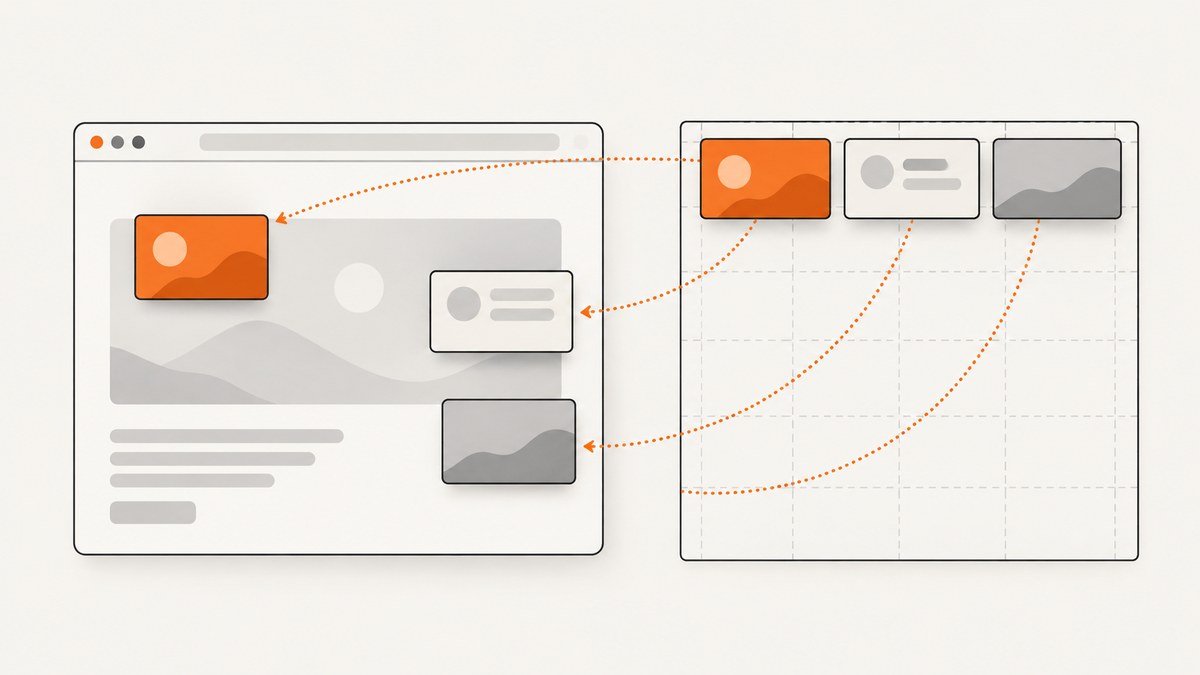
If absolutely positioned elements appear stacked at the top of an html2canvas result, there is no universal CSS fix. First check whether the browser’s live layout is already wrong. If it is correct, compare captures at different scroll positions, match the render viewport, and reduce the page to a minimal example. html2canvas reconstructs a canvas from DOM and CSS information; it does not copy the browser’s already-painted pixels, and its CSS support is incomplete.
This guide gives you a repeatable way to find which layer is responsible: your page layout, capture coordinates, viewport, a CSS feature html2canvas does not reproduce, or an SVG serialization case. It also shows how to test changes on the cloned document so you can experiment without altering the live page.
1. Confirm whether the page or the canvas is wrong
Before changing z-index or rewriting positioning rules, compare the browser’s layout with the rendered canvas. If the elements are already grouped at the top in the browser, fix the page’s containing block or application layout. If the browser positions them correctly and only html2canvas differs, investigate capture settings and CSS support.
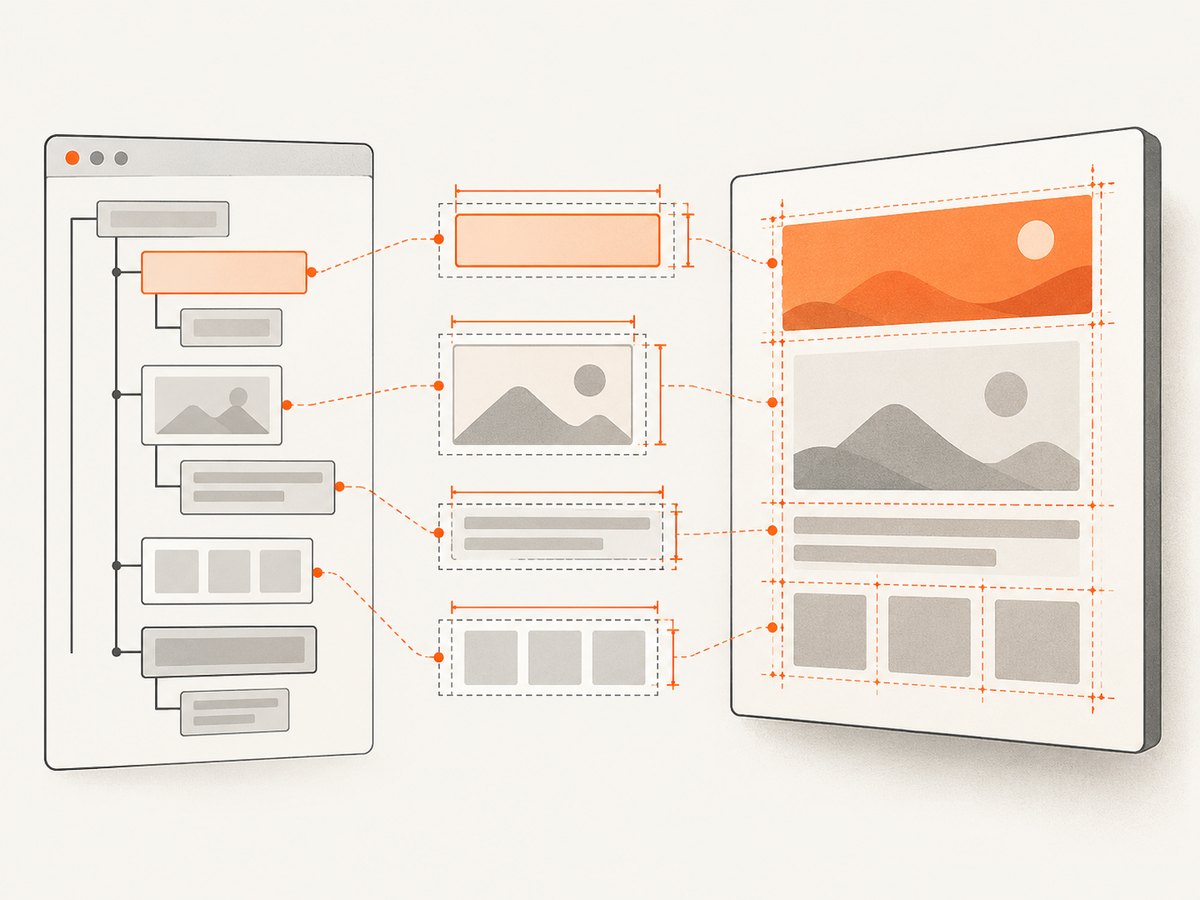
Run this in the browser console immediately before your capture. Replace the selectors with the affected element and its intended positioning ancestor:
const target = document.querySelector('.problem-element');
const ancestor = document.querySelector('.positioning-parent');

for (const [name, el] of [['target', target], ['ancestor', ancestor]]) {
  if (!el) {
    console.warn(`${name} selector did not match`);
    continue;
  }

  const rect = el.getBoundingClientRect();
  const style = getComputedStyle(el);
  console.log(name, {
    rect: { x: rect.x, y: rect.y, width: rect.width, height: rect.height },
    position: style.position,
    top: style.top,
    left: style.left,
    transform: style.transform,
    zIndex: style.zIndex,
    overflow: style.overflow
  });
}
Record the values before html2canvas runs. getBoundingClientRect() reports viewport-relative geometry, so a change in page scroll can change y even when the element stays in the same document position. Compare the target and ancestor together, and note the page’s window.scrollX and window.scrollY. Also inspect nested scrolling containers: their scrollTop can matter even when the window itself is at the top.
These measurements are a diagnostic, not proof of an html2canvas defect. They tell you whether to start with your layout or with the capture. Check the element’s dimensions as well as its coordinates; zero-sized or unexpectedly small boxes point to a layout or timing issue rather than a stacking-order issue.
2. Check the containing block and stacking context
An absolutely positioned element is laid out in relation to its containing block, commonly established by a positioned ancestor. If the expected ancestor is missing, or if the element is actually position: fixed, its coordinates may not mean what you expect. Inspect the full ancestor chain in DevTools and look for:
- The nearest ancestor that establishes the element’s positioning context. Confirm its computed
positionand dimensions. - Transforms on the element or ancestors, which can affect coordinate systems and create stacking contexts.
overflow: hidden,clip,auto, orscroll, which can clip content or place it in a scrolled container.- Whether the element is absolute, fixed, or in normal flow at capture time; application transitions may change this.
- Whether the apparent issue is position or paint order. Overlap and z-order can look like stacking at the top, but changing
z-indexcannot repair incorrect coordinates.
html2canvas processes stacking contexts and positioned descendants in its rendering implementation, but that does not establish that z-index causes every top-position symptom. Change one variable at a time: first the containing block, then transforms, clipping, and position type. Preserve the ancestor structure in your reproduction because removing it can remove the condition you need to diagnose.
3. Reproduce at the top and at the failing scroll position
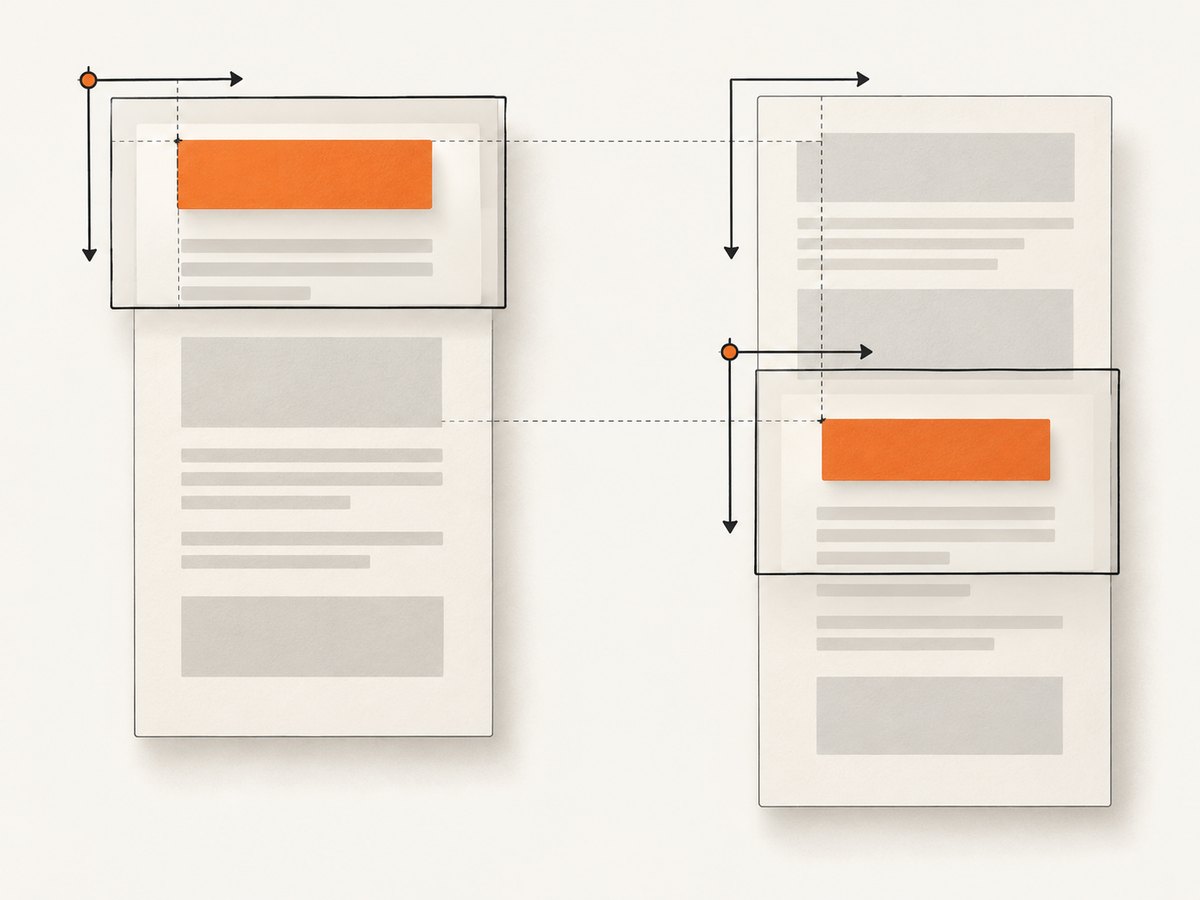
The configuration reference exposes scrollX and scrollY as the scroll positions used for rendering, including cases involving fixed-position elements. Test the same element at page scroll zero and at the scroll position where the failure occurs. If you have nested scroll containers, test those separately as well.
import html2canvas from 'html2canvas';

const target = document.querySelector('#capture');
if (!target) throw new Error('Missing #capture element');

async function captureAt(x, y) {
  return html2canvas(target, {
    scrollX: x,
    scrollY: y,
    backgroundColor: '#ffffff'
  });
}

const atTop = await captureAt(0, 0);
document.body.appendChild(atTop);
atTop.style.cssText = 'position:fixed;right:0;bottom:0;max-width:45vw;height:auto;border:1px solid #888';
This is a browser-module example: it assumes html2canvas is installed in your application and bundled so the import resolves. It appends the top-position capture for comparison. To reproduce the current page position, pass the intended coordinate values explicitly and save the resulting canvas with canvas.toBlob() or canvas.toDataURL(). Do not infer a universal rule from one successful capture.
A historic issue reported a blank offset when capturing after scrolling to the bottom with html2canvas 1.0.0-rc.3, Chrome 75, and Windows; that reporter said scrolling to the top fixed their instance. It is a narrow report, not a general remedy for current versions or all absolute elements. Use it as a reason to check scroll dependence, not as a prescription to move every user’s page to the top.
4. Match the render viewport to the content
When a canvas is blank, clipped, or laid out differently at a breakpoint, compare the browser viewport with html2canvas’s render dimensions. The windowWidth and windowHeight options set the rendering viewport and can change media-query results. For an element intended to render at its full scroll dimensions, the FAQ suggests using the element’s scrollWidth and scrollHeight:
const element = document.querySelector('#capture');
if (!element) throw new Error('Missing #capture element');

const canvas = await html2canvas(element, {
  windowWidth: element.scrollWidth,
  windowHeight: element.scrollHeight,
  scrollX: 0,
  scrollY: 0
});
This is useful for investigating bounds and responsive changes, but it is not a direct fix for every absolute-position problem. A wider or taller render viewport can activate different CSS, move breakpoints, or change the layout itself. Compare computed styles before and after changing the dimensions so you can tell whether you fixed clipping or simply captured another responsive layout.
Very large canvases can also be blank or partial because canvas dimensions and area limits vary by browser and platform. If increasing viewport dimensions makes the output fail, capture smaller sections or reduce the requested dimensions; do not assume the element’s CSS position is at fault.
5. Isolate CSS support and test a cloned-document change
html2canvas builds its own representation by reading DOM information. The project documentation says that CSS properties must be implemented by the library to render correctly, and its FAQ says CSS support is not complete. That means a page can look correct in the browser while the generated canvas differs.
Reduce the case to the smallest subtree that still fails. Keep the same relevant ancestors, positioning, transforms, overflow, and one absolute child. Remove unrelated styles and content gradually. Then try a targeted temporary override with onclone, which receives the cloned document used for rendering:
const canvas = await html2canvas(document.querySelector('#capture'), {
  onclone(clonedDocument) {
    const target = clonedDocument.querySelector('.problem-element');
    if (!target) return;

    // Diagnostic example only: substitute the specific property
    // that your reproduction shows is wrong.
    target.style.left = '24px';
    target.style.top = '16px';
  }
});
The example deliberately uses placeholder offsets. Measure the correct values in your page and change only the property implicated by your reproduction. You can also temporarily remove a transform, change an overflow rule, or put the element in flow to test a hypothesis. Because the callback modifies the clone, the experiment does not have to change the original document. Avoid shipping a guessed override: if it only works at one viewport or scroll position, it may hide the symptom while breaking other layouts.
6. Test SVG separately
If the affected element is an SVG, isolate it from ordinary HTML. A reported case on html2canvas 1.4.1, Chrome 111, Windows 10 described incomplete output for an absolutely positioned SVG that was not at its parent’s upper-left. The report attributed the result to position attributes in the SVG serialization. That is a single report and does not establish a general failure for absolutely positioned div elements.
Capture the SVG by itself, then compare it with a temporary cloned version moved to the parent’s top-left or placed in normal flow. If that changes the result, retain a minimal SVG reproduction and include the library and browser versions when reporting the issue. Keep the production SVG unchanged until the test identifies which property or serialization path matters.
7. Choose the right capture method
Use html2canvas when an in-page canvas representation is suitable and the CSS in your target is supported. If you need a server-side screenshot or faithful rendering of browser-painted output, html2canvas’s FAQ points to Puppeteer or Playwright, which drive a real headless browser. That is an architectural choice: browser automation adds a browser runtime and its operational needs, while html2canvas runs as a DOM-to-canvas rendering library in the page.
For a reproducible issue, include the installed html2canvas version, browser and operating system, minimal DOM and CSS, scroll positions, relevant ancestor styles, capture options, and a comparison of live geometry with the output. The project FAQ recommends making a test case and opening an issue when CSS support is missing or incomplete.
8. Troubleshooting checklist
| Symptom | Likely area to inspect | Next action |
|---|---|---|
| Elements are already at the top in the live page | Page layout or containing block | Inspect positioned ancestors, dimensions, and computed offsets before capture. |
| Only the capture at a nonzero scroll position fails | Scroll coordinate mismatch | Compare captures at zero and current scroll; set scrollX/scrollY deliberately. |
| Content is clipped or blank at large dimensions | Viewport or canvas bounds | Check windowWidth/windowHeight; capture smaller regions if canvas limits are reached. |
| Layout changes when render dimensions change | Responsive media query | Compare computed styles at both viewports; choose the intended breakpoint deliberately. |
| Only an SVG fails | SVG serialization or positioning | Test the SVG alone and make a minimal reproduction with version details. |
| Clone-only style override fixes it | CSS representation difference | Keep the override narrowly scoped and verify it across relevant scroll positions and viewports. |
| Canvas overlaps look wrong but coordinates match | Paint order or stacking context | Inspect transforms, opacity, positioned descendants, and z-index separately from geometry. |
9. Performance, reliability, and cost
For html2canvas, the practical cost is local browser work: traversing the target DOM, resolving styles, and allocating a canvas. Large or tall targets require more memory and can hit browser-dependent canvas limits. Reduce the captured subtree where possible, avoid needlessly enormous viewport dimensions, and render only after the page has reached the state you want to capture. A deterministic reproduction should wait for fonts, images, and application layout changes before collecting geometry and rendering.
Reliability depends on the content and CSS features in the capture as well as browser behavior. Keep a small regression fixture for a fix involving transforms, scroll offsets, or SVG so a later dependency or layout change does not silently reintroduce the issue. For server-side jobs, account for the operational work of running browser automation. There is no cost figure in the cited html2canvas materials; the relevant expense depends on where and how you run your application and browser.
For managed API pricing and capture options, see ScreenshotNeo. Its plans and supported behavior are described below.
10. Or skip the browser setup
If your goal is to get a clean website capture rather than debug an in-page canvas, ScreenshotNeo returns an image or PDF from one GET request. It accepts cookie and consent banners like a visitor, then removes 60+ known consent platforms, newsletter popups, and chat widgets before capture. Those steps can each be turned off. Bot checks and CAPTCHAs, blank pages, timeouts, failed loads, and cache hits cost nothing; the response identifies page verdict and billing status in X-Page-Verdict and X-Billed headers. Its MCP server gives AI agents tools for screenshots, page information, and PDF capture.
See the ScreenshotNeo API documentation for parameters and setup. Example using the requested target URL:
curl -G "https://api.screenshotneo.com/v1/shot" \
  -d access_key=YOUR_API_KEY \
  --data-urlencode url=https://stripe.com \
  -o shot.webp
import requests
r = requests.get(
"https://api.screenshotneo.com/v1/shot",
params={"access_key": "YOUR_API_KEY", "url": "https://stripe.com"},
timeout=90,
)
open("shot.webp", "wb").write(r.content)const q = new URLSearchParams({
access_key: 'YOUR_API_KEY',
url: 'https://stripe.com'
});
const res = await fetch(`https://api.screenshotneo.com/v1/shot?${q}`);
if (!res.ok) throw new Error(`Screenshot request failed: ${res.status}`);
await Bun.write('shot.webp', new Uint8Array(await res.arrayBuffer()));The Node.js example uses fetch and Bun’s file-writing helper; in Node.js, replace the last line with your preferred filesystem write method, for example await import('node:fs/promises').then(fs => fs.writeFile('shot.webp', Buffer.from(await res.arrayBuffer()))).
ScreenshotNeo supports full-page and selector capture, device presets and custom viewports, retina scale, dark mode, custom CSS and JavaScript, clicks, waits, request blocking, headers and cookies, user agent, timezone and geolocation, transparent backgrounds, image resizing, cache TTL, signed image links, async jobs, bulk capture of up to 100 URLs per call, usage API, and PDF options. It also accepts parameter names used by other screenshot APIs. Plans include 1,000 shots per month free without a card; paid plans start at $5 for 3,000. Every feature is on every plan, and yearly billing gives two months free.
Get 1,000 ScreenshotNeo screenshots a month free, with no card.
Frequently asked questions
Will increasing z-index fix elements that appear at the top?
Only if the problem is paint order. If their coordinates are wrong, inspect the containing block, scroll values, viewport, and CSS handling first.
Should I always scroll the page to the top before rendering?
No. One old report found that helped one setup. Compare top and scrolled captures, then choose coordinates appropriate to your capture.
Can onclone change my actual page styles?
It is provided with the cloned document for capture adjustments. Use it for controlled experiments and keep any eventual override narrow and based on measured behavior.
How do I report a likely html2canvas CSS bug?
Provide a minimal test case, html2canvas version, browser and OS, computed geometry, scroll position, capture options, and the resulting output.


