How to Fix html2canvas Not Rendering Images in Child Divs
When html2canvas omits images inside a child div, trace the image request, check CORS and redirects, then inspect the cloned DOM and layout.

If html2canvas leaves an image blank inside a child div, first check whether the browser loaded that image and what URL it ultimately requested. Cross-origin policy is a frequent cause: with the default allowTaint: false, html2canvas skips images that would taint the canvas. If the image server permits your page’s origin, use useCORS: true; otherwise, serve it through a controlled same-origin proxy. If the image loaded successfully, check the cloned DOM, ignore rules, CSS support, and capture dimensions.
html2canvas reconstructs a representation of the DOM; it does not take a literal screenshot of the browser. Its output depends on the CSS and DOM features the library implements. That distinction matters when a child image looks fine on screen but disappears from the generated canvas. See the html2canvas FAQ, configuration reference, and documentation.
1. Confirm the target and inspect the image
Pass html2canvas the parent element that contains the child, not a selector that resolves to a sibling or an outer wrapper with unexpected clipping. Check the image’s current URL, load state, and intrinsic dimensions before changing capture options:
const target = document.querySelector('#capture');
if (!target) throw new Error('Could not find #capture');

const images = [...target.querySelectorAll('img')];
console.log('images inside target:', images.length);
for (const img of images) {
  console.log({
    url: img.currentSrc || img.src,
    complete: img.complete,
    naturalWidth: img.naturalWidth,
    naturalHeight: img.naturalHeight
  });
}
A naturalWidth of zero means the browser does not have a usable decoded image. Resolve that load failure before diagnosing html2canvas. Open the browser’s Network panel and find the child image request. Check its status, redirect chain, final URL, response headers, and whether the request failed or was blocked. Check the Console for resource or CORS errors as well.
2. Wait for child images to finish loading
A capture can race with image loading, especially when the page adds child content asynchronously or images are lazy-loaded. Wait for the document’s images to either load or fail before capturing:
function waitForImage(img) {
  if (img.complete) return Promise.resolve();
  return new Promise(resolve => {
    img.addEventListener('load', resolve, { once: true });
    img.addEventListener('error', resolve, { once: true });
  });
}

await Promise.all([...document.images].map(waitForImage));

const target = document.querySelector('#capture');
const canvas = await html2canvas(target, {
  logging: true,
  imageTimeout: 15000
});
This waits for images in the live document; it does not make a failed image request succeed. The documented imageTimeout default is 15,000 milliseconds. Set it to a longer duration for slow resources, or to 0 to disable the timeout. A longer timeout can make a capture take longer when a resource hangs, so fix a slow or failing image at its source where possible.
3. Fix cross-origin images with CORS or a proxy
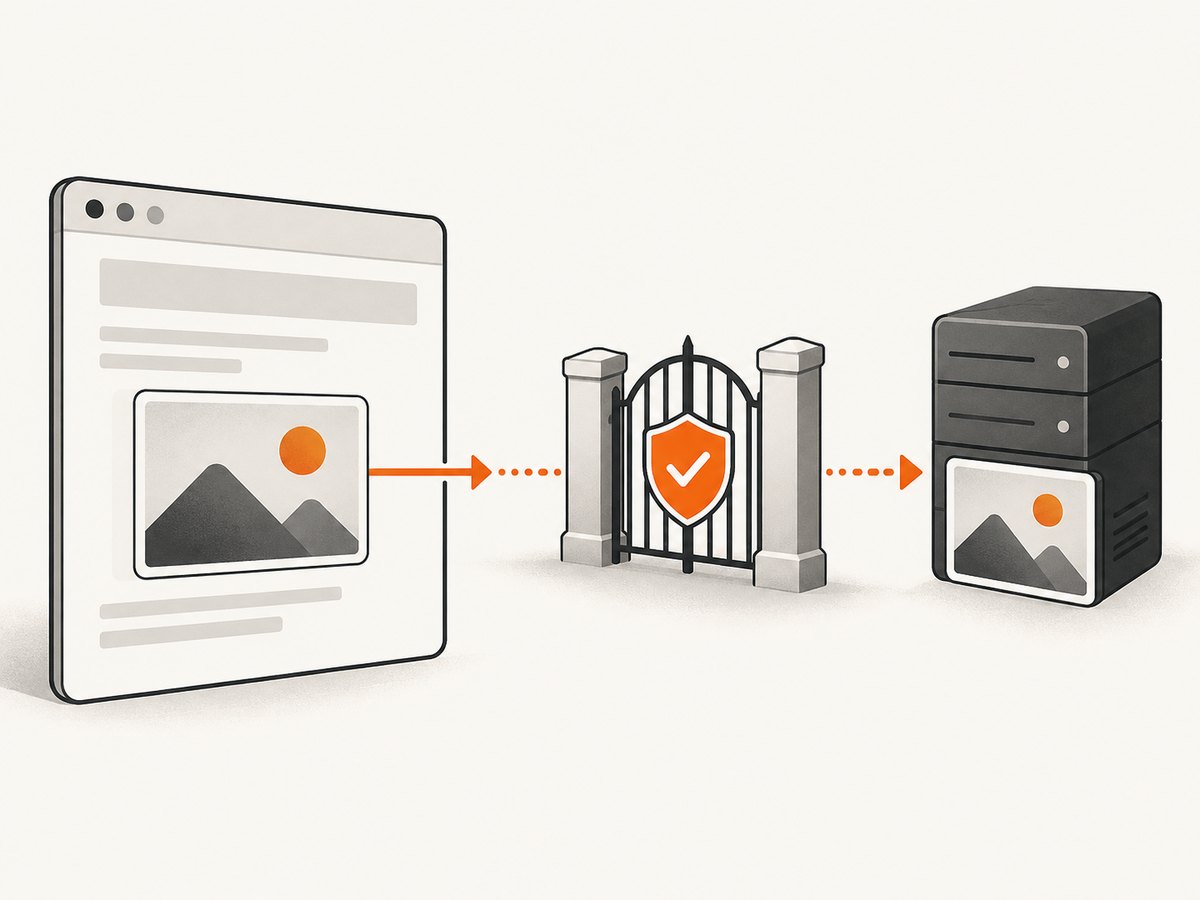
When the final image host differs from the page’s origin, the browser’s same-origin policy applies. useCORS: true asks html2canvas to load images in a way that can work with CORS, but it cannot grant permission itself. The image response must contain an appropriate Access-Control-Allow-Origin header for your requesting origin. The exact allowed value depends on the server’s policy.
const target = document.querySelector('#capture');
const canvas = await html2canvas(target, {
  useCORS: true,
  allowTaint: false,
  logging: true,
  onError: error => console.warn('html2canvas resource failed:', error)
});
Keep allowTaint: false when you need to read or export the canvas, for example with toDataURL() or toBlob(). Allowing a cross-origin image to taint a canvas does not bypass browser security: a tainted canvas cannot be read in the usual way. The html2canvas FAQ explains that drawing images outside the current origin can taint the canvas.
If you cannot change the image host’s headers, use a proxy that you control and configure for your application:
const target = document.querySelector('#capture');
const canvas = await html2canvas(target, {
  proxy: 'https://your-origin.example/image-proxy',
  logging: true
});
The proxy needs to fetch the requested image and return it in a form html2canvas can use. Follow the official proxy guidance. Do not send private image URLs through an untrusted public proxy. A proxy that accepts arbitrary URLs also needs appropriate access controls and validation; otherwise it can be abused to fetch resources your service should not expose.
4. Check redirects to a CDN
A URL can look same-origin while its response redirects to another host. For example, /images/photo.jpg may redirect to a CDN. Inspect the final request URL in Network tools rather than assuming the first URL determines the image’s origin.
A maintainer issue documents a redirect case in which html2canvas’s current useCORS decision may not be applied to the final cross-origin request. If the redirect ends at a CDN, try serving the final URL with suitable CORS headers, avoiding the redirect, or routing the image through a controlled same-origin proxy. See the maintainer issue about redirects and CORS for the reported behavior.
5. Inspect the cloned DOM and exclusion rules
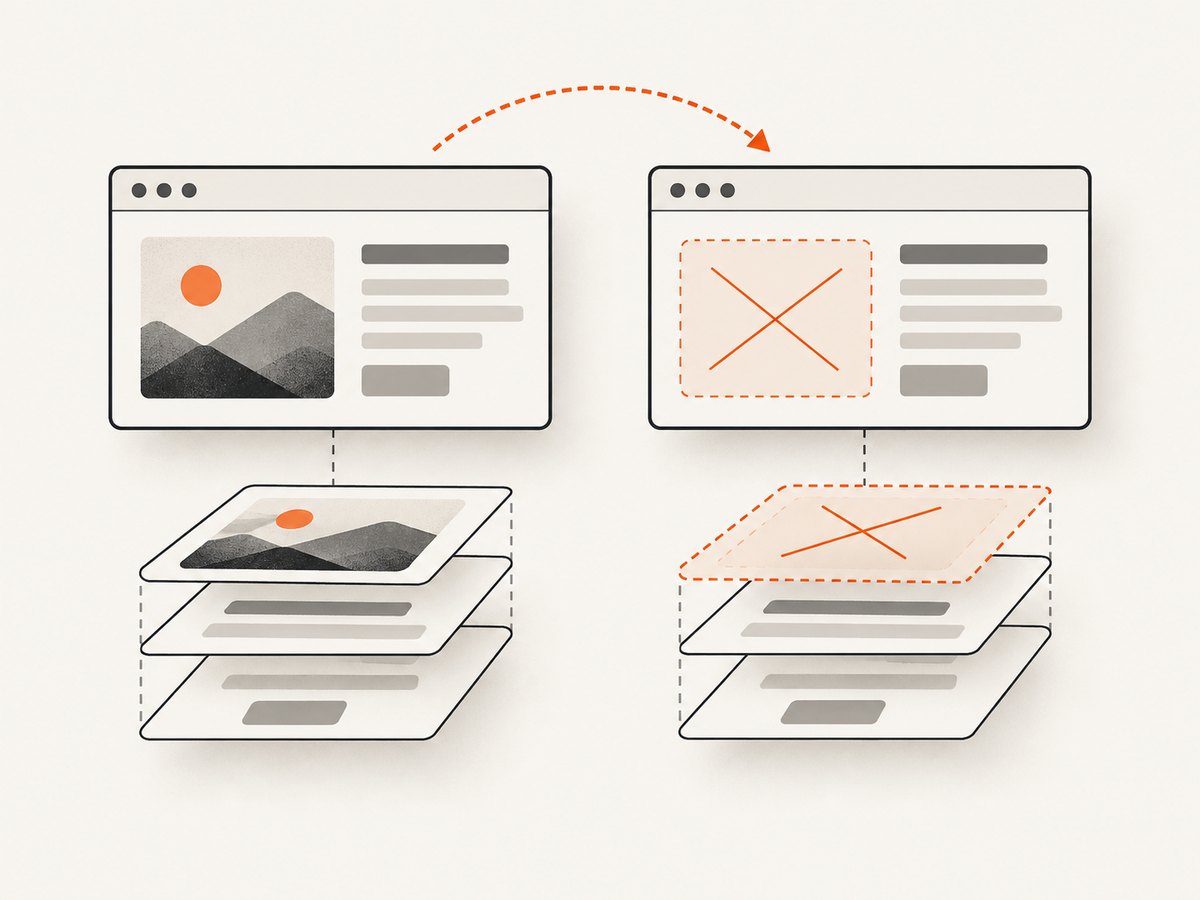
html2canvas works from a cloned document. An image can be present in the live page but missing or altered in that clone. Check that the child image and its ancestors are not excluded, removed, hidden, or restyled:
- Remove
data-html2canvas-ignorefrom the image or an ancestor if you want it captured. - Review
ignoreElements; it must not returntruefor the image or an ancestor. - Check
onclonefor code that removes the child, changes itssrc, or alters visibility and dimensions. - Confirm that the target is attached, has nonzero dimensions, and is not
display: nonein the captured state.
Use onclone to inspect the cloned image or make a capture-only adjustment without changing the live page:
const target = document.querySelector('#capture');
const canvas = await html2canvas(target, {
  logging: true,
  onclone: clonedDoc => {
    const clone = clonedDoc.querySelector('#capture img');
    console.log('clone image:', {
      src: clone?.currentSrc || clone?.src,
      rect: clone?.getBoundingClientRect().toJSON(),
      display: clone && getComputedStyle(clone).display,
      visibility: clone && getComputedStyle(clone).visibility
    });
  }
});
The configuration reference documents onclone, ignoreElements, and the ignore attribute. Logging and an onError callback can provide useful clues, but the browser’s Network and Console panels are still where to confirm whether the request actually loaded and what response it received.
6. Simplify CSS and set the capture bounds
html2canvas implements CSS properties itself, so a visual effect that the browser displays may not be reproduced in the canvas. Temporarily remove complex transforms, clipping, masks, filters, and backgrounds around the child image. If the image then appears, narrow the test to identify the unsupported or interacting style. Consult the project’s supported features.
A tall or horizontally clipped capture may also be a viewport problem. For a target whose content extends beyond the current viewport, set the cloned window dimensions deliberately:
const target = document.querySelector('#capture');
const canvas = await html2canvas(target, {
  windowWidth: target.scrollWidth,
  windowHeight: target.scrollHeight,
  logging: true
});
The configuration also includes width, height, x, y, scrollX, and scrollY for controlling the capture area and scroll position. Set these based on the region you intend to render; increasing dimensions indiscriminately can create a larger and more memory-intensive canvas.
7. Complete runnable example
This example waits for images in the target, checks for failed image loads, enables CORS handling, logs capture details, and exports a PNG. Include html2canvas in your app using the installation method for your project, and run the code after the target exists in the document.
async function captureElement() {
  const target = document.querySelector('#capture');
  if (!target) throw new Error('Could not find #capture');

  const images = [...target.querySelectorAll('img')];
  await Promise.all(images.map(img => {
    if (img.complete) return Promise.resolve();
    return new Promise(resolve => {
      img.addEventListener('load', resolve, { once: true });
      img.addEventListener('error', resolve, { once: true });
    });
  }));

  const failed = images.filter(img => !img.naturalWidth);
  if (failed.length) {
    console.warn('Images failed to load:', failed.map(img => img.currentSrc || img.src));
  }

  const canvas = await html2canvas(target, {
    useCORS: true,
    allowTaint: false,
    logging: true,
    imageTimeout: 15000,
    onError: error => console.warn('html2canvas resource failed:', error)
  });

  const blob = await new Promise((resolve, reject) => {
    canvas.toBlob(result => result ? resolve(result) : reject(new Error('PNG export failed')), 'image/png');
  });

  const link = document.createElement('a');
  link.href = URL.createObjectURL(blob);
  link.download = 'capture.png';
  link.click();
  URL.revokeObjectURL(link.href);
}

captureElement().catch(console.error);
If your installed html2canvas version does not support an option or callback shown in a snippet, consult the configuration reference for that version. Check browser console output and Network requests before treating an absent image as a rendering bug.
8. Troubleshooting by symptom
| Symptom | Likely cause | What to do |
|---|---|---|
| Blank child image; host differs from page | Cross-origin request without usable CORS permission | Set useCORS: true and configure the image server’s response headers, or use a controlled same-origin proxy. |
Console reports no Access-Control-Allow-Origin |
The response does not grant the page origin access | Change the image server configuration, self-host the asset, or proxy it through infrastructure you control. |
| Image URL looks local, but Network ends at a CDN | Redirect to a cross-origin final URL | Inspect the redirect chain; add CORS at the final host, avoid the redirect, or proxy the asset. |
Image has naturalWidth === 0 |
Load failure, invalid URL, blocked request, or incomplete load | Resolve the browser request first; inspect status, URL, and Console errors. |
| Only the capture omits the child | Clone mutation, ignore rule, hidden element, or unsupported CSS | Inspect with onclone; review ignore settings and simplify the child’s styles. |
| Output is blank, clipped, or incomplete | Wrong target or capture bounds; canvas size constraints | Verify the selected element and dimensions, set the relevant window and capture bounds, and try a smaller region. |
| Capture sometimes works and sometimes does not | Image load race or inconsistent remote response | Wait for image load or error, then inspect Network timing and response behavior. |
9. Performance, reliability, and cost
Client-side rendering saves a server round trip for the capture itself, but it uses the visitor’s browser resources and depends on the page’s image hosts, CSS, and current document state. Large targets and high-resolution images require more memory; full-page canvases can hit browser or device limits. Capture only the region you need, choose deliberate dimensions, and test on the devices your application supports.
Waiting for image events makes timing more predictable, but a failed image still needs a fix. A proxy can make third-party images usable when you cannot configure their servers, while adding infrastructure and a security boundary you must operate. For reliability, verify required images before capture, surface failures in logs, and keep a fallback for missing assets. html2canvas itself does not charge per capture; your costs depend on any proxy, hosting, or image infrastructure you use.
Or skip the browser setup
ScreenshotNeo is a website screenshot API and MCP server from Yorker Media. For a remote page, a single GET request can return an image or PDF without wiring html2canvas into that page. Cookie banners, newsletter popups, and chat widgets are removed before the shot; each step can be turned off. Bot checks, blank pages, and failed loads are never billed, and response headers identify the page verdict and billing status. An MCP server gives AI agents tools to take screenshots, get page information, and capture PDFs.
Here is the one-call cURL version, using the API parameters and endpoint documented by ScreenshotNeo:
curl -G "https://api.screenshotneo.com/v1/shot" -d access_key=YOUR_API_KEY --data-urlencode url=https://stripe.com -o shot.webpSee the ScreenshotNeo API docs for the request options. The free plan includes 1,000 screenshots a month with no card; paid plans start at $5 for 3,000. Sign up for 1,000 free screenshots a month, with no card.
FAQ
Does useCORS: true bypass browser CORS?
No. It can request images using CORS, but the image server must return permission for your page’s origin. If it cannot, use a proxy you control or serve the image from an origin you manage.
Why does the image show on the page but not in the canvas?
The browser may display a cross-origin image that the canvas renderer must skip to avoid tainting the canvas. Other possibilities include a redirect, a clone or ignore rule, unsupported CSS, and capture bounds that exclude the image.
Should I set allowTaint: true?
Usually not when you need to export or read the canvas. It does not remove the browser’s restrictions on reading a tainted canvas. Prefer a CORS-enabled image response or a controlled proxy.
Does this fix images used as CSS backgrounds?
The same origin and CSS support checks can matter, but first verify whether the child uses an <img> or a CSS background. Test the exact resource and style in a minimal capture, then consult the supported-features documentation.


