How to Fix Empty Canvases Returned by html2canvas
An empty html2canvas result usually points to oversized dimensions, blocked cross-origin images, or unsupported rendering. Diagnose the cause and choose the right fix.
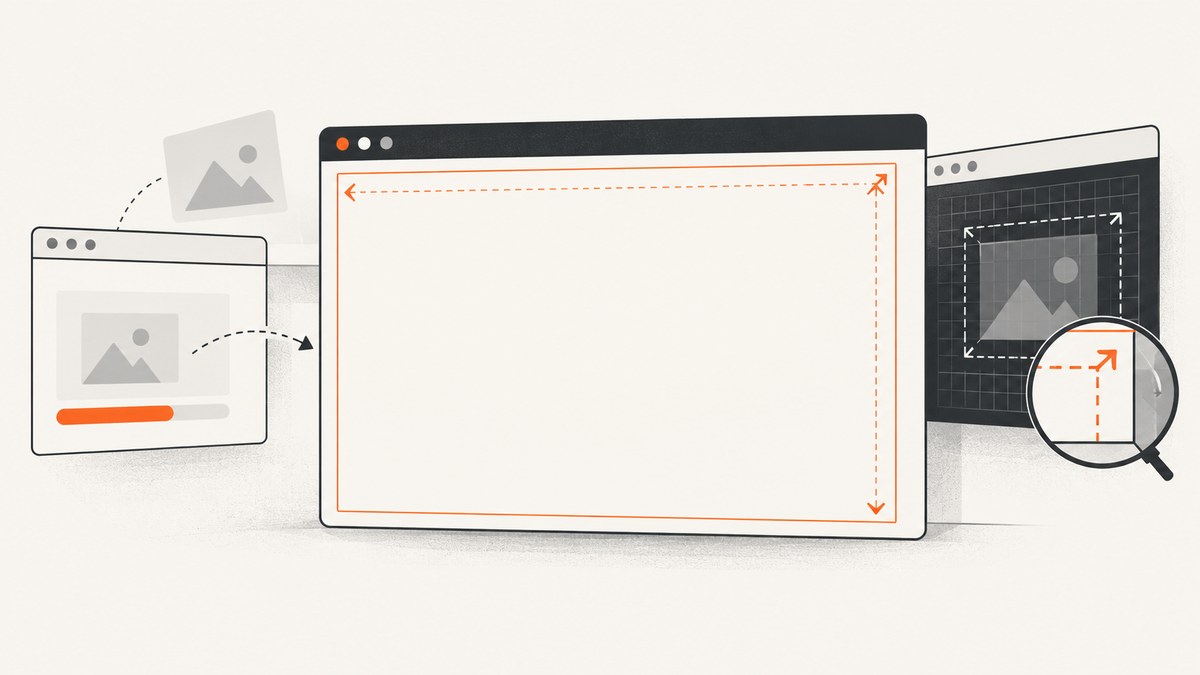
An empty or partly cut-off canvas from html2canvas(element) does not have one universal fix. The most useful first checks are the output canvas dimensions, cross-origin image loading, and whether the element uses CSS that html2canvas can reproduce. Start by measuring the canvas after the promise resolves; then isolate those three causes in order.
html2canvas does not take a pixel screenshot of the browser. It traverses the DOM and recreates a representation from properties it understands. That distinction matters: a visible page can still produce missing or different output, and very large captures can exceed browser canvas limits. The html2canvas FAQ and project documentation describe these constraints.
1. Inspect the canvas dimensions first
After the promise resolves, inspect canvas.width and canvas.height. Those are output pixels, and scale can multiply the element’s CSS dimensions. If either dimension is unexpectedly zero or much larger than expected, you have a more specific starting point than “the canvas is blank.”
import html2canvas from 'html2canvas';

const element = document.querySelector('#report');
if (!element) throw new Error('Missing #report element');

const canvas = await html2canvas(element);
console.log({ width: canvas.width, height: canvas.height });
document.body.appendChild(canvas);
Check that the element exists and is rendered when capture starts. For a full scroll-sized capture, compare the element’s scrollWidth and scrollHeight with the output dimensions. If you pass width or height, remember those options set the canvas dimensions; they do not magically make an oversized capture fit.
Canvas size limits are approximate
Browser canvas limits vary by browser, operating system, device, memory and other conditions. The html2canvas FAQ gives rough figures of about 32,767 pixels per dimension for Chrome/Chromium, Firefox and desktop Safari. It lists rough maximum areas of about 268 million pixels for Chrome/Chromium and desktop Safari, and about 472 million for Firefox. On iOS, limits are lower and depend on available device RAM. Treat these as guidance, not guaranteed thresholds for a particular machine. The FAQ points readers to the canvas-size project for browser and platform test results.
A very tall page can exceed an area limit even when neither side appears enormous. A high device pixel ratio or an explicitly increased scale can also multiply the number of output pixels: doubling both dimensions yields four times as many pixels. A canvas that is too large may be blank or truncated without a useful error.
2. Capture the intended scroll dimensions
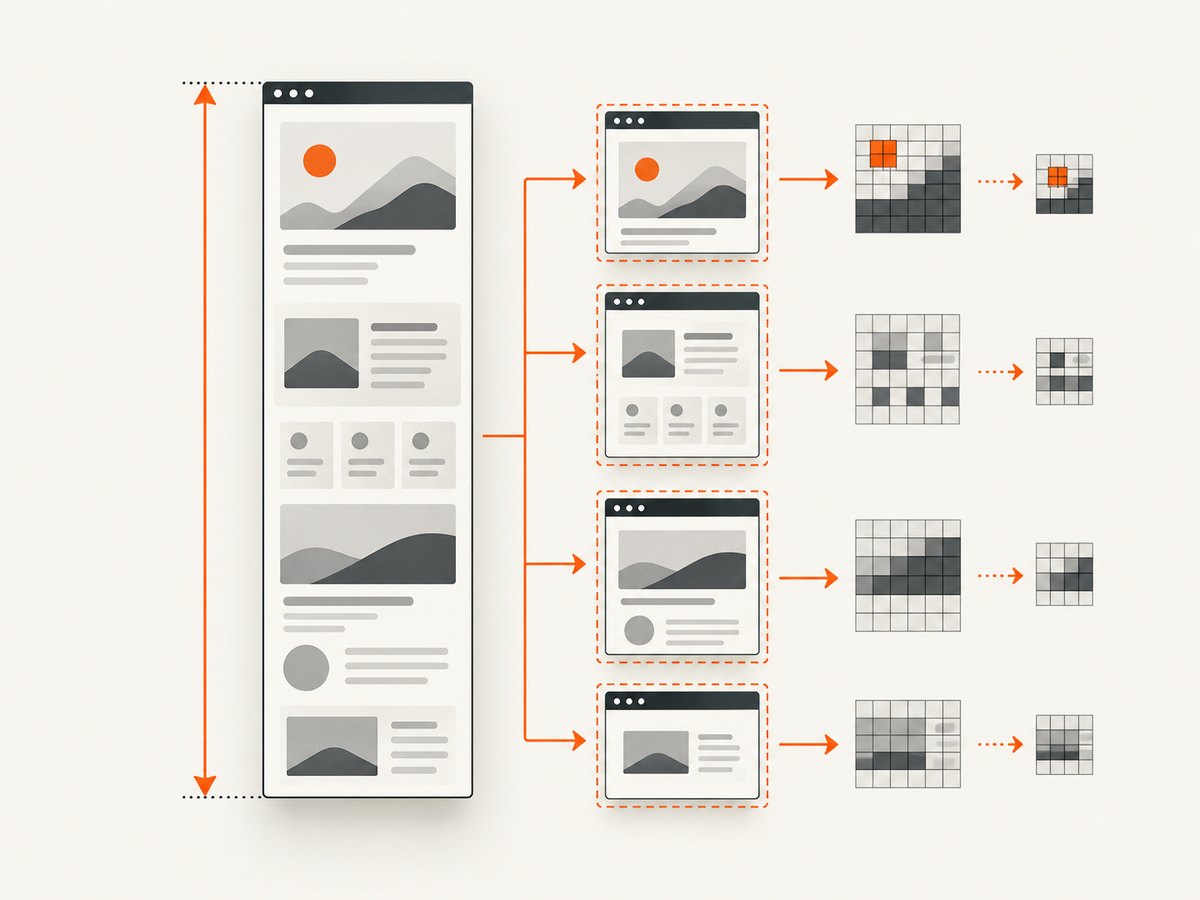
When you intend to render an element using its full scrollable dimensions, the html2canvas FAQ recommends setting windowWidth and windowHeight to the element’s scrollWidth and scrollHeight. These options affect the rendering window and can affect media queries; they are not just a crop rectangle.
import html2canvas from 'html2canvas';

const element = document.querySelector('#report');
if (!element) throw new Error('Missing #report element');

const canvas = await html2canvas(element, {
  windowWidth: element.scrollWidth,
  windowHeight: element.scrollHeight,
});

console.log({ width: canvas.width, height: canvas.height });
Try a smaller subtree or reduce the scale as a diagnostic if the full capture is still blank. Lowering scale reduces output pixel dimensions and memory pressure, but also reduces detail. Splitting a long page into several smaller regions is another practical approach when one canvas is too large; it requires your application to decide the sections and combine or store the results. Neither approach guarantees success on every device.
const canvas = await html2canvas(element, {
  scale: 1,
  windowWidth: element.scrollWidth,
  windowHeight: element.scrollHeight,
});
The scale option defaults to window.devicePixelRatio. Setting it to 1 can be a useful diagnostic, especially on high-density displays. Set explicit width and height only when you deliberately need those output canvas dimensions and understand the crop or sizing implications.
3. Isolate cross-origin images
A remote image can be visible in the page but omitted from the rendered canvas. With allowTaint: false, the default, html2canvas skips an image if drawing it would taint the canvas. Try capturing without remote images or with a same-origin test image. If the result changes, investigate the image response’s CORS headers.
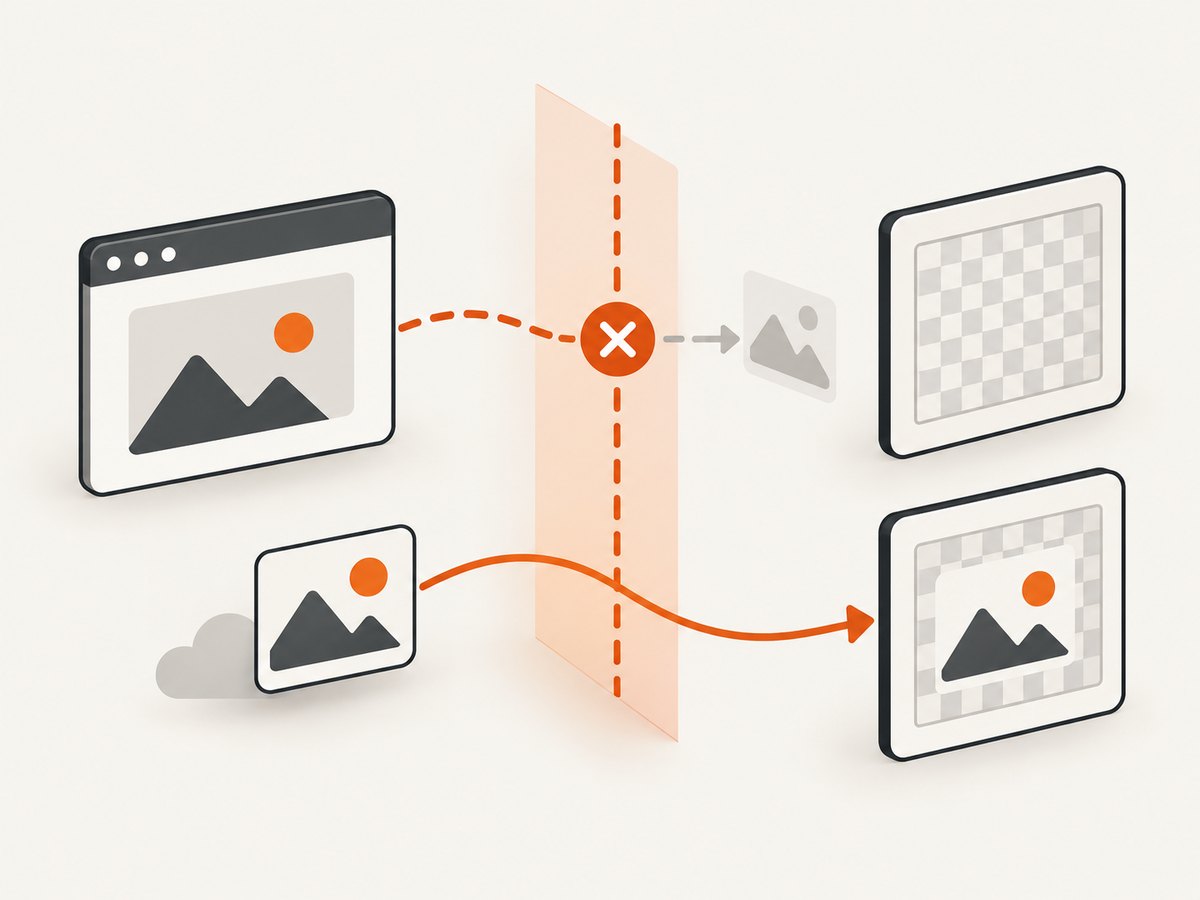
You can ask html2canvas to load images through CORS with useCORS: true, but this works only if the image server returns an appropriate Access-Control-Allow-Origin header. The option cannot override that server’s policy. A configured proxy is another documented route for loading cross-origin content; the proxy must be available and correctly set up. See the project’s configuration options and proxy documentation.
const canvas = await html2canvas(element, {
  useCORS: true,
  onError(error) {
    console.error('html2canvas resource error:', error);
  },
});
Do not use allowTaint: true as an export fix. A tainted canvas cannot be read back or exported using APIs such as toDataURL() or toBlob(). Allowing a draw to proceed does not remove the browser’s origin security restrictions. Prefer a CORS-enabled image response or a suitable proxy.
4. Check whether the DOM and CSS can be reproduced
html2canvas reconstructs the page from the DOM and computed styles; it is not a screenshot engine that reads the final browser pixels. The project documentation says that each CSS property must be implemented for correct rendering and that full CSS support is not possible. Some visible content may therefore be absent or look different even when dimensions and image access are fine.
To isolate a rendering limitation, simplify the styles and capture the smallest subtree that still reproduces the issue. Temporarily remove complex effects or layout rules, then compare the reduced case with the project’s supported features. If the reduced case works, restore pieces incrementally to identify the unsupported or incomplete behavior. Treat that result as a renderer limitation, not a browser capture guarantee.
5. Use the right execution environment
html2canvas is a browser-side library. It relies on window, document and computed styles, so it is not suitable for direct execution in Node.js. In an application with server-side rendering, invoke html2canvas only after the relevant component has mounted in a browser, and make sure the target element is present.
If your task needs server-side website screenshots, the html2canvas FAQ points to a browser-driven architecture such as Puppeteer or Playwright controlling a headless browser. Those tools render a page in a browser context; they are a different approach from asking html2canvas to reconstruct a DOM subtree in the client.
6. A practical diagnostic checklist
- Confirm the target. Check that the selector returns an element and that it is visible and populated when capture begins.
- Log the output size. Inspect
canvas.widthandcanvas.height; compare them with the intended CSS and scroll dimensions. - Test a small region. Capture a small subtree. If that works, the full capture may be too large or a specific descendant may trigger the issue.
- Try scale 1. This tests whether device-pixel-ratio scaling is producing dimensions or memory use that are too high.
- Set the scroll window deliberately. For full scroll-sized capture, set
windowWidthandwindowHeightto the target’sscrollWidthandscrollHeight. - Remove remote images temporarily. If the canvas changes, check response headers and try
useCORSor a proxy. - Simplify styles. Reduce the target and compare its styling with the supported-features list.
- Record failures. Use
onErrorto surface resource failures and keep the original browser console output with the reproduction.
7. Common errors and fixes
| Symptom | Likely cause | What to try |
|---|---|---|
| The returned canvas is completely blank with no thrown error | Output dimensions or total area exceed a browser/device canvas limit | Log dimensions, capture a smaller region, and try a lower scale. For a full scroll capture, set the window dimensions to the target’s scroll dimensions. |
| The top appears but the bottom is missing | Capture window and scroll dimensions do not match, or the canvas is too large | Compare output dimensions with scrollHeight; use the FAQ’s scroll-window configuration and test smaller sections. |
| Images disappear, but text and backgrounds render | Cross-origin image access is blocked or the image failed to load | Check the image request and its CORS response headers. Try useCORS: true only when the server permits it, or configure a proxy. |
toDataURL or export fails after drawing an image |
The canvas is tainted by cross-origin content | Do not rely on allowTaint: true; serve the image with suitable CORS headers or use a proxy. |
| A visible effect or element is missing or different | The needed CSS or DOM behavior is unsupported or incomplete in html2canvas | Reduce the reproduction and check the supported-features documentation; use an actual browser screenshot approach if pixel rendering is required. |
window is not defined or document is not defined |
Code is executing on the server or in Node.js | Move the call to browser-side code after mount, or use a headless browser tool for server-side capture. |
| The page looks correct but the capture has stale or missing content | Capture starts before the target content or images are ready | Wait in application code for the relevant data and images before calling html2canvas; confirm readiness in the browser before capture. |
8. Performance, reliability and cost considerations
Large DOM trees, many images and high output dimensions increase work and memory use. A scale change affects both output dimensions and detail; because pixels grow in both width and height, a small scale increase can substantially increase total pixel count. Capturing only the needed subtree, using an appropriate scale and splitting long content are practical ways to reduce the capture size. The trade-off is lower resolution or extra application work.
Canvas behavior is device-dependent, so a capture that succeeds on a desktop may fail on a memory-constrained mobile device. For reliability, test the target browsers and devices that matter to your users, and record dimensions and resource errors when a capture fails. Avoid treating the FAQ’s rough limits as contractual ceilings.
html2canvas itself is a client-side library; costs depend on the application and infrastructure around it. For automated server-side captures, browser runtime, compute, storage and retries are operational costs to account for. If you need a managed screenshot API instead of maintaining browser setup, compare actual request needs, output formats, limits and billing rules before choosing a service.
9. Or skip the browser setup
ScreenshotNeo is a website screenshot API and MCP server. Its one-call API can return an image or PDF, while its browser-based options include viewport and full-page captures. It can be useful when you need website captures from an application or AI agent without wiring up a browser capture flow.
Cookie banners, newsletter popups and chat widgets are removed before the shot. Bot checks, blank pages, failed loads and cache hits are not billed, and the response identifies the page verdict and billing status in headers. An MCP server provides take_screenshot, get_page_info and capture_pdf tools for Claude, Cursor and other MCP clients. The free plan includes 1,000 screenshots per month with no card; paid plans start at $5 for 3,000 screenshots. See the API documentation.
curl -G "https://api.screenshotneo.com/v1/shot" \
  -d access_key=YOUR_API_KEY \
  --data-urlencode url=https://stripe.com \
  -o shot.webp
import requests
r = requests.get(
"https://api.screenshotneo.com/v1/shot",
params={"access_key": "YOUR_API_KEY", "url": "https://stripe.com"},
timeout=90,
)
open("shot.webp", "wb").write(r.content)const q = new URLSearchParams({
access_key: 'YOUR_API_KEY',
url: 'https://stripe.com',
});
const res = await fetch(`https://api.screenshotneo.com/v1/shot?${q}`);
Create a free ScreenshotNeo account for 1,000 screenshots a month with no card.
10. Frequently asked questions
Does a blank result mean the promise failed?
No. The promise can resolve while the output is blank or partial, so inspect the canvas dimensions and rendered content rather than relying only on whether an exception was thrown.
Will useCORS: true make every remote image appear?
No. The remote server must allow the request with a suitable CORS response header, or you need a proxy configured for the capture.
Can html2canvas guarantee the same pixels I see in the browser?
No. It reconstructs a representation from supported DOM and CSS behavior; it is not a pixel screenshot API.
Can I call html2canvas directly from a Node script?
No. It depends on browser APIs. Use it in a browser, or use a browser-driving tool or screenshot service for server-side capture.


