How to Fix Horizontal Lines in html2canvas and toDataURL Images
Trace horizontal lines through html2canvas rendering, canvas pixels, toDataURL encoding and later display. Use a repeatable diagnosis before changing scale or CSS.
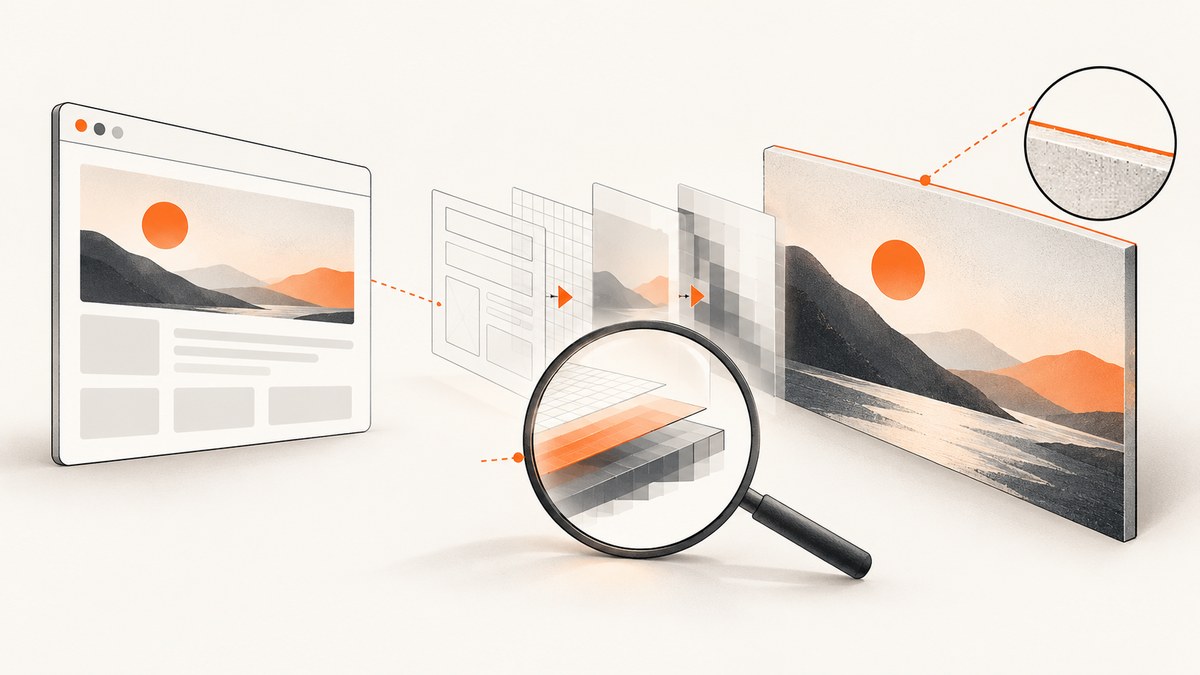
To fix horizontal lines in an html2canvas image, first find where they enter the pipeline. Compare the browser page, the canvas returned by html2canvas(), and the decoded image from canvas.toDataURL(). If the line is already in the canvas, investigate the captured DOM, CSS, scale, and element boundaries. If it appears only after encoding or display, inspect the image dimensions and the code that sizes or resizes it. There is no documented universal horizontal-line fix: changing scale can be a useful diagnostic, but it is not a guaranteed repair.
html2canvas reconstructs a picture from DOM and CSS information; it does not simply request a native browser screenshot. Its CSS support is incomplete, so its result can differ from what the browser displays. The steps below isolate the stage responsible before you change the page or export settings. See the html2canvas project and its configuration reference.
1. Locate the stage where the line appears
Keep the test small and inspect each output directly. Do not begin by changing several CSS rules and capture options at once; that makes the result hard to explain and repeat.
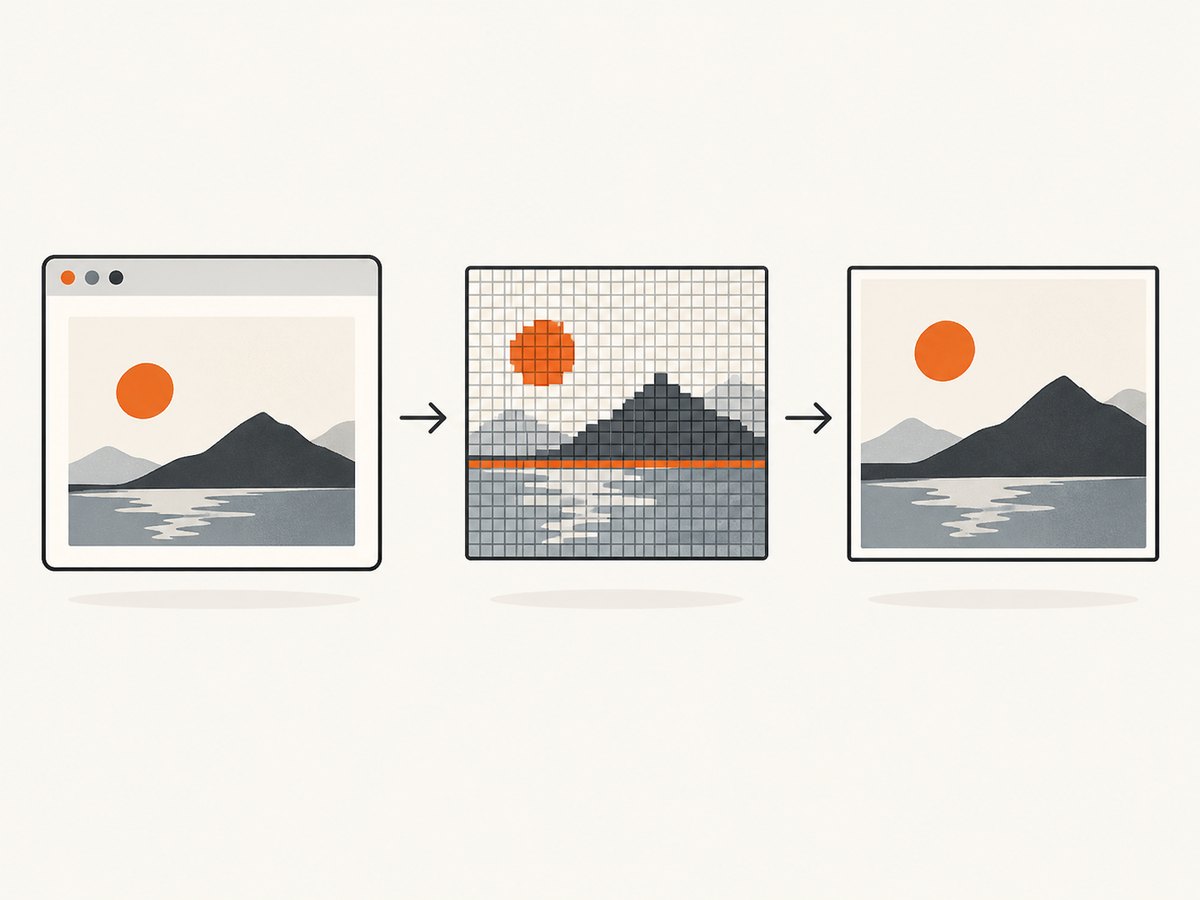
- Record the html2canvas version, browser and version, device pixel ratio, target element dimensions, and the CSS that could affect its edges.
- Look at the original element in the browser at the same size and scroll position used for the capture. Note whether the line is present there.
- Capture the element and inspect the returned canvas before encoding it. Use the browser console or temporarily append the canvas to the page.
- Export a data URL, decode it into an image, and compare its intrinsic pixel dimensions and appearance with the canvas.
- If the data URL image is clean but the image in your application shows a line, inspect the later display, scaling, cropping, or recompression path.
This separates capture/rendering from encoding and downstream display. toDataURL() exports the canvas contents; a standards issue report discussing CSS scaling and data URL dimensions is a diagnostic lead, not proof that toDataURL() causes horizontal lines.
2. Inspect the canvas and exported image
This runnable example logs the browser environment and dimensions, displays the canvas itself, then decodes the PNG data URL into a second image. Replace #capture-target with the element that reproduces the issue. Open the page in the browser, then check the console and compare both previews at their native size.
<div id="capture-target">
  <h1>Capture this section</h1>
  <p>Replace this sample with the element that shows the line.</p>
</div>
<div id="debug-output"></div>
<script src="https://cdn.jsdelivr.net/npm/html2canvas@1.4.1/dist/html2canvas.min.js"></script>
<script>
(async () => {
  const target = document.querySelector('#capture-target');
  const output = document.querySelector('#debug-output');
  const rect = target.getBoundingClientRect();
  const canvas = await html2canvas(target, { scale: 1 });

  console.table({
    html2canvasVersion: html2canvas.version || 'check installed package',
    userAgent: navigator.userAgent,
    devicePixelRatio: window.devicePixelRatio,
    elementCssWidth: rect.width,
    elementCssHeight: rect.height,
    canvasPixelWidth: canvas.width,
    canvasPixelHeight: canvas.height
  });

  const heading = document.createElement('h2');
  heading.textContent = 'Returned canvas';
  output.append(heading, canvas);

  const dataUrl = canvas.toDataURL('image/png');
  const image = new Image();
  image.alt = 'Decoded PNG from canvas data URL';
  image.onload = () => {
    const label = document.createElement('h2');
    label.textContent = `Decoded data URL: ${image.naturalWidth} × ${image.naturalHeight}`;
    output.append(label, image);
  };
  image.onerror = () => console.error('Could not decode the exported data URL');
  image.src = dataUrl;
})();
</script>
The example uses scale 1 to make the relationship between CSS dimensions and bitmap dimensions easier to inspect. If your application depends on a different scale, repeat the same comparison at that scale. The official configuration documents scale as defaulting to window.devicePixelRatio; therefore, the canvas pixel dimensions may be larger than the element’s CSS display dimensions. The examples and options are documented in the configuration reference.
3. Check scale, fractional edges, and CSS
A scale change can reveal whether the artifact is sensitive to output resolution, but it does not identify a universal cause. Capture at deliberate values and compare both sharpness and dimensions:
const target = document.querySelector('#capture-target');

for (const scale of [1, 2]) {
  const canvas = await html2canvas(target, { scale });
  console.log({ scale, width: canvas.width, height: canvas.height });
  document.body.append(canvas);
}
Choose values that make sense for your output. At a higher scale, a canvas generally has more bitmap pixels for the same CSS-sized region; it also uses more memory. A scale of 1 is a useful isolation test, not a rule that every production export should use. Compare canvases at their intrinsic dimensions: displaying a large bitmap at a different CSS size can introduce a separate resampling step.
Next, inspect the specific boundary where the line sits. Check whether it aligns with a border, background-color transition, image edge, fractional layout coordinate, or transformed element. Temporarily simplify the relevant CSS: remove a border or transform, use a solid background, or capture the element without neighboring content. Change one thing per capture and restore rules that do not affect the result. These checks are diagnostic leads; the library documentation’s warning about CSS support does not establish that any one style causes every line.
Make a minimal reproduction containing only the target element, its necessary styles, and the capture call. Record the CSS width and height, device pixel ratio, chosen scale, and canvas width and height. That gives you a useful basis for distinguishing an element-edge issue from a later image-sizing issue.
4. Check images and html2canvas options
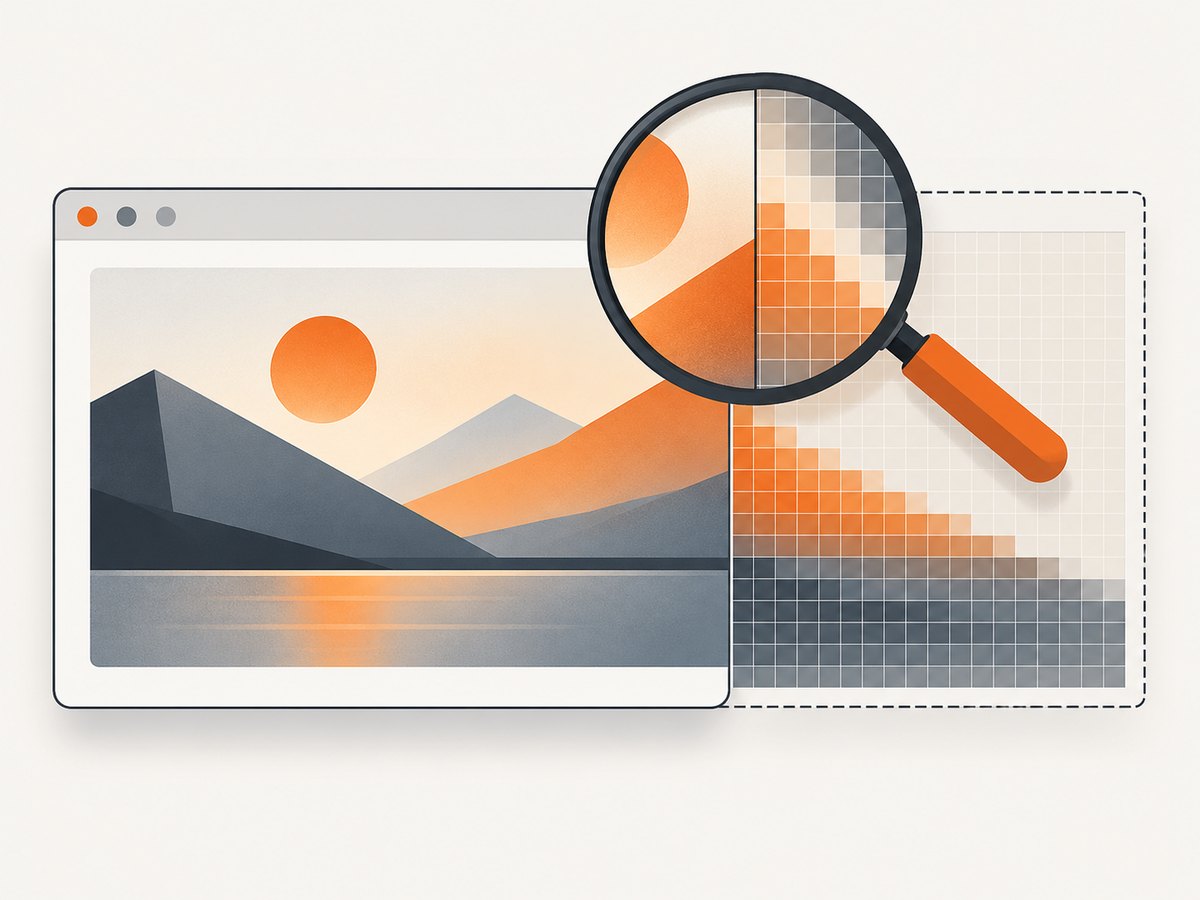
Remote images can raise cross-origin loading or canvas-readability problems. These can produce missing content or a canvas that cannot be read; they are not general fixes for a visible horizontal line. Check the image server’s CORS response and use the documented options only where they apply.
const canvas = await html2canvas(document.querySelector('#capture-target'), {
  scale: 1,
  useCORS: true
  // proxy: 'https://your-own-image-proxy.example/capture'
});
useCORS asks html2canvas to attempt cross-origin image loading with CORS. It cannot make a remote server grant permission. The proxy option is for a proxy you operate and configure; replace the example placeholder with your actual endpoint. Review the official option documentation and FAQ for the supported settings and browser canvas limits. Browser limits vary, so check the target browser and device rather than assuming one maximum applies everywhere.
| Option or property | What it helps diagnose or control | What it does not guarantee |
|---|---|---|
scale |
Canvas bitmap resolution relative to the rendered element; defaults to device pixel ratio. | It does not promise to remove a line. |
useCORS |
Attempts CORS-enabled loading for remote images. | It cannot override the image server’s CORS policy. |
proxy |
Routes image loading through a configured proxy where appropriate. | It is not a ready-made public proxy URL. |
| CSS simplification | Tests whether a particular border, edge, transform, or background is related. | It does not identify unrelated encoding or display artifacts. |
5. Troubleshooting common symptoms
| Symptom | Likely area to inspect | Next action |
|---|---|---|
| Line is visible in the browser and canvas | The source DOM or CSS may already contain it. | Inspect the element boundary, border, background, image edge, and positioning. |
| Browser page looks clean, returned canvas has a line | Capture rendering or a CSS feature that html2canvas handles differently. | Reduce to a minimal element and simplify the styles around the line. |
| Canvas is clean, decoded data URL appears different | Export and image decoding path, or a dimension mismatch. | Log intrinsic dimensions, load the URL into a new Image, and compare at native size. |
| Both canvas and decoded image are clean, app display has a line | CSS sizing, browser resampling, crop, or a later image-processing stage. | Inspect the rendered image dimensions and remove additional resize/recompression steps. |
| Remote image is missing or export throws a security error | Cross-origin policy or canvas tainting. | Check the image response’s CORS headers; test useCORS or a proxy you control. |
| Large capture fails or output is blank | Canvas dimension or memory limits, page load, or capture timing. | Reduce the capture area or scale, wait for required content, and consult browser-specific limits. |
If you report a fix to a team, include the browser and version, html2canvas version, device pixel ratio, selected scale, relevant CSS change, canvas dimensions, and before/after result. Do not describe a scale change or CSS tweak as a general fix unless the reproduction demonstrates it.
6. Improve capture reliability and manage output cost
Make captures repeatable. Wait until the target content and required images have loaded before capturing, and avoid changing layout between measuring the target and calling html2canvas. If the page has animations or content that shifts after load, pause or stabilize those elements in the reproduction. For very large pages, consider capturing a smaller element or using a lower diagnostic scale first; large bitmaps consume more memory, and browser canvas limits vary.
For a production path, handle promise rejection and make export failures visible rather than silently delivering a blank image:
async function capturePng(selector) {
  const target = document.querySelector(selector);
  if (!target) throw new Error(`Capture target not found: ${selector}`);

  const canvas = await html2canvas(target, { scale: 1 });
  if (canvas.width === 0 || canvas.height === 0) {
    throw new Error(`Unexpected canvas size: ${canvas.width} × ${canvas.height}`);
  }

  try {
    return canvas.toDataURL('image/png');
  } catch (error) {
    throw new Error(`Canvas export failed: ${error.message}`);
  }
}

capturePng('#capture-target')
  .then(dataUrl => { document.querySelector('#preview').src = dataUrl; })
  .catch(error => { console.error('Capture failed', error); });
Remember that a data URL is an in-memory string representation of the image. For large output, avoid keeping multiple full-size canvases and data URLs alive longer than needed. If you only need to preview an image, assigning a blob URL created from a canvas blob can avoid holding a base64 data URL string; revoke the object URL when it is no longer in use. Choose export dimensions based on the display or download requirement, since unnecessarily large bitmaps increase memory use and processing time.
7. Or skip the browser setup
If you need a website screenshot rather than a DOM canvas export, ScreenshotNeo provides a screenshot API. One GET request returns a PNG, JPEG, WebP, or PDF. See the API documentation for parameters and response details.
curl -G "https://api.screenshotneo.com/v1/shot" \
  -d access_key=YOUR_API_KEY \
  --data-urlencode url=https://stripe.com \
  -o shot.webp
import requests
r = requests.get(
"https://api.screenshotneo.com/v1/shot",
params={"access_key": "YOUR_API_KEY", "url": "https://stripe.com"},
timeout=90,
)
r.raise_for_status()
open("shot.webp", "wb").write(r.content)const q = new URLSearchParams({
access_key: 'YOUR_API_KEY',
url: 'https://stripe.com'
});
const res = await fetch(`https://api.screenshotneo.com/v1/shot?${q}`);
if (!res.ok) throw new Error(`Screenshot request failed: ${res.status}`);
const bytes = new Uint8Array(await res.arrayBuffer());
await Bun.write('shot.webp', bytes);These examples use the documented API base and request pattern; the Node example uses Bun’s file writer to save the response. ScreenshotNeo accepts cookie and consent banners before capture and removes more than 60 known consent platforms, newsletter popups, and chat widgets; each step can be turned off. Bot checks and CAPTCHAs, blank pages, timeouts, failed loads, and cache hits are not billed, and response headers report the page verdict and billing status. It also provides an MCP server with take_screenshot, get_page_info, and capture_pdf tools for AI agents. The free plan includes 1,000 screenshots per month without a card; paid plans start at $5 for 3,000. Sign up for 1,000 free screenshots a month, with no card required.
8. A short diagnostic checklist
- Can you reproduce the line in the original browser page?
- Does it appear on the returned canvas before
toDataURL()? - Do canvas and decoded image dimensions match what you expect?
- Did you test scale deliberately while accounting for device pixel ratio?
- Does the line align with an element edge, border, background, image, or transformed boundary?
- For remote images, did you check CORS rather than treating it as a line-specific fix?
- Can you reproduce and explain the change in a minimal example?
FAQ
Does setting scale: 1 always remove horizontal lines?
No. It is a useful way to isolate resolution effects and compare canvas dimensions. The documentation does not identify it as a universal line fix.
Is toDataURL() the usual cause?
The available evidence does not establish that. Compare the returned canvas with the decoded data URL image to determine whether the difference appears during export or later display.
Why does the capture differ from what the browser shows?
html2canvas rebuilds the image from DOM and CSS and supports only a subset of CSS behavior. A difference can point to a style or rendering path the library handles differently.
Will useCORS: true fix a line?
It addresses attempts to load cross-origin images. It does not fix a general rendering artifact or bypass a remote server’s CORS policy.
What should a useful bug report include?
Provide a minimal reproduction, browser and version, html2canvas version, device pixel ratio, scale, target CSS and dimensions, and whether the line appears in the canvas or only in the exported or displayed image.


