How to Fix HTML2Canvas Ignoring object-fit on Images
When html2canvas stretches images instead of honoring object-fit, check loading and CORS first, then use explicit cropping or a capture-time workaround.
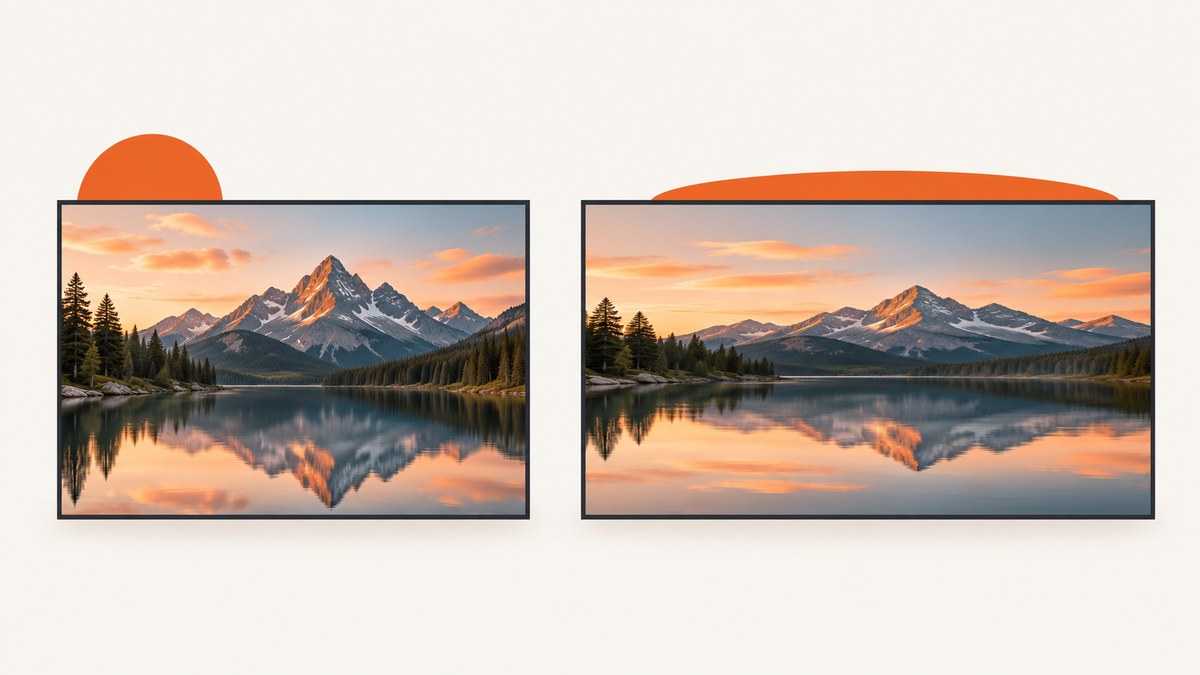
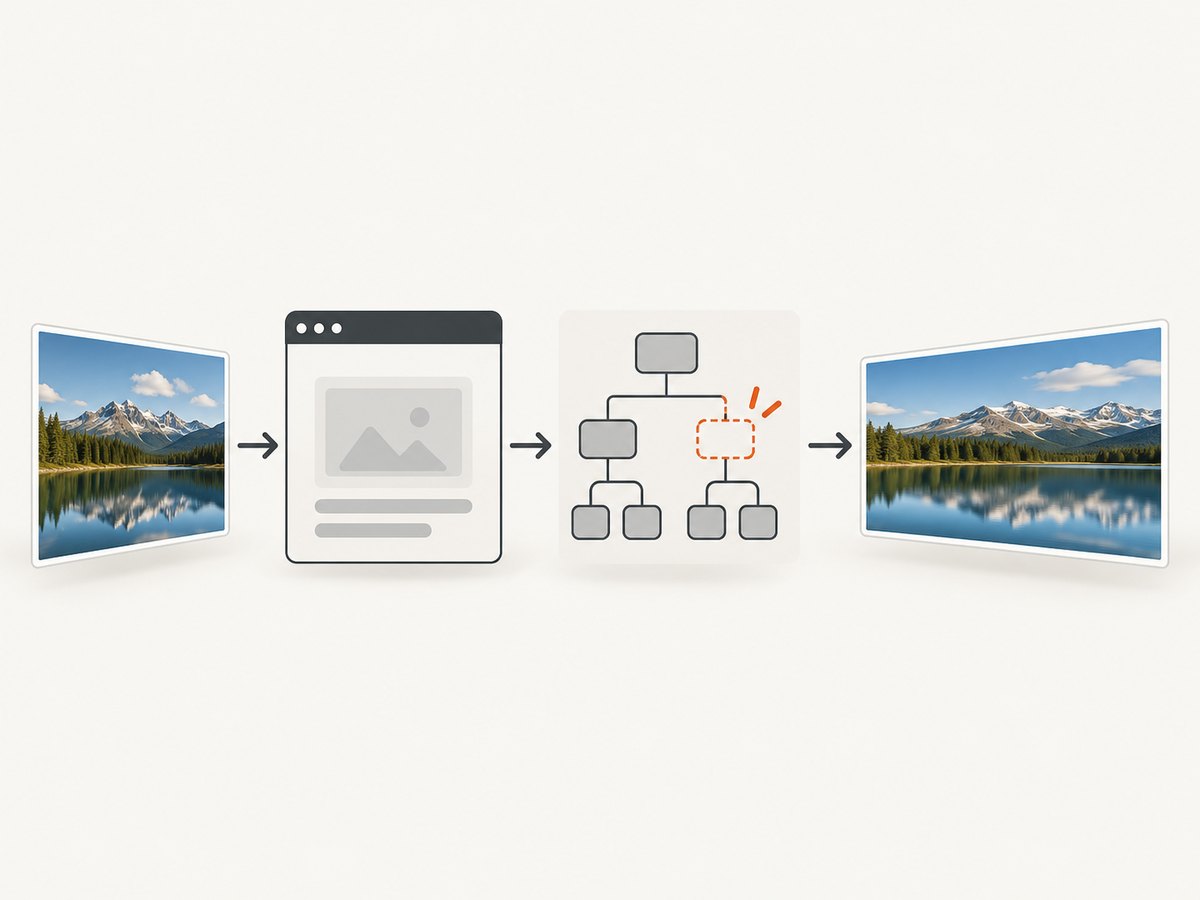
When html2canvas stretches an image instead of honoring object-fit: cover or contain, the browser’s rendering is not necessarily the problem. html2canvas reconstructs a page from its DOM and styles; it does not simply take a screenshot of the browser. It only renders CSS properties it has implemented, and its FAQ says that “Every CSS property must be manually implemented to render correctly, so html2canvas will never have full CSS support.” [html2canvas FAQ]
First make sure the image loaded into the canvas at all. If it did, use an explicit crop, a capture-only style adjustment, or a background image for fixed thumbnails. These workarounds make the intended crop clear instead of relying on html2canvas to reproduce object-fit.
1. Confirm the failure is object-fit
Reduce the page to one fixed-size container and one image. Keep the image dimensions explicit so responsive layout rules do not obscure the issue.
<div class="frame">
  <img class="photo" src="/images/landscape.jpg" alt="Landscape">
</div>

<style>
.frame {
  width: 320px;
  height: 180px;
  overflow: hidden;
}
.photo {
  display: block;
  width: 100%;
  height: 100%;
  object-fit: cover;
  object-position: center;
}
</style>
Capture this element and compare the resulting canvas with what the browser displays. If the output shows the image at the right dimensions but stretched, object-fit handling is a strong suspect. If it is missing, blank, or only intermittently present, investigate loading and CORS before changing crop logic.
const element = document.querySelector('.frame');
const canvas = await html2canvas(element, {
  logging: true,
  useCORS: true
});
document.body.appendChild(canvas);
Logging helps expose resource-loading and clone issues while the example is small. Remove unrelated scripts, animations, and layout rules for this diagnosis, then add them back one at a time.
2. Check image loading and CORS
A cross-origin image can fail for reasons unrelated to object-fit. The html2canvas FAQ explains that cross-origin images can taint a canvas and may be skipped when allowTaint is false. Setting useCORS: true asks the browser to load the image with CORS, but it only works when the image server returns a suitable Access-Control-Allow-Origin header. The official examples also demonstrate useCORS: true. [FAQ: tainted canvases] [html2canvas examples]
Wait for the image before capture and check its natural dimensions:
const img = document.querySelector('.photo');

if (!img.complete) {
  await new Promise((resolve, reject) => {
    img.addEventListener('load', resolve, { once: true });
    img.addEventListener('error', reject, { once: true });
  });
}

if (img.naturalWidth === 0 || img.naturalHeight === 0) {
  throw new Error('Image did not load successfully');
}

const canvas = await html2canvas(document.querySelector('.frame'), {
  useCORS: true,
  logging: true
});
For a cross-origin source, configure the image server to allow your page’s origin, or serve it through a same-origin proxy that you control and are permitted to use. Do not assume that allowTaint: true fixes export: a tainted canvas may prevent reading its pixels or converting it to an image. Preserve the distinction between “image did not load” and “image loaded but its crop is wrong.”
3. Verify the installed html2canvas version
Check the dependency version in your lockfile or package manager output and reproduce against that exact version. Object-fit support has a long issue history: issue #725 reports images being stretched despite object-fit, and issue #3072 discusses a community patch for html2canvas 1.4.1 that calculates contain and cover sizing. Later pull-request history shows object-fit implementation work associated with issue #3218, but that does not establish that every released version fixes every case. [Issue #725] [Issue #3072] [Pull request history]
Upgrade only after checking release notes and testing the actual browser and layout you ship. A version change can alter other rendering details, and an issue or pull request is not a guarantee of behavior in a published package. Keep a small regression case for both cover and contain.
4. Make the crop explicit before capture
The most predictable workaround is to create a bitmap with the desired crop and render that bitmap in place of the original image during capture. For cover, scale until the source fills the target rectangle, then center-crop the excess. For contain, scale until the whole source fits, leaving unused space around it.
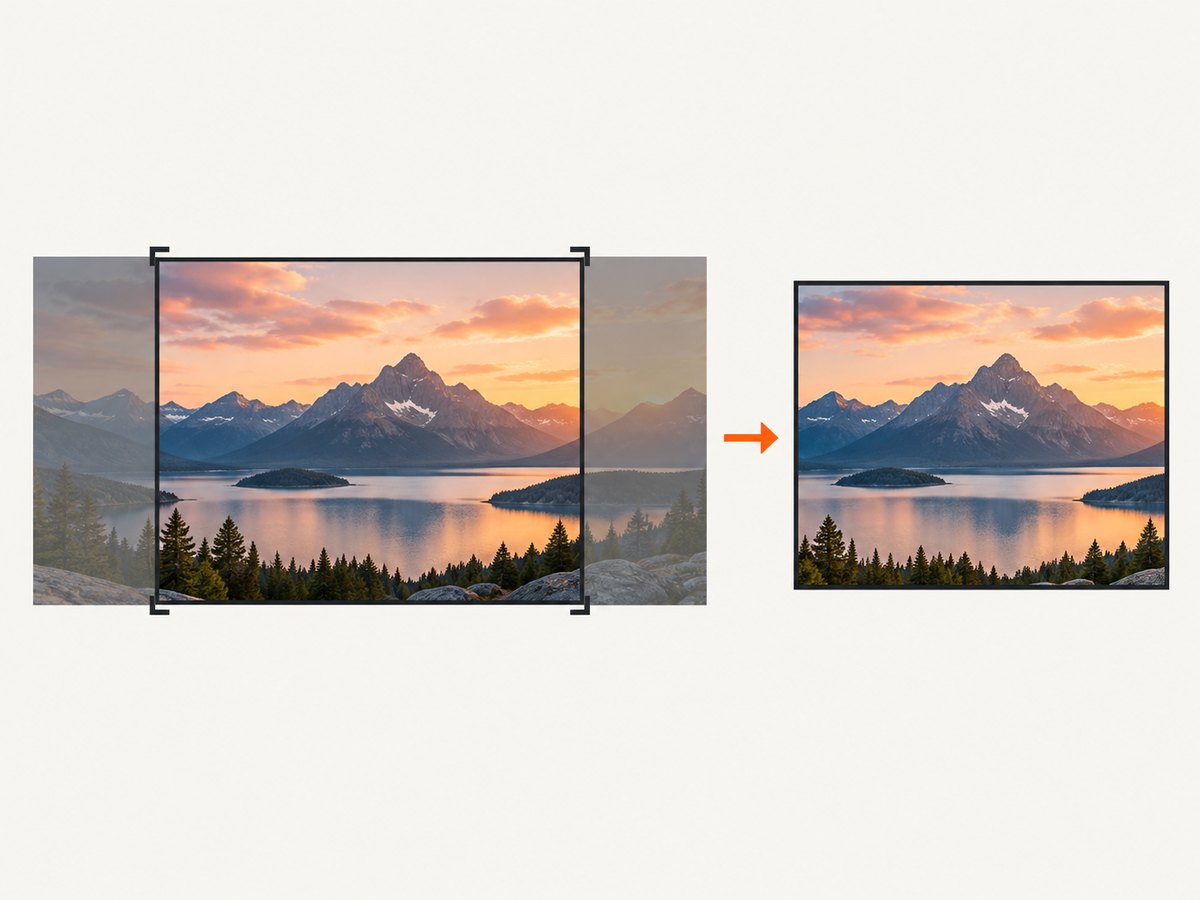
This helper implements both modes and returns a canvas. It uses the source image’s intrinsic dimensions and accepts normalized object-position coordinates from 0 to 1, where 0 is left/top, 0.5 is center, and 1 is right/bottom.
function cropToCanvas(image, width, height, fit = 'cover', positionX = 0.5, positionY = 0.5) {
  const sourceWidth = image.naturalWidth;
  const sourceHeight = image.naturalHeight;
  if (!sourceWidth || !sourceHeight) throw new Error('Image is not loaded');

  const scale = fit === 'cover'
    ? Math.max(width / sourceWidth, height / sourceHeight)
    : Math.min(width / sourceWidth, height / sourceHeight);
  const drawWidth = sourceWidth * scale;
  const drawHeight = sourceHeight * scale;
  const extraX = drawWidth - width;
  const extraY = drawHeight - height;

  const canvas = document.createElement('canvas');
  canvas.width = width;
  canvas.height = height;
  const context = canvas.getContext('2d');
  if (!context) throw new Error('Canvas 2D context unavailable');

  if (fit === 'contain') {
    context.clearRect(0, 0, width, height);
  }
  context.drawImage(
    image,
    -extraX * positionX,
    -extraY * positionY,
    drawWidth,
    drawHeight
  );
  return canvas;
}

const img = document.querySelector('.photo');
const cropped = cropToCanvas(img, 320, 180, 'cover', 0.5, 0.5);
const replacement = new Image();
replacement.src = cropped.toDataURL('image/png');
replacement.width = 320;
replacement.height = 180;
replacement.alt = img.alt;
img.replaceWith(replacement);

const result = await html2canvas(document.querySelector('.frame'));
For contain, the helper draws the complete image scaled inside the target canvas, with transparent unused space. If you need a solid fill instead, paint the canvas first with the intended background color. Call toDataURL only after confirming the source is same-origin or CORS-approved; otherwise the source can taint the intermediate canvas too.
For production UI, avoid permanently replacing an application image just to capture it. Build a capture-only clone or restore the original node and styles in a finally block. Confirm that event handlers, accessibility labels, and application state are not affected by the replacement. Animated images and video need a chosen frame; wait until the frame is stable before drawing.
5. Apply capture-only style overrides
The html2canvas configuration reference documents onCopyProperty, a hook for overriding a property while styles are copied into the cloned document. [html2canvas configuration] This can be useful when the installed renderer mishandles object-fit, but the exact hook signature and supported properties depend on the version. Check the API for your installed release before wiring a callback.
A less version-sensitive alternative is to use onclone to adjust the cloned DOM. Rather than trying to force object-fit again, use the hook to position an oversized image inside an overflow-hidden frame. The code below demonstrates a centered cover crop; verify the computed frame dimensions and account for non-centered object-position in your layout.
const target = document.querySelector('.frame');
const canvas = await html2canvas(target, {
  onclone(clonedDocument) {
    const frame = clonedDocument.querySelector('.frame');
    const image = frame?.querySelector('.photo');
    if (!frame || !image) return;

    const frameWidth = frame.clientWidth;
    const frameHeight = frame.clientHeight;
    const sourceWidth = image.naturalWidth;
    const sourceHeight = image.naturalHeight;
    const scale = Math.max(frameWidth / sourceWidth, frameHeight / sourceHeight);

    image.style.position = 'absolute';
    image.style.width = `${sourceWidth * scale}px`;
    image.style.height = `${sourceHeight * scale}px`;
    image.style.maxWidth = 'none';
    image.style.left = `${(frameWidth - sourceWidth * scale) / 2}px`;
    image.style.top = `${(frameHeight - sourceHeight * scale) / 2}px`;
    frame.style.position = 'relative';
    frame.style.overflow = 'hidden';
  }
});
This is an implementation technique based on the clone hook, not a universal recipe. The clone can differ from the live page if styles depend on ancestors, pseudo-elements, or selectors that no longer match. Keep the frame’s box dimensions fixed in the cloned document and test across the browsers that produce your output.
6. Use a background image for fixed thumbnails
If a card always displays a cropped thumbnail, a wrapper with a background image can be simpler than an <img> using object-fit. The CSS sizing intent is explicit:
<div class="thumbnail" role="img" aria-label="Landscape"></div>

<style>
.thumbnail {
  width: 320px;
  height: 180px;
  background-image: url('/images/landscape.jpg');
  background-size: cover;
  background-position: center;
  background-repeat: no-repeat;
}
</style>
This can avoid relying on html2canvas’s object-fit handling, but it still depends on background image loading, CORS rules, and the renderer’s CSS support. Preserve meaningful alternative text when changing an image into a decorative background. For responsive layouts, ensure the wrapper dimensions and background position match the intended design at each breakpoint.
7. Treat foreignObjectRendering as a test option
The configuration exposes foreignObjectRendering. It changes the rendering path, and behavior depends on browser support and output fidelity. Try it in a minimal reproduction and compare the result; do not treat it as a guaranteed object-fit fix. [html2canvas configuration]
const canvas = await html2canvas(document.querySelector('.frame'), {
  foreignObjectRendering: true,
  useCORS: true,
  logging: true
});
Check text, filters, clipping, fonts, images, and transparency in the result, not just the crop. If this path is inconsistent across your supported browsers, use explicit cropping for the affected assets instead.
8. Choose a workaround that fits the page
| Approach | Crop fidelity | Responsive fit | Maintenance | Good fit |
|---|---|---|---|---|
| Explicitly pre-cropped bitmap | High; crop is baked into pixels | Requires regeneration for changed dimensions | Moderate | Stable cards, exports, and reports |
| Clone-only positioning override | High when dimensions are calculated correctly | Can follow current layout dimensions | Higher; relies on clone structure | Capture-only correction for existing responsive UI |
| Background image sizing | Good for fixed frame and known position | Good if wrapper CSS is responsive | Low to moderate | Decorative thumbnails |
| Version or maintained patch | Depends on the specific renderer change | Preserves normal layout rules if it works | Can be high | Teams able to pin, review, and regression-test a fork |
foreignObjectRendering |
Must be measured in your target browsers | Potentially follows layout; validate | Low to try, uncertain to rely on | Quick experiment before choosing a stable workaround |
For a maintained fork, review the issue #3072 patch rather than copying it blindly. Pin the dependency, inspect the diff, and add regression cases for both cover and contain, including a non-centered position and a cross-origin image where applicable.
9. Troubleshooting checklist
| Symptom | Likely cause | What to do |
|---|---|---|
| Image absent from output | Image had not loaded, URL failed, or cross-origin resource was skipped | Check naturalWidth, network response, and CORS headers; wait for load and try useCORS: true where allowed. |
| Image present but stretched | Object-fit not implemented by the active rendering path | Reproduce minimally, verify version, then explicitly crop or adjust the cloned layout. |
| Canvas renders but export throws a security error | Canvas is tainted by a cross-origin source | Serve an approved CORS response or use an authorized same-origin proxy; do not expect allowTaint to make pixels readable. |
| Crop works in one browser only | Renderer or foreignObject support differs between browsers | Test each target browser; use a pre-cropped bitmap for deterministic output. |
| Wrong edge is cropped | Centered crop used where CSS object-position is different | Translate object-position to normalized X/Y values and apply them in crop math; test top, bottom, and sides. |
| Clone override has no effect | Selector does not match cloned markup or dimensions are read before layout settles | Inspect the cloned element structure, use stable selectors, and compute dimensions after clone styles are available. |
| Result is low resolution | Capture scale or source bitmap resolution is insufficient | Use a source with enough pixels and configure capture scale deliberately; account for the resulting memory cost. |
| Large page capture fails or slows down | Canvas dimensions consume substantial browser memory | Capture smaller regions, reduce scale, or process pages in sections; the html2canvas FAQ discusses browser canvas size limits. |
When reporting a bug, include the smallest HTML and CSS reproduction, html2canvas version, browser and OS, source origin, CORS response headers, console output, and whether the image appears at all. That separates renderer support from asset loading quickly.
10. Performance, reliability, and cost
html2canvas runs in the page and creates a bitmap representation of the requested area. Larger dimensions and higher capture scale increase memory and processing work; a full-page capture can be much larger than a card capture. Capture only the region you need, avoid unnecessary high scale, and release temporary canvases and image references after export.
Pre-cropping adds an image decode and canvas draw, but it makes the crop explicit and can avoid repeating complex style interpretation. Cache generated crops when the source and target size are stable. If the layout changes frequently, calculate the crop for the current box or use a clone-only override. Cross-origin policy remains a reliability constraint in both approaches.
html2canvas itself does not charge per capture; your operational cost is browser time, memory, and any infrastructure you run around it. A hosted screenshot API is a different tradeoff: it moves browser setup and capture work to a service, with cost depending on its plan and billing rules. If evaluating one, compare whether failed loads are billable, which image formats and capture controls it supports, and how it handles consent overlays and automation checks.
11. Or skip the browser setup
If your task is capturing a live website rather than exporting a component rendered in the current app, ScreenshotNeo provides a website screenshot API and MCP server. Its API returns an image or PDF from one GET request; see the API documentation. For this page, a request looks like:
curl -G "https://api.screenshotneo.com/v1/shot" -d access_key=YOUR_API_KEY --data-urlencode url=https://stripe.com -o shot.webpScreenshotNeo accepts cookie and consent banners before capture and removes more than 60 known consent platforms, newsletter popups, and chat widgets; each step can be turned off. Bot checks and CAPTCHAs, blank pages, timeouts, failed loads, and cache hits cost nothing, and response headers report the page verdict and billing status. An MCP server gives AI agents such as Claude and Cursor the take_screenshot, get_page_info, and capture_pdf tools. The free plan includes 1,000 screenshots a month without a card; paid plans start at $5 for 3,000 shots. Every feature is available on every plan.
Create a free account for 1,000 screenshots a month, with no card required.
12. FAQ
Does object-fit work in normal browsers?
It can render correctly in the browser while html2canvas produces a different result, because html2canvas reconstructs the page and supports a manually implemented subset of CSS.
Will updating html2canvas definitely fix it?
No universal release guarantee is established by the issue and pull-request history. Check your installed version and test your exact browser and layout.
Should I use object-fit or a background image for thumbnails?
Use object-fit when the image has semantic content and you need an <img>; consider a background for decorative fixed-frame crops. For reliable html2canvas output, validate either choice in the generated canvas.
Can I fix cross-origin images with useCORS alone?
Only if the remote image server permits your origin through its CORS response. Otherwise, use an authorized same-origin proxy or a same-origin asset.
What is the safest regression test?
Capture a minimal frame with both cover and contain, include non-centered positioning, and compare output in every supported browser using the dependency version you deploy.


