How to Fix Overlapping Text in html2canvas on Internet Explorer
Overlapping text in html2canvas on Internet Explorer has no confirmed universal fix. Diagnose the browser, font, layout, and canvas output, then test a scoped workaround.
There is no confirmed universal fix for overlapping text in html2canvas on Internet Explorer. The reliable approach is to reproduce the problem with your exact html2canvas and IE versions, determine whether overlap exists in the page or only in the generated canvas, and inspect the computed typography and layout used by the cloned document. Then test a narrowly scoped change through html2canvas’s onclone callback.
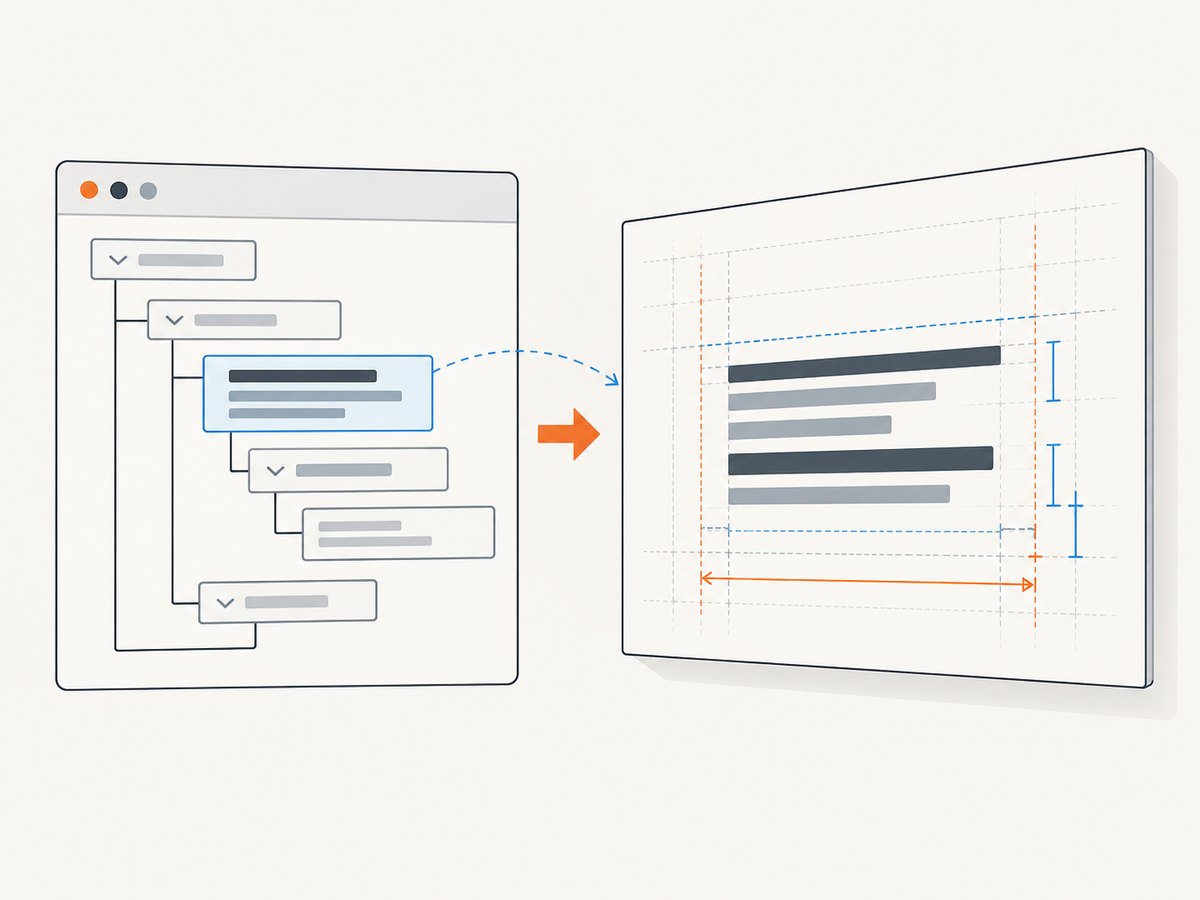
That diagnosis matters because html2canvas does not take a native browser screenshot. It traverses the DOM and reconstructs an image from the styles it understands. A page that looks correct in IE can therefore render differently in the canvas. Current html2canvas documentation lists Chrome/Chromium, Firefox, and Safari; Internet Explorer appears only in an older, historical compatibility statement. Treat IE support as legacy and version-specific. html2canvas documentation
1. Identify where the overlap occurs
First compare three outputs: the live page in IE, the canvas generated by html2canvas, and any later export such as a PDF made from that canvas. If the live page already overlaps, html2canvas is not the root cause. If only the canvas overlaps, the renderer’s interpretation of typography or layout is the likely area to investigate. If the canvas is correct but the PDF is not, isolate the PDF conversion step.
Record enough detail to make the result reproducible:
- The exact html2canvas package version and how it is loaded.
- The IE version, Windows version, and document mode.
- The element being captured, including its relevant HTML and CSS.
- The font name, how it is loaded, and whether the overlap happens with a system font too.
- The capture dimensions and whether the output is cropped, blank, or merely has overlapping glyphs.
Do not apply a guessed CSS fix before collecting this information. A change that helps one font, document mode, or element can make another layout worse.
2. Make a minimal reproduction
Reduce the capture to one element with a few lines of text. Remove unrelated scripts, layout components, and styles until the overlap disappears; then add them back one at a time. This helps distinguish a typography issue from positioning, a font-loading race, or a separate export problem.
Use a current html2canvas build that your application can support, and keep the version fixed while reproducing. The following example captures one element. Replace #report with the element in your test page.
html2canvas(document.querySelector('#report')).then(function (canvas) {
  document.body.appendChild(canvas);
});
For a diagnosis, keep the generated canvas visible at its natural dimensions and inspect it before resizing, compressing, or converting it. Save a copy of the source page and the canvas result alongside the browser/version notes. If the problem vanishes in a smaller capture, investigate layout changes caused by the reduced width rather than concluding that the canvas size itself fixed text metrics.
3. Check fonts and computed typography
A font that has not loaded when capture begins can change glyph widths and line breaks. Wait for the intended font before capturing, where the page’s font-loading implementation allows it. In browsers with the Font Loading API, this pattern can be used as a starting point; verify support in the specific legacy environment rather than assuming it exists:
function captureReport() {
  var element = document.querySelector('#report');
  return html2canvas(element);
}

if (document.fonts && document.fonts.ready) {
  document.fonts.ready.then(captureReport);
} else {
  // In an older browser, use your application's font-load signal
  // or a known local font for the reproduction.
  captureReport();
}
In IE’s developer tools, inspect the target element and compare the resolved values for:
font-family, including the actual fallback font in use.font-size,font-weight, andfont-style.letter-spacingandline-height.- Text transformation, such as
text-transform. - The content width, padding, borders, and box sizing that determine line wrapping.
- Positioning, transforms, and any ancestor styles that affect the element’s dimensions.
Compare the browser’s computed style with the corresponding element in html2canvas’s cloned document when possible. These are investigation points, not a claim that any one property causes every IE overlap. Remove one suspicious style at a time in the minimal case and capture again. Keep notes on the exact change and result.
4. Test a scoped change with onclone
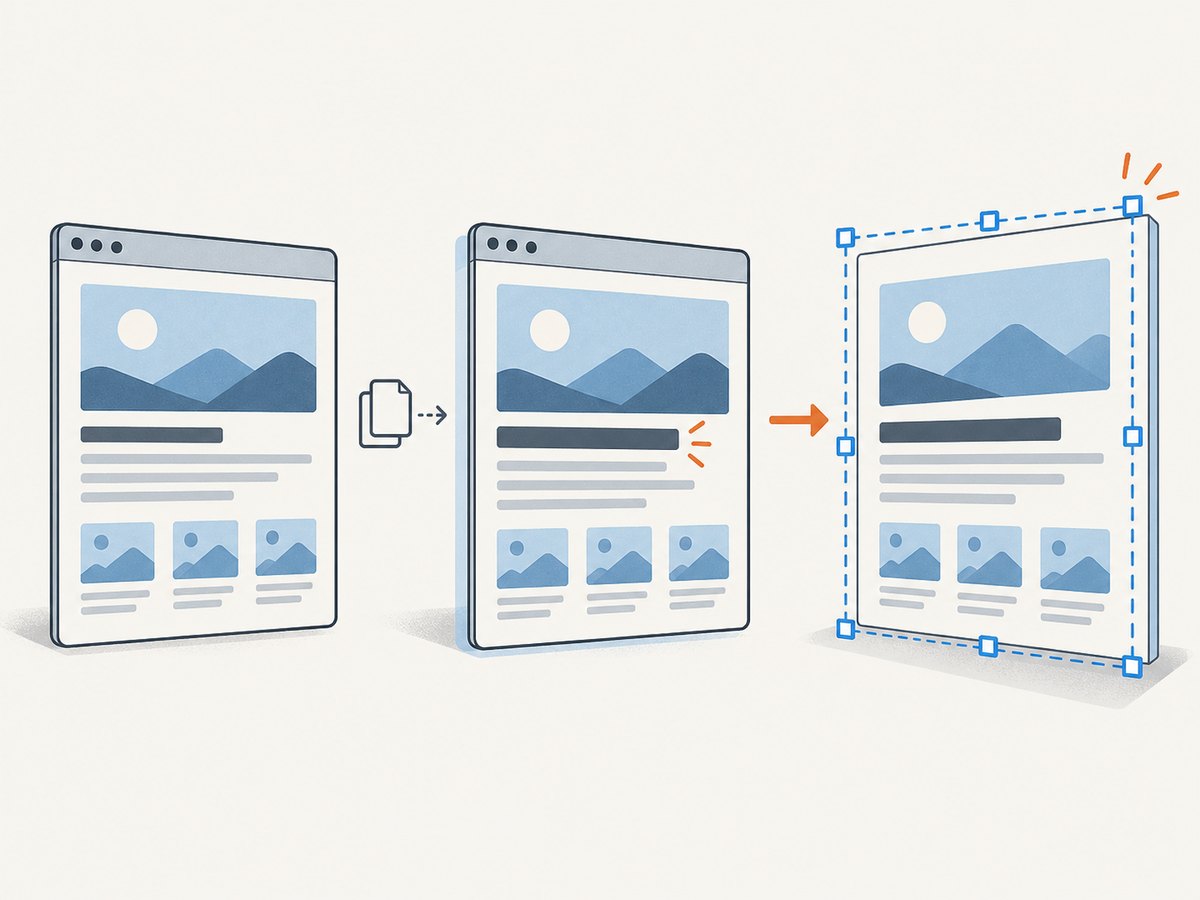
The onclone option lets you adjust the cloned document used for rendering without changing the original page. It is a useful place to test a rendering-only override. For example, if your reproduction shows that a particular line-height causes overlap, try a value scoped to the captured element and compare results. Do not deploy the sample values below as a general IE fix; choose values based on the element’s design and your reproduction.
var report = document.querySelector('#report');

html2canvas(report, {
  onclone: function (clonedDocument) {
    var clonedReport = clonedDocument.querySelector('#report');
    if (clonedReport) {
      clonedReport.style.lineHeight = '1.4';
      // Add only a reproduction-supported adjustment here.
      // For example: clonedReport.style.letterSpacing = 'normal';
    }
  }
}).then(function (canvas) {
  document.body.appendChild(canvas);
});
Change one property per capture, compare the output, and check that line wrapping and element height remain acceptable. If you use an override, document the browser and library versions it addresses. A workaround for one element should be scoped to that element rather than applied globally.
The configuration reference also documents options such as scale, windowWidth, and windowHeight. These can help control capture conditions, but they are not documented text-overlap fixes. Changing scale may alter raster sharpness and output dimensions without correcting glyph placement. html2canvas configuration reference
5. Check browser support and document mode
The current getting-started documentation names Chrome/Chromium, Firefox, and Safari as supported evergreen browsers and does not list Internet Explorer. An older html2canvas FAQ states IE9+ compatibility; that is a historical claim and does not establish support for every later html2canvas release, IE configuration, or CSS property. The same FAQ describes an IE canvas width and height limit of 8,192 pixels, with limits varying by browser, operating system, and hardware. That is relevant when a large capture is blank or clipped. It is not an established cause of overlapping glyphs. Legacy html2canvas FAQ
For an unexpected legacy rendering mode, verify the document mode shown by IE’s developer tools. Microsoft’s older documentation describes a compatibility meta tag for forcing standards mode in intranet contexts, but does not say that it fixes html2canvas text overlap and cautions against using the tag for production webpages. Do not add a compatibility directive as a blind rendering fix. Microsoft documentation on IE document modes
6. Choose a practical path
Once the reproduction is stable, choose based on what it demonstrates:
| Finding | Next step |
|---|---|
| The page itself has overlapping text | Fix the page’s CSS, font loading, or layout in the browser first. |
| Only html2canvas output overlaps | Check whether the relevant styles are supported; test one scoped clone override and verify it in the exact IE environment. |
| The issue occurs only with a web font | Confirm the font is ready before capture, then compare with a known local or system font. |
| The output is blank or clipped at large dimensions | Reduce capture dimensions and investigate canvas limits separately from text metrics. |
| The same case works in a documented evergreen browser | Consider running the capture in that browser if the product can change its capture environment. |
| No scoped workaround is stable across required IE configurations | Assess whether maintaining legacy rendering is practical or whether the capture flow can move to a supported browser. |
html2canvas’s own documentation explains the limitation directly: “As a result, it is only able to render correctly properties that it understands, meaning there are many CSS properties which do not work.” If a property is missing or incomplete, the project FAQ recommends creating a test case and reporting it. Related issue reports about negative letter spacing and text rendering are not validated IE fixes; an open pull request discussing text-node handling and line-height discrepancies is not proof that an IE fix shipped. Issue #1849 · Pull request #3182
7. Performance, reliability, and cost considerations
For an in-browser capture, keep the target element as small as the use case permits. Large DOM subtrees and large canvas dimensions require more browser memory and can take longer to render. Wait for fonts and any essential content before capturing, but avoid arbitrary long delays where the application can signal readiness directly. If an IE-only workaround is necessary, test the actual combinations of IE version and document mode your users run; one successful local capture does not establish broad compatibility.
There is no source-confirmed benchmark for this particular overlap symptom. Measure capture time and memory behavior in your own target environment, and separate rendering from later image or PDF export when tracing failures. If a capture is blank or clipped, reduce dimensions and inspect the canvas-limit path; if glyphs overlap, focus on typography and renderer support instead.
Or skip the browser setup
If you need a clean website capture without maintaining an html2canvas and legacy IE rendering path, ScreenshotNeo is a website screenshot API and MCP server for developers. It captures a URL with one GET request and returns an image or PDF. Here is a runnable cURL example, with equivalent Python and Node.js requests below. See the ScreenshotNeo API documentation for request details.
curl -G "https://api.screenshotneo.com/v1/shot" \
  -d access_key=YOUR_API_KEY \
  --data-urlencode url=https://stripe.com \
  -o shot.webp
import requests
r = requests.get(
"https://api.screenshotneo.com/v1/shot",
params={"access_key": "YOUR_API_KEY", "url": "https://stripe.com"},
timeout=90,
)
open("shot.webp", "wb").write(r.content)const q = new URLSearchParams({
access_key: 'YOUR_API_KEY',
url: 'https://stripe.com'
});
const res = await fetch(`https://api.screenshotneo.com/v1/shot?${q}`);
if (!res.ok) throw new Error(`Screenshot request failed: ${res.status}`);
const bytes = new Uint8Array(await res.arrayBuffer());
await import('node:fs/promises').then(fs => fs.writeFile('shot.webp', bytes));- Cookie and consent banners, newsletter popups, and chat widgets are removed before the shot; each cleanup step can be turned off.
- Bot checks and CAPTCHAs, blank pages, timeouts, failed loads, and cache hits are not billed. Response headers report the page verdict and billing status.
- An MCP server provides
take_screenshot,get_page_info, andcapture_pdftools for Claude, Cursor, and other MCP clients. - The Free plan includes 1,000 screenshots per month with no card. Paid plans start at $5 for 3,000 screenshots; all features are available on every plan.
Create a free ScreenshotNeo account for 1,000 screenshots a month with no card.
FAQ
Why is text overlapping in my html2canvas output in Internet Explorer?
The available sources do not establish a single cause. Compare the original page and canvas, then inspect computed typography, font readiness, layout, library version, and document mode in a minimal reproduction.
Does html2canvas still support IE?
Current getting-started documentation lists evergreen browsers and omits IE. An older FAQ’s IE9+ statement is historical, so confirm behavior with the exact build and configuration you must support.
Could line-height or letter-spacing cause the text overlap?
They are useful properties to test because they affect line and glyph placement, but the research does not confirm either as the universal cause. Change one at a time in the clone and compare output.
How do I change styles only in the html2canvas clone?
Use the documented onclone callback to find the cloned element and apply a scoped inline style. This leaves the source document unchanged while you test a hypothesis.
Does IE’s 8,192-pixel canvas limit explain overlapping text?
No such connection is documented. The historical limit is relevant to oversized, blank, or clipped canvases, so diagnose those symptoms separately.


