How to Fix HTML2Canvas Shifting Text Downward
When html2canvas puts text too low, check font readiness, computed styles and capture settings in a minimal reproduction before changing CSS.
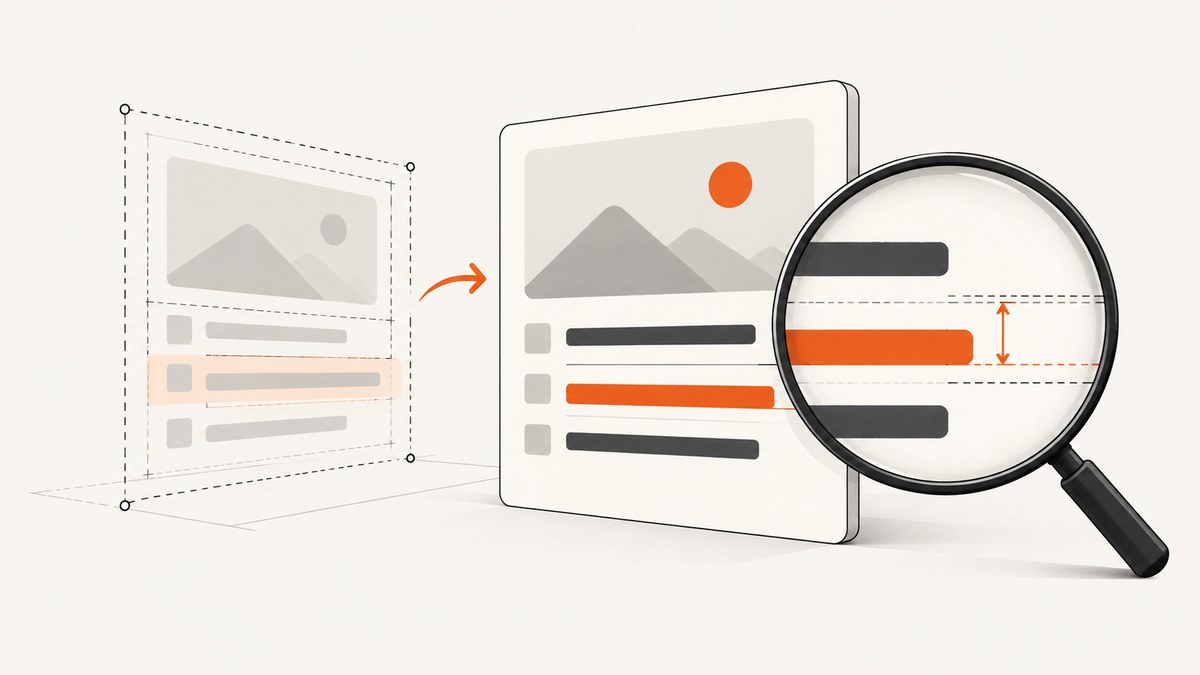
If text appears lower in an html2canvas image than it does on the page, there is no confirmed universal CSS fix. First reproduce it with your installed html2canvas version and browser, then check that the intended font is loaded and compare the element’s computed layout styles with the captured result. Change one variable at a time.
html2canvas reconstructs the page using its own CSS implementations; it does not simply take a screenshot of the browser. Its CSS coverage is incomplete, so a mismatch can come from how the library measures text, font metrics, layout bounds, or a CSS feature it does not reproduce. If the required appearance depends on unsupported or imperfectly rendered CSS, use a real-browser screenshot method instead. The html2canvas FAQ and project documentation explain these limits.
1. Reproduce the shift and record the environment
Before adjusting line-height or adding offsets, reduce the page to the smallest element that still shows the downward shift. Record the installed library version, browser version, operating system, device pixel ratio, and whether the intended webfont is local or remote. These details matter: a historical issue reported html2canvas 1.3.3 in Chrome 96 on Windows 11, but that is one reproduction, not proof of a general cause or a current universal bug.
- Capture the affected element on the live page, then capture the same element with html2canvas.
- Check whether every line is shifted equally or whether the error grows across multiple lines. Note whether the text’s box, background, and borders are also displaced.
- Keep a copy of the minimal HTML, CSS, and capture options. Remove unrelated styles and scripts until the smallest failing case remains.
- Repeat in the browser and library version used by your application. Avoid relying on an old issue report or proposed patch without reproducing its exact conditions.
If the whole element is displaced, investigate crop offsets and layout bounds as well as text metrics. If only glyphs appear low inside an otherwise correctly placed box, inspect font readiness, line-height, baseline behavior, and copied styles first.
2. Wait for fonts and verify which font is used
A webfont that has not finished loading can leave the page or the renderer using fallback font metrics. Different fonts have different ascent, descent, and baseline measurements, which can make text appear vertically misplaced. A historical project report describes incomplete font downloads as a possible contributor; treat it as a diagnostic lead, not a guaranteed explanation.
For browser code, wait for the document’s font set before invoking html2canvas, and inspect the computed styles on the actual target. The following is a minimal runnable example for a page that already has html2canvas loaded and an element with id="capture":
async function captureElement() {
  const target = document.querySelector('#capture');
  if (!target) throw new Error('Missing #capture element');

  // Wait for fonts requested by the document to finish loading.
  if (document.fonts?.ready) {
    await document.fonts.ready;
  }

  const style = getComputedStyle(target);
  console.table({
    fontFamily: style.fontFamily,
    fontSize: style.fontSize,
    fontWeight: style.fontWeight,
    lineHeight: style.lineHeight,
    paddingTop: style.paddingTop,
    verticalAlign: style.verticalAlign,
    transform: style.transform
  });

  const canvas = await html2canvas(target);
  document.body.appendChild(canvas);
  return canvas;
}

captureElement().catch(console.error);
document.fonts.ready waits for font loading work known to the document at that time; it cannot correct a bad font declaration or guarantee a remote font can be fetched. Confirm the actual computed font-family, font-weight, and font-size after the wait. If the element requests a weight not supplied by the font, the browser may synthesize or substitute it, changing metrics.
3. Compare layout styles and text bounds
html2canvas measures text and draws it relative to measured bounds and a calculated baseline. A discrepancy in either the layout bounds or font metrics can affect where glyphs appear. Compare the source element’s computed styles with the cloned or captured context where possible. Focus on these properties:
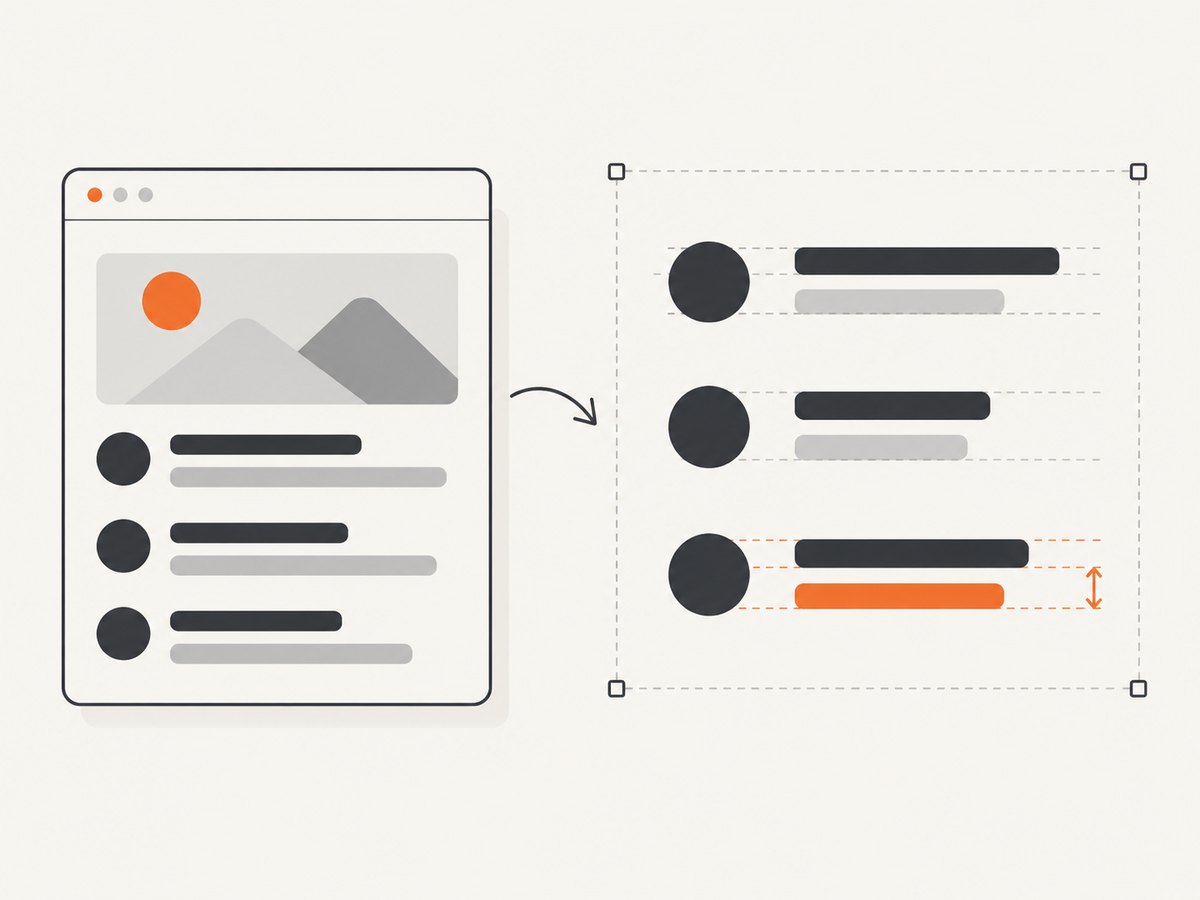
line-height, includingnormalversus an explicit length or unitless value.font-family,font-size,font-weight, andfont-style.- Top and bottom padding, borders, and any inline alignment styles.
vertical-align, transforms, relative positioning, and inherited styles.- Text wrapping, explicit line breaks, and the width of the captured element.
Temporarily set a known line-height and remove transforms in the minimal example to learn whether those variables affect the output. Do not assume that any one value is the fix: a layout change can hide a rendering mismatch while breaking the live page’s design.
html2canvas configuration includes onCopyProperty, which can customize copied styles. The project’s configuration guide demonstrates overriding a copied font-family. Use this only after confirming that the clone receives a different or unsuitable style; test the override on a minimal case and keep the live layout and captured layout intentional.
4. Check scale, crop offsets, and viewport dimensions
Capture options can change the context in which the element is rendered. The documented scale default is window.devicePixelRatio. Options also include x and y crop offsets plus windowWidth and windowHeight. These are useful diagnostic controls, but changing scale alone is not a confirmed fix for vertical text alignment.
const target = document.querySelector('#capture');
const canvas = await html2canvas(target, {
  scale: 1,
  x: 0,
  y: 0,
  windowWidth: document.documentElement.clientWidth,
  windowHeight: document.documentElement.clientHeight
});
Compare this controlled capture with the default options, changing one setting per run. Ensure the crop offsets correspond to the intended capture region, and that the configured window dimensions match the layout being diagnosed. If a screenshot is later cropped or resized elsewhere in your pipeline, verify that stage too; it can make a correct render look shifted relative to a reference.
5. Build a minimal reproduction before applying a workaround
Use one text element with an explicit font, a known width, a simple line-height, and no animations or transforms. Confirm the result with the intended font loaded. Then add the original styles back in small groups. This identifies whether the trigger is a font-loading race, a specific inherited property, capture configuration, or a feature html2canvas does not reproduce adequately.
Do not copy a patch simply because a report says it changed vertical text positioning. A 2022 pull request proposed such a change and its author described testing several browsers, but it remained open and later comments questioned the baseline calculation and reported mixed results. Verify whether your installed release contains a relevant change, and reproduce the same case before relying on a patch.
6. Know when html2canvas is the wrong capture path
The html2canvas FAQ says that CSS properties must be implemented individually and that full CSS support is not a goal. If the minimal example depends on CSS that html2canvas does not render adequately and pixel fidelity matters, use a real-browser screenshot workflow suited to where the capture runs. The FAQ names Puppeteer and Playwright for server-side generation and browser capture APIs for extensions.
| Approach | Useful when | Trade-off to consider |
|---|---|---|
| html2canvas | You need a client-side canvas representation inside a browser page. | It reconstructs the appearance and does not implement every CSS feature like the browser itself. |
| Puppeteer or Playwright | You can run browser automation on a server and need the browser to render the page for capture. | You need to operate a browser-based capture environment and handle its page lifecycle. |
| Browser screenshot API | Your code runs in a browser extension and can use the browser’s capture facilities. | Availability and integration depend on the extension environment. |
Compare methods against the CSS features your page actually uses, whether capture must happen in the client or server, and how the capture will be integrated. Keep html2canvas when its output is adequate; move the capture to a real browser when fidelity requirements expose its rendering limits.
7. Troubleshooting common symptoms
| Symptom | Likely diagnostic path | What to try |
|---|---|---|
| Text is lower only in the canvas; box edges line up. | Font metrics, baseline, line-height, or copied font styles differ. | Wait for fonts, inspect computed family and weight, then test an explicit line-height in a minimal case. |
| Text and the whole element are shifted. | Capture origin, crop offsets, element bounds, or viewport dimensions differ. | Compare x/y, window dimensions, and the measured target bounds; test one setting at a time. |
| Only a remote webfont case fails. | The font may not be ready or may fail to load in the page or cloned context. | Await document.fonts.ready, inspect computed styles, and check the browser’s font loading errors. |
| Changing scale changes sharpness but not alignment. | Scale controls output resolution; it is not a universal baseline correction. | Restore the intended scale and investigate font metrics and layout instead. |
| A CSS tweak fixes capture but breaks the live page. | The workaround changed actual page layout rather than the capture renderer’s interpretation. | Use a capture-specific clone/style override only when supported, or choose browser screenshot automation. |
| A historical fix appears relevant but results vary. | It may be a proposal or version-specific change, not a confirmed general fix. | Check the installed version and reproduce against the current source and your browser. |
8. Reliability, performance, and cost considerations
For a client-side html2canvas flow, reliable output depends on the page being in a stable state: fonts and relevant content should be ready, dimensions should be known, and animations or asynchronous layout changes should not move the target during capture. Record the version and capture options with reproductions so a browser or dependency update does not make comparisons ambiguous.

For performance, keep the captured region only as large as needed and avoid repeatedly capturing while the page is still changing. A larger canvas consumes more memory and work than a small element capture; measure in the target browser and device because the research sources provide no universal performance benchmark. When moving to browser automation, factor in the cost of operating that environment and the time spent loading and stabilizing each page.
html2canvas itself is a library rather than a metered screenshot service, so its capture has no per-shot API fee. Your application still pays the compute, browser memory, and operational costs of its chosen environment. For hosted APIs, compare the actual plan limits and billing rules before routing workloads; do not infer costs from screenshot quality.
Or skip the browser setup
If the goal is a clean screenshot of a URL rather than a canvas inside your page, ScreenshotNeo provides a website screenshot API and MCP server. Its one-call request returns PNG, JPEG, WebP, or PDF; the parameter names used by other screenshot APIs also work. See the ScreenshotNeo API documentation for request options.
curl -G "https://api.screenshotneo.com/v1/shot" -d access_key=YOUR_API_KEY --data-urlencode url=https://stripe.com -o shot.webpimport requests
r = requests.get(
"https://api.screenshotneo.com/v1/shot",
params={"access_key": "YOUR_API_KEY", "url": "https://stripe.com"},
timeout=90,
)
open("shot.webp", "wb").write(r.content)const q = new URLSearchParams({ access_key: 'YOUR_API_KEY', url: 'https://stripe.com' });
const res = await fetch(`https://api.screenshotneo.com/v1/shot?${q}`);
if (!res.ok) throw new Error(`Screenshot request failed: ${res.status}`);
await Bun.write('shot.webp', res);- Cookie and consent banners are accepted like a visitor, then removed; more than 60 known consent platforms, newsletter popups, and chat widgets can be removed before the shot. Each step can be turned off.
- Bot checks and CAPTCHAs, blank pages, timeouts, failed loads, and cache hits cost nothing. Response headers report the page verdict and billing status.
- An MCP server gives AI agents, including Claude, Cursor, and other MCP clients, the
take_screenshot,get_page_info, andcapture_pdftools. - The Free plan includes 1,000 shots per month with no card. Paid plans start at $5 for 3,000 shots; yearly billing gives two months free, and every feature is on every plan.
Sign up for ScreenshotNeo’s free plan to get 1,000 screenshots a month with no card.
FAQ
Is there a CSS property that always fixes downward-shifted text?
No. The sources do not establish a universal fix. Diagnose the font, layout, capture context, and library version that reproduce your case.
Should I change scale first?
Use scale as a controlled comparison because it affects output resolution, but do not treat it as a guaranteed vertical alignment fix.
Does html2canvas take a native browser screenshot?
No. It reconstructs the page using its own rendering logic and CSS implementations, which is why some browser-rendered details can differ.
When should I switch tools?
Switch when a minimal example shows that a CSS feature your page needs is not rendered adequately and accurate browser appearance is a requirement.


