How to Fix html2canvas When It Does Not Capture the Whole Image
Fix clipped html2canvas captures by sizing the render window to the content, then check crops, scrolling, canvas limits, CORS, CSS, and iframes.
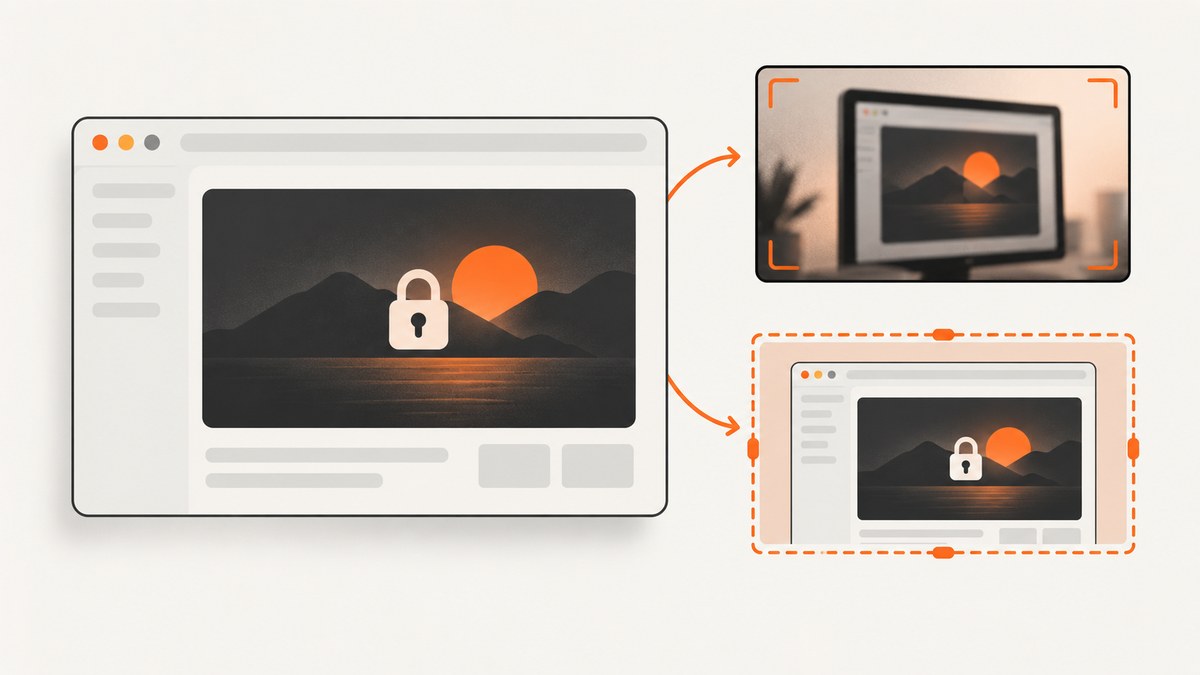
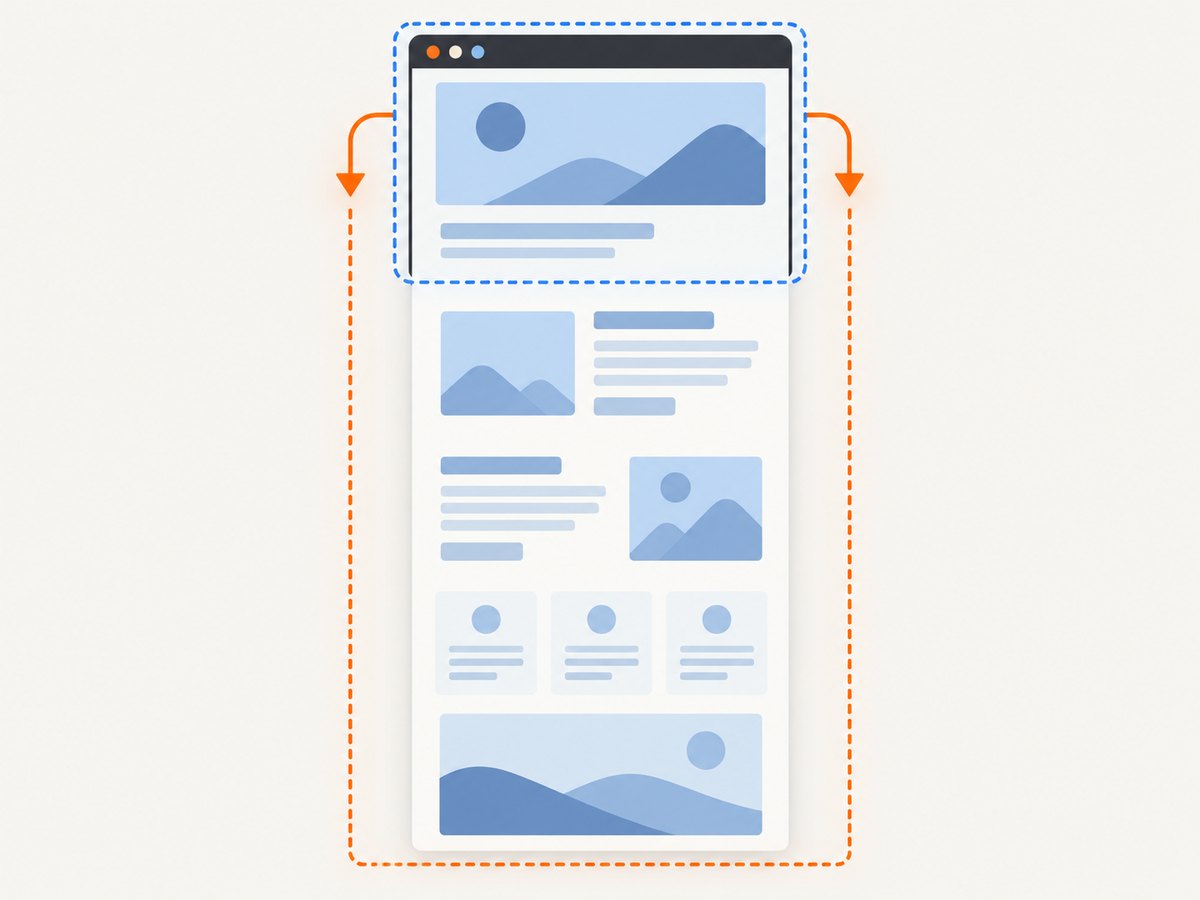
If html2canvas shows only the visible viewport or cuts off the bottom of a tall element, set its virtual rendering window to the element’s scroll dimensions. For a tall element, the direct fix is:
const element = document.querySelector('#capture');
const canvas = await html2canvas(element, {
  windowWidth: element.scrollWidth,
  windowHeight: element.scrollHeight,
});
html2canvas defaults to the browser window’s dimensions for its rendering window. A tall element can therefore be rendered as though the visible viewport were the whole page. The project FAQ recommends setting windowWidth and windowHeight from the target element’s scroll dimensions for output that is empty or cut off partway through. See the html2canvas FAQ and configuration reference.
1. Fix a clipped element capture
Use an element selector that identifies the content you actually want, wait until its content is present, and give html2canvas a rendering window large enough to include its scrollable width and height. This runnable example also sets the output dimensions explicitly and caps the scale to reduce the chance of hitting browser canvas limits:
async function captureWholeElement(selector) {
  const element = document.querySelector(selector);
  if (!element) throw new Error(`Capture target not found: ${selector}`);

  const width = element.scrollWidth;
  const height = element.scrollHeight;
  if (!width || !height) throw new Error('Capture target has no rendered size');

  return html2canvas(element, {
    windowWidth: width,
    windowHeight: height,
    width,
    height,
    scale: Math.min(window.devicePixelRatio || 1, 2),
    useCORS: true,
  });
}

const canvas = await captureWholeElement('#capture');
document.body.appendChild(canvas);
This assumes html2canvas is already loaded and the target has rendered. If you use a bundler, import it in your application and call the function after the component has mounted. useCORS: true is only useful for images whose servers permit cross-origin access; it cannot bypass browser security rules.
scrollWidth and scrollHeight describe the content’s scrollable extent, while width and height set the output canvas dimensions. Setting the render window and output size together makes the intended capture extent explicit. For a document-level capture, measure the document rather than a nested element:
const width = Math.max(
  document.documentElement.scrollWidth,
  document.body.scrollWidth
);
const height = Math.max(
  document.documentElement.scrollHeight,
  document.body.scrollHeight
);

const canvas = await html2canvas(document.documentElement, {
  windowWidth: width,
  windowHeight: height,
  width,
  height,
});
Use this for a DOM render, not as a guarantee of a pixel-identical browser screenshot. html2canvas reconstructs a rendering from DOM and CSS; it does not capture the browser’s already-composited screen. Its CSS support is implemented property by property, so some styling can differ or be absent.
2. Diagnose the capture boundary
Before changing CSS or splitting the page, inspect the dimensions and the resulting canvas. A canvas is not automatically proof that all content fit inside it.
const element = document.querySelector('#capture');
const rect = element.getBoundingClientRect();

console.table({
  clientWidth: element.clientWidth,
  scrollWidth: element.scrollWidth,
  clientHeight: element.clientHeight,
  scrollHeight: element.scrollHeight,
  viewportWidth: window.innerWidth,
  viewportHeight: window.innerHeight,
  rectWidth: rect.width,
  rectHeight: rect.height,
});

const canvas = await html2canvas(element, {
  windowWidth: element.scrollWidth,
  windowHeight: element.scrollHeight,
  width: element.scrollWidth,
  height: element.scrollHeight,
});
console.log({ canvasWidth: canvas.width, canvasHeight: canvas.height });
If the scroll height is much larger than the viewport, use the scroll height for the render window. If the target is inside a nested scroller, its own scroll dimensions are relevant. If the measured dimensions are unexpectedly small, the content may not have loaded, the wrong node may be selected, or a parent may constrain its layout. Fix that condition before capturing.
3. Set the crop and scroll position deliberately
For a specific region, set x, y, width, and height in the html2canvas options. The crop coordinates are part of the render configuration; keep them consistent with the element and window dimensions you intend to render.
const element = document.querySelector('#capture');
const canvas = await html2canvas(element, {
  windowWidth: element.scrollWidth,
  windowHeight: element.scrollHeight,
  x: 0,
  y: 0,
  width: element.scrollWidth,
  height: element.scrollHeight,
});
The scrollX and scrollY options control the scroll position used by the renderer. They matter when fixed or sticky elements appear in the wrong place, or when the desired area depends on the page’s current scroll state. For a repeatable capture, choose the intended scroll position explicitly and check whether a fixed header should be present in the output.
Nested scrolling deserves special attention. A page’s scroll height does not necessarily include all content hidden inside an inner panel. Measure the panel itself. If the browser layout clips that panel, temporarily expand it in the cloned document before rendering or capture its content in sections. Sticky headers, fixed toolbars, and overlays can cover content; remove or hide them in the render clone when they are not part of the desired image.
4. Handle overlays and dynamic content
Use the data-html2canvas-ignore attribute for nodes that should not be painted, such as capture controls or obstructing overlays:
<div class="sticky-toolbar" data-html2canvas-ignore>
  Capture controls
</div>
For one-off changes, html2canvas’s onclone callback lets you adjust the cloned document used for rendering. The live page stays intact:
const canvas = await html2canvas(element, {
  windowWidth: element.scrollWidth,
  windowHeight: element.scrollHeight,
  onclone: (clonedDocument) => {
    clonedDocument
      .querySelectorAll('[data-html2canvas-ignore]')
      .forEach((node) => node.remove());
  },
});
This is also a place to disable animations or expand a nested content area if the page’s layout needs that adjustment. Do not assume data has finished loading simply because the element exists. Wait for the application’s own ready state, images, or async content first. For example, a page you control can expose a promise or a class indicating that the section is ready, and the capture code can wait for it before measuring dimensions.
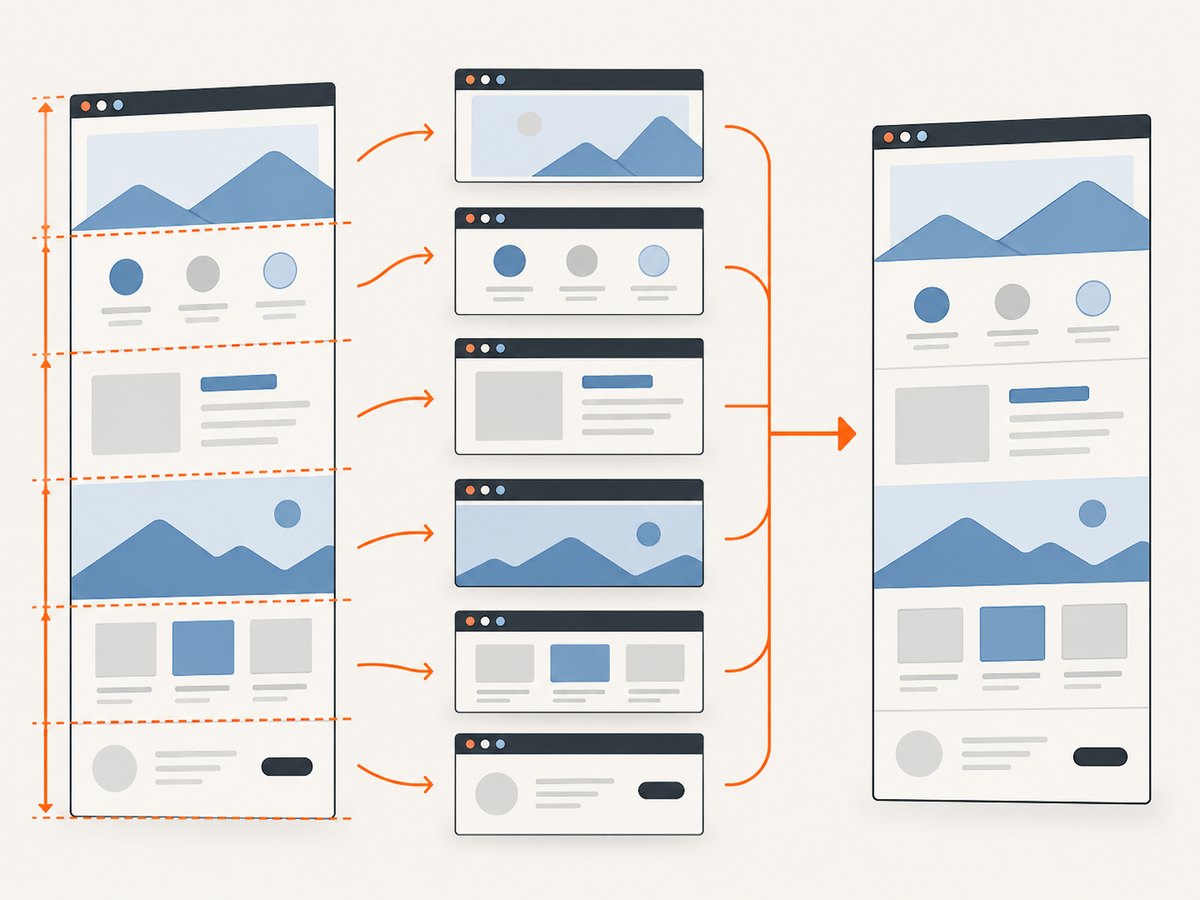
5. Understand canvas limits and scale
Browsers limit canvas dimensions and total pixel area. The html2canvas FAQ gives rough guidance of about 32,767 pixels per dimension for Chrome/Chromium, Firefox, and desktop Safari, with lower limits on iOS Safari. These values are approximate, and total-area limits differ by browser and device; treat them as guidance rather than guarantees. A browser can fail silently and return a blank or partial result when the canvas is too large.
The scale option multiplies the output pixel dimensions and defaults to window.devicePixelRatio. If a CSS-sized capture is 10,000 pixels tall and the scale is 2, the resulting canvas can be 20,000 pixels tall. Higher scale improves detail but consumes more memory and approaches browser limits sooner. Lower it when the capture is huge:
const scale = 1;
const canvas = await html2canvas(element, {
  windowWidth: element.scrollWidth,
  windowHeight: element.scrollHeight,
  scale,
});
For very long pages, estimate output dimensions before capture: scrollWidth × scale by scrollHeight × scale. If one dimension or the total area is excessive, capture manageable sections and combine them in a workflow designed for stitching, or use browser automation such as Puppeteer or Playwright for server-side screenshots. The html2canvas FAQ suggests those tools for server-side capture. They have different operational and rendering characteristics, so validate the result against the target page.
6. Resolve missing images, CSS, and iframe content
Cross-origin images
Canvas security prevents reading pixels from images that taint the canvas. With the default allowTaint: false, html2canvas checks and skips images that would taint the output. useCORS: true asks the browser to load images using CORS, but the image host must send an appropriate Access-Control-Allow-Origin header. If you control that host, configure its response headers. Otherwise, serve the image through a same-origin proxy you control, subject to the source’s access rules.
allowTaint: true does not make a tainted canvas readable or exportable. It may allow drawing an image while preventing operations such as encoding the canvas. Use a CORS-enabled image source or proxy when the output must be saved.
CSS differences
A complete canvas can still look wrong because html2canvas manually implements CSS properties and does not support every browser rendering behavior. Check the project’s supported features and simplify or adjust styling that does not render as expected. If exact browser output is a requirement, a screenshot tool that captures the browser-rendered page may be a better fit than a DOM-to-canvas renderer.
Cross-origin iframes
Browser same-origin rules prevent html2canvas from reading a cross-origin iframe’s contentDocument. The parent page therefore cannot use html2canvas to render that iframe’s contents. If you control the framed page, expose a same-origin capture route or render the content independently. Otherwise, the iframe content must be captured in an environment with legitimate access to it.
7. Troubleshooting common failures
| Symptom | Likely cause | Fix |
|---|---|---|
| Only the visible viewport appears | The render window uses viewport dimensions. | Set windowWidth and windowHeight from the target’s scrollWidth and scrollHeight. |
| The bottom is blank or abruptly cut off | The canvas exceeds a browser dimension or pixel-area limit, or the content was not ready when measured. | Inspect canvas dimensions, lower scale, wait for content, or capture sections. |
| Images disappear | The image host does not permit CORS, or the image has not loaded. | Check image requests and response headers; use useCORS only with a CORS-enabled host, or use a same-origin proxy. |
| The canvas renders but styling differs | A CSS property or browser rendering behavior is unsupported or partially supported. | Review the project’s supported features, simplify the styling, or use browser screenshot automation. |
| Iframe content is absent | The iframe is cross-origin and blocked by browser security. | Capture content from an authorized same-origin context or a separate workflow with access. |
| Header covers lower content or repeats unexpectedly | Fixed or sticky positioning interacts with the render scroll position. | Set scrollX/scrollY intentionally and hide or adjust the header in onclone. |
| Nothing is captured | The selector failed, dimensions are zero, or a rendering error occurred. | Check the selected node, wait for mount/layout, log dimensions, and inspect the browser console. |
| Capture is slow or the tab runs out of memory | The bitmap has too many pixels, especially at a high device-pixel scale. | Reduce scale and output area, remove unnecessary content, or capture smaller sections. |
8. Performance, reliability, and cost
html2canvas runs in the page and builds a canvas from the DOM, so work grows with the amount of content and output pixels. Large images, complex styles, and high scale increase memory use and time. Capture only the needed element, use a sensible scale, and avoid repeatedly rendering an unchanged large page. If you need reproducible server-side captures, factor in browser startup, page readiness, font and image loading, network conditions, and retries in your automation setup.
The library itself does not make a remote screenshot request, but a capture still depends on the page’s assets being available and permitted by browser security. Retry only transient loading failures; retries will not fix unsupported CSS, an inaccessible cross-origin iframe, or a canvas that is consistently too large. For large jobs, split the work and record dimensions, scale, and errors so failures can be reproduced.
For an API, compare image fidelity, long-page handling, cross-origin and iframe behavior, output formats, and operational work. ScreenshotNeo is a website screenshot API and MCP server. It returns PNG, JPEG, WebP, or PDF from one GET request. It accepts cookie banners and removes more than 60 known consent platforms, newsletter popups, and chat widgets before capture; each step can be turned off. Only clean shots are billed: bot checks, CAPTCHAs, blank pages, timeouts, failed loads, and cache hits cost nothing, with the result identified by X-Page-Verdict and X-Billed headers. It also offers an MCP server for AI clients, including Claude and Cursor. The free plan includes 1,000 shots a month with no card; paid plans start at $5 for 3,000. All features are on every plan. See the ScreenshotNeo documentation for API options.
Or skip the browser setup
Use the direct API call below for a screenshot without wiring up an in-page canvas. Replace the URL and API key with your own values. The response is the image content; this example saves it as WebP.
curl -G "https://api.screenshotneo.com/v1/shot" -d access_key=YOUR_API_KEY --data-urlencode url=https://stripe.com -o shot.webpimport requests
r = requests.get("https://api.screenshotneo.com/v1/shot", params={"access_key": "YOUR_API_KEY", "url": "https://stripe.com"}, timeout=90)
open("shot.webp", "wb").write(r.content)const q = new URLSearchParams({ access_key: 'YOUR_API_KEY', url: 'https://stripe.com' });
const res = await fetch(`https://api.screenshotneo.com/v1/shot?${q}`);
if (!res.ok) throw new Error(`Screenshot request failed: ${res.status}`);
await Bun.write('shot.webp', res);Cookie banners, popups, and chat widgets are removed before the shot. Bot checks, blank pages, and failed loads are never billed. An MCP server lets AI agents take screenshots. You get 1,000 screenshots a month free with no card; paid plans start at $5 for 3,000. Create a free ScreenshotNeo account.
9. FAQ
Does html2canvas capture a screenshot of the entire browser page?
No. It renders a selected DOM element using its own rendering logic. Set the render window to the content dimensions for a taller capture, and expect differences where CSS support or browser security limits apply.
Why does increasing width not reveal the missing bottom?
Width and height control different dimensions. For vertically clipped content, set windowHeight from the measured scroll height as well as setting width.
Can I capture a cross-origin iframe by setting CORS?
No. useCORS concerns loading images; it does not grant access to a cross-origin iframe document.
Should I always use device pixel ratio for scale?
No. It is the default, but a high value can multiply an already large capture into an impractical canvas. Choose a scale based on required detail and output dimensions.
When should I use a different screenshot method?
Use another workflow when you need browser-rendered fidelity, inaccessible iframe content, very tall captures beyond canvas limits, or server-side operation. Puppeteer and Playwright are options for server-side browser automation; ScreenshotNeo provides an API and MCP server when you prefer a managed capture request.


