Why html2pdf Images Stop Rendering and How to Fix It
Missing images in an html2pdf.js PDF usually fail during html2canvas rendering. Diagnose CORS, loading races, cloned DOM, unsupported content, and canvas limits.
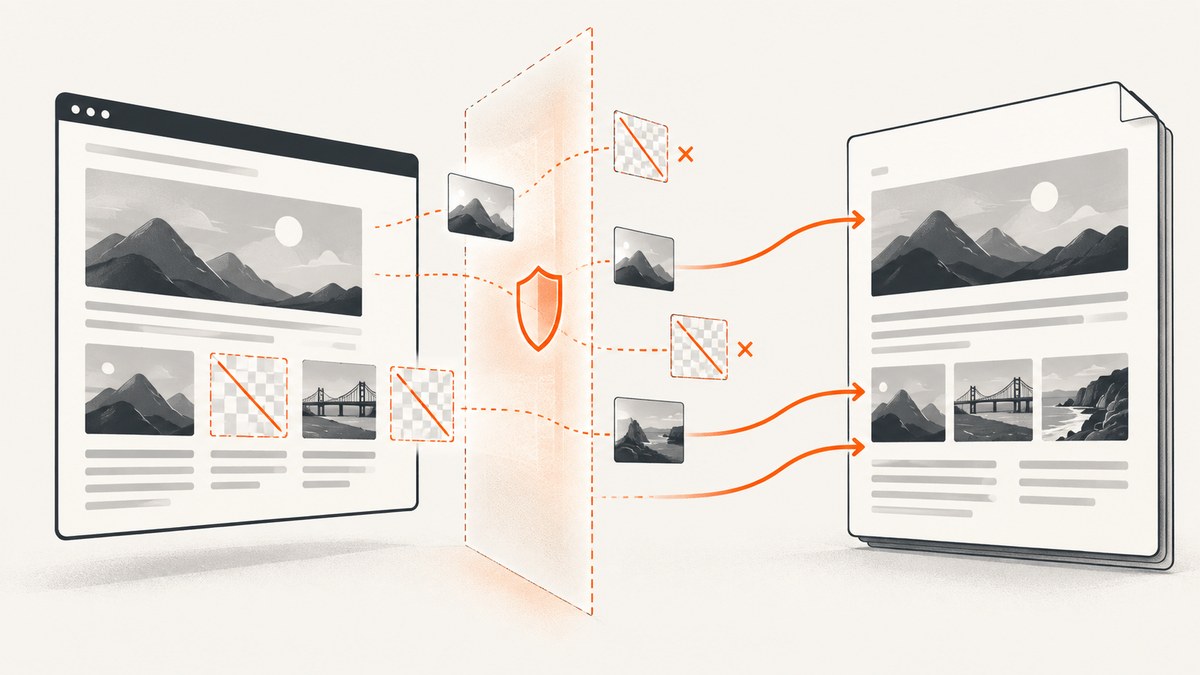
If images disappear from an html2pdf.js PDF, the failure usually happens before jsPDF writes the document. html2pdf.js asks html2canvas to reconstruct the selected DOM as a canvas, then passes that raster image to jsPDF. If html2canvas skips an image or cannot read its pixels, jsPDF has no pixels to include.
Start by checking the browser console and Network panel for CORS, 404/403, mixed-content, or decoding errors. Then test a small same-origin image. If that works, focus on the failing asset’s origin, load timing, format, or the cloned DOM. The fixes below cover the usual causes, plus blank or clipped output from oversized canvases.
This guide targets the browser-side html2pdf.js library. It is different from a hosted screenshot API: the DIY steps below help fix your existing HTML-to-PDF pipeline.
1. How the html2pdf.js image pipeline works
The pipeline has three stages:
- html2pdf.js clones and prepares the element you pass to
.from(). - html2canvas reconstructs that DOM as a canvas, loading or drawing images and supported styles.
- jsPDF receives the rendered result and places it into one or more PDF pages.
This explains why an image can appear in the live browser but not the PDF. The browser can display an image without granting JavaScript permission to read its pixels. html2canvas needs that permission to create an exportable canvas. If rendering succeeds but the PDF is still wrong, inspect the canvas before investigating jsPDF’s page layout.
The project documents other constraints too: clone-node differences, resizing, promise behavior, and browser maximum canvas dimensions. Those can produce a partial or blank result even when image URLs are valid. See the html2pdf.js project documentation and the html2canvas FAQ.
2. Fix cross-origin images and tainted canvases
An image from another origin needs the image server’s CORS approval before html2canvas can read its pixels. The html2canvas FAQ says cross-origin images are skipped when allowTaint is false, which is the default. Setting useCORS: true asks the browser to load images using CORS, but it cannot grant permission by itself: the image response must include an appropriate Access-Control-Allow-Origin header.
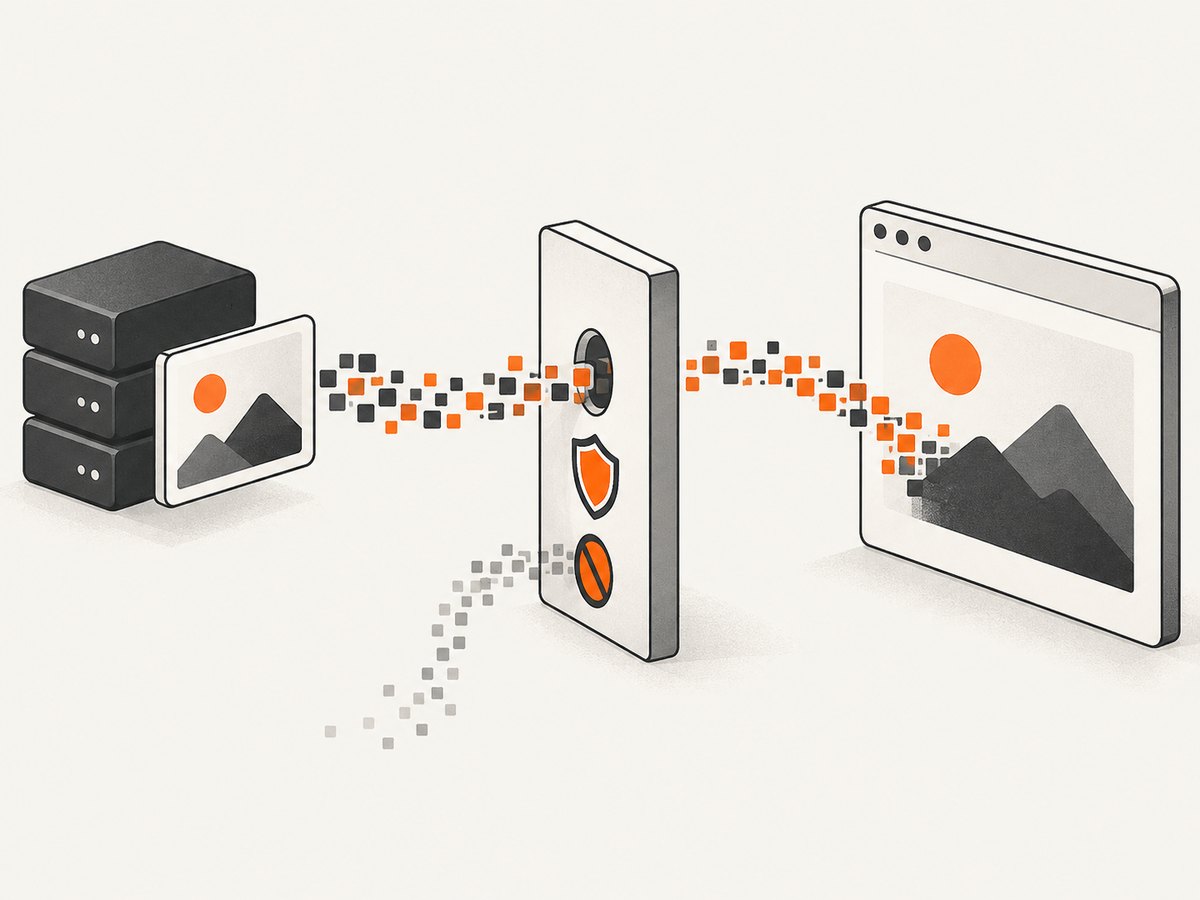
Try this configuration when the image host supports CORS:
const element = document.querySelector('#report');

await html2pdf()
  .set({
    html2canvas: {
      useCORS: true
    }
  })
  .from(element)
  .save();
Check the image response in DevTools → Network → Headers. Confirm that it returns Access-Control-Allow-Origin for your page’s origin, or * where the asset and credentials policy permits it. If you control the asset server, configure the response there. If you do not, use a same-origin proxy that fetches and serves approved assets, or self-host the image.
Do not treat allowTaint: true as an export fix. It can allow a foreign image to taint the canvas, but a tainted canvas cannot safely be read back. MDN explains that drawing unapproved cross-origin data taints a canvas; calls such as getImageData(), toBlob(), and toDataURL() then raise a security exception. A PDF renderer that needs those pixels still cannot reliably export them. See MDN’s CORS-enabled images documentation.
If the image server cannot send CORS headers, a same-origin proxy is the practical workaround. Protect that proxy: allow only trusted hosts or paths, validate URLs, limit response size and time, and avoid turning it into an open proxy. The html2canvas proxy option can be configured if you have a compatible proxy endpoint; it does not make an arbitrary endpoint CORS-capable.
3. Wait for images and fonts before capture
Capturing before an image finishes loading can create intermittent omissions. Wait for the target’s images to settle, then render. The helper below resolves on either load or error so one broken asset does not hang the entire export; it also reports failures for diagnosis.
async function waitForImages(element) {
  const images = [...element.querySelectorAll('img')];
  const results = await Promise.all(images.map(img => {
    if (img.complete) {
      return Promise.resolve({ img, ok: img.naturalWidth > 0 });
    }

    return new Promise(resolve => {
      img.addEventListener('load', () => resolve({ img, ok: true }), { once: true });
      img.addEventListener('error', () => resolve({ img, ok: false }), { once: true });
    });
  }));

  for (const { img, ok } of results) {
    if (!ok) console.error('Image did not load:', img.currentSrc || img.src);
  }
}

const element = document.querySelector('#report');
await document.fonts.ready;
await waitForImages(element);

await html2pdf()
  .set({ html2canvas: { useCORS: true, imageTimeout: 30000 } })
  .from(element)
  .save();
html2canvas documents imageTimeout as 15,000 milliseconds by default; 0 disables the timeout. Increase it only when slow assets are expected. A longer timeout does not fix a 404 or a CORS denial. Consider logging errors through html2canvas’s onclone or application-level reporting rather than silently producing PDFs with missing assets.
For lazy-loaded content, scrolling the target into view may trigger loading. Another option is to adjust the cloned document with onclone, described next. Avoid changing the production page just to make the PDF render if the adjustment can be limited to the clone.
4. Inspect the cloned DOM and lazy-loaded images
html2pdf.js clones the selected node before rendering. The clone can differ from the live page: lazy-loaded images may still have their URL in data-src, a hidden state may remain hidden, or animation styles may put an element outside the visible area. Use html2canvas’s onclone callback to make capture-only changes.
const element = document.querySelector('#report');

await html2pdf()
  .set({
    html2canvas: {
      useCORS: true,
      onclone: clonedDocument => {
        clonedDocument.querySelectorAll('img[data-src]').forEach(img => {
          img.src = img.dataset.src;
          img.removeAttribute('loading');
        });

        clonedDocument.querySelectorAll('.animated, .screen-only-overlay').forEach(node => {
          node.classList.remove('animated');
          if (node.matches('.screen-only-overlay')) node.remove();
        });
      }
    }
  })
  .from(element)
  .save();
Only copy a lazy URL into src if your application uses that convention and the target has loaded or can load the asset. For a reliable capture, make the cloned target visible, give it a stable width, and remove transitions or transforms that change layout while the render is underway. The html2canvas configuration reference documents onclone and other rendering options.
5. Account for CSS, backgrounds, SVG, and iframes
html2canvas reconstructs a DOM representation; it does not take a literal screenshot of the browser’s composited pixels. It supports a subset of CSS. An image may be visible in the page but absent or different in the canvas when it is rendered as a CSS background, pseudo-element, filter effect, SVG/resource combination, or another unsupported style.
- For a fragile CSS background, use a normal
<img>element inside the capture target when possible. - For SVG, simplify external references and test a self-contained or rasterized version if the SVG has missing resources.
- Cross-origin iframe contents cannot be read through
contentDocument. Render content you control outside the iframe, or capture it separately from an environment with access. - Test the smallest element that still shows the failure. This separates a particular CSS or resource issue from a general PDF problem.
Check html2canvas’s supported features before spending time on CSS it cannot reproduce.
6. Fix blank, oversized, or cut-off PDFs
Canvas dimensions are finite and browser-dependent. html2pdf.js lists maximum HTML5 canvas size as a known issue; very tall or wide targets can render blank, stop partway through, or exhaust memory. A large target can also be clipped by an unexpected viewport or scale.
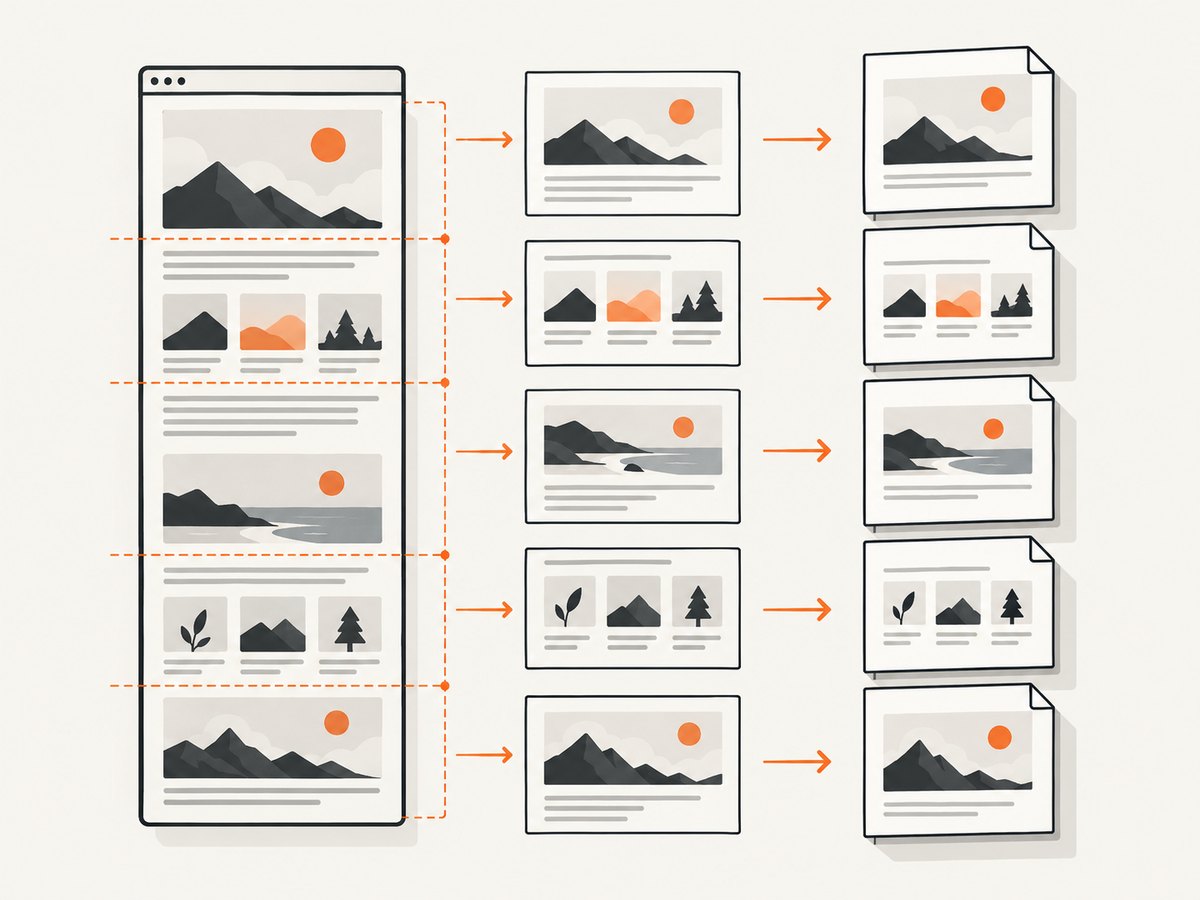
- Split long reports into smaller sections and create pages or PDFs per section.
- Reduce
scaleif the raster canvas is too large. Lower scale reduces pixel dimensions and memory demand, with a corresponding loss of sharpness. - Set
windowWidthandwindowHeightto the intended content dimensions when viewport sizing changes line wrapping or clipping. - Use page-break rules to control where content splits, and avoid one enormous unbroken element.
- Compare the canvas dimensions and content before handing it to jsPDF. If the canvas is already blank or clipped, changing PDF margins will not restore missing pixels.
await html2pdf()
  .set({
    html2canvas: {
      useCORS: true,
      scale: 1.5,
      windowWidth: document.querySelector('#report').scrollWidth,
      windowHeight: document.querySelector('#report').scrollHeight
    },
    pagebreak: { mode: ['css', 'legacy'] }
  })
  .from(document.querySelector('#report'))
  .save();
These values are starting points, not universal limits. Actual canvas constraints vary by browser and device. Measure the rendered dimensions and divide the document when captures approach a browser’s limits. For very large documents, consider a server-side document renderer that produces paginated output instead of one large raster canvas.
7. A practical debugging checklist
- Open DevTools. Check Console and Network for CORS errors, 404/403 responses, mixed content, and image-decoding failures.
- Try one small same-origin PNG. If it renders, the html2pdf pipeline works and the problem is likely specific to the original asset or its policy.
- Inspect response headers. For cross-origin images, verify the CORS response header. Enable
useCORSonly when the host authorizes the page, or move the asset through a controlled same-origin proxy. - Wait for image completion. Log
currentSrc,complete, andnaturalWidthfor images that fail. - Check lazy loading and clone state. Use
oncloneto replace lazy placeholders, remove animation, and expose hidden content for capture. - Simplify unsupported content. Replace background or SVG content with a simple image and isolate iframe content.
- Reduce the capture size. If the output is blank or truncated, split the page and lower scale.
- Locate the failing stage. Inspect the html2canvas result before PDF creation. A correct canvas with a wrong PDF points downstream to sizing, page breaks, or jsPDF configuration.
8. Options that matter for image rendering
| Option | Use it for | Important limit |
|---|---|---|
useCORS |
Attempting CORS image loads | The image server still must authorize the origin. |
proxy |
Loading through a compatible proxy | Use a controlled endpoint; it cannot bypass browser security without serving the image appropriately. |
allowTaint |
Allowing a tainted canvas in limited cases | Does not make pixel export safe or reliable. |
imageTimeout |
Allowing slow image requests more time | Default is 15 seconds; zero disables it. It cannot fix failed requests. |
onclone |
Capture-only DOM adjustments | Changes the cloned document, not the live page. |
scale |
Trading output sharpness for canvas size | Lower values reduce resolution; higher values increase memory use. |
windowWidth, windowHeight |
Controlling the viewport used for reconstruction | Choose dimensions that preserve the target’s intended layout. |
See the official configuration reference for the complete current option list. The browser version and available memory affect results, so validate representative document sizes on the browsers you support.
9. Reliability, performance, and cost considerations
Browser rendering keeps the source DOM local, but it depends on the user’s browser, memory, network access to each image, and browser security policy. A capture may vary with viewport size, fonts, device pixel ratio, and resource timing. Preloading assets, waiting for fonts and images, and using stable capture-only styles make repeated output more predictable.
Canvas output is rasterized. Increasing scale improves detail but multiplies pixel count and memory use; long documents can become expensive in both time and memory. Splitting a document reduces peak canvas size, though it requires handling page boundaries and assembling output. For a PDF where selectable text, accessibility, or exact pagination matters, an image-based DOM capture may be the wrong output strategy; choose a renderer designed to preserve document structure.
There is no universal cost figure for a DIY browser capture: the direct runtime cost depends on where it runs and how often it is invoked. A hosted rendering service adds a per-plan or usage cost, but can avoid maintaining browser capture code. Compare the specific service’s documented output, limits, and billing behavior before moving a workload.
10. Or skip the browser setup
If you need a clean screenshot of a web page rather than a PDF of your own DOM, ScreenshotNeo is a website screenshot API and MCP server from Yorker Media. Its one-call API returns PNG, JPEG, WebP, or PDF. The full API options are in the ScreenshotNeo documentation.
curl -G "https://api.screenshotneo.com/v1/shot" \
  -d access_key=YOUR_API_KEY \
  --data-urlencode url=https://stripe.com \
  -o shot.webp
import requests
r = requests.get(
"https://api.screenshotneo.com/v1/shot",
params={"access_key": "YOUR_API_KEY", "url": "https://stripe.com"},
timeout=90,
)
r.raise_for_status()
open("shot.webp", "wb").write(r.content)const q = new URLSearchParams({
access_key: 'YOUR_API_KEY',
url: 'https://stripe.com'
});
const res = await fetch(`https://api.screenshotneo.com/v1/shot?${q}`);
if (!res.ok) throw new Error(`Screenshot request failed: ${res.status}`);
const bytes = new Uint8Array(await res.arrayBuffer());
await (await import('node:fs/promises')).writeFile('shot.webp', bytes);ScreenshotNeo accepts cookie and consent banners before capture and removes more than 60 known consent platforms, newsletter popups, and chat widgets; each step can be turned off. Bot checks, CAPTCHAs, blank pages, timeouts, failed loads, and cache hits are not billed, and the response identifies page verdict and billing status in headers. Its MCP server gives AI agents tools for screenshots, page information, and PDF capture. The free plan includes 1,000 screenshots each month with no card; paid plans start at $5 for 3,000 shots. See the docs and sign up for 1,000 free screenshots a month, with no card.
11. Common errors and what to do
| Symptom | Likely cause | Fix |
|---|---|---|
| Image appears in page, absent in PDF | Cross-origin image lacks CORS approval | Use useCORS: true with server CORS headers, or proxy/self-host the asset. |
| “Tainted canvases may not be exported” or security exception | Canvas contains unapproved cross-origin pixels | Do not rely on allowTaint; ensure CORS approval or use same-origin content. |
| Only some images fail intermittently | Capture starts before load, or image request is slow | Wait for each image; check naturalWidth; adjust imageTimeout for slow resources. |
| Placeholder or stale image appears | Clone retained lazy-load source or hidden state | Set the real source in onclone and ensure the clone is visible. |
| Background or SVG disappears | Unsupported rendering feature or external SVG resource | Simplify it or use a same-origin ordinary image element. |
| Iframe content missing | Cross-origin frame is inaccessible | Render controlled content outside the frame or capture it separately. |
| Entire PDF blank or truncated | Canvas exceeds browser size/memory constraints | Split content, reduce scale, and set suitable viewport dimensions. |
12. Frequently asked questions
Does useCORS: true fix every remote image?
No. It requests a CORS-enabled load. The remote server must return a header permitting your page’s origin.
Can I export a cross-origin iframe with html2canvas?
Not by reading its contents from a page that lacks access. Browser same-origin protections prevent access to a cross-origin frame’s document.
Why does the PDF look blurry even though images render?
The output is rasterized at the canvas scale. Increase scale for detail if the canvas remains within memory and dimension limits, or use a document renderer that preserves text and vector content.
Will increasing imageTimeout fix a 403 or CORS failure?
No. It only gives a request more time before timeout. Fix the response, access policy, or URL for permanent request failures.
Why does a long page work on my machine but fail for another user?
Browser canvas limits and available memory vary. Reduce the capture size, lower scale, or split the document to make output less dependent on device resources.


