How to Fix Image Breaks in Puppeteer Screenshots and PDFs
Find out why images disappear or break in Puppeteer screenshots and PDFs, then use targeted checks and waits to fix the specific cause.
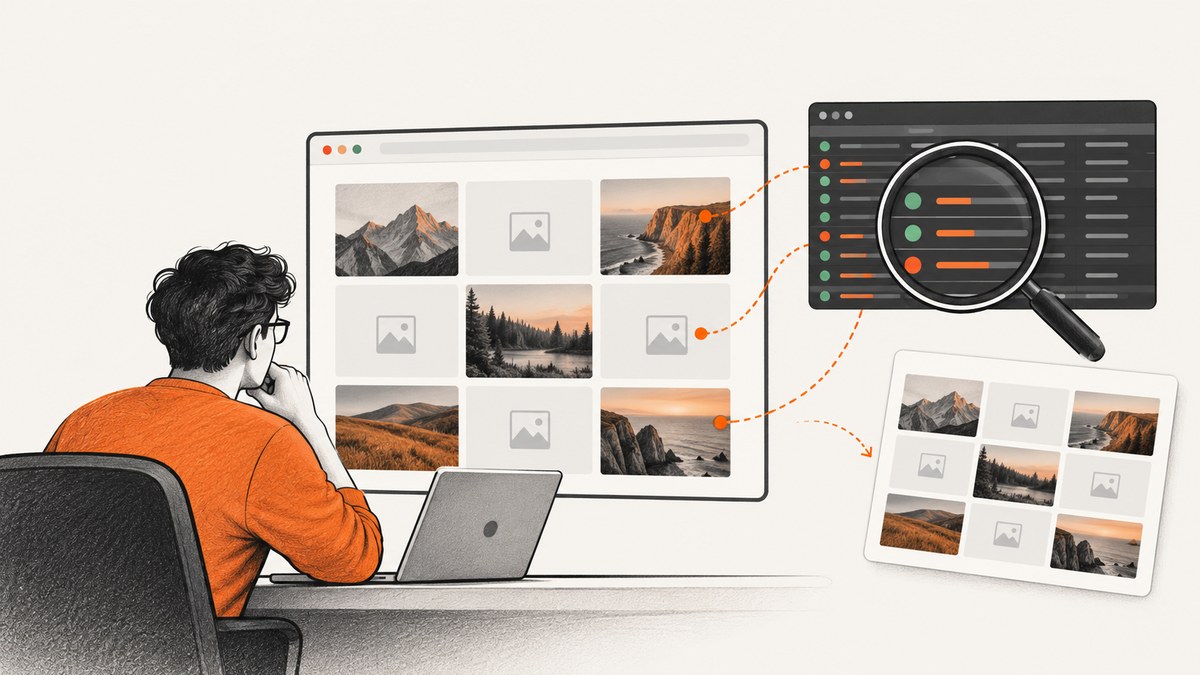
When an image is missing from a Puppeteer screenshot or PDF, first find out whether its request failed, the page had not finished rendering it, or the capture settings excluded it. Then wait for the particular content you need and check the output mode: screenshots capture the viewport by default, while PDFs use print styling by default. Network idleness alone does not prove an image loaded and decoded successfully.
This guide provides a runnable Node.js diagnostic pattern, separates common image failure causes, and covers screenshots and PDFs. For APIs that may change, check the documentation for the Puppeteer version installed in your project; the linked references currently describe versions 25.11.0 and 25.12.0.
1. Identify what kind of image is missing
Before changing waits or adding delays, classify the visual. An HTML <img>, a CSS background, a lazy-loaded image, and content outside the capture area fail in different ways. In particular, printBackground affects print background graphics; it cannot repair an unsuccessful <img> request.
| What you see | First thing to inspect | Likely fix |
|---|---|---|
| An image element is broken or empty | src, currentSrc, request status, and image dimensions |
Correct the URL or access issue; wait for the specific image and verify success |
| CSS decoration or background is absent in a PDF | Print styles and PDF background setting | Use screen media if appropriate, or enable printBackground |
| Images below the fold are absent | Viewport size, screenshot mode, and lazy-loading behavior | Capture full page, scroll relevant content into view, then wait for it |
| The page looks different in PDF | @media print rules and PDF media type |
Adjust print CSS or emulate screen media before PDF generation |
Use browser request and page error logs alongside DOM inspection. A failed image request suggests a source, authorization, network, or server problem. A successful request whose image is absent from the capture points more toward timing, CSS, media, or capture scope. Treat that distinction as a diagnostic aid and confirm it on the page in question.
2. Wait for the page and the images you need
Puppeteer’s screenshot guide shows navigating with waitUntil: 'networkidle2' and optionally waiting for a selector before capturing. Those are useful starting points, but neither says that every image has succeeded. Puppeteer’s screenshot guide documents Page.screenshot(), navigation waits, and element screenshots. The network-idle API resolves when the network is idle and waits at least the configured idle time; it does not declare a per-image success condition.
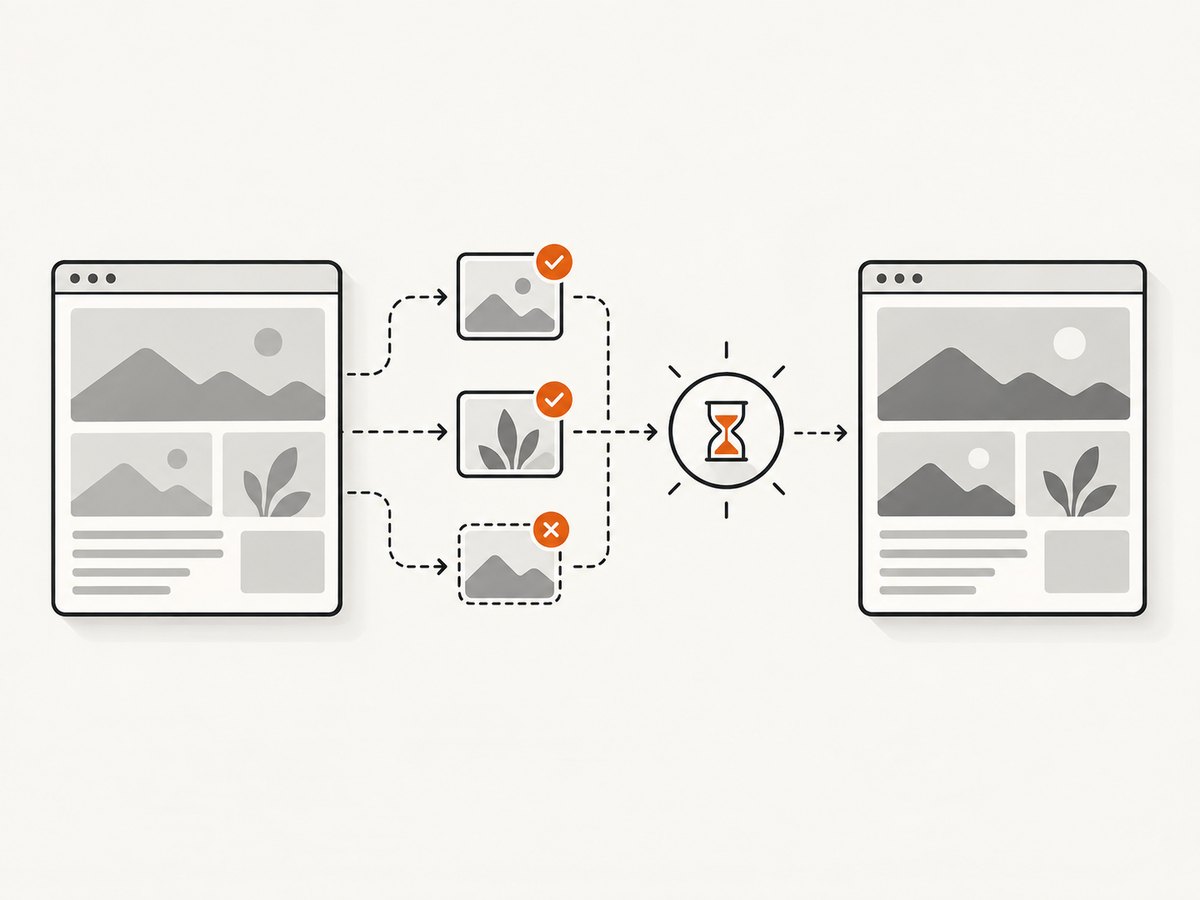
For an ordinary page, use navigation readiness plus an application-specific selector or state. Then inspect the images relevant to the capture: wait for each to finish loading and check that it has usable natural dimensions. Fail with a useful message if an image finishes broken instead of waiting indefinitely.
import puppeteer from 'puppeteer';

const url = process.argv[2] ?? 'https://example.com';
const browser = await puppeteer.launch({ headless: true });

try {
  const page = await browser.newPage();
  await page.setViewport({ width: 1440, height: 1000, deviceScaleFactor: 1 });

  page.on('requestfailed', request => {
    console.error('Request failed:', request.url(), request.failure()?.errorText);
  });
  page.on('response', response => {
    if (response.request().resourceType() === 'image' && !response.ok()) {
      console.error('Image response:', response.status(), response.url());
    }
  });
  page.on('pageerror', error => console.error('Page error:', error.message));

  await page.goto(url, { waitUntil: 'networkidle2', timeout: 60000 });
  await page.waitForSelector('main', { timeout: 15000 }).catch(() => {});

  // Include only images the output actually needs. For a page with many images,
  // narrow this selector to the hero, report, or target component.
  const imageReport = await page.evaluate(async () => {
    const images = [...document.images];
    await Promise.all(images.map(async img => {
      if (!img.complete) {
        await new Promise(resolve => {
          img.addEventListener('load', resolve, { once: true });
          img.addEventListener('error', resolve, { once: true });
          setTimeout(resolve, 10000);
        });
      }
      if (img.complete && img.naturalWidth > 0 && img.decode) {
        await img.decode().catch(() => {});
      }
    }));
    return images.map(img => ({
      src: img.currentSrc || img.src,
      complete: img.complete,
      naturalWidth: img.naturalWidth,
      naturalHeight: img.naturalHeight,
    }));
  });
  console.table(imageReport);
  const broken = imageReport.filter(img => !img.complete || img.naturalWidth === 0);
  if (broken.length) {
    throw new Error(`Capture has ${broken.length} image(s) that did not load`);
  }

  await page.screenshot({ path: 'page.png', fullPage: true });
} finally {
  await browser.close();
}
Save this as capture.mjs, install Puppeteer in the project with npm install puppeteer, and run node capture.mjs https://your-site.example. The script is intentionally strict: some pages contain optional tracking or recommendation images that can fail without affecting the capture. If so, narrow the image selection to the assets your output depends on instead of ignoring every error.
Lazy-loaded images and dynamic pages
Lazy-loading may defer an image until it nears the viewport. A full-page screenshot does not guarantee that the application has scrolled through the page and activated every lazy image. Scroll in increments through the content, allow the page to react, and then run the relevant-image check. For a single component, bring it into view and wait for its selector. Prefer a known app-ready signal—such as a report-complete marker—over a fixed delay.
Some applications continuously poll, stream, or keep connections open, so network-idle waits can be slow or unsuitable. Use a bounded timeout, wait for the specific element or state that matters, and separately verify the image. If the app has a stable “render complete” signal, use that instead of trying to infer readiness from all network activity.
3. Check URL context, access, and source data
Log the final image URL, not only the source text written in markup. A relative URL can resolve differently depending on the document’s base URL. This is especially relevant when you use page.setContent() to inject markup: it assigns content to the page, and its wait condition defaults to load; it does not automatically recreate the origin and routing context of a normal navigation. See the Puppeteer setContent() reference.
Check whether the image host requires authentication, a cookie, a referrer, or a signed URL that has expired. Confirm that the browser process can reach the host and that redirects end at an image response. If the HTML comes from a string, use absolute asset URLs or set an appropriate base URL, and explicitly wait for the content you expect.
A request can return successfully while still containing the wrong file, an HTML error page, or bytes the browser cannot decode as an image. Compare the response content and the element’s naturalWidth and naturalHeight. A nonzero natural width is a useful loaded-image check; it does not prove that the image is visually correct, so inspect a sample output when correctness matters.
4. Make screenshot scope and rendering settings explicit
Page.screenshot() captures the current viewport unless configured otherwise. The screenshot option fullPage defaults to false, so content farther down the document may simply be outside the output. Set fullPage: true for the whole page, or capture a selected element when only one region is needed. Check that the viewport and clipping rectangle include the image. See the ScreenshotOptions reference.
Device scale factor changes pixel density, not whether the source image loaded. Emulated viewport dimensions can also trigger responsive breakpoints that swap image sources through srcset or CSS. Inspect currentSrc at the same viewport and scale settings used for capture. For an element screenshot, wait for the element and ensure its ancestor is not hidden, clipped, or covered at capture time.
5. Fix PDF-specific image differences
Page.pdf() renders with print CSS by default. A rule inside @media print may hide an image, replace it, resize it, or change layout so it no longer appears where expected. Puppeteer’s Page API explains that you can call page.emulateMediaType('screen') before PDF generation when screen styling is the intended output.

await page.emulateMediaType('screen'); // Use only when the PDF should match screen CSS.
await page.pdf({
  path: 'page.pdf',
  printBackground: true,
  format: 'A4',
  margin: { top: '12mm', right: '12mm', bottom: '12mm', left: '12mm' },
});
Keep print media when you want a print layout; inspect and correct its CSS rather than switching modes blindly. printBackground is false by default and enables CSS background graphics. It is not a general image-loading switch. The PDFOptions reference also documents settings such as paper format, margins, orientation, page ranges, scale, and waitForFonts. PDF generation waits for fonts by default, but font readiness does not establish image readiness.
PDF and screenshot options that affect what appears
| Option or setting | What it changes | What it does not do |
|---|---|---|
fullPage on screenshot |
Captures beyond the current viewport | Does not force lazy images to load successfully |
printBackground: true |
Includes CSS print background graphics | Does not fix a failed <img> request |
emulateMediaType('screen') |
Uses screen media styles for the PDF | Does not guarantee screen and print layouts are otherwise identical |
waitForFonts |
Waits for fonts before PDF output; defaults to true | Does not wait for image decoding |
format, margins, scale, page ranges |
Changes PDF page layout and output area | Does not repair source URLs or image access |
6. Troubleshooting common failures
| Symptom | Cause to check | Fix |
|---|---|---|
| Screenshot has a blank image box | Failed request, invalid URL, or image not finished | Log failed requests and image response codes; inspect currentSrc, then wait for completion and verify natural dimensions |
| Only below-the-fold images are missing | Viewport-only capture or lazy loading | Use fullPage as needed; scroll relevant sections into view and recheck image completion |
| It works in a browser but fails in automation | Different cookies, headers, URL context, or network access | Compare final image URLs and browser request outcomes; provide required page context and credentials safely |
| PDF omits a background but screenshot has it | Print backgrounds disabled or a print stylesheet changes it | Enable printBackground for CSS backgrounds and inspect @media print; use screen media only if that is the desired PDF design |
| Navigation or idle wait times out | Long-running requests or a page that never becomes idle | Use a bounded navigation wait and a page-specific readiness condition; verify the assets separately |
naturalWidth remains zero |
Request failed, response is not a decodable image, or load has not completed | Inspect request logs, response status, redirects, and content; return an error for required assets |
| PDF crops or rearranges an image | Print layout, page size, margins, or overflow rules | Inspect print CSS and page dimensions; use appropriate format, margins, and page breaks |
7. Reliability, performance, and cost
For reliable capture, make readiness explicit and bounded. Waiting for every request can waste time on analytics, long polling, or optional assets. Waiting for only a selector can be too weak when the selector appears before its image loads. A practical compromise is an app-ready signal followed by checks for the finite set of required images. Log failed requests and fail the job when a required asset is missing, so a broken output does not silently enter a downstream workflow.
Image decoding checks, scrolling, and full-page capture add work. Limit checks to relevant images, avoid arbitrary long sleeps, and use a viewport or element capture when a full-page output is unnecessary. Larger captures and higher device scale factors produce more pixels and can take more memory and time. Reuse browser processes where appropriate in a service, while keeping pages isolated according to the job’s cookies and authentication needs.
Retry only failures that could plausibly be temporary, such as transient network errors. Do not turn a persistent 404, denied request, or invalid image into repeated captures. Puppeteer itself does not make a failed page asset succeed; the cost of a capture pipeline depends on where it runs and how it is operated. Record the URL, relevant options, failed requests, and final image checks for each job so recurring failures are diagnosable.
Or skip the browser setup
ScreenshotNeo is a website screenshot API and MCP server from Yorker Media. One GET request returns PNG, JPEG, WebP, or PDF. Its clean-shot flow accepts cookie and consent banners like a visitor and removes 60+ known consent platforms, newsletter popups, and chat widgets; each step can be turned off. Bot checks and CAPTCHAs, blank pages, timeouts, failed loads, and cache hits are not billed, and response headers report the page verdict and billing outcome.
See the ScreenshotNeo API docs. This call captures the supplied target URL:
curl -G "https://api.screenshotneo.com/v1/shot" -d access_key=YOUR_API_KEY --data-urlencode url=https://stripe.com -o shot.webpimport requests
r = requests.get("https://api.screenshotneo.com/v1/shot", params={"access_key": "YOUR_API_KEY", "url": "https://stripe.com"}, timeout=90)
open("shot.webp", "wb").write(r.content)const q = new URLSearchParams({ access_key: 'YOUR_API_KEY', url: 'https://stripe.com' });
const res = await fetch(`https://api.screenshotneo.com/v1/shot?${q}`);ScreenshotNeo also offers an MCP server with take_screenshot, get_page_info, and capture_pdf tools for Claude, Cursor, and other MCP clients. Every feature is on every plan: 1,000 screenshots a month free with no card; paid plans start at $5 for 3,000, with larger plans available. Sign up for 1,000 free screenshots a month, with no card.
Frequently asked questions
Does networkidle2 guarantee that all images loaded?
No. It is a network-activity readiness signal, not confirmation that every image request succeeded or decoded. Check the assets required by the output.
Should I always use fullPage: true?
No. Use it when the output must include content beyond the viewport. For a component or above-the-fold view, an element or viewport capture is more focused.
Why does my PDF differ from my screenshot?
PDF output uses print media by default, so print CSS and print layout can change visibility and placement. Decide whether you want print or screen styling, then configure and inspect that mode.
Will printBackground fix broken image tags?
No. It controls CSS background graphics in the PDF. Diagnose an <img> by checking its resolved URL, request, completion, and natural dimensions.
Why do relative image URLs fail after setContent()?
The injected markup may not have the same base URL or origin context as a navigated page. Inspect the resolved URL and use an explicit base or absolute asset URLs where needed.
Final checklist
- Identify whether the missing visual is an image element, CSS background, lazy image, or outside the capture region.
- Log failed requests and inspect the final image URL and response.
- Wait for the application state and verify required images completed with usable dimensions.
- For screenshots, check viewport, full-page, element, and responsive image settings.
- For PDFs, inspect print CSS and use
printBackgroundonly for CSS backgrounds; select screen media only when intended. - Keep waits bounded, make required asset failures visible, and review a sample output.


